
1. What a Work Order Is
1. What a Work Order Is
A Work Order in Xenia is a formal, tracked record of a maintenance or facilities issue that needs to be assigned and resolved. It lives in the Facilities tab (found in the top navigation on the web app, between Operations and other top-level tabs) and is managed separately from general operational tasks.
While tasks are the operational layer — daily checklists, opening procedures, one-off assignments — Work Orders are the facilities layer: the broken HVAC unit, the kitchen leak, the equipment needing repair, the preventive maintenance job that needs to be documented and tracked.
Work Orders carry the same core fields as tasks (title, description, assignee, location, due date, status, priority) but are specifically tagged as Work Order type and appear in the dedicated Facilities module rather than the general task board.
2. Work Order vs. Task — The Key Distinction
Both Work Orders and Tasks are tracked work items in Xenia. The distinction is operational vs. facilities:
| Task | Work Order | |
| Lives in | Tasks & Work Orders / home screen | Facilities tab |
| Created by | Any manager or admin | Facilities Manager, Admin, or via routing from a Work Request |
| Used for | Daily operations, checklists, one-off assignments | Maintenance repairs, equipment issues, facilities work |
| Reporting | Task completion dashboards | Work Order reporting by category, location, volume |
| Type tag | Task | Work Order |
A store associate completing their opening checklist is doing a Task. A maintenance technician responding to an HVAC failure is completing a Work Order. Same core mechanics, different operational context and reporting stream.
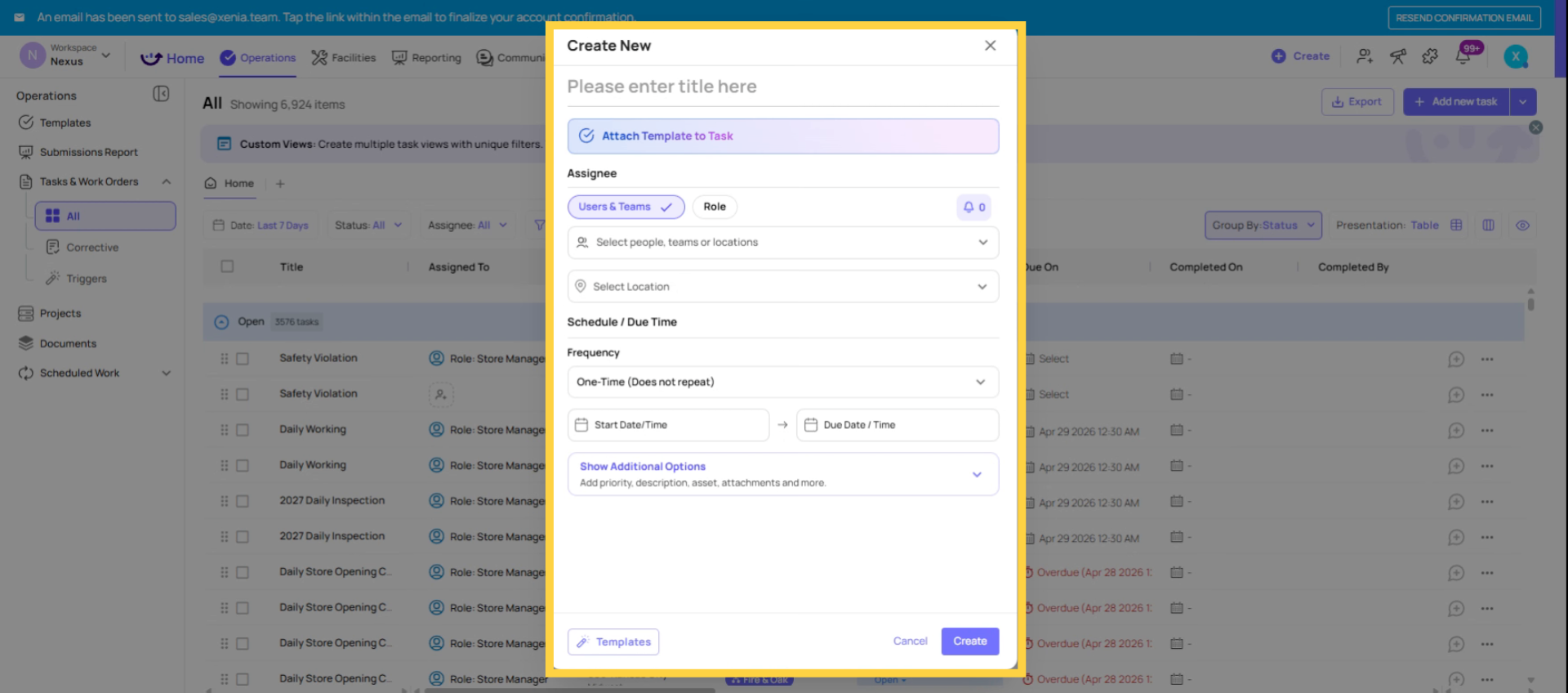
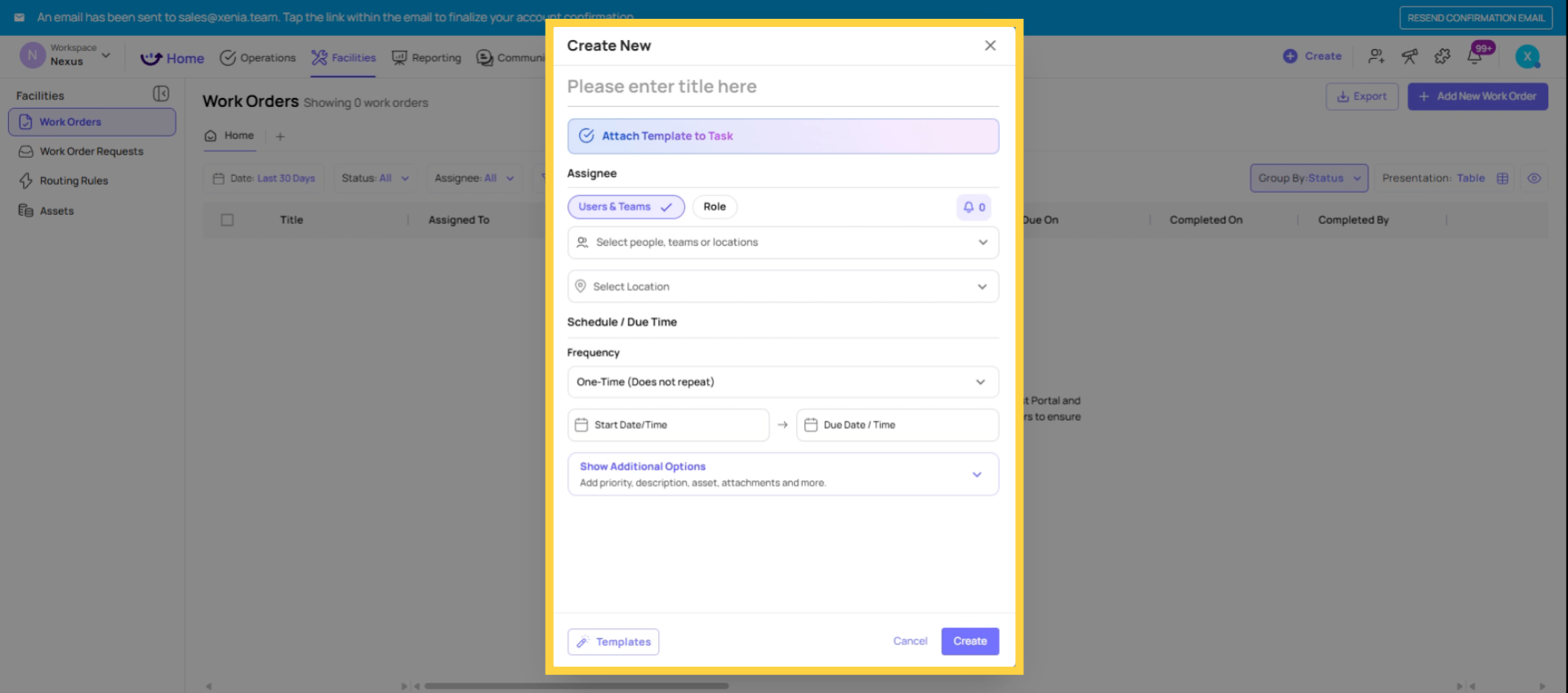
3. Work Order vs. Work Request — The Request-to-Order Lifecycle
A Work Request is what an employee submits when they notice an issue. A Work Order is what the facilities or maintenance team receives to act on it.
The lifecycle:
- Employee notices an issue — a kitchen leak, broken equipment, an HVAC problem
- They submit a Work Request — via the mobile app (+ button → Create Work Request), a QR code posted at the location, or a public link that doesn't require a Xenia account
- The request lands in the Requests inbox — a manager or facilities coordinator reviews it: Accept or Decline
- If accepted — the request converts to a Work Order, gets assigned to the maintenance team or specific technician, and moves into the Work Orders board with a status
- The assignee resolves the issue — updates status, adds comments, attaches photos of the completed repair
- Work Order is marked complete — the record is closed, timestamped, and archived
Alternatively, Work Orders can be created directly by an admin or manager without going through the Request flow — used when a facilities coordinator identifies an issue directly or when a checklist automation generates a Work Order via a workflow trigger.
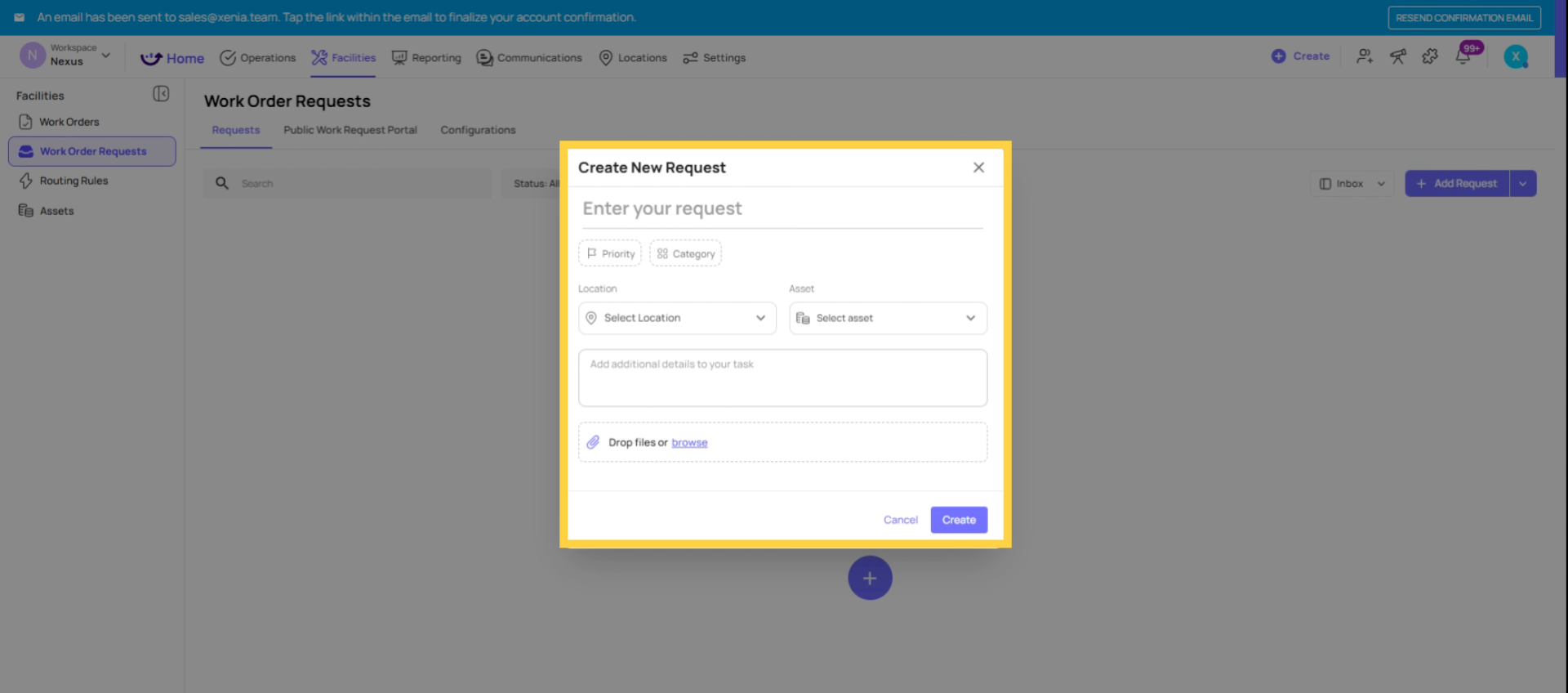
4. Where Work Orders Live
Web app: Facilities tab in the top navigation → Work Orders module. The Work Orders module is split into two sub-views:
- My Work Orders — only Work Orders assigned to the current user
- All Other Work Orders — all Work Orders at the user's accessible locations (based on permission level)
Mobile app: Work tab → dedicated Work Orders view (separate from the general Tasks view). On mobile, the Work Orders view shows only Work Order type items — not general tasks.
Also visible in: The All Tasks view still includes Work Orders, and Work Orders flow into Custom Reporting Dashboards. The Facilities tab is the primary management interface; the All Tasks view is the aggregate view.
What Routing Rules Do
Routing Rules (found in Facilities → Routing Rules) let you automate the Work Request → Work Order conversion based on defined criteria, so requests don't have to sit in an inbox waiting for manual review.
Example routing rule: If category = Critical AND location = any → auto-assign to Maintenance role, set priority to Critical, due in 1 hour, notify Facilities Manager.
When this rule is configured, a critical request submitted from any location is immediately converted to a Work Order and assigned to the Maintenance role — no human review step required. The request is addressed at the moment it's submitted.
Need Help?
Reach out to our Support Team at Support@xenia.team
Comments
0 comments
Please sign in to leave a comment.