
1. Why Export Audit Data
Audit submissions live in Xenia's reporting system and are fully accessible within the platform. But there are scenarios where you need the data outside of Xenia:
- Regulatory compliance files that require physical or archived records
- Sharing audit results with a party who doesn't have Xenia access (a franchisor, a health inspector, a property owner)
- Analyzing trends across hundreds of submissions in Excel
- Building records for legal protection or insurance purposes
- Scheduled reports delivered automatically to leadership every week or month
Xenia supports three distinct export types, each serving a different purpose.
2. Export Type 1 — Individual Checklist Report (PDF)
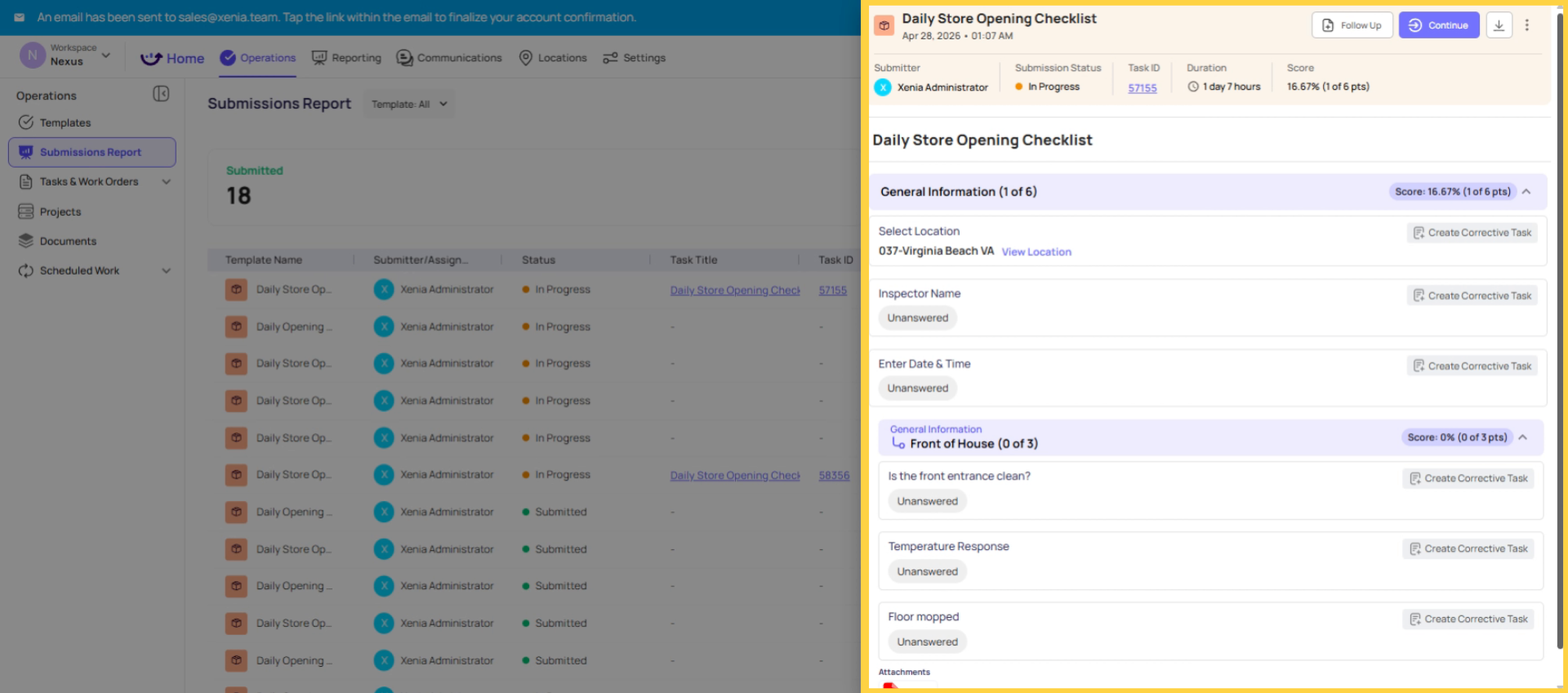
What it is: A detailed PDF summary of one specific checklist or audit submission — formatted and print-ready, including all responses, timestamps, photos, section scores (if scoring is enabled), the overall score and rating, and flagged items.
What it's good for:
- Sending a single audit report to a franchisor, health inspector, or property owner
- Attaching to a compliance file
- Proof of work — the timestamped record with photos proves when the audit happened and what was found
- Identifying backfilling — timestamps on each step reveal whether the audit was completed in real time or filled in retroactively
How to generate it:
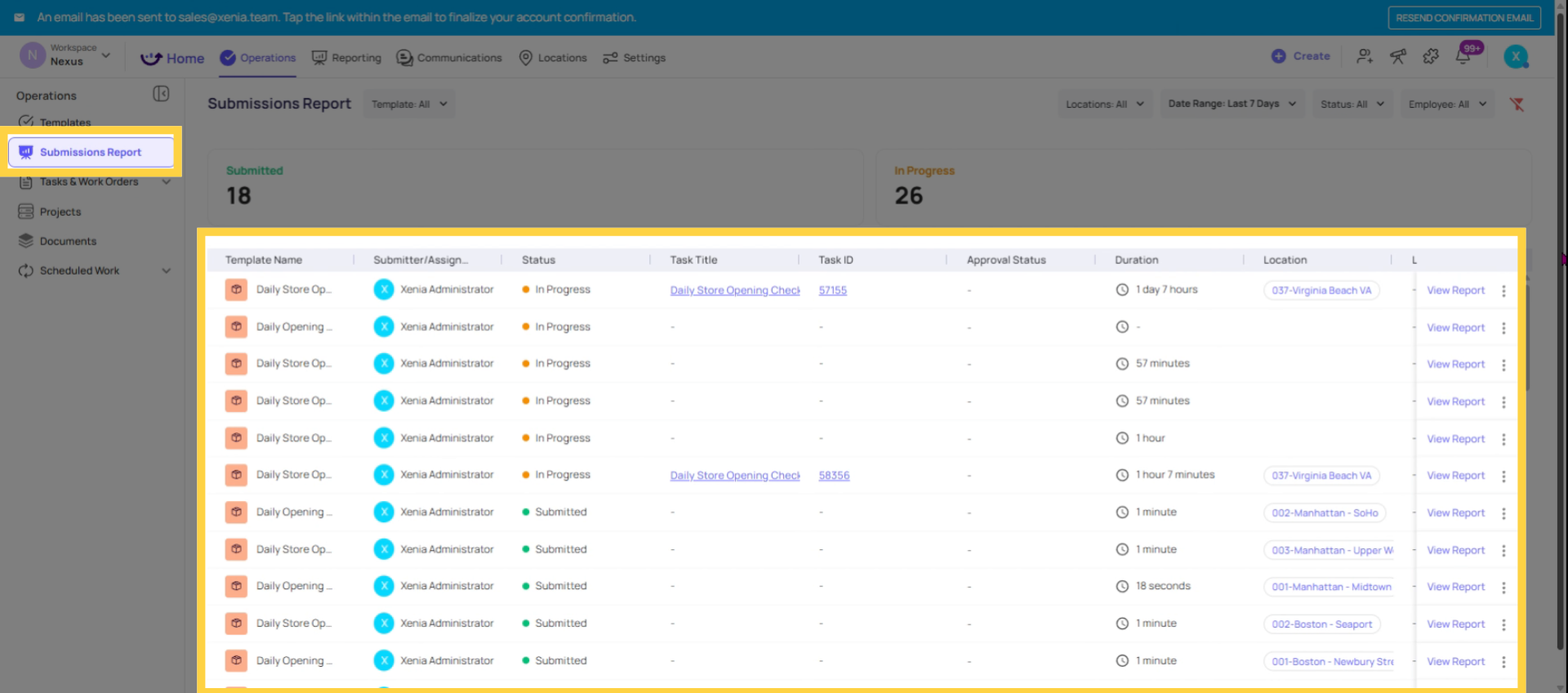
- Go to Operations → Templates → [Audit Template]
- Click into the Submissions view
- Find the submission you want to export
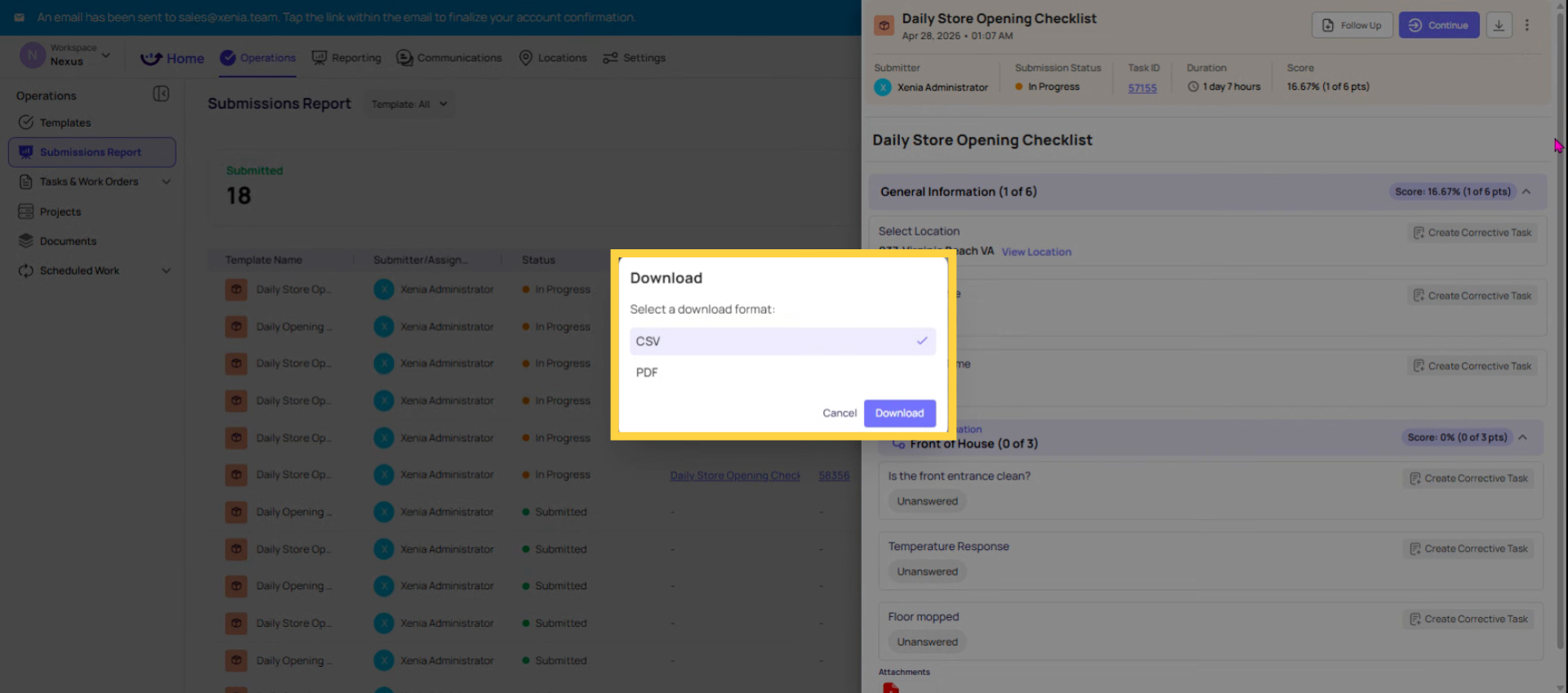
- Open the submission → look for Download or Export PDF
- The PDF generates immediately and downloads to your device
Also accessible from: The submission confirmation screen immediately after the audit is submitted. The auditor can download the PDF right there.
PDF size note: If the audit contained many high-resolution photos, the PDF may exceed ~25MB. In that case, a download link is provided in place of a direct file attachment. The full content is still accessible.
3. Export Type 2 — Checklist Response Log (Excel/CSV)
What it is: A flat Excel or CSV file containing every response to every completed submission for a given template, across all locations, within a selected date range. One row per submission, one column per step.
What it's good for:
- Analyzing temperature log data across all locations over a month — every reading, every step, in a spreadsheet
- Looking at survey responses in aggregate
- Importing audit response data into an external analytics tool or compliance database
- Finding patterns in log data (which locations consistently log out-of-range temperatures, which steps fail most often) that would take many individual report clicks to discover manually
How to generate it:
- Go to Operations → Templates → [Audit Template]
- Find the Export or Download option — look for an export button in the submissions view or at the template level
- Select Checklist Response Log (or equivalent export option)
- Set the date range and any location filters
- The file downloads as Excel/CSV
When to use this over the PDF: Use the PDF for a single submission that needs to be read or shared as a formatted document. Use the Response Log when you need to work with the data in bulk — sorting, filtering, pivoting across many submissions.
4. Export Type 3 — Task and Work Order Board Report (PDF or CSV)
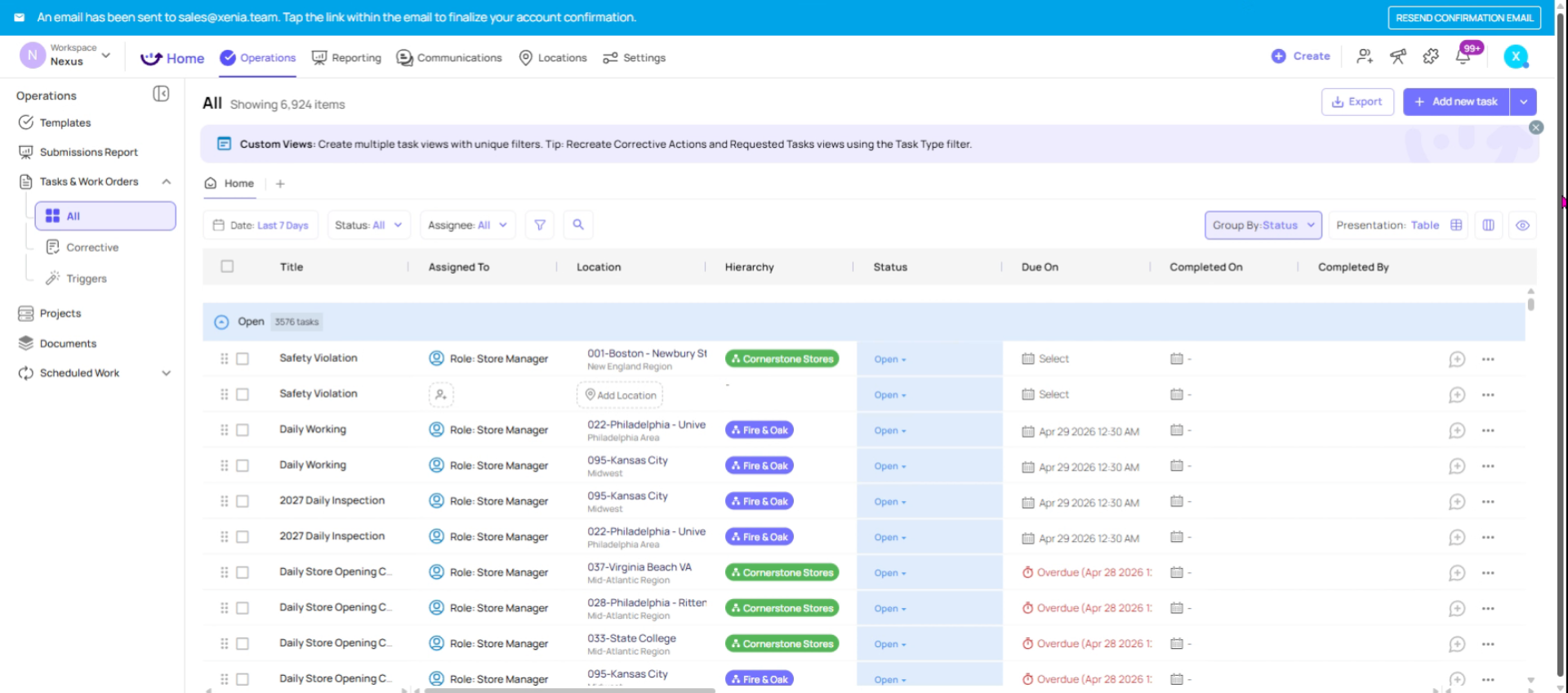
What it is: A customizable report of your Tasks and Work Orders board — all the corrective tasks generated from audit workflows, filterable by date range, location, category, status, and assignee.
What it's good for:
- Seeing all corrective actions generated from audit failures over a specific time period
- Reporting on how many audit-triggered maintenance issues were resolved vs. still open
- Work completed by a specific team in a specific time window
- Sharing with a property owner or facilities director the volume and resolution rate of maintenance issues
How to generate it:
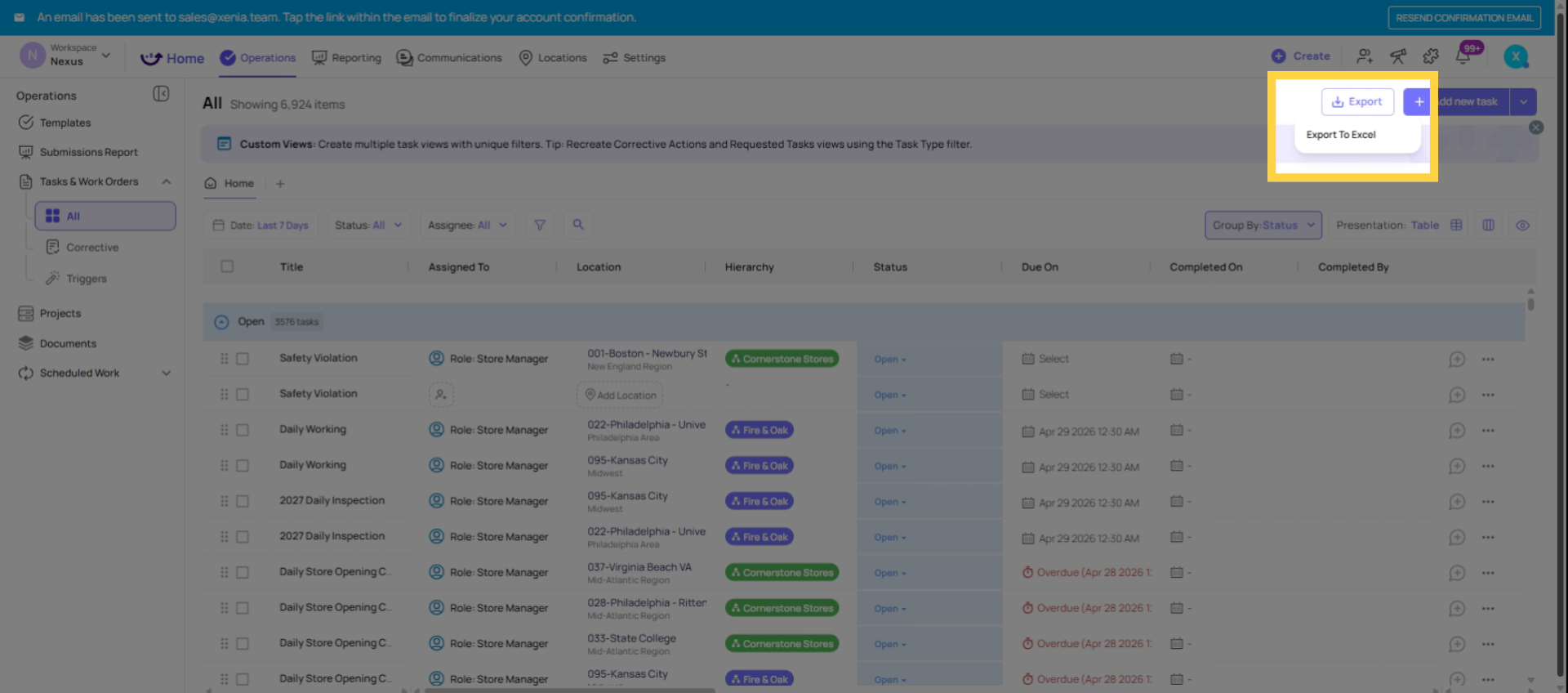
- Go to Tasks & Work Orders
- Apply your filters — date range, category (Audit Corrective Action), location, status
- Find the Export or Download option
- Select format: PDF or CSV
- Download
5. Scheduled Reports (Report Automation)
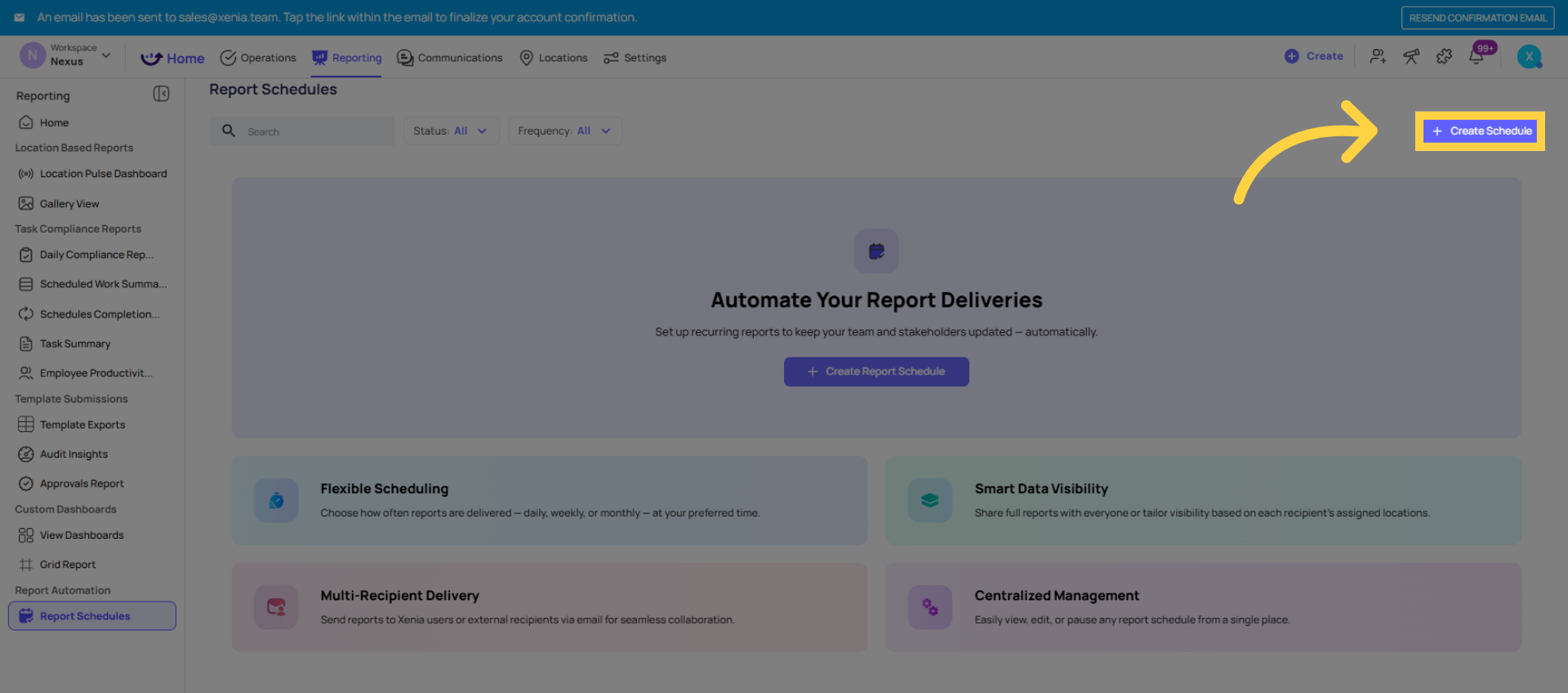
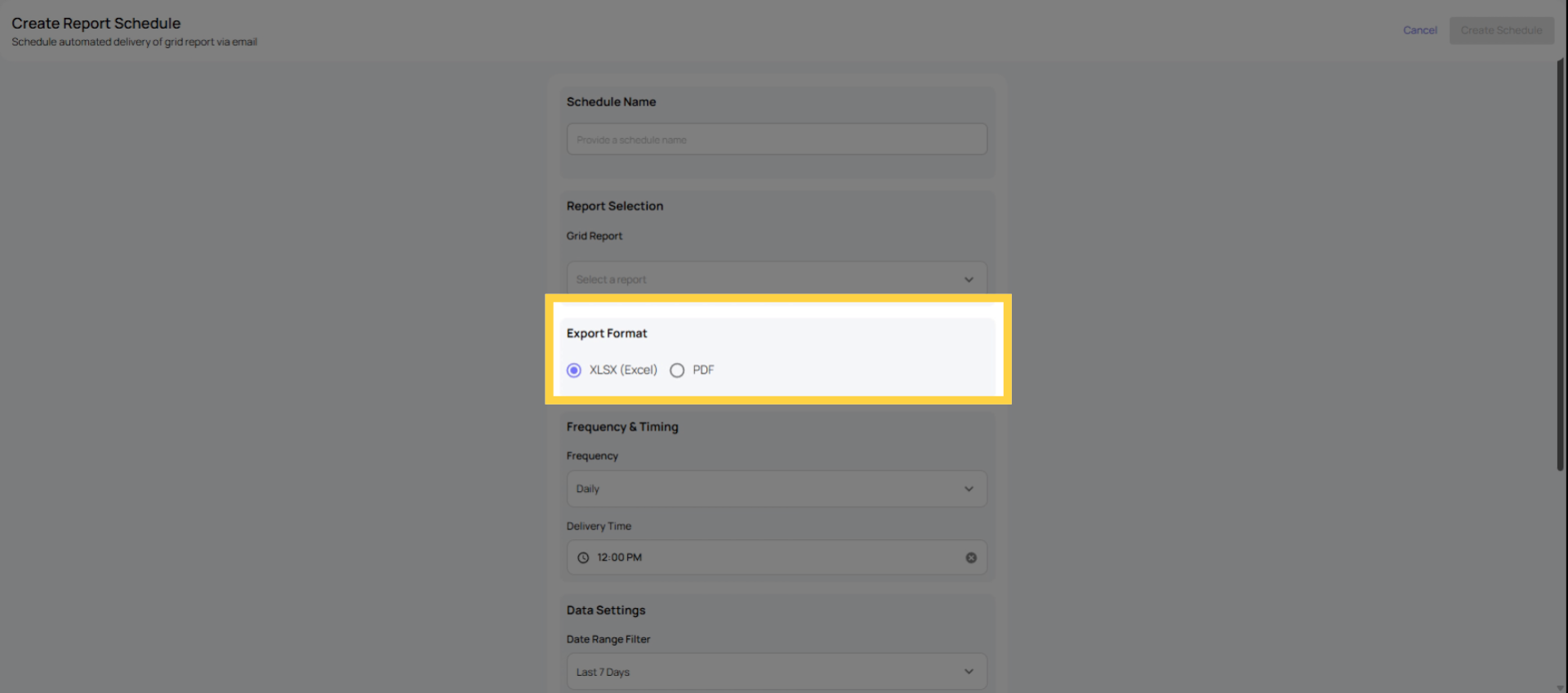
For recurring export needs — weekly audit summaries emailed to area managers, monthly response logs delivered to compliance teams — Xenia's Report Automation feature lets you schedule automatic delivery.
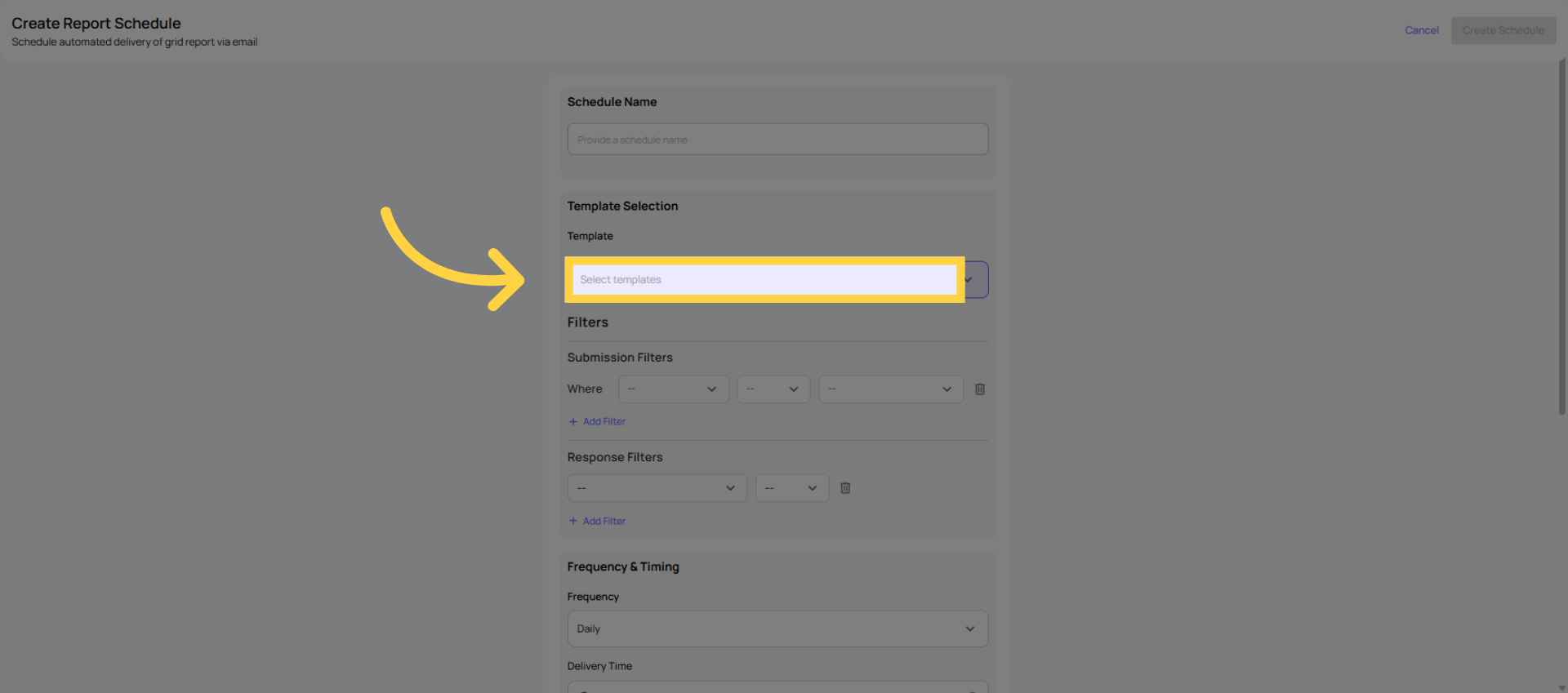
Where to configure: Reporting → Report Automation (or Reports → Create Schedule)
Options:
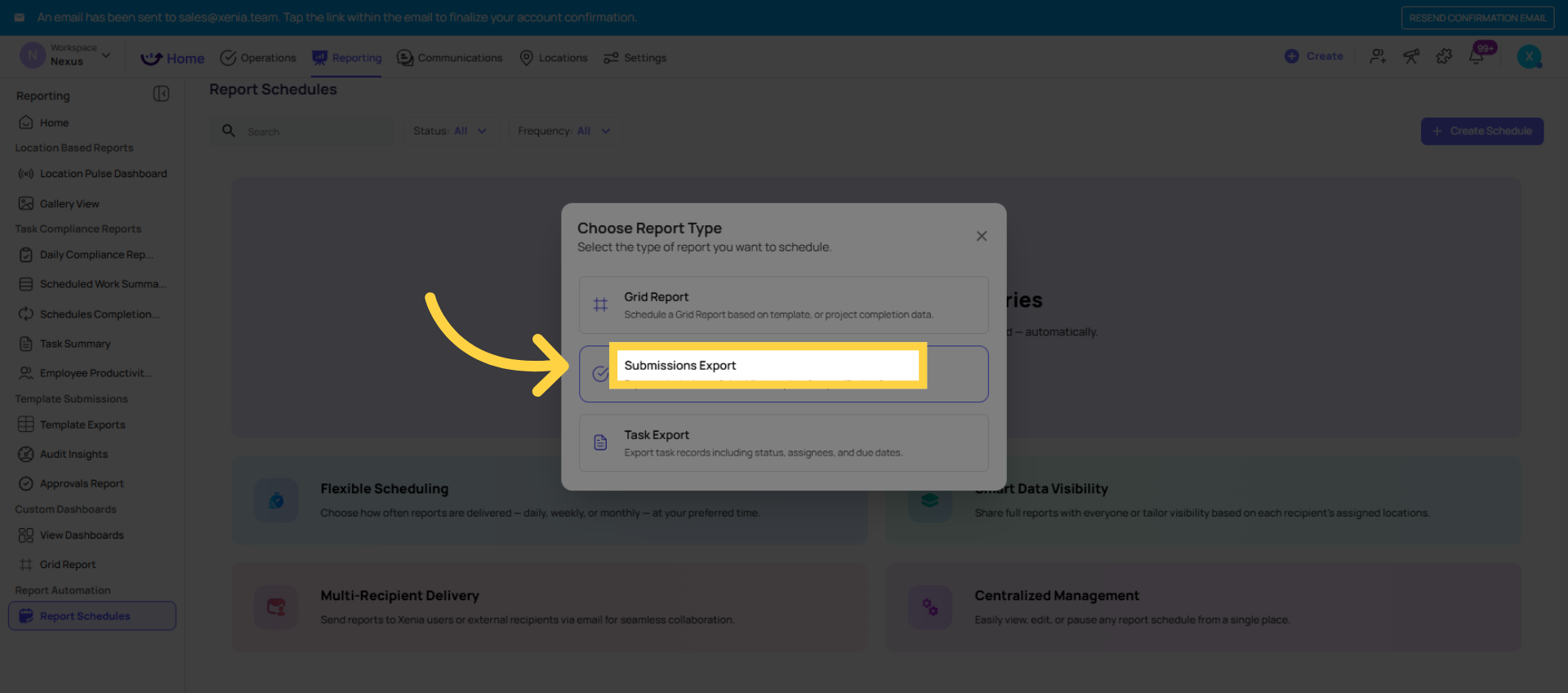
- Report type: Grid Report (Excel/CSV), Task Export, Submissions Export
- Frequency: Daily, Weekly (with specific day selection), Monthly (with specific day of month)
- Recipients: Specific users, roles, or email addresses
- Data visibility: Full visibility (all recipients get the same data) or Location-based visibility (each recipient receives only the data for their location memberships — a District Manager receives their district's data; a Regional Manager receives their region's)
Location-based visibility is the critical feature for multi-location operations. When scheduled with location-based visibility, Xenia generates a personalized report for each recipient filtered to their location permissions at the time of generation. A DM covering 5 stores gets those 5 stores' data. An RM covering 3 districts gets all 3 districts. No one sees data outside their access scope.
Need Help?
Reach out to our Support Team at Support@xenia.team
Comments
0 comments
Please sign in to leave a comment.