
1. Understand Template Duplication
2. What Gets Copied
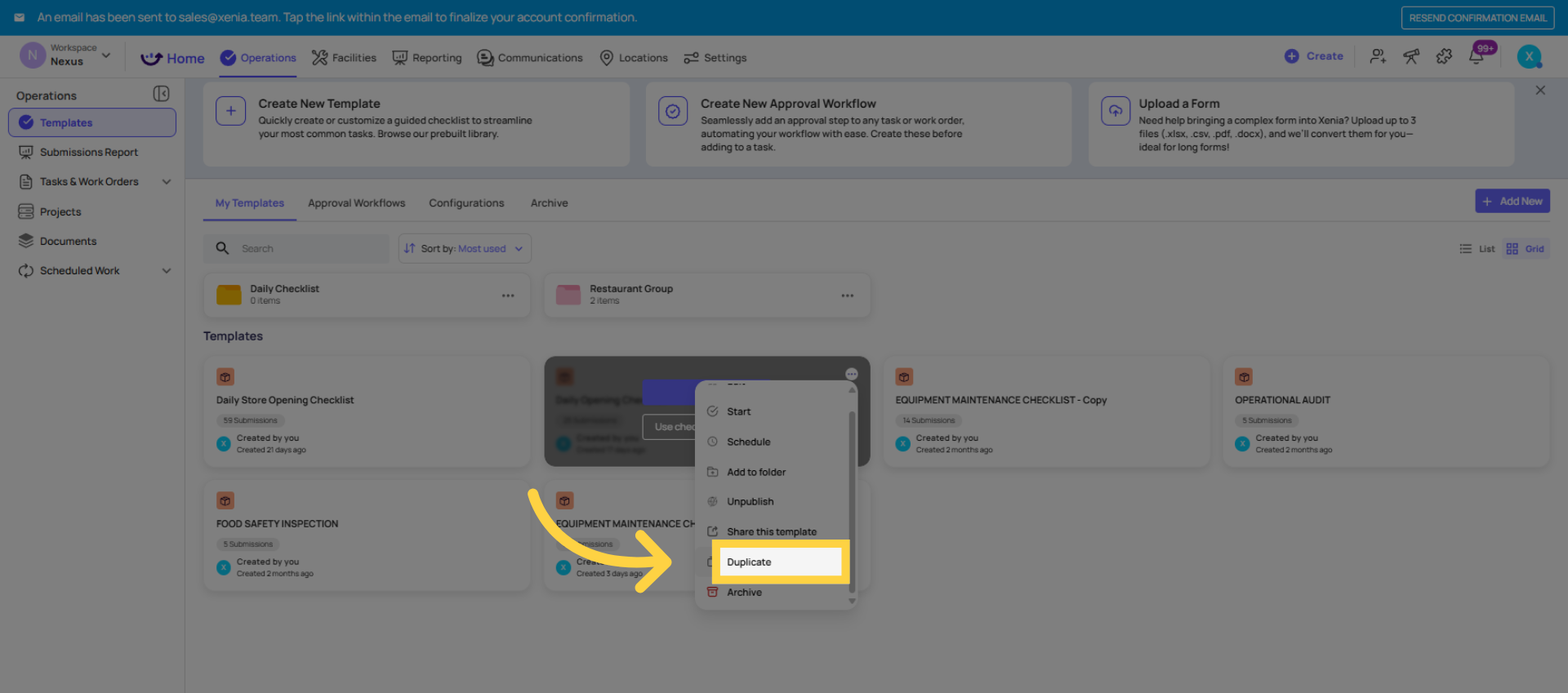
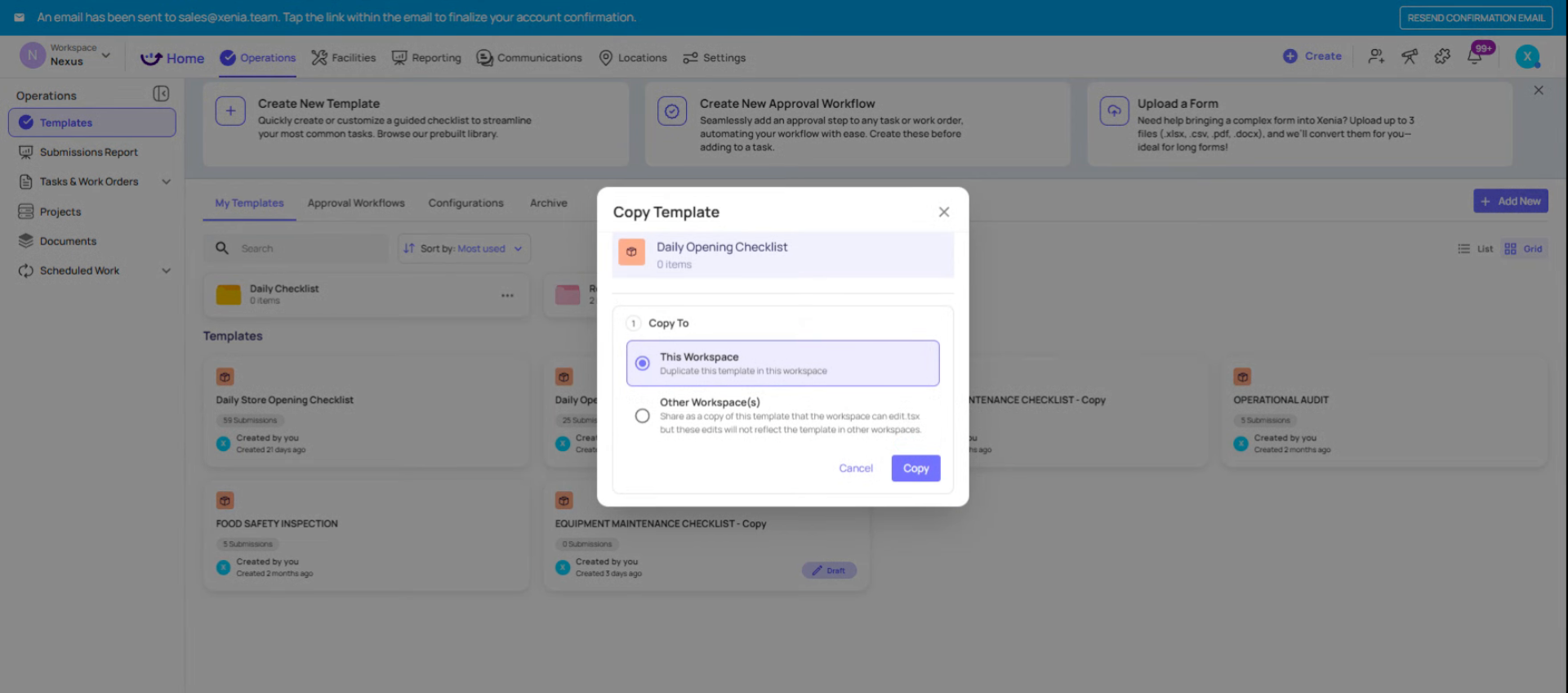
When you duplicate a template using the three-dot menu → Duplicate, the copy includes:
- All steps, sections, and step types (the full checklist structure)
- All conditional logic configured inside individual steps (inline automations)
- All workflows configured in the Workflows tab
- All template settings (access controls, submission mode, email notifications, scoring if enabled)
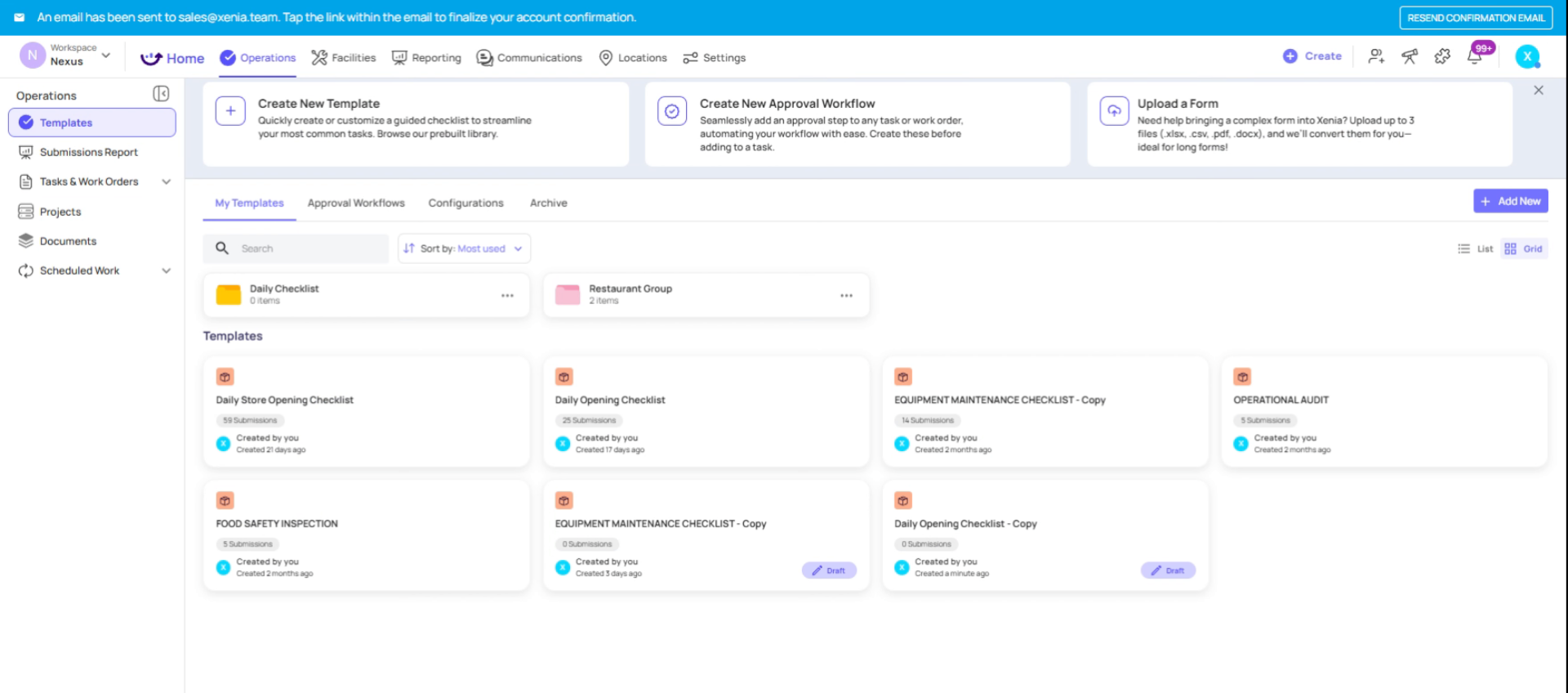
The duplicate starts as a complete, independent copy. Changes to the duplicate do not affect the original, and changes to the original do not affect the duplicate.
3. What to Verify on the Duplicate Before Going Live
Because workflows are copied with all their original configuration, the duplicate's workflows may reference assignee roles, notification recipients, and routing logic that was correct for the original template's context — but may need adjusting for the duplicate's intended use.
Check these on every duplicated template's workflows:
1. Task assignee: Is the assignee role still correct for how this copy will be used? If you're duplicating a Vendor Issue form to create a region-specific version, the routing role may need to change.
2. Notification recipients: Are the external email addresses and internal role recipients still correct? If the original sent notifications to a specific vendor contact and the duplicate is for a different vendor category, update the recipients.
3. Trigger conditions: Are the trigger conditions still relevant? If you duplicated a template to create a variation for a different location type or a different use case, the conditions that fire the workflow may need adjustment.
4. Use Submission Location: Confirm it's still enabled on each corrective task configuration in the duplicated workflows. Duplication preserves this setting, but it's worth a quick confirmation.
5. Template name on the workflow: Rename the workflow rules in the Workflows tab to reflect the new template's purpose. Workflow names from the original are copied verbatim — "Solar Array Issue → Electrical Team" on a copy named "Northwest Region Vendor Issues" may be accurate or may need updating.
4. When Duplication Is the Right Move
Duplicating a template and modifying the copy is the correct approach when:
- You want a region-specific or concept-specific version of an existing workflow setup
- You're testing changes to a live template (duplicate it, test on the copy, replace when ready)
- You need a similar but slightly different form for a different department or process
The alternative — building a new template from scratch and rebuilding all the workflows — is unnecessary when duplication gives you a reliable starting point.
5. When to Build Fresh Instead
Need Help?
Reach out to our Support Team at Support@xenia.team
Comments
0 comments
Please sign in to leave a comment.