
1. What Audit Insights Is
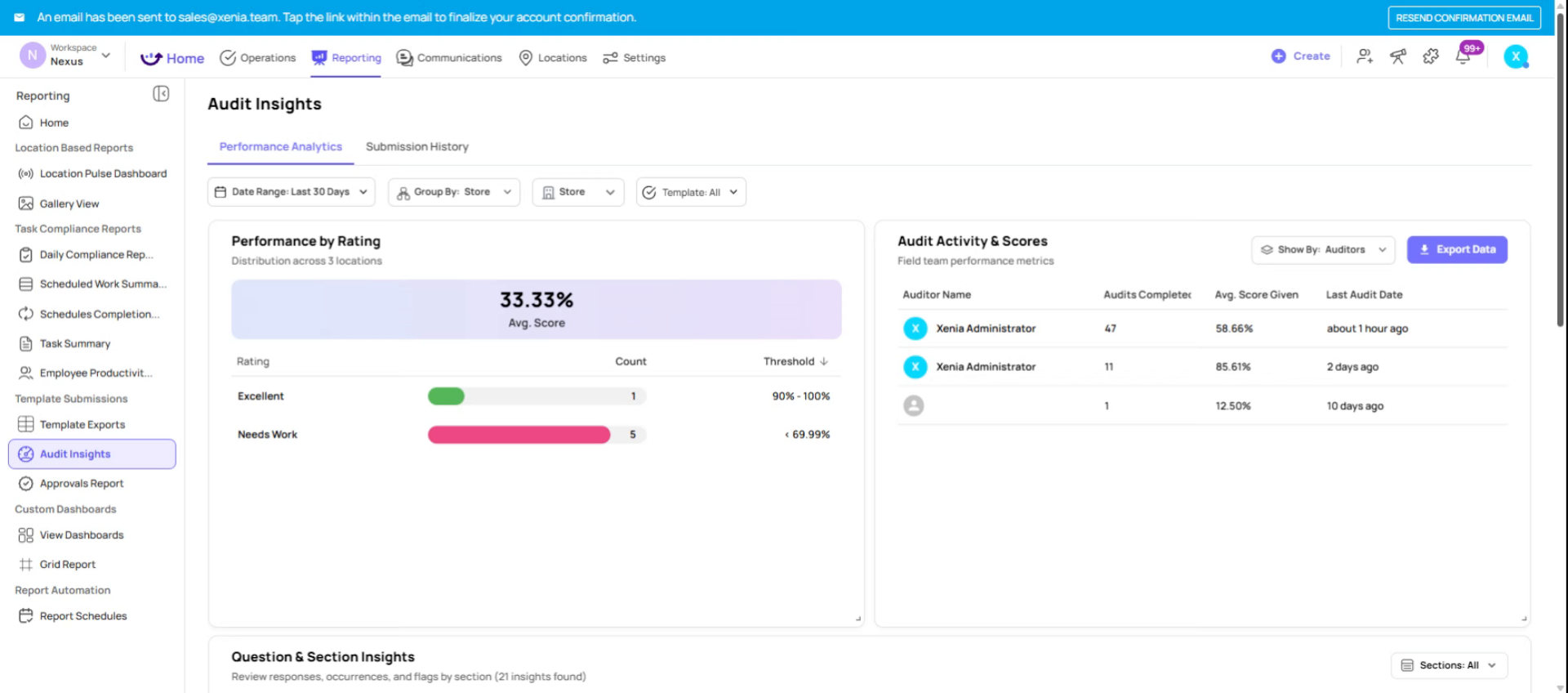
Audit Insights is Xenia's pre-built reporting view specifically for scored audit templates. It aggregates all submissions from your audit template across all locations and surfaces the data in a structured, multi-view format — without requiring any custom dashboard configuration.
Think of it as the out-of-the-box analytics layer for your audits. You get section-level scoring trends, location comparisons, flagged item summaries, and submission-level drill-down — all available immediately after your first few audits are submitted.
Where to find it: Reporting tab → Audit Insights (or it may appear under the template itself depending on your navigation configuration). If you don't see it, confirm with your admin that the Audit Insights permission is enabled for your role.
2. What Audit Insights Shows
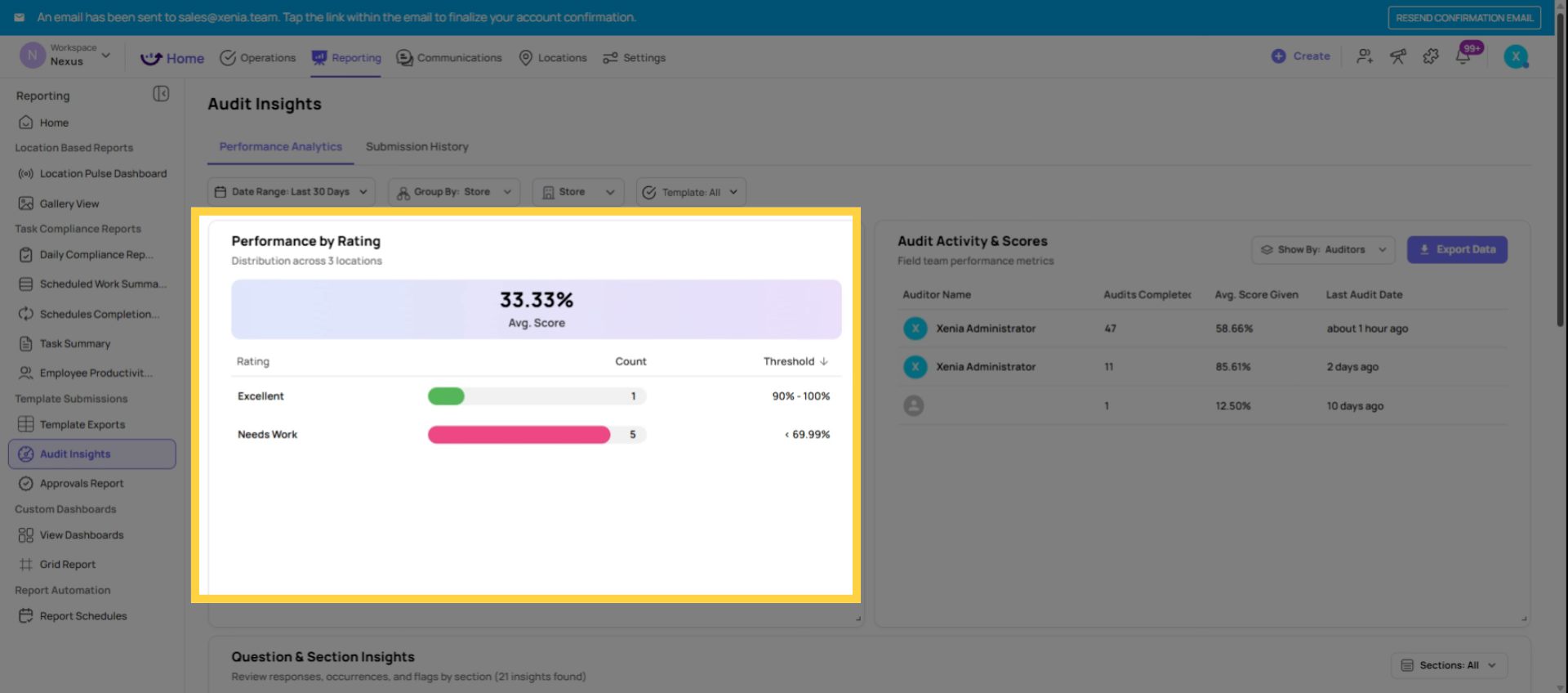
Overall Score Summary: A portfolio view of average audit scores across all your locations for the selected time period. This is the "company health score" view — which stores are performing above threshold (Platinum, Gold) and which are below (Silver, Red). Scores are displayed as a bar chart or table sortable by location, by score, or by rating.
Section-Level Scoring: This is where Audit Insights goes deeper than a single score. You can see the average score broken down by each parent section of the audit — Food Safety, Guest Experience, Operations, Safety — across all locations, for the selected date range.
A district manager reviewing section scores across 10 locations immediately sees that "Exterior Signage and Awnings" is consistently at 65–70% while everything else is above 85%. That's a systemic issue at the section level — actionable before it becomes a brand standards problem.
This view is at the section level, not the individual question level. It gives you the pattern before you need to drill into individual submissions.
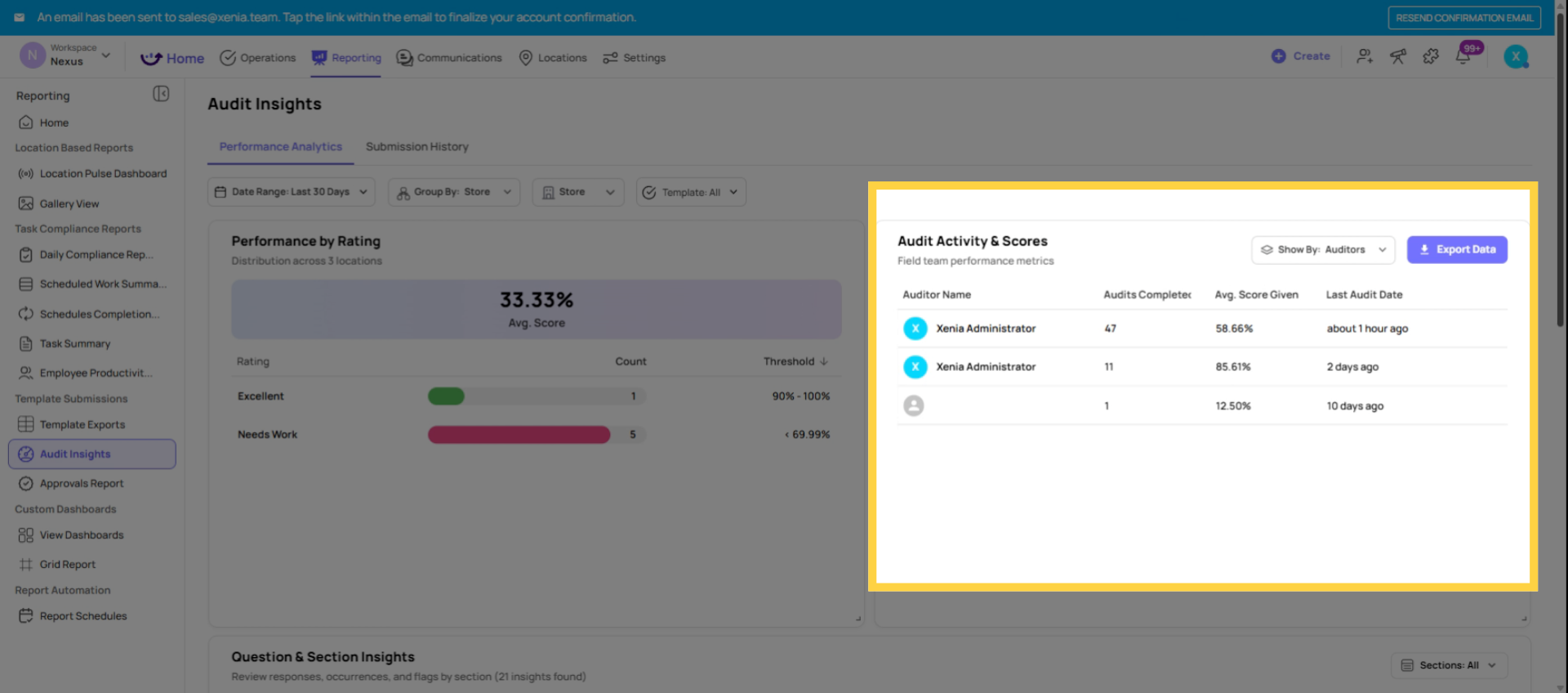
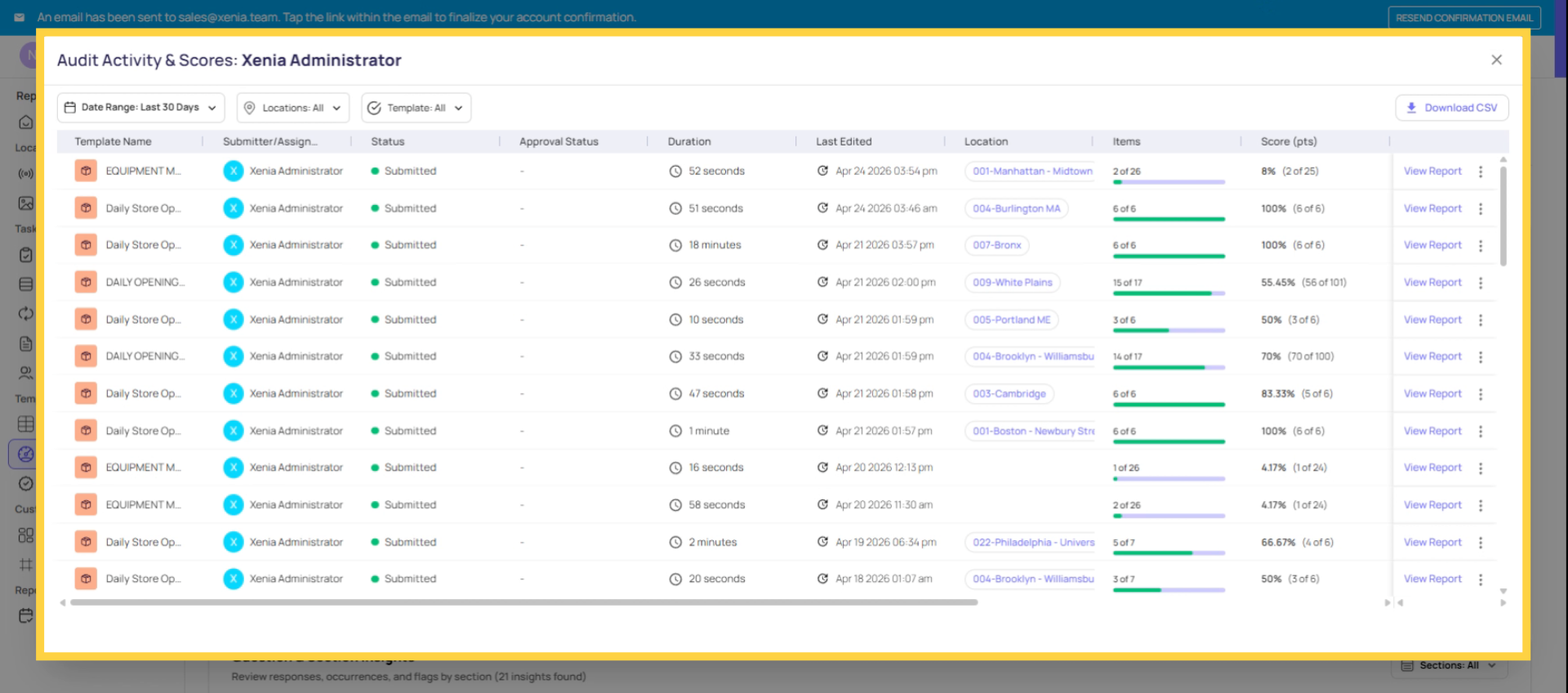
Submission List: A chronological list of all audit submissions for the template. Each row shows the location, auditor, date, overall score, and rating. Click into any row to open the full submission report — score breakdown by section, all step responses, photos, and flagged items.
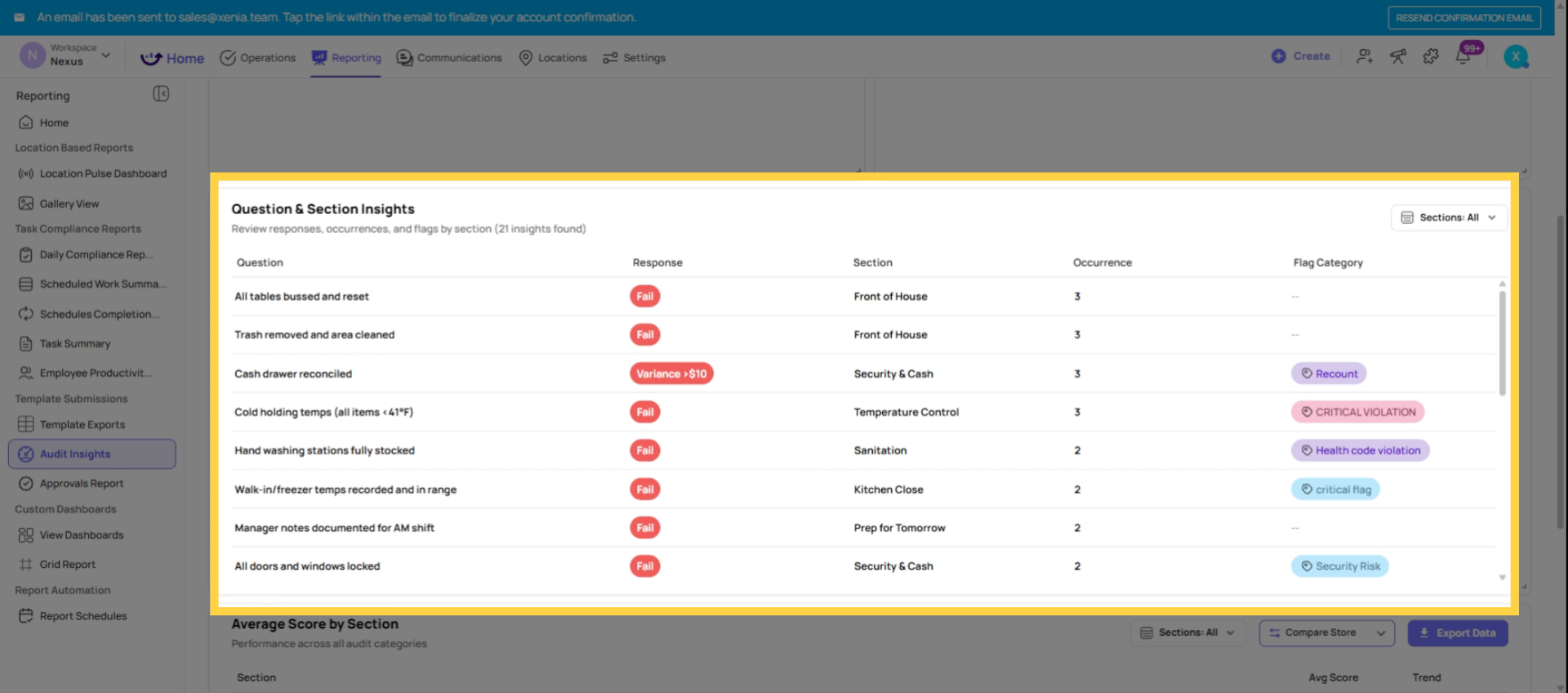
Flagged Items Summary: All flagged responses from every audit submission, organized by flagged category (Safety, Maintenance, Cleanliness, Food Safety, etc.). This view shows how many times each category has been flagged across all submissions in the selected period — which types of issues are appearing most frequently across your operation.
Clicking into any flagged item opens the specific question response that triggered it, with the auditor's photo and comment if they were required. You can see exactly what was found without opening the full submission.
3. Filtering Audit Insights
Date range: Select the time period for all data displayed. Last 30 days for monthly audit reviews. Last 90 days for quarterly trend analysis. Custom range for a specific inspection period.
Location: Filter to a specific store, a group of stores, or a regional subset. Useful for DMs reviewing only their district vs. an admin reviewing the full organization.
Template: If you have multiple audit templates (monthly inspection, quarterly compliance audit, weekly walkthrough), filter Audit Insights to one specific template to avoid mixing data across audit types.
4. Audit Insights vs. Custom Dashboards
Audit Insights is out of the box — no configuration required. It shows your audit data in a structured, standard format that covers most review needs.
Custom Dashboards give you control over what's displayed, how it's visualized (bar graph vs. line chart vs. pie chart), what filters are pre-applied, and who sees it. When you want to share a specific view with Area Managers that only shows their district's data with a particular chart format — that's a custom dashboard. When you want to quickly review audit performance without building anything — that's Audit Insights.
Use Audit Insights to understand your data. Build custom dashboards to share a curated view with your team.
Need Help?
Reach out to our Support Team at Support@xenia.team
Comments
0 comments
Please sign in to leave a comment.