
1. Why This Matters for Audits
In a scored audit, a failing step is the most important data point in the submission. It's what drives the score down, triggers corrective tasks, and gets reviewed by leadership. If the auditor can just mark something as failed and move on without documentation, the submission tells you something is wrong but not what, where, how bad, or what was done about it.
Requiring a photo and a comment on every failing step ensures that the audit record is complete — anyone reviewing the submission later has everything they need to understand the issue and verify the corrective action.
2. Requiring a Photo on a Failing Response
Method 1 — Conditional Logic inside the step:
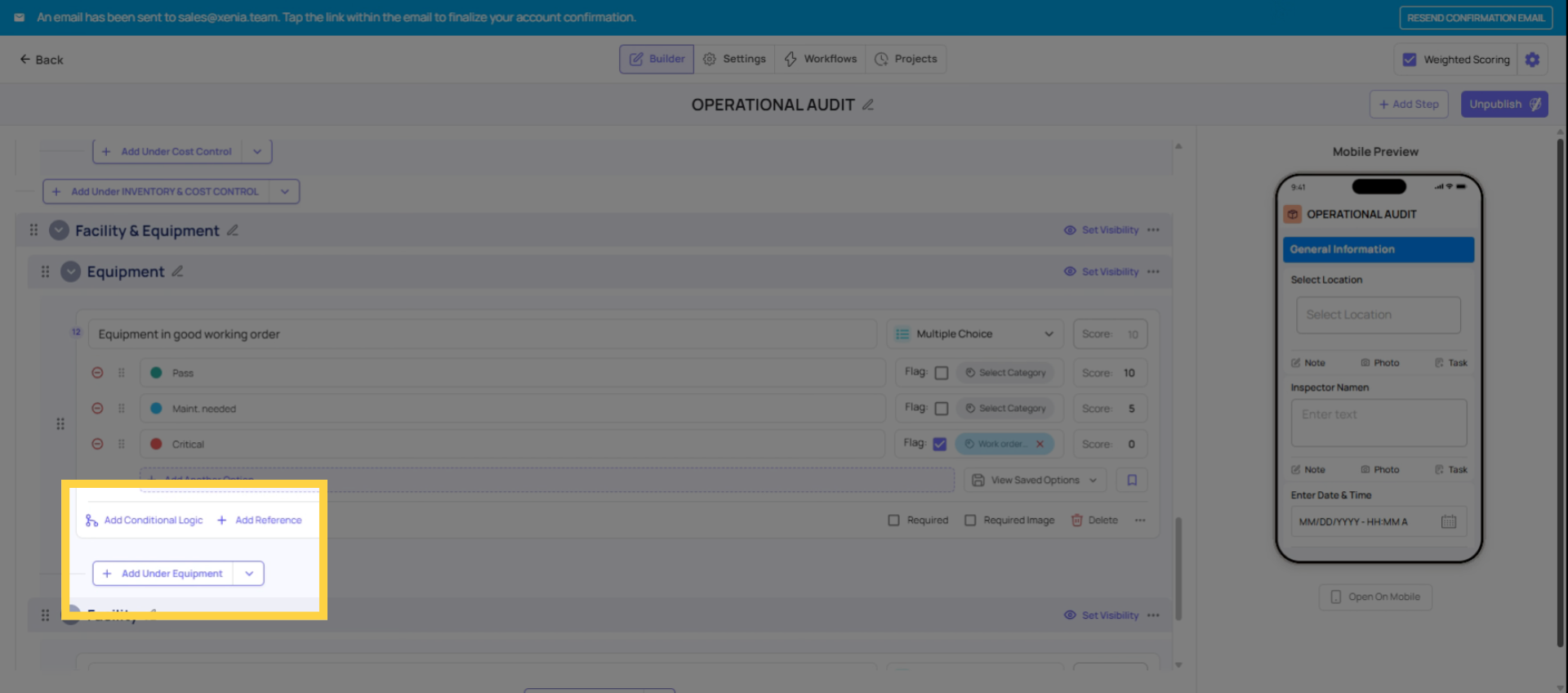
- Open the template → Build tab → click into the step
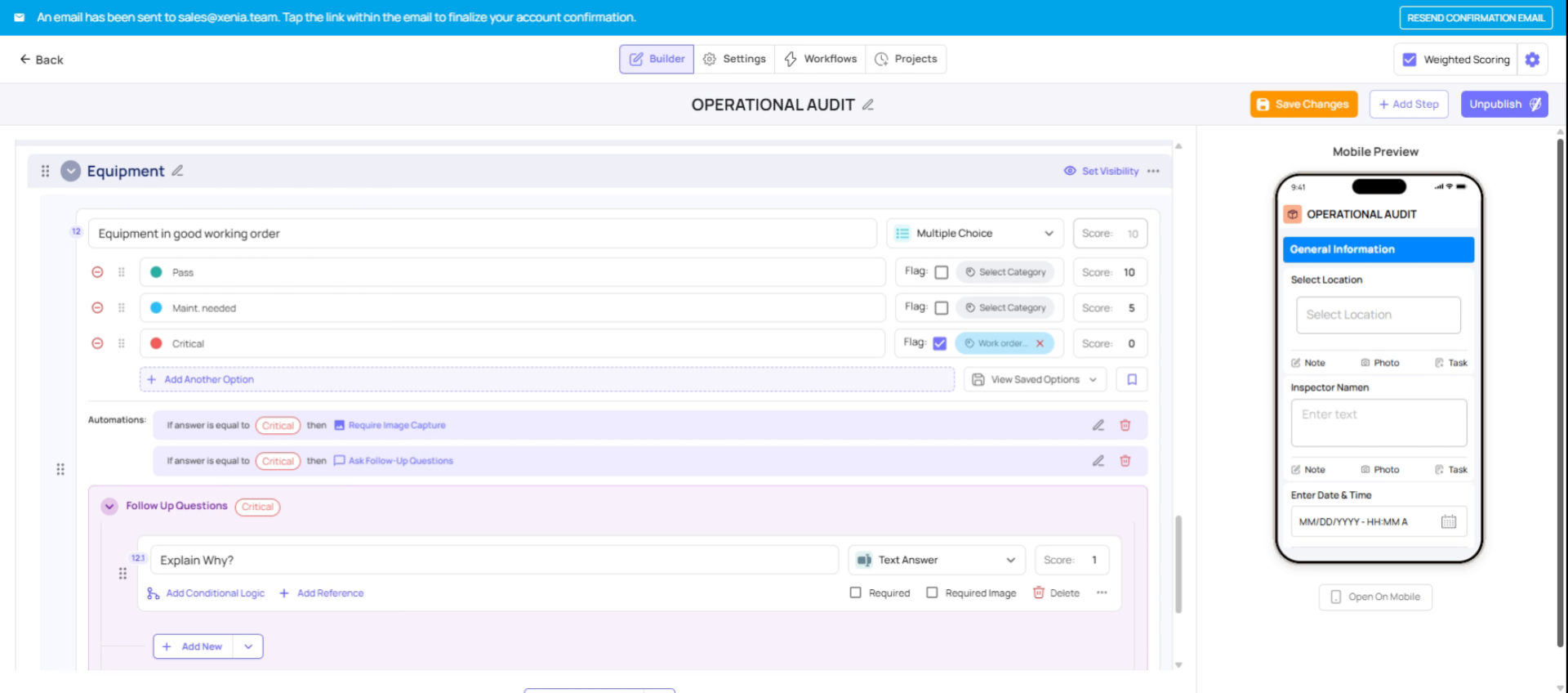
- Click Add Conditional Logic
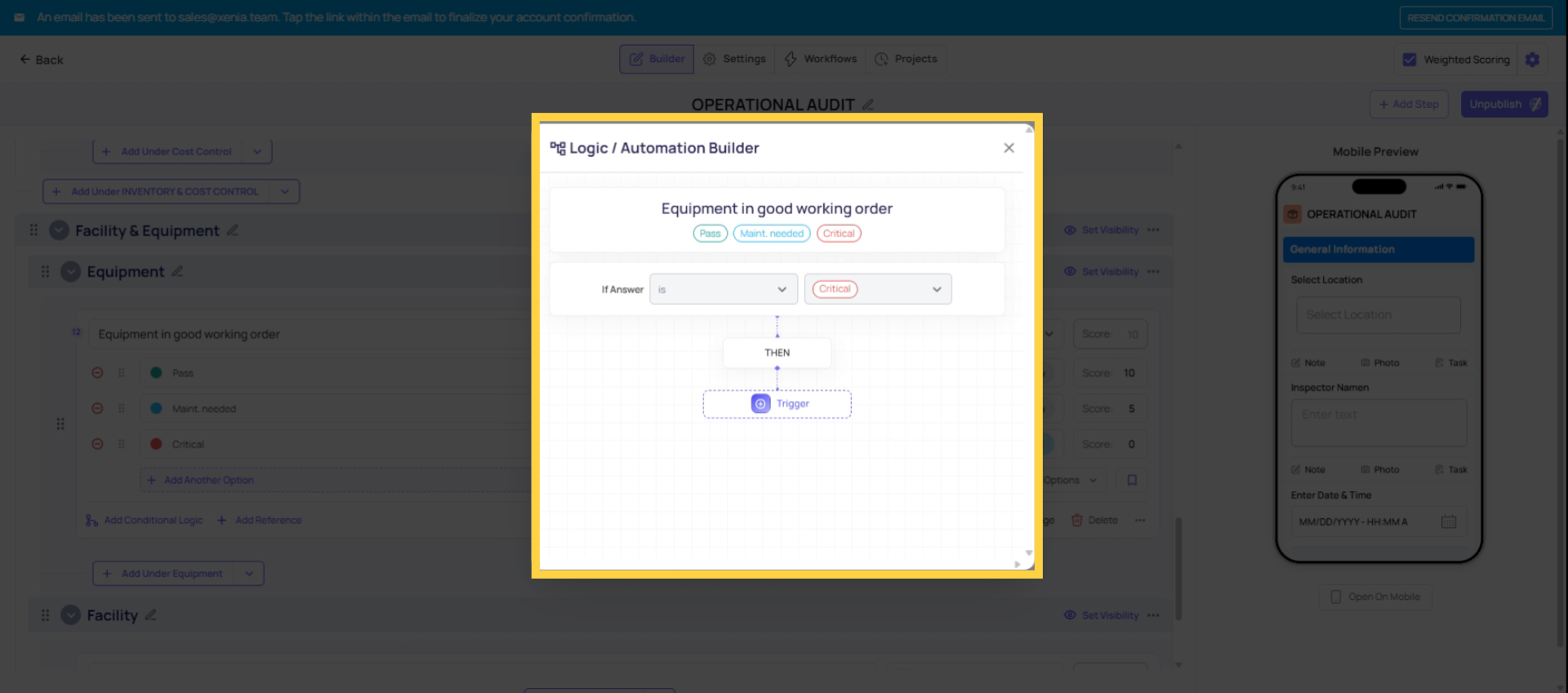
- Set the trigger: "If answer is [Non-Compliant / Fail / No]"
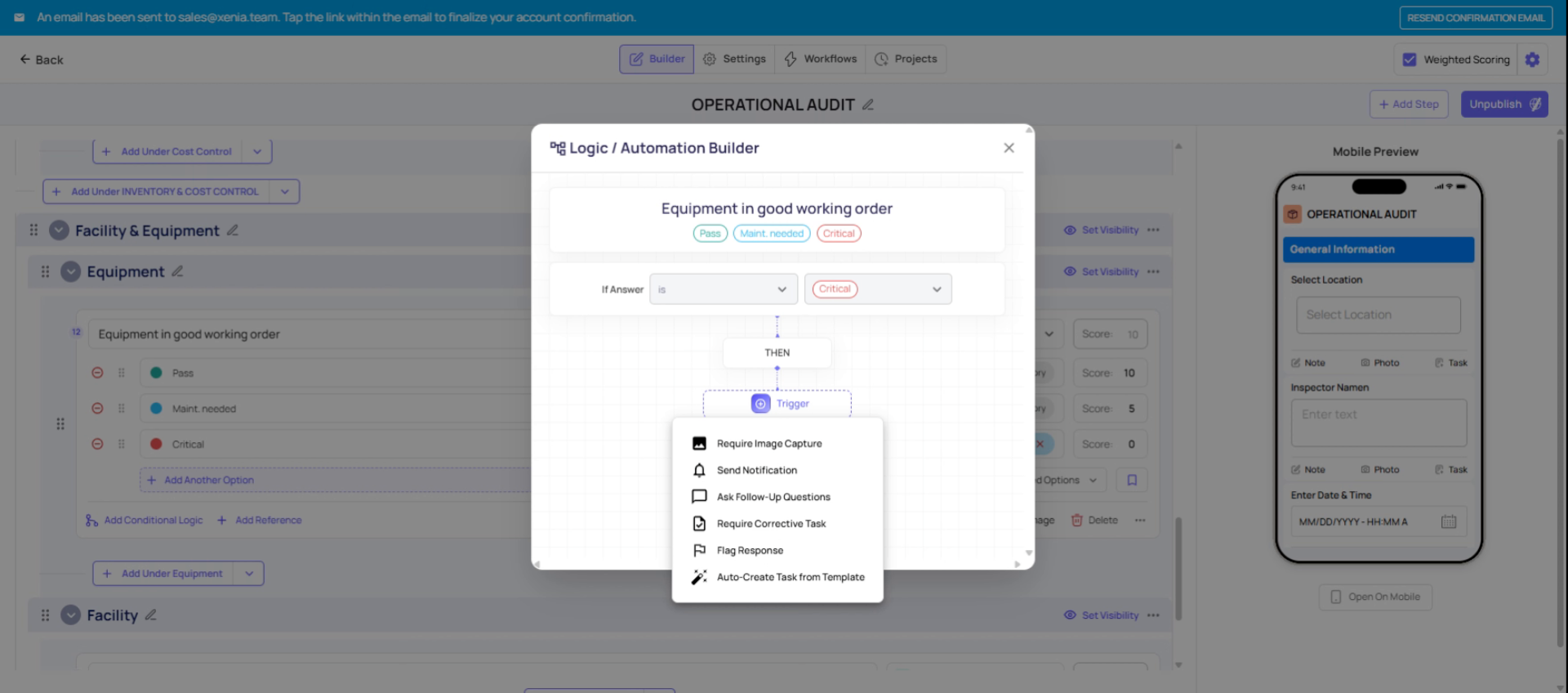
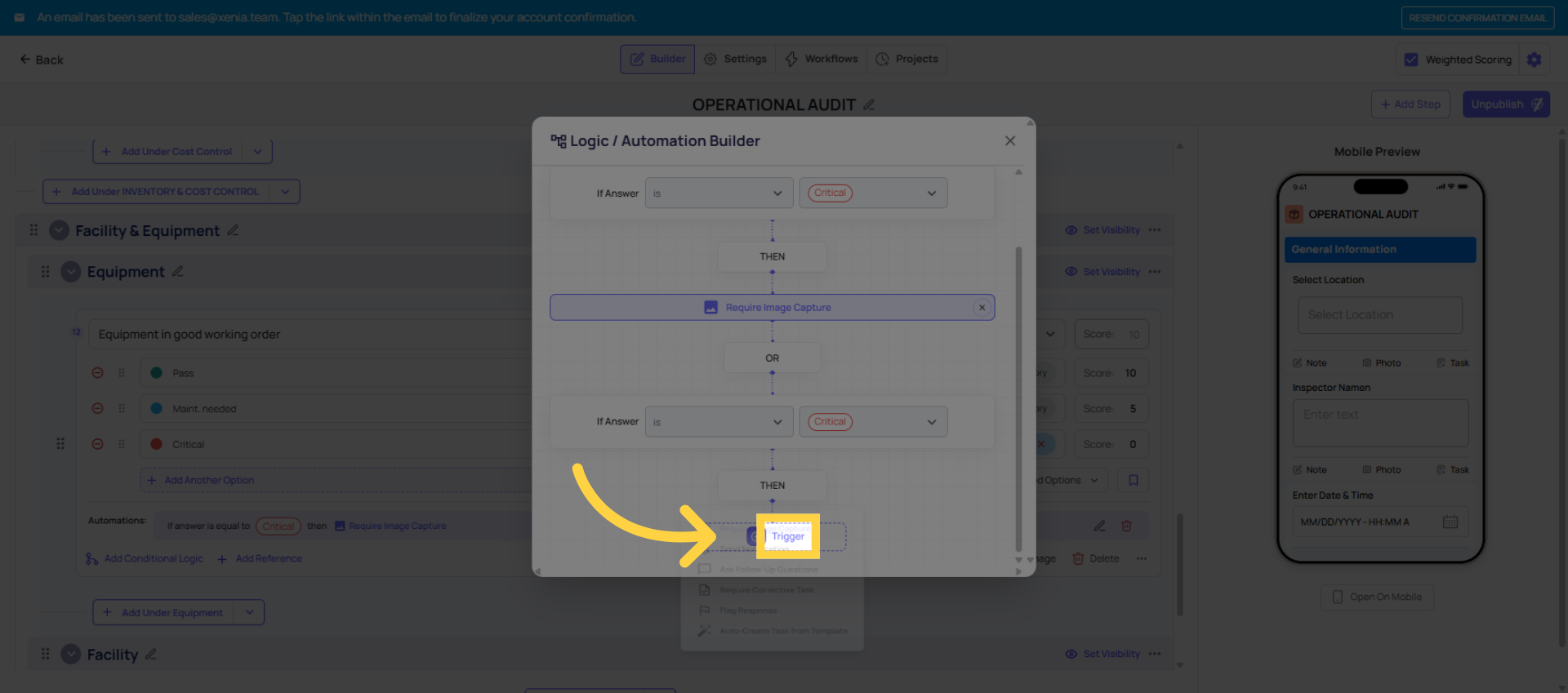
- Choose action: Require Image Capture
- Save
When the auditor marks the step as failed, the camera opens immediately and a live photo must be taken before they can continue. The photo is attached to that specific step in the submission record and appears in the audit PDF alongside the failed response.
Method 2 — Take Photo step type (separate step): Add a Take Photo step directly after the compliance question. This always requires a photo — pass or fail. Use this when visual evidence is needed regardless of outcome (e.g., photo of refrigerator thermometer reading, even when compliant). Method 1 (conditional) is better for audit use cases where you only want a photo when something fails.
3. Requiring a Written Comment on a Failing Response
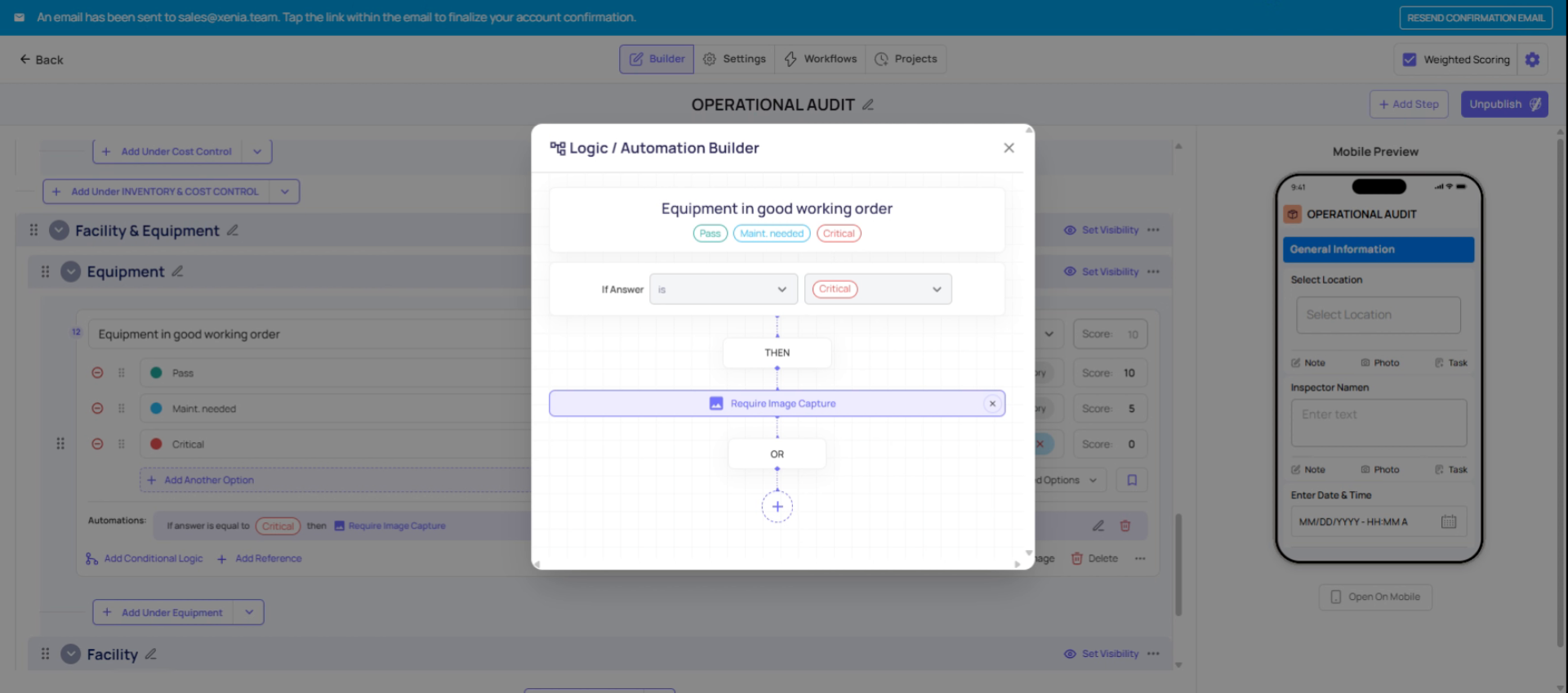
Using Ask Follow-Up Question:
- Build tab → click into the step → Add Conditional Logic
- Set the trigger: same failing response
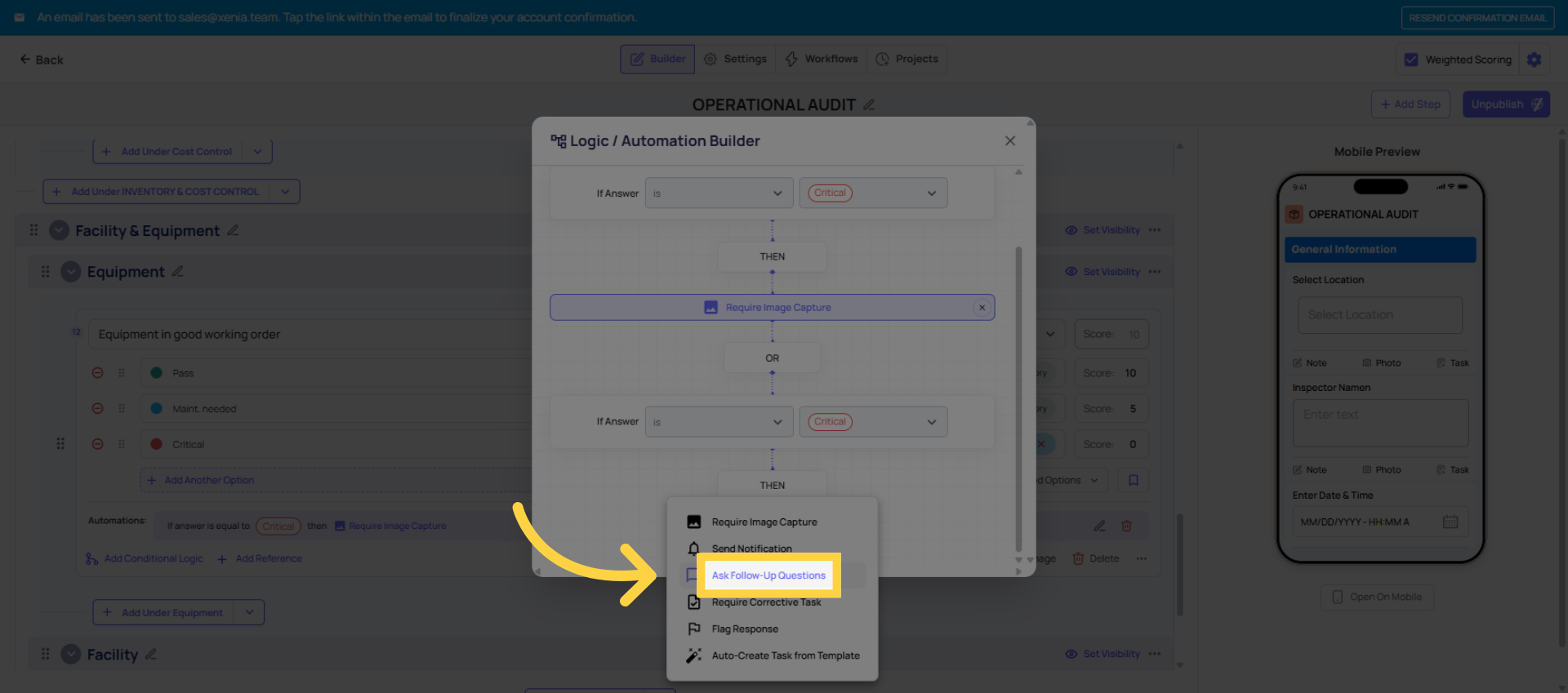
- Choose action: Ask Follow-Up Question
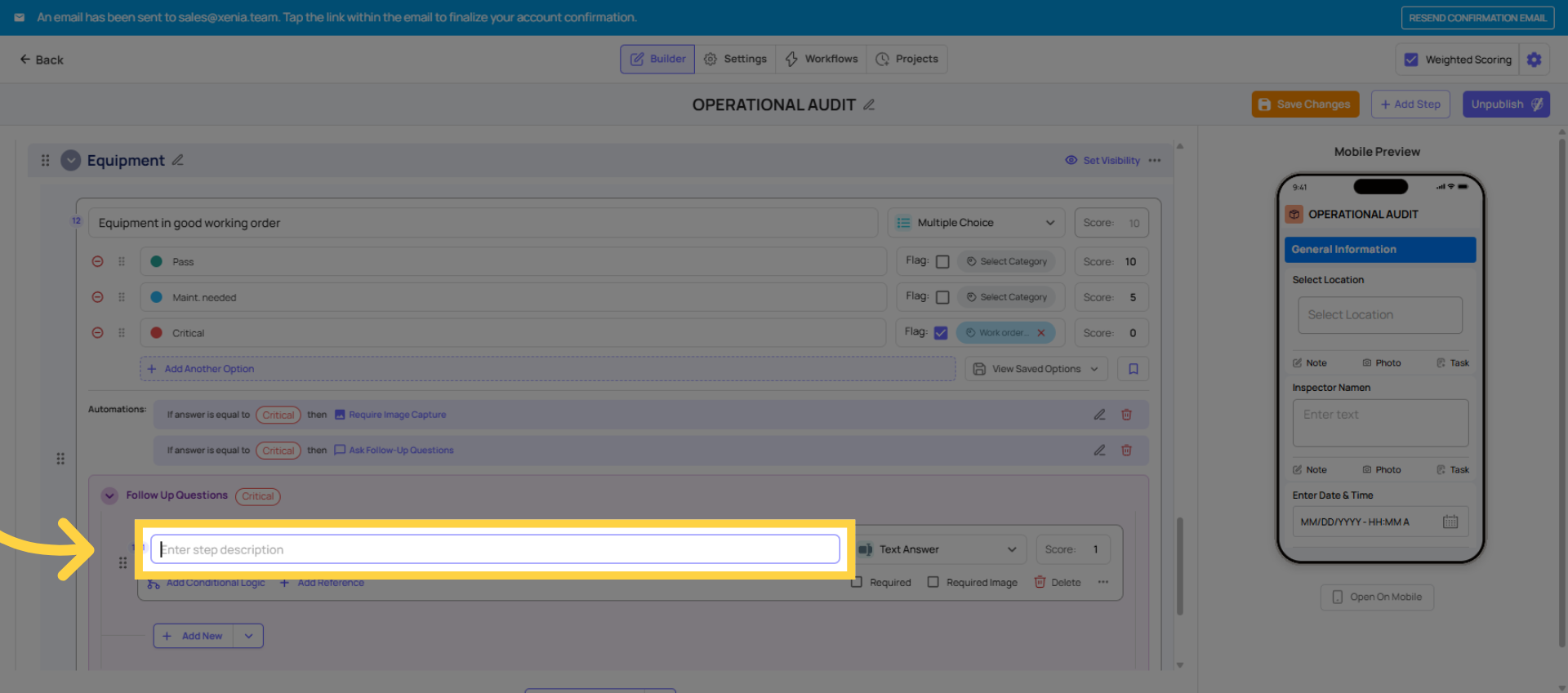
- Add a Text Field step titled: "Describe the issue and any corrective action taken" or "What was found? What was done about it?"
- Mark the follow-up question as Required
- Save
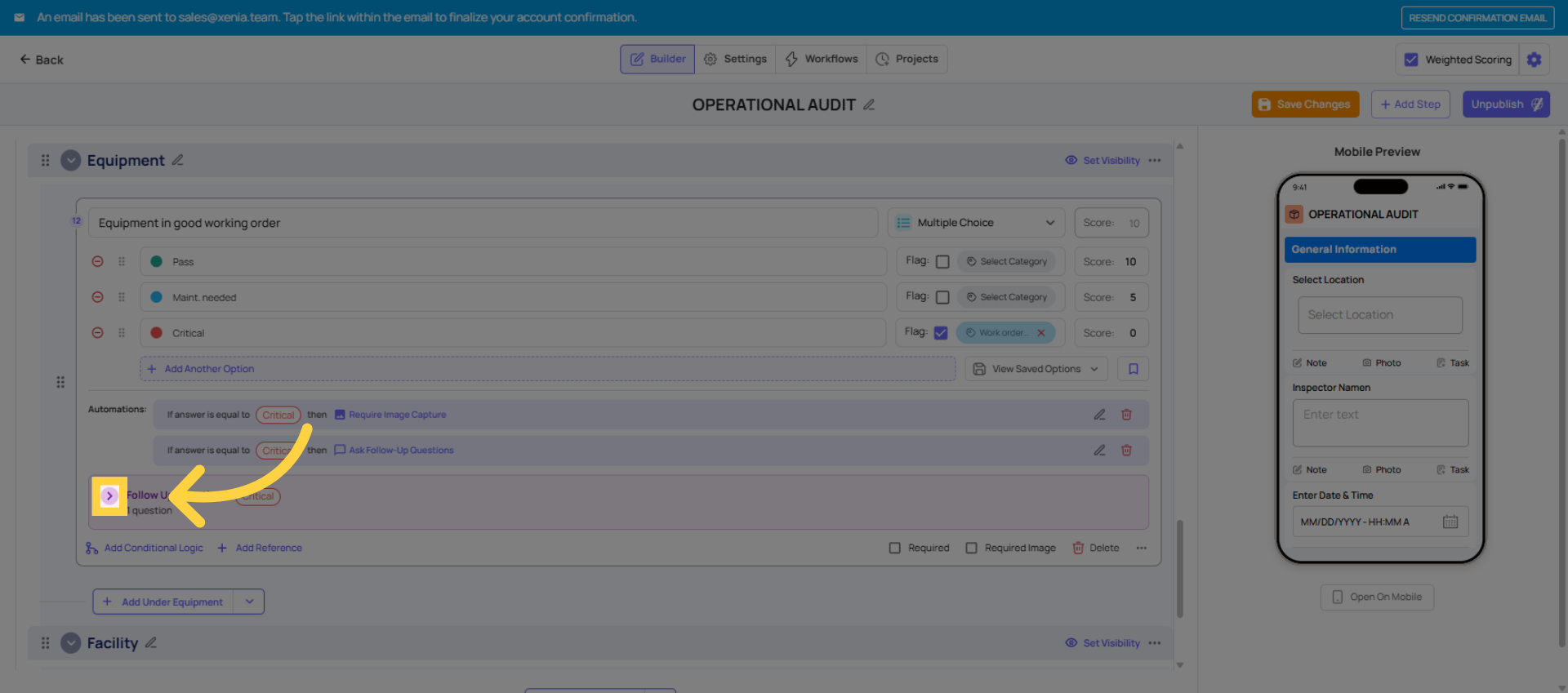
When the auditor marks the step failed, the text field appears immediately below the failing response. They must type a description before continuing. This response appears in the audit submission record and PDF alongside the photo.
4. Combining Both on the Same Trigger
Stack both actions on the same trigger condition. One trigger → Require Image Capture AND Ask Follow-Up Question. Both fire simultaneously. The auditor takes the photo, types the description, then moves on. Two actions, one trigger, one save.
What Good Documentation Looks Like
Coach your auditors on what a useful fail record contains:
Good comment: "Walk-in cooler door seal torn on the left side. Door not closing flush. Maintenance notified at 9:15am."
Not useful: "Fail" or "Broken" or "Needs fixing"
Consider adding the instruction in the follow-up question title itself: "Describe what you found and what action was taken (be specific — location, issue, corrective action)." The more specific the prompt, the more useful the response.
Applying Across the Entire Audit
For a thorough audit template, every step with a failing response option should have both a required photo and a required text follow-up. Work through each step systematically:
- Click into the step
- Add Conditional Logic
- Set trigger to the failing answer
- Add Require Image Capture
- Add Ask Follow-Up Question (text field, required, specific prompt)
- Save
- Move to the next step
This takes time upfront but produces a significantly more useful audit record. A submitted audit where every fail has a photo and a comment is one that leadership can act on without a follow-up call.
This article explains how to configure audit steps so that every failing response requires a photo and written explanation, ensuring comprehensive documentation for leadership review. For more information, see related articles on audit configuration and submission management.
Need Help?
Reach out to our Support Team at Support@xenia.team
Comments
0 comments
Please sign in to leave a comment.