
1. Why Audit Workflows Are Different from Standard Checklist Workflows
A standard checklist workflow might trigger once or twice per submission — when a specific vendor type is selected, for example. An audit template may have 40+ steps and could trigger multiple workflows in a single submission if several areas fail.
This means audit workflow design requires extra care:
- Be selective about which steps trigger corrective tasks — not every fail needs one
- Use flag responses on minor issues for pattern tracking; reserve corrective tasks for issues that genuinely require another team's intervention
Category and priority matter more in audits — tag each corrective task correctly so issues are filterable in the task board and dashboards by type
2. Choosing Which Steps Get Workflows
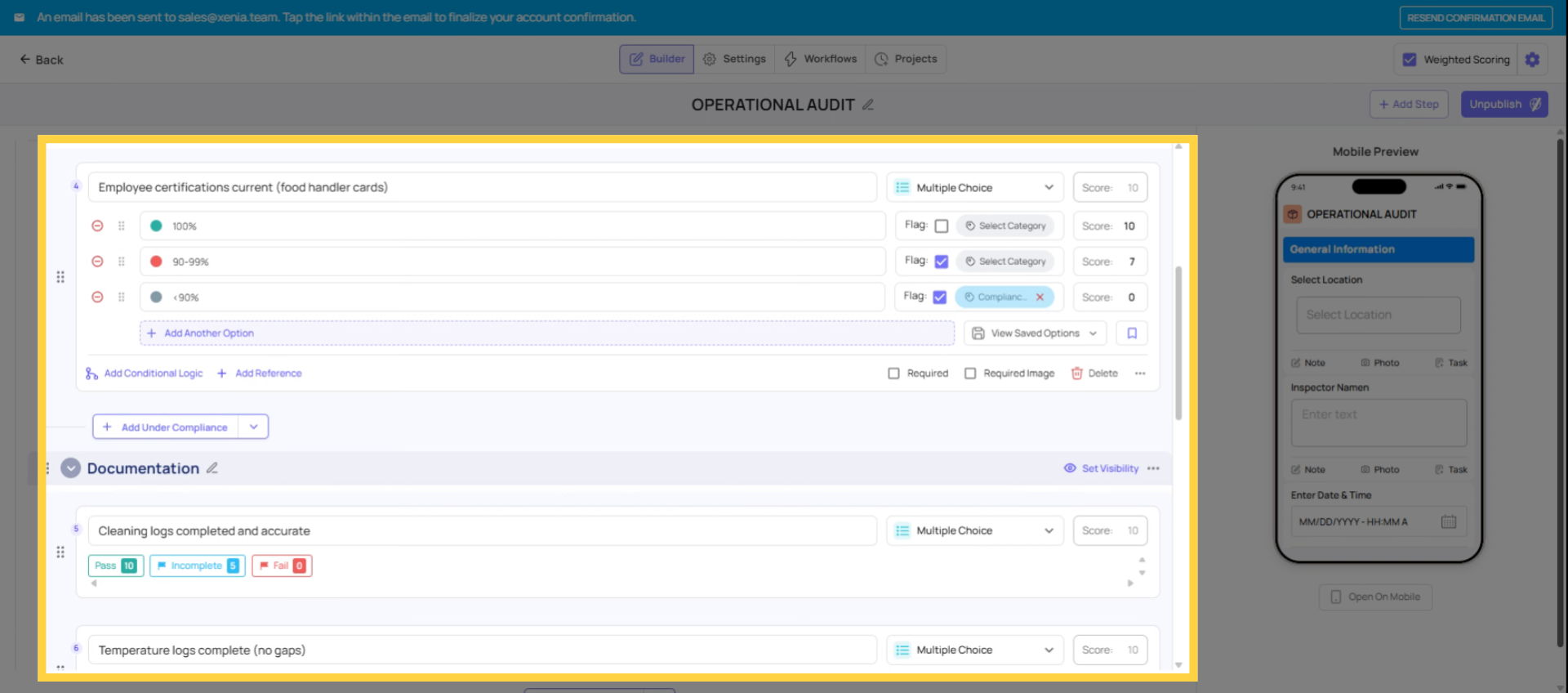
Not every failing step needs a corrective task. Before building, categorize your audit steps:
Corrective task appropriate: Equipment failures, safety violations, cleanliness issues requiring facilities response, any item that requires physical action by a different team to resolve
Flag response only (no task): Minor aesthetic issues, items already corrected on the spot, recurring issues you want to track for patterns without creating tasks every time
Neither: Steps where a fail doesn't require any escalation beyond documentation in the submission record
3. Building the Workflow — Step by Step
- Open the template → Workflows tab → Add Workflow
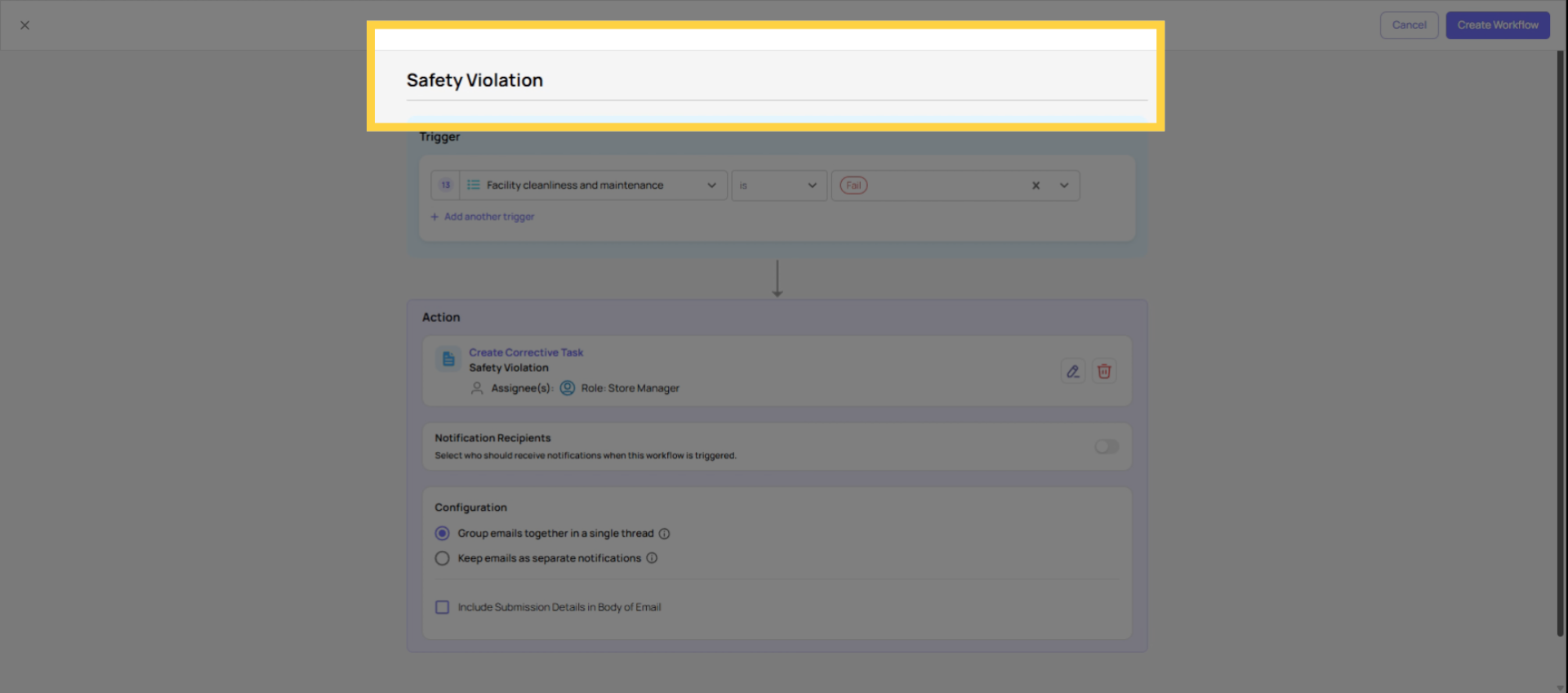
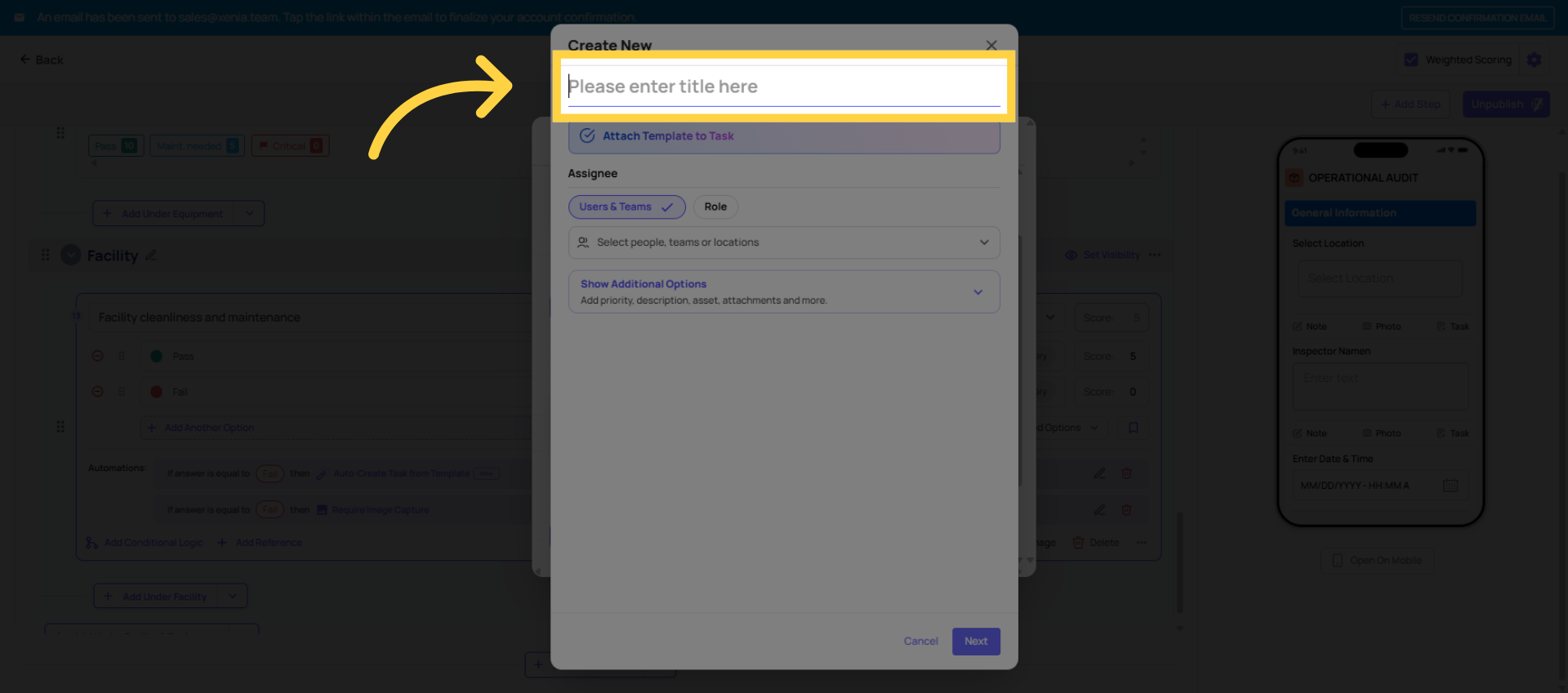
- Name it clearly: "Safety Violation → Facilities Task" or "Equipment Fail → Maintenance Team"
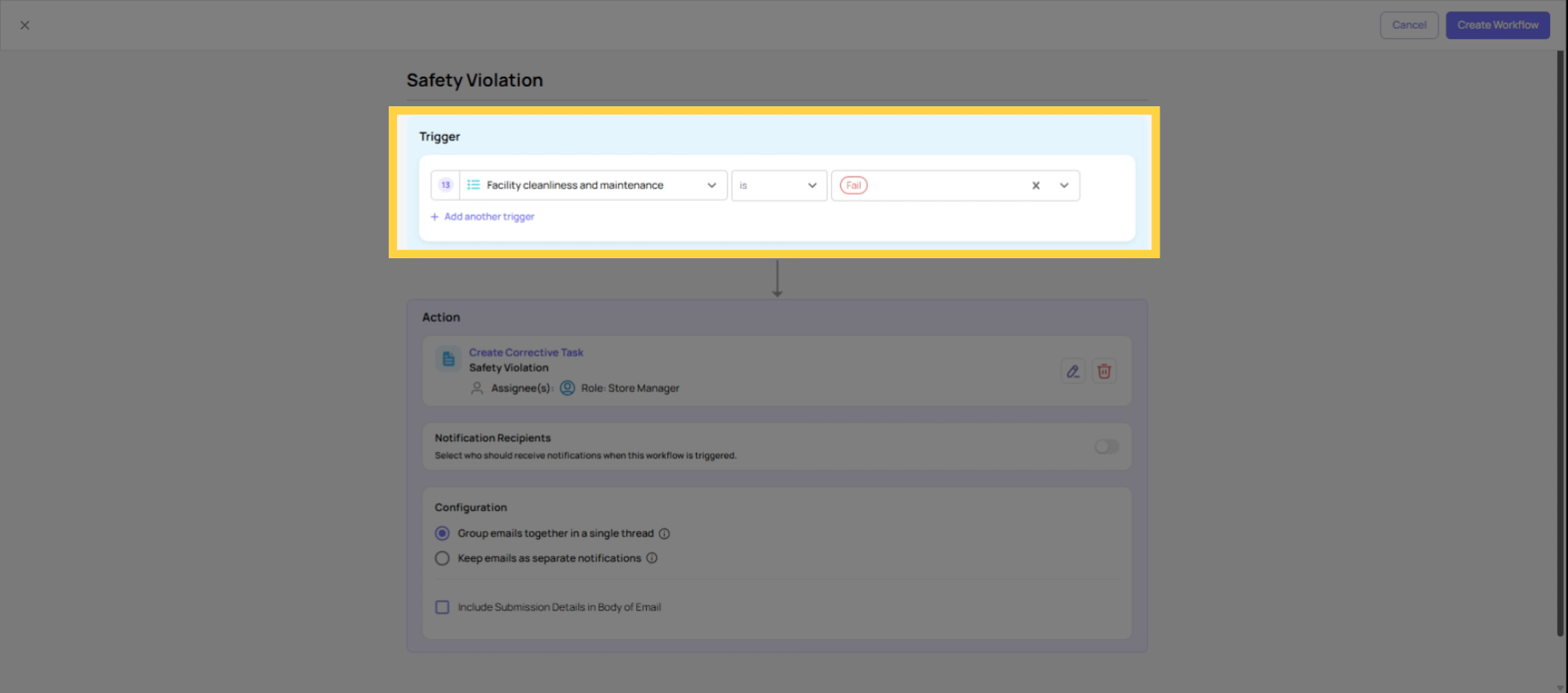
- Set the trigger condition: for Pass/Fail steps, "If step is failed." For Multiple Choice: "If answer is [Fail / Non-Compliant / specific option]"
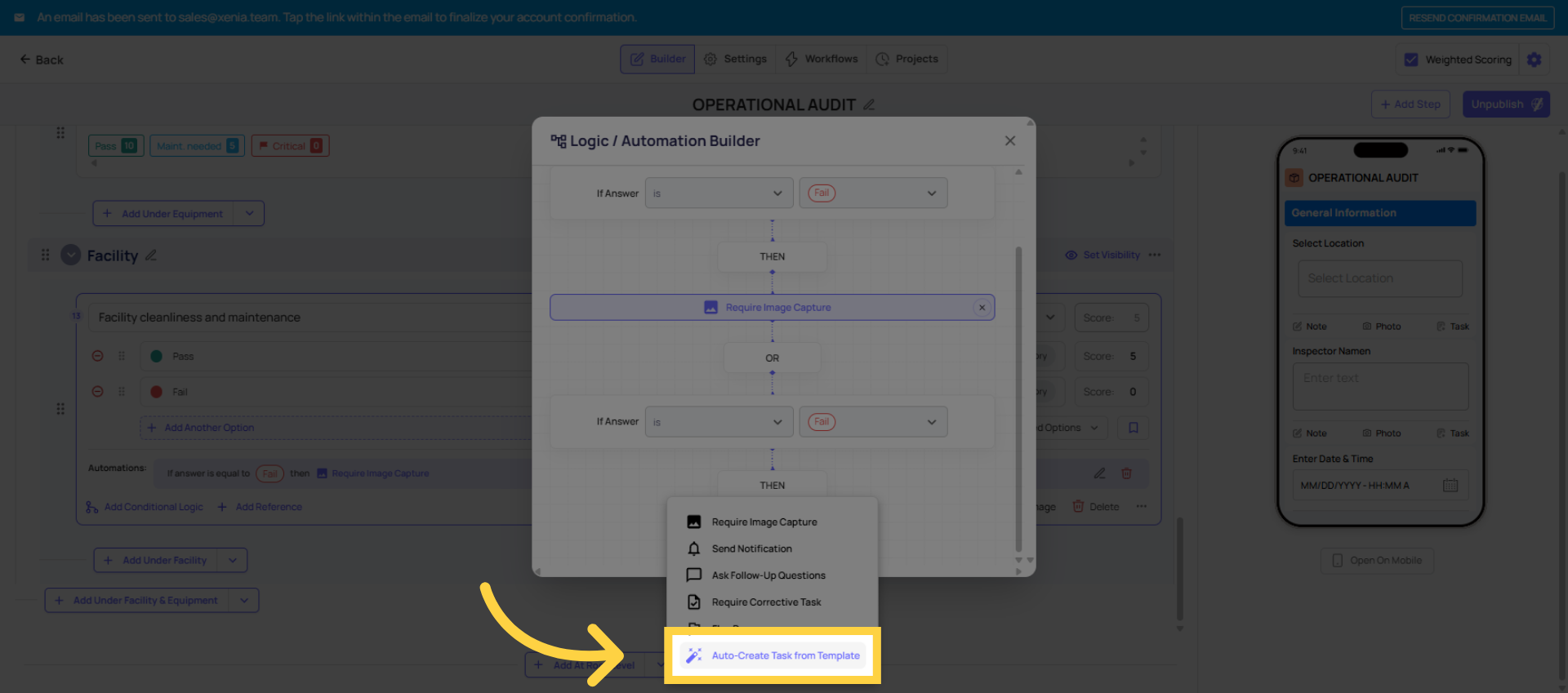
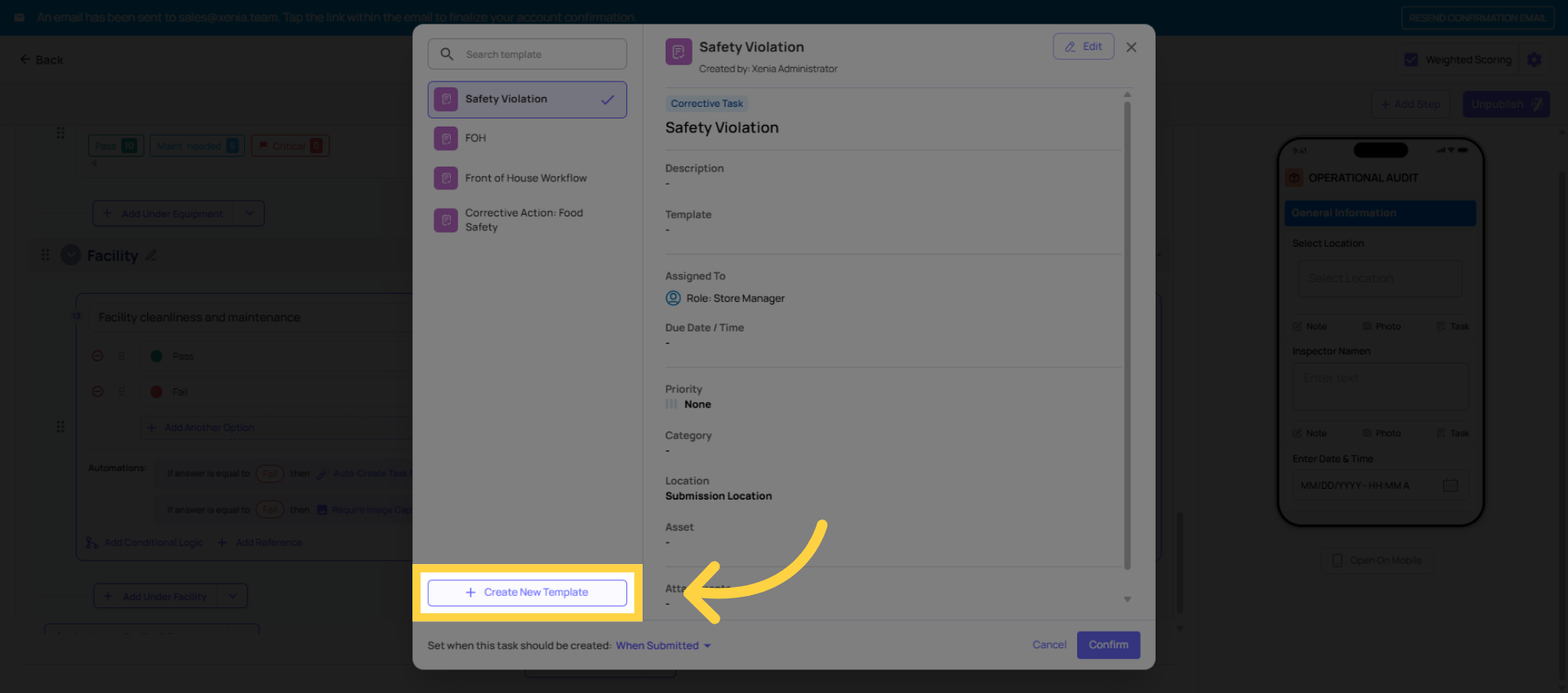
- Select Auto-Create Task from Template as the action
- Configure the corrective task:
- Task name: Specific and descriptive — "Audit Fail: [Area] — [Issue Type]" e.g. "Audit Fail: Restrooms — Cleanliness Non-Compliant"
- Description: Include that this task was auto-generated from an audit submission and link context for the receiving team
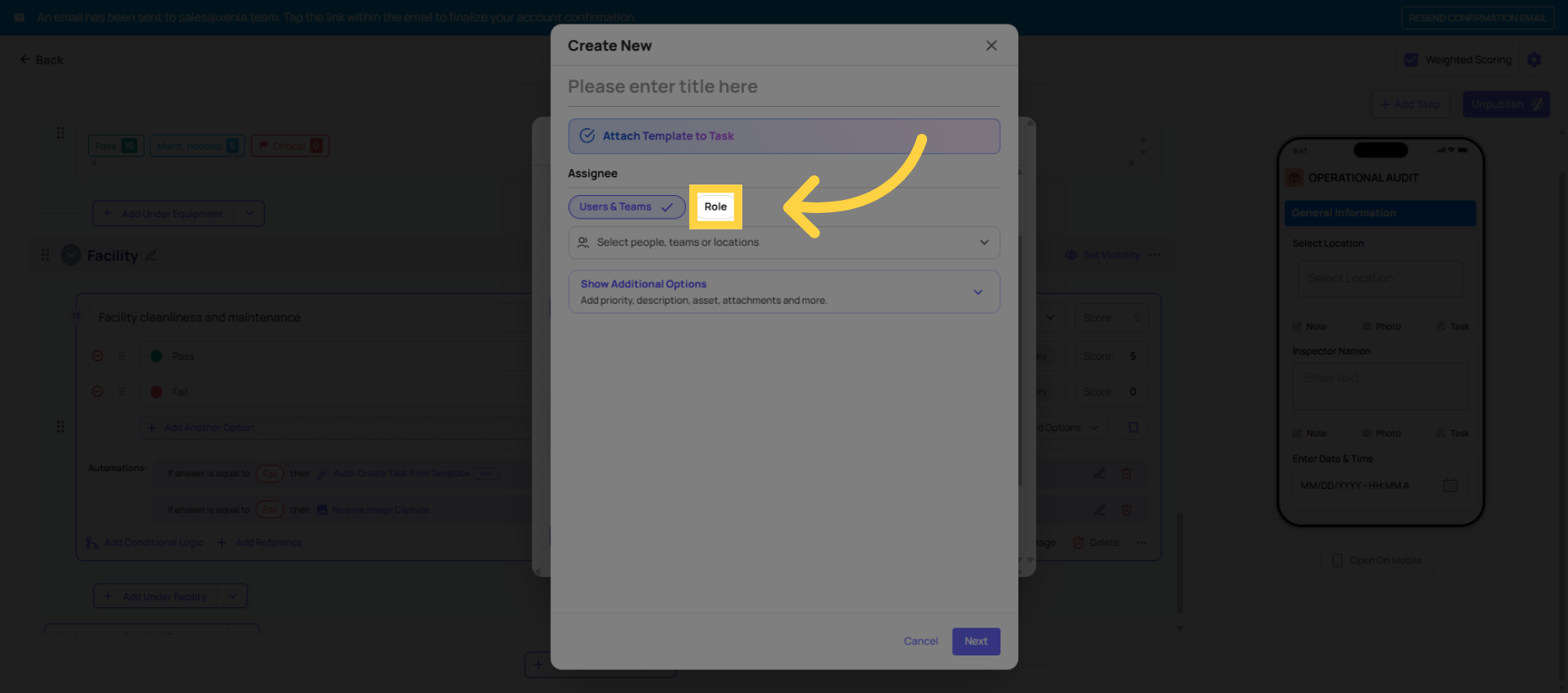
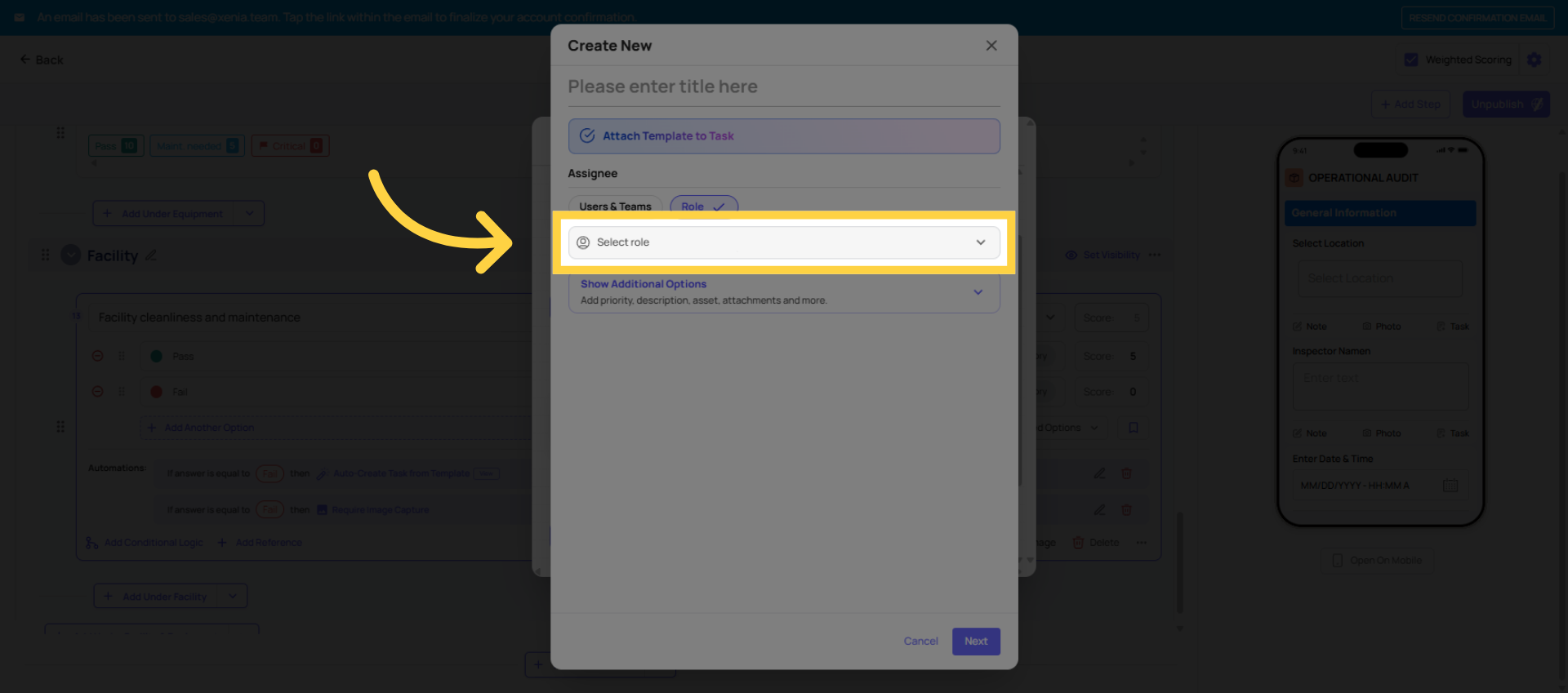
- Assignee: Role-based — Maintenance Team, Facilities Manager, Store Manager
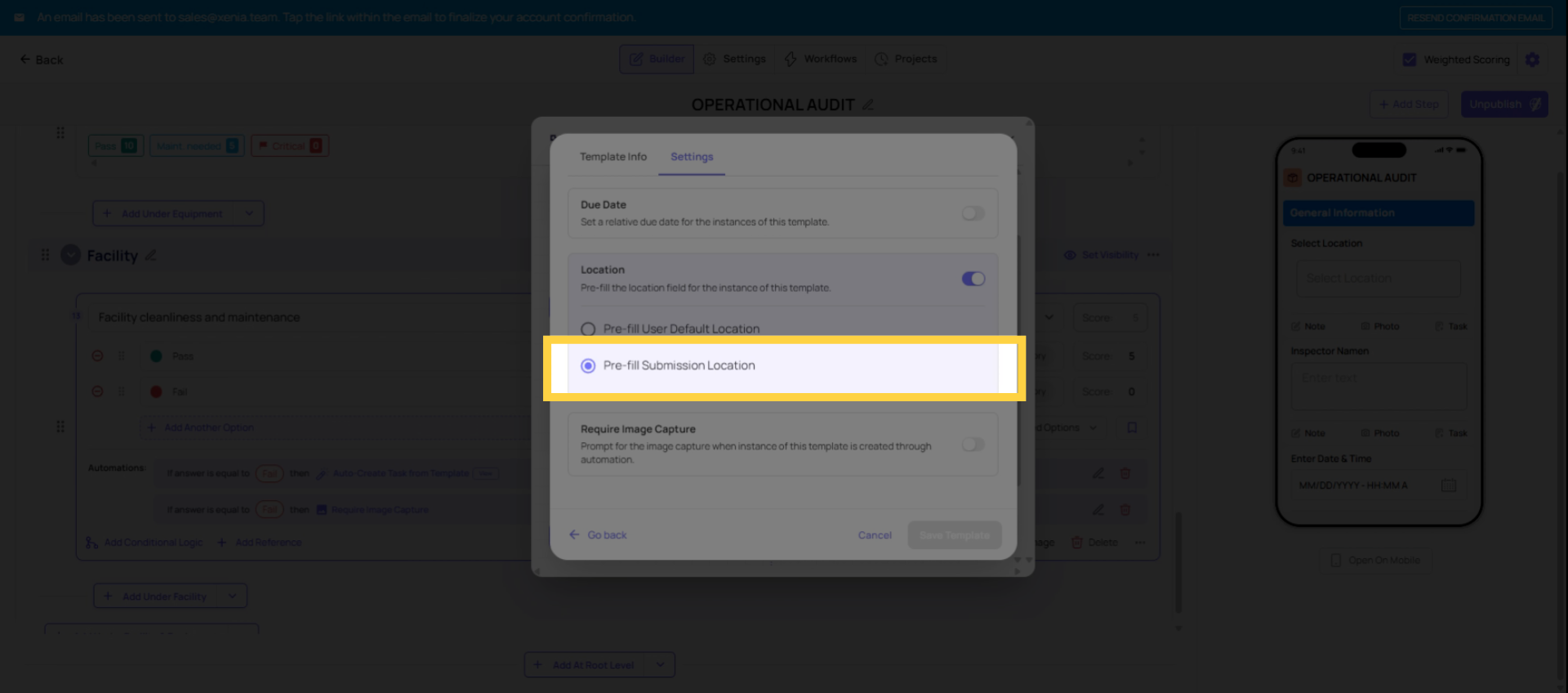
- Use Submission Location: Always ON
- Priority: Match to severity — Safety violations = Critical, Maintenance = High, Cleanliness = Medium
- Category: Audit Corrective Action, Safety, Maintenance, Food Safety — whichever is accurate
- Relative due date: Based on urgency — Safety: 2–4 hours, Maintenance: 24–48 hours, Cleanliness: same day
- Add notification recipients — the receiving team's role, and any managers who need to know immediately
- Save and repeat for each audit step that warrants a corrective task
4. Building Multiple Workflows Efficiently
An audit with 40 steps might need 10–15 corrective task workflows. The fastest approach:
- Build one workflow completely, including the corrective task configuration
- For similar step types that route to the same team with the same priority and due date, the only thing that changes is the task name and the trigger step
- Duplicate the workflow (if available) or build the next one by opening Add Workflow and copying the same configuration with a new name and trigger condition
Group your audit steps by which team handles each failure type before you start building. Building all "Maintenance Team" workflows together is faster than switching back and forth between different routing destinations.
5. Flag Response vs. Corrective Task — The Audit Decision
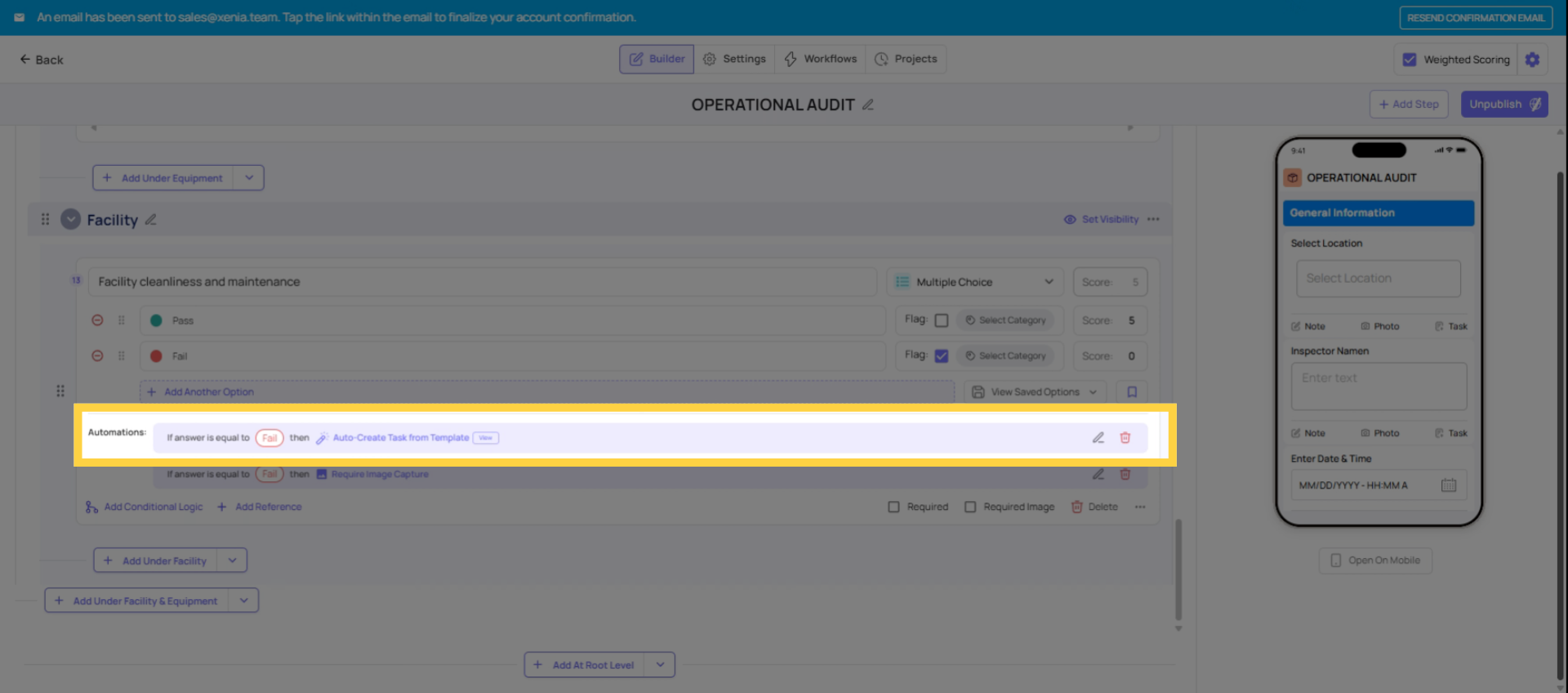
For pattern tracking without task creation, use Flag Response on the conditional logic of a step (not via the Workflows tab). Flagged responses accumulate in dashboards and show which audit items are failing most often across locations — useful for identifying systemic issues without creating a task every time a minor item comes up.
Use both together for important items: Flag Response (for pattern tracking) + corrective task via Workflow (for immediate resolution). Both fire simultaneously on the same failing step.
This article guides you through building and managing audit workflows effectively, focusing on creating corrective tasks for major issues and assigning roles and priorities appropriately. For more information, explore related articles on workflow optimization and audit management.
Need Help?
Reach out to our Support Team at Support@xenia.team
Comments
0 comments
Please sign in to leave a comment.