
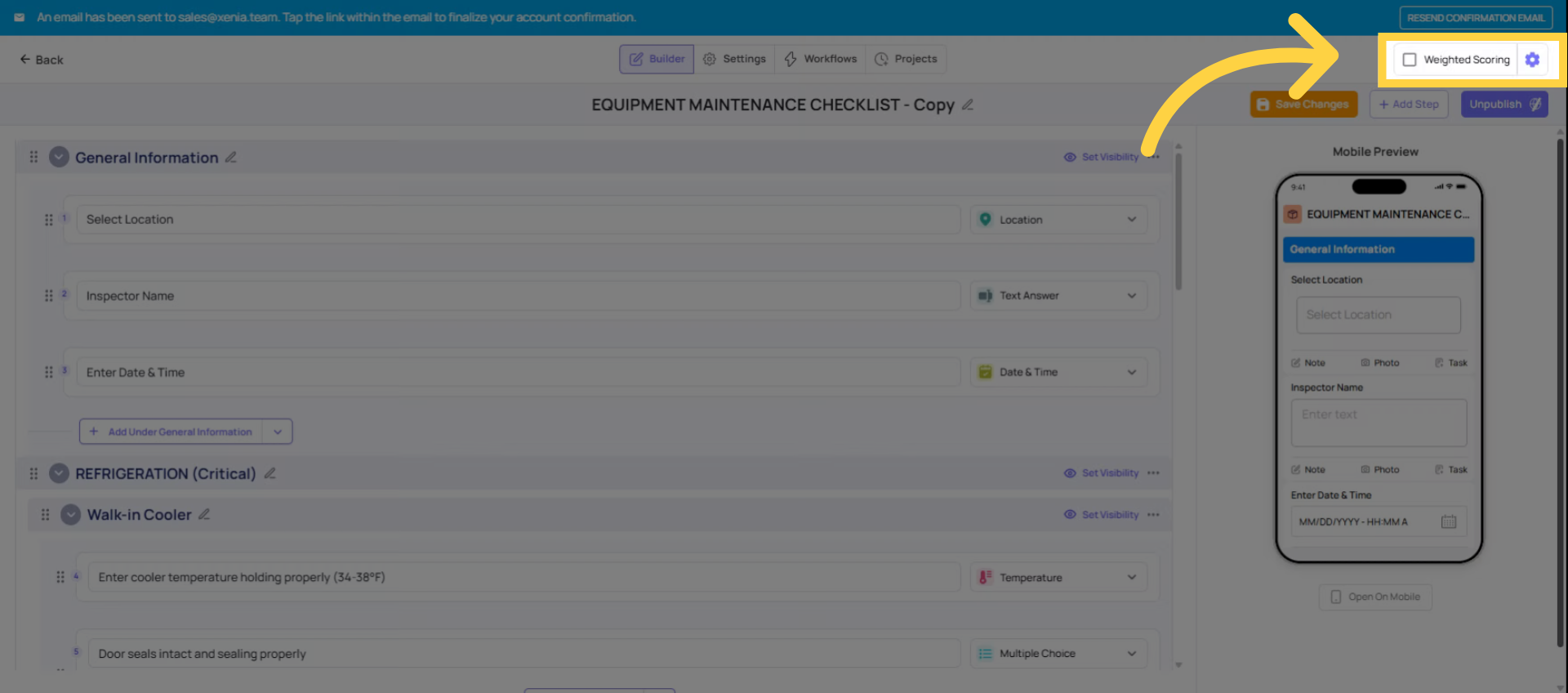
1. Enable Scoring in Template Settings
Go to Operations → Templates → [Template Name] → Edit → Settings tab. Find the Scoring toggle — enable it. Once on, the Build tab updates to show a scoring panel on every step.
Optional display settings to configure at this stage:
- Show score per step: Employees see the point value of each step as they complete the audit. Turn on if transparency helps your auditors. Turn off if you don't want auditors gaming the score by knowing point values in advance.
- Show timestamps per step: Each step response is timestamped in the submission report.
Decimal precision: Set how many decimal places appear on the final score percentage (0, 1, or 2 decimals).
2. Assign Points to Each Response Option
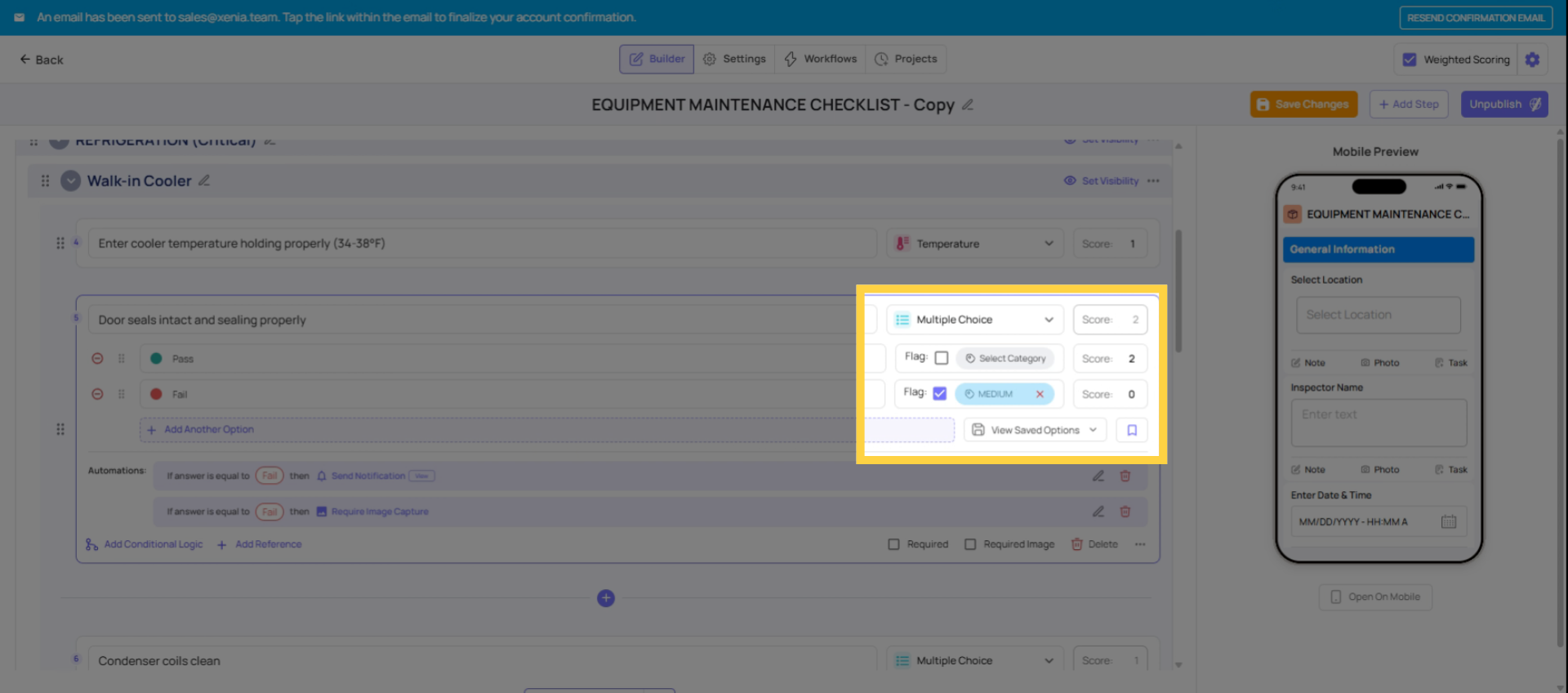
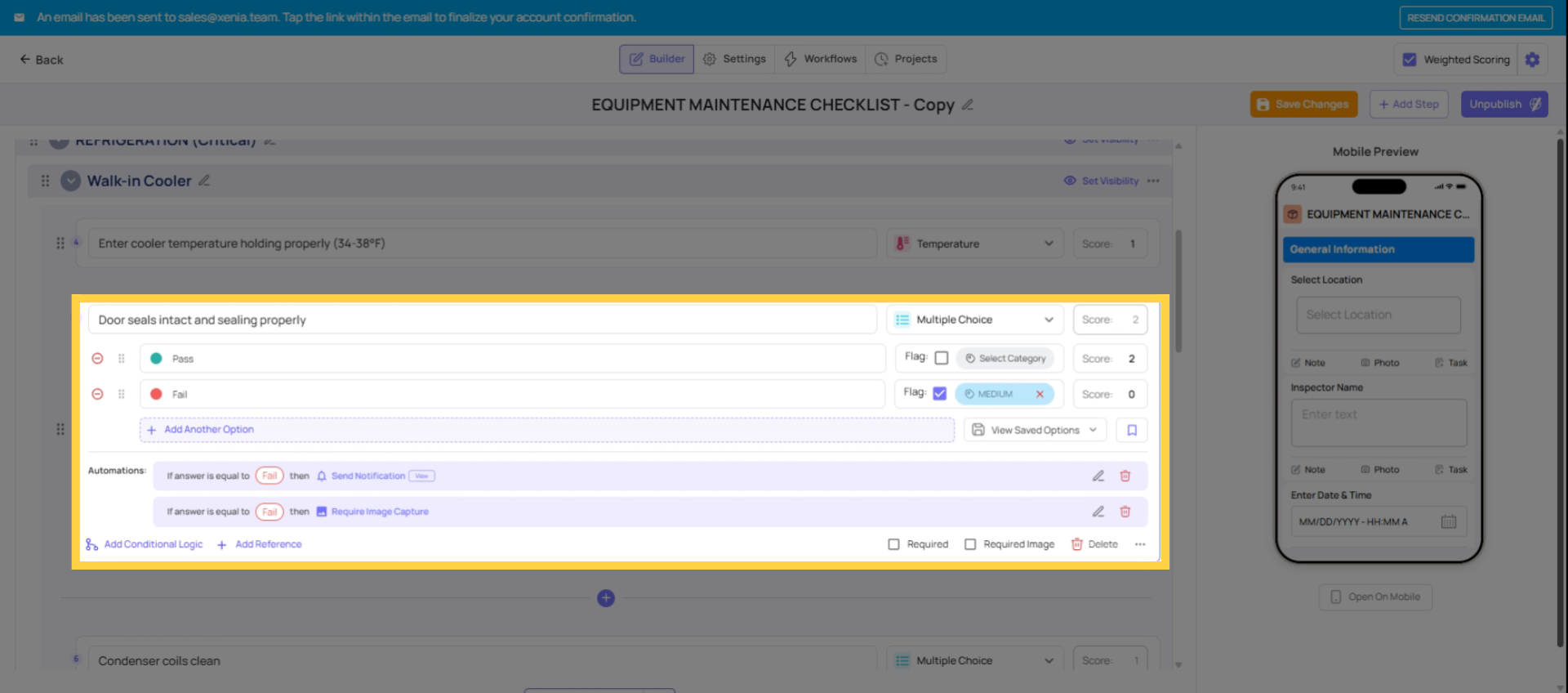
In the Build tab, click into any step. A scoring panel appears alongside the step's response options. For each response, assign a point value:
Standard pattern:
- Compliant / Yes / Pass → assign your point value (1, 2, 3, or 5 depending on importance)
- Non-Compliant / No / Fail → 0 points
Weighted pattern (higher stakes steps): Critical safety items → 5 points for pass, 0 for fail Standard compliance items → 2 points for pass, 0 for fail Aesthetic/housekeeping items → 1 point for pass, 0 for fail
Multi-level response pattern: Excellent → 5 points Good → 4 points Satisfactory → 3 points Fair → 2 points Unacceptable → 0 points
Go through every step and assign point values before publishing. The total audit score is: all points earned ÷ all points possible × 100.
3. Configure Null Scoring for N/A Options
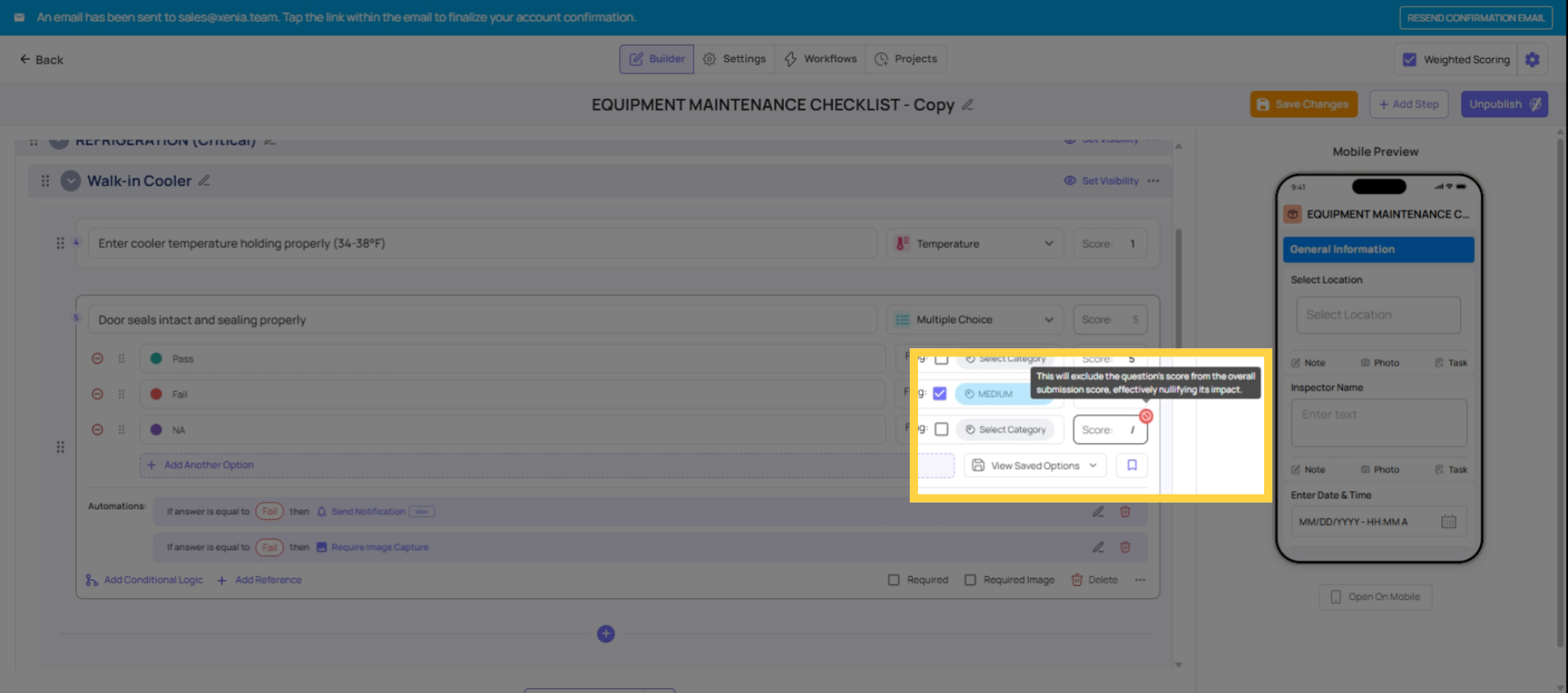
For any response option that represents "this doesn't apply here" — a drive-through question at a non-drive-through location, a patio question at an indoor store — set the score to null (shown as a / slash in the scoring panel).
When an employee selects a null-scored option, that step is removed entirely from both the numerator and denominator of the score calculation. The location is only evaluated against steps that apply to them.
Without null scoring: a location that selects N/A on a 1-point step can only ever reach 95% even with perfect performance everywhere else. With null scoring: that same location can reach 100% because the inapplicable step doesn't count.
4. Set Rating Thresholds
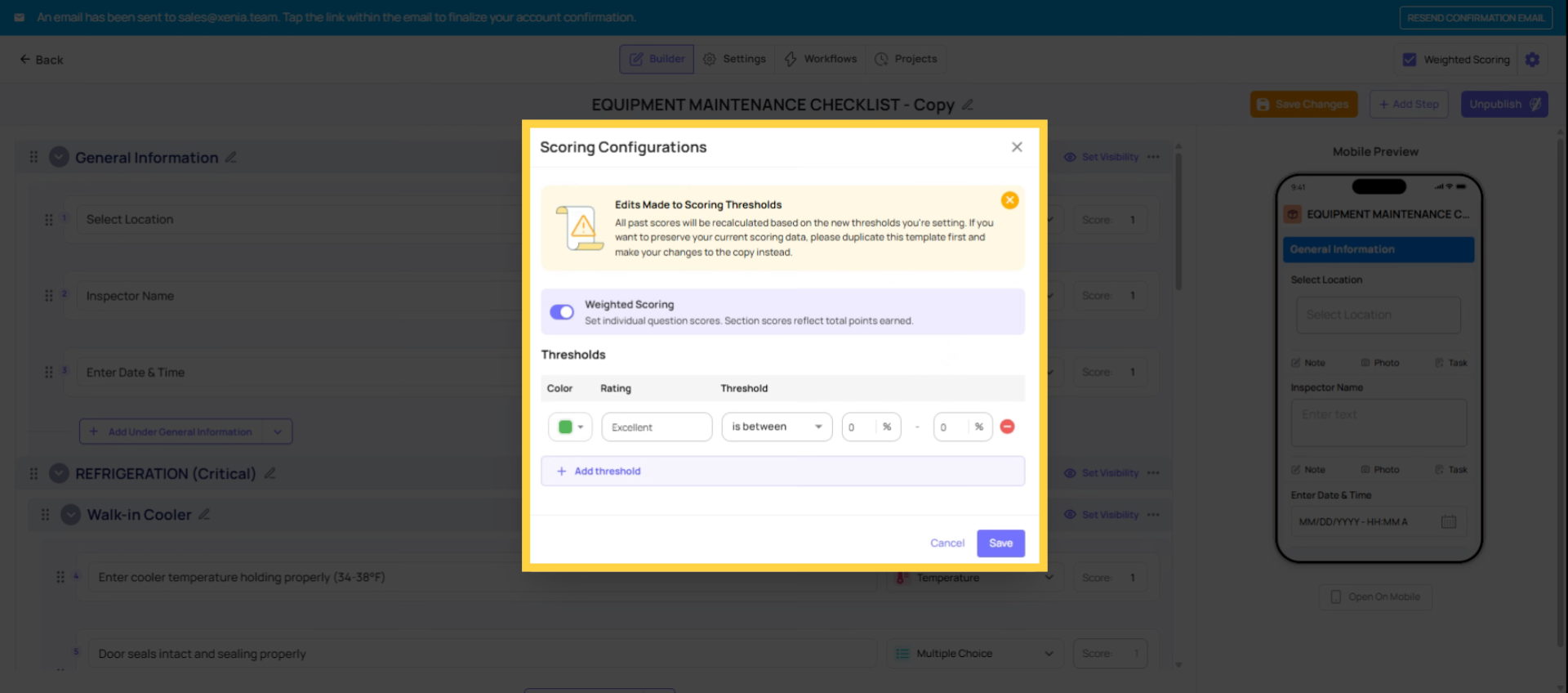
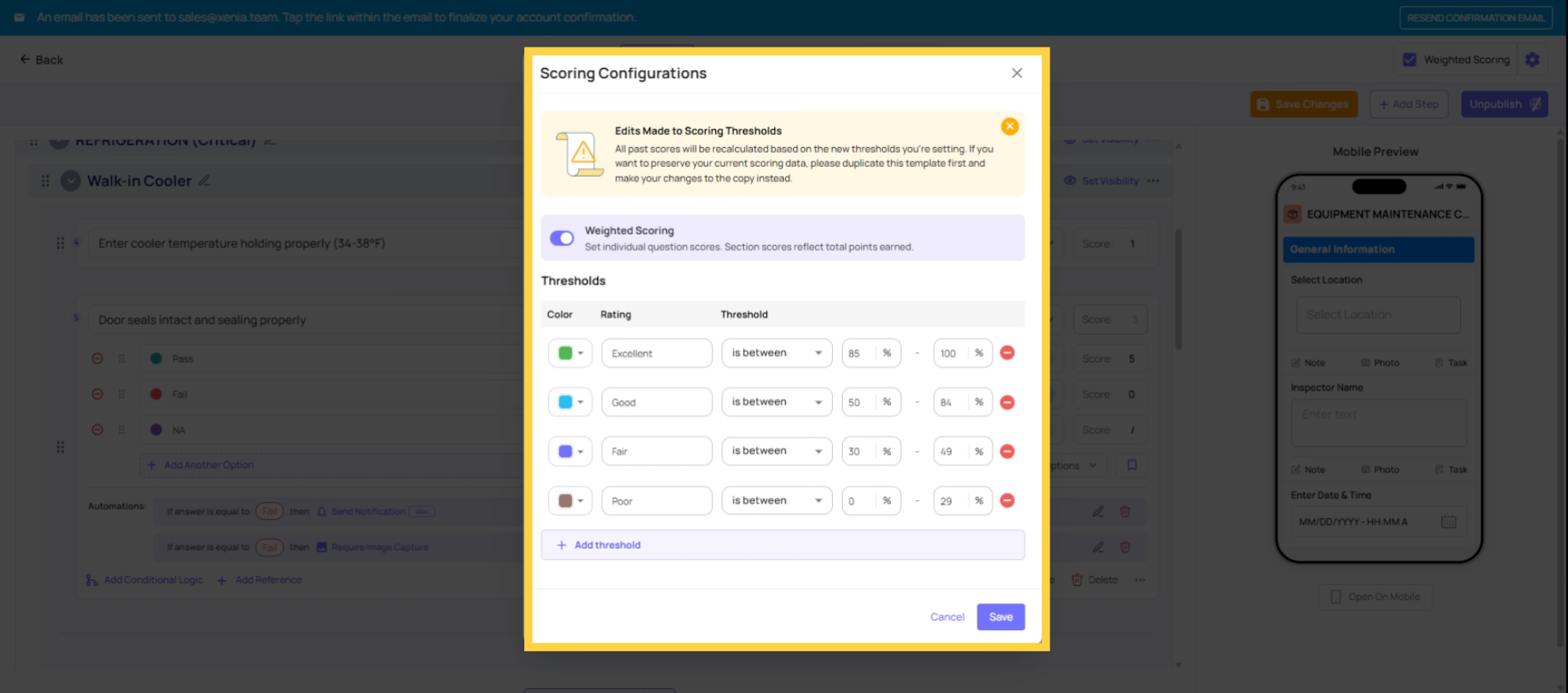
Inside the template settings, find the Scoring/Thresholds section (gear icon near the scoring configuration). Add rating labels for score ranges:
| Range | Label Examples |
| 95–100% | Platinum / Excellent / Exceeds Expectations |
| 85–94% | Gold / Good / Meets Expectations |
| 70–84% | Silver / Needs Improvement |
| Below 70% | Red / Unsatisfactory / Immediate Action Required |
Labels are fully customizable. Some organizations use colors (Platinum, Gold, Silver, Red). Some use performance language. Some use brand-specific terms. Whatever your organization already uses to talk about performance works here.
When an audit is submitted and scores 92%, the report header immediately shows "Gold" — no one needs to interpret the percentage.
Build the Section Hierarchy
Audit scoring rolls up through sections. The architecture matters:
- Individual steps → roll up into their subsection
- Subsections → roll up into their parent section
- Parent sections → roll up into the total audit score
Example:
- Parent section: "Food Safety" (score: 91%)
- Subsection: "Hot Line" (score: 95%)
- Subsection: "Cold Prep" (score: 88%)
- Subsection: "Dishwashing" (score: 90%)
- Parent section: "Guest Experience" (score: 79%)
- Subsection: "Front of House" (score: 82%)
- Subsection: "Restrooms" (score: 75%)
The submitted audit report shows the score at every level of this hierarchy. A district manager reviewing the report sees immediately that Guest Experience at 79% is the weak area — even though the overall score is 87%.
To build: Add Section → name it → Add Section again inside it → name the subsection → add steps inside the subsection. The scoring aggregation is automatic.
This article explained how to enable and configure weighted scoring for audits, including setting point values, thresholds, null scoring, and color indicators. These settings help accurately reflect operational priorities and simplify audit result interpretation. For more information, see related articles on audit configuration and reporting.
Need Help?
Reach out to our Support Team at Support@xenia.team
Comments
0 comments
Please sign in to leave a comment.