
1. The Difference Between a Checklist and an Audit
In Xenia, the same template builder creates both standard checklists and audits. There's no separate "audit" feature — an audit is a regular template with weighted scoring enabled. That single configuration decision transforms how the form is used and what it produces.
A standard checklist tracks whether work was done. Completion rate is the metric. Did the opening checklist get submitted? Was the temperature log completed on time? The output is a binary: done or not done.
An audit template measures how well something was done. It produces a score — a percentage that reflects the quality, compliance, or condition of what was inspected. The output is a number: 93% or 74% or 58%. That score is comparable across locations, trackable over time, and drillable by section.
The shift from checklist to audit is: "Did this happen?" → "How well did this happen?"
Common audit use cases in Xenia:
- District manager store inspections
- Monthly brand standards audits
- Food safety compliance audits
- Facilities and equipment condition inspections
- Manager walkthrough quality checks
- Franchise standards evaluations
If you want to produce a score, compare locations against each other, or show a rating like "Exceeds Expectations" vs. "Needs Improvement" — you're building an audit.
2. Enabling Scoring on a Template
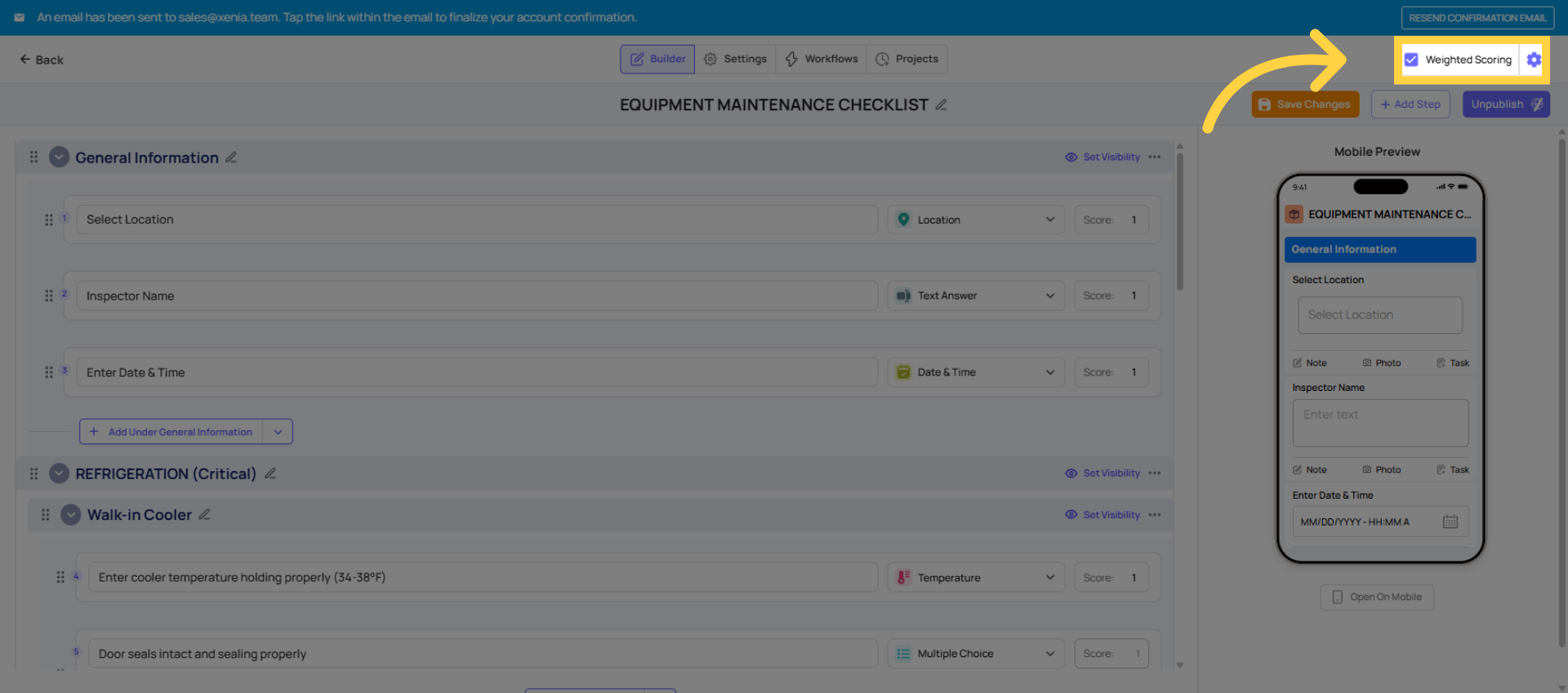
Scoring is configured in the template builder's Settings tab.
- Go to Operations → Templates → [Template Name] → Edit
- Click the Settings tab
- Look for the Scoring toggle or section — enable it
- Optionally configure score display settings (show score per step, show timestamps, decimal precision for the final percentage)
- Save
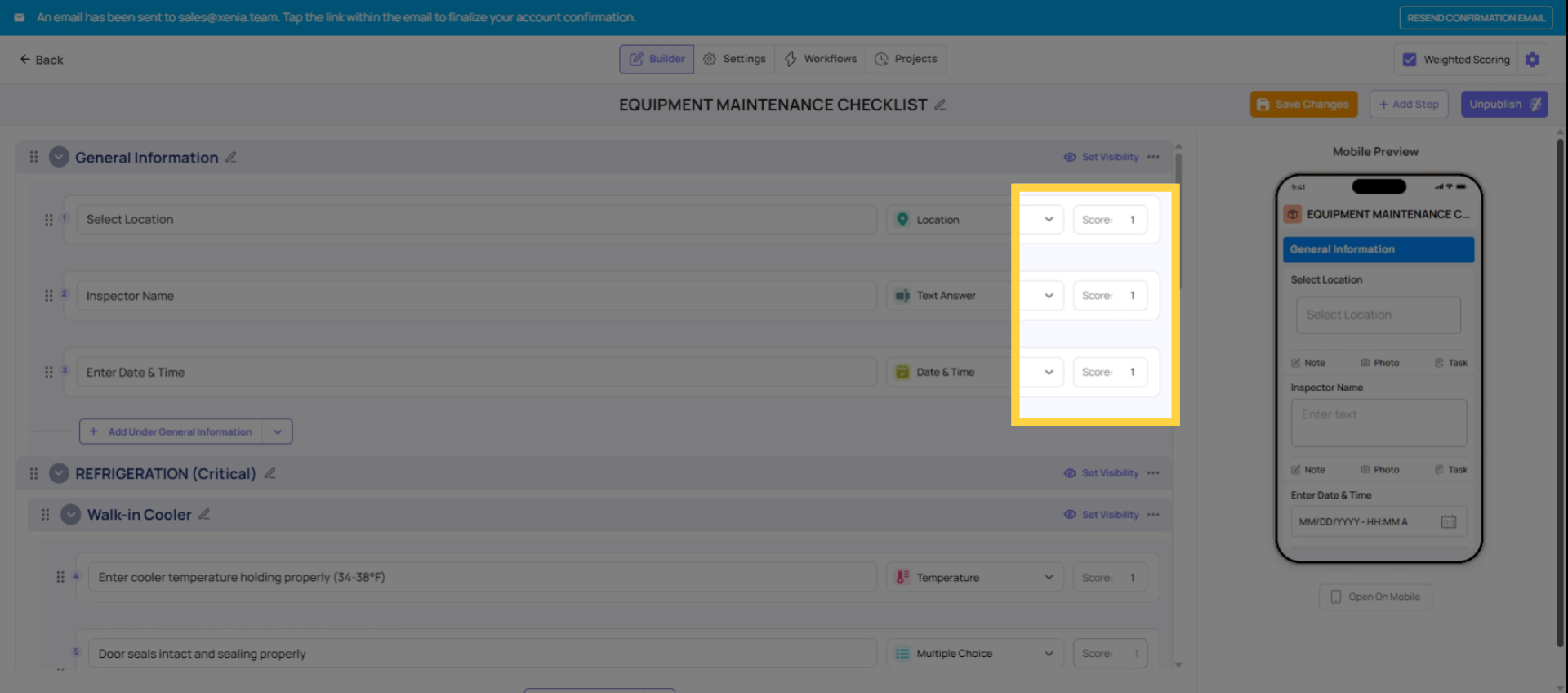
Once scoring is enabled, go to the Build tab and assign point values to each step's response options individually.
3. How Weighted Scoring Works
When scoring is enabled on a template, each answer to each step can be assigned a point value. The final audit score is the total points earned divided by the total points possible — expressed as a percentage.
Point assignment example:
A compliance inspection step: "Is the exterior signage properly lit and in good condition?"
- Compliant → 2 points
- Non-Compliant → 0 points
A critical safety step: "Are all fire exits unobstructed?"
- Yes → 5 points (weighted higher because this is a safety-critical item)
- No → 0 points
A lower-stakes step: "Is the floor clean at the entrance?"
- Pass → 1 point
- Fail → 0 points
The "weighted" in weighted scoring means you can deliberately make some steps matter more than others. A fire exit obstruction costs more in the final score than a dirty entrance floor. This reflects real operational priorities — critical compliance items have more impact on the final number than housekeeping items.
The total score: All earned points ÷ all possible points × 100 = audit score percentage. A location that earns 186 out of 200 possible points scores 93%.
4. Assigning Points to Step Responses
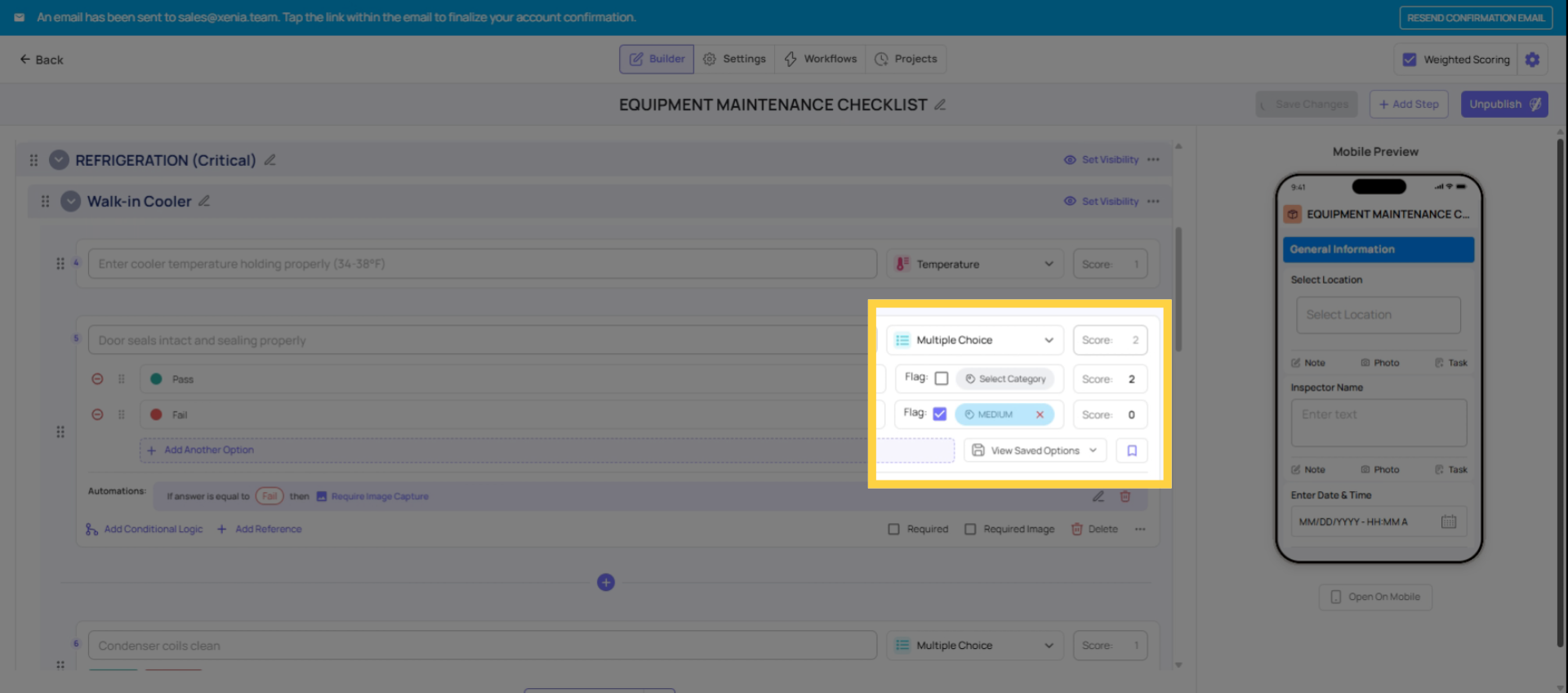
With scoring enabled, each step shows a scoring configuration panel. For each response option on the step, you assign the point value for that answer.
For a Multiple Choice step with Yes/No options:
- Yes → assign your point value (e.g., 1 point, 2 points, or 5 points based on importance)
- No → typically 0 points
For a Pass/Fail step:
- Pass → assign points
- Fail → 0 points
For a Dropdown step:
- Each option can carry a different point value
- Example: "Excellent" = 3 points, "Meets Expectations" = 2 points, "Below Expectations" = 1 point, "Unacceptable" = 0 points
The key decision: how many points should each step be worth? There's no universal rule — it should reflect how important that item is to your overall audit standard. Safety items carry more weight. Aesthetic or cleanliness items typically carry less. Work through your template and assign relative weights before you start entering numbers.
5. Null Scoring — When N/A Shouldn't Count Against the Score
Some steps in an audit don't apply to every location. A question about drive-through cleanliness doesn't apply at a location without a drive-through. A question about patio condition doesn't apply at an indoor-only location.
If the employee selects "No" on an irrelevant step, they're penalized unfairly — their score drops for something that genuinely doesn't exist at their location. That produces a misleading score.
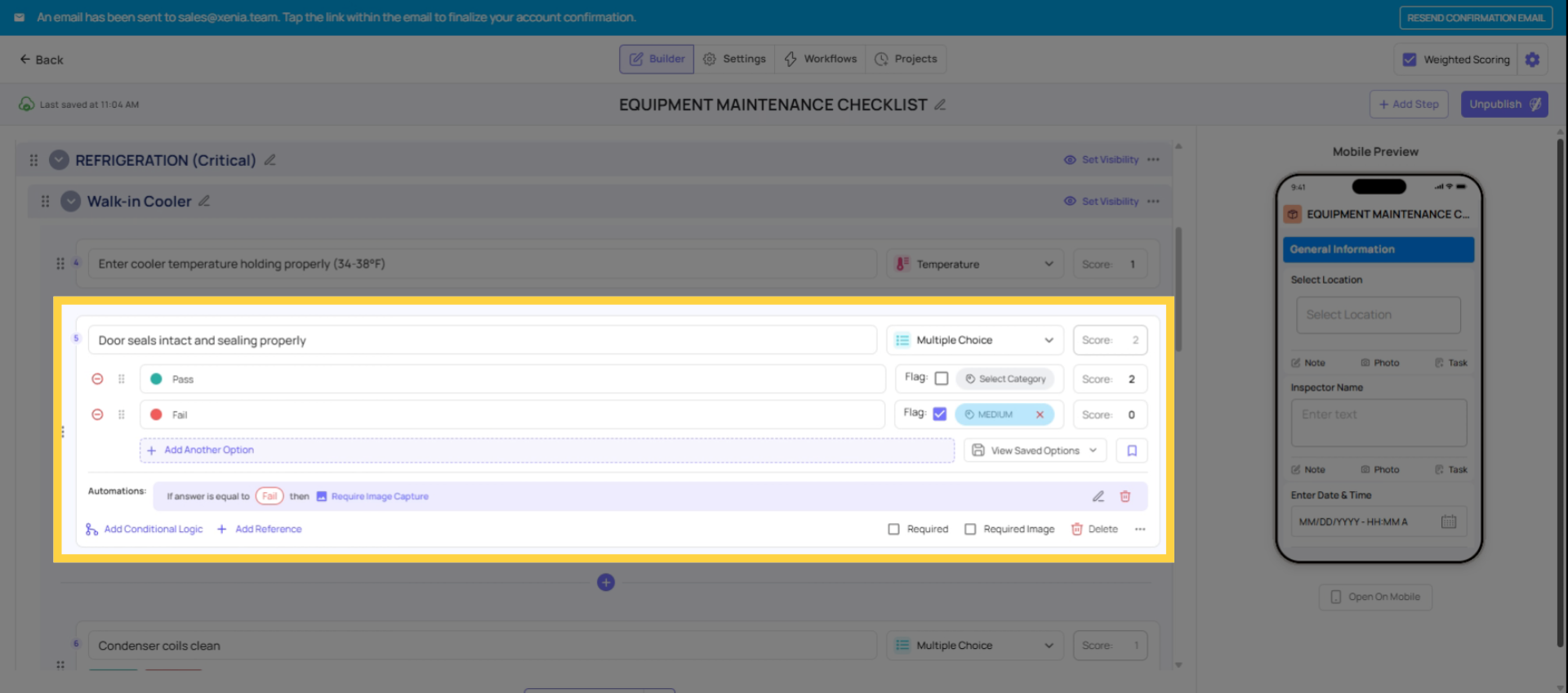
Null scoring solves this. When a response option is configured with a null score (represented as a slash / or marked as "Not Applicable"), selecting it removes that step entirely from the score calculation — both from the numerator (points earned) and the denominator (points possible).
Example: Template max score: 20 points (20 questions, 1 point each) A location with no drive-through selects N/A on the drive-through question Score becomes: 19 points possible (not 20) — and if they earn all 19, they score 100%
Without null scoring, that same location could only ever reach 95% (19/20), no matter how perfectly they performed on everything applicable to them. Null scoring ensures that a location is only evaluated against the standards that actually apply to it.
How to configure null scoring: On the step's scoring panel, for the N/A response option, set the score to null/nullify instead of assigning a number. The slash symbol confirms it's been configured as a null score.
6. Rating Thresholds — Naming Your Score Ranges
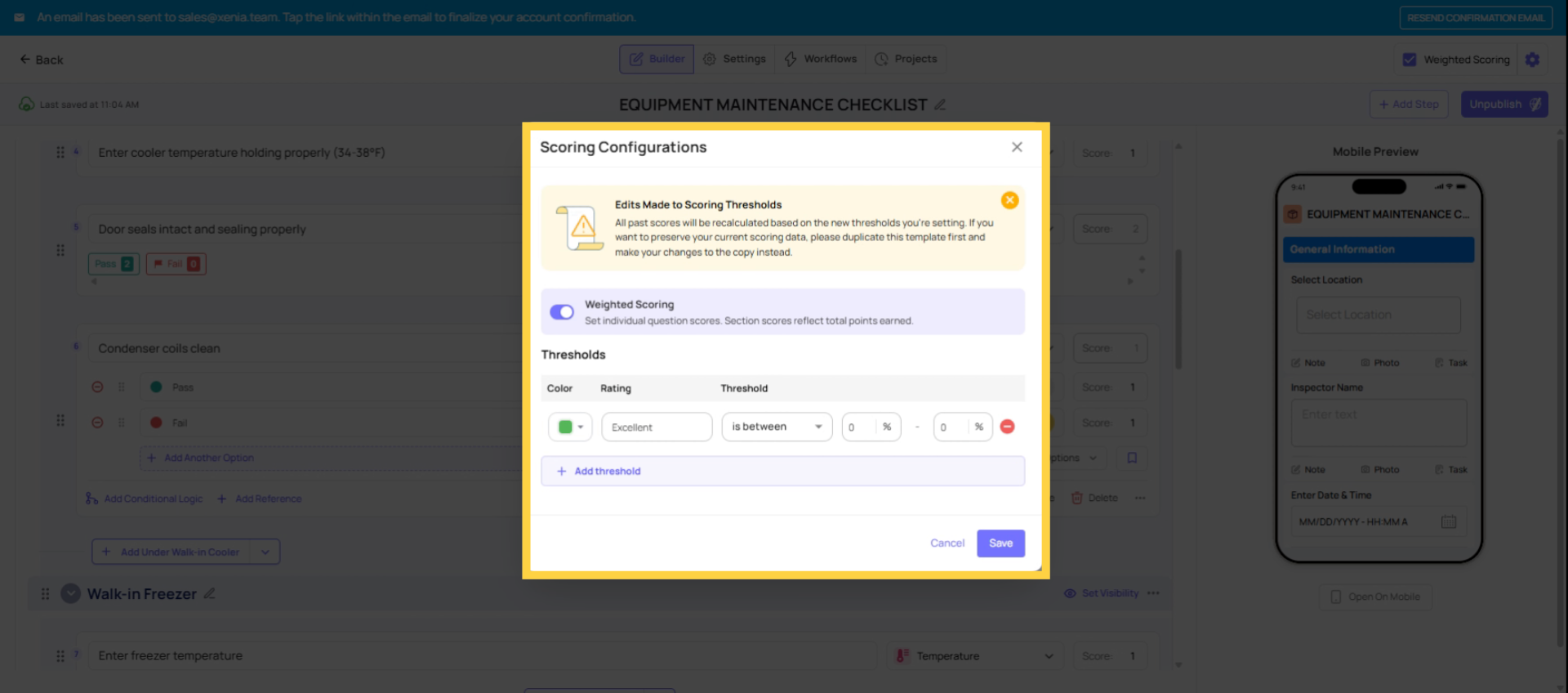
Thresholds let you attach a label to a score range — translating a percentage into a meaningful rating that your organization can act on.
Configured in the template settings (look for the gear icon inside the scoring configuration or the Settings tab), thresholds typically work like this:
| Score Range | Rating Label |
| 95%–100% | Platinum / Excellent |
| 85%–94% | Gold / Meets Expectations |
| 70%–84% | Silver / Needs Improvement |
| Below 70% | Red / Immediate Action Required |
The labels are entirely customizable — use whatever naming convention your organization already uses. Some use colors (Platinum, Gold, Silver, Red). Some use performance language (Exceeds Expectations, Meets Expectations, Below Expectations, Unsatisfactory). The label that appears on the audit report is whatever you configure here.
When a location completes an audit and scores 92%, their report shows "Gold" — an instant, recognizable rating that communicates performance without requiring the reader to interpret the percentage.
Need Help?
Reach out to our Support Team at Support@xenia.team
Comments
0 comments
Please sign in to leave a comment.