
1. Two Notification-Only Paths in Xenia
The short answer: Yes — but which surface you use depends on whether the notification should fire during the submission or after it.
2. Path 1 — Conditional notification inside a step (fires during submission)
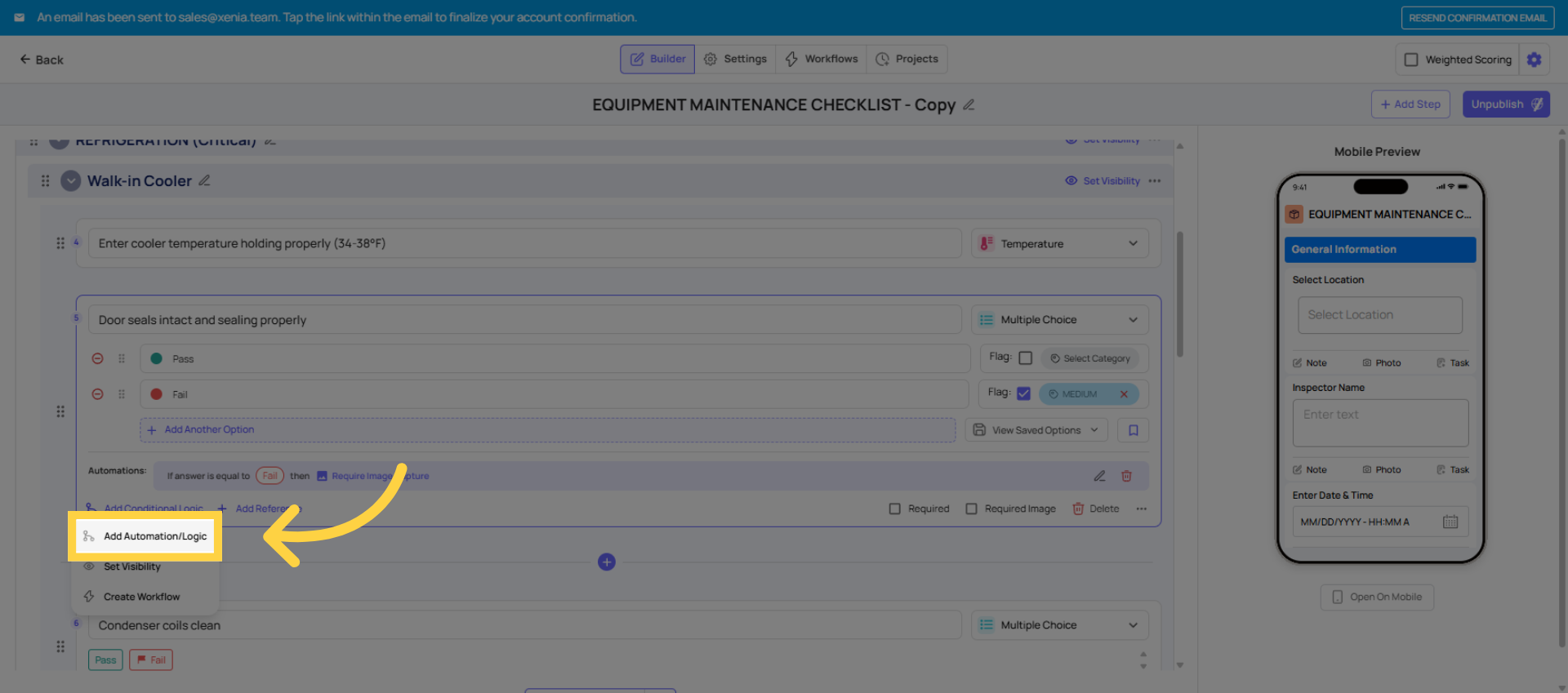
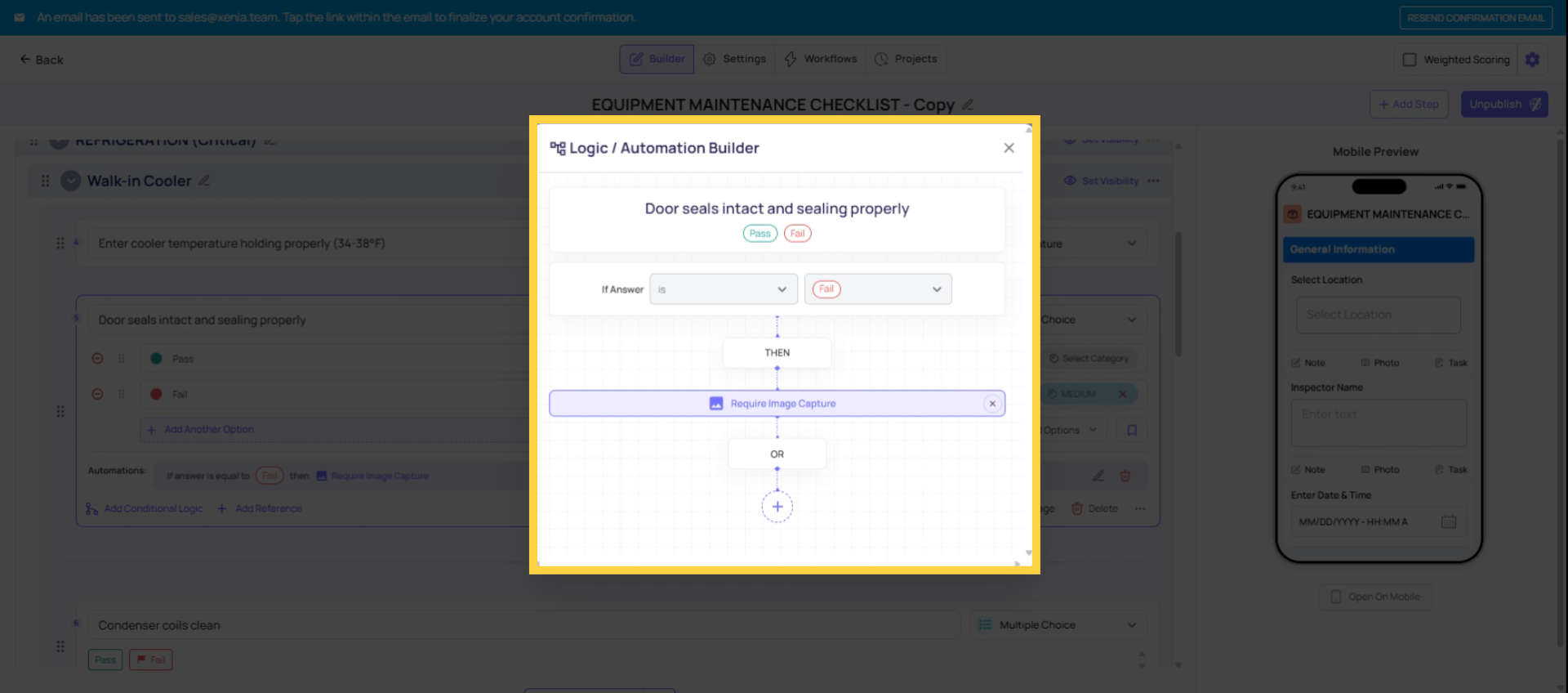
Inside any step in the template builder, you can add conditional logic that fires a Send Notification action when a specific answer is given. This fires immediately — the moment the employee gives the triggering answer, before they even submit the form.
How to configure it:
- Build tab → click into the step → Add Conditional Logic
- Set the trigger condition (If answer is No, if temperature is below 38°F, etc.)
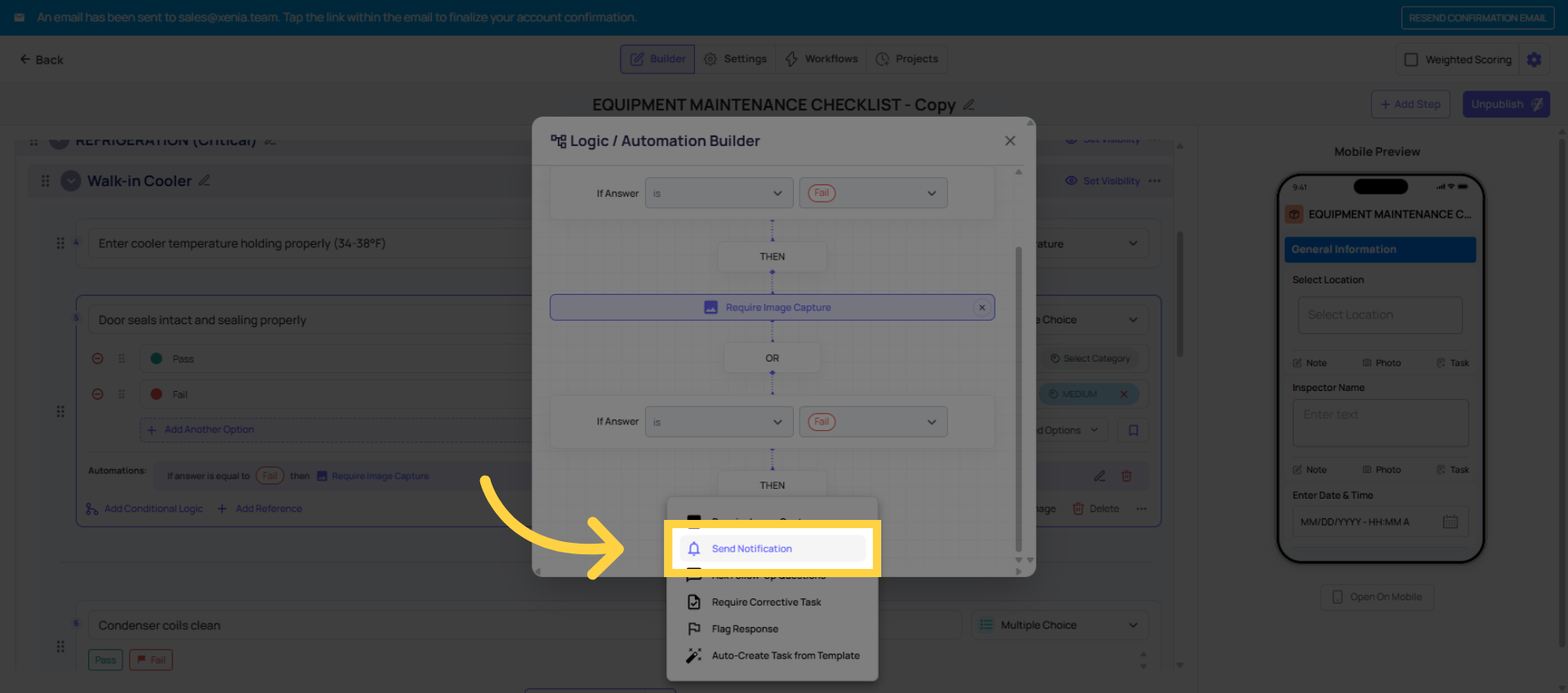
- Choose Send Notification as the action
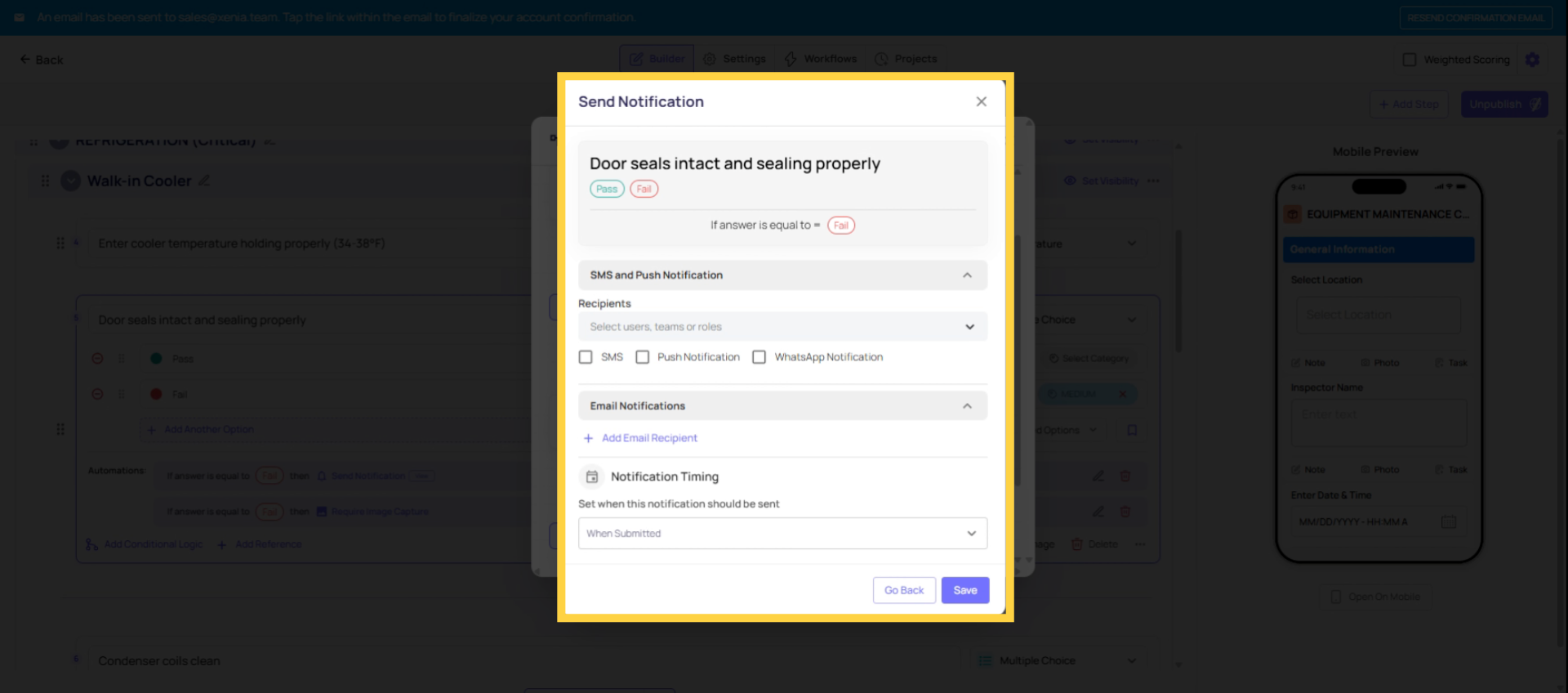
- Select recipients: a role (location-scoped), a specific user, or an email address
- Choose the delivery channel: push, email, or SMS
- Save
This is the right path when: someone needs to know about a specific answer right now, while the employee is still completing the checklist — not when the form is submitted, but at the moment the critical answer is given. A food safety manager who needs to know about a temperature violation in real time, not an hour later.
What it does not create: No task. No corrective action record. No status tracking. Just a notification. If you also need a task to track whether the issue gets resolved, add the corrective task action alongside the notification on the same trigger.
3. Path 2 — Post-submission email notification on the template (fires after full submission)
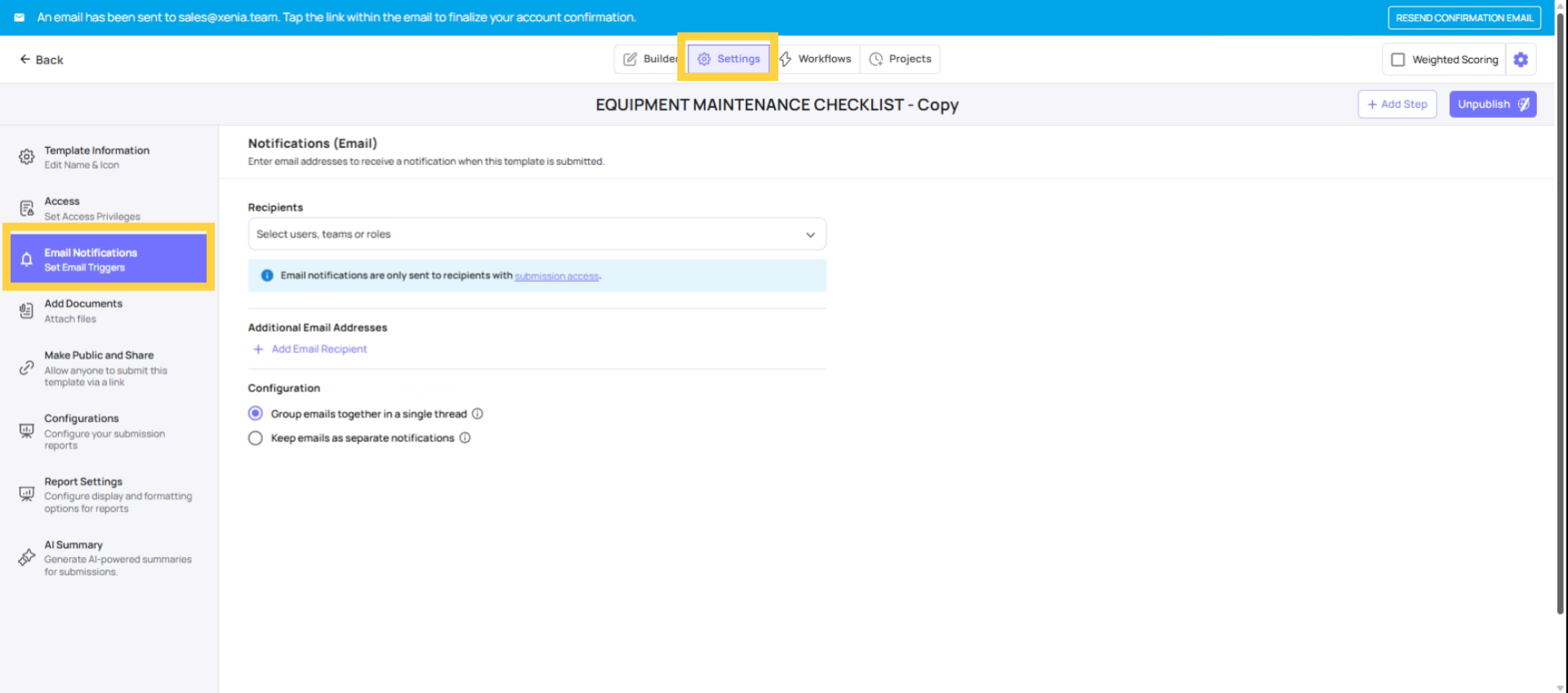
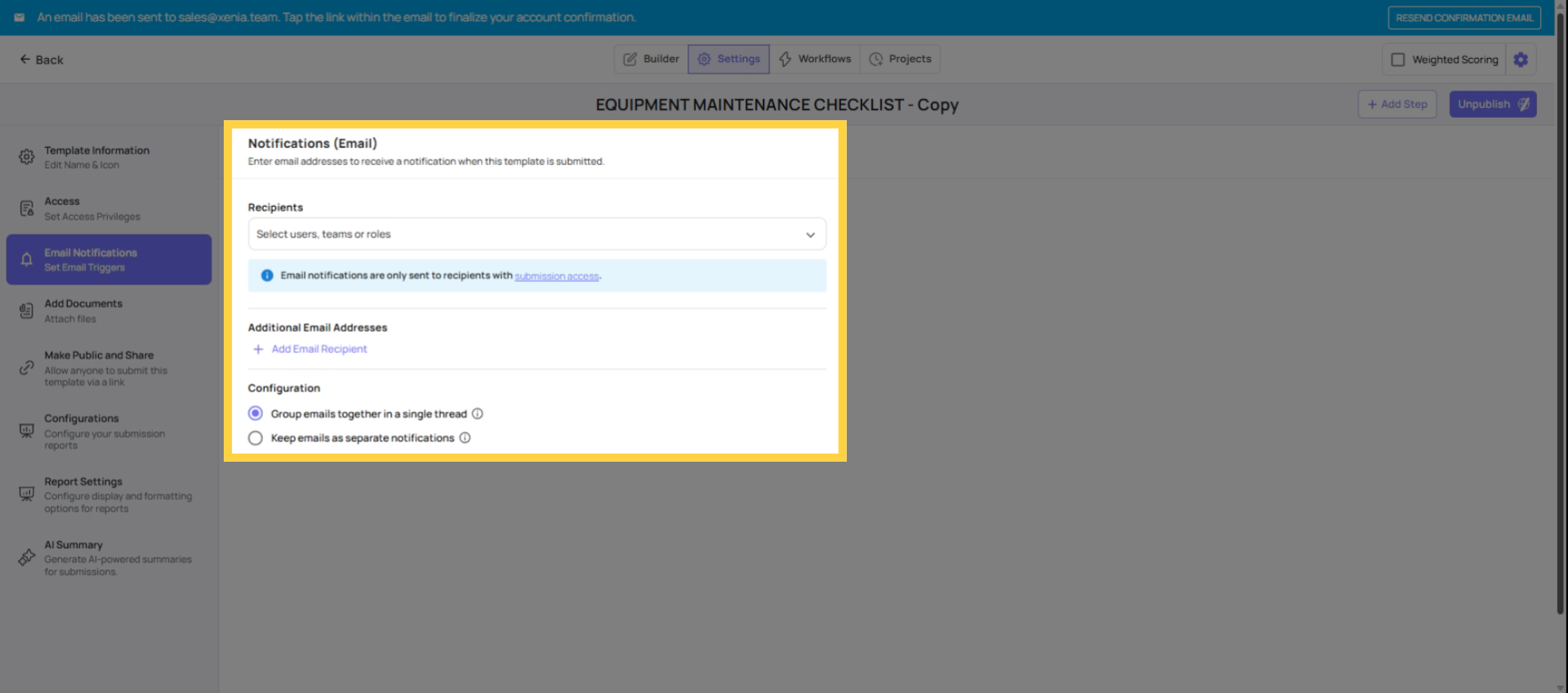
In the template's Settings tab → Email Notifications section, you can add notification recipients who receive an email every time the template is submitted — regardless of what was answered. This is not answer-specific. Every submission of the template triggers the email.
This is the right path when: someone needs a copy of every submission for review — a district manager who reviews every vendor issue form, a compliance officer who needs a record of every food safety audit.
What it does not create: No task. No conditional routing. The email goes to the configured recipients on every submission, always.
Choosing Between the Two
| Need | Which path |
| Alert someone only when a specific answer is given | Conditional notification (inline, during submission) |
| Alert someone on every submission regardless of answers | Post-submission email notification (template Settings) |
| Alert someone AND track whether the issue was resolved | Conditional notification + corrective task on the same trigger |
| Alert an external vendor contact on specific vendor submissions | Workflow corrective task with external notification recipient |
This article explains how to configure notifications in workflows without creating tasks, covering conditional logic triggers and template email notifications. It highlights options for immediate alerts and unconditional emails, and when to add corrective tasks for accountability. For more information, see related articles on workflow automation and task management.
Need Help?
Reach out to our Support Team at Support@xenia.team
Comments
0 comments
Please sign in to leave a comment.