
1. Introduction
2. OR conditions within one workflow rule
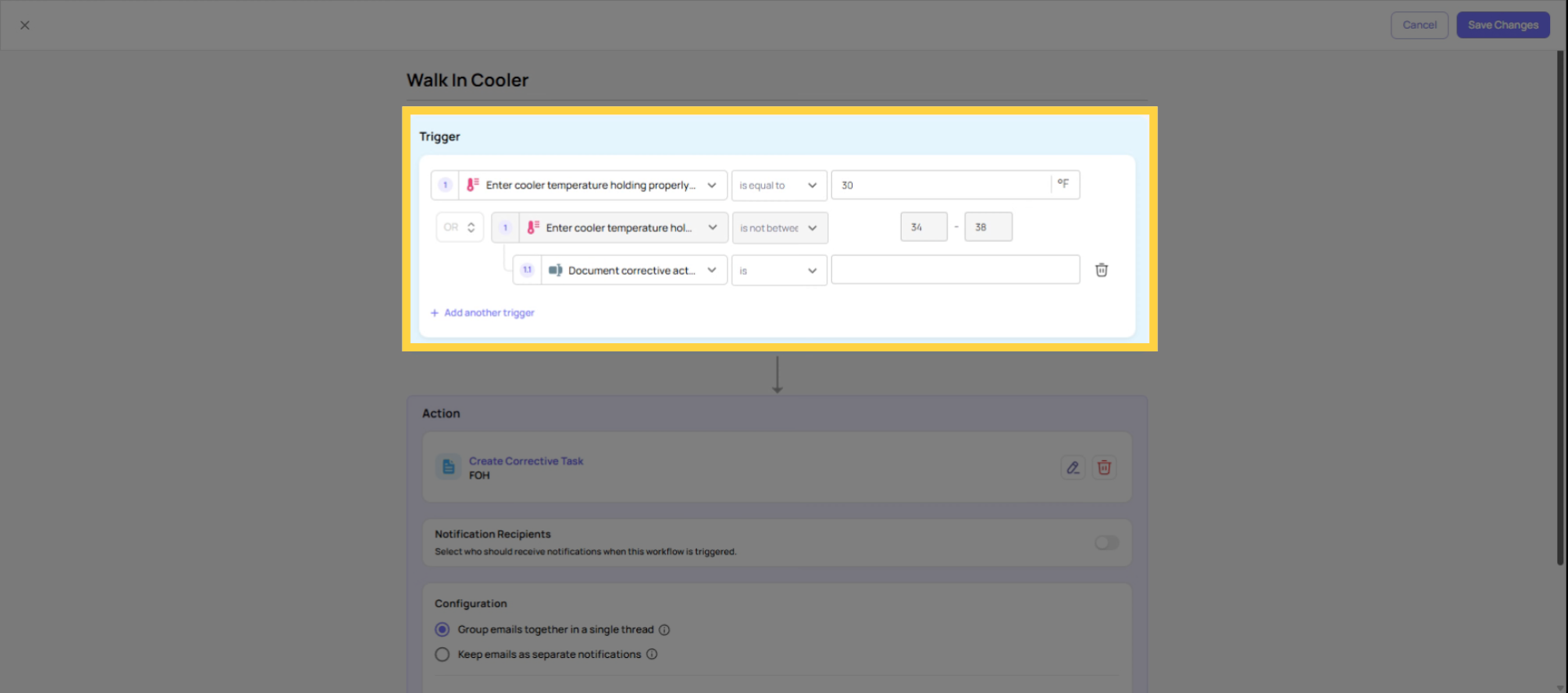
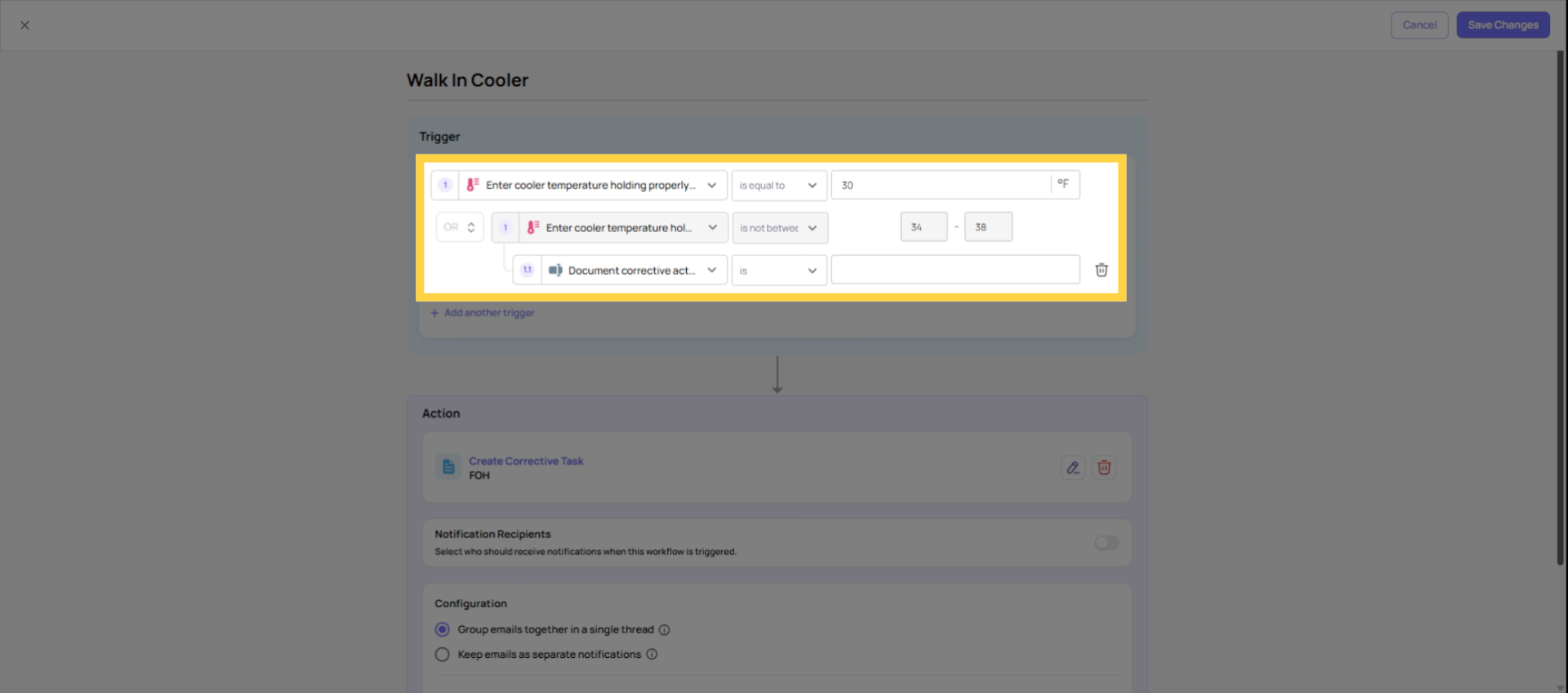
Use OR logic to connect multiple answer conditions within a single workflow rule. The rule fires when any one of the conditions is met.
Example: You want one corrective task to be created any time a store reports a critical or emergency issue — regardless of which specific severity option they select.
- Condition 1: Issue Severity = "Critical"
- Condition 2: Issue Severity = "Emergency"
- Logic: OR
The workflow fires when either Critical OR Emergency is selected. One rule, two trigger values, one corrective task created.
This is the cleanest approach when multiple answers should all produce the same outcome — the same task, the same assignee, the same notification recipients.
3. When to Use Separate Workflows Instead
If different answers should route to different teams, create different tasks, or notify different people — build separate workflow rules, one per routing destination.
Example:
- "Gas Vendor Issue" → separate workflow → routes to Fuel Operations team
- "Beverage Vendor Issue" → separate workflow → routes to Beverage Category Manager
- "Food Vendor Issue" → separate workflow → routes to Food Safety team
These are three different outcomes from three different answers. They belong in three separate workflows, not one workflow with OR conditions.
The decision rule: same outcome from multiple answers → OR logic in one rule. Different outcomes from different answers → separate rules.
Building It in the Workflows Tab
- Open the template → Workflows tab → open or create the workflow
- Set the first trigger condition (e.g., Issue Severity = "Critical")
- Click Add Condition
- Set the logic selector to OR
- Set the second condition (e.g., Issue Severity = "Emergency")
- Add more OR conditions as needed
- Configure the corrective task and notification recipients
- Save and test
The workflow fires when any one OR condition is met. The corrective task is created once — not multiple times — even if the employee somehow triggers multiple conditions in the same submission.
Need Help?
Reach out to our Support Team at Support@xenia.team
Comments
0 comments
Please sign in to leave a comment.