
1. Workflow Task Issues
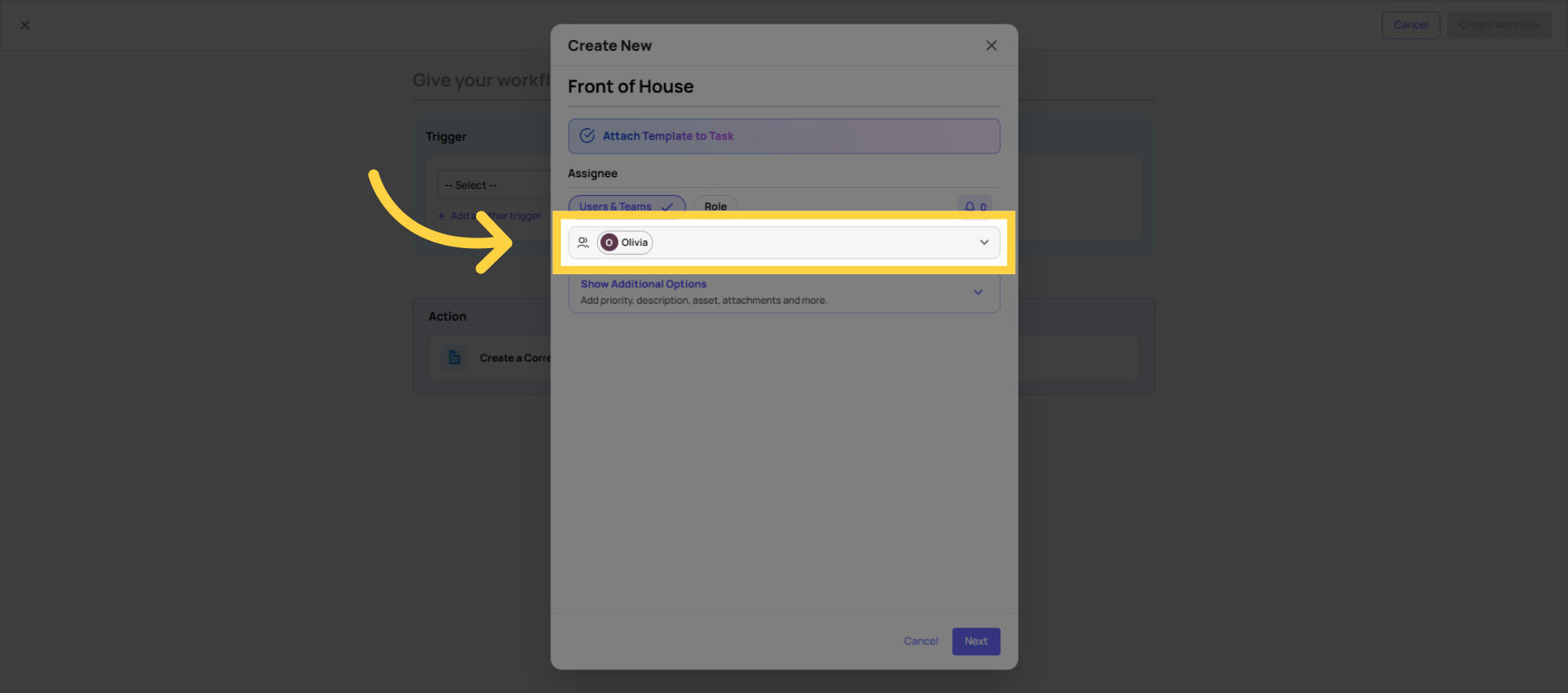
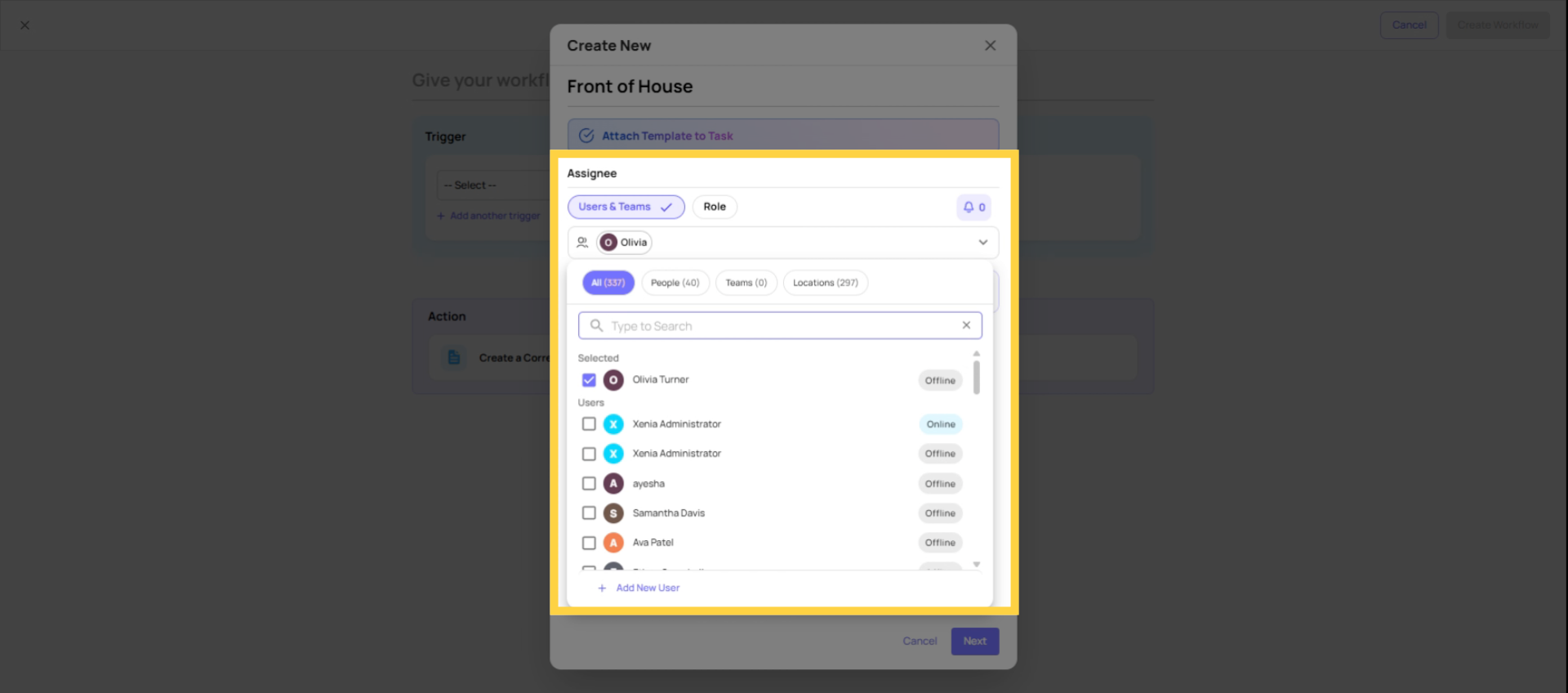
2. Cause 1 — A specific individual was assigned instead of a role
When a named individual is set as the corrective task assignee, they receive every task generated by that workflow — regardless of which location submitted the form. If your Vendor Issue form is used at 50 locations and the assignee is a specific person, that one person gets every corrective task from all 50 stores. That's almost never the right setup.
Fix: Open the workflow → corrective task configuration → change the assignee from a specific user to a role. With a role assigned, location membership routes the task to the right person at the right store automatically.
5.Cause 2 — Use Submission Location is not enabled
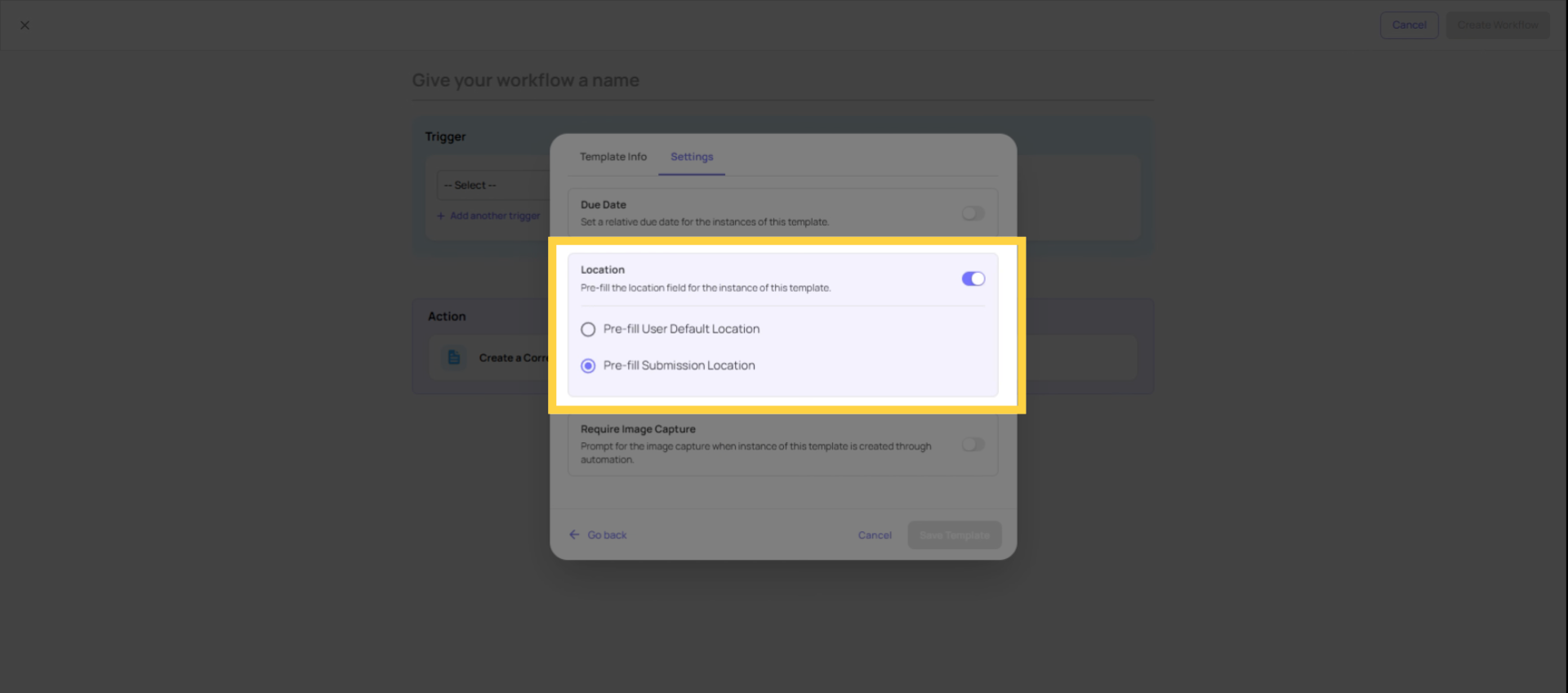
"Use Submission Location" (sometimes shown as "Pre-fill Submission Location") is the toggle that tags the corrective task to the location where the checklist was submitted. When it's off, the task either has no location tag or picks up an incorrect default location. Without the correct location tag, role-based routing has nothing to work with — the task may go to no one, go to the wrong person, or be invisible to the intended assignee.
Fix: Open the workflow → corrective task configuration → find Use Submission Location and enable it. Always on, for every workflow.
6. A Note on the Location Step
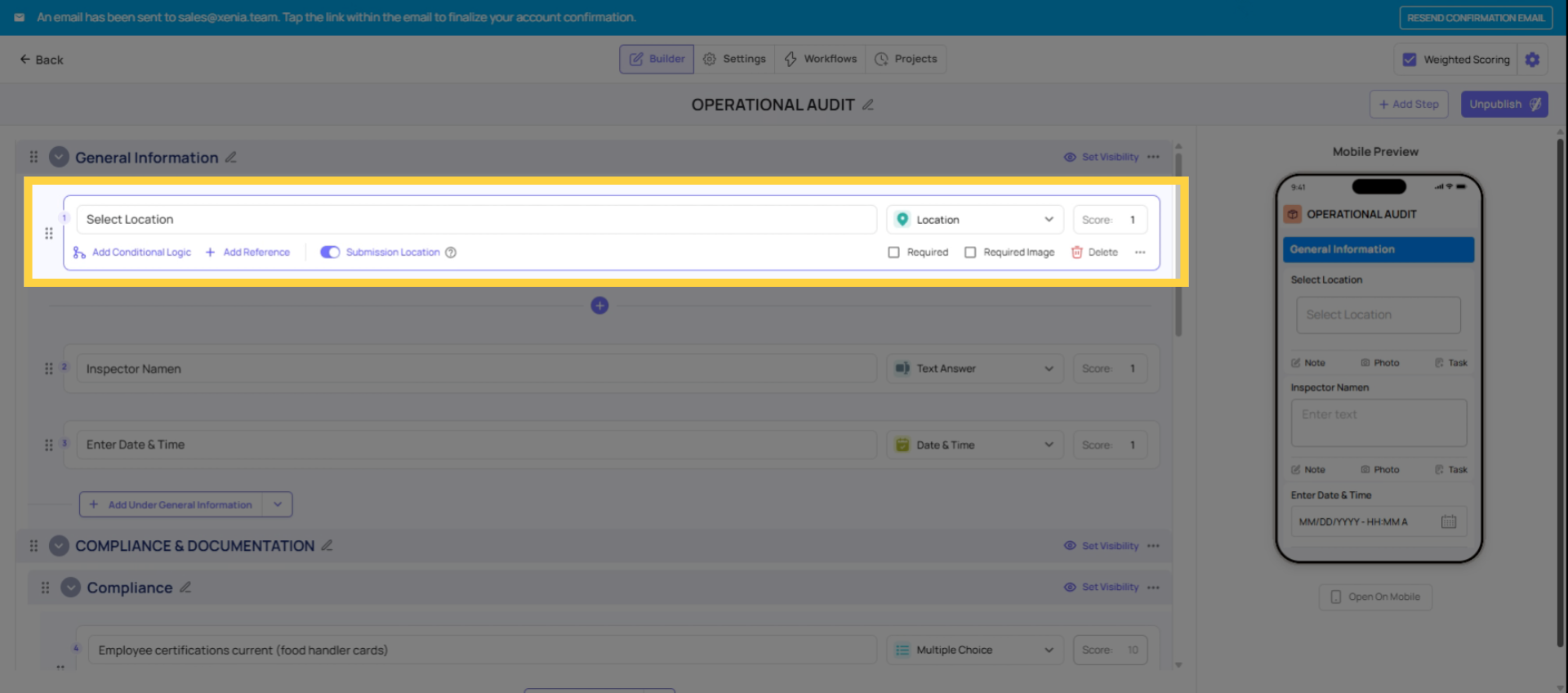
The Select Location step in the template is what tells Xenia which store the submission came from. If the template doesn't include a Location step — or if the employee didn't fill it in during submission — there's no location data attached to the submission. Use Submission Location has nothing to reference, and the corrective task ends up with no location tag.
Check: Open the template in the builder → Build tab → confirm a Select Location step exists near the top of the form. Make it Required so employees can't skip it.
The Quick Diagnostic Checklist
When a corrective task is going to the wrong person — or not appearing for the right person — run through these four checks in order:
- Is the assignee a role or a specific individual? → If individual, switch to role
- Is Use Submission Location enabled? → If not, enable it
- Was the Location step filled in during submission? → If not, the task has no location to route from
- Does the role member have location membership at the submitting location? → If not, add the membership
All four must be true for the task to route correctly. If any one of them fails, the routing breaks.
This article guided you through four key checks to resolve corrective task routing issues in Xenia workflows. By verifying assignee roles, enabling location tagging, ensuring template steps, and confirming role membership, you can ensure tasks reach the correct recipients. For more information, see related workflow configuration articles in the knowledge base.
Need Help?
Reach out to our Support Team at Support@xenia.team
Comments
0 comments
Please sign in to leave a comment.