
1. Why Testing Matters Before Going Live
A workflow that fires incorrectly creates real problems: corrective tasks assigned to the wrong person, tasks with no location, notifications that never arrive, or worst of all — a trigger that doesn't fire at all and silently misses every real issue it was supposed to catch.
Testing before go-live costs five minutes. Discovering a misconfigured workflow after two weeks of live submissions costs time, trust, and potentially a gap in your compliance record.
The principle: test every workflow before the template goes into production. Even simple single-condition rules should be verified end-to-end.
2. The Testing Protocol — Step by Step
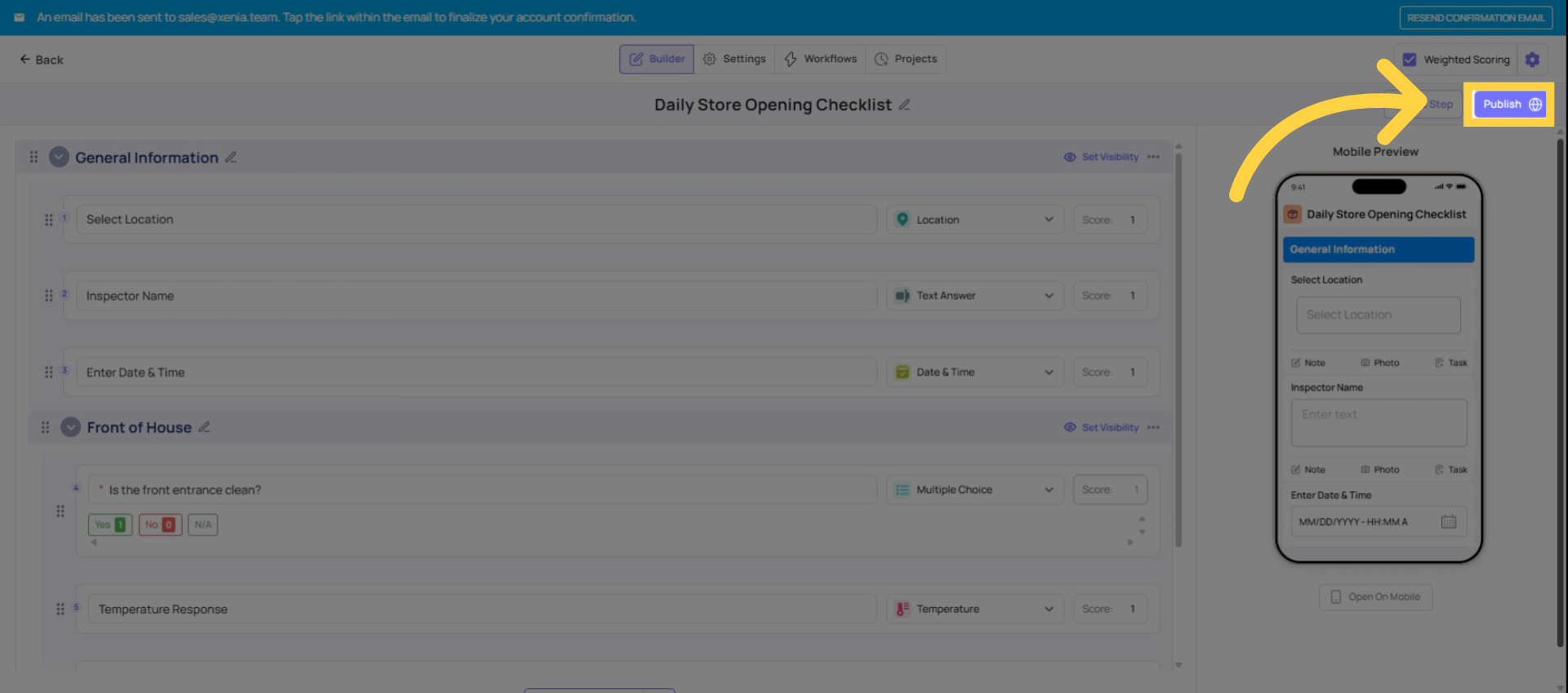 Step 2 — Open the template as a submitter Go to Operations → Templates → find the template → click to open it in submission mode (not the builder). You want to complete it the same way an employee would.
If you're an Admin, you may need to confirm your role has "Can Submit" access to this template in the template's access settings. If the template doesn't appear or you can't submit, adjust the access settings temporarily for testing.
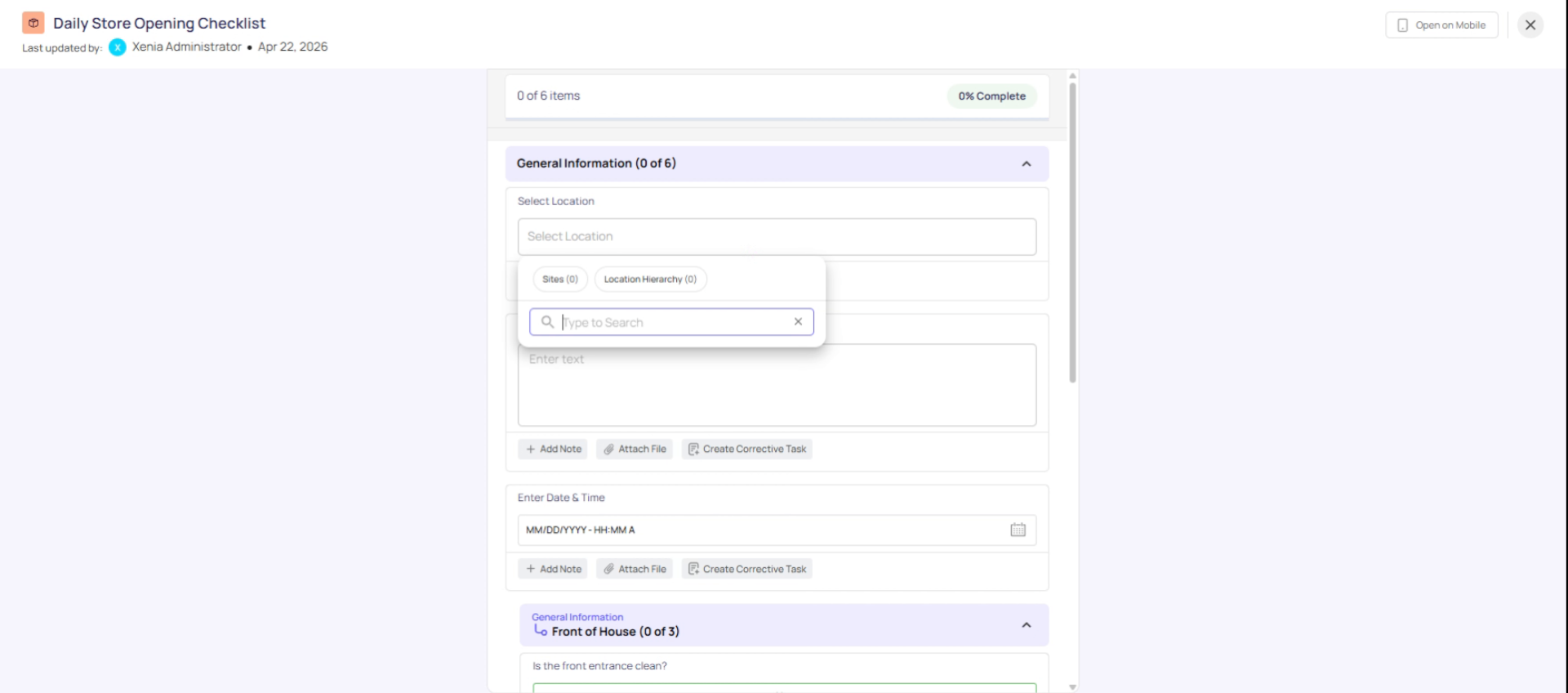 Step 3 — Fill in the Location step first This is the step most often missed during testing. Select your test location from the Location dropdown step in the form. Without a location selected, the corrective task will have no location tag and the workflow's location-scoped routing will fail.
If you're testing with a specific Location Group condition, make sure the location you select belongs to that group. Otherwise the workflow condition won't be met and nothing will fire.
Step 4 — Fill in the triggering answer Give the specific answer that should fire the workflow. If the condition is "Vendor = Solar Array," select Solar Array. If it's "Temperature < 38°F," enter a value below 38. Give exactly the answer that matches your trigger condition.
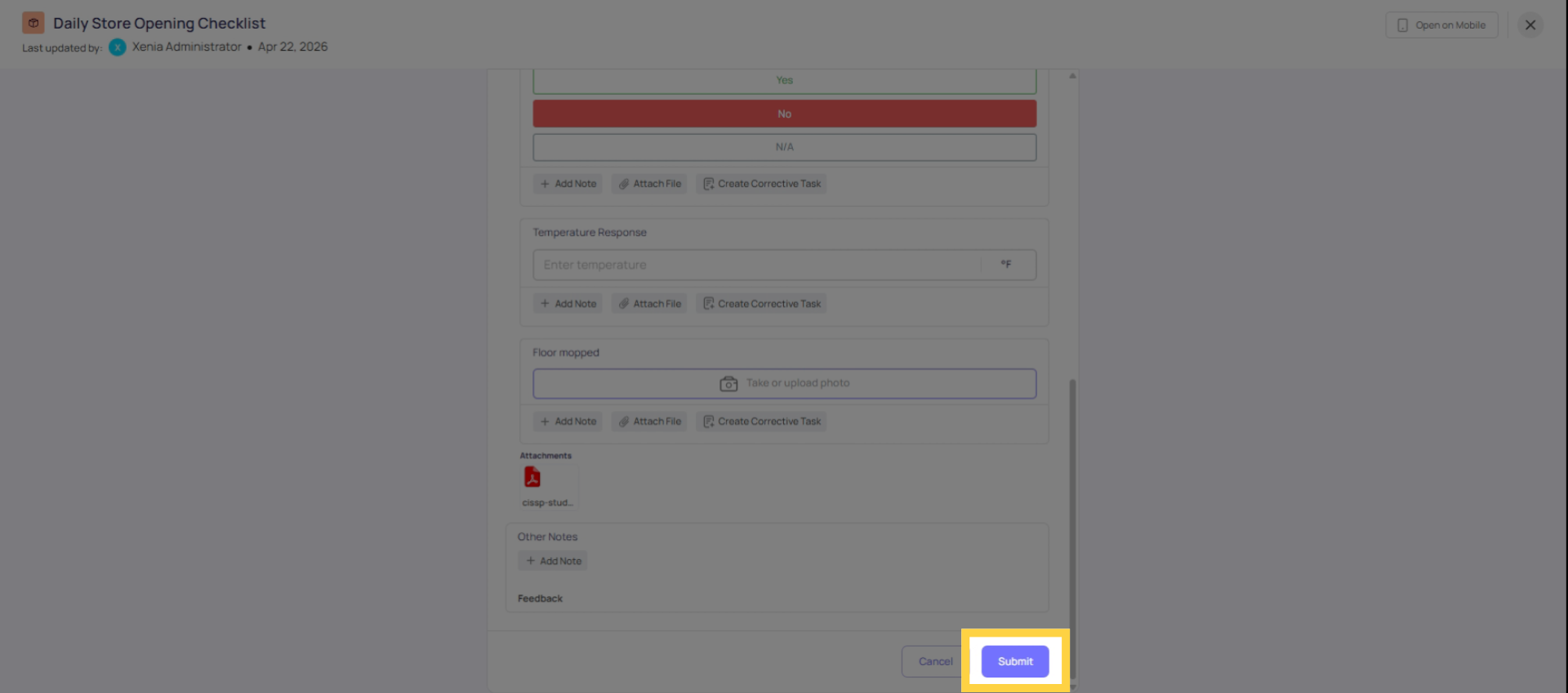
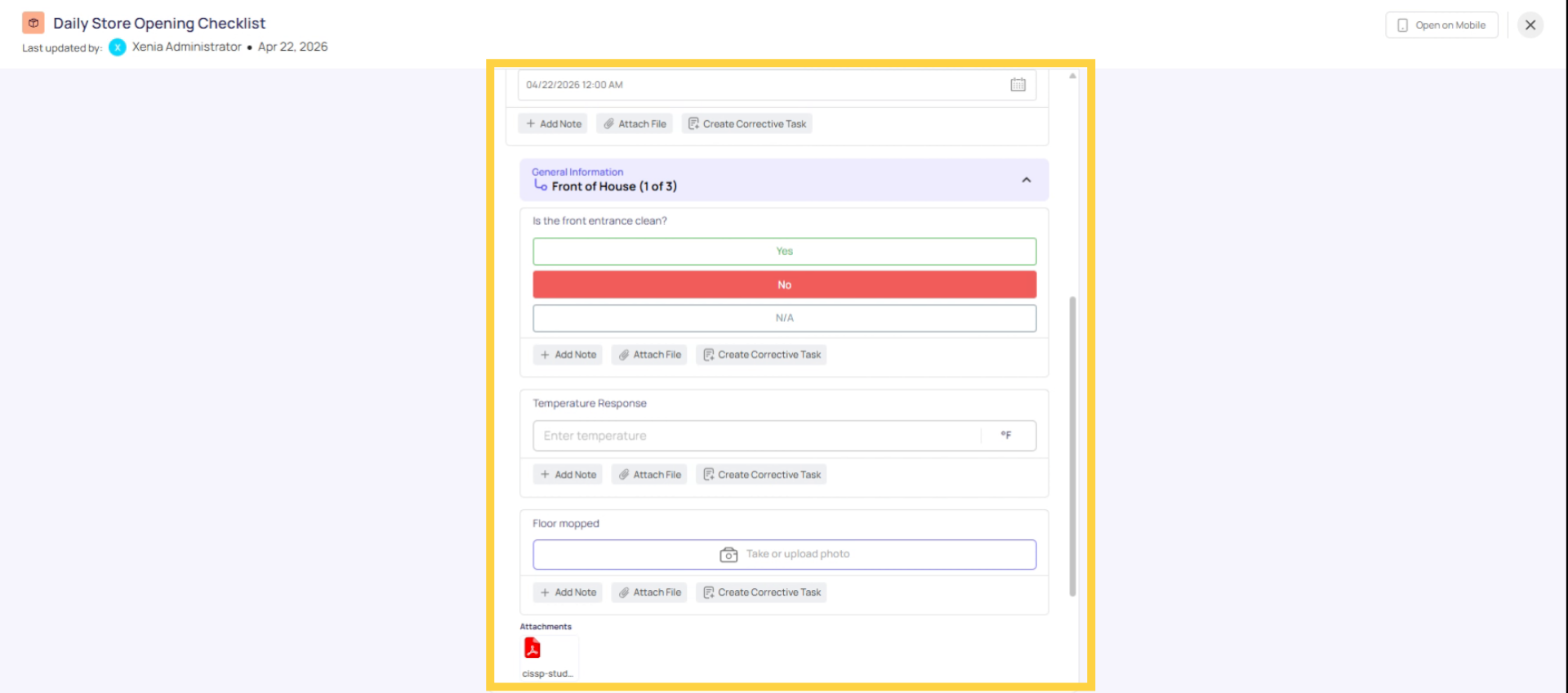 Step 5 — Complete any remaining required steps and submit The workflow fires at submission, not at the moment you give the triggering answer. Fill in any required steps and tap Submit. The corrective task is created in the background at this moment.
 Step 6 — Check Tasks & Work Orders Go to Tasks & Work Orders. Look for the corrective task — it should appear immediately after submission. Filter by the task name you configured if there are many tasks in the board.
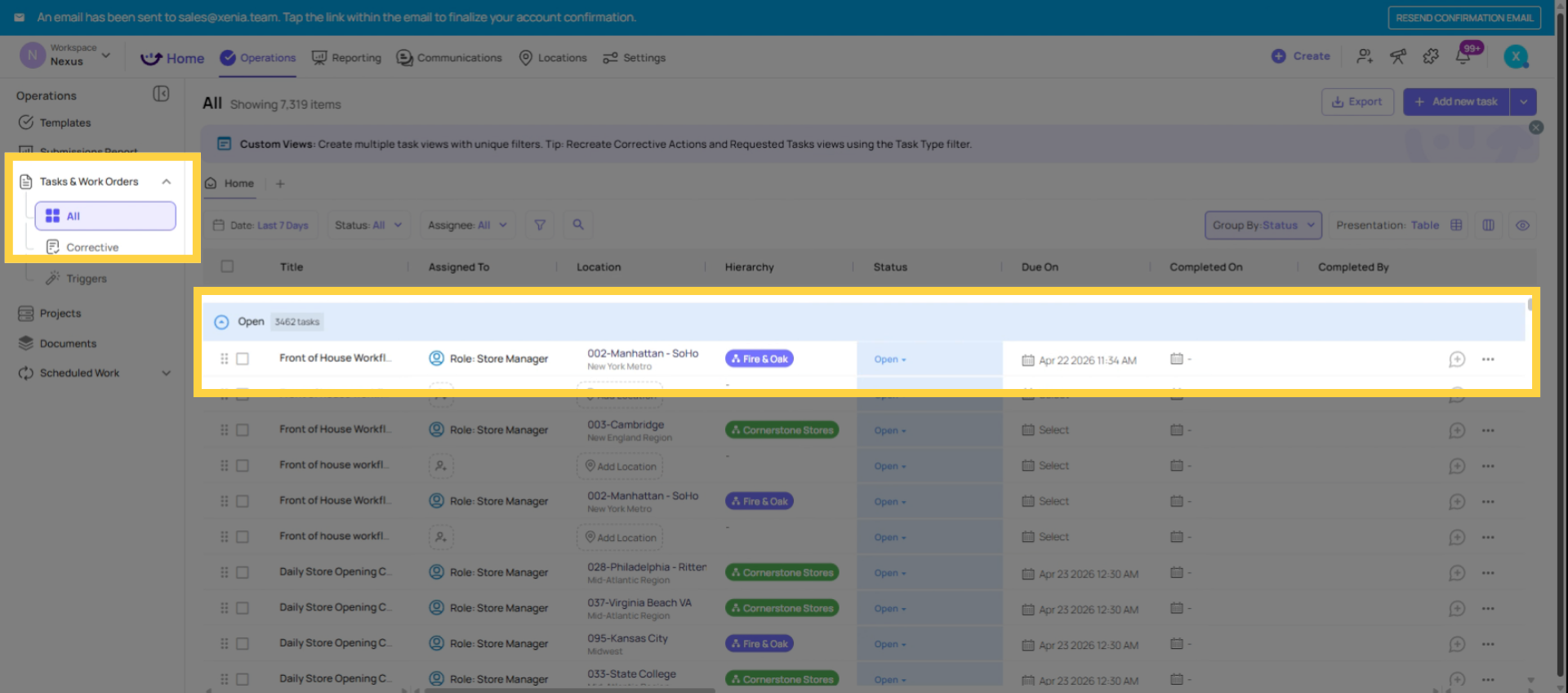
3. What to Verify on the Generated Task
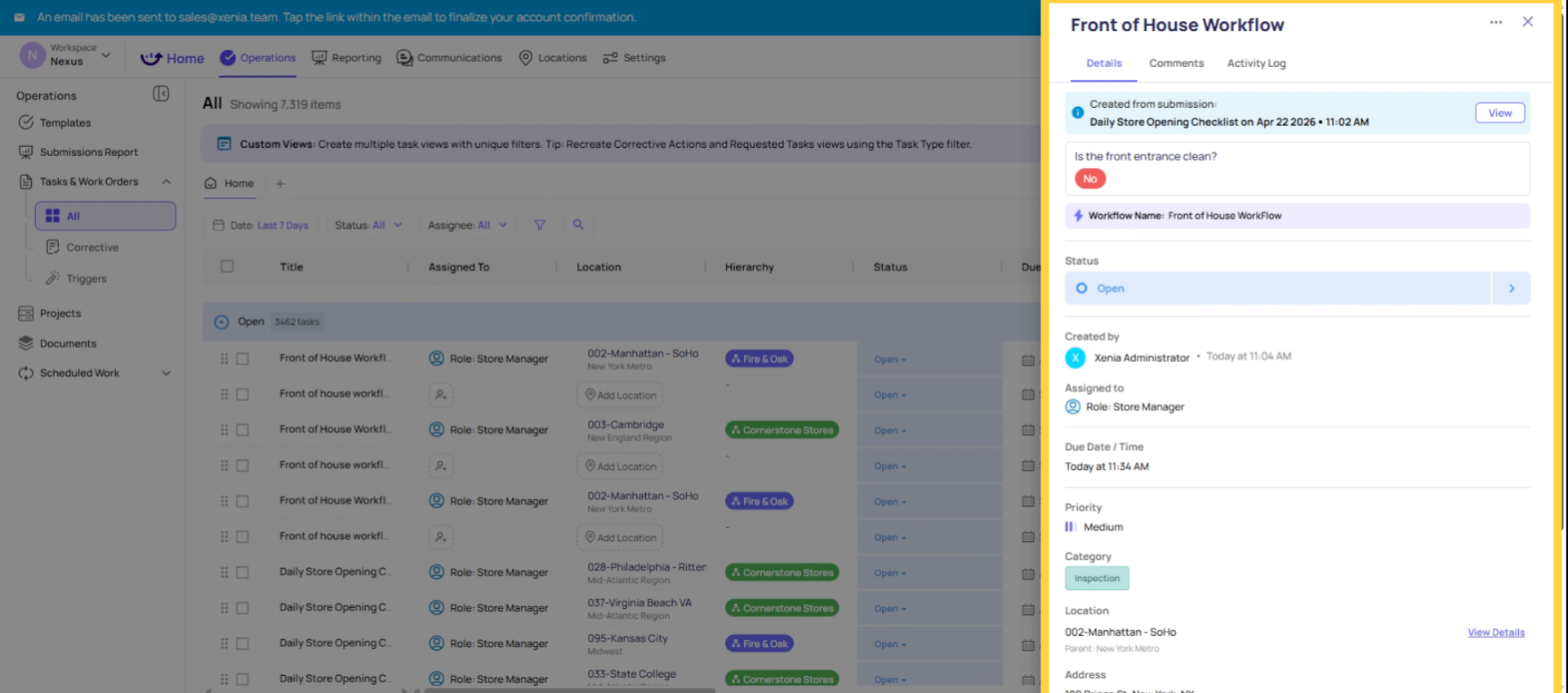
Check every field on the corrective task:
Task name: Does it match what you configured? If it's blank or wrong, the task name field in the workflow wasn't saved correctly.
Location: Is it tagged to the store you submitted from? If it shows no location or a different location, Use Submission Location is off, or the Location step wasn't filled in during the test.
Assignee: Is it the correct role or user? If the task has no assignee or the wrong one, the assignee field in the workflow configuration needs to be updated.
Due date: Is it set correctly? If the task shows no due date, the relative due date wasn't configured. If the time seems off, check whether you configured hours vs. days and how that interacts with the current time.
Link to original submission: Does the task link back to the test submission? This confirms the workflow correctly associated the task with the form.
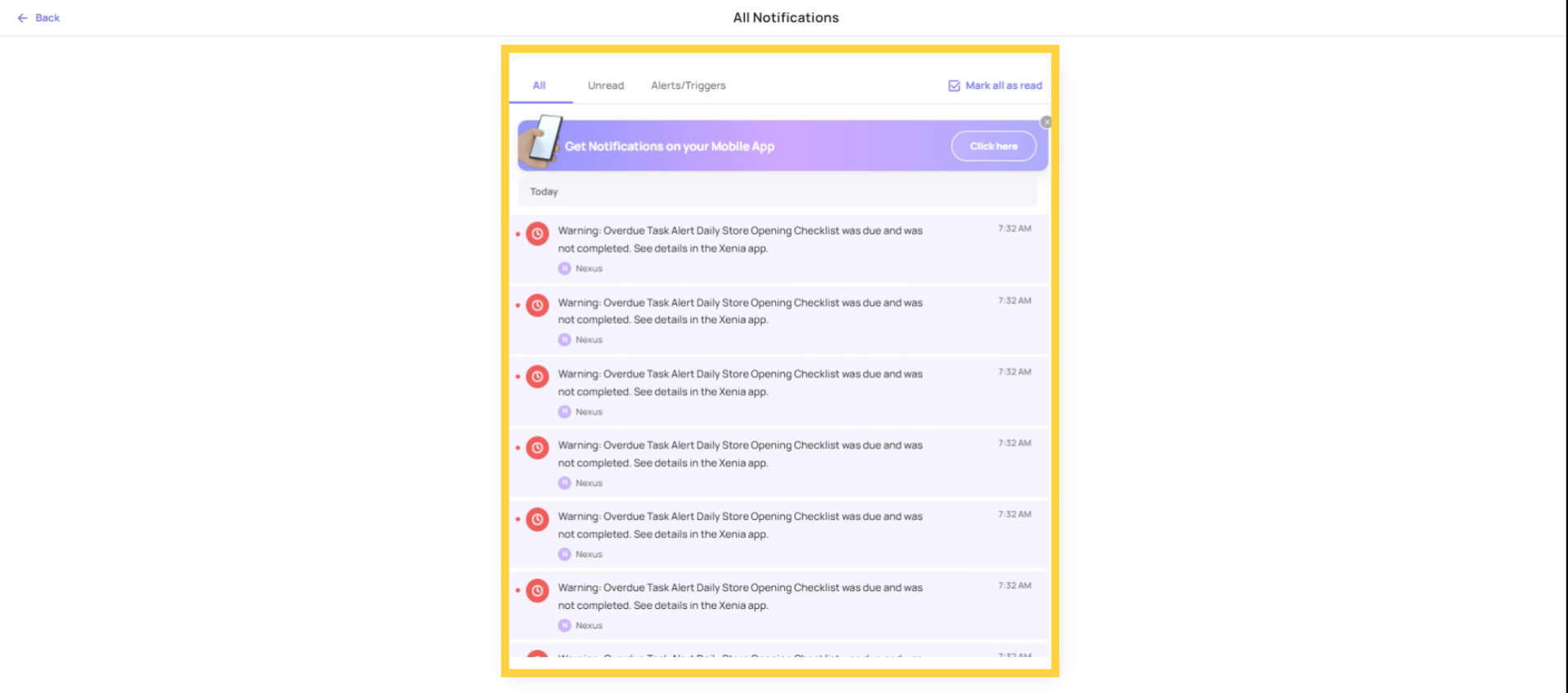
4. Verifying Notifications
Check that notification recipients received their alerts:
For internal roles: Log into an account that holds the notified role and has membership at the test location. Check the notification center and email inbox.
For specific named users: Ask that person to check their notification center and email.
For external email addresses: Check the inbox for the external address. Note that external email delivery can take a few minutes.
If notifications weren't received:
- Check the recipient's notification preferences in My Settings — if their delivery channel is set to None, no notification will arrive
- For roles: confirm the role member has location membership at the test location
- For external emails: verify the address is correctly entered in the workflow (no typos, no extra spaces)
5. Cleaning Up Test Data
A test submission is a real submission — it exists in your reporting data, your submission history, and any dashboards configured to pull from that template. A test corrective task is a real task in your task board.
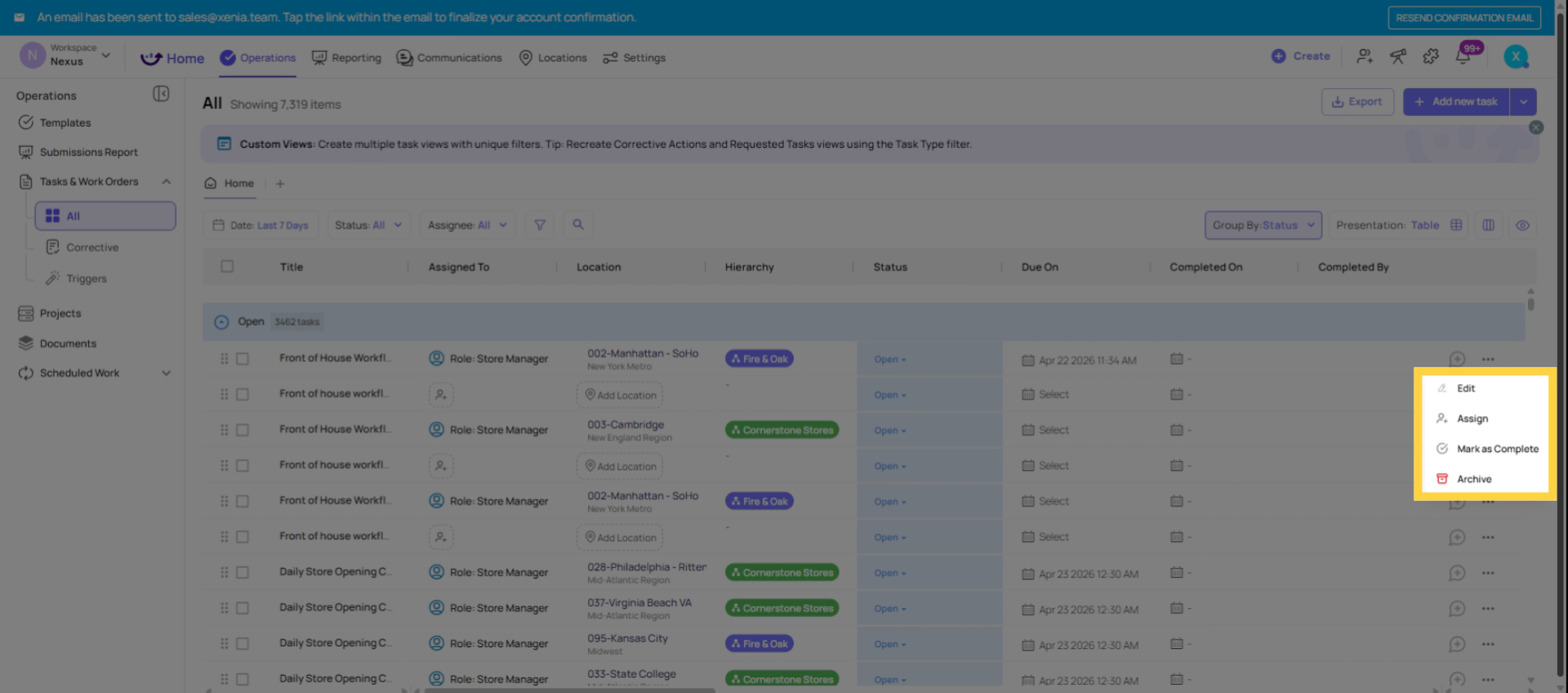
Cleaning up test tasks: Find the test corrective task in Tasks & Work Orders, open it, and delete it or mark it as completed (depending on your permissions). If you want to keep the task board clean, delete it.
Cleaning up test submissions: Go to Operations → Templates → the template → Submissions (or view the submission history). Find the test submission and delete it if your role has the ability to do so. If you don't have delete access, flag it clearly in the submission's notes or task name so anyone reviewing the data knows it was a test.
A cleaner approach: Some admins create a dedicated test location — a "Test Store" or "QA Location" that isn't a real store — used exclusively for testing workflows and configurations. Submissions from this location are visually separated from real operational data and can be filtered out of dashboards.
Common Failure Modes and Their Fixes
| Symptom | Most Likely Cause | Fix |
| No task created at all | Template not published, or trigger condition wasn't met | Publish the template; verify the answer given exactly matches the trigger condition |
| Task has no location | Location step wasn't filled in, or Use Submission Location is off | Fill in the Location step during testing; enable Use Submission Location on the task config |
| Task assigned to wrong person or no one | Assignee role has no member at the test location | Confirm role membership at the test location; check the assignee field in the workflow |
| No notification received | Recipient's notification settings are off, or role member lacks location membership | Check My Settings → Notifications for the recipient; verify location membership for role recipients |
| Task appears for every submission, not just the triggering answer | The condition wasn't saved correctly, or the condition operator is wrong | Open the workflow and verify the trigger condition is saved and correct |
| External email notification not received | Email address typo, or email is being filtered to spam | Double-check the address; ask recipient to check spam folder |
Need Help?
Reach out to our Support Team at Support@xenia.team
Comments
0 comments
Please sign in to leave a comment.