
1. What Workflow Notifications Do
When a workflow fires and creates a corrective task, notification recipients receive an alert — via email, push notification, or both — at the moment the task is created. This is a task-creation notification, not a submission notification: it fires because a task was created by the workflow, not simply because the form was submitted.
The notification tells recipients: a task has been created, here's what it's for, here's the link to view it.
Notification recipients on a workflow are different from:
- Post-submission email notifications on the template (which fire for every submission of the template, not just when a trigger condition is met)
- Overdue/missed notifiers (which fire when a task passes its due time)
Workflow notifications are specific to task creation from a trigger condition.
2. Recipient Types
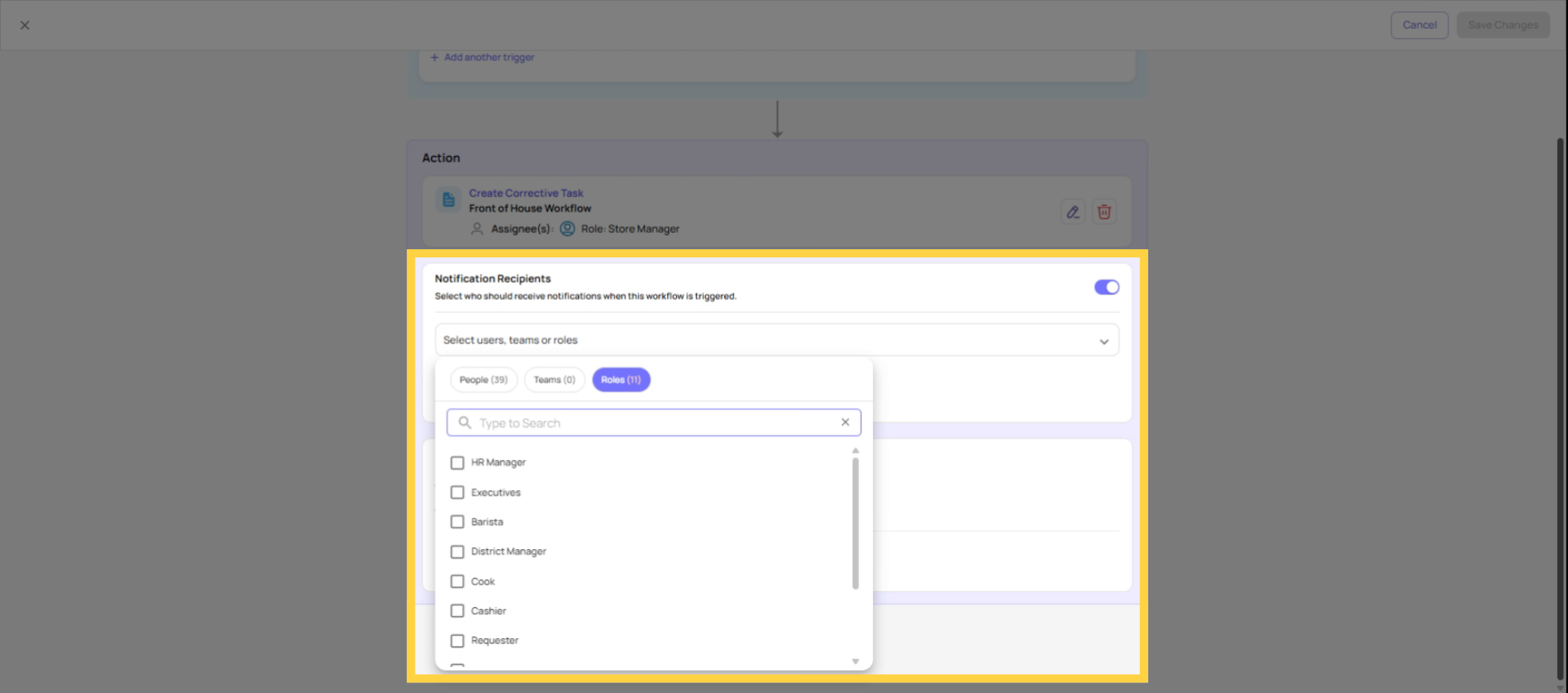
Roles (internal, location-scoped) The most common and recommended choice for internal recipients. When a role is added as a notification recipient, Xenia uses location membership to route the notification — only the member of that role who has membership at the submission's location receives the alert.
Example: If Store Manager is a notification recipient and the form was submitted from Store 12, only the Store Manager at Store 12 is notified. Store Managers at other locations receive nothing.
This is location-scoped routing — the same mechanism used everywhere else in Xenia's notification system. Use roles for any internal recipient who should only receive notifications relevant to their location.
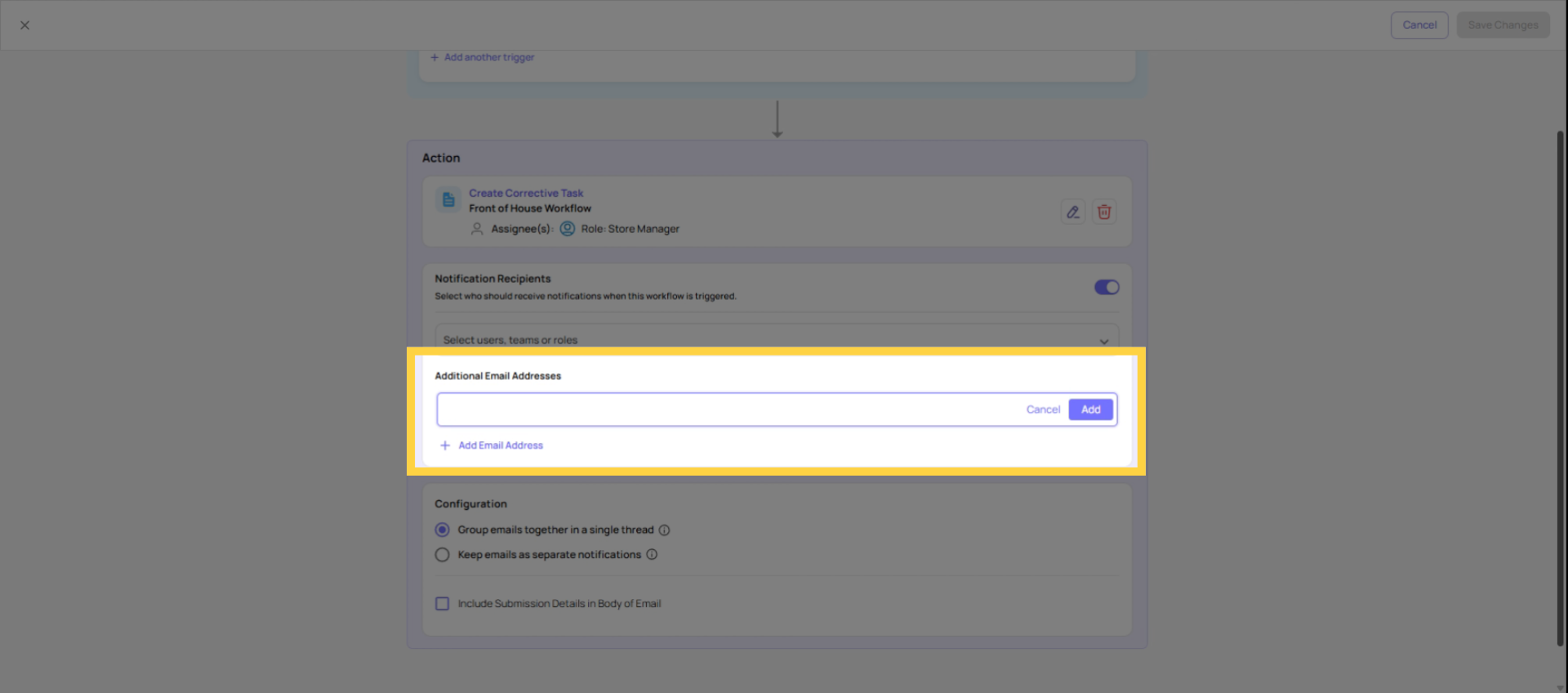
 External email addresses (outside Xenia) Any email address — a vendor contact, a contractor, a third-party service provider, a regulatory body. These people don't have Xenia accounts. They receive an email notification with the task details when the workflow fires.
This is one of the most practical use cases for workflow notifications: when an issue is reported with a specific vendor and that vendor needs to be immediately notified to respond.
3. Email Threading
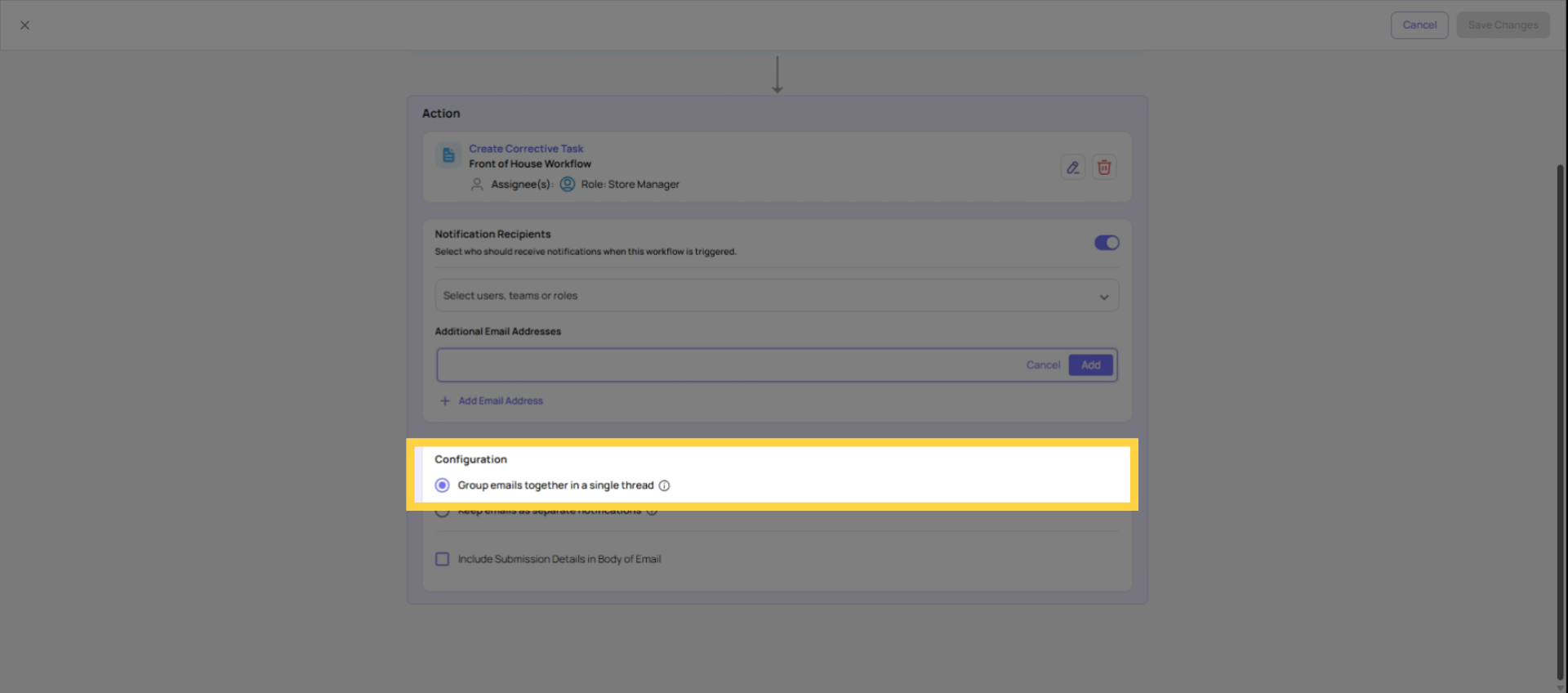
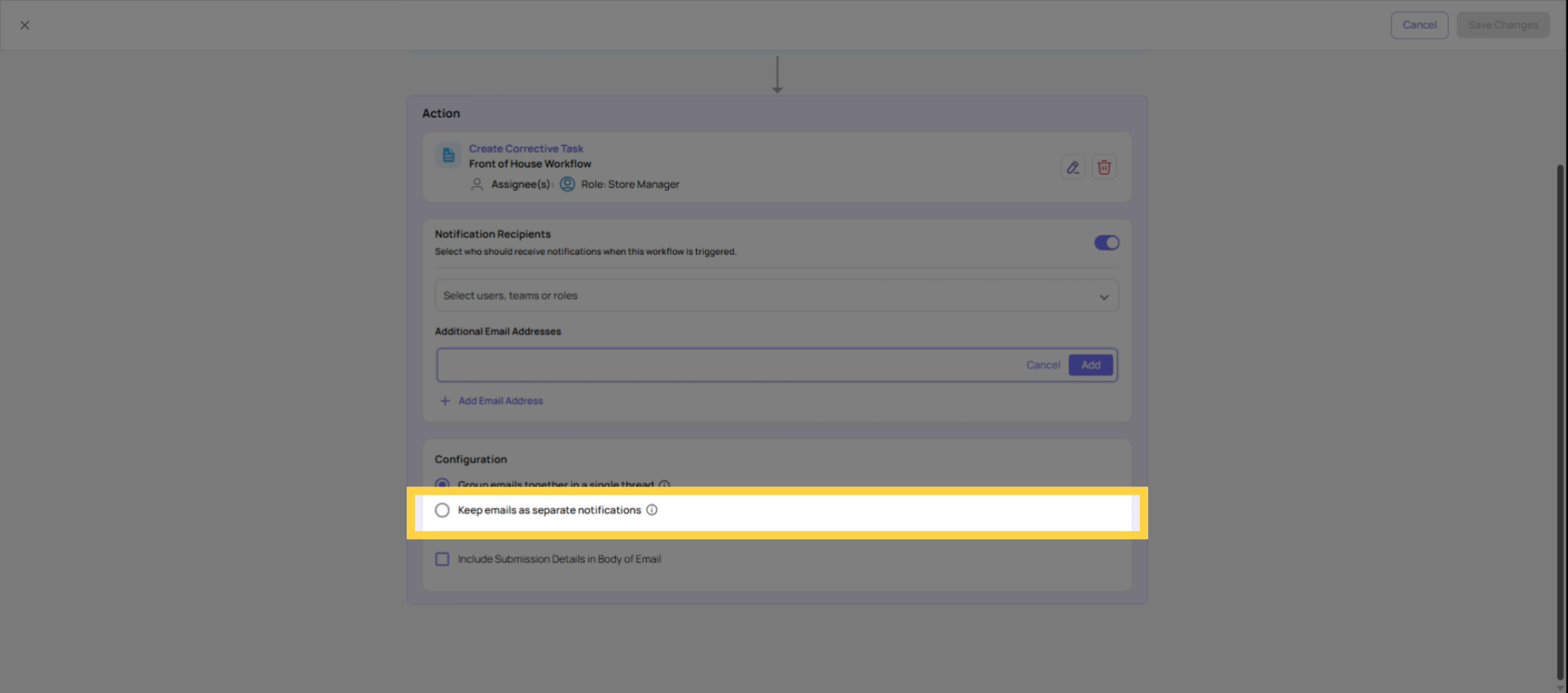
When multiple recipients are notified from the same workflow, you can control whether they receive notifications on a single shared email thread or on separate individual threads.
Grouped (single thread): All recipients are on the same email chain. Replies from any recipient are visible to everyone on the thread. The Store Manager, the operations manager, and the vendor contact are all together in one conversation.
Best for: issues where communication between parties is expected and beneficial — a vendor delivery problem where the store manager and vendor need to coordinate, for example.
Separate threads: Each recipient gets their own individual email notification. Replies are private to each person. Recipients don't see each other's responses.
Best for: internal notifications that shouldn't include external parties. If you're notifying the Store Manager internally and the vendor externally, you may not want those to be on the same thread — the vendor doesn't need visibility into internal communications.
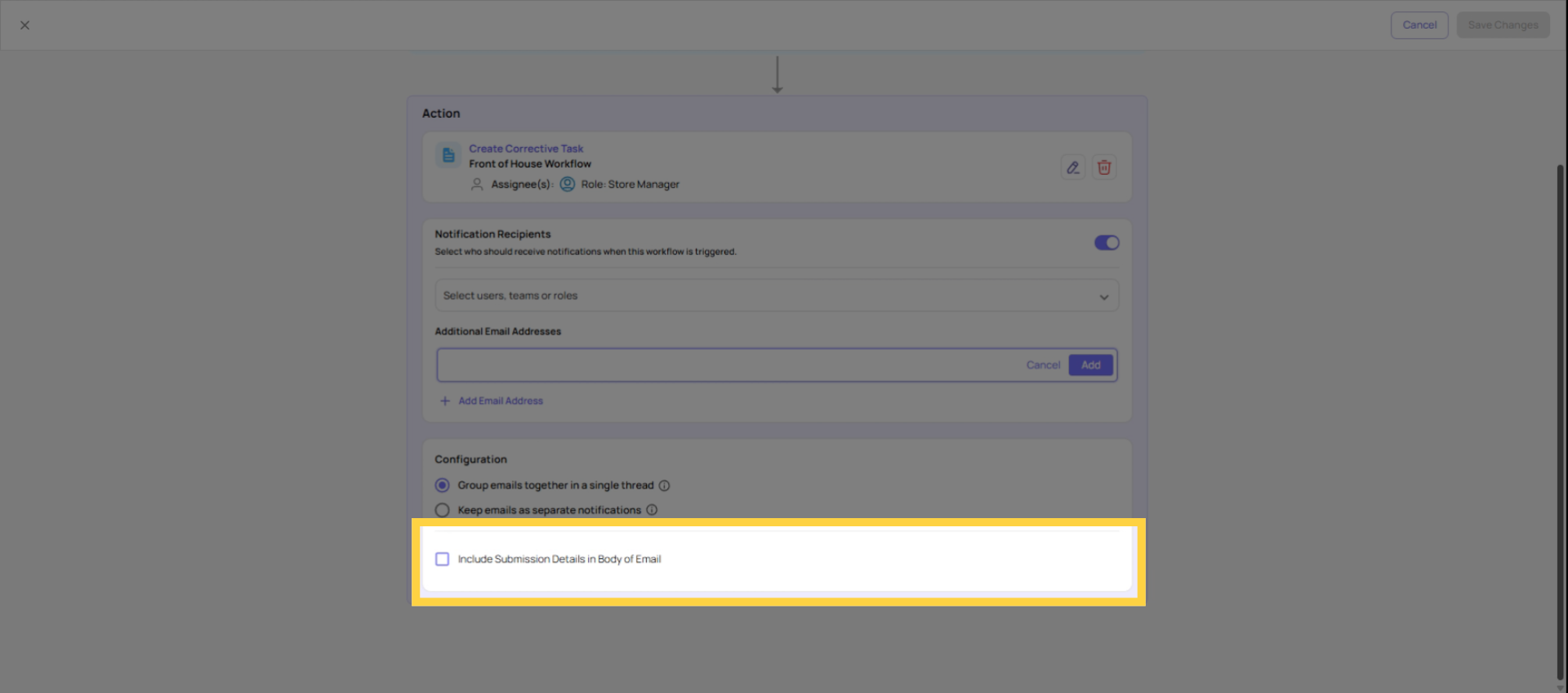
4. Include Submission Details In Emails
5. How Many Recipients Is Too Many
More recipients feels safer — more people know about the issue. In practice, too many recipients creates notification fatigue. If every vendor issue emails 8 people, most of them will start ignoring the notifications.
The right approach:
- The task assignee (role) handles the issue — they get the task and are responsible
- One or two notification recipients who need to know but aren't handling it directly
- One external contact for third-party issues
If someone needs a summary of all vendor issues rather than real-time notification of each one, that's a dashboard or report use case — not a per-task notification.
Need Help?
Reach out to our Support Team at Support@xenia.team
Comments
0 comments
Please sign in to leave a comment.