
1. What Location Groups Are
A Location Group is a named set of locations you've categorized under a shared attribute. They're created under Settings → Locations → Groups.
Examples of Location Groups:
- "Has Drive-Thru" — only locations with a drive-through service window
- "Deli Locations" — only locations with a deli department
- "Southeast Region" — all stores in a specific geographic area
- "Food Service Sites" — locations that serve prepared food (vs. retail-only)
- "Exxon Brand" — all locations operating under the Exxon fuel brand
Groups are the bridge between a template that's used across all locations and logic that should only apply at some of them.
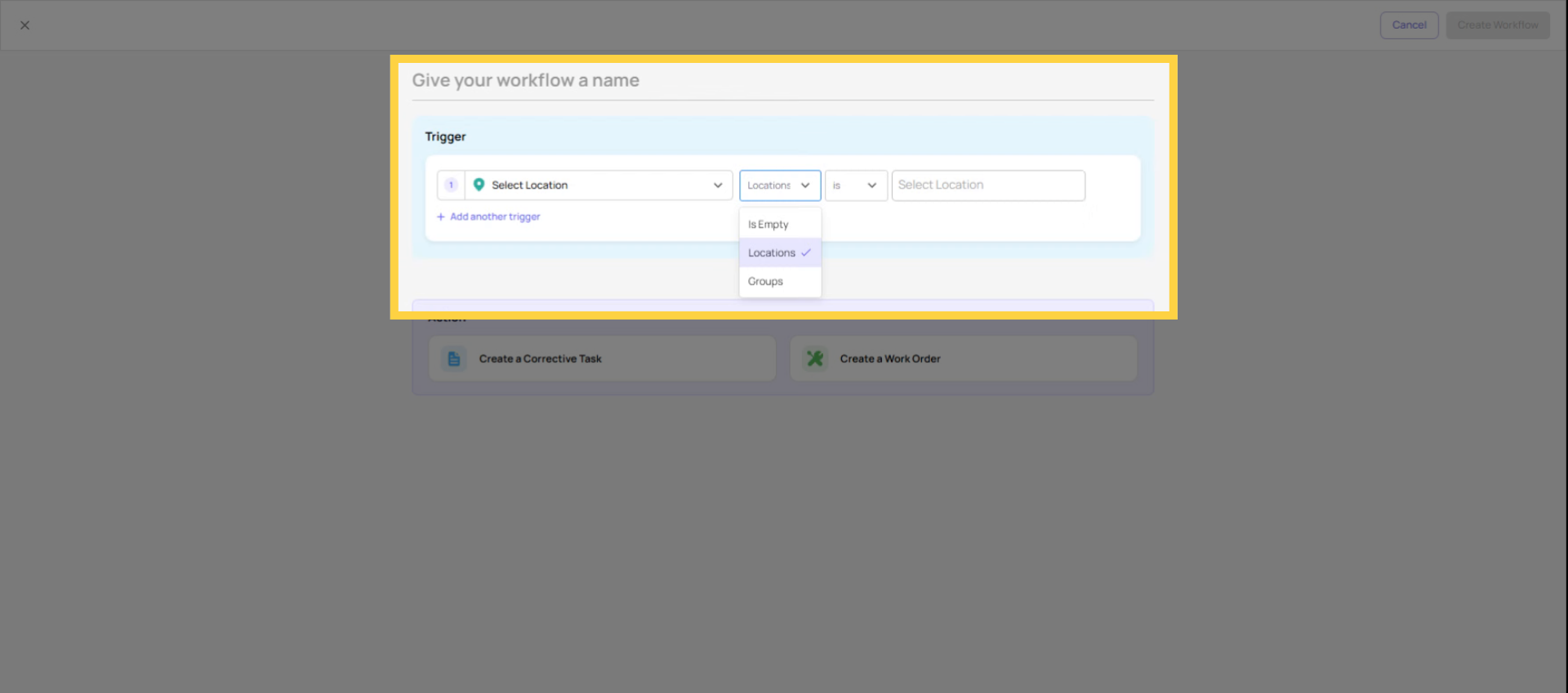
2. How Location Groups Work in Workflow Conditions
When building a workflow trigger condition, one of the available condition types is "If location is in group [X]." This adds a location-based filter to the workflow — the rule only fires when the submission comes from a location that belongs to the specified group.
This works alongside answer-based conditions using AND logic:
Example:
- Condition 1: Issue Type = "HVAC Problem"
- Condition 2: Location is in Group = "Properties with Central HVAC"
- Logic: AND
Result: The workflow fires only when a location that has central HVAC reports an HVAC issue. Locations without central HVAC — where that question is irrelevant — don't trigger the task even if they somehow select that answer.
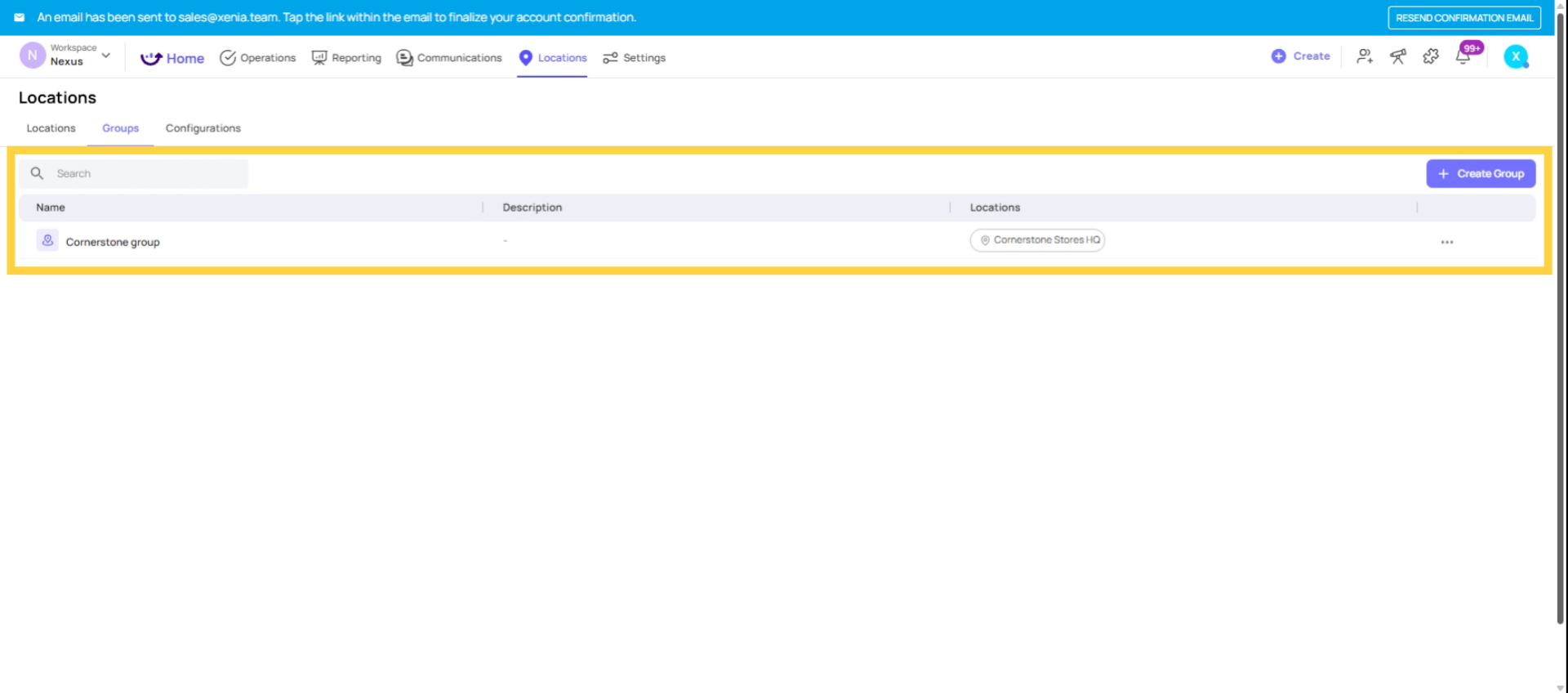
3. Why This Matters: One Template, Many Routing Scenarios
The alternative to Location Groups in workflows is building separate templates for each location type. If you have food-service locations and retail-only locations, you'd need a food-service inspection template and a retail-only inspection template, maintained separately, potentially diverging over time.
With Location Groups, you build one template and use group conditions to route differently based on where the submission comes from. The template is the same. The routing logic is location-aware.
Real-world example from operations: A vendor issue form is used at all 80 locations. Gas vendor issues should go to the Fuel Operations team, but only at locations that sell fuel. Non-fuel locations might submit the same form for a different vendor type, and that should route differently.
Without groups: you'd need to build a fuel-site-specific template and a non-fuel template. With groups: one workflow rule — "If Vendor = Gas Supplier AND Location is in Group = Fuel Sites" — handles the routing correctly at fuel sites. A different workflow handles non-fuel routing everywhere else.
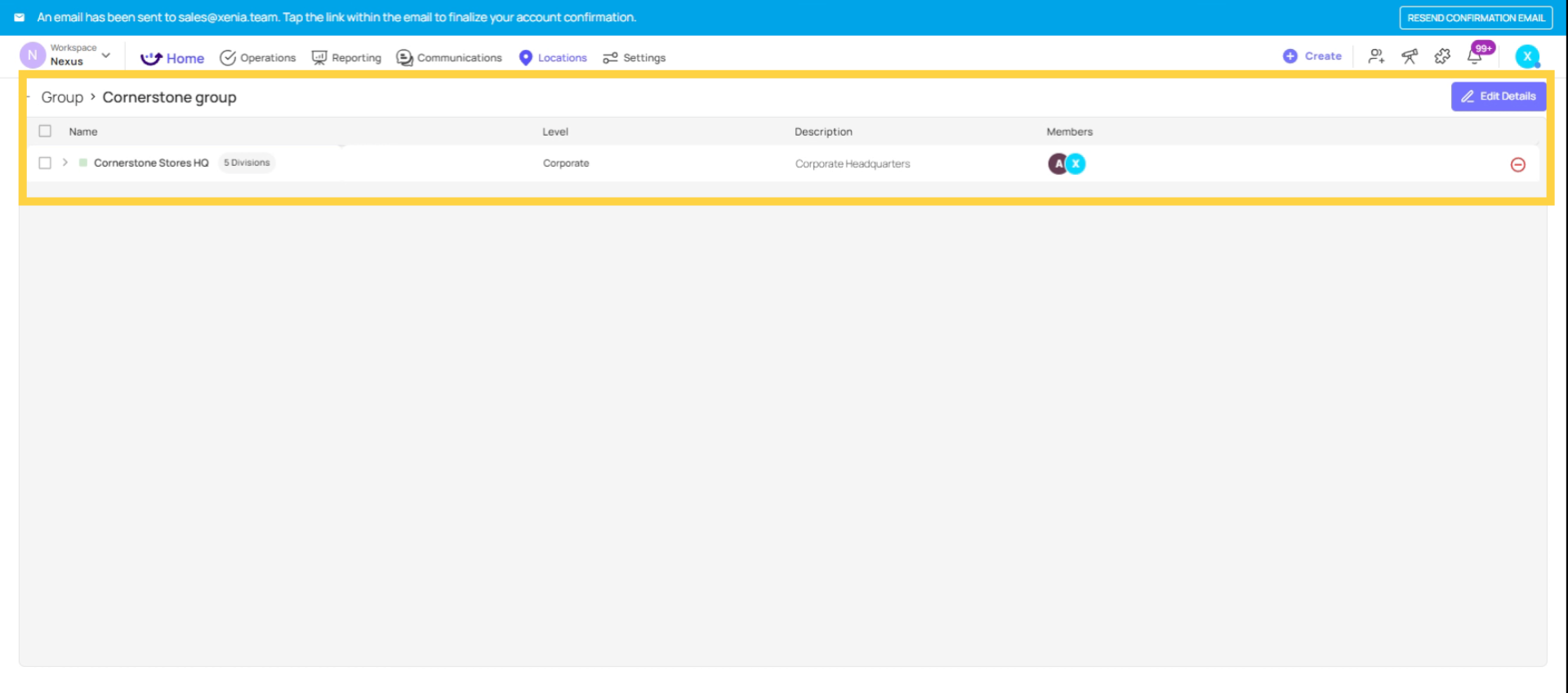
4. How to Add a Location Group Condition
- Open the template → Workflows tab → open or create the workflow
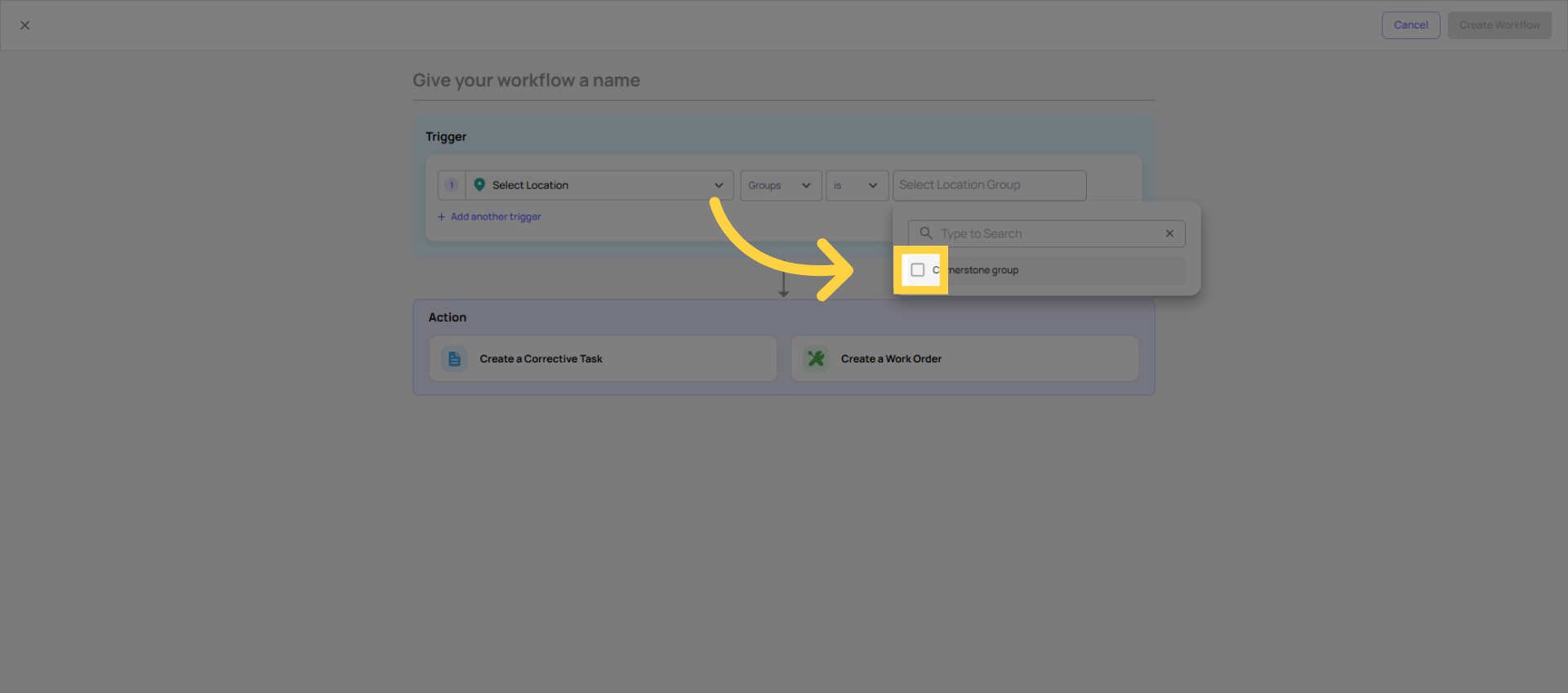
- In the trigger conditions section, click Add Condition
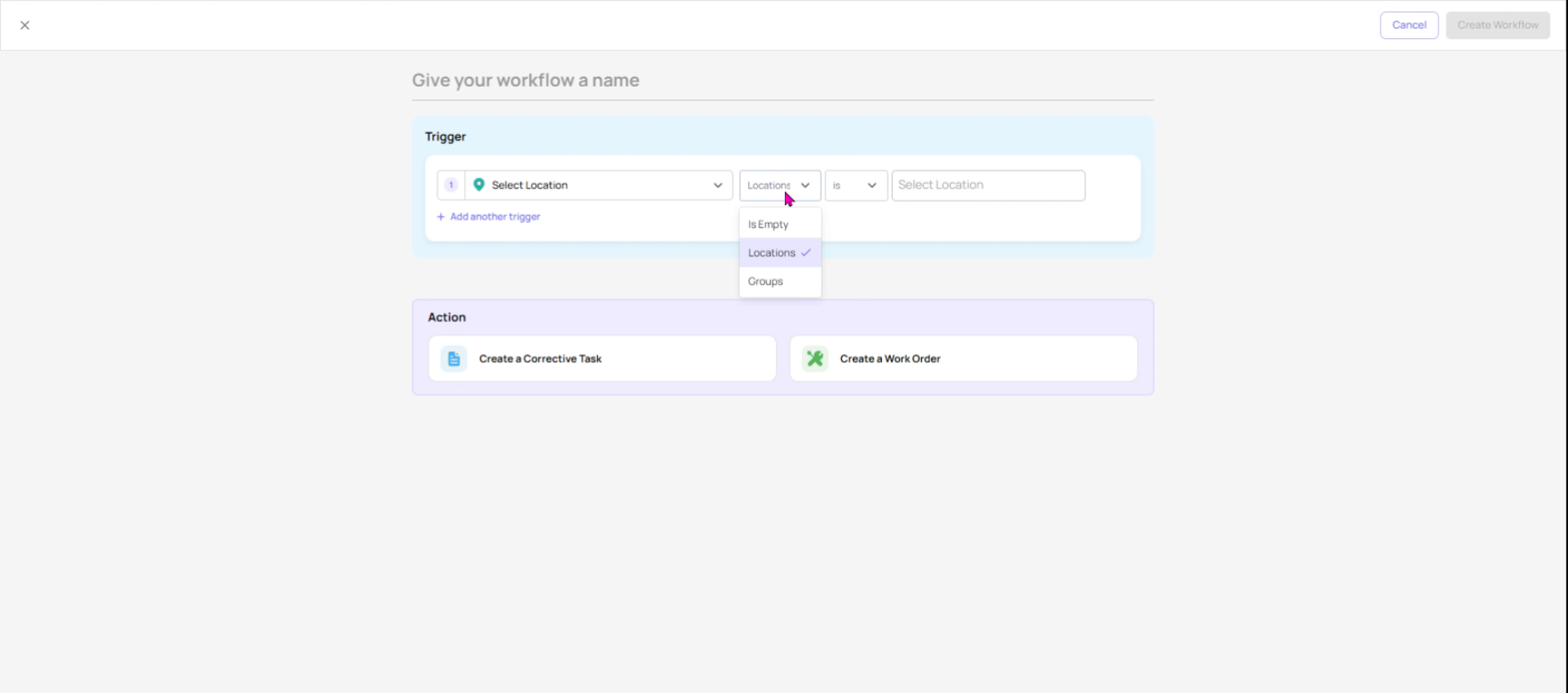
- From the condition type selector, look for Location or Location Group as a condition type
- Select the operator (typically "is in" or "belongs to")
- Choose the Location Group from the dropdown
- Set the AND/OR relationship with any other conditions
- Save the workflow
Groups must exist before you can use them here. If the group you need isn't available, go to Settings → Locations → Groups and create it first, then return to the workflow.
5. Prerequisites: The Location Step
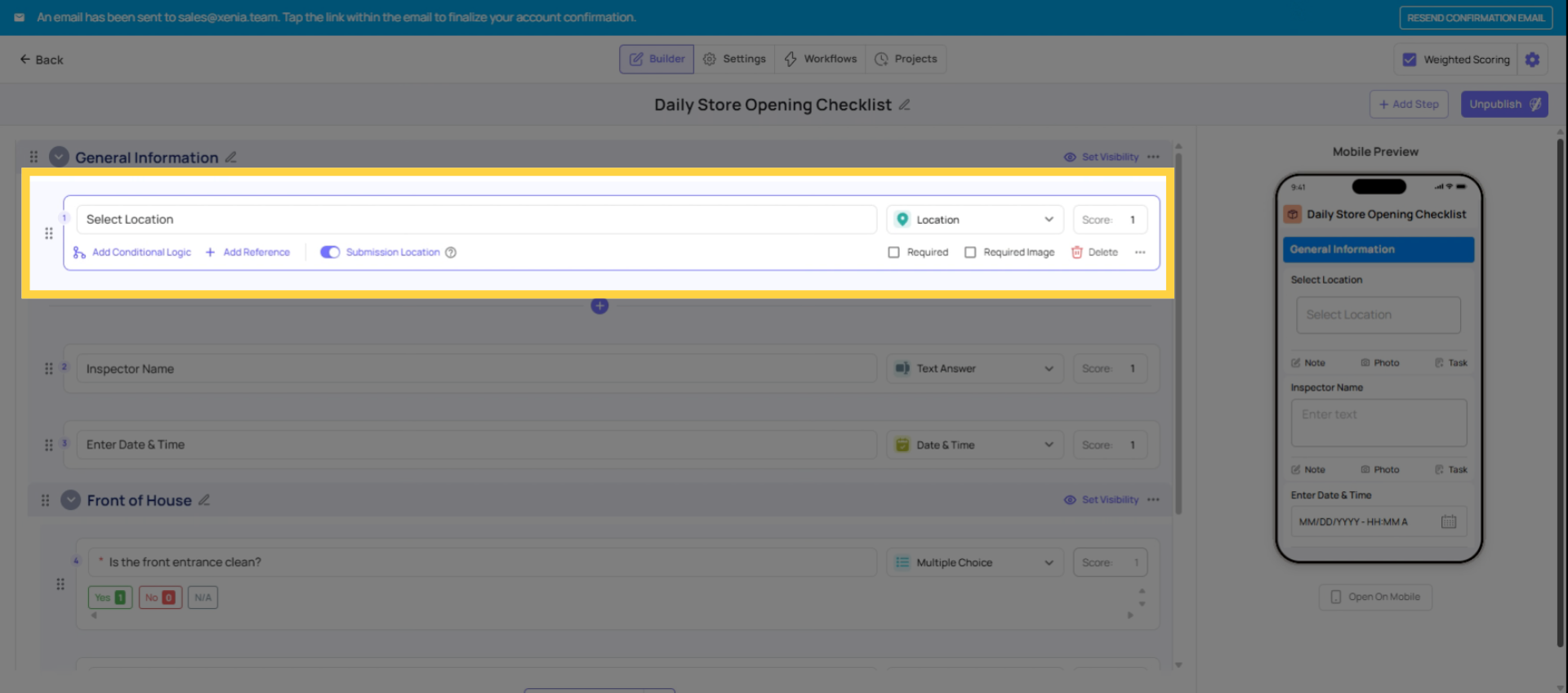
Location Group conditions in workflows depend on the submission being tagged to a specific location. This tagging happens through the Select Location step in the template — the employee selects their store when they fill out the form.
Without a Select Location step, Xenia doesn't know which location the submission came from. Location Group conditions in the workflow have nothing to match against and will not fire correctly.
Always confirm: any template using Location Group workflow conditions has a Select Location step, and that Use Submission Location is enabled on the corrective task configuration.
Practical Location Group Workflow Scenarios
| Scenario | Conditions | Group Used |
| Route HVAC issues only at full-service properties | Issue = HVAC AND Location in Group = "Full Service Properties" | Full Service Properties |
| Apply food safety escalation only at food-service sites | Any fail AND Location in Group = "Food Service Sites" | Food Service Sites |
| Route fuel delivery issues only at fuel-selling locations | Vendor = Gas Supplier AND Location in Group = "Fuel Locations" | Fuel Locations |
| Notify regional contractor only for southeast stores | Issue = Equipment AND Location in Group = "Southeast Region" | Southeast Region |
| Show Deli-specific corrective task only at deli locations | Deli Section = Fail AND Location in Group = "Deli Locations" | Deli Locations |
Need Help?
Reach out to our Support Team at Support@xenia.team
Comments
0 comments
Please sign in to leave a comment.