
1. When a Single Condition Isn't Enough
A single-condition workflow fires when one specific answer is given to one specific step. That works well for straightforward routing — "if vendor type is Solar Array, create a task for the Facilities team." But real operational scenarios are often more specific than that.
Consider these cases where a single condition creates too broad a trigger:
- A workflow that fires whenever someone selects "Delivery Issue" — but you only want it to fire when it's a gas delivery issue, not a beverage or food issue
- A workflow that fires when a temperature is out of range — but only when the location is flagged as a food-service site, not a retail-only site
Single-condition workflows would require a separate workflow for every combination. Multi-condition logic lets you handle these scenarios within one workflow rule, with precise routing that only fires when exactly the right combination of answers occurs.
2. AND Logic — All Conditions Must Be True
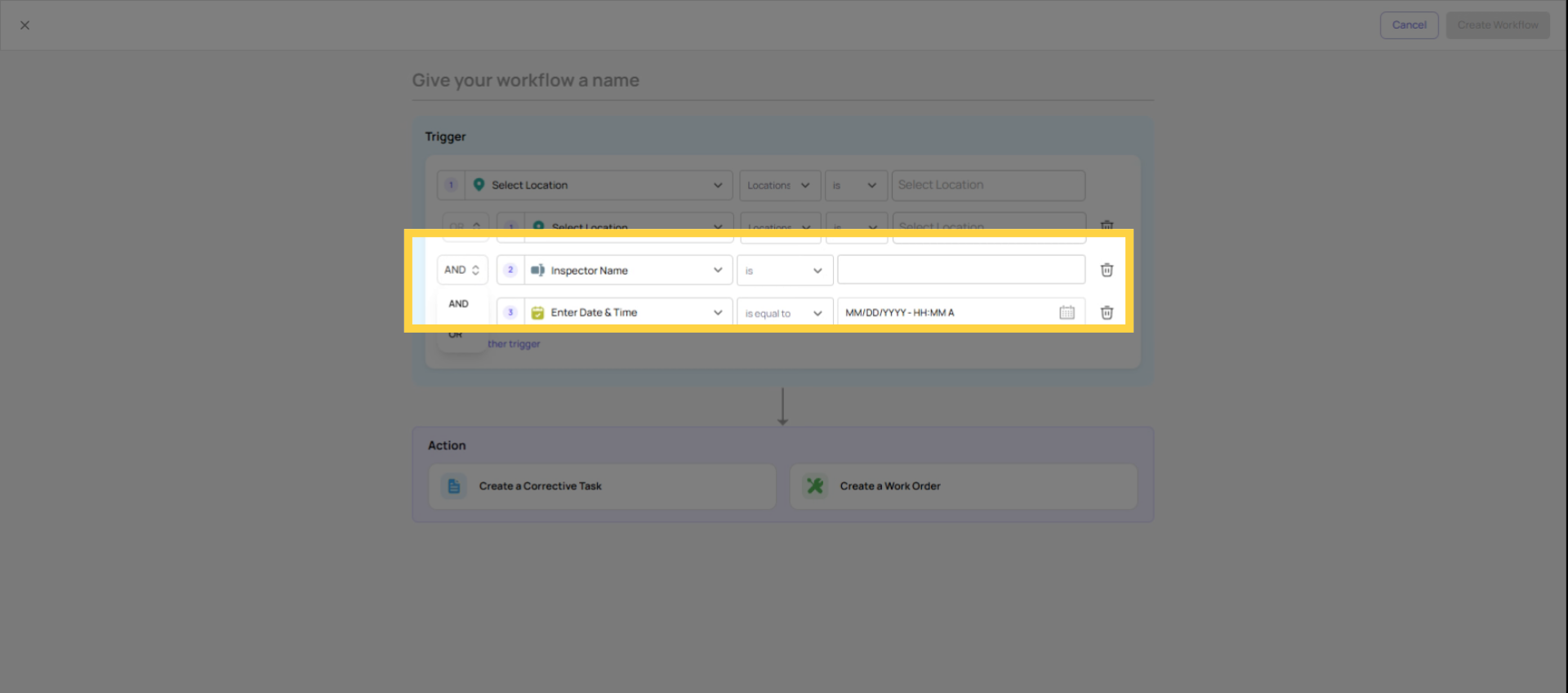
AND logic fires the workflow only when every condition in the rule is met simultaneously.
Example:
- Condition 1: Vendor Type = "Amerigas"
- Condition 2: Issue Category = "Equipment Failure"
- Logic: AND
Result: The workflow fires only when both are true — Amerigas selected AND Equipment Failure selected. If someone selects Amerigas with a different issue category, this workflow doesn't fire. If someone selects a different vendor with Equipment Failure, this workflow doesn't fire.
When AND is the right choice: When you need to narrow the trigger to a very specific combination of answers — the more conditions you stack with AND, the more precise and less frequently the workflow fires.
3. OR Logic — Any Condition Can Be True
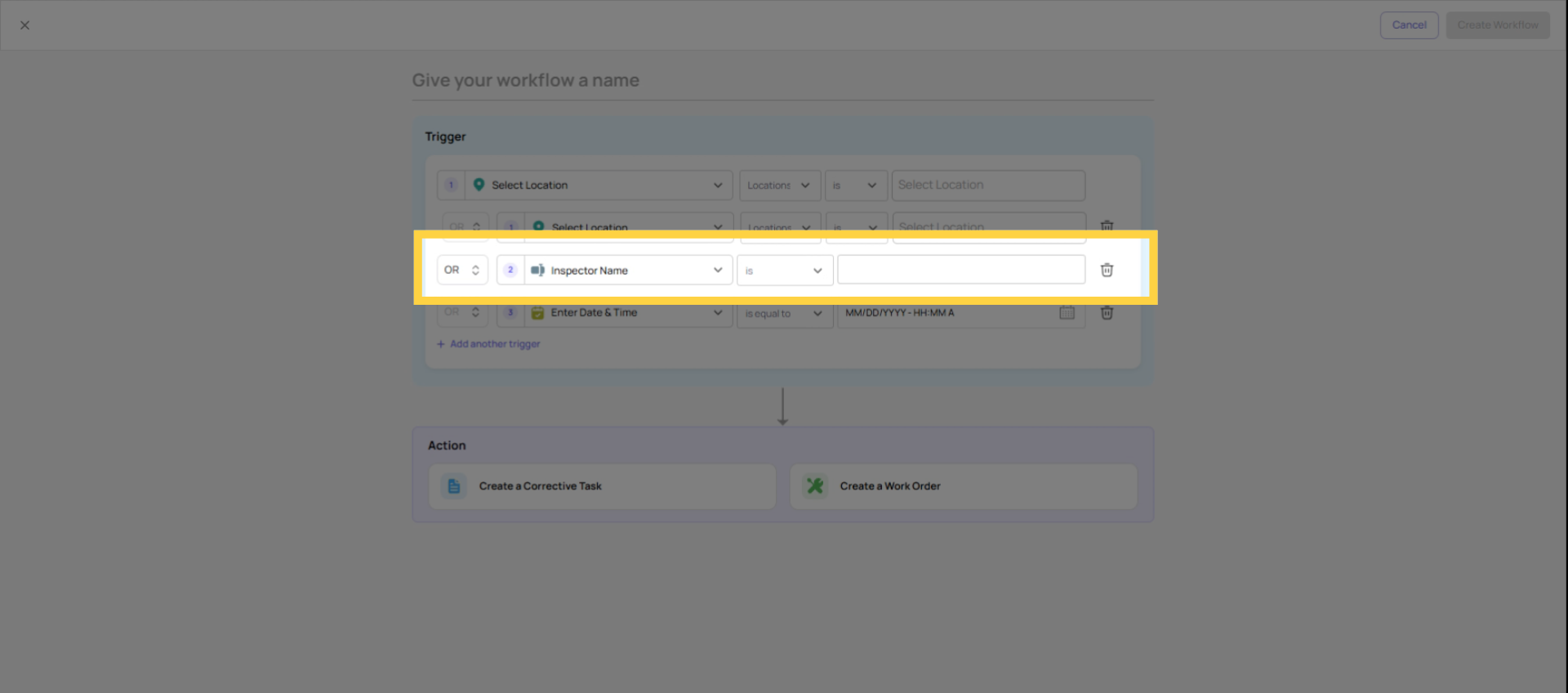
OR logic fires the workflow when any one of the defined conditions is met.
Example:
- Condition 1: Issue Severity = "Critical"
- Condition 2: Issue Severity = "Emergency"
- Logic: OR
Result: The workflow fires when either Critical OR Emergency is selected. You don't need to build two separate workflows — one rule covers both trigger values.
When OR is the right choice: When multiple different answers should all route to the same place. Multiple vendor names that all go to the same team. Multiple issue types that all require the same escalation. Multiple answer options that should all create the same task.
4. How to Add Multi-Condition Logic in the Workflows Tab
- Open the template → Workflows tab → open the workflow you're building
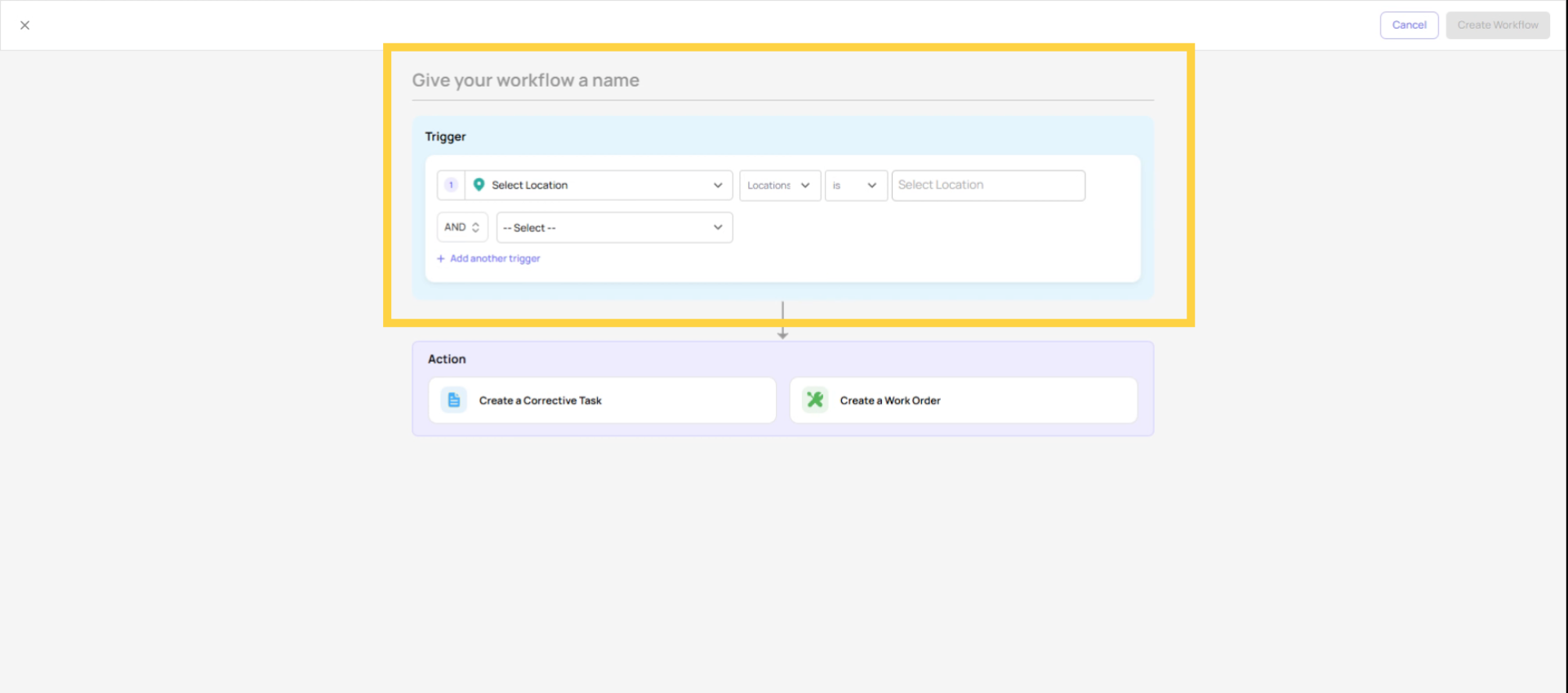
- In the trigger conditions section, set your first condition (step + answer + comparison)
- Look for Add Condition or + Condition below the first rule
- Choose whether this new condition joins with AND or OR
- Set the step, answer, and comparison for the second condition
- Repeat for any additional conditions
- Review the full logic before saving — read it out loud: "This fires when [condition 1] AND [condition 2]…"
- Save the workflow
5. Practical Multi-Condition Examples
| Scenario | Logic | Conditions |
| Route only gas vendor + equipment failures | AND | Vendor = Amerigas AND Issue = Equipment Failure |
| Notify for any critical severity, regardless of type | OR | Severity = Critical OR Severity = Emergency |
| Safety escalation at food-service locations only | AND | Issue = Safety Hazard AND Location Group = Food Service Sites |
| Multiple vendors, same routing team | OR | Vendor = Amerigas OR Vendor = Sunoco OR Vendor = BP |
Need Help?
Reach out to our Support Team at Support@xenia.team
Comments
0 comments
Please sign in to leave a comment.