
1. Why This Decision Matters
When a step fails — a "No," an out-of-range temperature, a failed safety check — you have to decide what happens next. Do you ask the employee a follow-up question? Or do you create a corrective task and assign it to someone?
The choice determines:
- Who handles the issue (the same employee still in the form, or a different team)
- When the issue gets addressed (now, inline, vs. separately via task tracking)
- What the record looks like (inline responses on the submission vs. a tracked task with status)
Choosing wrong doesn't break anything — but it creates friction for employees, misroutes accountability, or leaves issues without follow-up. Choosing right builds a self-operating system where the right information goes to the right people automatically.
2. The One Test That Decides Everything
Before choosing either option, ask one question:
"Does the person completing this checklist fix this problem themselves — or does someone else need to handle it?"
- They fix it themselves → Ask a Follow-Up Question
- Someone else fixes it → Create a Corrective Task (auto-create)
That's the whole decision. Everything else is detail.
3. Follow-Up Questions — What They're For
A follow-up question is the right choice when the employee completing the checklist is the same person who handles the issue, documents the resolution, or needs to capture more information about what happened — right now, in real time, before they move on.
Follow-up questions are for:
- Documenting corrective action the employee already took: "What corrective action was taken?"
- Capturing context about the issue: "Describe what you found"
- Recording what was done immediately: "Did you remove the food from the cooler? Yes/No"
- Confirming a decision made in the moment: "Was the item disposed of?"
The key: the answer belongs in the submission record, provided by the same person who found the issue, in real time.
Real example: A temperature log shows a chicken soup reading of 128°F — below the safe threshold of 134°F. The cook completing the log is the one who discards the food and reheats the batch. A follow-up question asking "What corrective action was taken?" captures that information in context, within the same submission. No task needed.
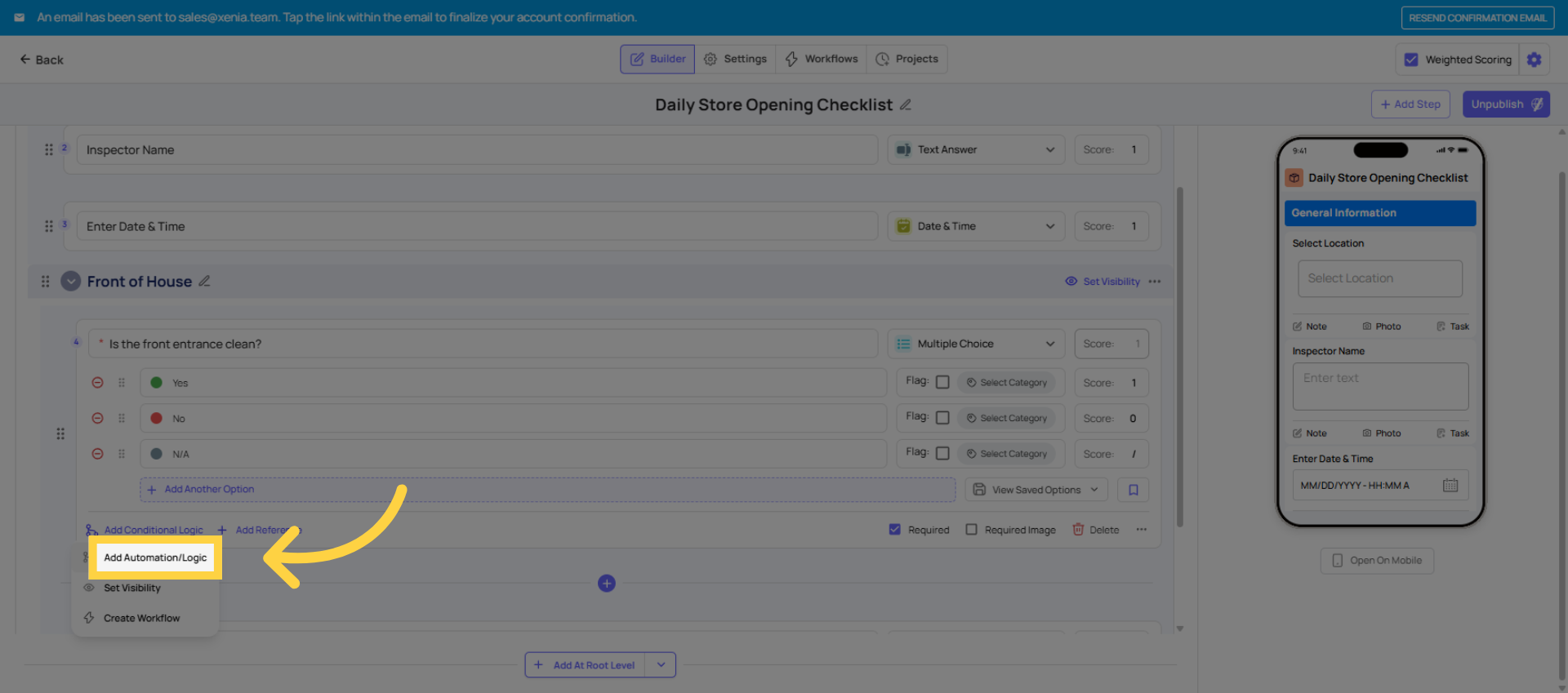 Click Select to choose the specific trigger condition that will activate your automation logic.
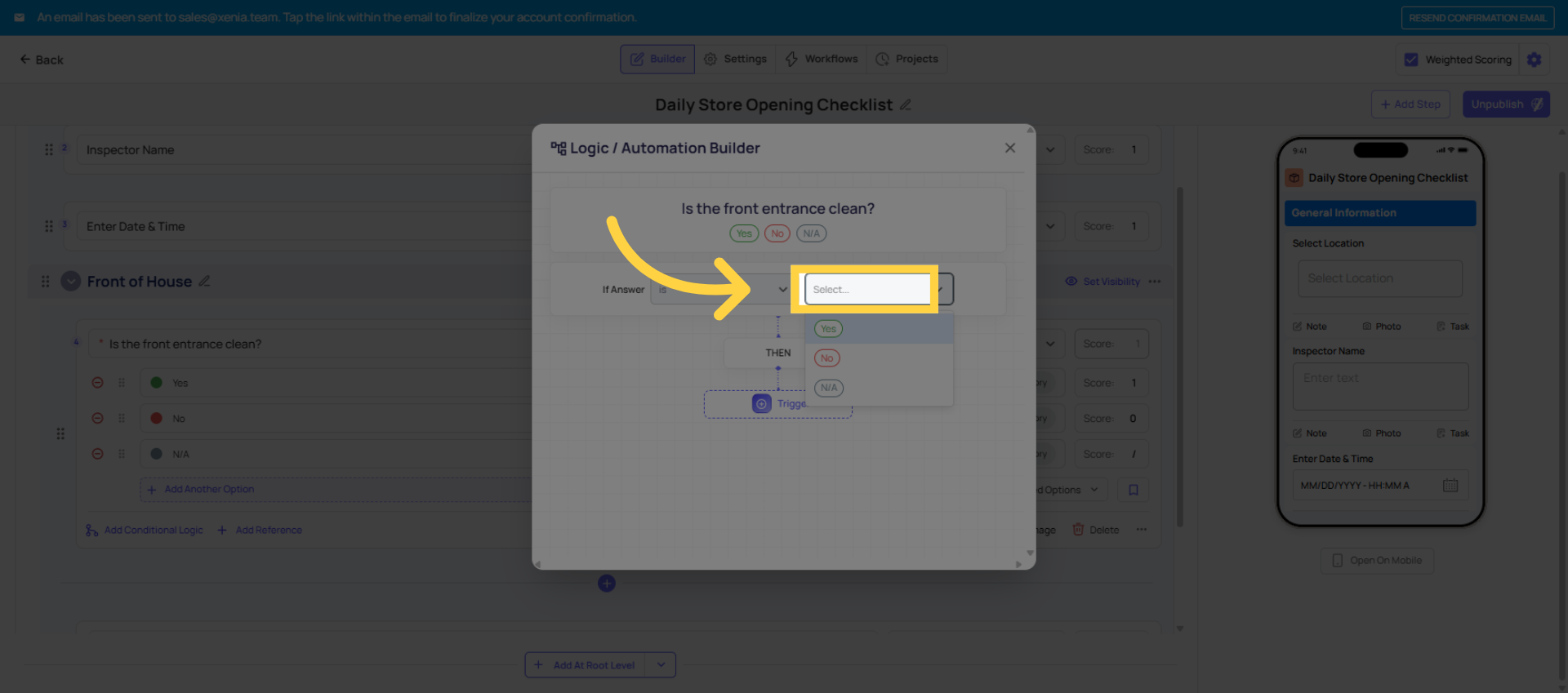 Click No to specify the trigger condition when the checklist response is negative or requires attention.
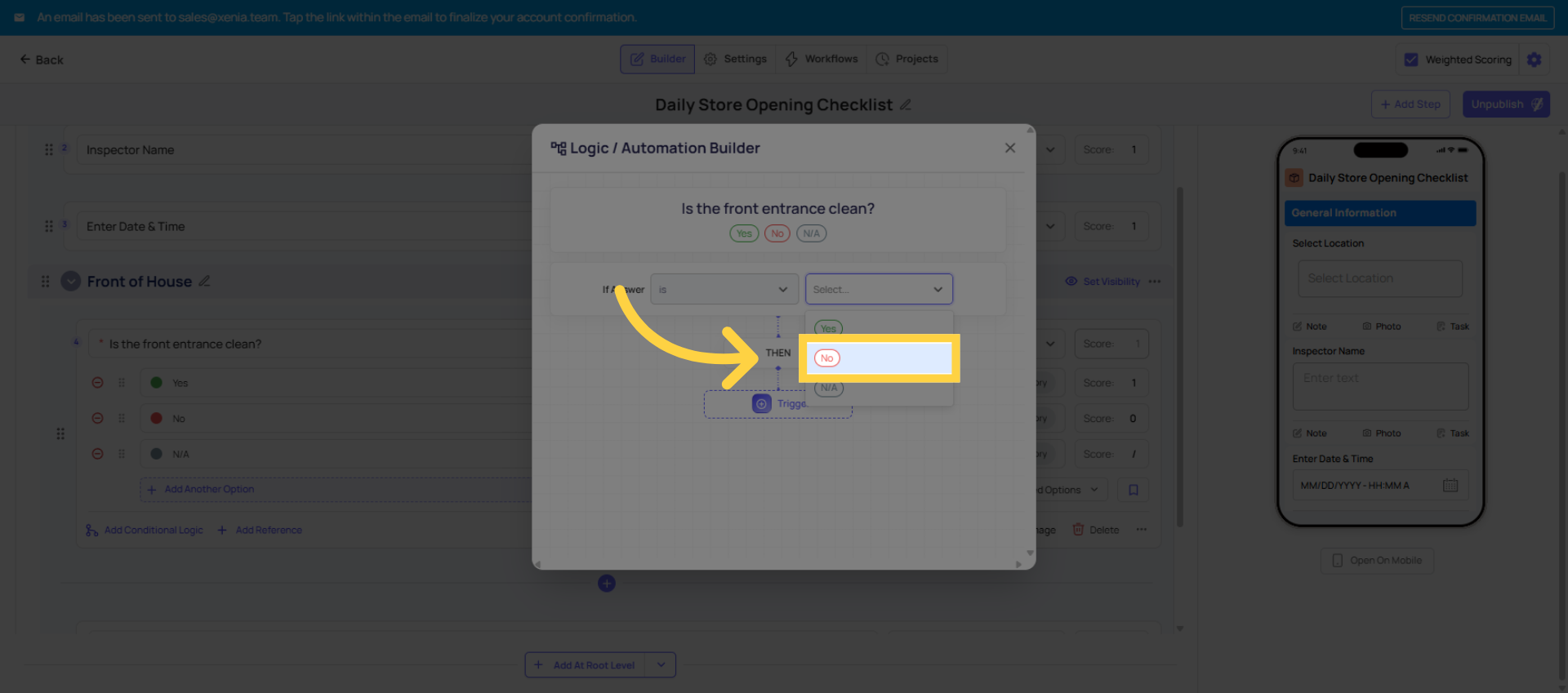 Click the Trigger button to confirm your selection and proceed with setting up the automation logic.
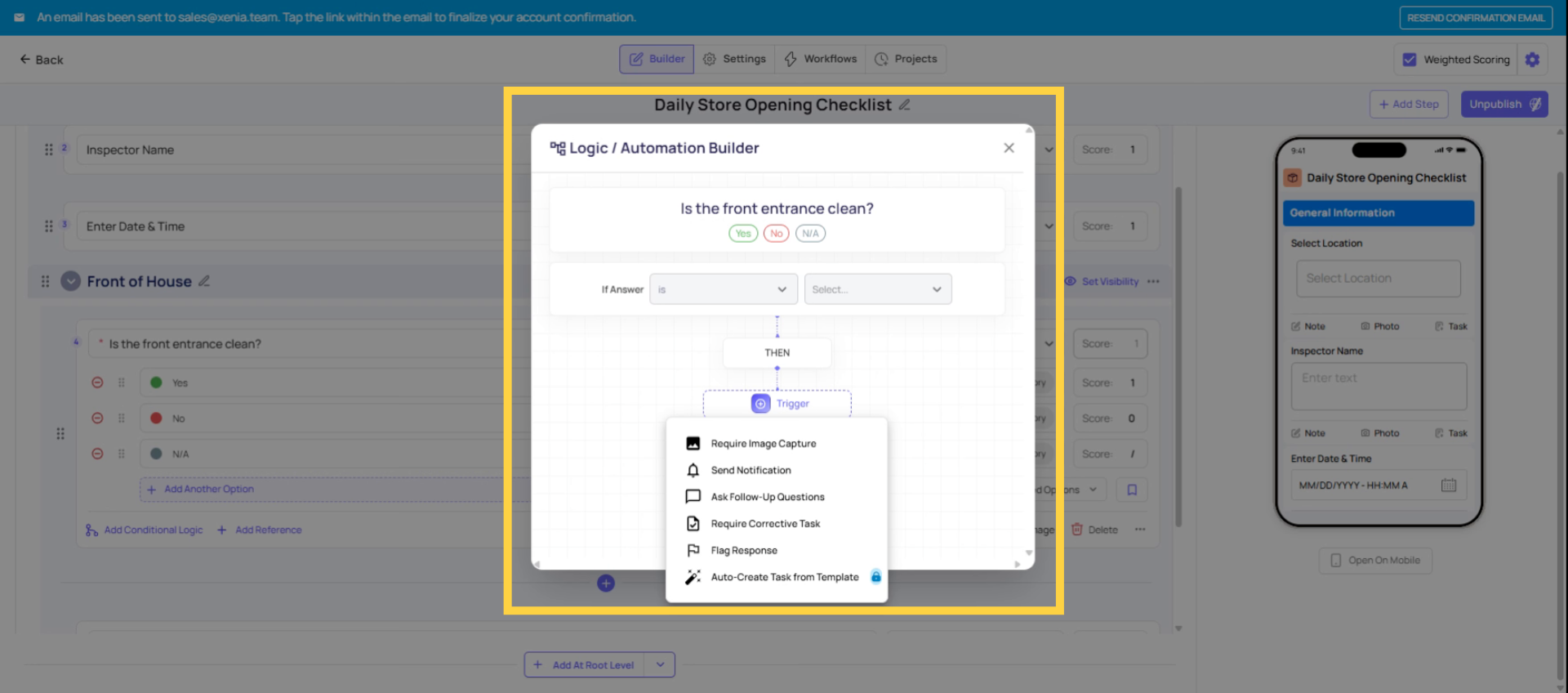
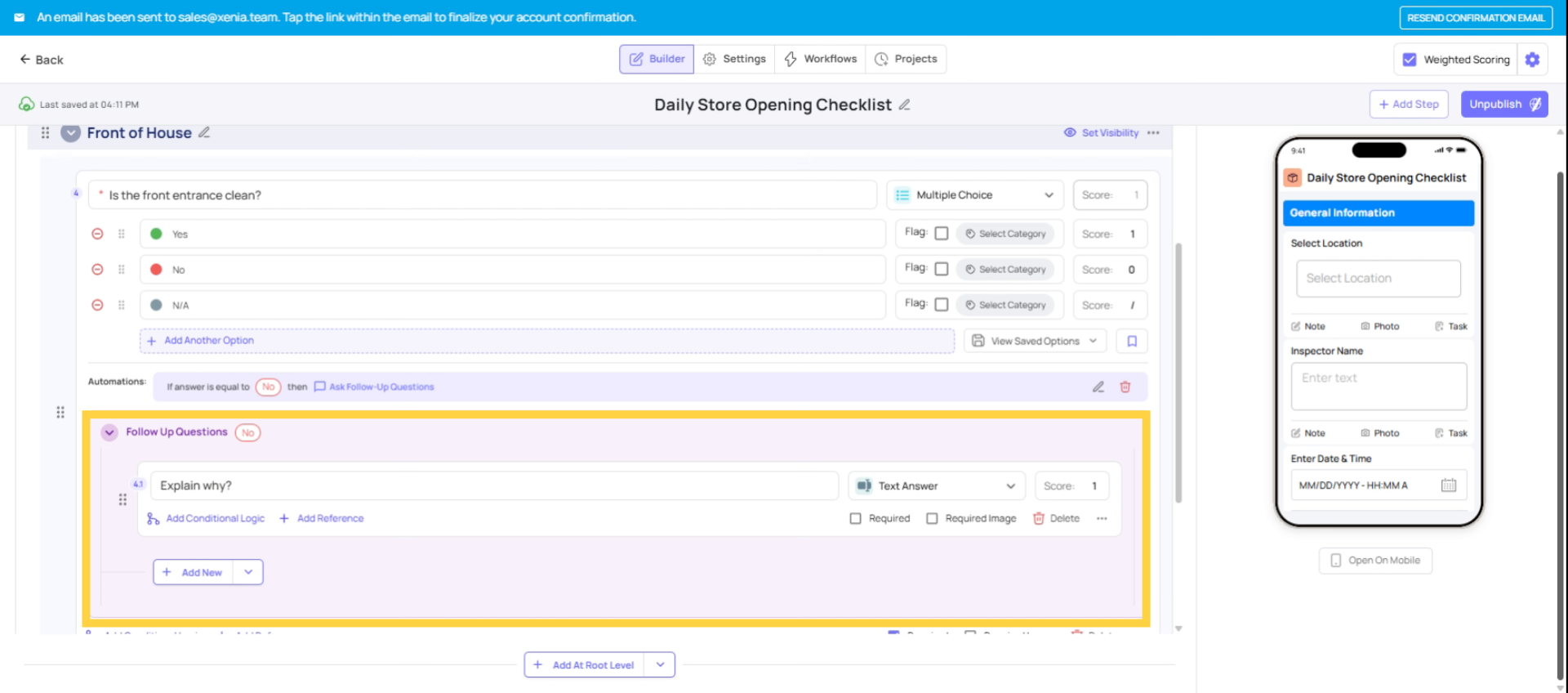
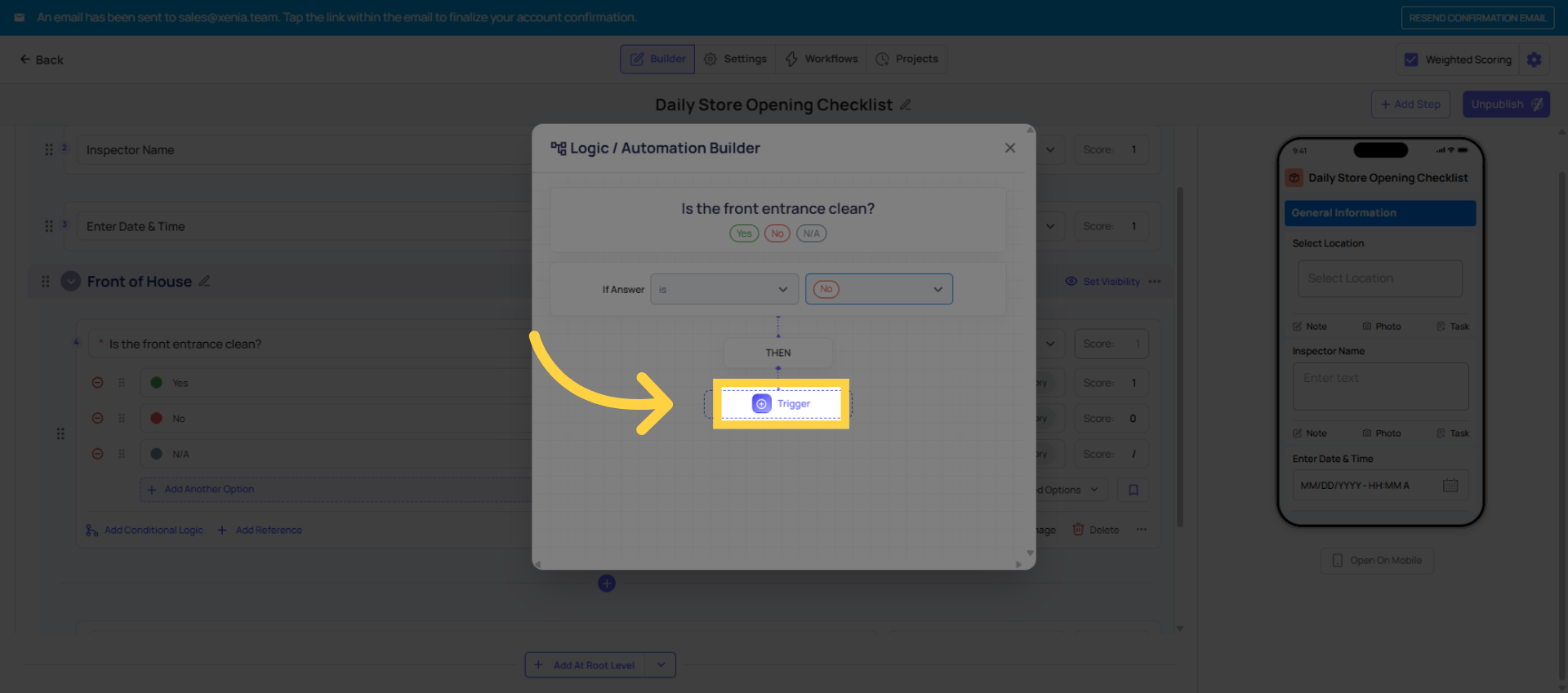 If the answer is no, you can either require a follow-up question or a corrective task.
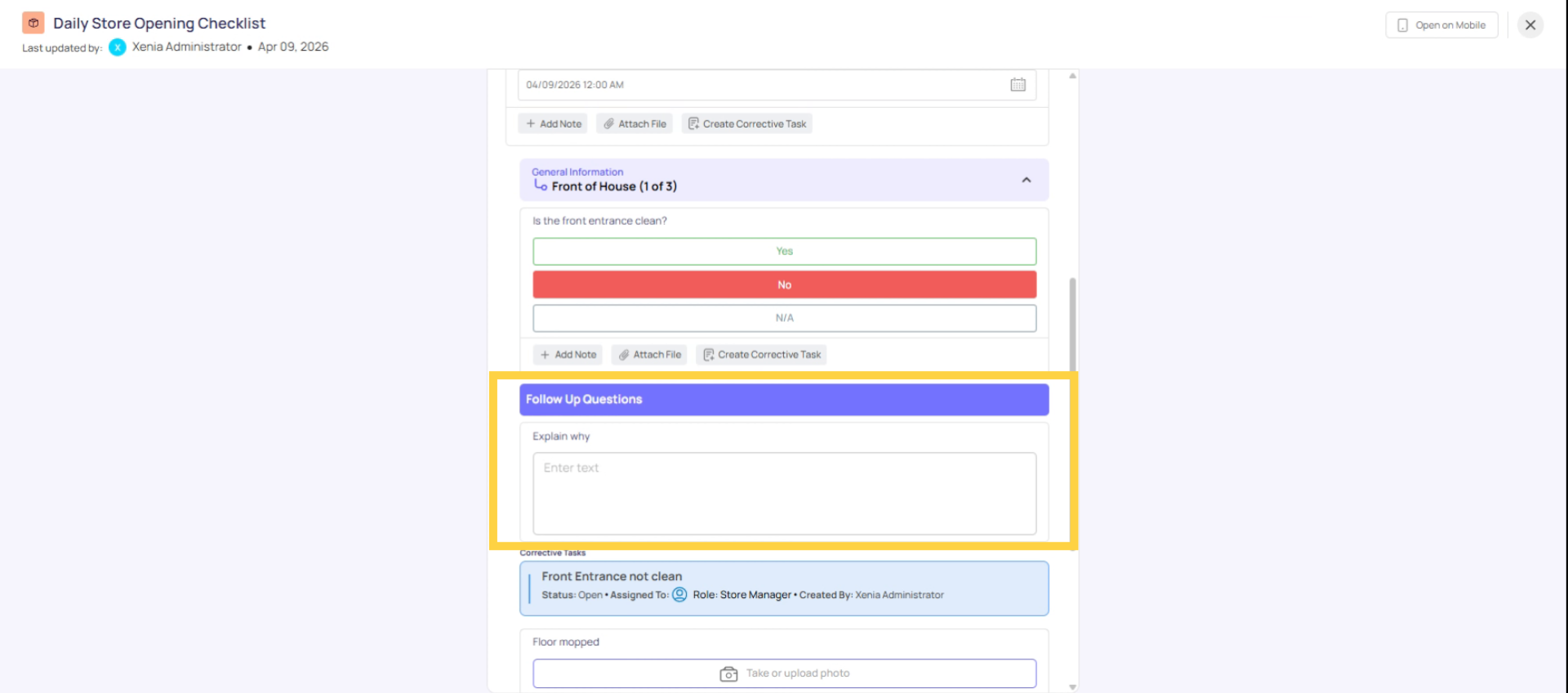
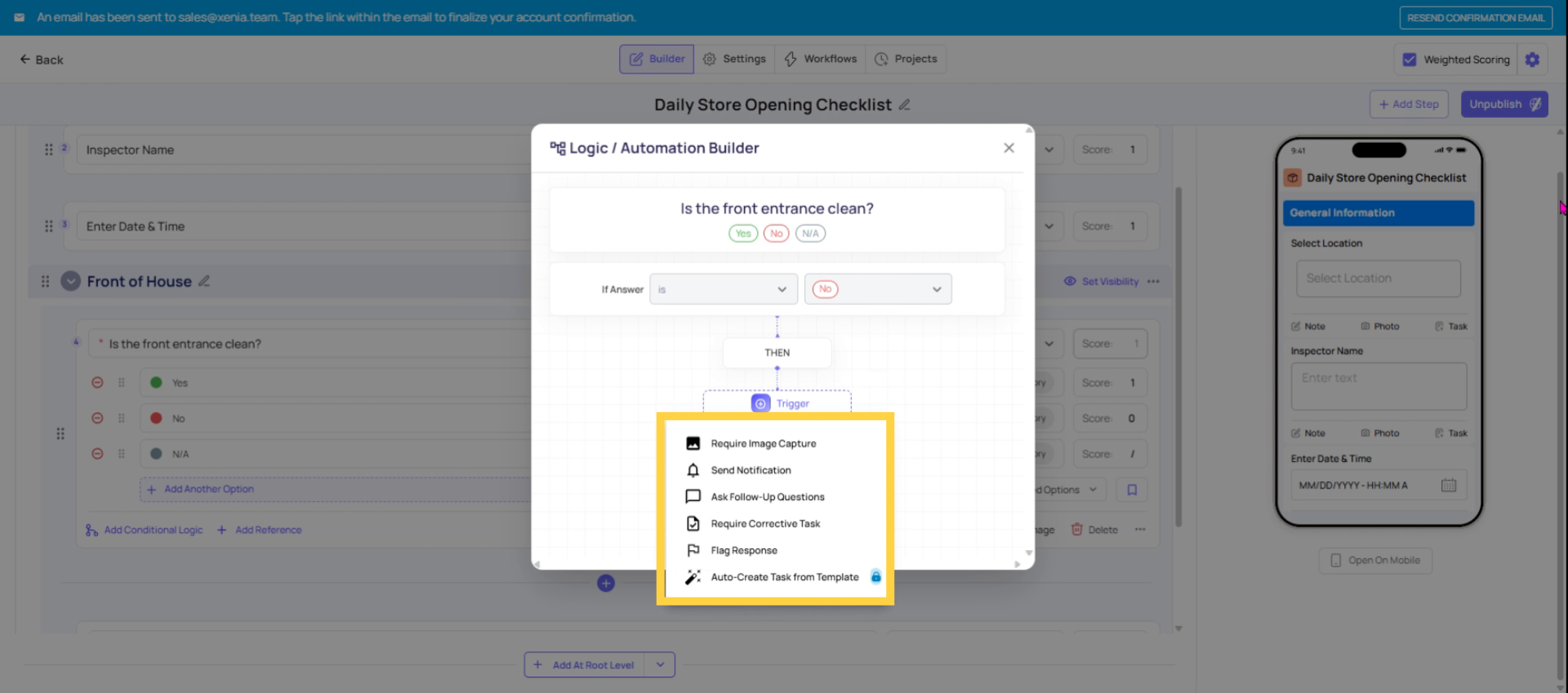 For example, if the front entrance is not clean and they select no, you Click Ask Follow-Up Questions to add additional queries that appear when a trigger condition is met.
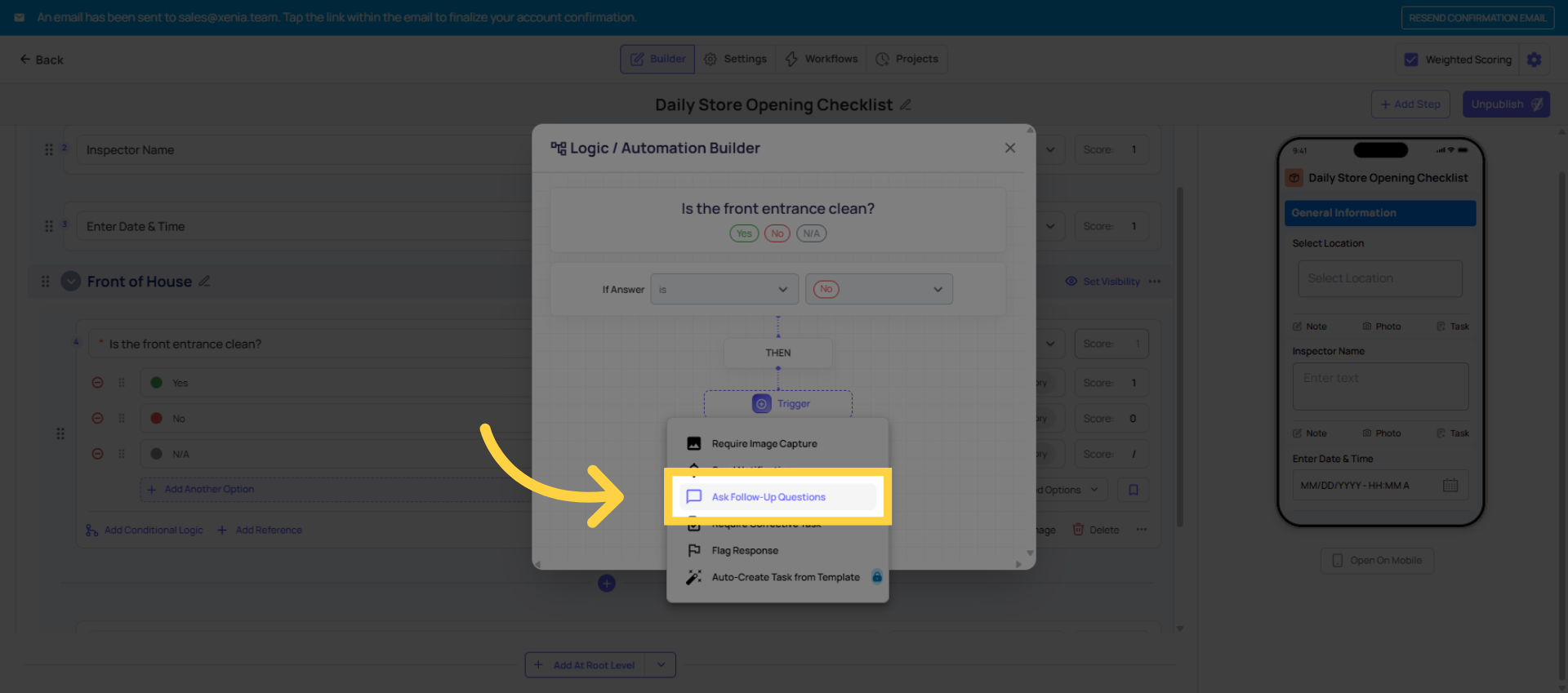 Choose the type of follow-up question to collect detailed responses such as text, date, or multiple choice answers.
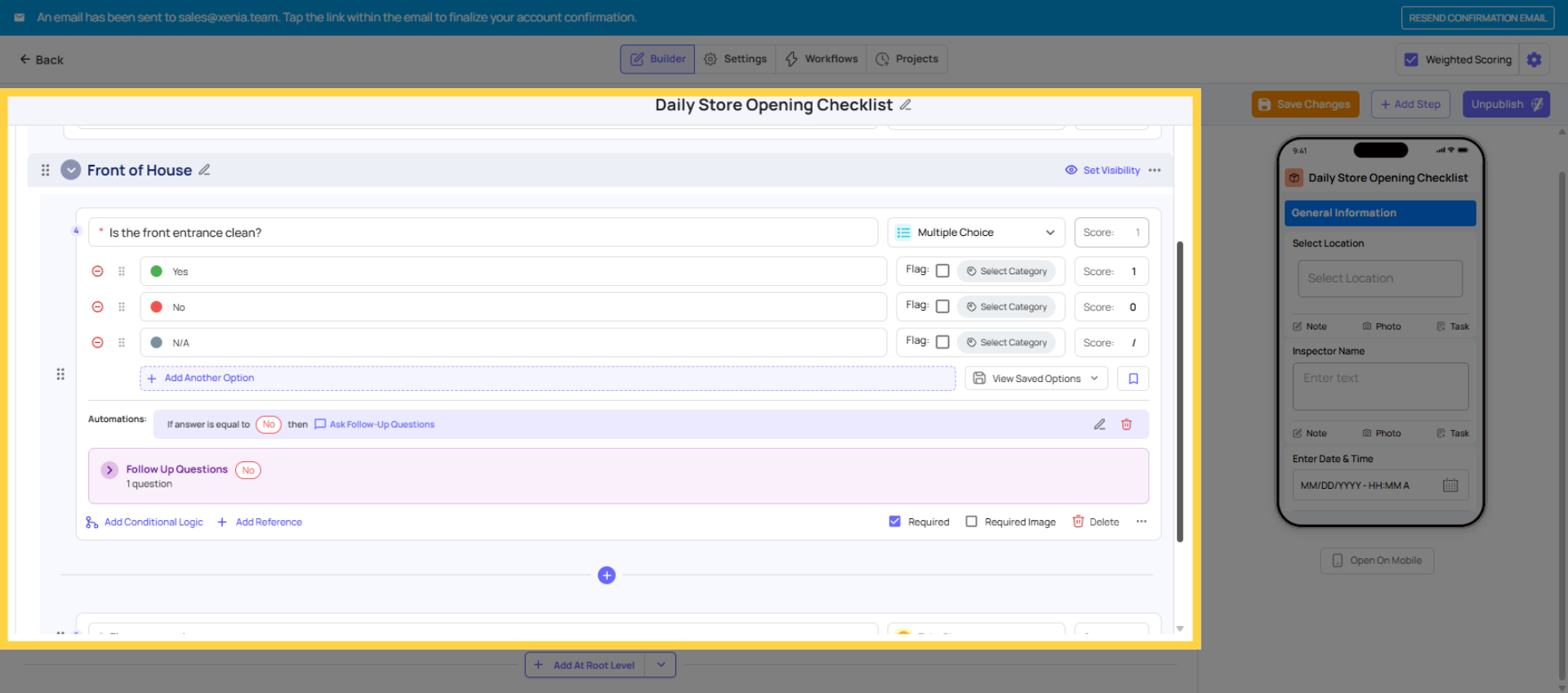 For example, if the front entrance is not clean, a follow-up appears explained by the employee. They take a photo if required and submit everything. All is documented in the submission. No task is created. The same person handles the documentation.
3. Corrective Tasks — What They're For
A corrective task is the right choice when the issue needs to be resolved by a different person or department, when you need formal tracking that the issue was addressed, or when the fix has a deadline that should be monitored.
Corrective tasks are for:
- Routing the issue to a different team: maintenance, facilities, IT, HR, another department
- Creating a trackable work record with a status lifecycle (Open → In Progress → Completed)
- Setting a resolution deadline ("must be fixed within 24 hours")
- Building a pattern of issue tracking that can be reviewed in dashboards over time
The key: the work needed is outside the scope of the person filling out the form, and accountability for resolution needs to be tracked separately.
Real example: During a daily opening checklist, the store associate reports the HVAC is not working. The store associate can't fix the HVAC. A corrective task is automatically created and assigned to the Facilities role at that location — with a 4-hour due date, linked to the original submission, so the fix is tracked to resolution.
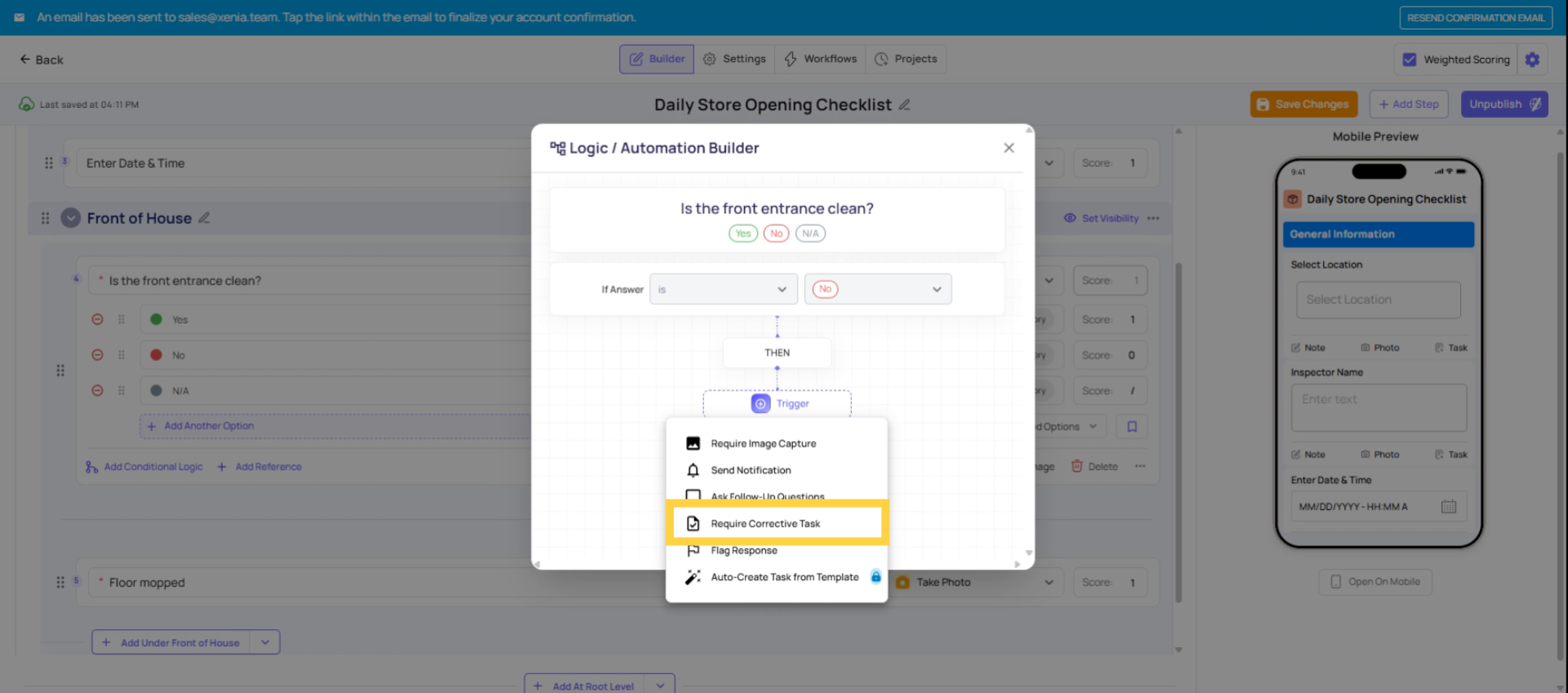 Click Require Corrective Task to initiate the creation of a task assigned to resolve the issue outside the checklist.
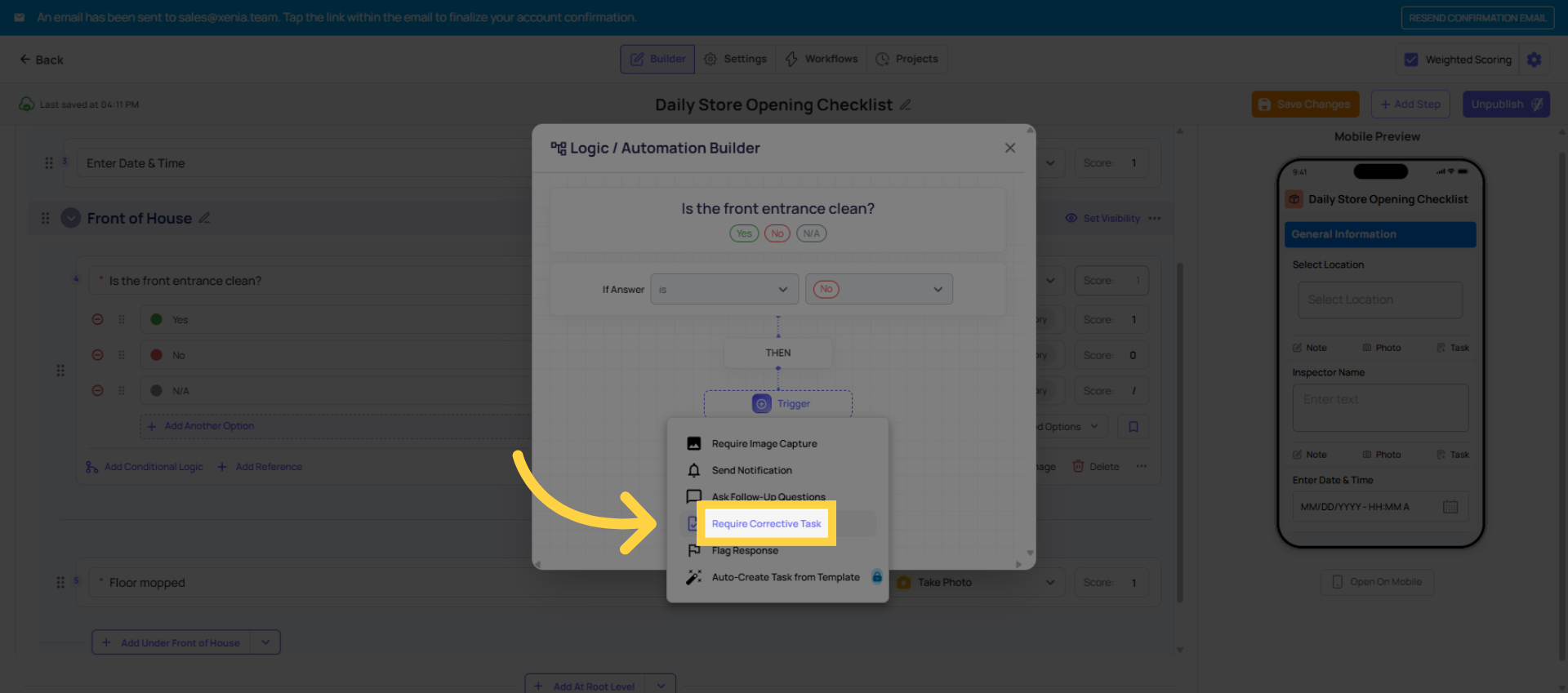 Use this when the issue needs someone else to fix it. Opening the check, let's find the HVAC isn't working. That's not something a store employee can fix. It needs to go to the maintenance team. The corrective task automatically assigns it to them, the location tag. So they know exactly where to go and where the issue is.
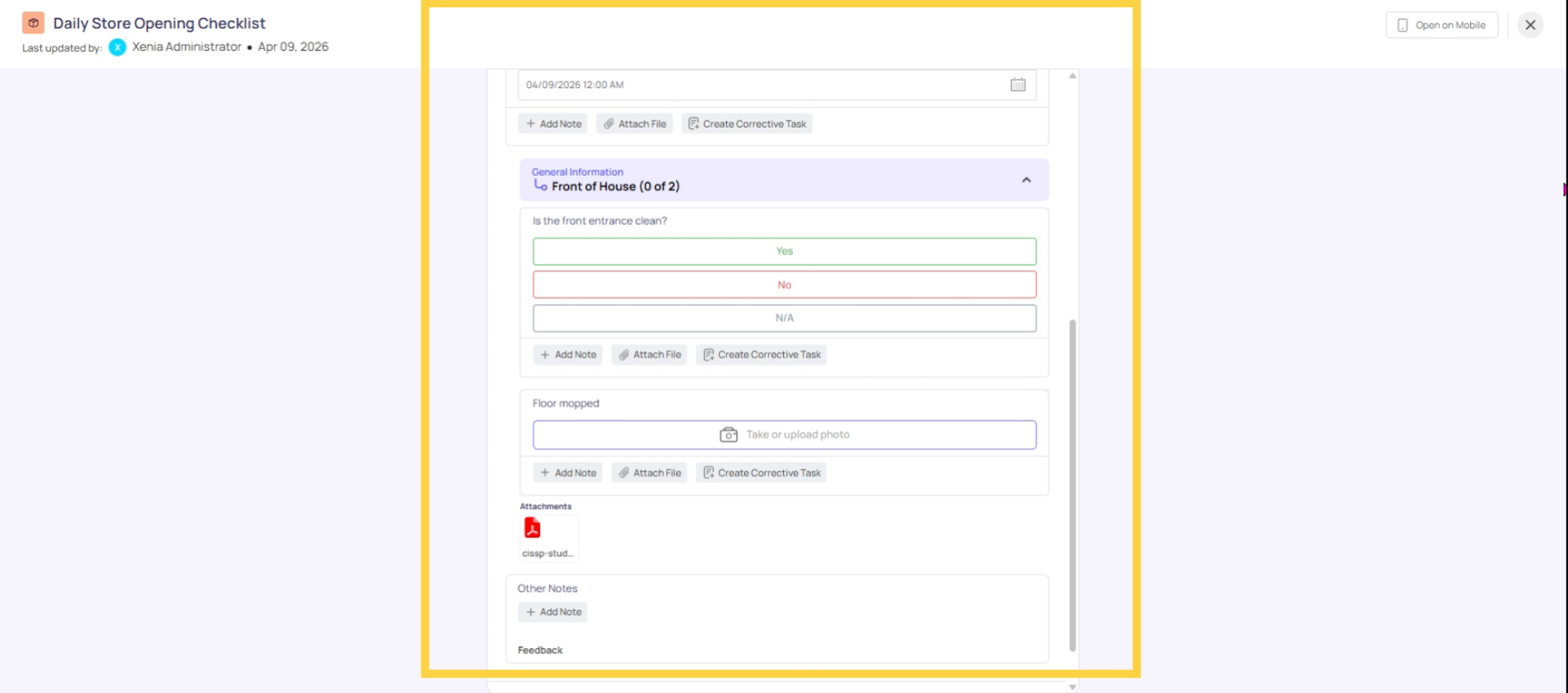
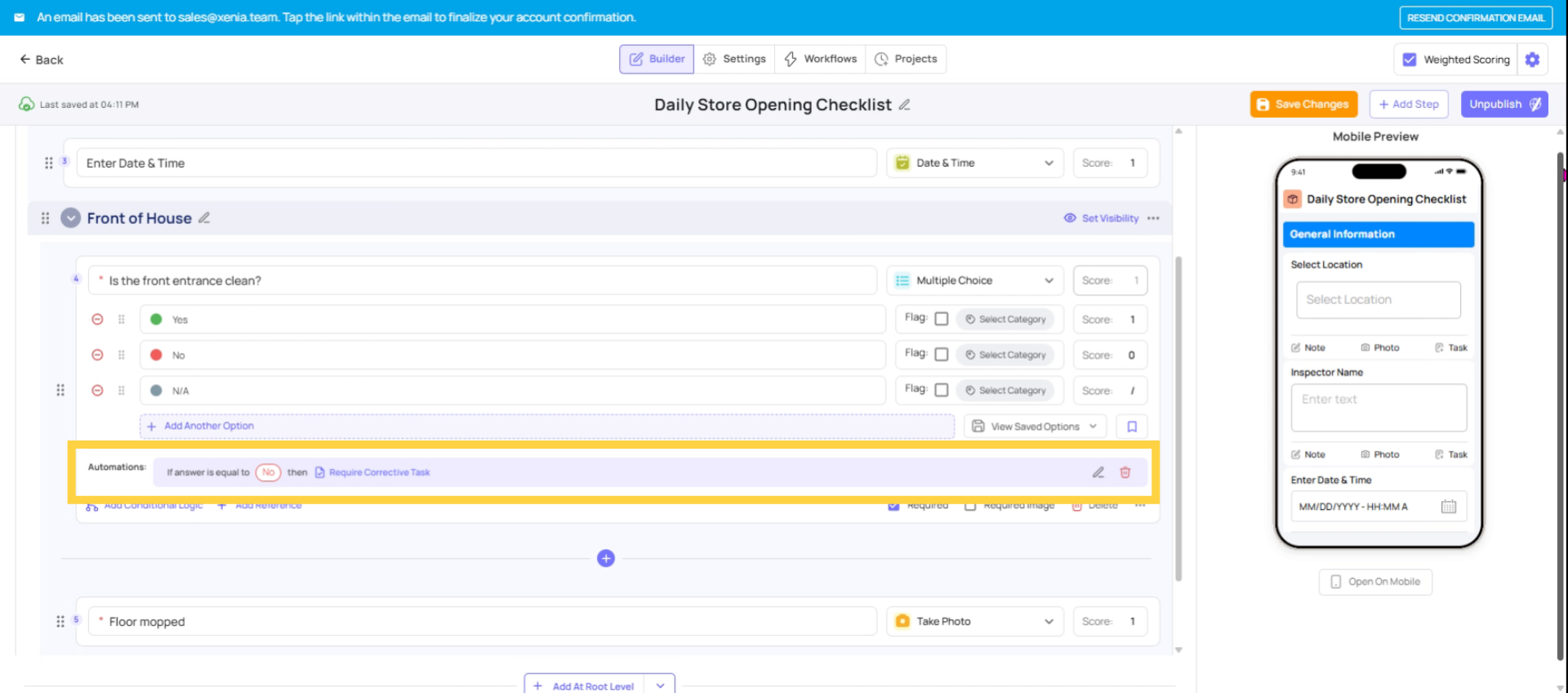 Now, whenever the user is going to submit the checklist and they select no, they will get a pop-up saying your response requires you to create a corrective task for completion. Then click on create corrective task. This is how you will be creating a corrective task for the front entrance if it's not clean.
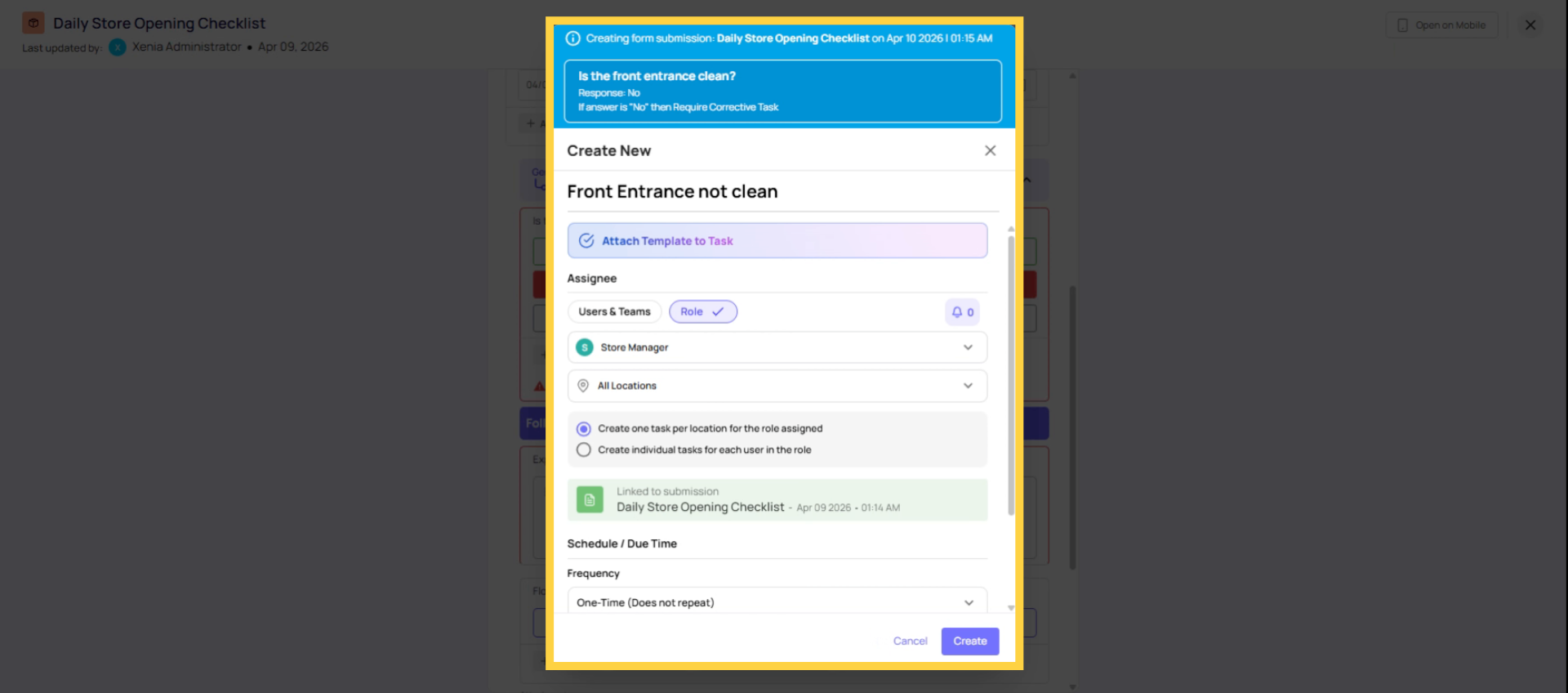
 Once the information is filled in just assign it to the specific person who will complete the task.
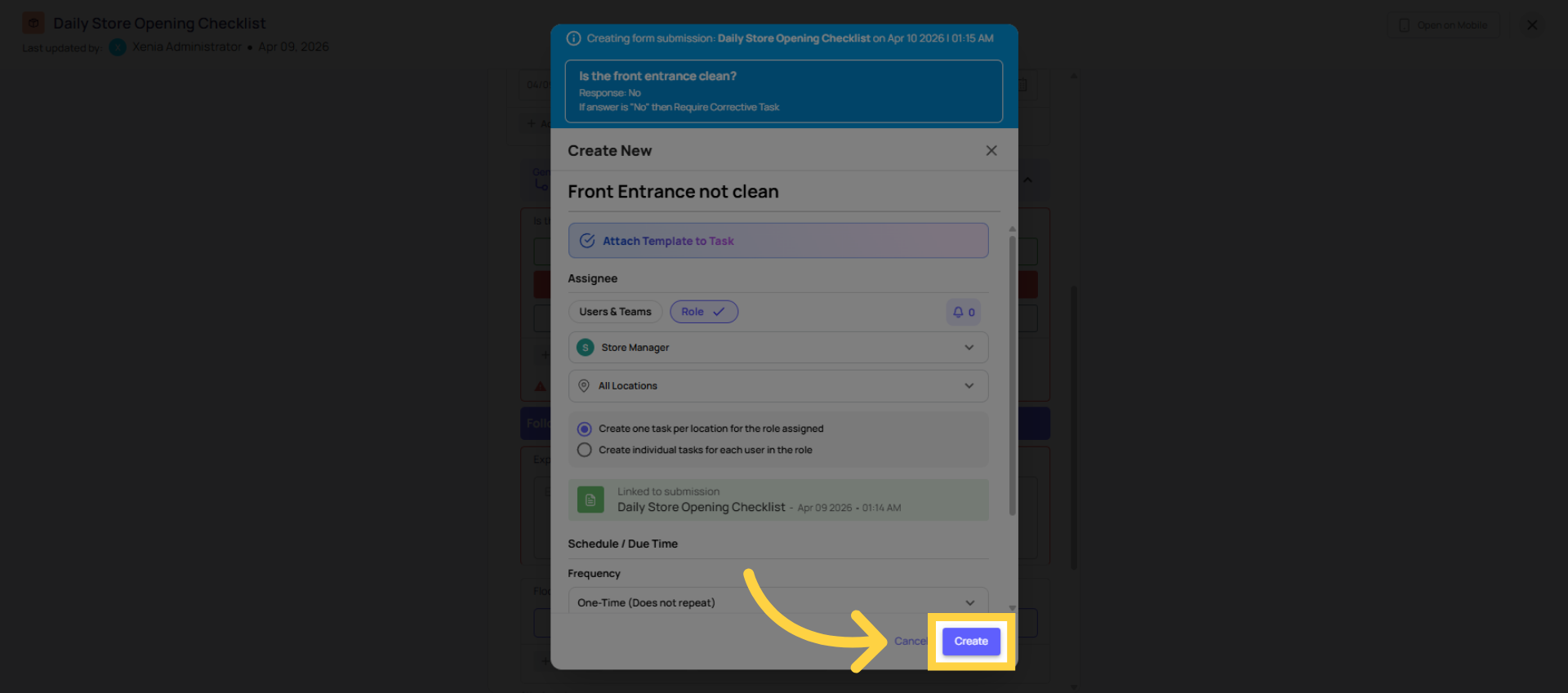
 Click Create to finalize the corrective task assignment and add it to the task board for tracking.
4. Post-Task Follow-Up Questions
Side-by-Side Comparison
| Factor | Follow-Up Question | Corrective Task |
| Who handles it | The same employee still in the form | A different person or team |
| When it's addressed | Right now, inline, as part of the submission | Later, as a separate tracked task |
| What it creates | An additional response within the submission record | A standalone task with Open/In Progress/Completed status |
| Tracking | Visible in the submission report | Visible in the task board with its own status |
| Best for | Corrective action documentation, real-time capture, additional context | Routing to another team, deadline tracking, resolution accountability |
| Admin effort to configure | Low — add a question type and make it required | Moderate — configure assignee, location, due date, notifications |
Need Help?
Reach out to our Support Team at Support@xenia.team
Comments
0 comments
Please sign in to leave a comment.