
1. The Core Concept
Conditional logic (sometimes called automations in the template builder) is the inline automation layer in Xenia. It fires while the employee is actively completing the checklist — the moment they give a specific answer to a step, something happens immediately before they can move to the next step.
Conditional logic is what makes a checklist intelligent. Instead of a static list of questions, the form responds to what the employee is reporting: "You said no? Show me a photo. Walk me through what you found. Tell me what action you took." All of this happens in real time, in context, before the form is submitted.
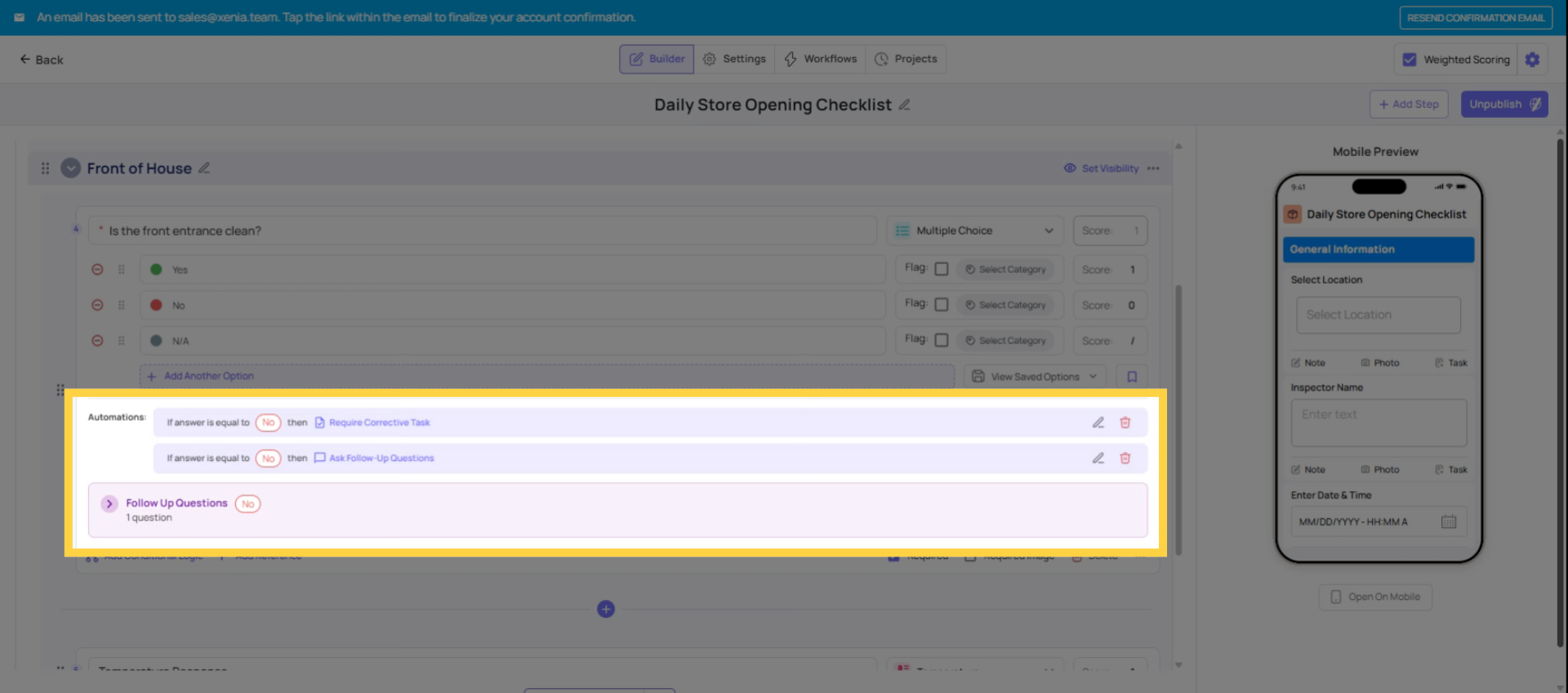
Conditional logic fires in the moment — as soon as the triggering answer is given. The employee doesn't submit the form first. The action appears immediately, inline, as the next thing they need to address.
This is the key distinction from Workflows:
| Conditional Logic | Workflow | |
| When it fires | Immediately when the answer is given | After the full submission is received |
| Who handles the action | The same employee still filling out the form | A different person/team receiving a task |
| What it creates | Inline prompts: photos, questions, notifications | A separate corrective task with tracking |
| Employee experience | Sees the prompt right there, handles it before moving on | Doesn't see the output — it happens in the background |
2. What Conditional Logic Can Do — The Full Action Menu
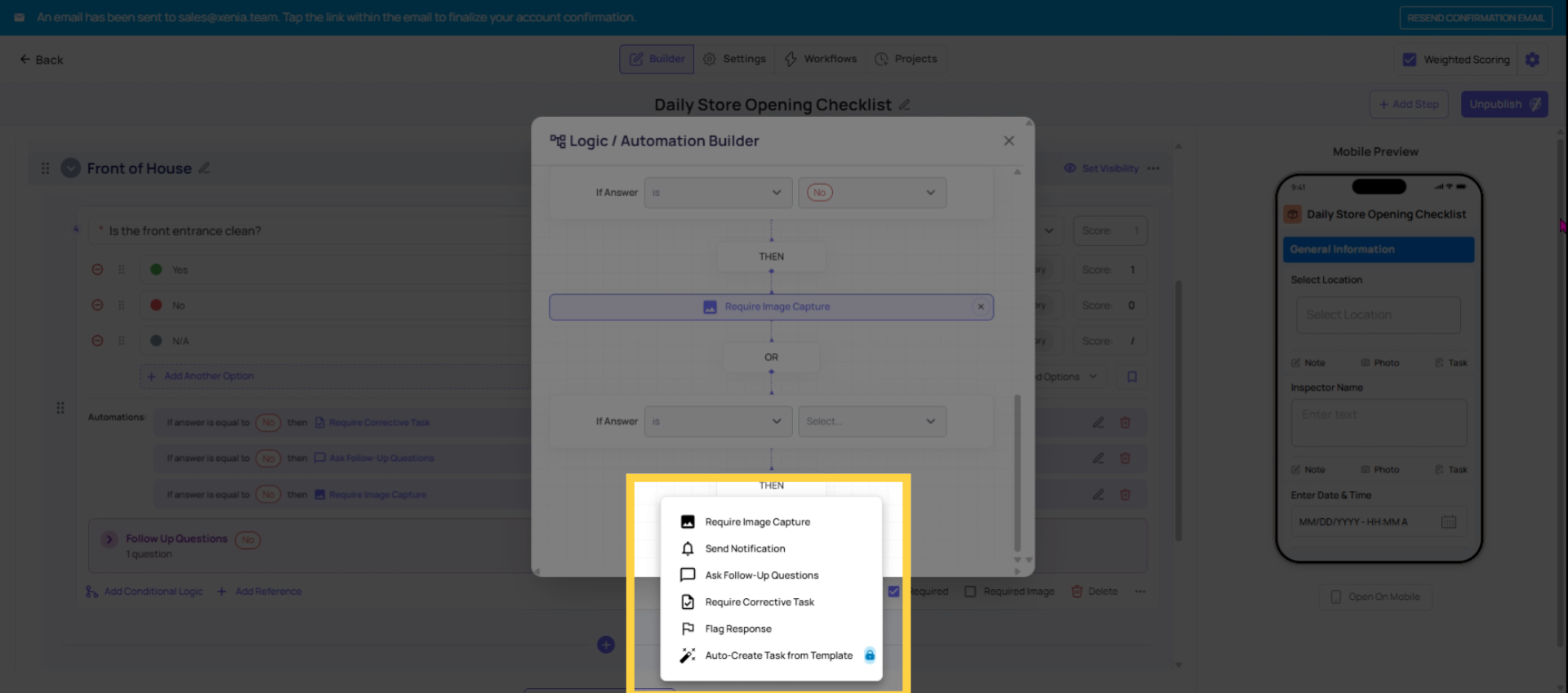
When a triggering condition is met, any combination of the following can fire:
Require Image Capture The camera opens immediately. The employee must take a live photo before they can continue. Not from the camera roll — a fresh photo taken at that moment. Use this on any step where visual proof of the issue is essential to accountability.
Ask Follow-Up Questions One or more additional questions appear directly below the triggering step. The employee must answer them before continuing. Follow-up questions can use any step type — text field, multiple choice, another photo — and multiple follow-ups can be stacked. Use this when the submitter is the right person to document more about what happened, right now.
Send Notification A push notification, email, or SMS is sent immediately to a configured role, user, or email address. This fires at the moment the answer is given — not at submission. Use this for real-time escalation when a manager needs to know about a critical answer right now, not when they check their dashboard.
Require Corrective Task (Manual) Prompts the employee to manually create a task before they can continue. The employee must fill out the task details themselves and assign it. This keeps the employee in the loop on routing decisions but adds friction — they have to do the work of creating and assigning the task. Use sparingly; Auto-Create is usually better.
Auto-Create Task from Template (Automated) Automatically creates a corrective task in the background — the employee sees a confirmation that a task was created, then continues the checklist. The task assignee, location, category, and due date are all pre-configured by the admin. The employee does nothing. This is the most powerful corrective task option and the one most closely related to a Workflow — the distinction is whether it fires mid-submission or post-submission.
Flag Response Marks this response for tracking in dashboards and reporting. Flagged responses accumulate over time and can be categorized (Safety Issue, Maintenance Issue, Food Safety, etc.). Use this for pattern recognition — "how often is this step failing?" — without necessarily triggering a task.
3. rigger Conditions — What Can Fire the Logic
Conditional logic can be triggered by:
- Multiple choice / dropdown: If the answer is [specific option] — e.g., "If answer is No" or "If answer is Fail"
- Temperature: If value is greater than / less than / between / not between a configured range
- Number: Same range conditions as temperature
- Cost: Same range conditions
- Procedure: If the item is checked or unchecked
- Text field: If the answer equals or does not equal a specific value
Pass/Fail: If the step is failed
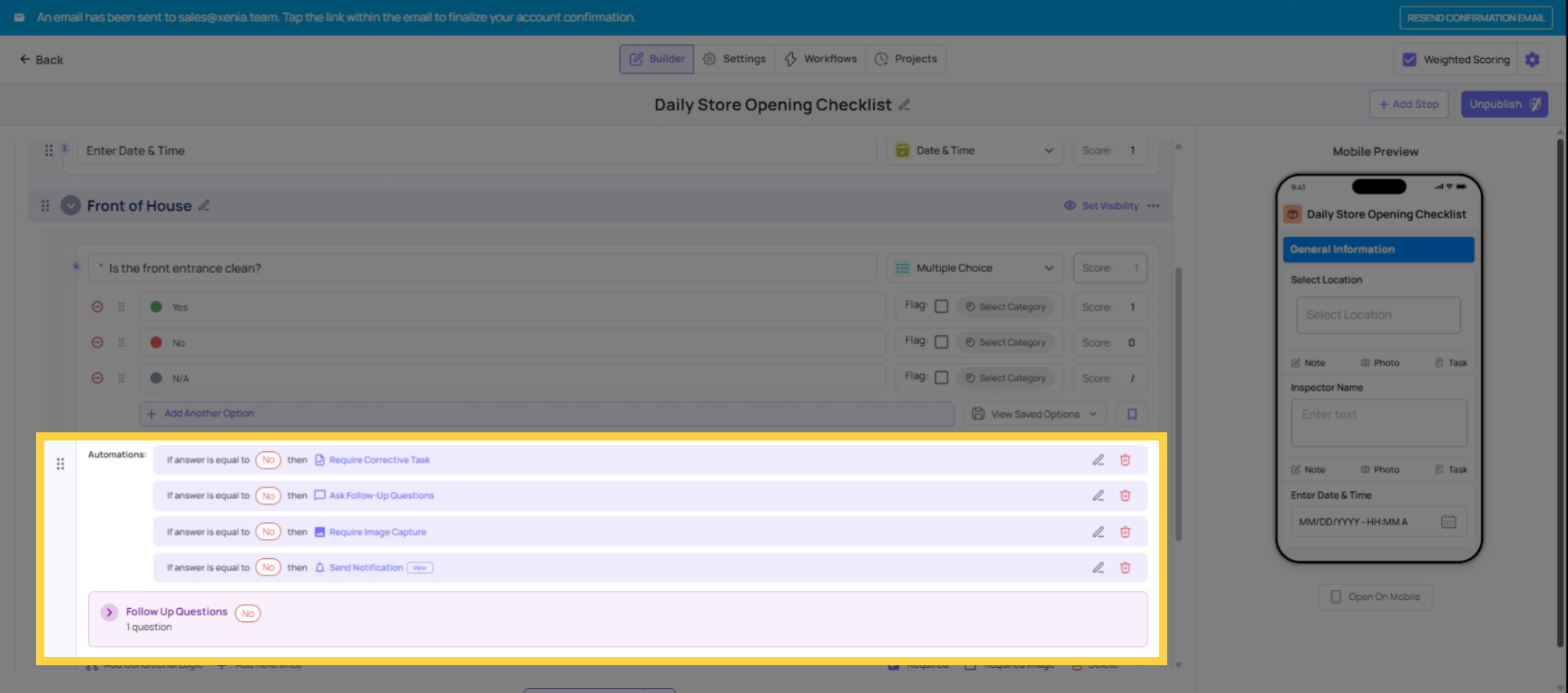
Multiple Actions on One Trigger
One trigger can fire multiple actions simultaneously. A temperature reading below the safe range could:
- Require a live photo of the thermometer
- Ask a follow-up: "What corrective action was taken?"
- Flag the response as a Food Safety issue
- Send an immediate notification to the Food Safety Manager
All four fire together the moment the out-of-range temperature is entered. The employee sees them in sequence — handles the photo, answers the follow-up, then moves on. The flag and notification fire in the background.
Need Help?
Reach out to our Support Team at Support@xenia.team
Comments
0 comments
Please sign in to leave a comment.