
1. The Core Concept
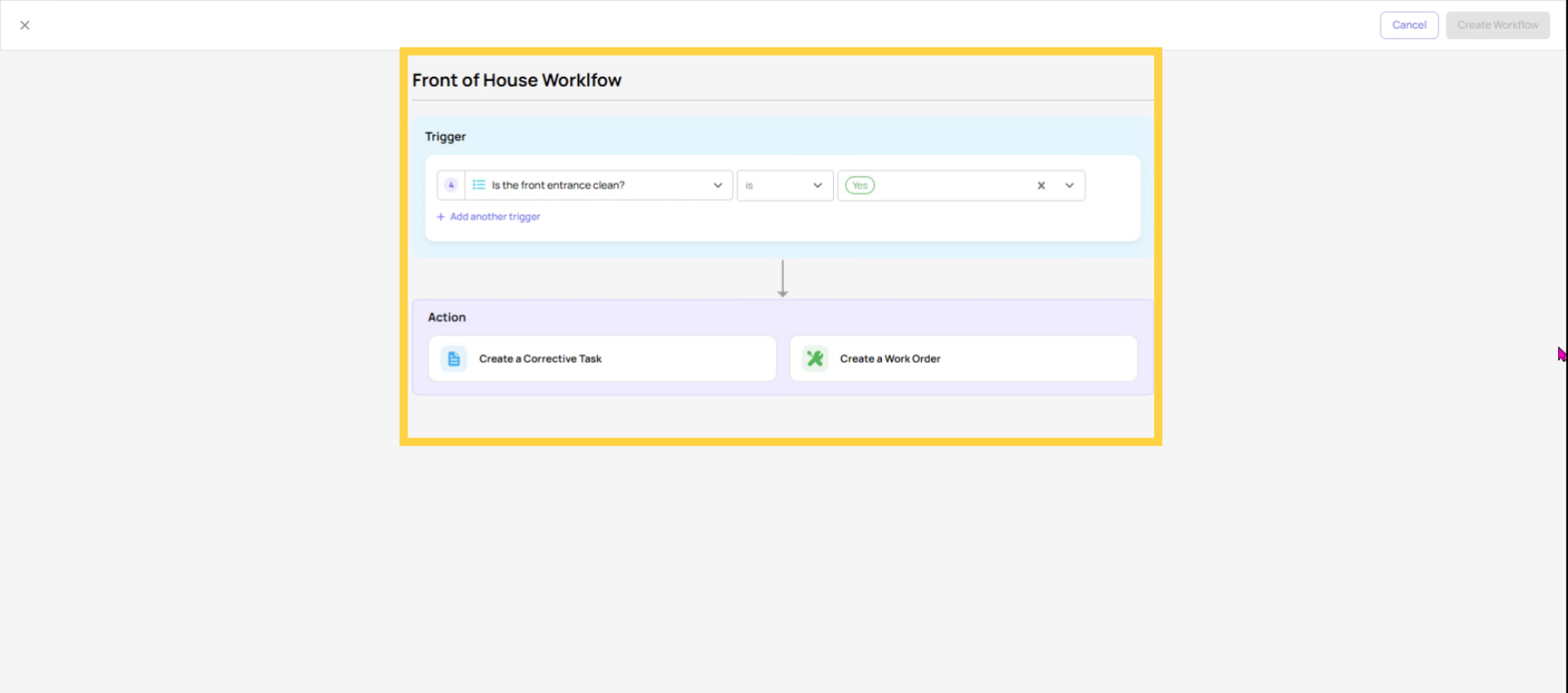
A Workflow in Xenia is a post-submission automation. It fires when a checklist is submitted and a defined condition is met — and it creates a corrective task that is assigned to a different person, role, or team, separate from whoever filled out the form.
The word "workflow" in Xenia refers specifically to this: a rule that runs after submission, creates a trackable task, and assigns it to someone else to handle.
This is different from conditional logic, which fires while the employee is actively working through the checklist. Workflows and conditional logic both live in the template builder and both respond to answers — but they fire at different moments and serve different purposes. The next article covers that distinction in full.
2. The Mental Model: Two Questions
Before deciding whether to use a Workflow, ask two questions:
"Does the person filling out this checklist also fix the problem?" If yes → conditional logic is probably right (follow-up question, required photo, inline corrective task) If no → a Workflow is right (assign the fix to someone else entirely)
"Do I need to track whether the issue was actually resolved?" If yes → a Workflow that creates a corrective task gives you status tracking (Open → In Progress → Completed) If just a notification is enough → skip the Workflow and use a conditional notification instead
Real example: A store employee fills out an opening checklist and answers "No" to "Is the HVAC working?" The employee didn't break the HVAC and can't fix it. The right action is to automatically assign a task to the Facilities team. That's a Workflow.
3. When a Workflow Fires
Workflows fire at submission — when the employee taps Submit on the checklist. Not when they give the triggering answer, and not before the form is complete.
This has an important implication: the corrective task is created after the form is fully submitted. The employee who filled out the checklist may not even be aware a task was generated — they just submitted their form and it happened in the background.
This is different from conditional logic actions (like auto-create task from template with inline triggering), which can fire as the employee is completing the form step by step.
4. What a Workflow Creates
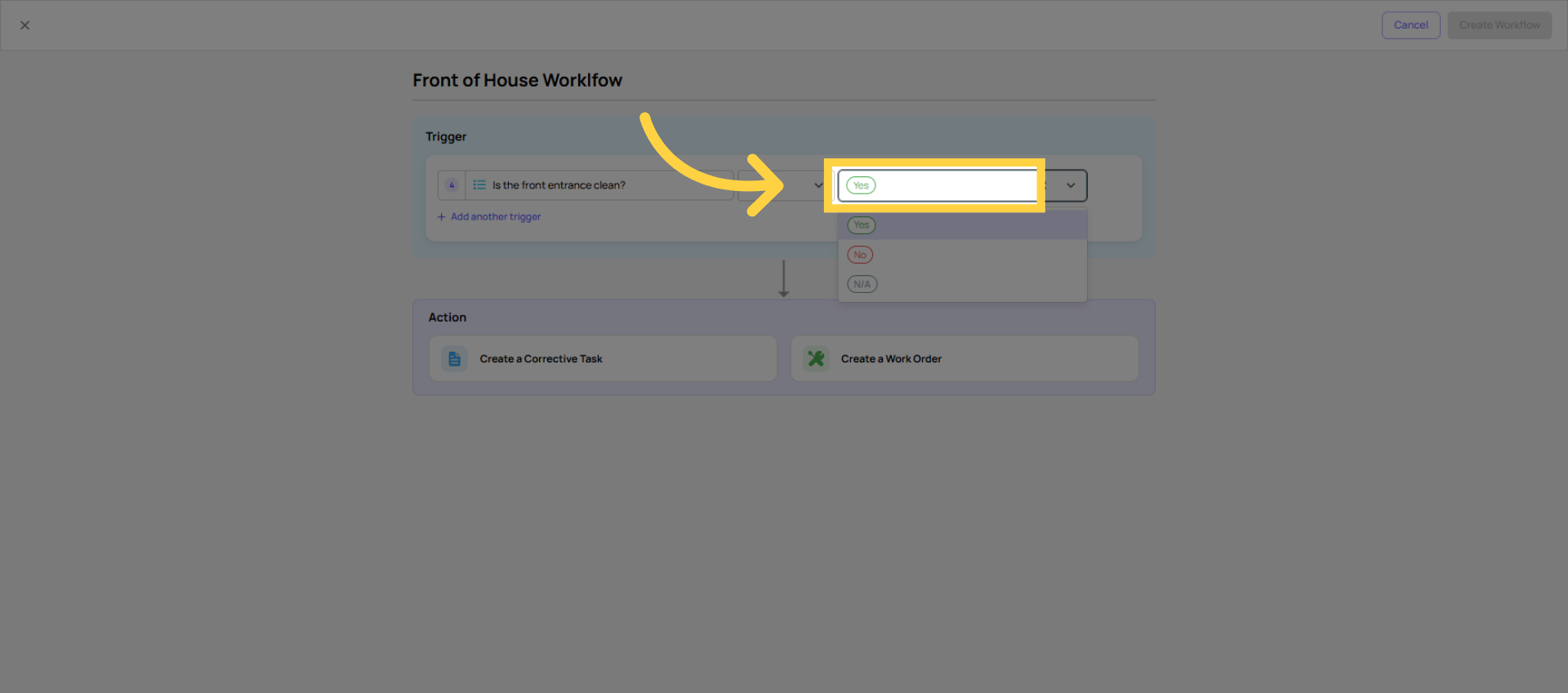
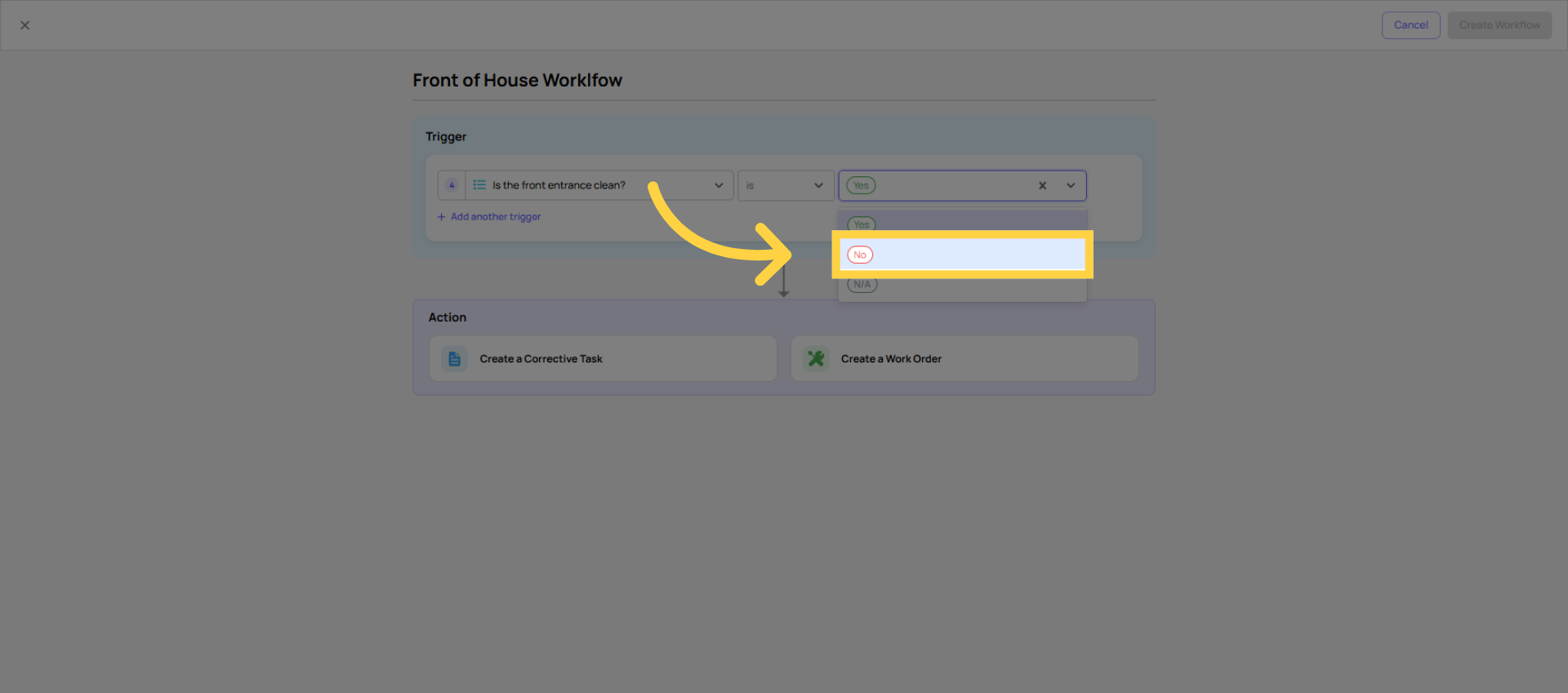
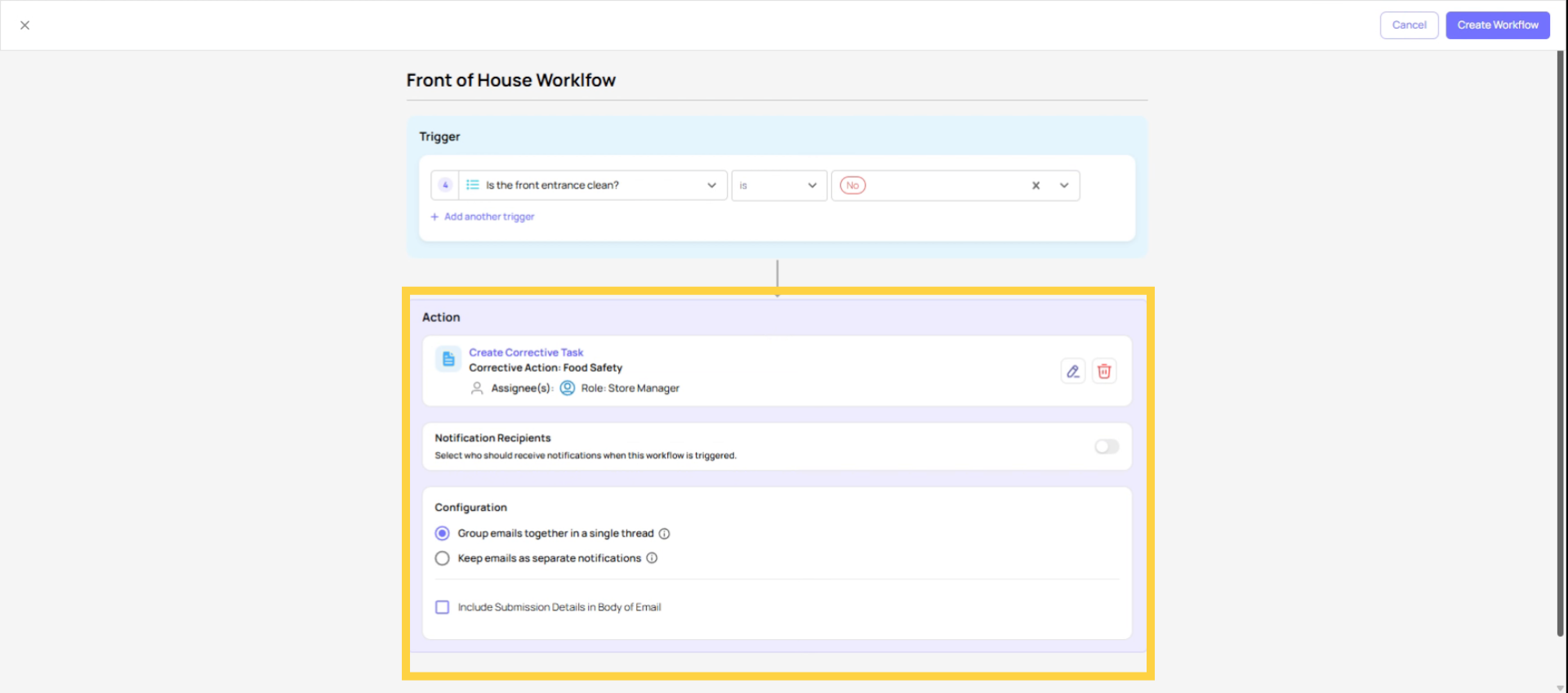
When the configured trigger condition is met at submission, the Workflow creates a corrective task that includes:
- A task name (defined by the admin when building the workflow)
- A task description (pre-filled, defined at build time)
- An assignee — a role, team, or user (never an individual if availability matters; use roles)
- A location — pre-filled from the submission's tagged location, ensuring the task is correctly attributed to the store where the issue was found
- A link to the original checklist submission — so whoever receives the task can see exactly what triggered it and review the full submission context
- An optional relative due date — e.g., "must be resolved within 24 hours of creation"
- Notification recipients — roles or individuals who are emailed or pushed a notification when the corrective task is created
5. Where Workflows Live
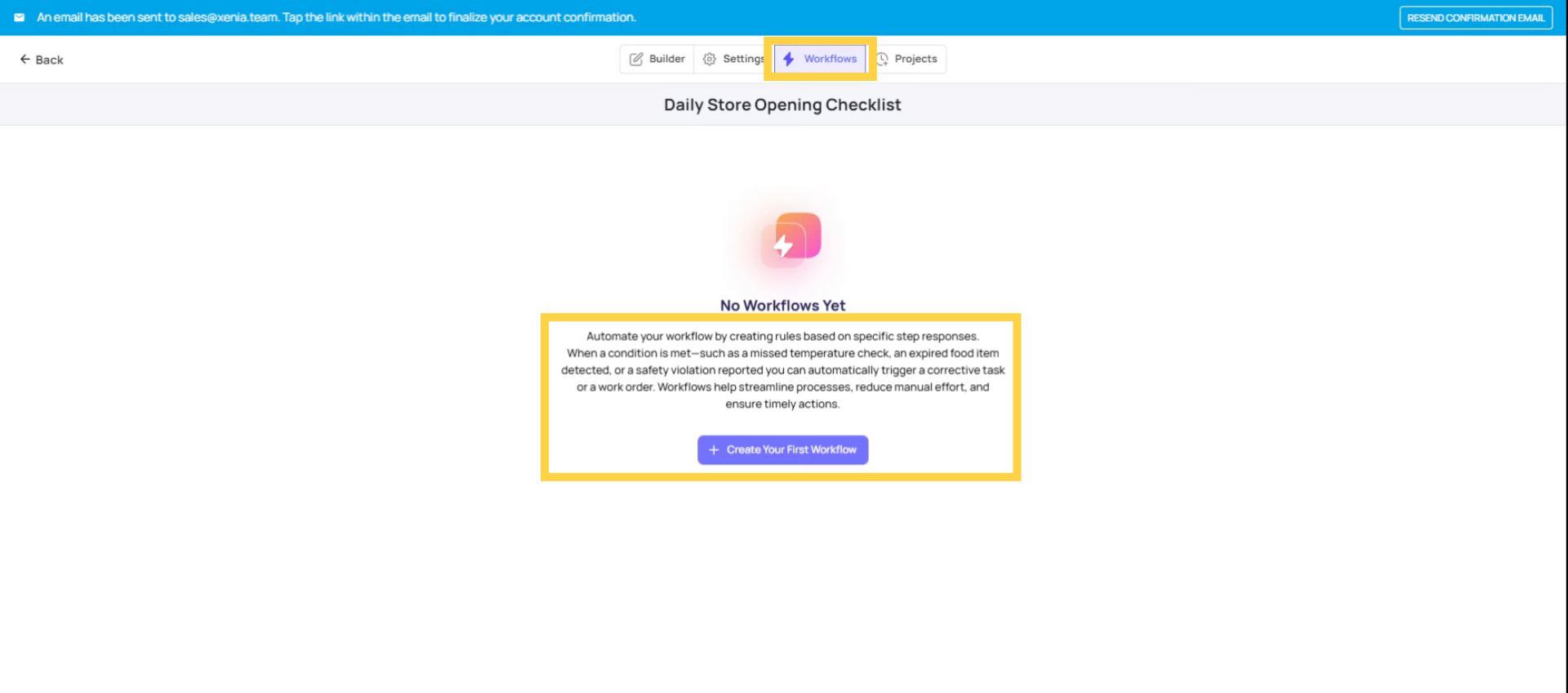
Workflows are found in two places:
Inside the Template Builder: Open any template → Build tab → click into a step → Add Conditional Logic → the Auto-Create Task from Template option at the bottom of the trigger options. This creates a step-level trigger that fires based on a specific answer to that step.
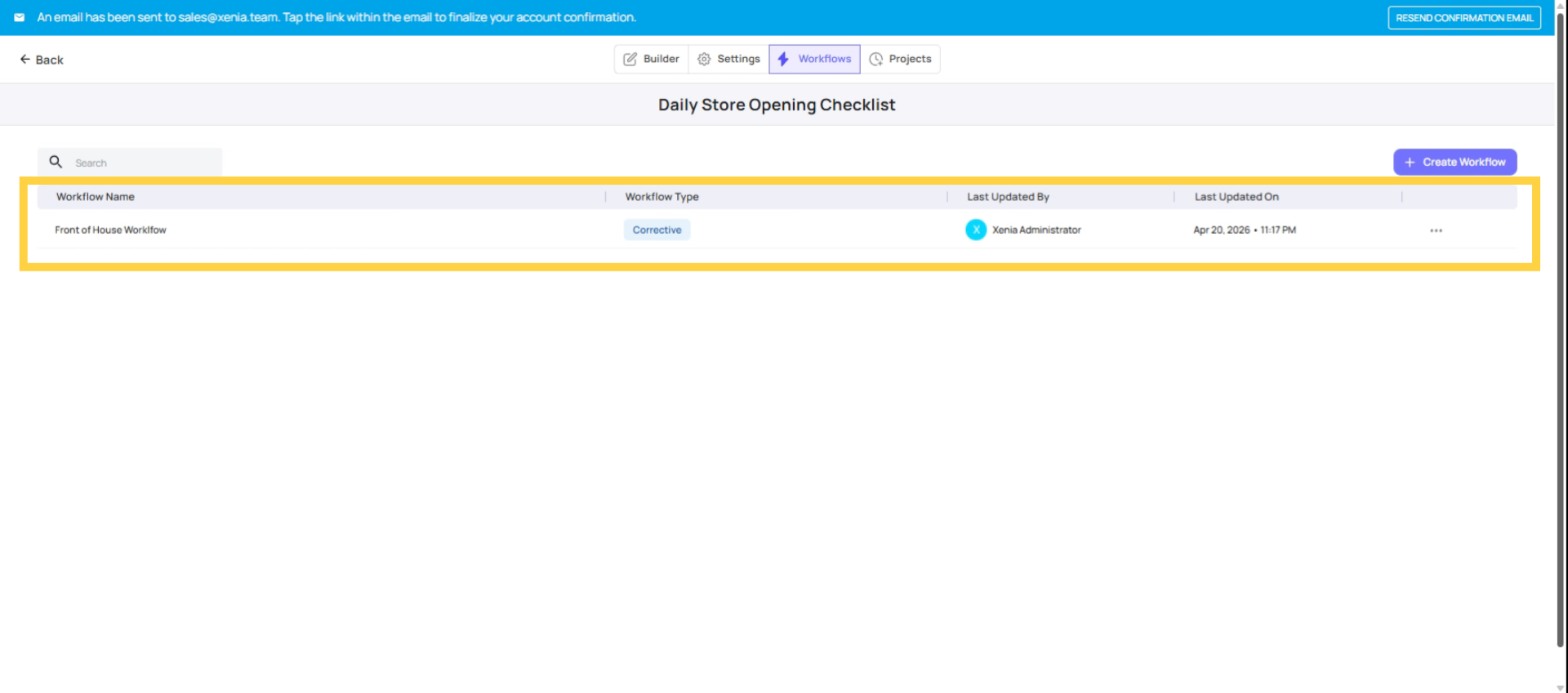
Templates → Workflows tab: A dedicated Workflows tab on the template's main view allows building and managing workflow rules at the template level, with a cleaner interface for multi-condition rules and viewing all workflows attached to a template.
Both surfaces produce the same result — a post-submission corrective task based on a defined condition.
9. The Location Pre-Fill — Why It's Critical
The most important setting in any Workflow is Use Submission Location (sometimes called Pre-fill Submission Location). This ensures the corrective task is tagged to the store where the checklist was submitted, not to some default location.
Without this: a workflow triggered from Store 12's daily opening checklist could create a task with no location or the wrong location, making it invisible to the right manager and unfilterable in reporting.
With this: the task automatically inherits Store 12's location. The role assigned to that task at Store 12 receives it. The task appears in Store 12's reporting. Everything routes correctly.
Always enable Use Submission Location on every Workflow. There is almost never a reason to leave it off.
Need Help?
Reach out to our Support Team at Support@xenia.team
Comments
0 comments
Please sign in to leave a comment.