
1. What Notification Fatigue Looks Like in Xenia
Notification fatigue happens when people receive so many alerts that they start ignoring all of them — including the important ones. In Xenia, it typically shows up as:
- A district manager receiving alerts for every store in the organization, not just their stores
- A manager getting two emails every time a checklist is submitted (duplicate notifications)
- Leaders getting a push notification every time a task changes status — Open → In Progress → Completed — for every task at every location they manage
- Frontline employees receiving notifications for tasks they can see but aren't assigned to complete
- Everyone in a role receiving email blasts that are only relevant to the person at one specific store
None of these are configuration bugs. They're predictable results of common setup choices. Every one of them has a specific fix.
2. The Most Common Fatigue Sources and Their Fixes
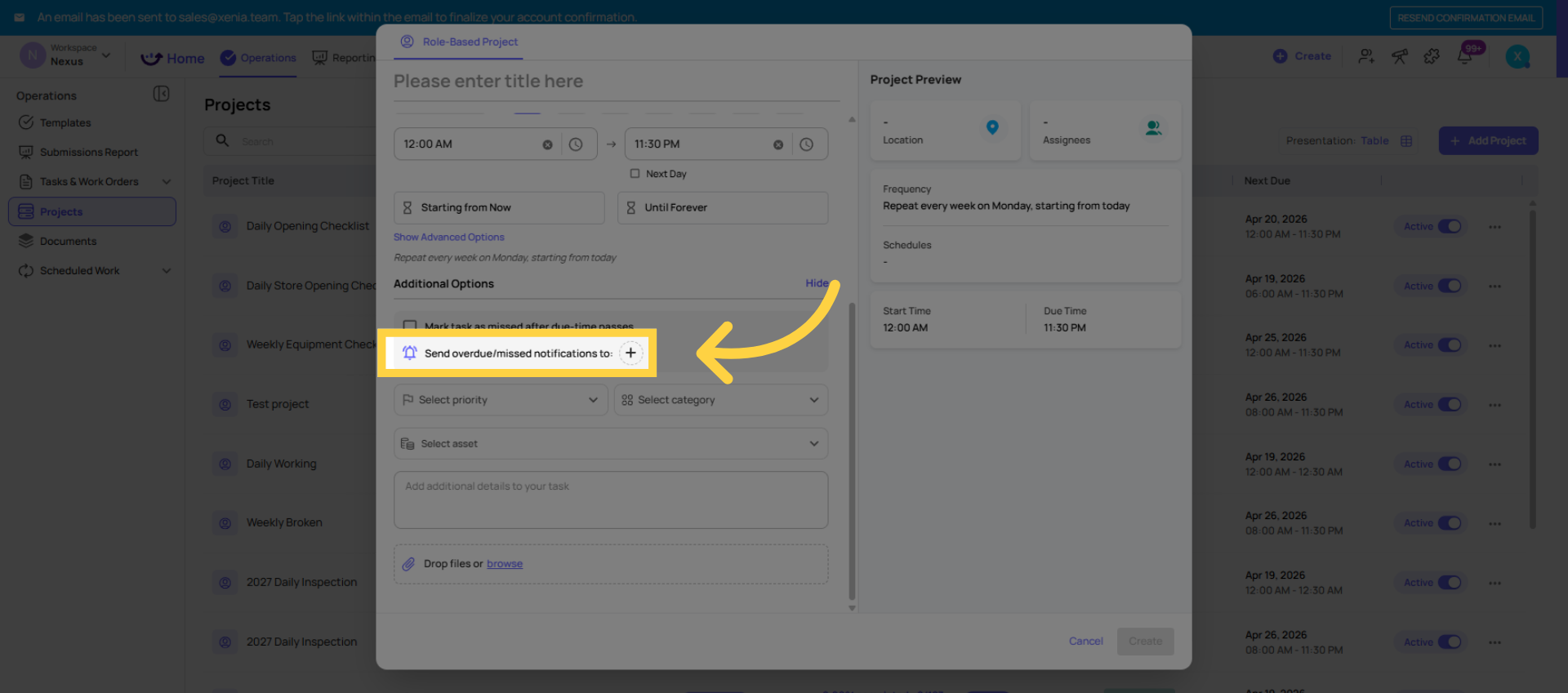
Problem 1: An individual is set as the Overdue/Missed Notifier on a project
What happens: That person receives an overdue/missed notification every time any task in the project goes overdue — across all locations. For a project covering 50 stores, they receive up to 50 notifications per day when stores are behind.
Why it happens: The project's Overdue/Missed Notifier field accepts both individual users and roles. Admins sometimes add a specific manager thinking "this one person should always know." At one or two locations, this is fine. At 10+ locations, it becomes unmanageable.
Fix: Remove the individual from the notifier field. Add the appropriate role instead. Xenia will route notifications through location membership automatically — the right manager for each store gets that store's alerts.
Where to fix it: Operations → Projects → [Project Name] → Edit → Overdue/Missed Notifier
Problem 2: The Watcher Notification is turned on
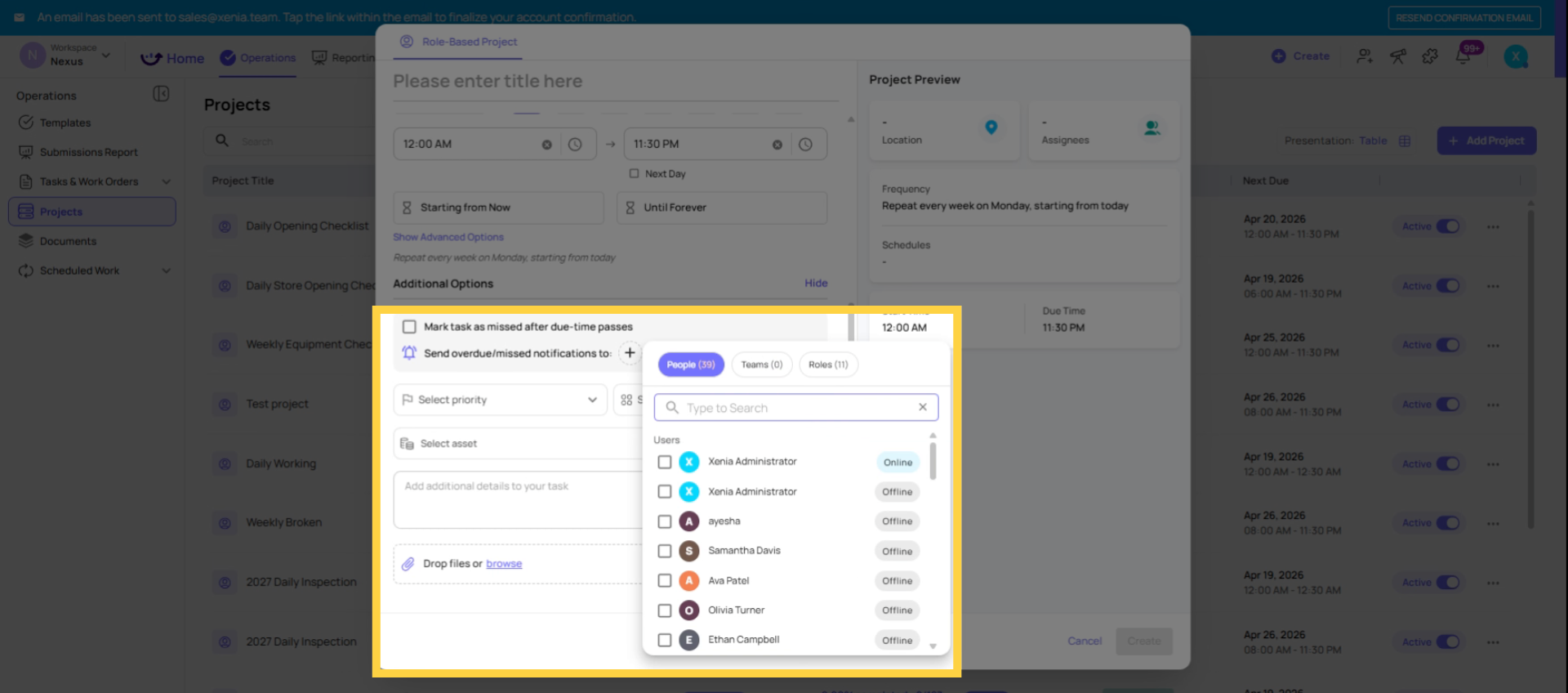
What happens: The Watcher notification fires every time a task status changes — Open, In Progress, Completed, Overdue, Missed. For a district manager watching 10 locations running daily tasks, this can generate dozens of push notifications per day for perfectly normal task activity.
Why it happens: Watcher notifications sound useful — stay informed on task progress. But in practice, a notification every time a task moves to In Progress or gets completed is noise, not signal. The right time to notify leadership is when something goes wrong, not when everything is running normally.
The explicit guidance from Xenia's implementation team: do not turn on Watcher notifications in most configurations. The Overdue/Missed Notifier is the right tool for leadership alerts. Watcher is for edge cases where someone specifically needs to track every status change on a specific task.
Fix: Review all projects and turn off the Watcher notification unless there is a specific, deliberate reason a person needs to be notified on every status change.
Where to fix it: Operations → Projects → [Project Name] → Edit → Watcher/Notification Settings
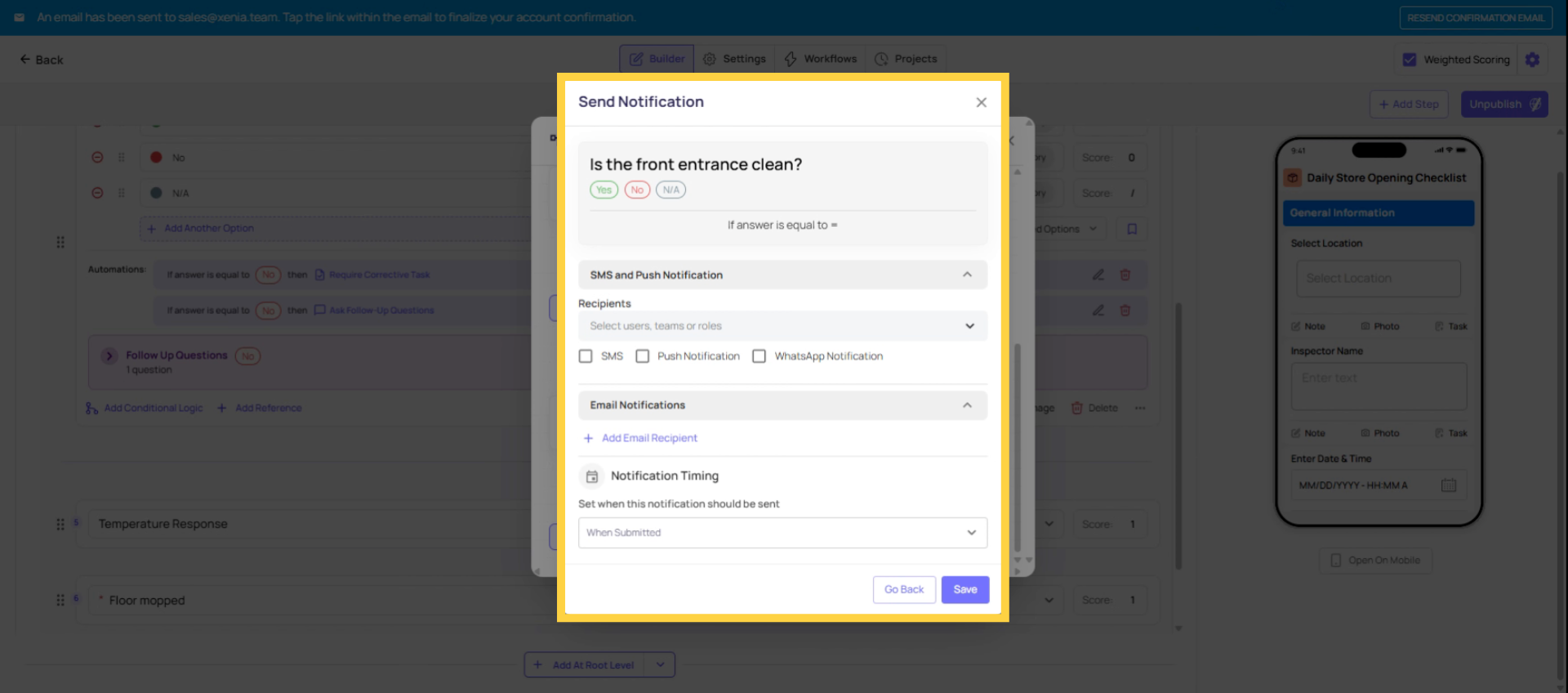
Problem 3: A role is listed in both template Email Notifications and a conditional notification for the same template
What happens: Every time the template is submitted, that role member receives two emails — one from the template-level email notification, one from the conditional workflow. Two emails, same submission, same recipient.
Why it happens: Admins configure template-level email notifications to ensure leaders receive every submission. Later, a conditional notification is also configured on a specific step. Both target the same role. Nobody realized both were active simultaneously.
Fix: Decide which notification serves the purpose. If every submission needs to reach this role, use template-level email notifications and remove the role from the conditional notification. If only specific answers should trigger an email, use conditional notifications only and leave the template-level email off for that role.
Where to audit: Check each template's Email Notifications tab AND each step's conditional logic notifications for the same role appearing in both.
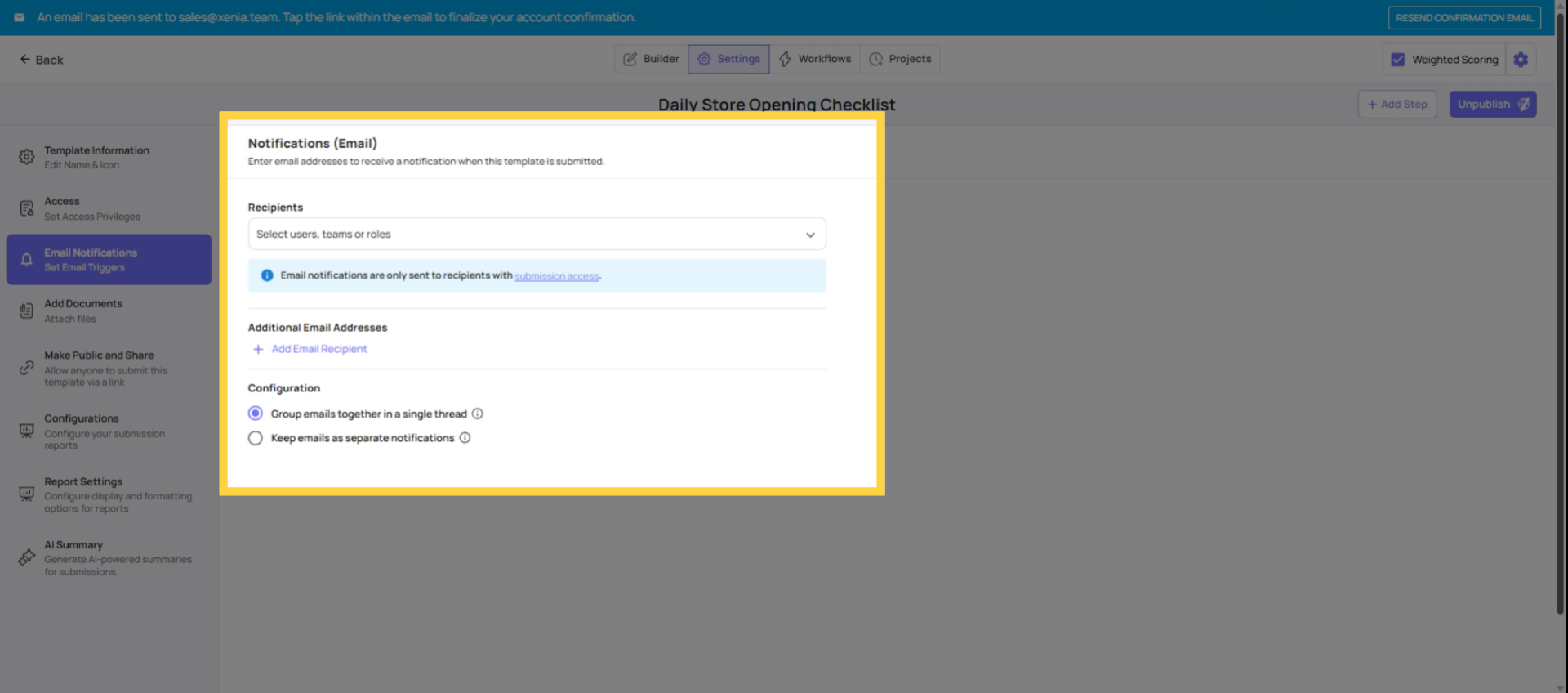
Problem 4: Too many templates have post-submission email notifications configured for the same role
What happens: A district manager has been added to the Email Notifications tab on 8 different templates. Every time any of those checklists is submitted at any of their stores, they receive an email. For a DM managing 5 stores each running 3 daily checklists, that's 15 emails per day from normal operational activity — before anything actually goes wrong.
Why it happens: Post-submission email notifications were configured template by template, with the intent of keeping leadership informed. The cumulative volume across all templates wasn't considered.
Fix: Reserve post-submission email notifications for templates where a leadership review of every submission genuinely adds value — audits, inspections, compliance forms, performance notices. Remove them from high-frequency daily operational checklists where the submission data is better reviewed through the dashboard than inbox. Leaders should check the dashboard to see daily completion patterns; their inbox should receive exceptions and important submissions, not every temperature log.
The rule of thumb: If a template is submitted multiple times per day per location, it probably doesn't need to email a district manager every time.
Need Help?
Reach out to our Support Team at Support@xenia.team
Comments
0 comments
Please sign in to leave a comment.