
1.What Post-Submission Email Notifications Do
When a checklist or form is submitted in Xenia, you can automatically send a copy of the submission — inline in the email body and as a formatted PDF attachment — to a configured list of recipients. This fires the moment the form is submitted, without any manual action.
This is the answer to: "How do I make sure the right manager automatically gets a copy of every submitted audit, inspection, or incident report?"
Where to Configure It
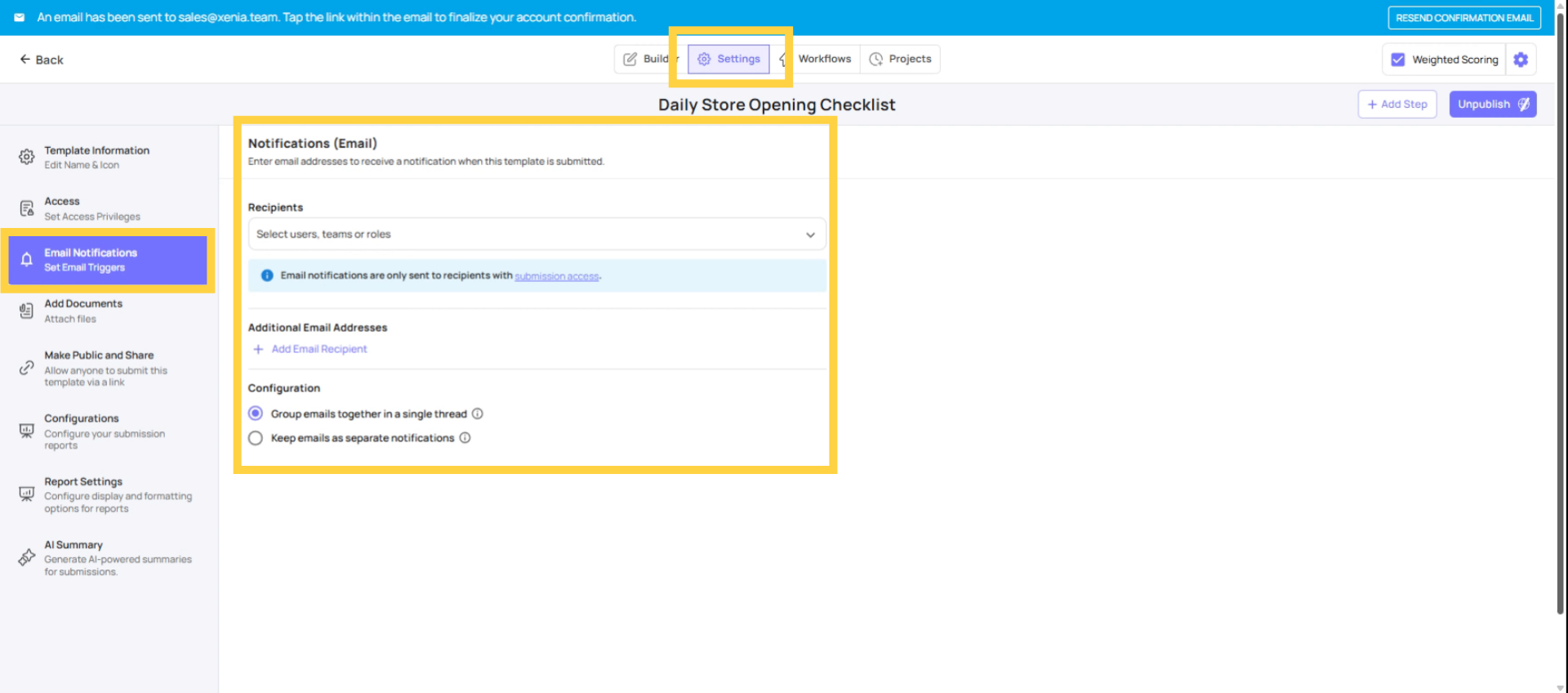
Operations → Templates → [Template Name] → Edit → Settings → Email Notifications
In the Settings sidebar, click Email Notifications. This section allows you to add recipients who receive an email every time this template is submitted.
2. Who You Can Send To
Xenia supports four recipient types:
Specific email addresses (open-ended): Any email address — including people who don't have a Xenia account. A franchisor, a third-party auditor, a compliance body. They receive the email regardless of location. Every submission triggers an email to them.
Specific users: Named individuals within your Xenia workspace. They receive the email for every submission of this template, regardless of which location submitted it.
Teams: All members of a configured team receive the notification.
Roles: This is the most important and most powerful option — and the one that requires understanding Submission Access. See below.
3. The Critical Part: How Role-Based Recipients Work
This is the point of the article that most admins miss — and what Neil specifically flagged as missing from the original version.
When you add a Role as an email notification recipient, Xenia does not email every member of that role across your entire organization. It uses location membership to determine exactly which member of that role should receive the notification.
Here's exactly how it works:
- A form is submitted
- Xenia reads the location tag on the submission (from the Select Location step in the form)
- Xenia looks at the role configured as the email recipient
- It finds every user in that role — and checks each one's location membership
- It sends the email only to the member(s) of that role who have membership at the submission's location
What the Email Contains
Recipients receive:
- Email body: The full submission inline — every question and answer, readable without clicking anything
- PDF attachment: A formatted report with the organization's logo, all responses, timestamps, section scores (if scoring is enabled), and photos
If the submission contains many high-resolution photos, the PDF may exceed ~25MB. In that case, a download link is included in the email instead of a direct attachment. The inline body content is always present.
4. Why the Select Location Step Is Non-Negotiable
For role-based email routing to work, Xenia must know which location the submission came from. That location tag comes from the Select Location step in the template — the dropdown step where the employee selects their store.
If the template has no Select Location step: Xenia has no location to match against. Role-based routing fails. No one in the role receives the email.
If the employee didn't fill in the Location step: Same result — no location tag, no routing, no email to the role recipient.
Rule: Every template configured with role-based email notification recipients must include a Select Location step. And that step should be marked Required so it cannot be skipped.
Quick Reference
| Recipient Type | Who Gets the Email | Location Scoped? |
|---|---|---|
| Open email address | That specific address | No — receives for all submissions |
| Specific user | That named individual | No — receives for all submissions |
| Team | All team members | No — all members receive |
| Role | Only the role member at the submission's location | Yes — location membership applies |
Comments
0 comments
Please sign in to leave a comment.