
1. Understand Xenia Notification Levels
Structure
1. The Four Levels of Notifications
Xenia's notification system operates at four distinct levels. Each level is independent — they're configured in different places and serve different purposes. Understanding all four prevents both under-notification (people missing critical alerts) and over-notification (alert fatigue).
2. Level 1 — User-Level: How Each Person Receives Notifications
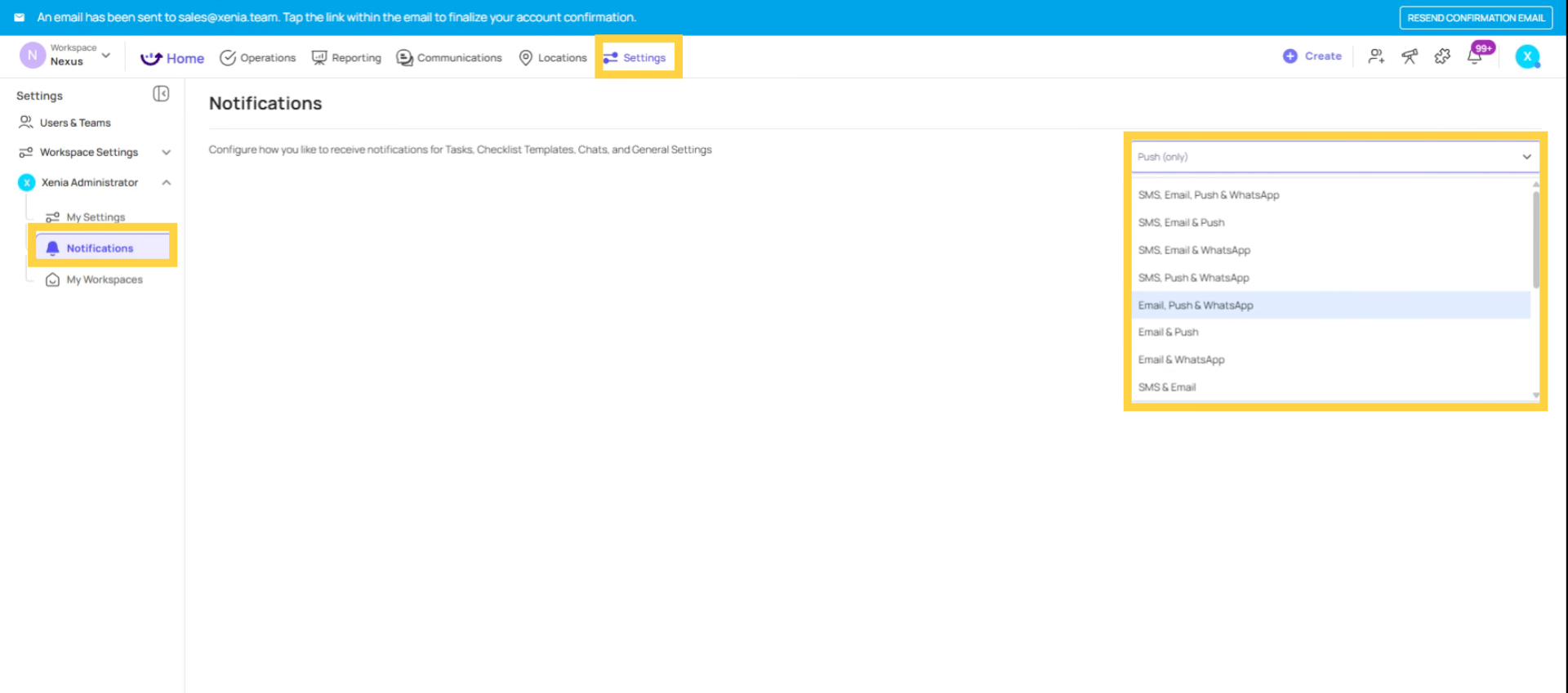
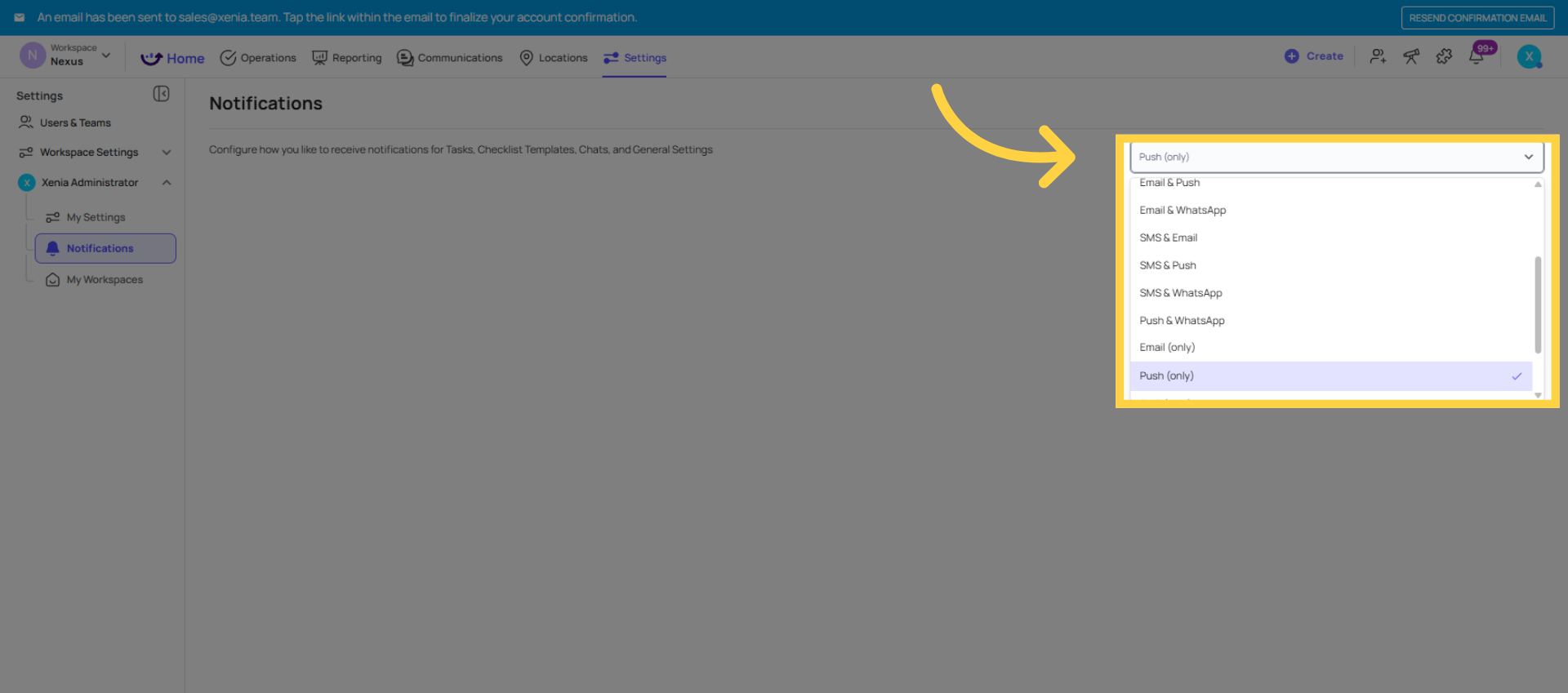
This is the global delivery preference every individual user sets for themselves. It controls the channel — not the content.
Where to configure: My Settings → Notifications (accessible from the mobile app or web app)
Options:
- Push notification — a banner alert on the device, even when the app isn't open
- Email — delivered to the user's account email address
- SMS — text message to the user's phone number
- None — no notifications at all
Users can enable any combination. An employee can receive both push and email if they want both on a task assignment. A manager who only checks email can turn push off.
This is the first place to check if an employee says they're not receiving notifications. If their delivery preference is set to None, no notification from any level will reach them.
3. Level 2 — Template-Level: Post-Submission Email Notifications
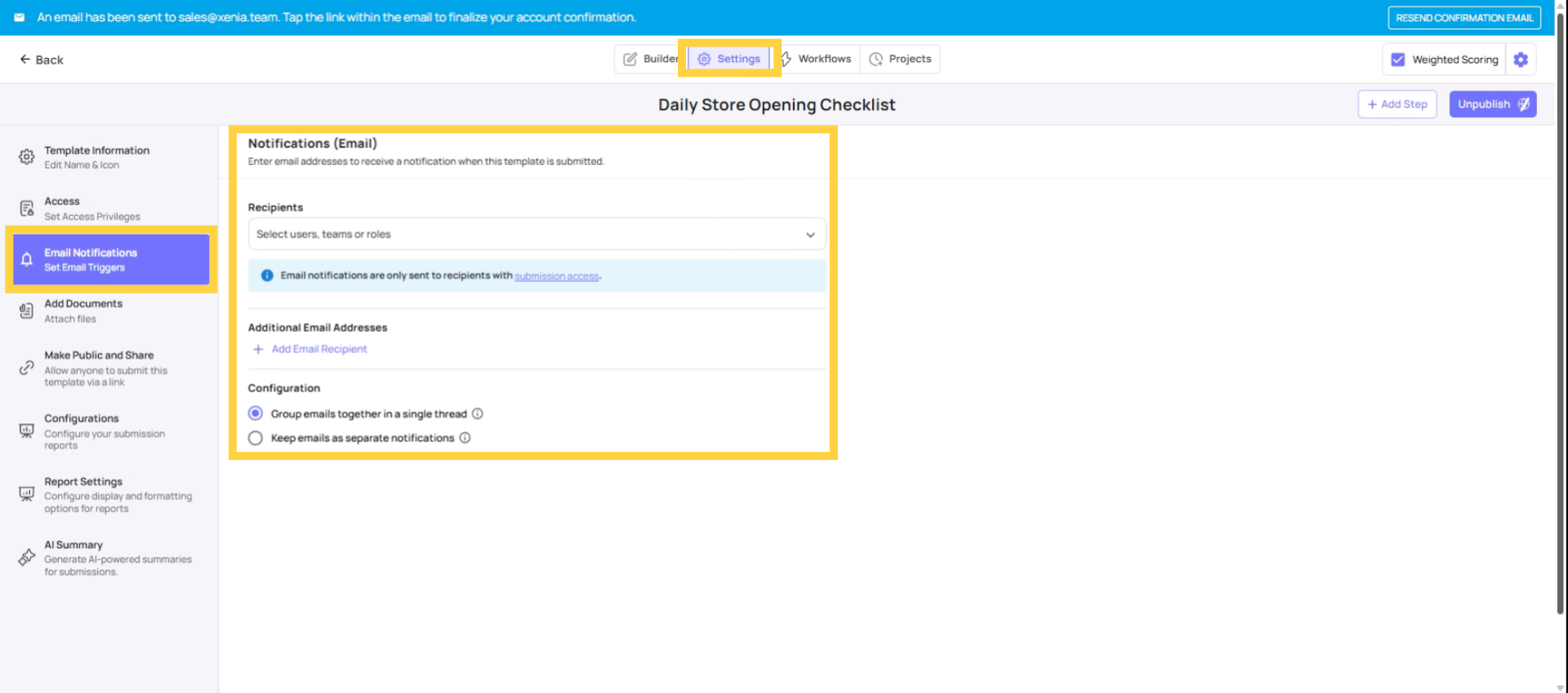
These are email notifications that fire every time a specific template is submitted, regardless of task assignment or project schedule.
Where to configure: Operations → Templates → [Template Name] → Settings → Email Notifications tab
What it does: When a submission is recorded for this template, Xenia sends an email to the configured recipients. The email contains the full submission content in the email body (all responses, inline) plus a PDF of the submission attached.
Who can receive it:
- Specific email addresses (open-ended, for non-Xenia users)
- Specific named users
- Teams
- Roles
Location membership gates role notifications: If a role is configured as the recipient and the role has 10 members across 10 stores, only the member whose location membership matches the store where the submission came from receives the email. A district manager responsible for Store 1 does not receive notifications from Store 2's submissions, even if both stores use the same template.
4. Level 3 — Project-Level: Overdue and Missed Notifier
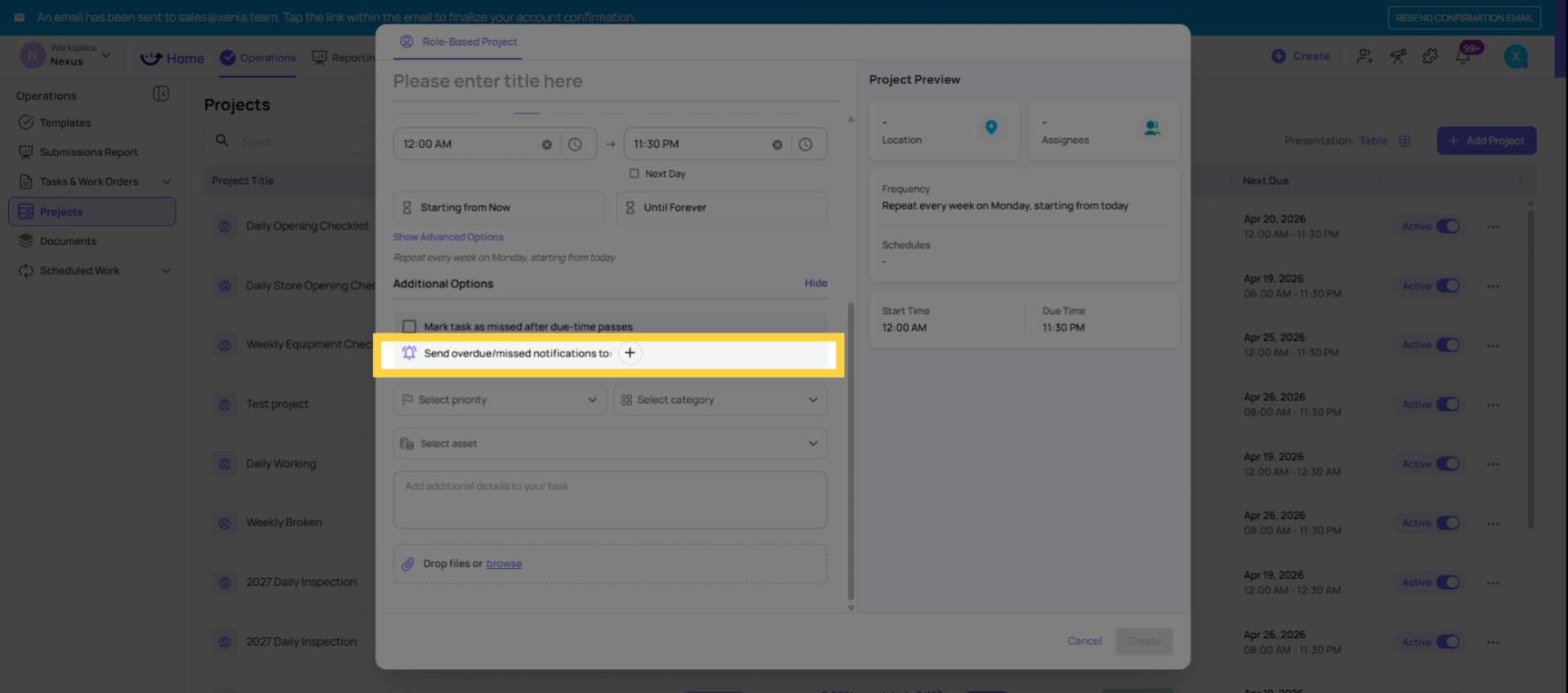
These notifications fire when a project-generated task is not completed on time.
Where to configure: Operations → Projects → [Project Name] → Edit → Overdue/Missed Notifier field
What it does: When a task passes its due time without being submitted, a notification is sent to whoever is configured in this field.
Who should be configured: A role (not an individual user). When a role is used, location membership routes the notification — only the member of that role who has membership at the location where the task went overdue receives it. If you add a specific individual, they receive a notification for every location in the project.
Timing: Notifications go out at the moment the due time passes. Both Overdue tasks and Missed tasks (when Mark as Missed is enabled) trigger this notifier. Whether the task becomes Overdue or Missed, the same notifier role receives the alert.
See the dedicated article: Project Notifications: Overdue vs. Missed for full detail.
5. Level 4 — Question-Level: Conditional Notifications
These notifications fire when a specific answer is given to a specific step in a checklist — not on every submission, only when a defined condition is met.
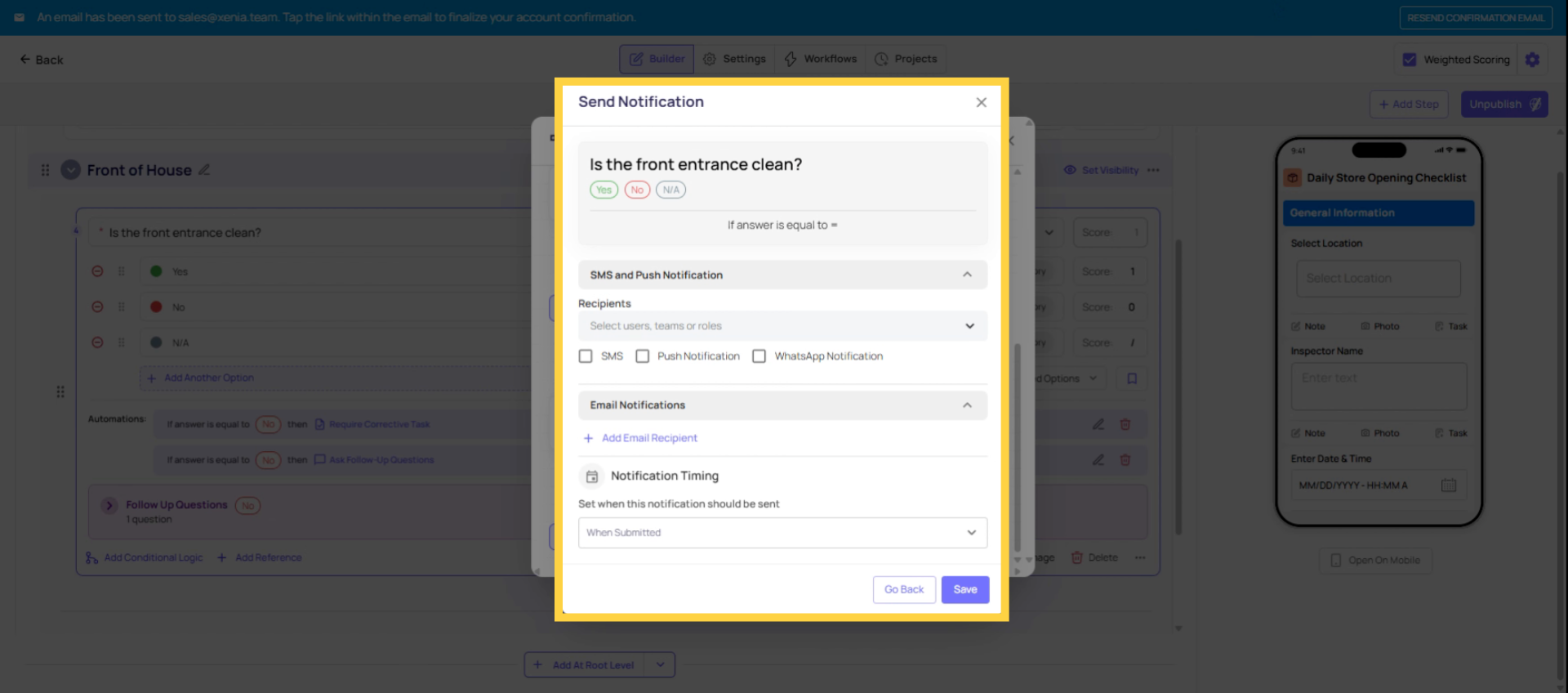
Where to configure: Operations → Templates → [Template Name] → Build tab → click into a step → Add Conditional Logic → Send Notification
What it does: When the triggering answer is given — "No" on a safety check, a temperature below 135°F, "Fail" on an equipment inspection — a notification is sent immediately, in real time, while the employee is still in the checklist. This happens before the checklist is even submitted.
Who receives it: A role, a user, a team, or a specific email address. Role-based recipients are location-scoped — only members of that role with membership at the submission location receive it.
Use this for: Critical exceptions that need immediate attention. A failed safety check. An out-of-range temperature. A "Yes" answer to "Is maintenance needed?" These are things a manager needs to know about right now, not when they check their dashboard later.
Need Help?
Reach out to our Support Team at Support@xenia.team
Comments
0 comments
Please sign in to leave a comment.