
1. Understand Task Statuses
1. Why Status Matters
Task status isn't just a label — it's what your completion reporting is built on. The difference between Overdue and Missed determines whether an employee can still complete a task. The difference between Completed and Completed Late determines how that task appears in your performance metrics. Understanding each status prevents confusion on the floor and ensures your reporting reflects what's actually happening.
2. The Six Statuses
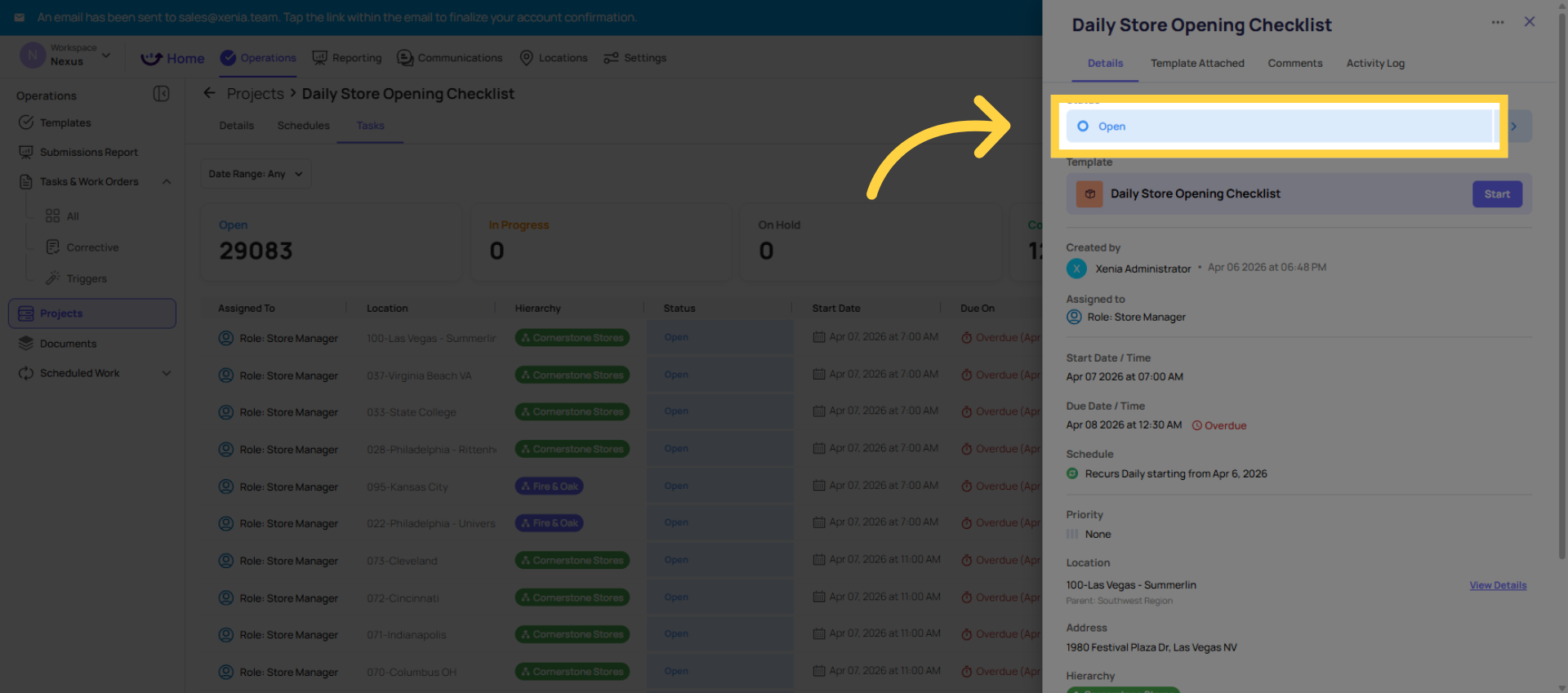
OPEN
What it means: The task has been generated and the start time has arrived, but no one has opened or started it yet.
When it appears: As soon as the project's start time hits, the task is generated with an Open status. It appears on the employee's home screen. The due time clock is running.
What the employee sees: A task card on the home screen or Work tab with a Start button. They haven't touched it yet.
What reporting shows: An open task — pending, not yet acted on.
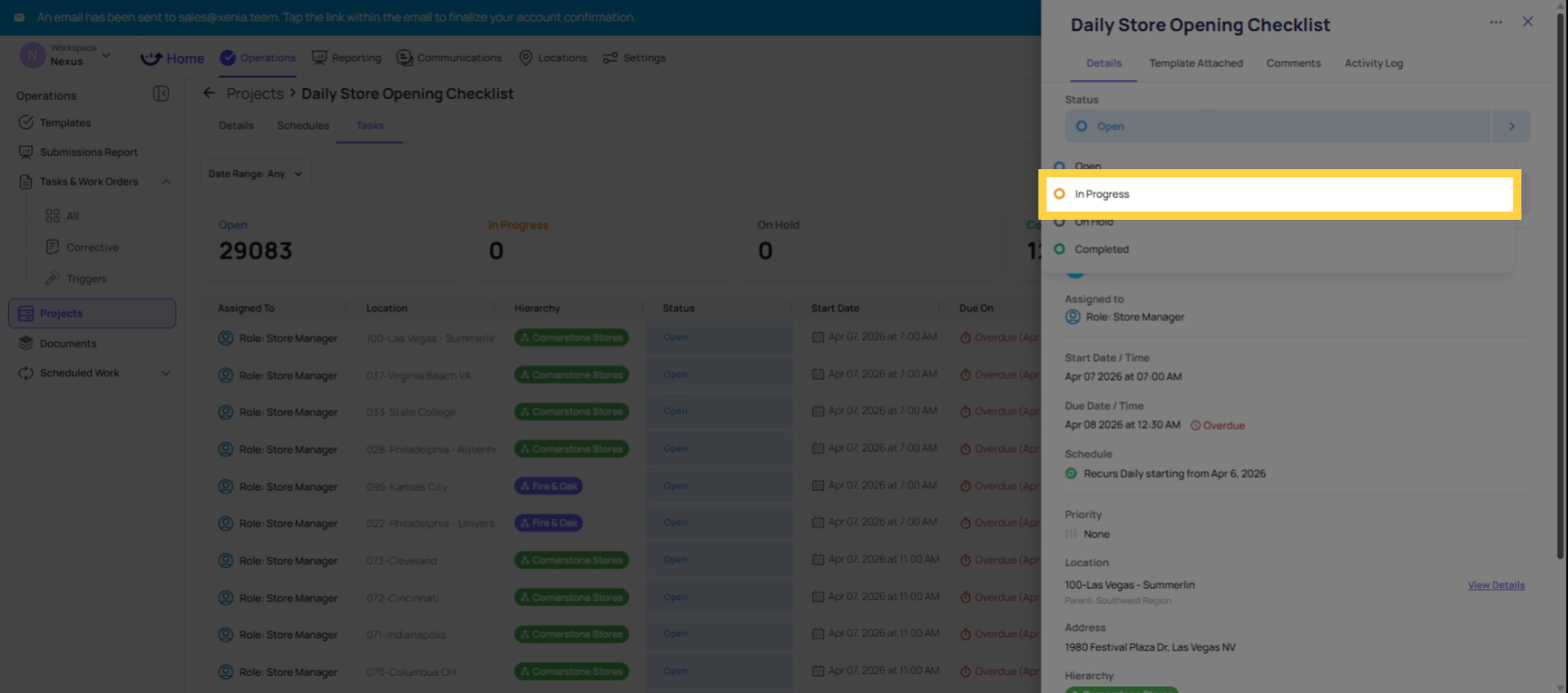
IN PROGRESS
What it means: The employee has opened the checklist and begun answering steps. The task is actively being worked on.
When it appears: The moment an employee taps Start on a task with an attached checklist and begins answering questions, the status changes to In Progress automatically.
What the employee sees: The task detail shows In Progress. The checklist has partial responses saved.
What reporting shows: Work has begun but is not yet complete.
Auto-save behavior: An In Progress task is automatically saved every time the employee taps Go Back. If they return later, it picks up exactly where they left off. An In Progress task that has not been submitted before the due time passes becomes Overdue.
OVERDUE
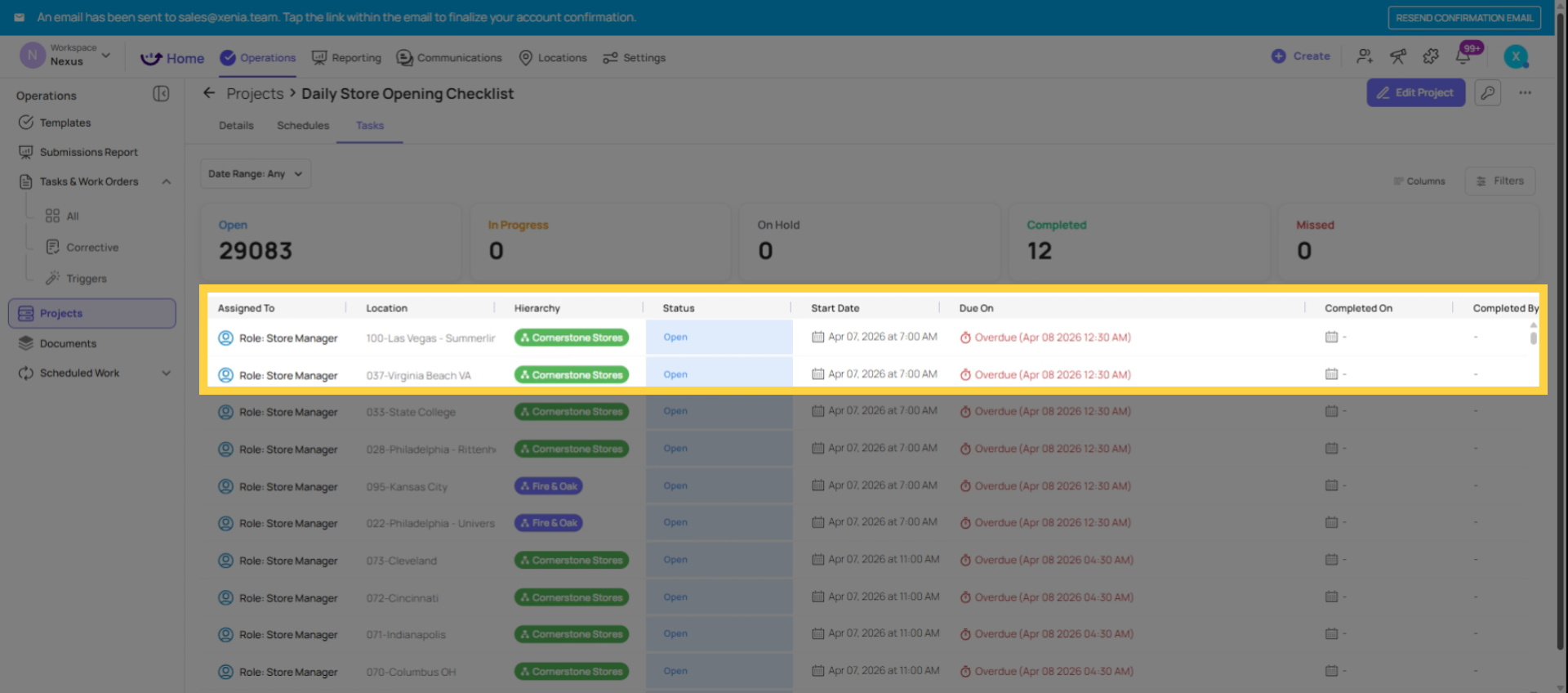
What it means: The due time has passed and the task has not been submitted. It is still completable — the employee can open it and submit.
When it appears: The instant the configured due time passes and no submission has been recorded. This applies whether the task was never opened (still Open) or partially started (In Progress).
Critical nuance confirmed: If an employee starts a submission before the due time but submits after the due time, the task is still marked Overdue. The clock is on the submission timestamp, not the start timestamp.
What the employee sees: The task is flagged with an overdue indicator on the home screen and Work tab. The Start or Continue button is still visible — they can still complete it.
What happens next: Configured overdue notifications are sent to whoever is set as the Overdue/Missed Notifier on the project. The task remains in the task board as overdue until it is submitted or until a manager resolves it.
What reporting shows: An overdue task that is later submitted appears as Completed Late — a separate reporting bucket from Completed On Time. Both are tracked independently.
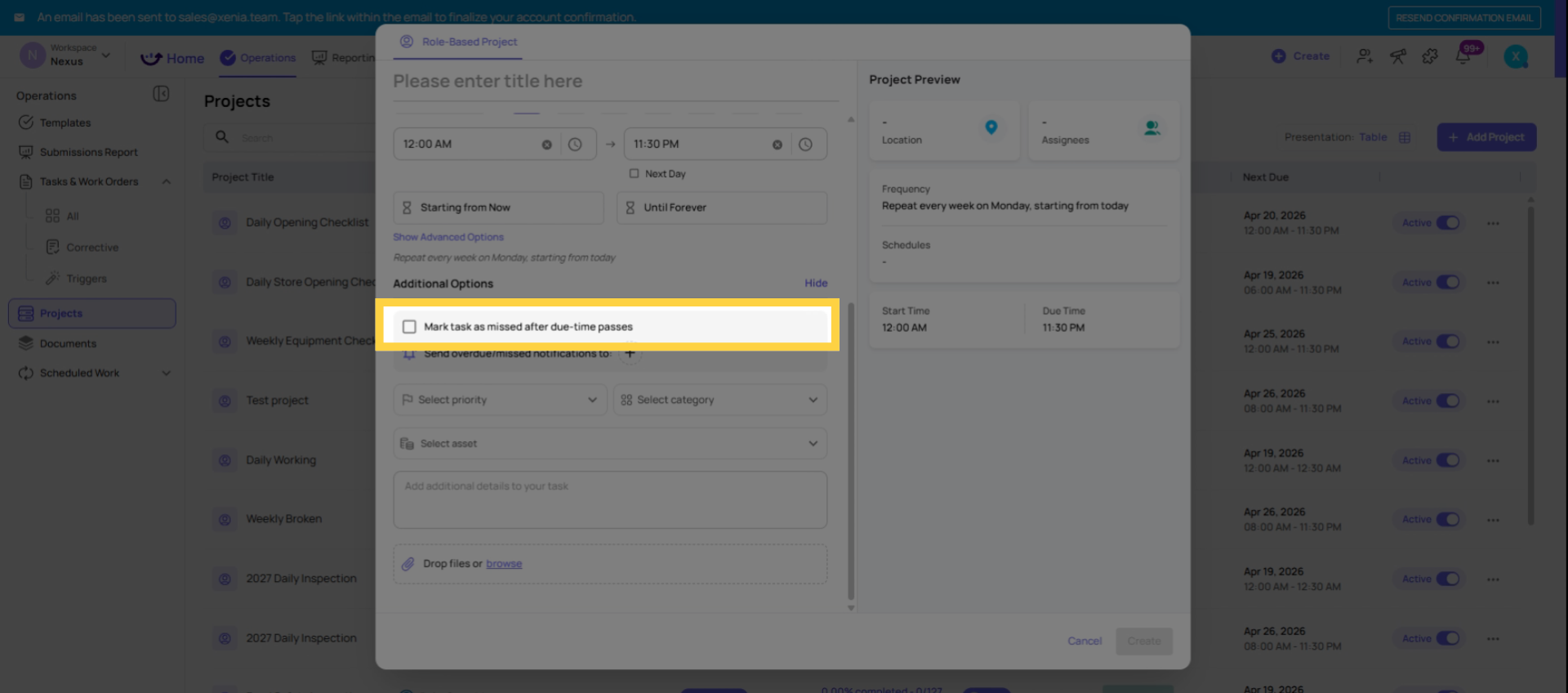
Admin note: Whether a task becomes Overdue (still completable) or Missed (locked) after the due time is controlled by the Mark as Missed toggle on the project configuration.
MISSED
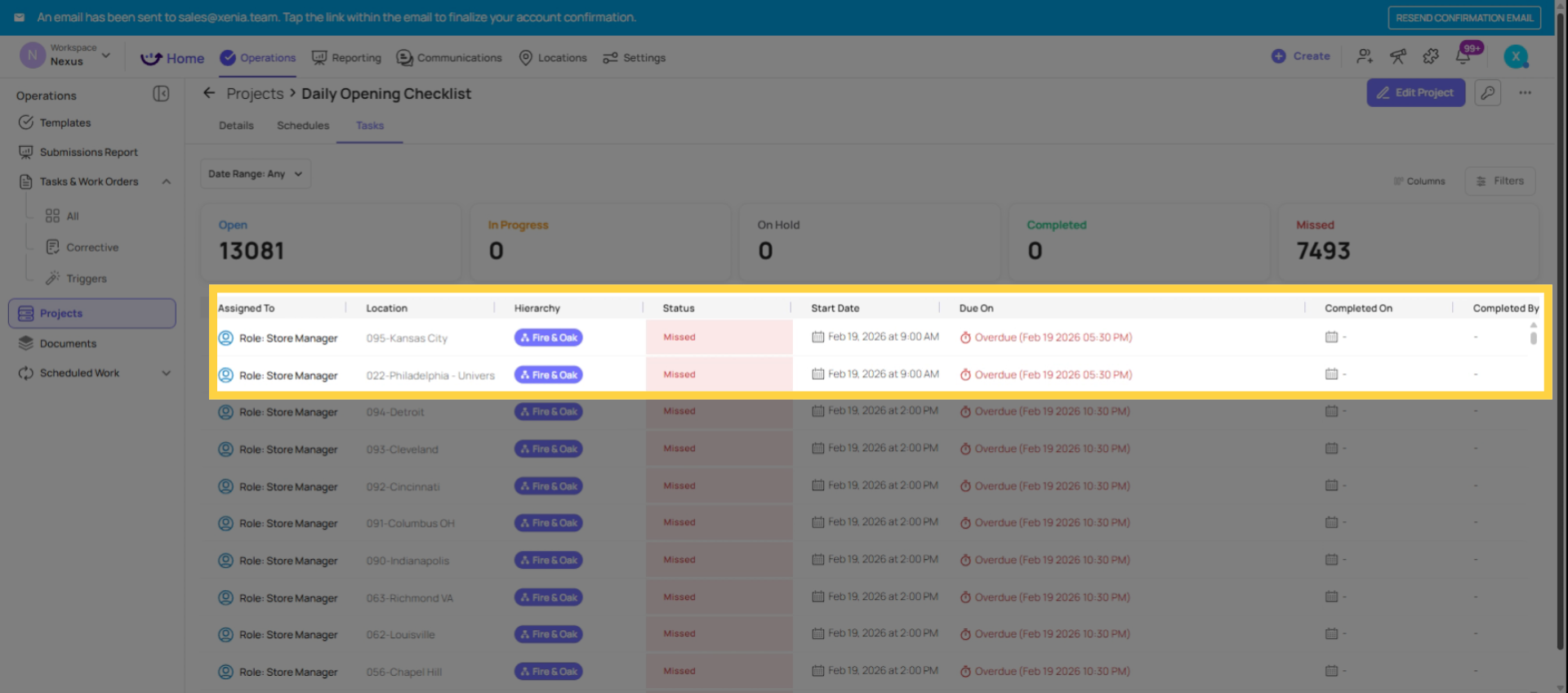
What it means: The due time has passed AND the project is configured with "Mark as Missed after due time" turned ON. The task is locked. The employee cannot submit.
When it appears: The instant the due time passes on a project that has Mark as Missed enabled.
What the employee sees: The task card shows a Missed status. The Start/View button is hidden or disabled. The employee cannot open or submit the checklist for this task instance.
What happens to the backlog: Unlike Overdue tasks (which pile up indefinitely if not completed), Missed tasks clear from the active queue — they move to a Missed state. This keeps the task board clean. An operation where employees aren't completing daily tasks and Mark as Missed is off will accumulate hundreds of open overdue tasks over time. Mark as Missed prevents that.
What reporting shows: Missed tasks appear as Incomplete in project completion metrics — a distinct bucket from Completed On Time and Completed Late.
Admin note: Turn Mark as Missed ON for tasks with hard operational deadlines (opening checklists, pre-service safety checks). Leave it OFF when a late submission is better than no submission (monthly audits, compliance forms where partial data is still valuable).
COMPLETED (ON TIME)
What it means: The checklist was submitted before the due time.
What reporting shows: Counts as Completed On Time in project metrics.
COMPLETED LATE
What it means: The task was Overdue (due time passed, Mark as Missed was off) and was subsequently submitted after the due time.
What reporting shows: A separate reporting bucket — Completed Late. It is not counted the same as Completed On Time. The employee did complete the work, but it is tracked distinctly so operations leaders can see the pattern of late completions over time.
Why this matters: Some operators want employees to complete tasks even if late — a late temperature log is still a temperature log. They leave Mark as Missed OFF, accept that some tasks will show as Completed Late, and use reporting to identify stores with recurring late completion patterns. Others prefer to lock tasks at the due time and have clean Missed data. Both are valid configurations — the reporting supports both approaches.
Status at a Glance
| Status | Due Time Passed? | Mark as Missed? | Can Still Complete? | Reporting Bucket |
| Open | No | — | Yes | Pending |
| In Progress | No | — | Yes | Pending |
| Overdue | Yes | OFF | Yes | Completed Late (if submitted) |
| Missed | Yes | ON | No | Incomplete |
| Completed | No | — | Done | Completed On Time |
| Completed Late | Yes | OFF | Done | Completed Late |
This article clarified the meanings and operational impacts of task statuses in Xenia, including open, in progress, overdue, missed, and completed. Understanding these statuses helps maintain accurate reporting and efficient task management. For more information, see related articles on task configuration and reporting.
Need Help?
Reach out to our Support Team at Support@xenia.team
Comments
0 comments
Please sign in to leave a comment.