
1. Understand Task Assignment Decision
1. The Choice and Why It Matters
Every time you create a task in Xenia, you make an assignment decision: does this go to a specific person, or does it go to a role?
This choice affects:
- Who sees the task on their device
- Who gets the notification that work needs to be done
- What the accountability record looks like when the task is completed
- How much maintenance you'll do if your team changes
Getting this right means the right person gets the task, the work gets done, and the record reflects it accurately. Getting it wrong means the task either sits unowned or lands on someone who can't or shouldn't be doing it.
2. Assign Task To Specific User
2. Assigning to a Specific User
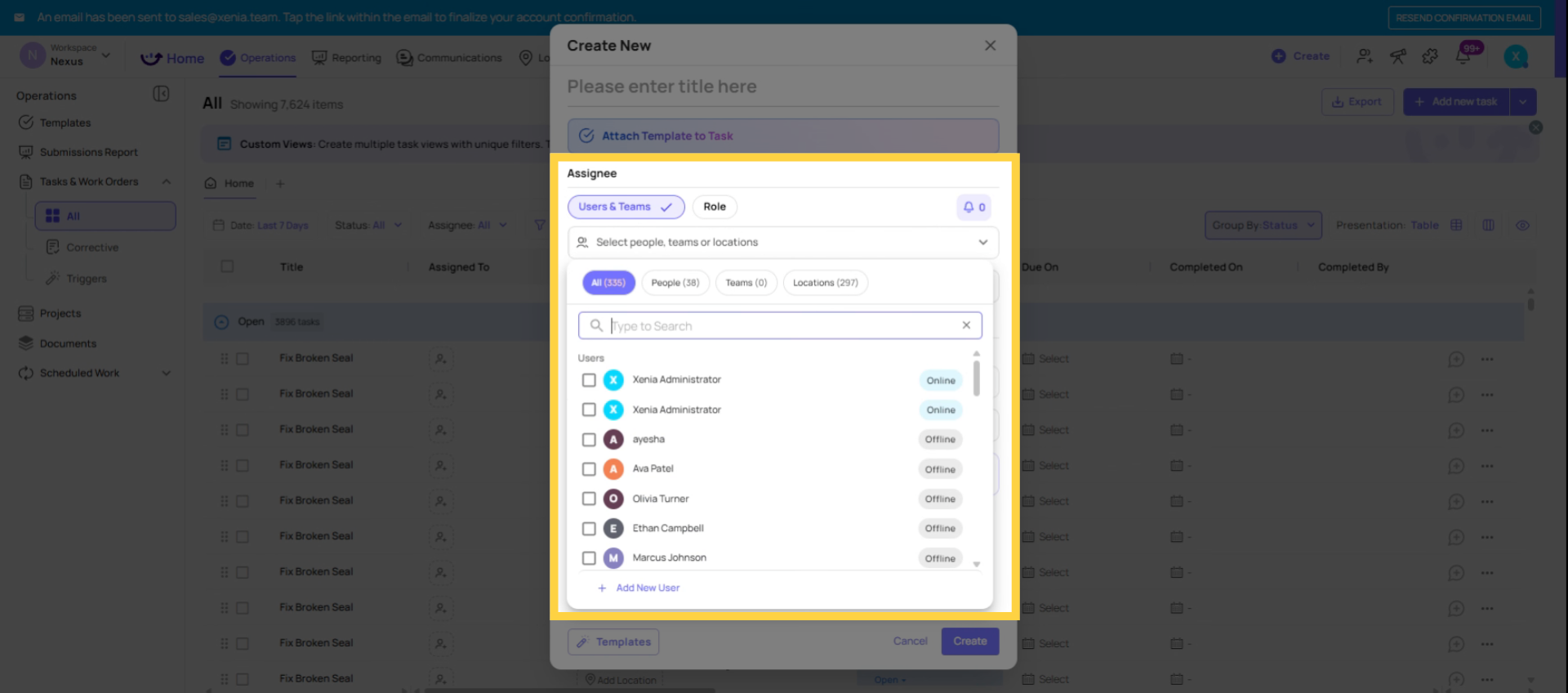
When you assign a task to a named individual, that task belongs to them and only them.
Who sees it: Only the assigned user sees this task on their device and task board. No one else in the same role, no one else at the same location — just that person.
Who gets notified: The assigned user receives a push notification (subject to their notification settings) when the task is created.
What the record shows: When the task is completed, the record shows exactly who submitted it — their name is on the submission. There's no ambiguity about individual accountability.
The requirement: To assign a task to a specific person, they must have an individual Xenia account. You cannot assign a task by name to someone who doesn't have their own login. If you're using shared role-based accounts (one login for the whole store), individual user assignment isn't available — use role assignment instead.
When to use it:
- The task genuinely belongs to one specific person and shouldn't be completed by anyone else
- You need individual accountability — who specifically did this work
- The assignee has their own Xenia account
- You're assigning something personal to a manager, supervisor, or named team member
3. Assign Task To Role At Location
3. Assigning to a Role (at a Location)
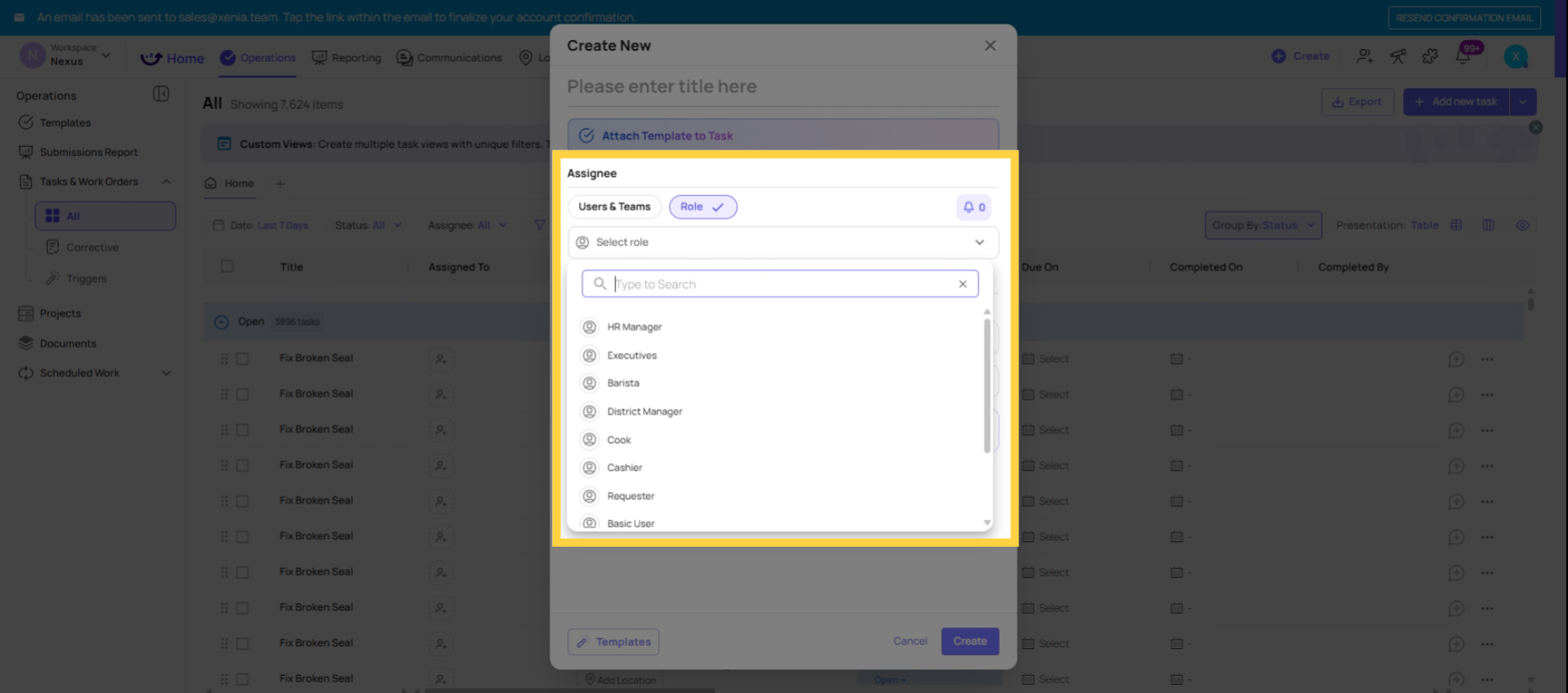
When you assign a task to a role, the task is visible to every user in that role at the specified location.
Who sees it: All users with that role who have location membership at the tagged location will see the task. If three cooks work at Store 5 and you assign a task to the Cook role at Store 5, all three cooks see it.
Who gets notified: All users in that role at that location receive a notification. First to start it claims it.
What the record shows: When the task is completed, the record shows which account submitted it. If you're using shared role-based accounts, the record shows the account name (e.g., "Store 5 — Cook Account"). If individuals have their own accounts, it shows the specific person who completed it.
One task, any qualified person completes it: Assigning to a role doesn't create individual tasks for each person — it creates one shared task. Whoever completes it first marks it done for everyone.
When to use it:
- The work needs to be done by whoever is available in that role — not a specific named person
- You're using shared store accounts where individual user assignment isn't possible
- The task is for a position, not a person: "the cook needs to do this," not "John needs to do this"
- The store is responsible for the work regardless of who specifically handles it
4. Comparison at a Glance
| Factor | Assign to User | Assign to Role |
| Who sees the task | Only the named individual | All users in that role at the location |
| Who gets notified | The named individual | All role members at the location |
| Accountability record | Named individual | Role + location (or individual if separate accounts) |
| If staff changes | Task must be manually reassigned | Task stays valid — new role members inherit it |
| Requires individual accounts | Yes | No — works with shared accounts |
| Best for | Personal assignments, individual accountability | Positional work, shared accounts, high-turnover roles |
5. Reassigning a Task After Creation
After a task is created, you can change the assignee:
- Open the task (on web or mobile)
- Find the assignee field
- Click to edit → select a different user or role
- The new assignee receives a notification immediately
This is useful when the original assignee is unavailable, the task was sent to the wrong person, or a manager needs to redirect work mid-shift.
Need Help?
Reach out to our Support Team at Support@xenia.team
Comments
0 comments
Please sign in to leave a comment.