
1. Define One-Off Tasks
1. What Is a One-Off Task?
A one-off task is a manual, non-recurring work assignment created directly in Xenia — not generated by a project. It's for work that doesn't follow a fixed schedule: something that came up today, a specific issue that needs to be resolved, a request that needs to be tracked.
Projects handle recurring work — the daily opening checklist, the weekly store walk, the monthly audit. One-off tasks handle everything else — the specific refrigerator that needs repair, the vendor callback that needs to happen today, the one-time staff meeting that needs to be confirmed.
You create a one-off task when:
- Something comes up that isn't covered by an existing project
- A manager needs to assign work to a specific person for a specific reason today
- You want to track the resolution of a non-recurring issue with a formal record
- A checklist needs to be completed on demand, outside of the regular schedule
2. One-Off Tasks vs. Ad-Hoc Template Submissions
2. One-Off Tasks vs. Ad-Hoc Template Submissions
There's a related option worth knowing: ad-hoc template submissions (submitting a template without a task attached). The key difference:
- Ad-hoc submission — the employee opens a template and submits it directly, with no task record. Good for forms that need to be filled out on demand (incident reports, vendor issue forms). No due date, no task status tracking.
- One-off task — creates a formal task record that can be assigned, tracked by status (Open → In Progress → Completed), and optionally have a checklist attached. Good when you want accountability that the work was done, not just that a form was submitted.
Use a one-off task when you need the tracking layer. Use an ad-hoc submission when you just need to capture information.
3. Navigate To Add New Task
3. How to Create a One-Off Task
On web:
- Go to Tasks & Work Orders
- Click Add Task or the + button
- Fill in the task fields (see below)
- Click Create
On mobile:
- Tap the + button (usually visible on the home screen or Work tab)
- Select Create Task
- Fill in the fields
- Save
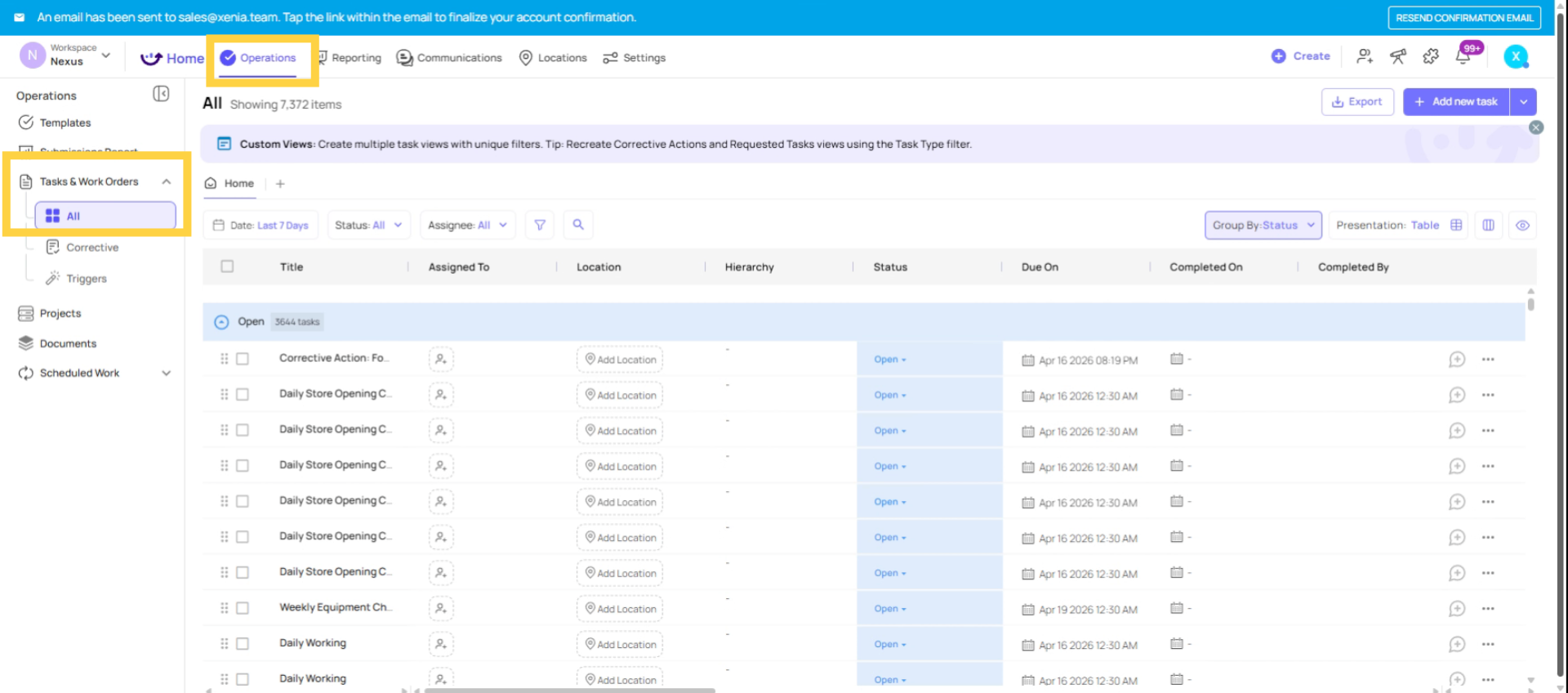
4. Click Add New Task Button
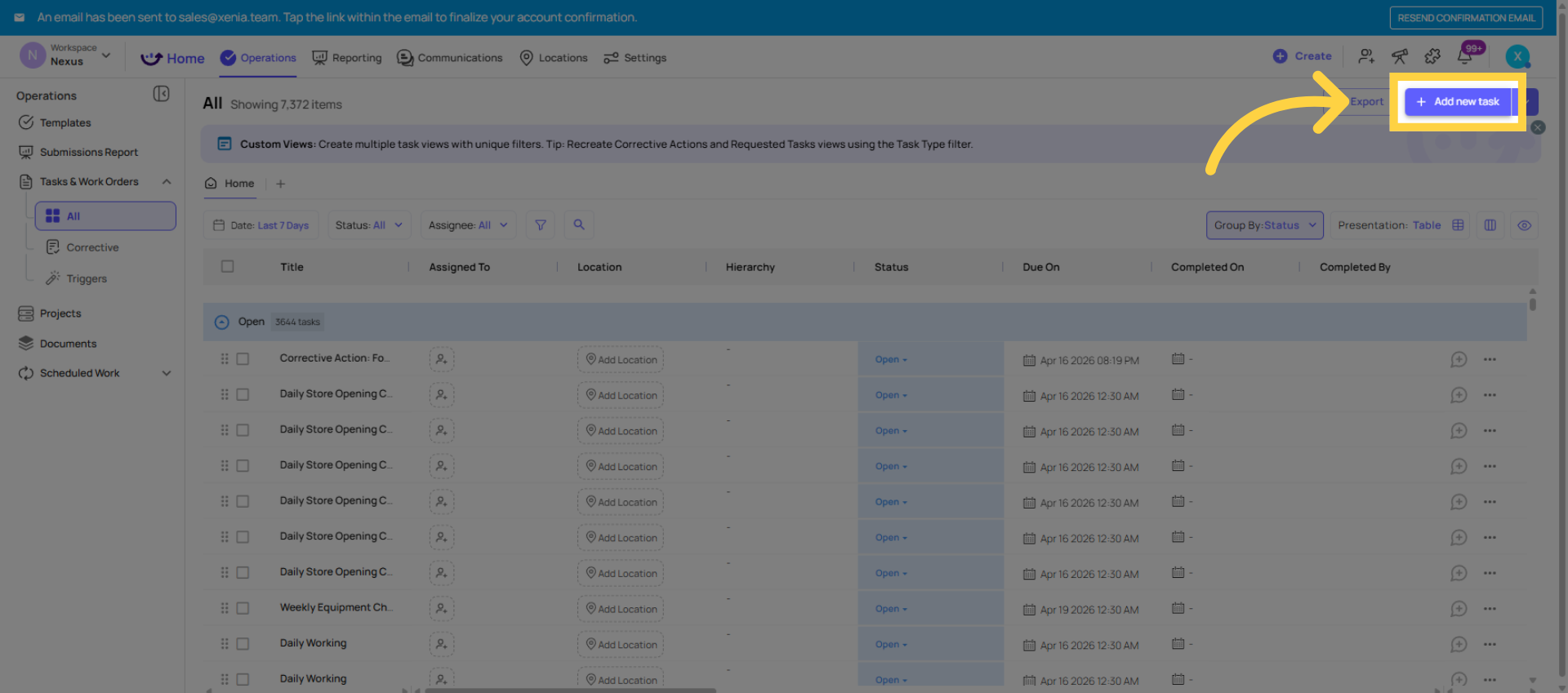
5. Select Task Title Field
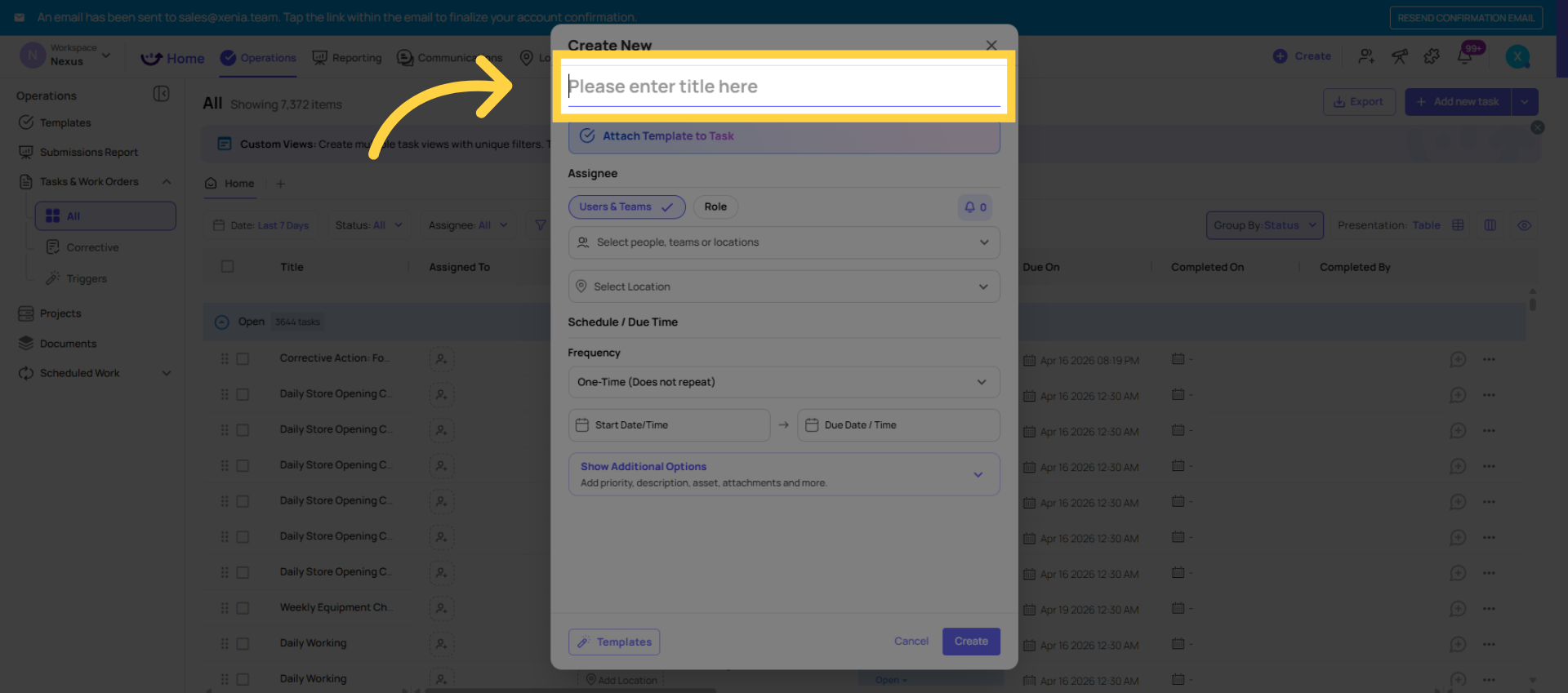
6. Show Additional Task Options
Priority: Set the urgency level — None, Low, Medium, High, or Critical. Priority affects how the task appears in the task board and helps the assignee know what to work on first.
Category: Optional, but useful for reporting. Categories let you group and filter tasks by type — Cleaning, Maintenance, Safety, Training, etc. Use whatever categories make sense for your operation.
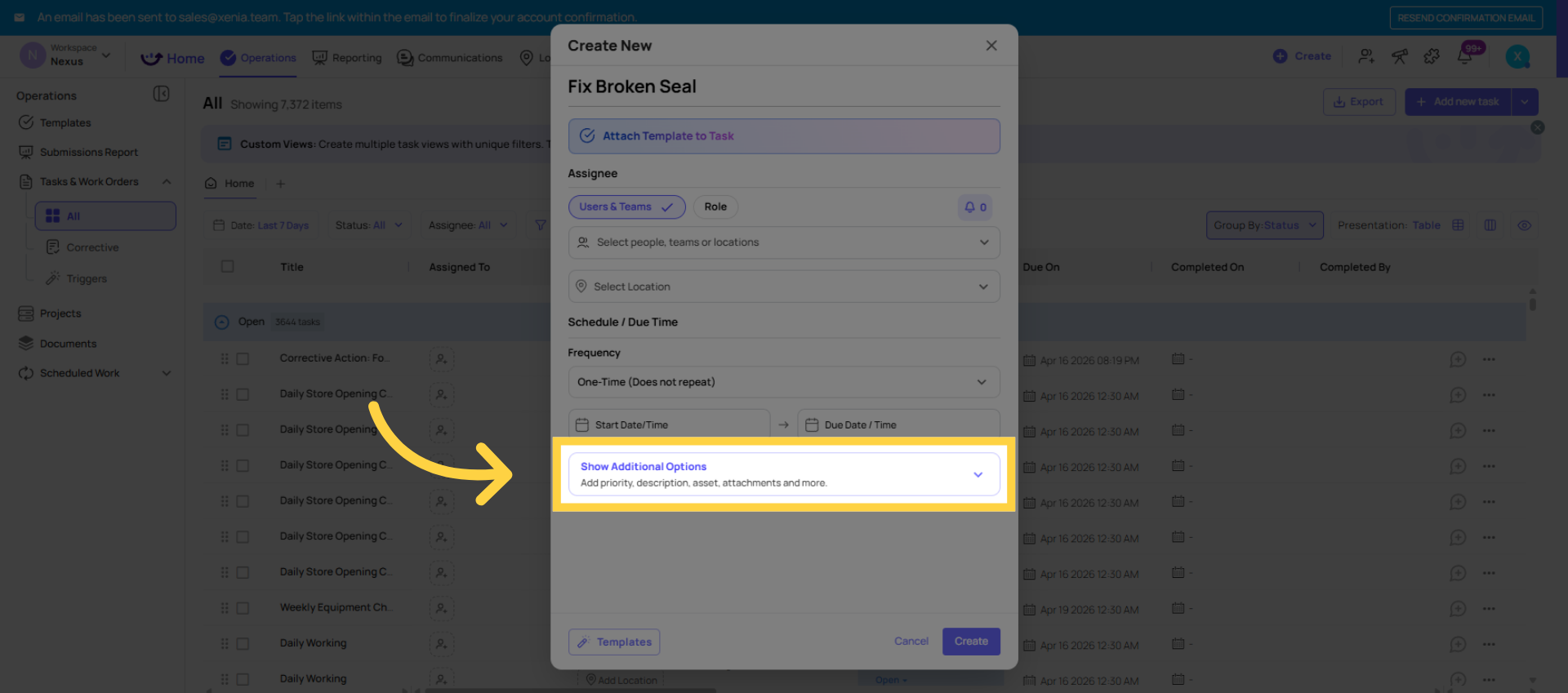
7. Open Role Selection
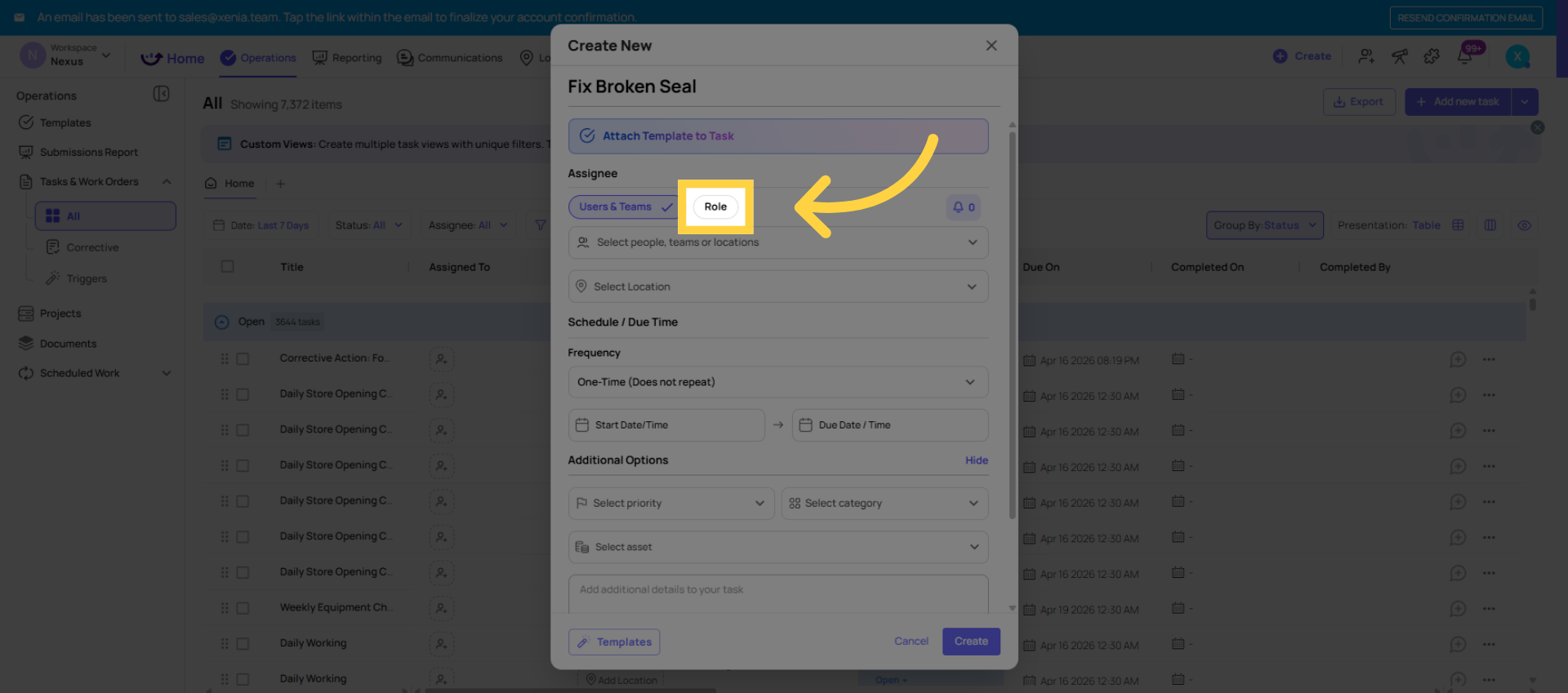
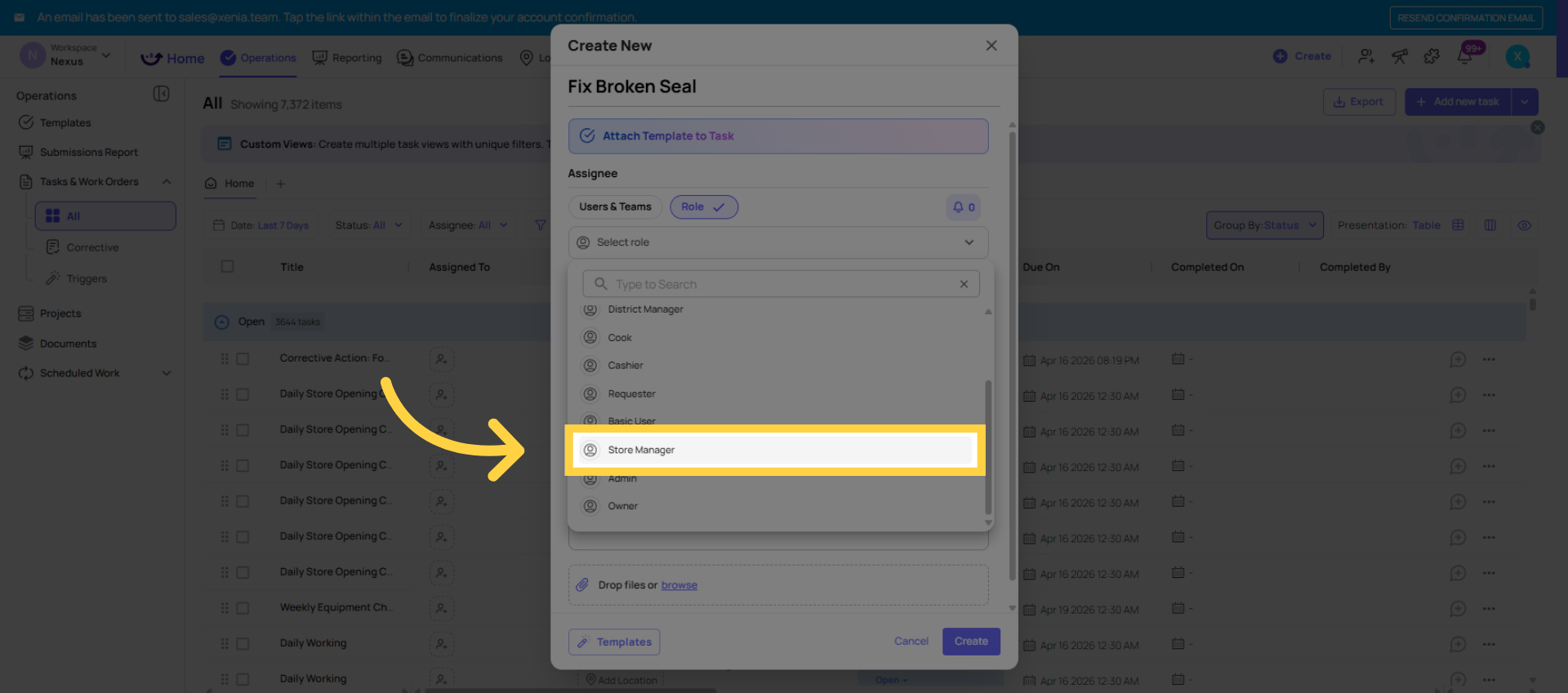
8. Open Location
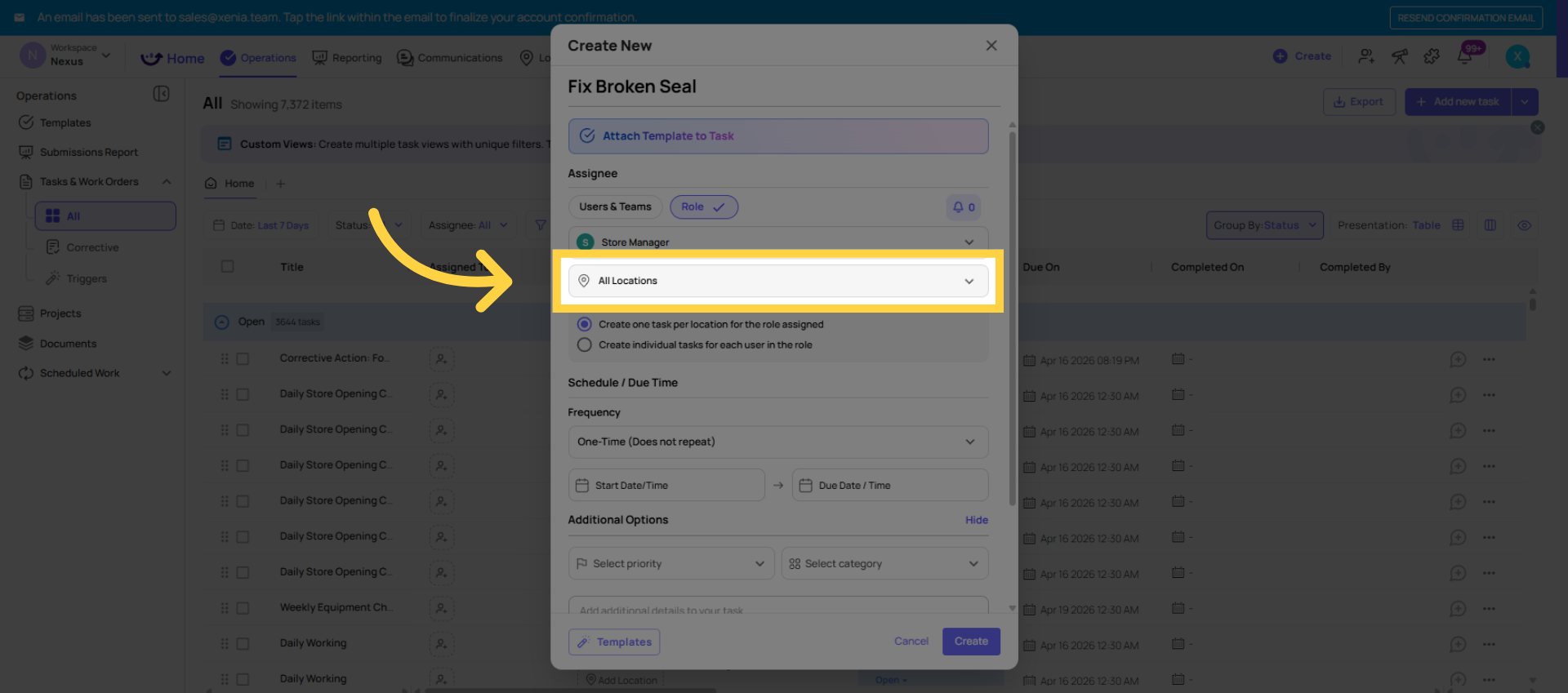
9. Set Task Recurrence
Start Date: Optional. If the task isn't relevant until a future date, set a start date. The task won't appear prominently for the assignee until the start date arrives.
Due Date and Time: Set when the task needs to be completed. The assignee receives a notification at assignment and another if the task goes overdue. No due date = no deadline tracking.
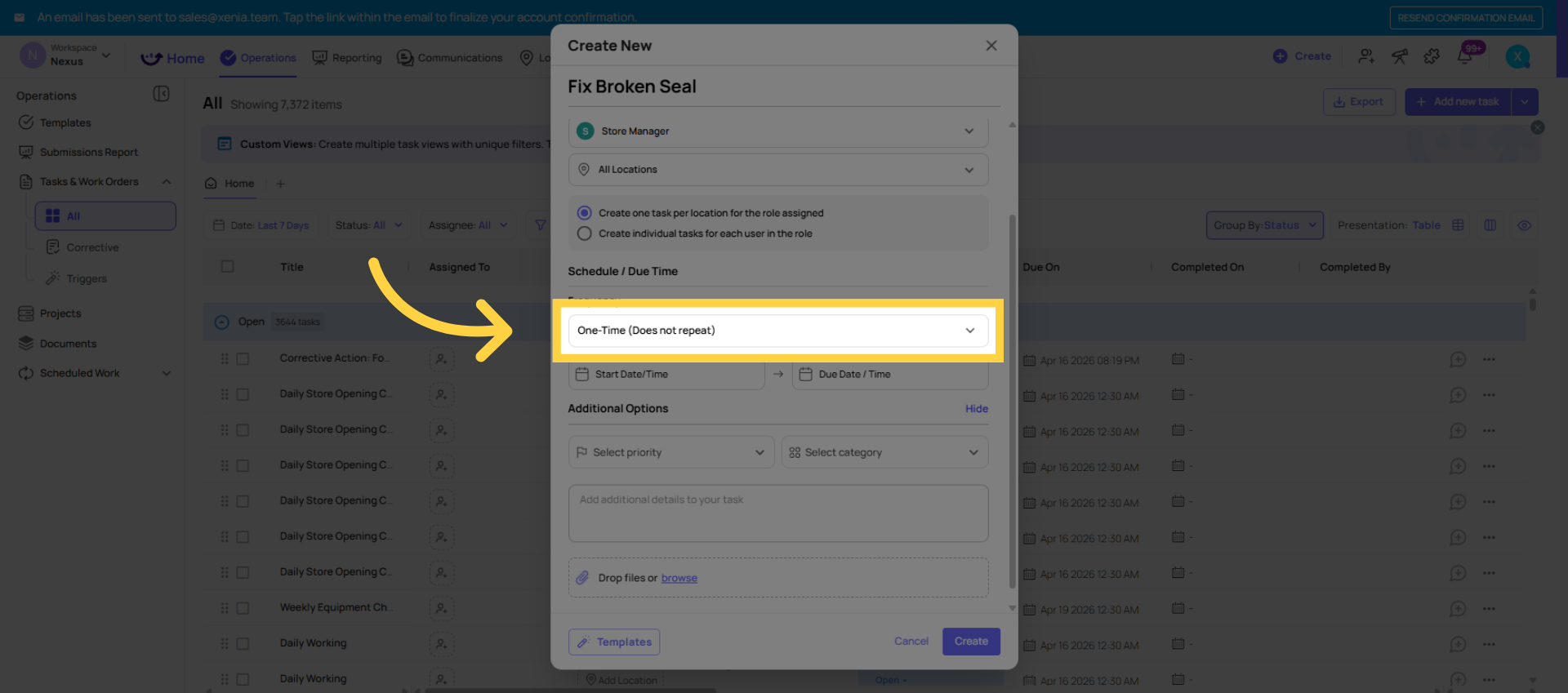
10. Attach Template To Task
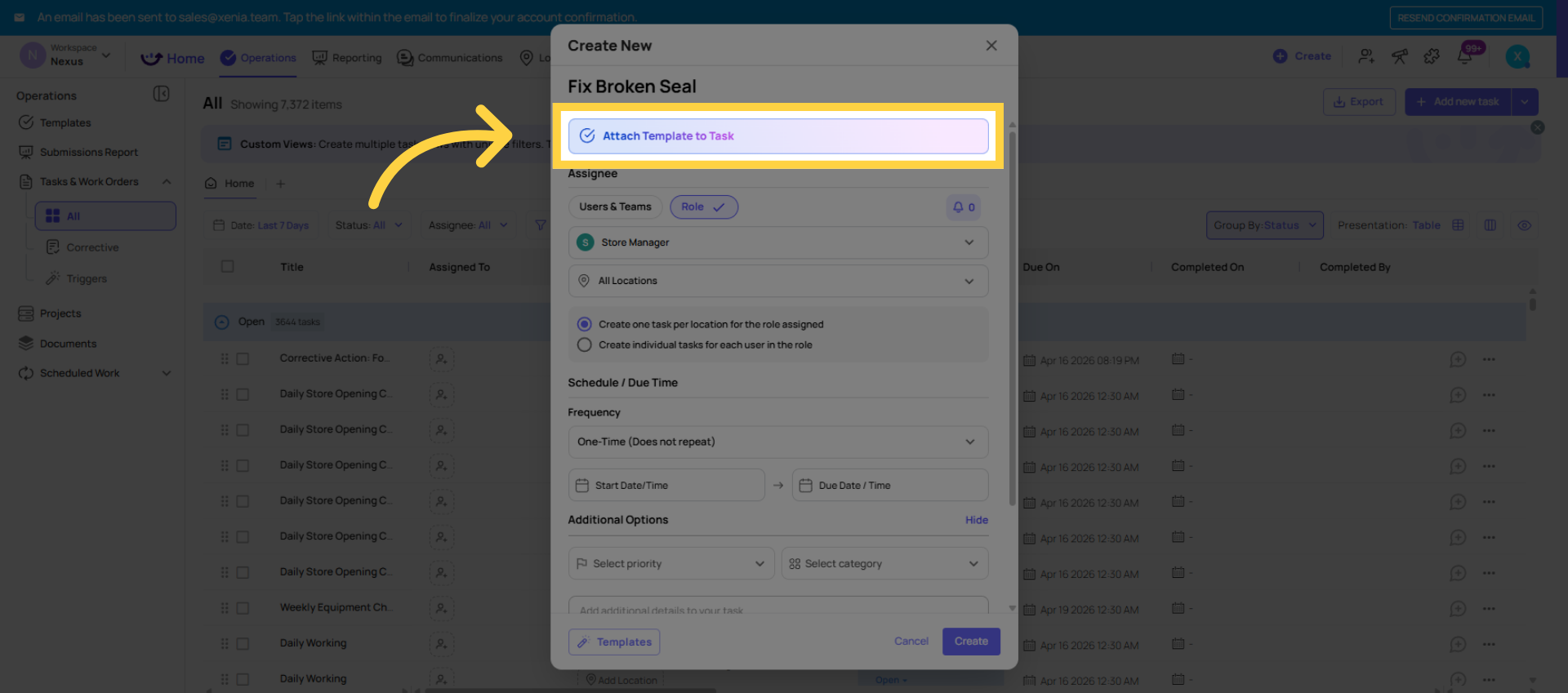
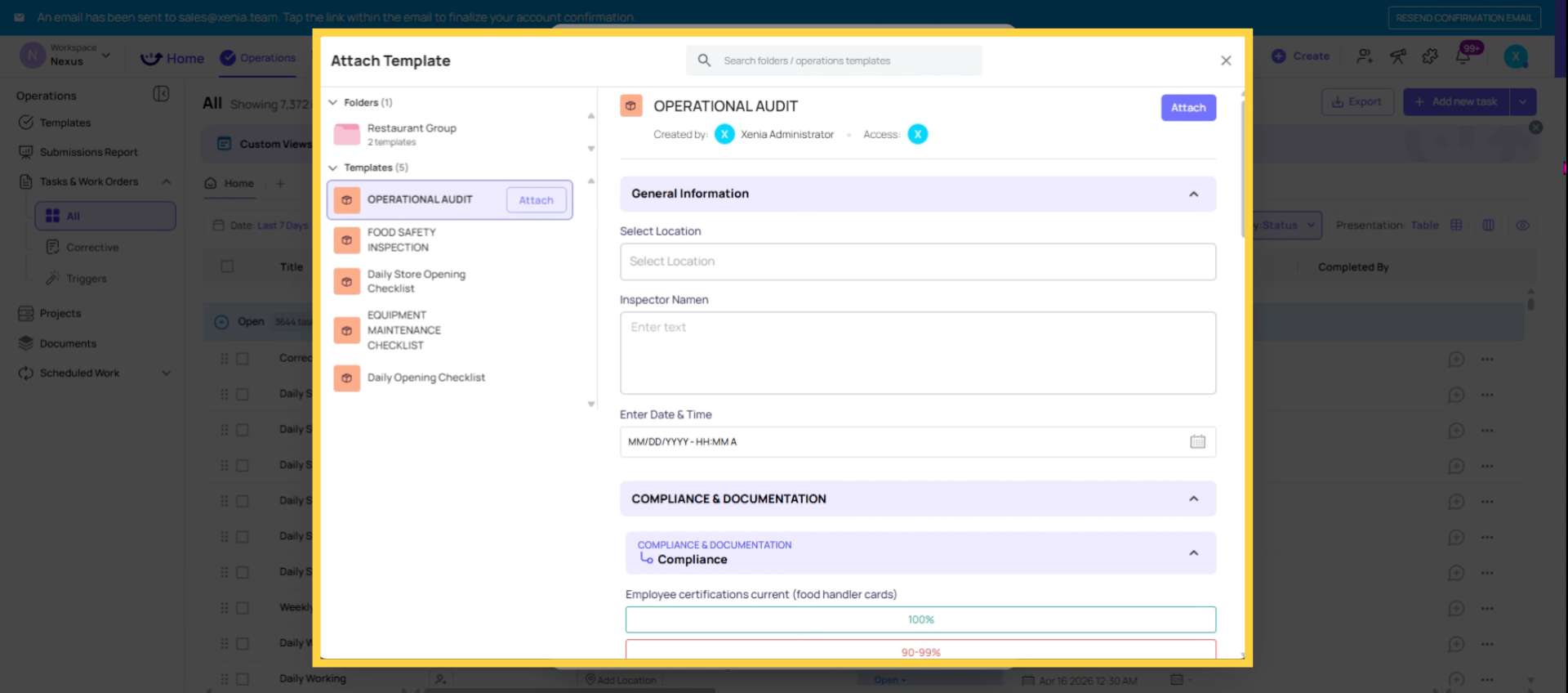
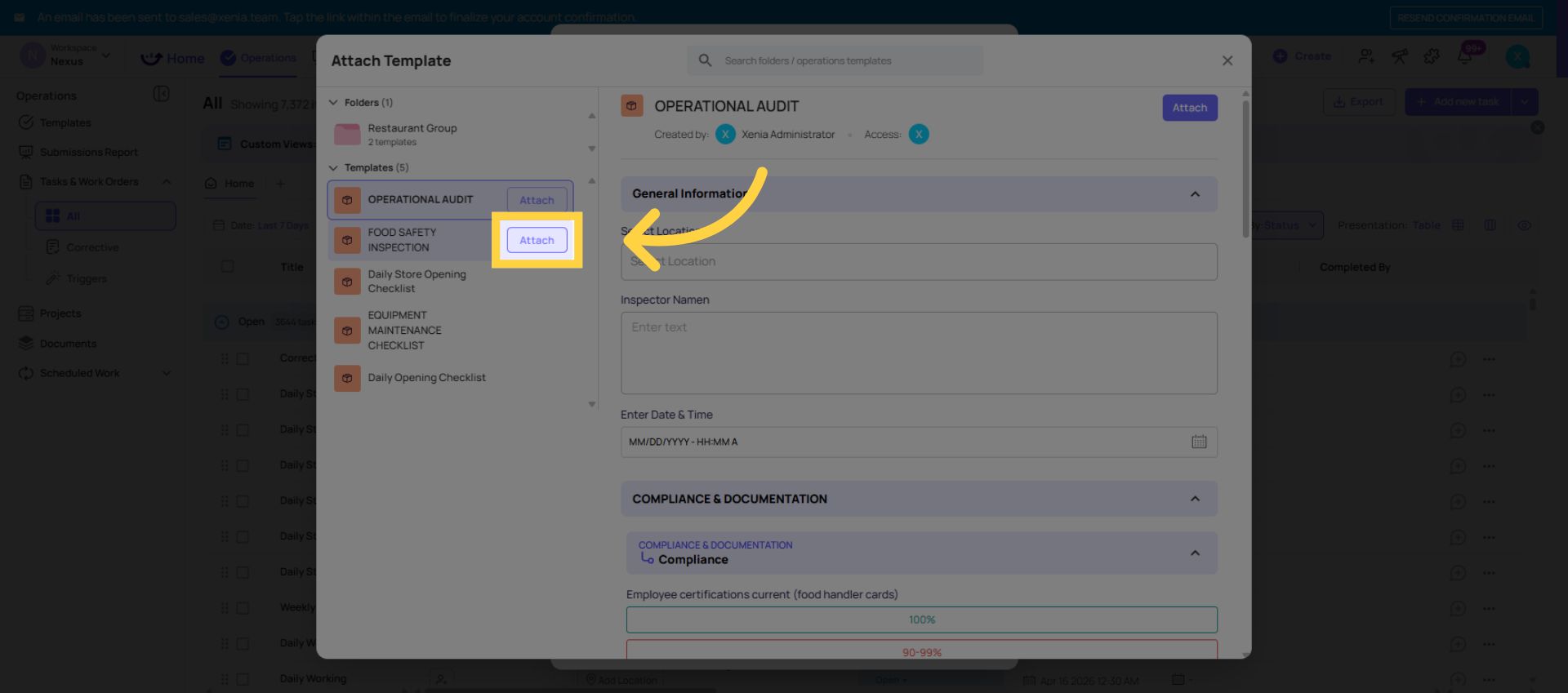
11. Click Create Button
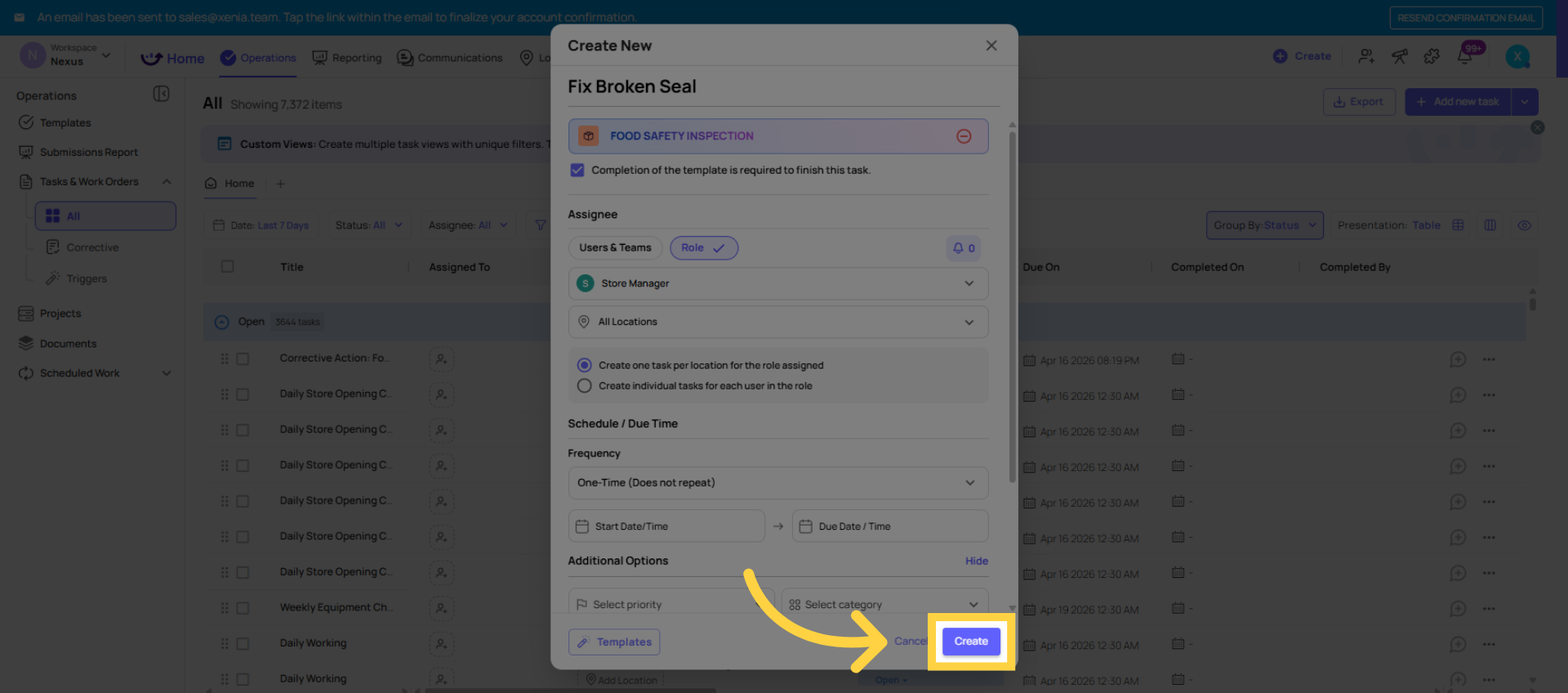
. What Happens After You Create the Task
- The assignee receives a notification immediately (if their notification settings allow it)
- The task appears on the assignee's home screen or Work tab
- The task is visible in the Tasks & Work Orders board for anyone with the right permissions
- The task status moves through: Open → In Progress → Completed as the assignee works on it
- Once completed, the task record and any associated checklist submission are stored in reporting
Need Help?
Reach out to our Support Team at Support@xenia.team
Comments
0 comments
Please sign in to leave a comment.