
1. The Foundation: Every Project Has a Time Window
1. What Cadence Means
Before choosing a cadence, understand that every project in Xenia is defined by two times:
Start time — when the task becomes visible on the employee's device and can be started Due time — when the task must be completed by
Together, these two times define the operational range of the task: the window within which the work should happen. This window is the same concept whether the project runs daily, weekly, monthly, once, or on specific dates.
Neil's framing from customer calls: "See this date/time range here — each project is its own range. You make a different project for each window."
This matters most for tasks that happen multiple times a day. A temperature log required every 4 hours is not one project with 4 repetitions — it's 4 separate projects, each with its own time window (6am–8am, 10am–12pm, 2pm–4pm, 6pm–8pm). One template, four time ranges, four projects.
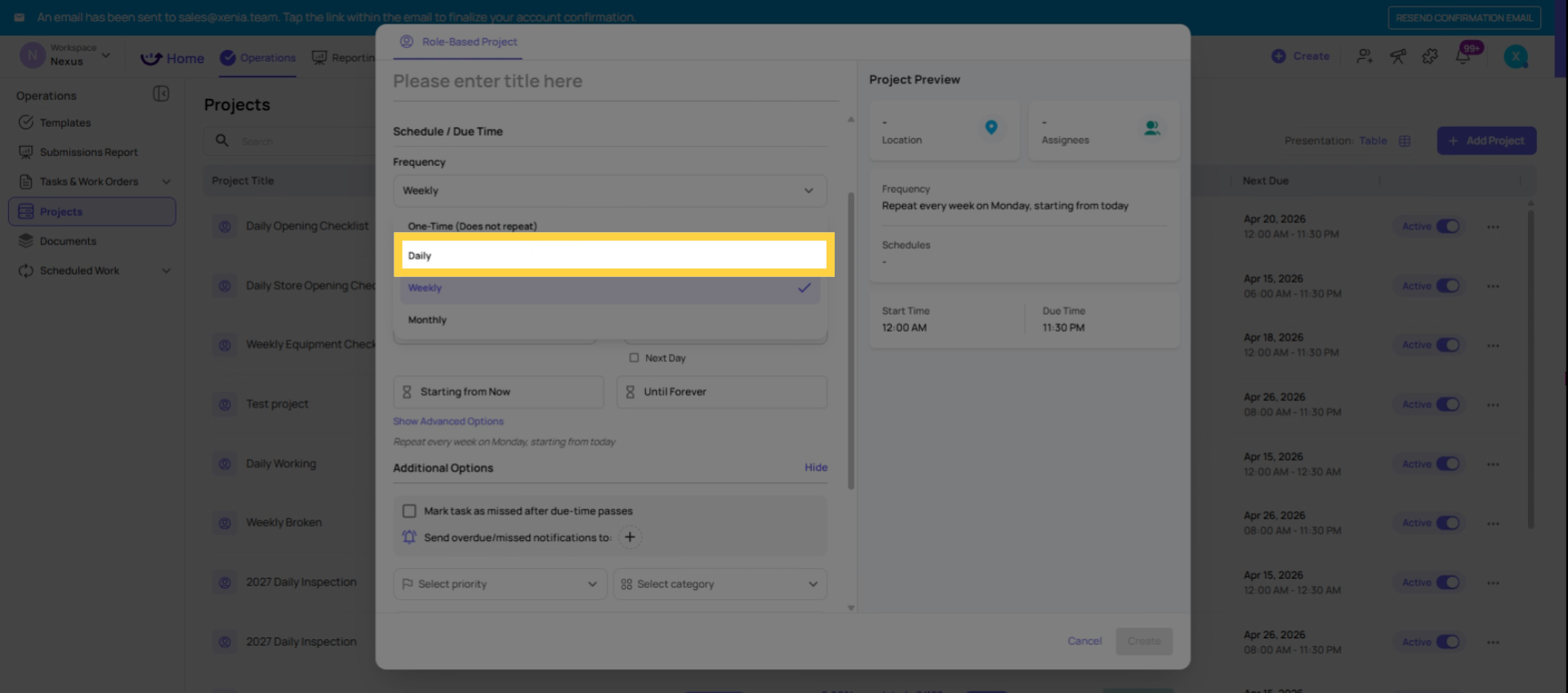
2. Configure Daily Cadence Settings
2. Daily Cadence
What it does: Generates one task per location (or per user) every day the project is active.
When to use it: Opening and closing checklists, daily temperature logs, daily cleaning verifications, any check that must happen every single day.
Configuration:
- Frequency: Daily
- Days of week: Select which days. Uncheck Saturday and Sunday for weekday-only operations. Leave all 7 selected for 24/7 operations.
- Start time: When the task appears on the employee's device
- Due time: When it must be submitted
Time window guidance for daily tasks: Give employees enough runway. A task due at 8:00am available from 6:30am gives real working time. A task due at 8:00am available from 7:45am creates pressure and late completions.
Multiple daily windows (same template, different times): If the same checklist needs to happen more than once per day, create separate projects for each time window. Each project uses the same template but has a different start and due time:
- Temperature Log Project 1: Start 6:00am / Due 8:00am
- Temperature Log Project 2: Start 10:00am / Due 12:00pm
- Temperature Log Project 3: Start 2:00pm / Due 4:00pm
- Temperature Log Project 4: Start 6:00pm / Due 8:00pm
One template, four projects, four time ranges.
3. Use Weekly Cadence for Weekly Tasks
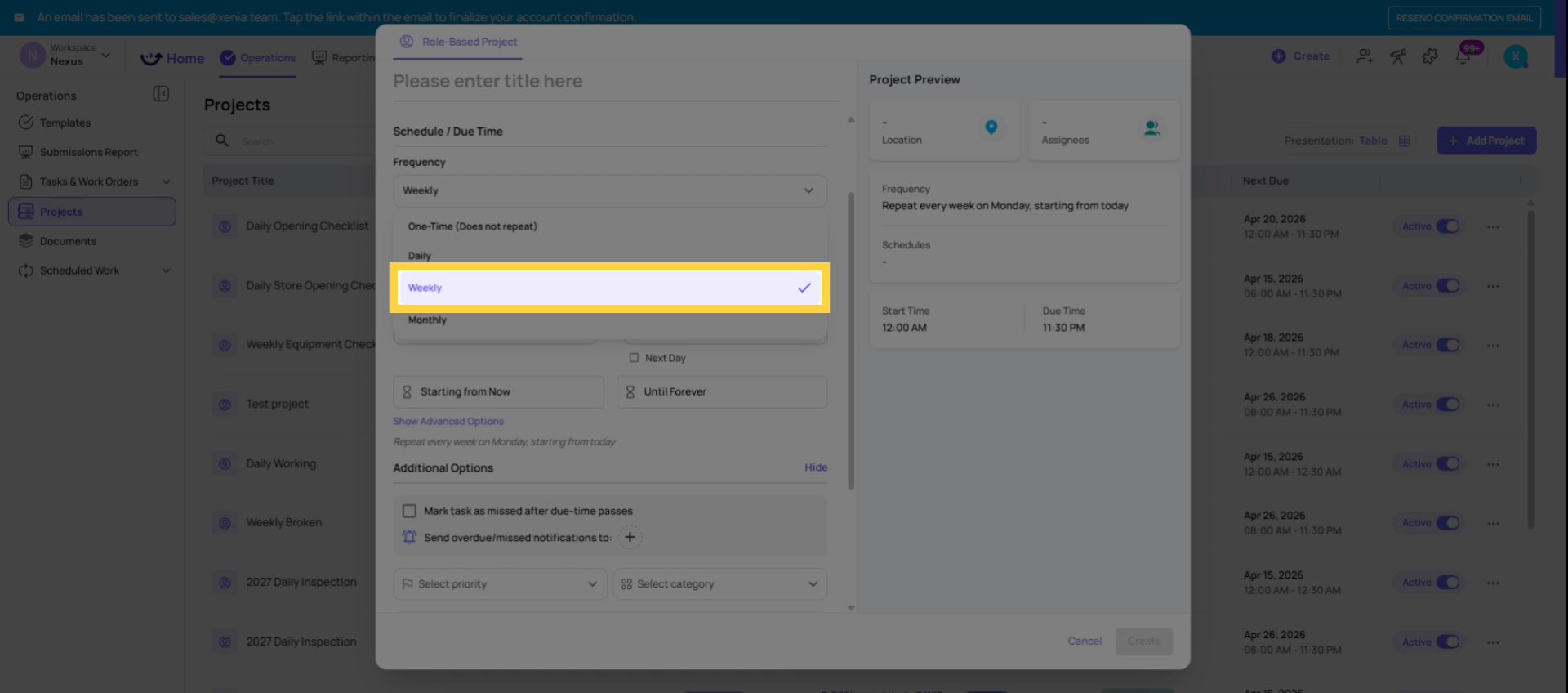
3. Weekly Cadence
What it does: Generates one task per location on the selected day(s) each week.
When to use it: Weekly store walks, weekly deep cleans, weekly equipment checks, any process that happens once per week on a consistent day.
Configuration:
- Frequency: Weekly
- Day(s) of week: Select the specific day(s). You can select multiple days for tasks that happen more than once a week but not every day (e.g., Tuesdays and Fridays).
- Start and due time: Same concept — defines the window for that day
Time window guidance for weekly tasks: Weekly tasks often get a broader completion window than daily ones. A weekly store walk might be available all day Monday (8:00am start, 11:59pm due) to give the manager flexibility within the day. Configure the deadline based on whether the work has a hard operational cutoff or a softer same-day expectation.
4. Set Monthly Cadence and Timing
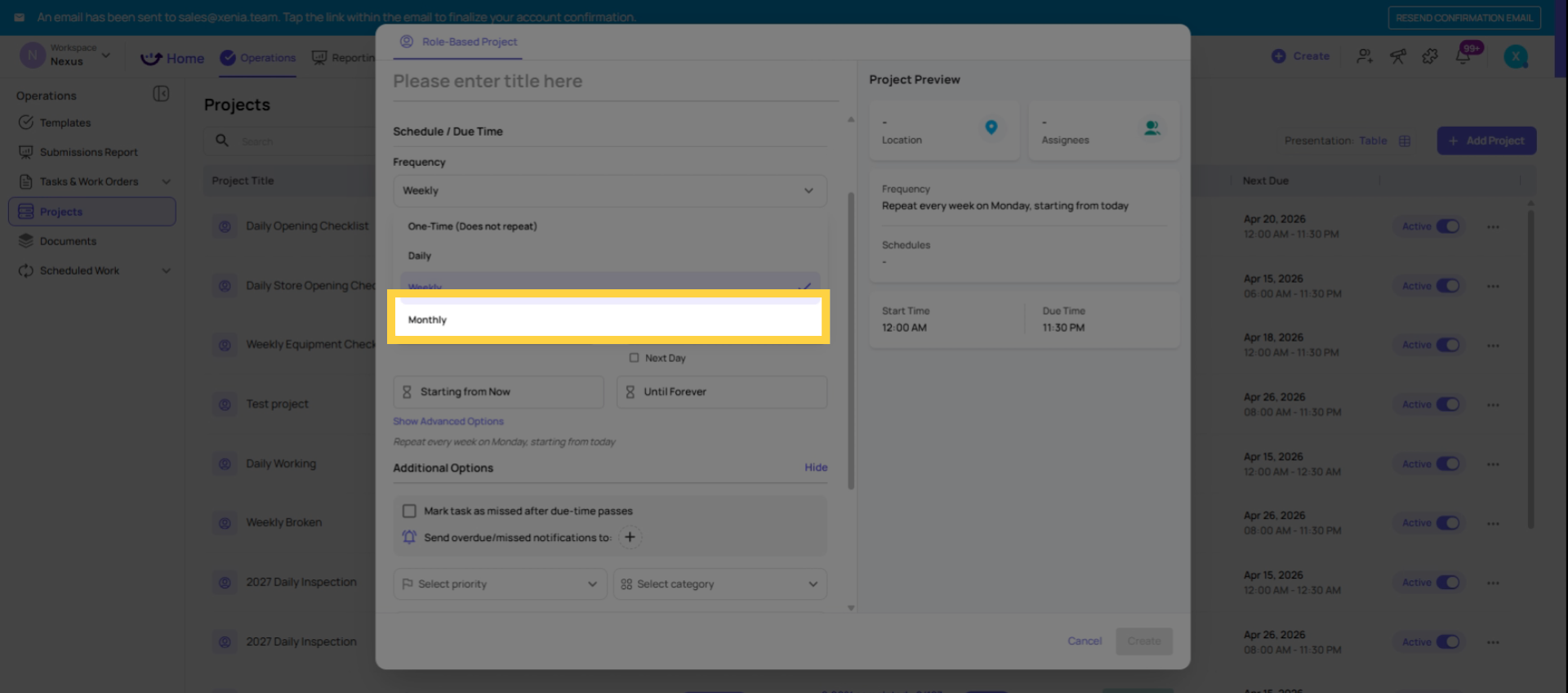
4. Monthly Cadence
What it does: Generates one task per location on a specific day of the month, every month.
When to use it: Monthly district manager inspections, monthly equipment maintenance checks, monthly compliance audits.
Configuration:
- Frequency: Monthly
- Day of month: Select the calendar day (1st, 15th, last day of month, etc.)
- Start and due time: Defines the task window on that day
Important note on end-of-month dates: If you set the day to the 31st, months with fewer than 31 days (February, April, June, September, November) will not generate a task for that month. For end-of-month tasks that must run every month without exception, select "Last day of month" as the option rather than a fixed number.
Time window guidance for monthly tasks: Monthly tasks typically get generous completion windows — often the full day, or sometimes a multi-day window if the process is complex. Consider whether there's a hard compliance deadline (the audit must be submitted by the 5th) or a flexible expectation (complete sometime during the first week).
5. Range-Based Projects
What it is
Range is a frequency option in Projects that creates a single task with a multi-day completion window — for example, a task that opens on the 1st of the month and is due by the last day of the month. The assignee has the entire span to complete it.
How it differs from Daily/Weekly
Daily and Weekly frequencies generate a new task on each occurrence (e.g., a task every Monday, or every Monday/Wednesday/Friday). Range creates one task per cycle with a wider window to complete it. Think of it this way:
- Daily = "Do this every day"
- Weekly = "Do this every Monday"
- Range = "Do this sometime this week/month — here's your window"
When to use it
Range is most commonly used for:
- Monthly inspections — available to start on the 1st, due by the end of the month
- Quarterly audits — one task that spans a quarter
- Weekly walkthroughs — available Monday, due by Sunday
If you need the same checklist done multiple times per day at set intervals (e.g., every 4 hours), create separate projects with different time ranges rather than using Range frequency.
Key settings to configure
- Start date/time — when the task becomes available
- Due date/time — the deadline (can span to the next day or across multiple days)
- Frequency — Monthly, Quarterly, Biannual, or Annual are the most common pairings with Range
- "Mark task as missed after due time" — if enabled, the task locks once the window closes and counts as incomplete
How it appears on mobile
Assignees see the task on their home screen ordered by due date. A range task will show the full window (e.g., "Due: May 31") rather than a single time stamp, giving them visibility into how much time they have left.
6. Specific Date Projects
What a Specific Date Project is: A Specific Date Project generates tasks only on handpicked calendar dates — not a regular recurring cadence. You select exactly which dates the task should appear, and it generates on only those dates.
When to use it:
- An inspection that happens on specific irregular dates (the third Tuesday of each month, but also on a specific holiday)
- A compliance check that happens on the 1st, 15th, and last day of each month — not a clean weekly or monthly cadence
- A task tied to specific events on the calendar that don't follow a regular pattern
- A quarterly review that happens on March 31, June 30, September 30, and December 31
How to configure: Select Specific Dates as the scheduling type (instead of Daily, Weekly, or Monthly). A date picker allows you to add individual dates to the project's schedule. For each selected date, the task generates with the configured start and due time.
Managing specific dates: Dates can be added or removed from the project at any time. Adding a new date creates a task for that date (if it's in the future). Removing a date prevents future tasks from generating on that date. Already-generated tasks for removed dates remain in the task board.
This article explained how to configure project cadences in Xenia, covering daily, weekly, and monthly task scheduling options. You learned how to set timing, select appropriate days, and match cadence to task frequency for efficient task management.
7. One-Time Projects
What a One-Time Project is: A One-Time Project generates a task exactly once — on a single future date, at a single time. It does not recur. After the task is generated and completed (or missed), the project is done.
When to use it:
- A one-off inspection or audit scheduled for a specific future date
- An annual compliance check that you want tracked through the project framework with reporting, rather than assigned as a manual ad hoc task
- A pre-opening inspection for a new store on its launch date
- Any single event where you want the structure, tracking, and reporting of a project — but only need it to happen once
How to configure: Select One-Time as the frequency (or set a date range where the start date and end date are the same). Set the single date, the start time, and the due time. The project generates one task per location on that date.
Why use a One-Time Project instead of a manual task? A manual one-off task is simpler for a single assignment to a single person. A One-Time Project is better when the same checklist needs to be deployed simultaneously to many locations at once, with completion tracking, location-based reporting, and overdue notifications — all the project infrastructure — but only on a single occasion.
8. Quick Decision Guide
| I need to... | Use this scheduling type |
|---|---|
| Run the same checklist every day | Daily cadence, open-ended |
| Run a checklist on specific days of the week | Weekly cadence |
| Run a checklist once per month | Monthly cadence |
| Run the same checklist multiple times per day | Multiple Daily projects, one per time window |
| Run a seasonal checklist that stops on a set date | Range-Based Project (with end date) |
| Run a checklist on irregular calendar dates | Specific Date Project |
| Deploy a checklist once across all locations for reporting | One-Time Project |
Need Help?
Reach out to our Support Team at Support@xenia.team
Comments
0 comments
Please sign in to leave a comment.