
1. Understand Projects as Scheduling Engine
What a Project Is
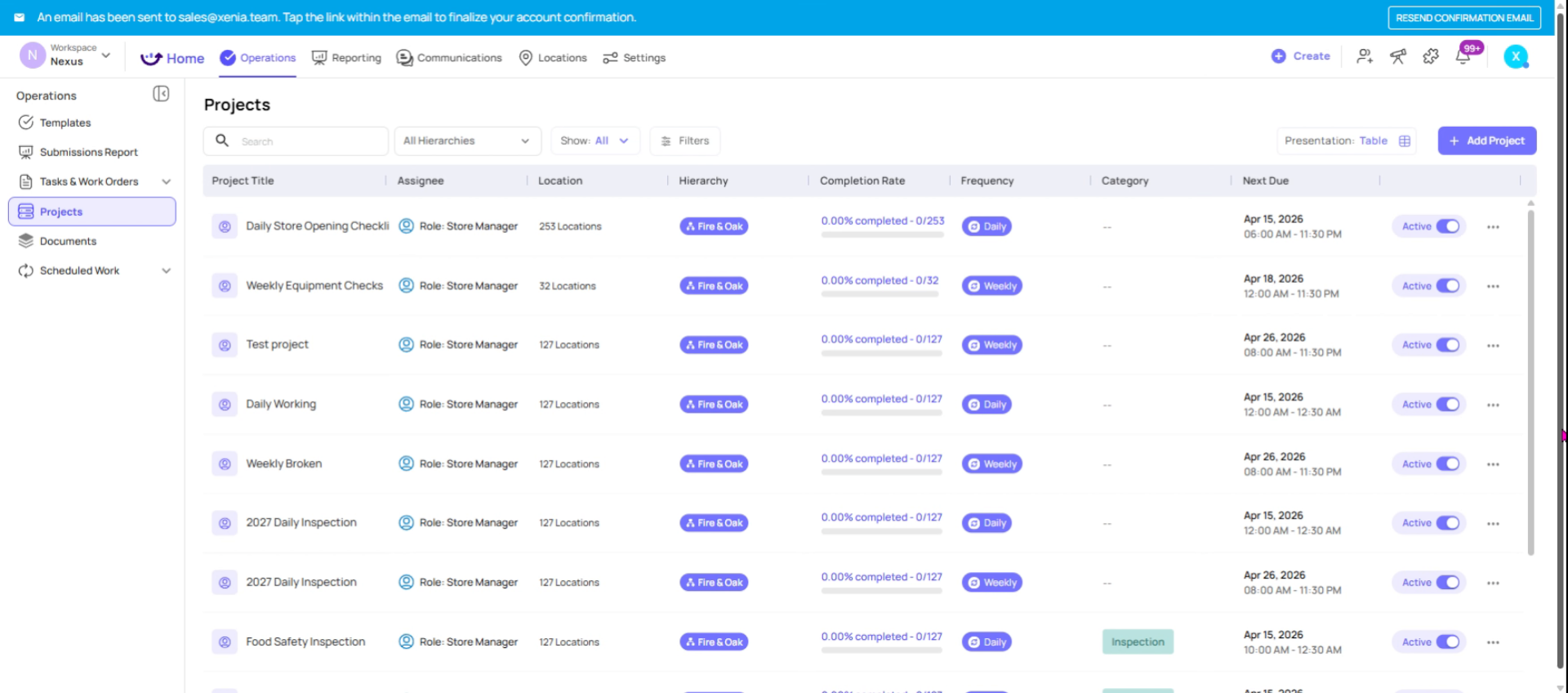
A Project in Xenia is the scheduling and deployment mechanism for templates. It takes a checklist from your template library and turns it into a recurring assignment — sent to the right people, at the right locations, at the right time, on a defined schedule.
If a template is the filing cabinet (where all your checklists are stored), a project is the running engine (the system that sends those checklists to your team automatically, every day).
A project answers these questions:
- Which checklist? (which template is being deployed)
- Who gets it? (which role or which users)
- Where? (which locations)
- When? (what cadence — daily, weekly, monthly)
- What time? (start time and due time)
What happens if it's missed? (notifications, locked after due time)
2. What a Project Creates
What a Project Creates
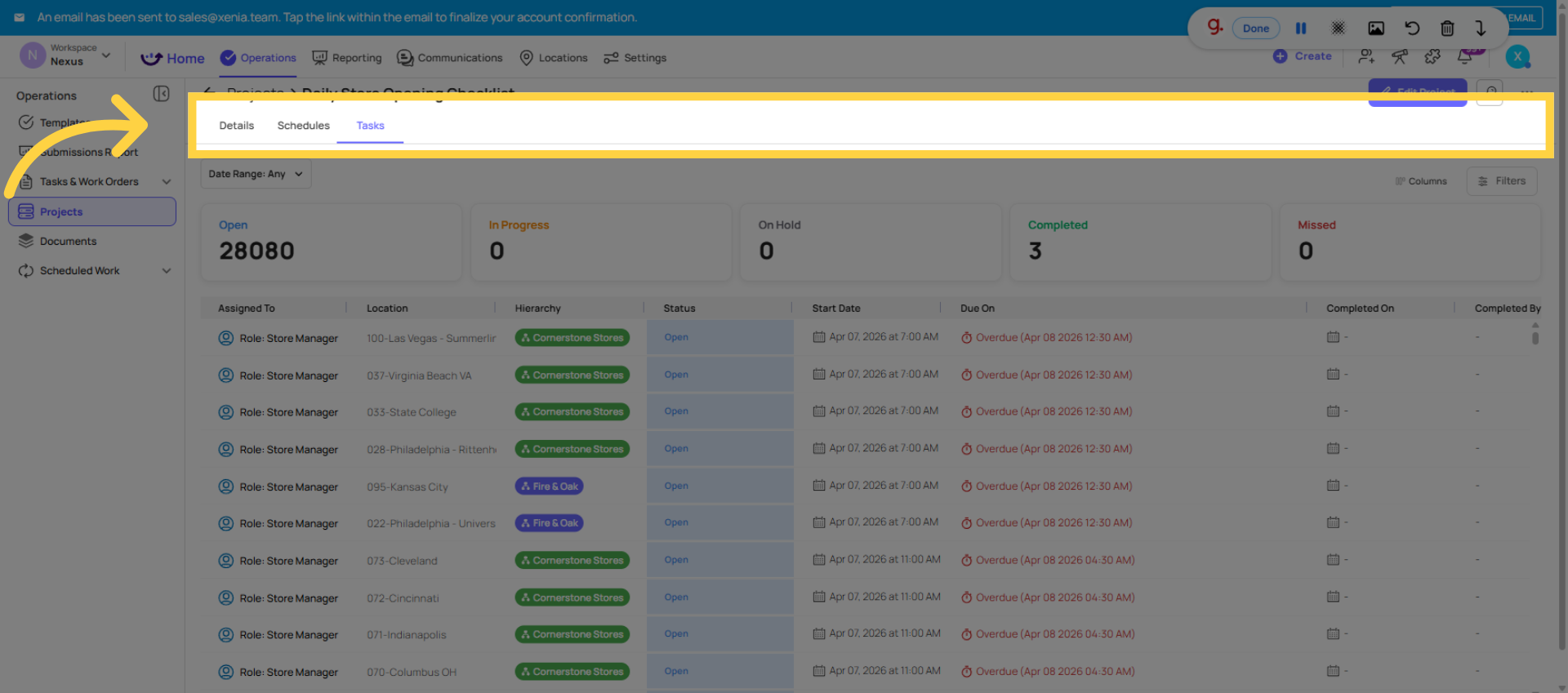
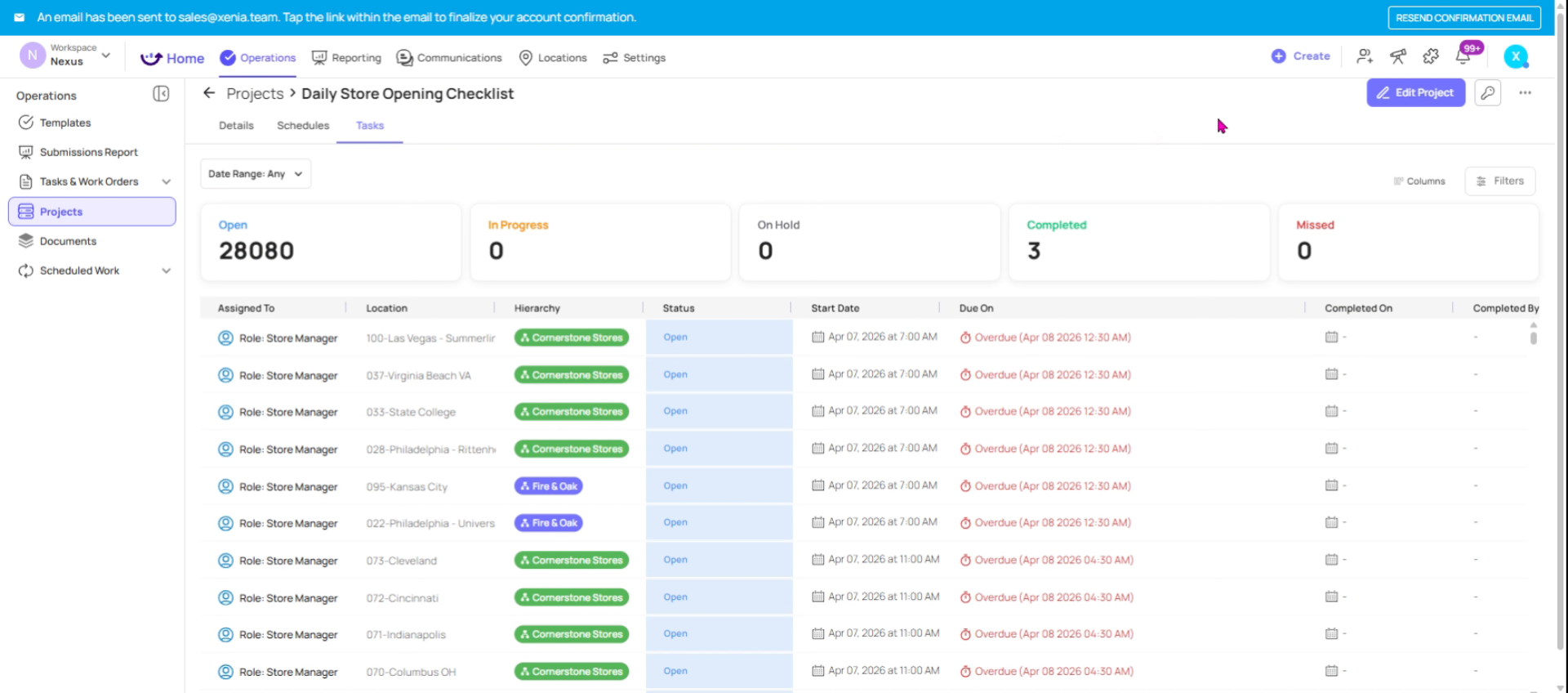
When a project runs, it generates tasks. Each task is one instance of the checklist assignment:
- It appears on the assigned employee's device at the configured start time
- It has a due time (when it must be completed)
- It has a status — Open, In Progress, Completed, Overdue, or Missed
- Completing the task = submitting the attached checklist
A project is the engine. A task is what the engine produces. Each task contains the checklist. The employee opens the task, completes the checklist, submits it — and the task is marked complete.
3. Compare User-Based and Role-Based Projects
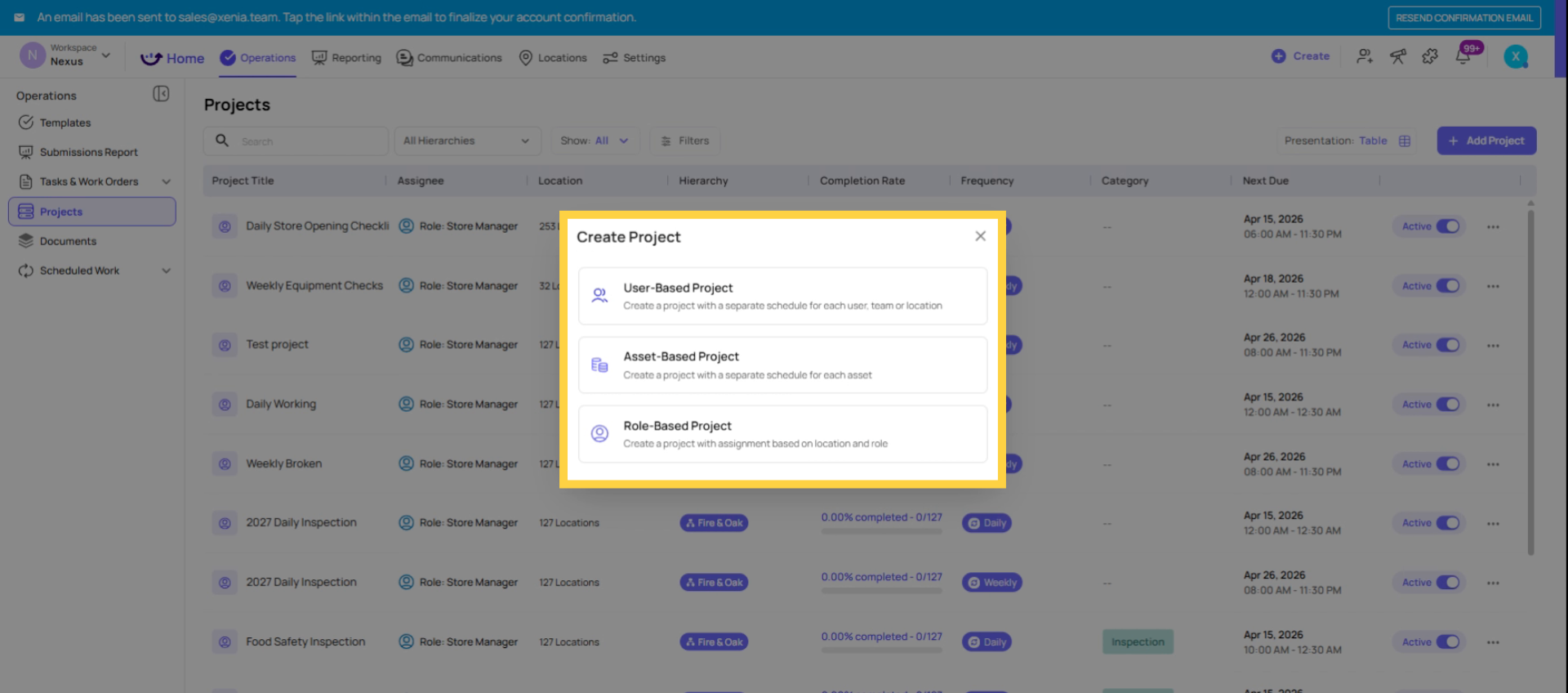
When you create a project, you choose whether to assign it to roles (recommended for most organizations) or to specific users.
Role-Based (recommended for multi-location operations): Assign the project to a role — Store Manager, Cashier, Cook — and select which locations. Xenia generates tasks for whoever is in that role at those locations. When staff turns over, you don't touch the project — whoever is now in that role at that location gets the task. The project runs indefinitely without maintenance.
Individual User-Based: Assign directly to specific named users. Tasks are personal — tied to that individual. When someone leaves and a new person starts, you need to update the project. This is higher maintenance but provides the most precise individual accountability.
4. Why Role-Based Is the Right Default for Most Orgs
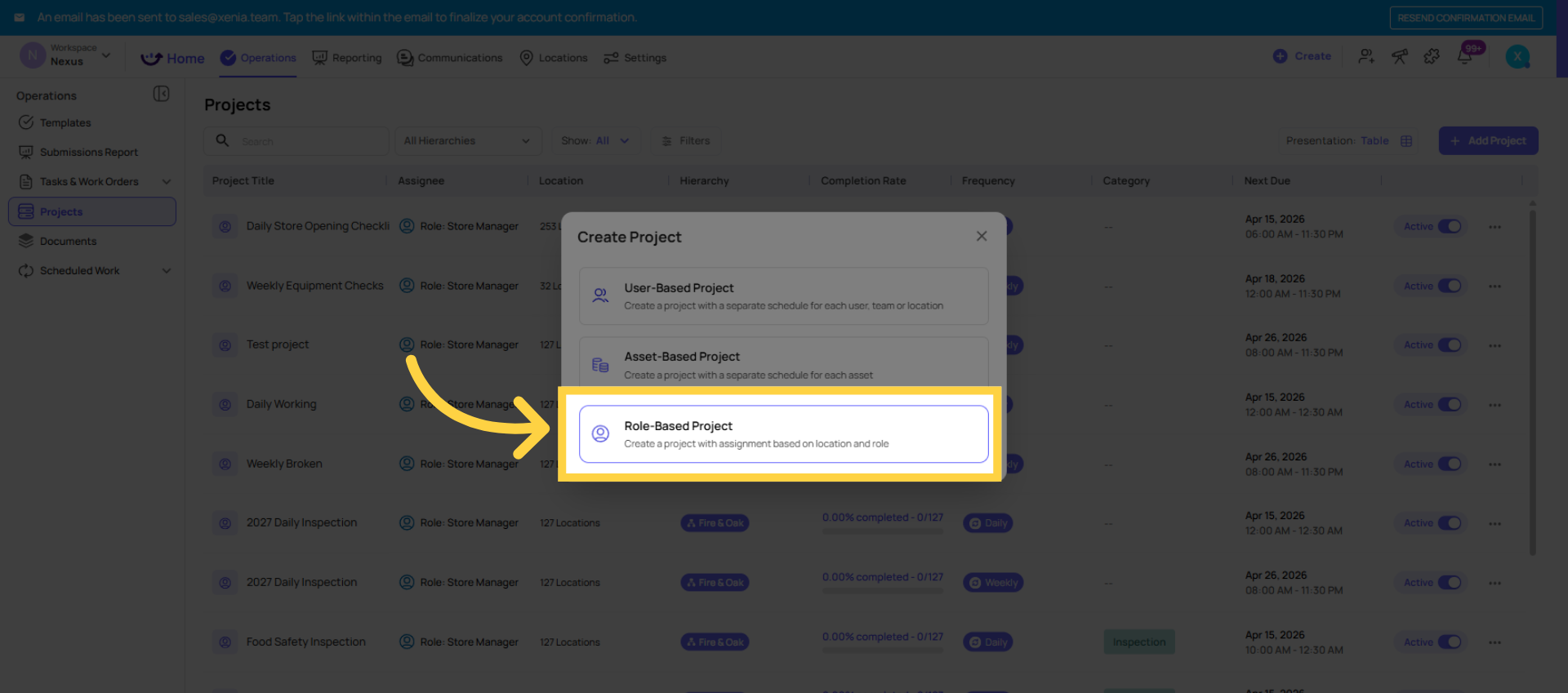
Role-based projects are what makes Xenia scalable. Instead of creating and maintaining 50 individual user assignments, you create one project, assign it to a role and all 50 locations, and Xenia handles the rest automatically.
New location opens → add it to the project → that location's role members get the tasks immediately. Employee leaves → the new employee in the same role gets the tasks without any project changes. Role changes → update the role, the project adjusts.
The project runs forever until you pause or archive it. No daily management required.
5. How Projects and Templates Work Together
One template can be deployed by multiple projects. The same daily opening checklist template can be in a morning project (6:30am start, 9:00am due) and a separate pre-opening verification project (5:30am start, 6:30am due). Two projects, one template, different time windows.
One project deploys one template. If a task needs to recur at different times in the same day, create separate projects with different time ranges — for example, a temperature log that needs to be done every 4 hours would use 4 separate projects, each with a different start/due window.
Editing the template does not require rebuilding the project. Changes to the template take effect on the next task generated by the project.
6. Completion Tracking and Reporting
Every project tracks its own performance data:
- Completed on time vs. completed late vs. incomplete (missed)
- Completion rate by location
- Completion rate by role member (in user-based projects)
- Photo gallery of all images captured across submissions
This is the operational reporting layer. Instead of asking "did Store 5 complete their opening checklist today?" — you open the project and see the answer instantly, across all 50 locations, for any date range.
7. Pausing, Editing, and Archiving Projects
Pausing: Stops future task generation without deleting the project. Tasks already generated continue to exist. Use this for temporary breaks in a recurring process.
Adding locations: You can add new locations to a running project at any time. New schedules are created for those locations from the current date forward.
Removing locations: Removing a location from a project does not delete historical tasks or schedules — it pauses them. The historical data is preserved.
Archiving: Removes the project from the active view and stops task generation permanently. All historical data is retained.
Need Help?
Reach out to our support team at Support@xenia.team
Comments
0 comments
Please sign in to leave a comment.