
Submission Access Control
1. What Submission Access Controls
Submission Access is a completely separate setting from Template Access. While Template Access controls who can complete a checklist, Submission Access controls who can view the completed data afterward — the submission records, responses, and photos.
These are two different questions:
- "Who can fill out this form?" → Template Access / Can Submit
- "Who can see the historical data from this form?" → Submission Access
A cashier might submit a temperature log every shift, but you don't want them browsing 30 days of historical data. A store manager needs to see everything from their store. An HR director needs everything from every location. Submission Access is where you set all of this.
Found in: Operations → Templates → [Template Name] → Settings → Access → Submission Access section
The Three Visibility Tiers
Each role gets its own tier — you can have different tiers for different roles on the same template.
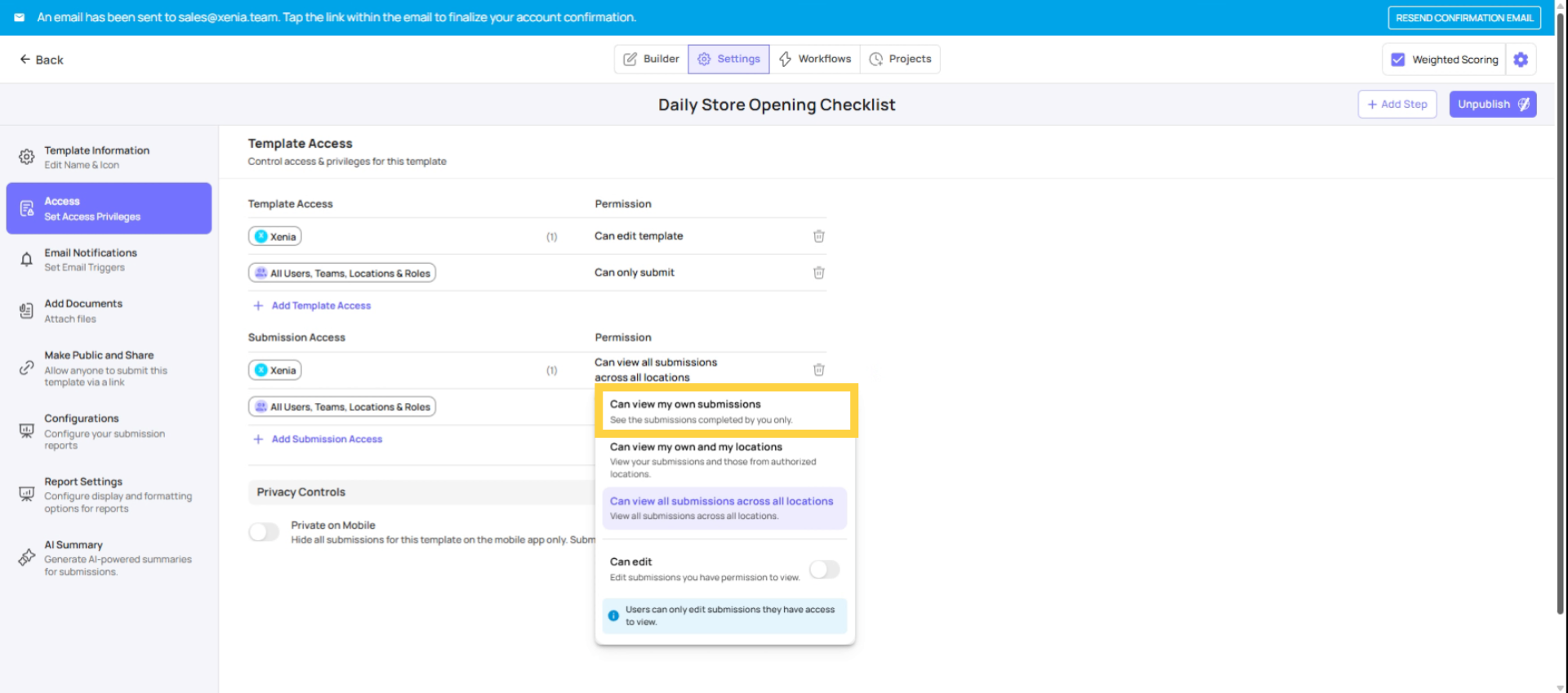
Tier 1 — View Own Submissions Only The user sees only what they personally submitted. Nothing from anyone else, even at the same location. Use for: Frontline employees, basic store-level users who don't need visibility into other people's submissions.
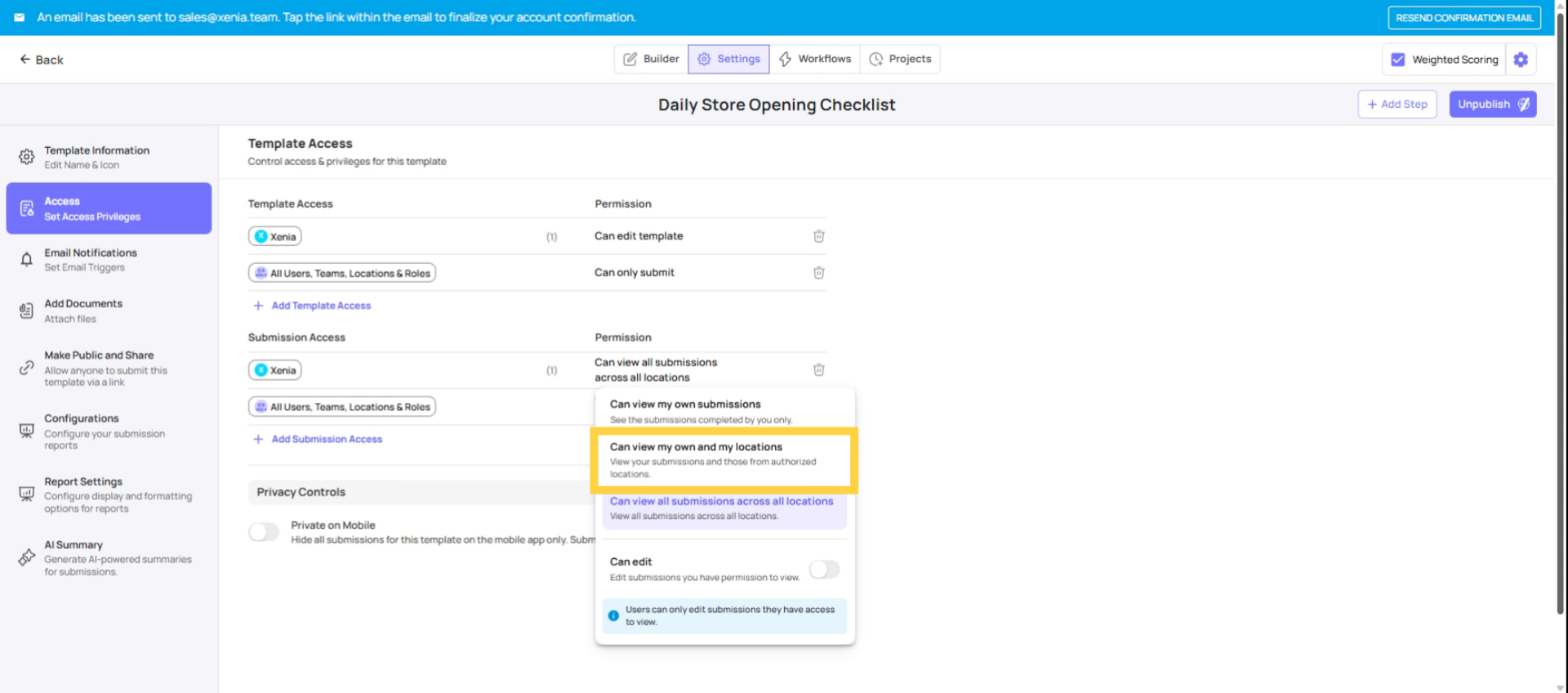
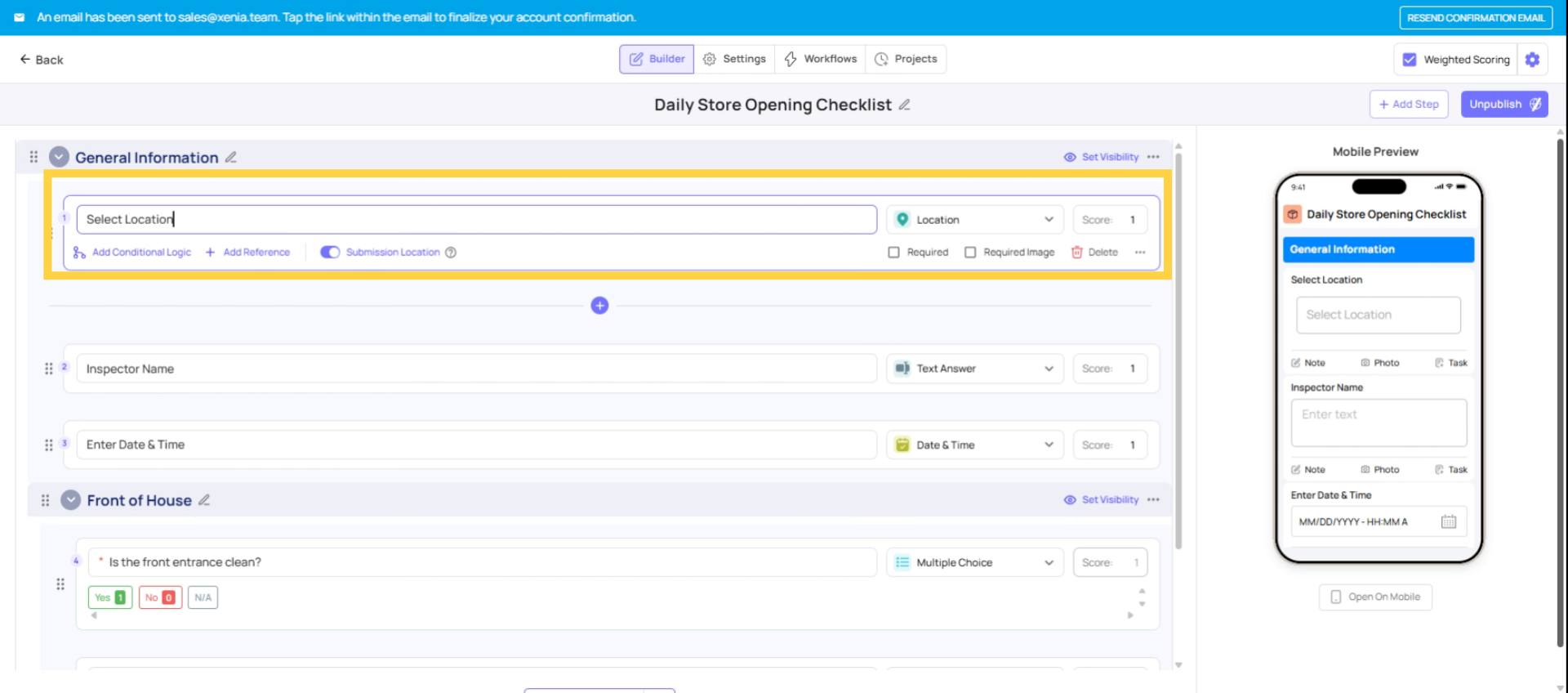
Tier 2 — View Own + Submissions at Their Locations The user sees their own submissions plus all submissions where the location tagged on the submission matches one of their member locations. Use for: Store managers who need to see everything from their store. District managers who need everything from their district's locations. The scope is automatically determined by the user's location membership — add a store to their membership and they automatically see that store's submissions. Critical requirement: The template must include a "Select Location" step for this tier to work. Without it, submissions aren't tagged to a specific location and the filtering has nothing to match against.
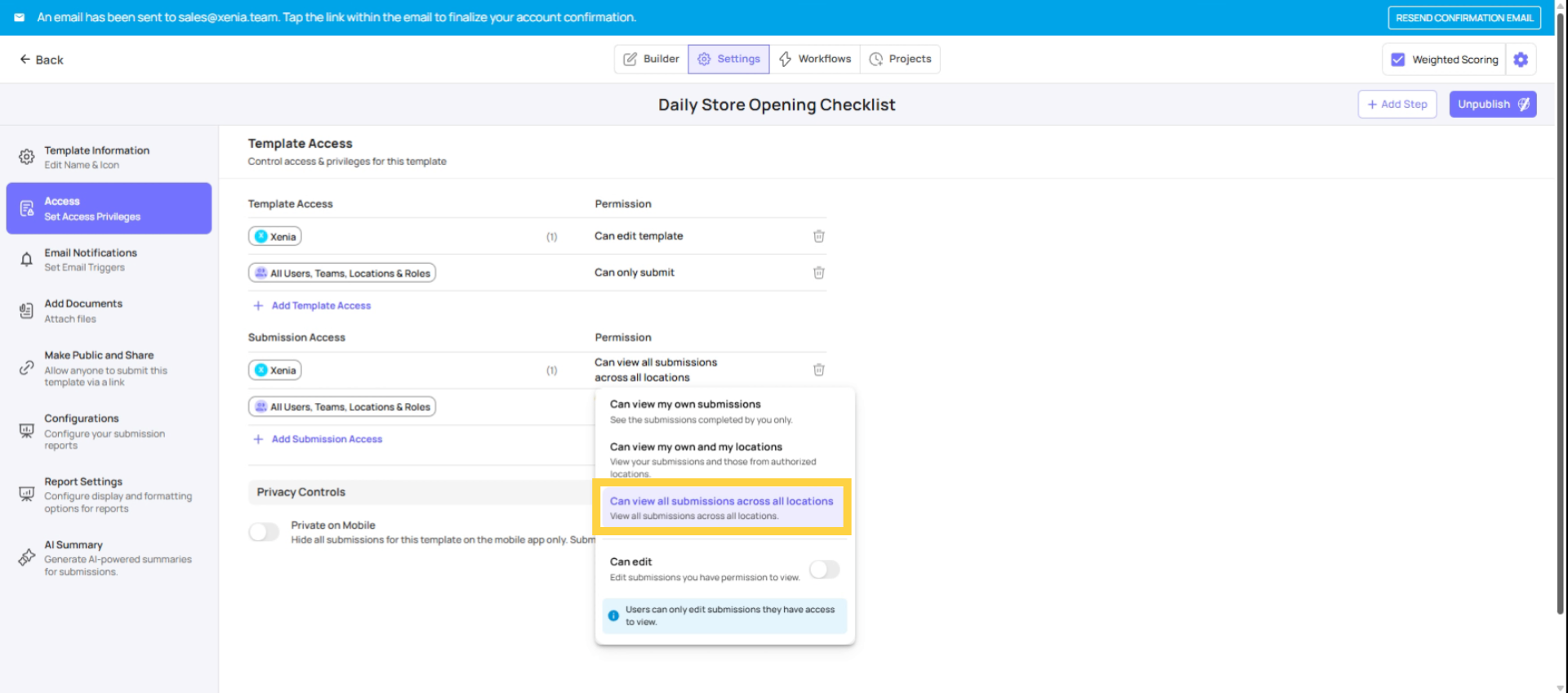
Tier 3 — View All Submissions The user sees every submission for this template across the entire workspace, regardless of location. Use for: HR Managers reviewing records across all locations, QA/Compliance roles, Admin/Owner accounts.
Tier 1 — View Own Submissions Only
Tier 2 — View Own + Submissions at Their Locations
Tier 3 — View All Submissions
Important: The Location Step Requirement for Tier 2
Tier 2 filters submissions based on their tagged location — the location the employee selected when they submitted the form. Without a Location step in the template, submissions have no location tag and the filter has nothing to work with. The manager would effectively only see their own submissions (behaving like Tier 1), even with Tier 2 configured.
If Tier 2 isn't working as expected, this is almost always the reason. Check the template for a Location step.
Practical Configuration by Template Type
| Template | Frontline | Store Manager | District Manager | HR / Admin |
| Daily Opening Checklist | Tier 1 | Tier 2 | Tier 2 | Tier 3 |
| Temperature Log | Tier 1 | Tier 2 | Tier 2 | Tier 3 |
| Performance Notice | — (not in Can Submit) | Tier 1 | Tier 2 | Tier 3 |
| Incident Report | Tier 1 | Tier 2 | Tier 2 | Tier 3 |
| Food Safety Audit | — (not in Can Submit) | — | Tier 2 | Tier 3 |
Need Help?
Reach out to our support team at Support@xenia.team
Comments
0 comments
Please sign in to leave a comment.