
Overview of Template Management
1. Why Duplicating Is Often Better Than Building From Scratch
If you already have a well-built template and need a variation of it — the same checklist for a different use case, a similar form for a different department, a second version with slight modifications — duplicating is significantly faster than starting over.
Duplicating copies the entire template structure: all steps, all sections, all automations, all settings. You get a complete copy that you can rename and modify independently without touching the original.
Common duplication scenarios:
- "Our opening checklist is great — we want a closing checklist that's 80% the same"
- "We have a daily food safety log; we need a separate weekly deep-clean log with a similar format"
- "This customer feedback form works well for Store 1 — Store 5 wants a modified version"
- "We want to test a new version of a template before replacing the live one"
How to Duplicate a Template
2. How to Duplicate a Template
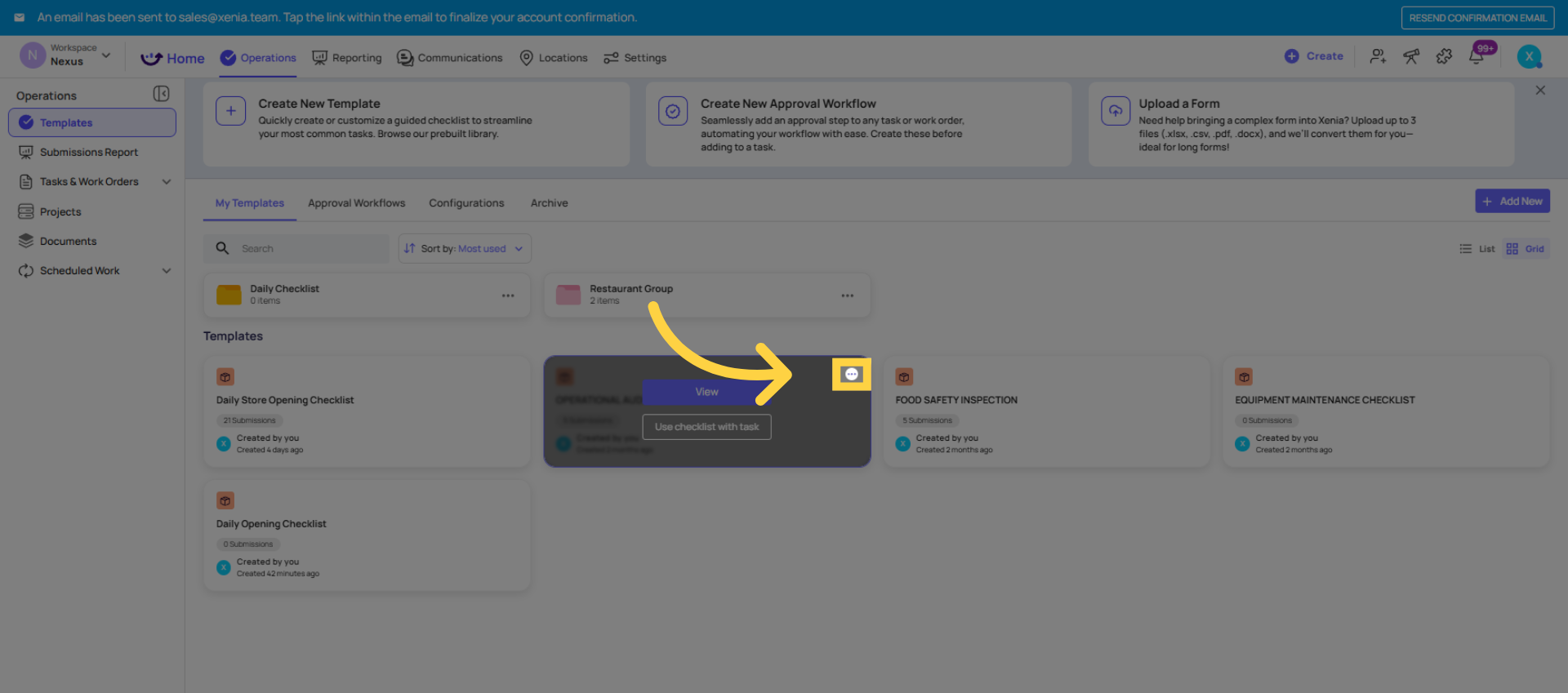
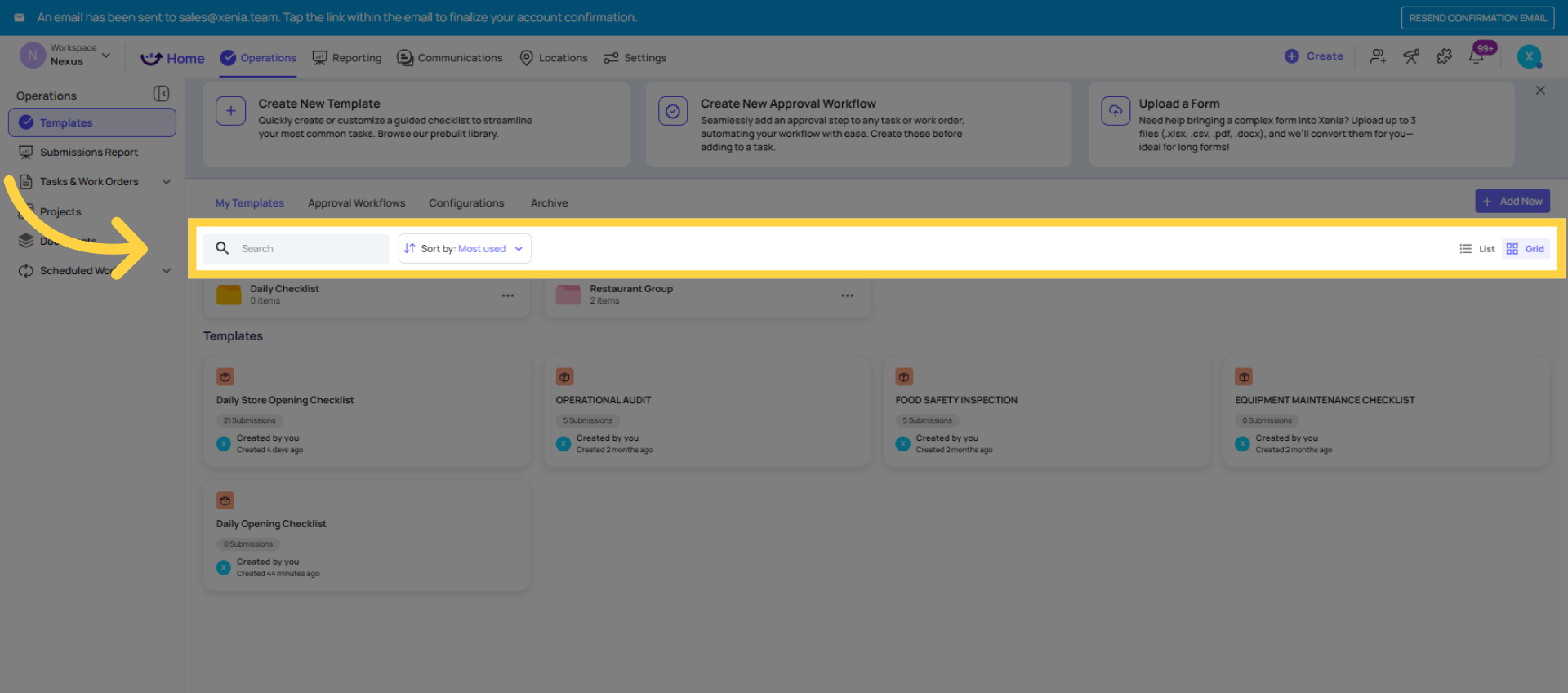
- Go to Operations → Templates
- Find the template you want to copy
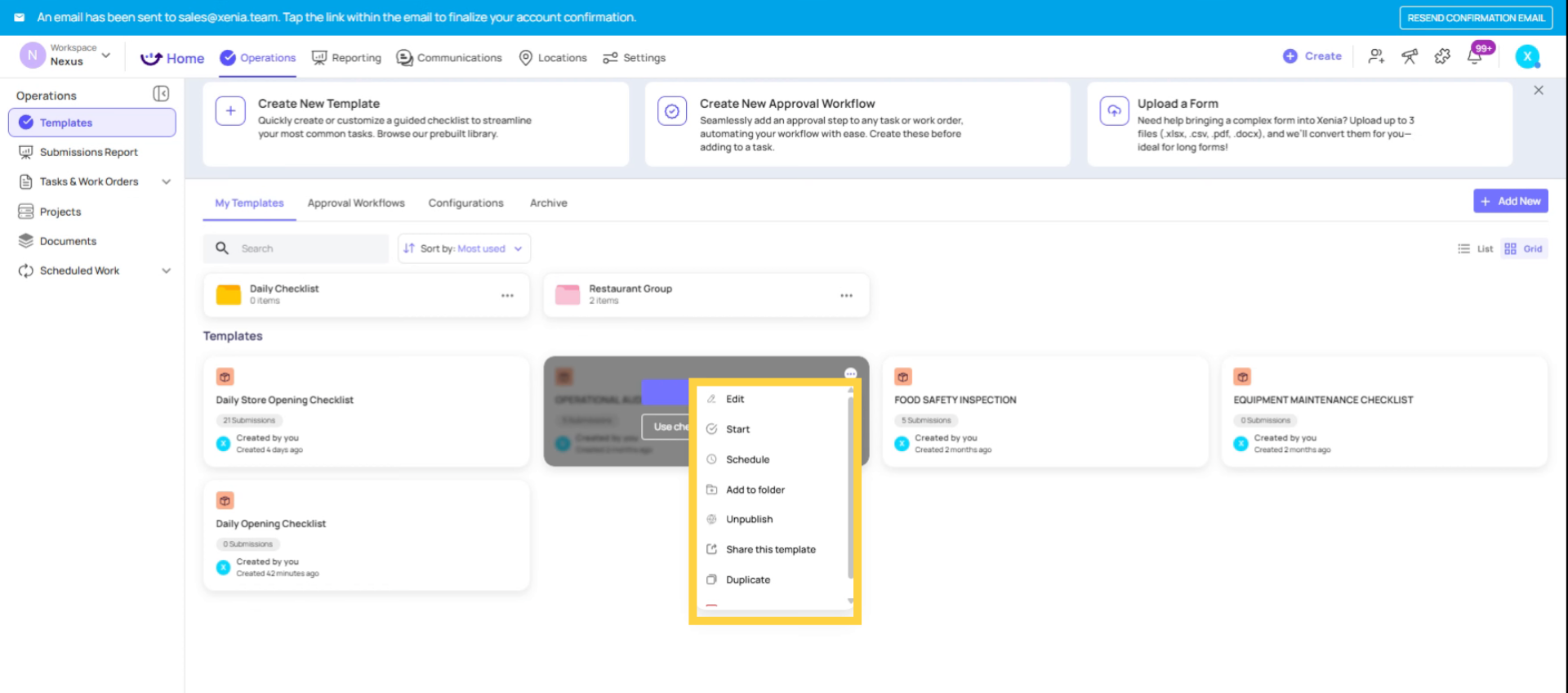
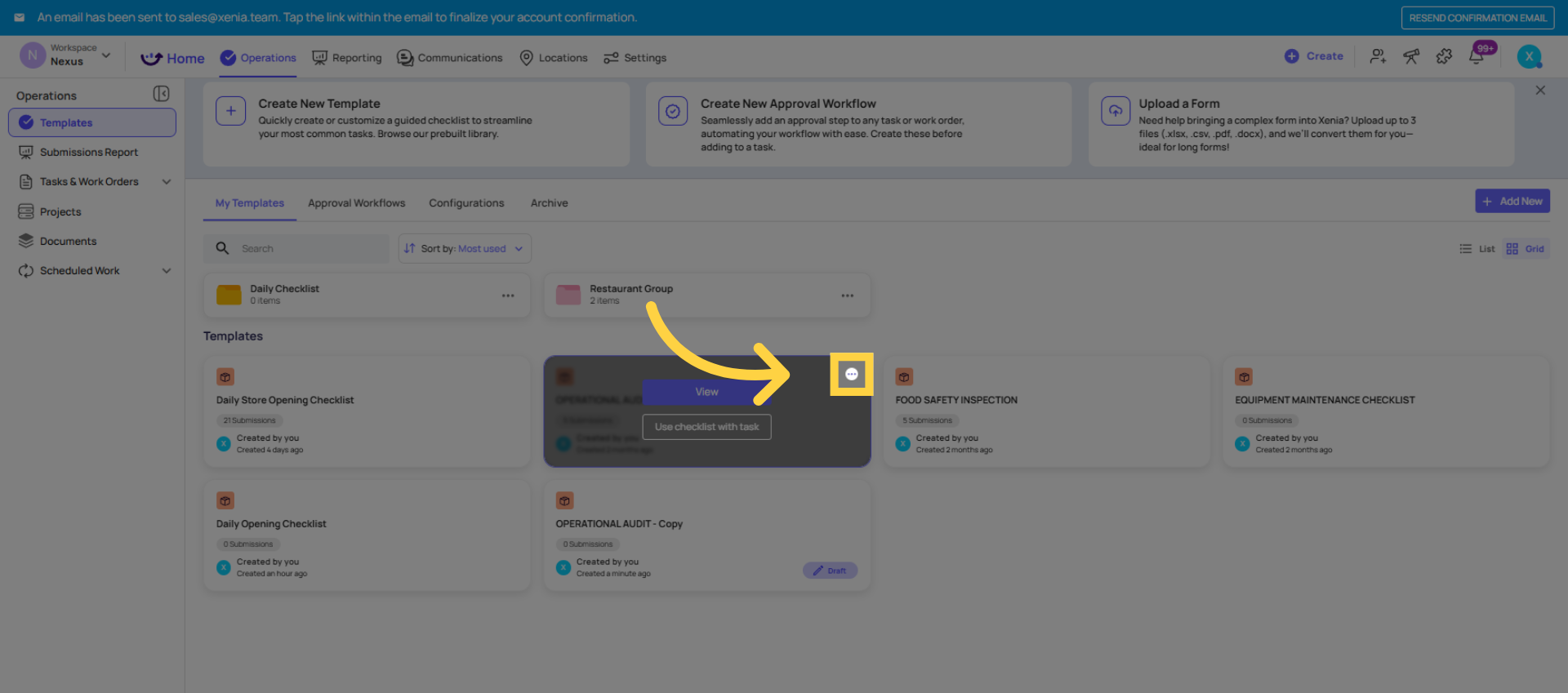
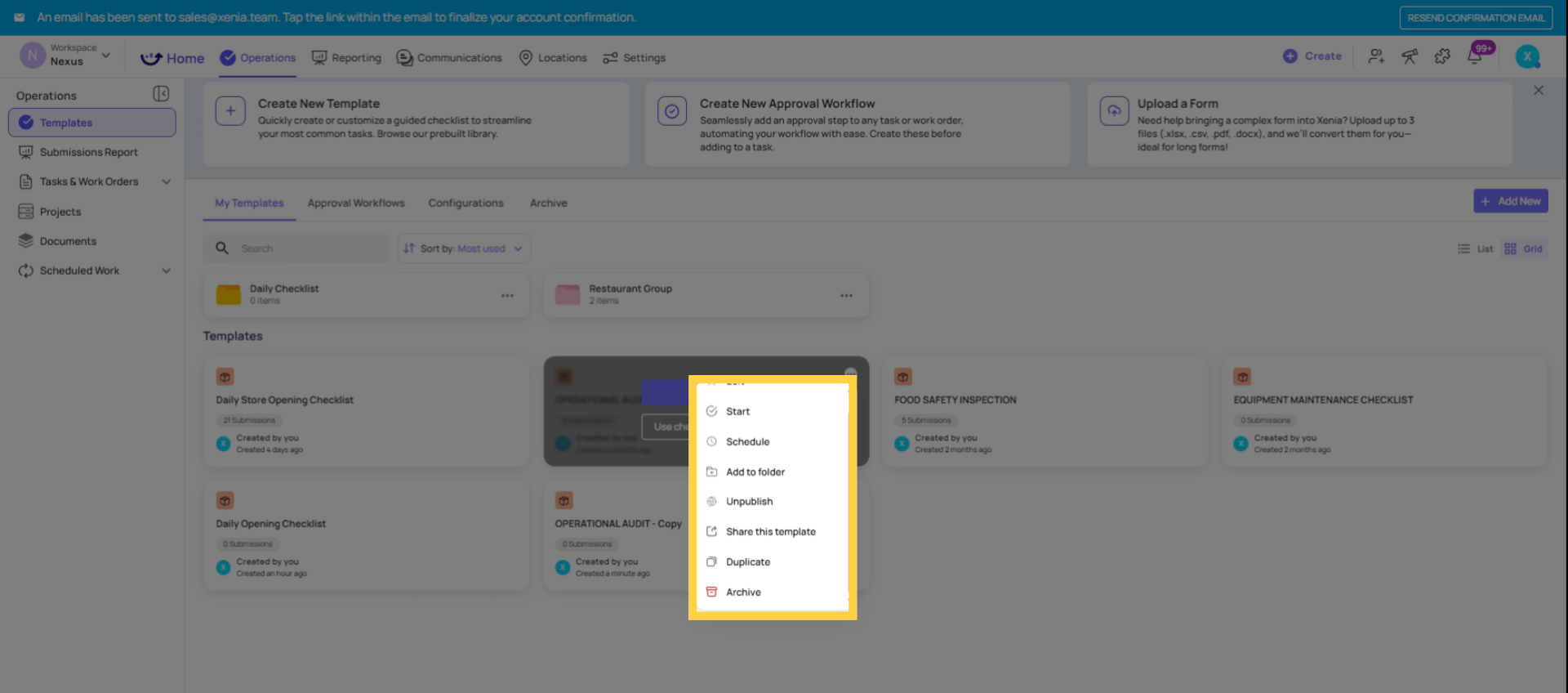
- Click the three dots (⋯) menu next to it
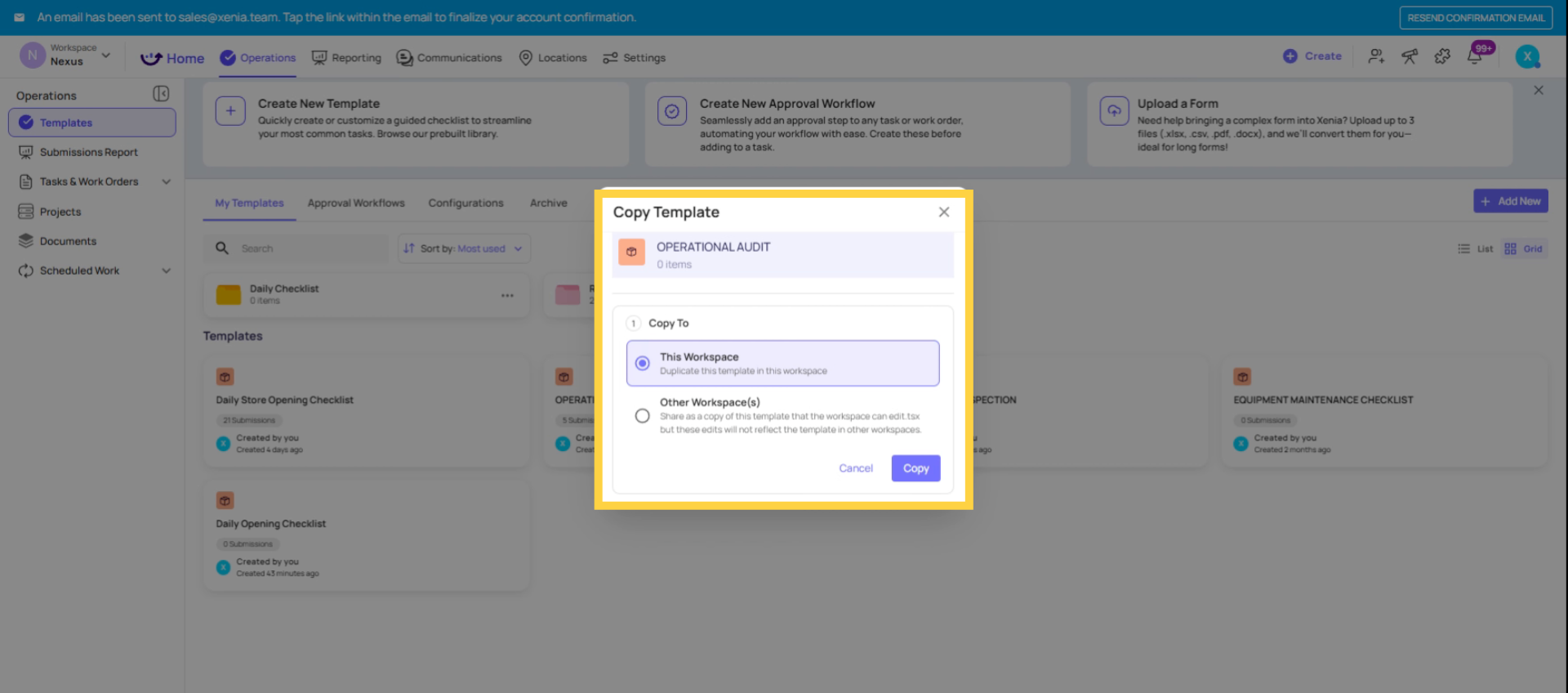
- Select Duplicate
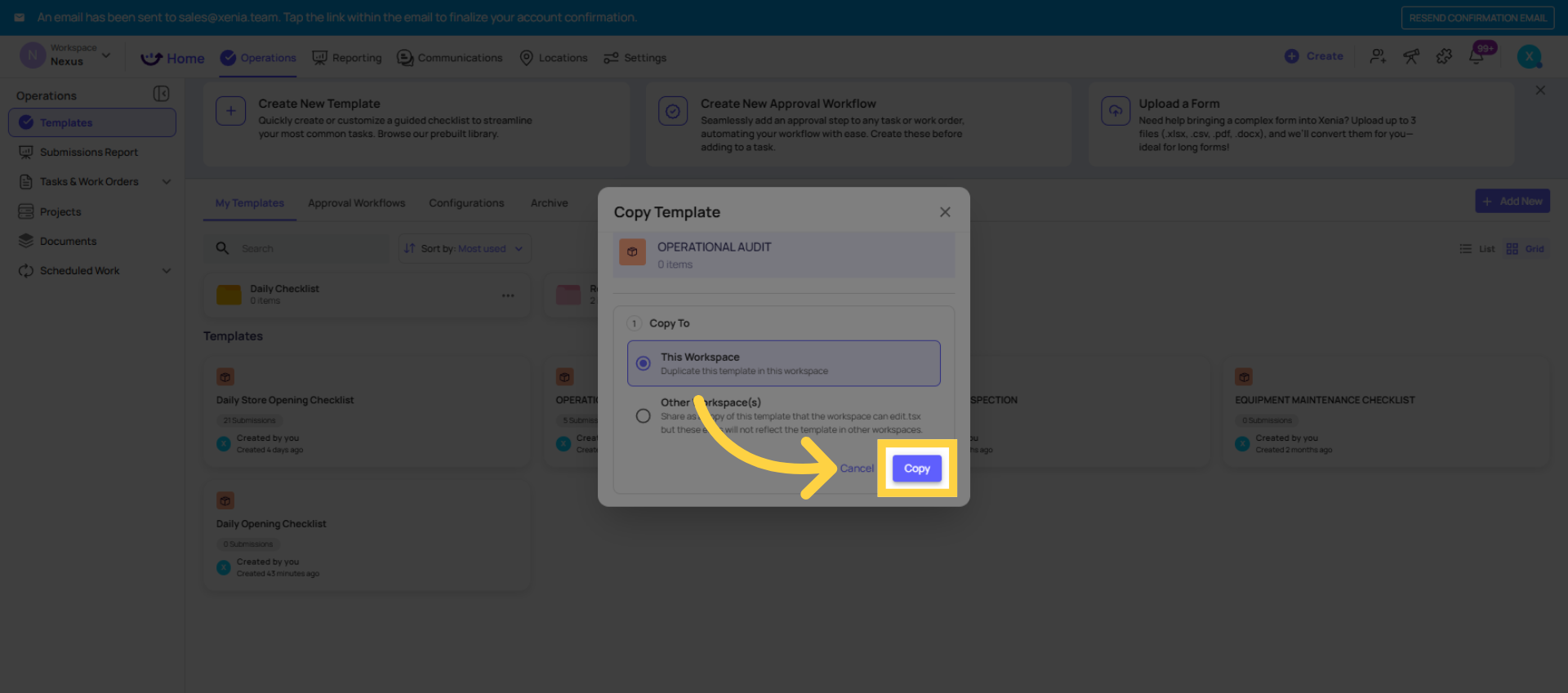
- The copy is created with the same name followed by "Copy" — rename it immediately to something meaningful
- Open the duplicate and make your modifications
- Publish when ready
The original template is completely unaffected. Changes to the duplicate do not touch the original — they are independent after the copy is made.
Sort Templates View
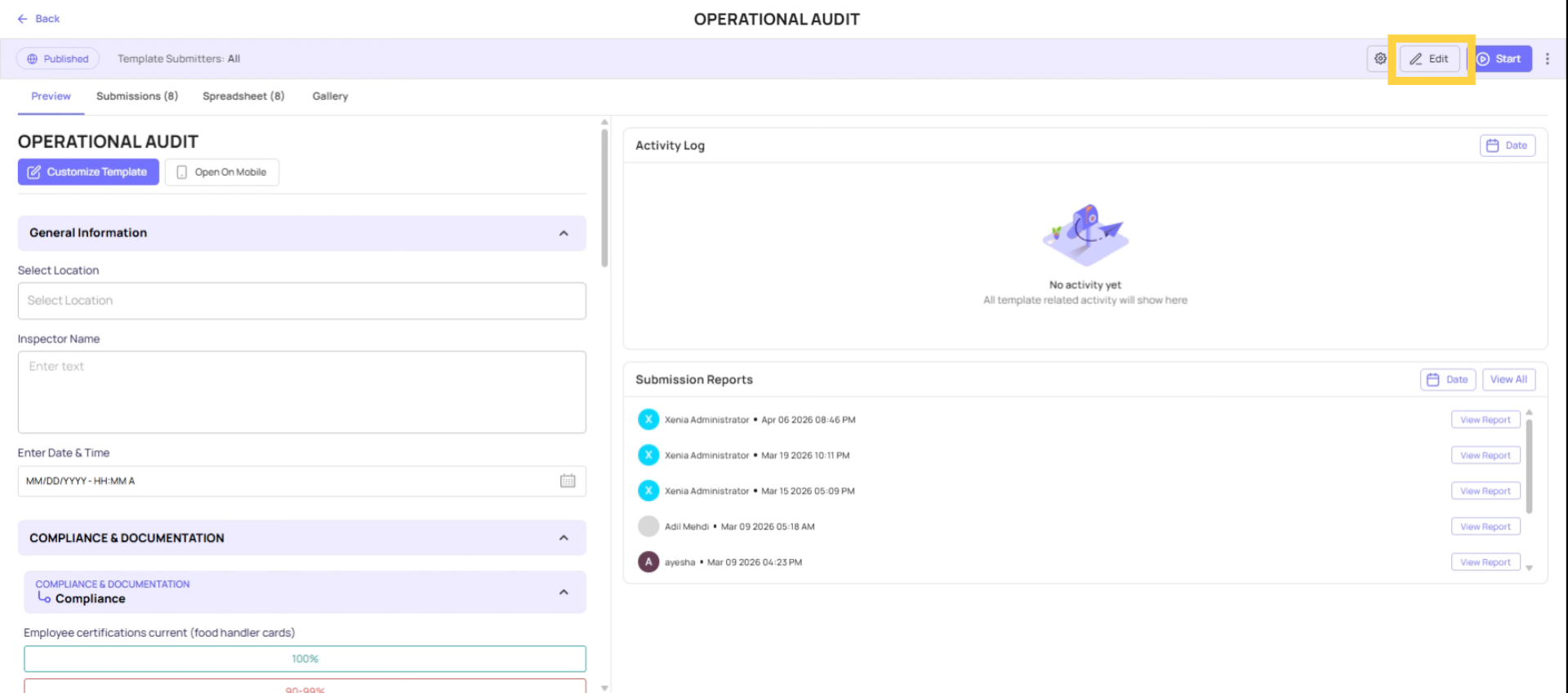
Edit Template in Builder
3. How to Edit an Existing Template
To edit any template you have access to:
- Go to Operations → Templates
- Click into the template
- Click Edit — this opens the builder with the current version of the template
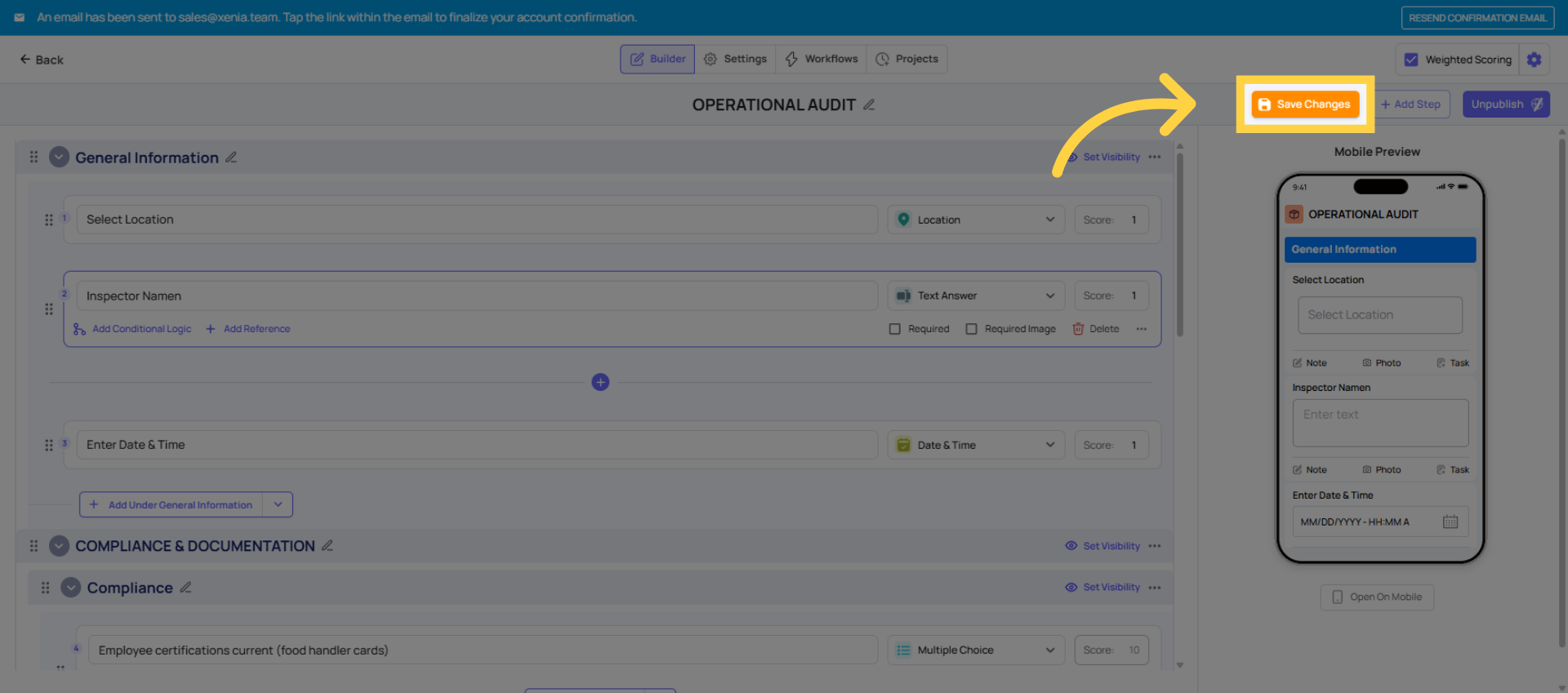
- Make your changes in the Build tab (add, remove, or reorder steps and sections), the Settings tab (adjust access, submission mode, notifications), or both
- Click Save Changes
Changes save to the template immediately. The template does not need to be re-published after edits — the updated version becomes active as soon as you save.
Understand Live Template Edits
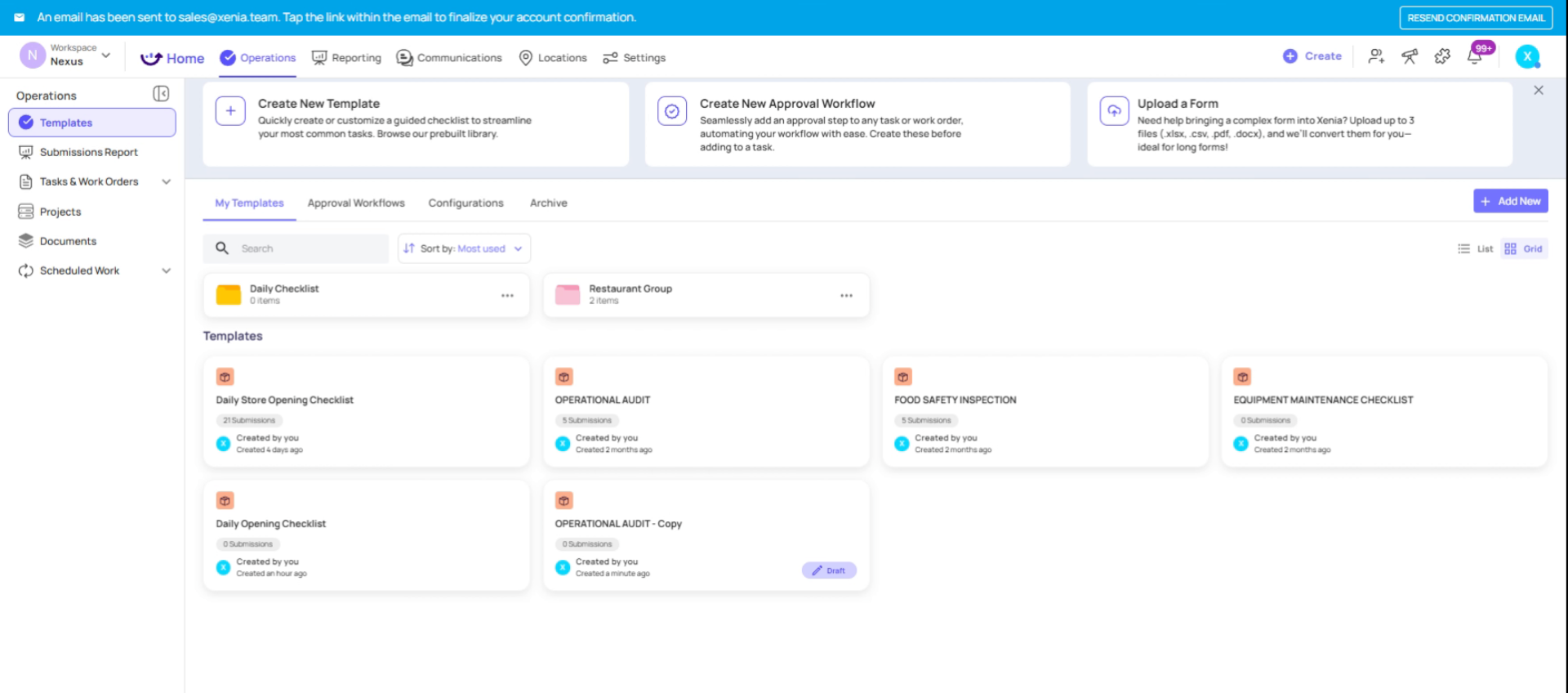
Access Template Options
Editing vs. Archiving vs. Deleting
Editing — modify the template while keeping it active. Steps, sections, settings can all be changed at any time.
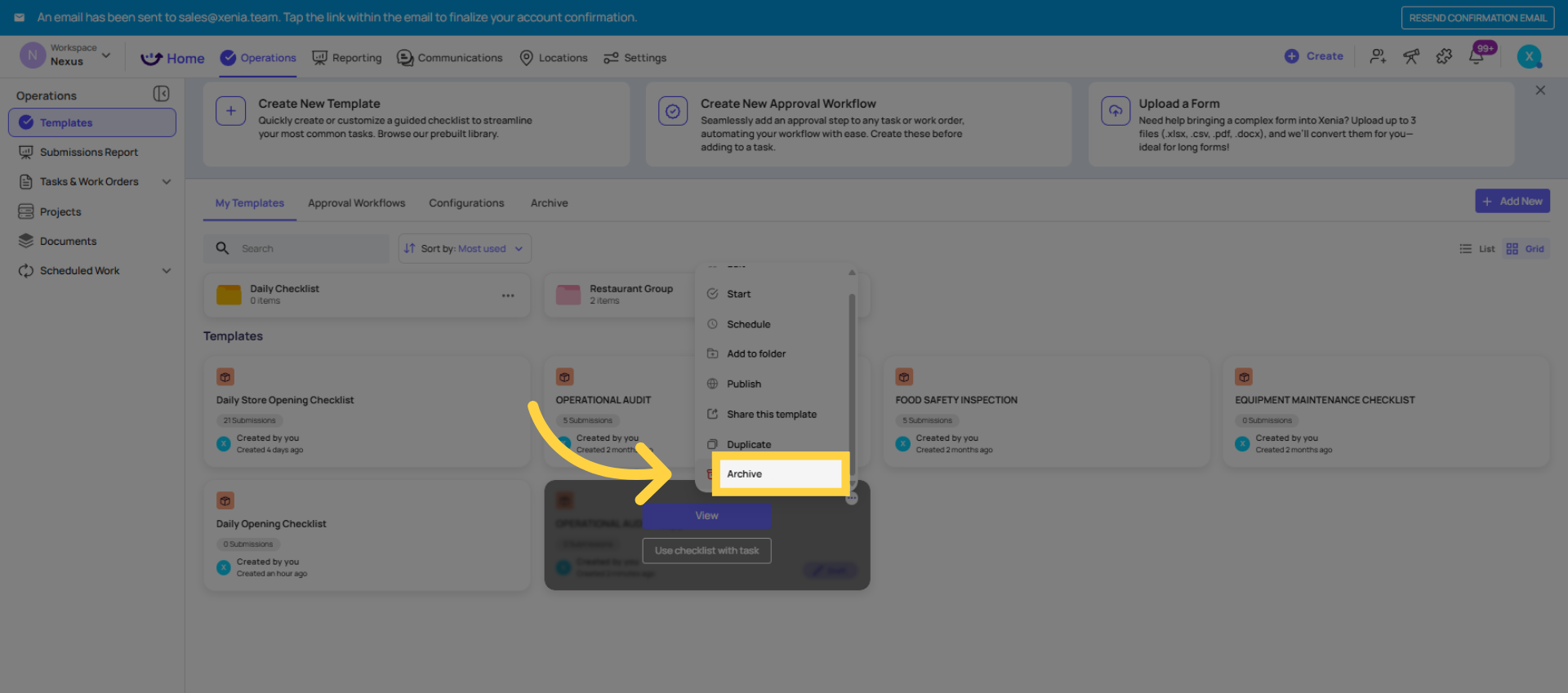
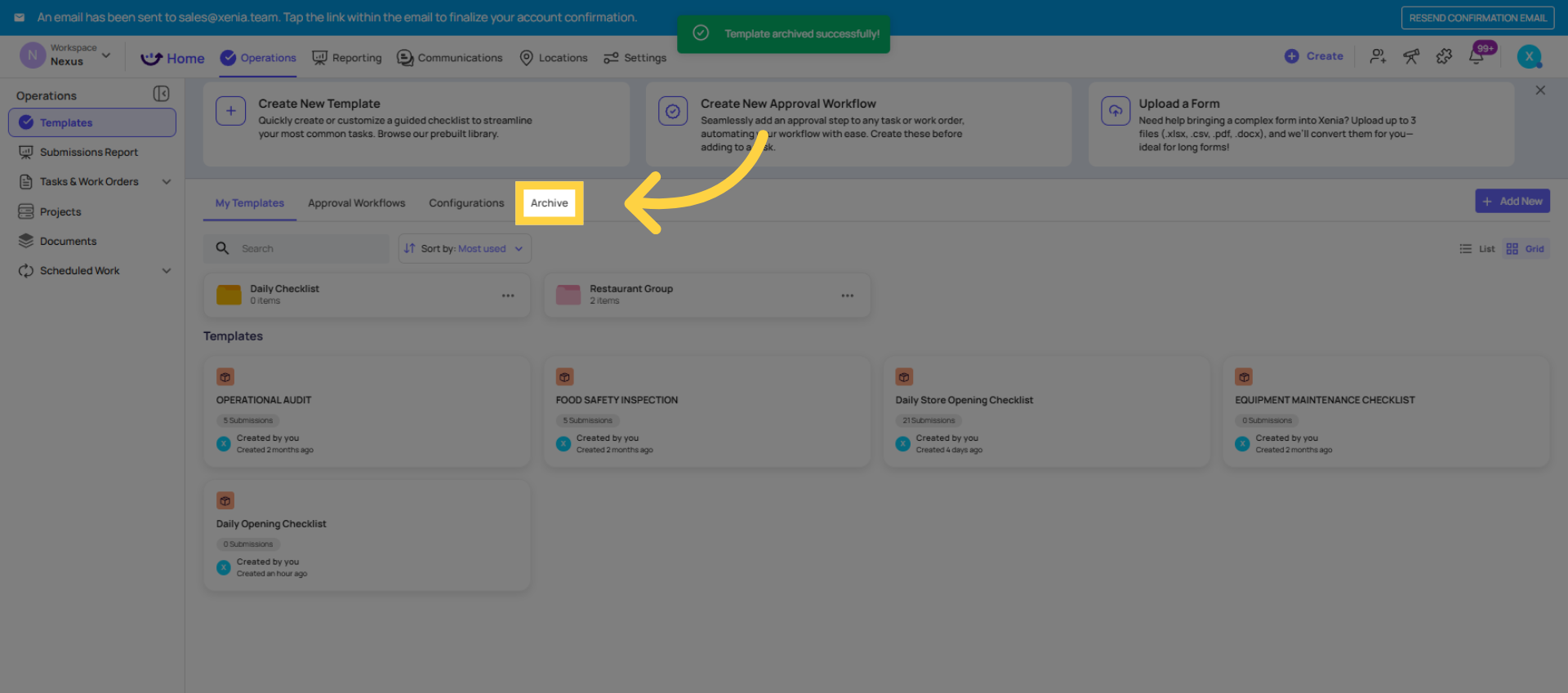
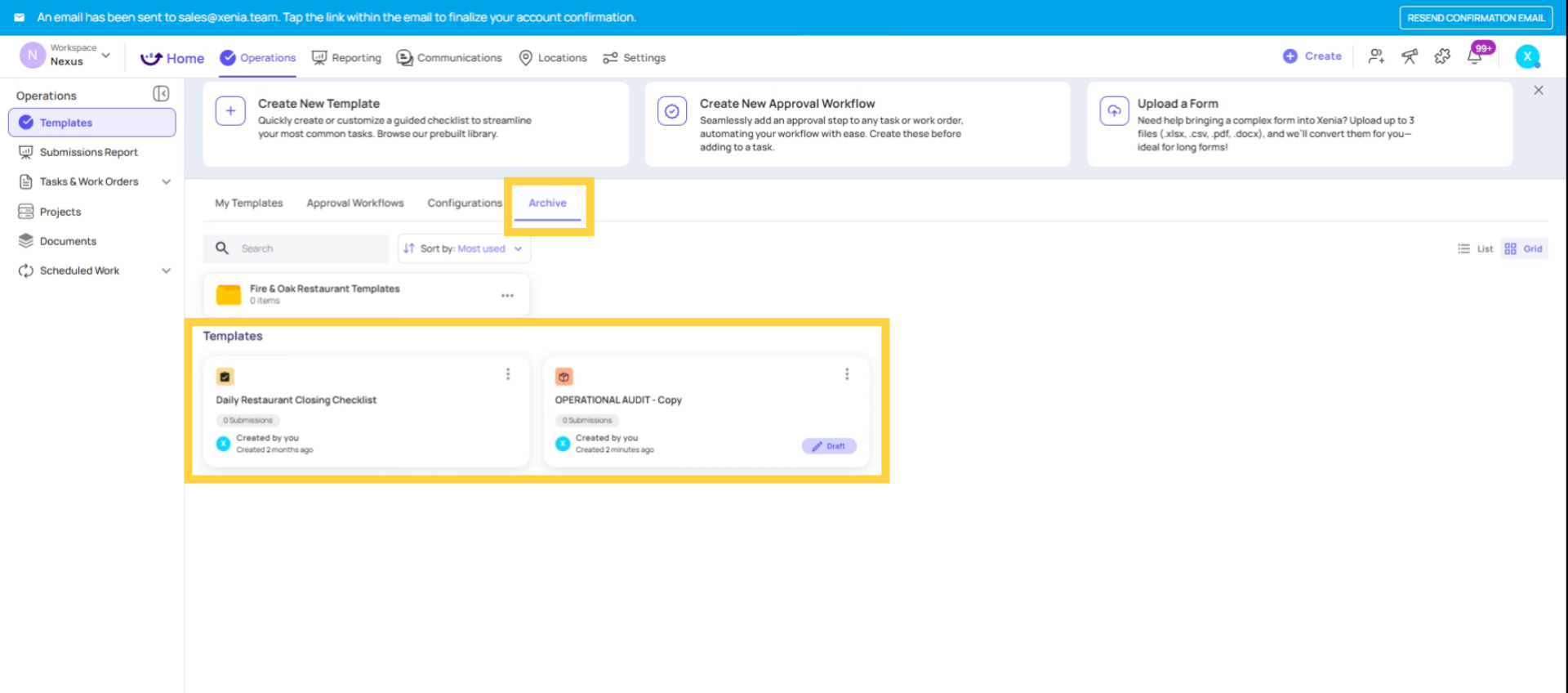
Archiving — makes the template inactive. It disappears from the active template list but is preserved in an archived state. Archived templates cannot be submitted or assigned to new projects, but all historical submission data is retained. Use archiving when a template is no longer needed but you want to keep its history.
To archive: three dots next to the template → Archive. To restore an archived template: find it in the archived view, three dots → Unarchive.
Deleting — permanently removes the template. This is rarely the right choice because it removes the template from reporting and makes historical submissions harder to access. Prefer archiving over deleting unless you're certain the template and its data are no longer needed.
Need Help?
Reach out to our support team at support@xenia.team
Comments
0 comments
Please sign in to leave a comment.