
What Is Conditional Logic?
Conditional logic (also called automations in Xenia) lets you attach "if this, then that" rules to individual steps in a checklist. When an employee gives a specific answer to a step, something automatically happens — a photo is required, a follow-up question appears, a notification goes out, or a task gets created.
Without conditional logic, a checklist is a list of questions. With it, the checklist actively responds to what's happening at the location.
Example: "Is the bathroom clean?" → If No → require a photo and ask "Describe the issue." Without logic: employee checks No and moves on. Manager finds out later. With logic: the moment they check No, they have to document it right there.
How to Add a Conditional Logic Trigger
- Open the template in the builder (Build tab)
- Click on the step you want to add logic to
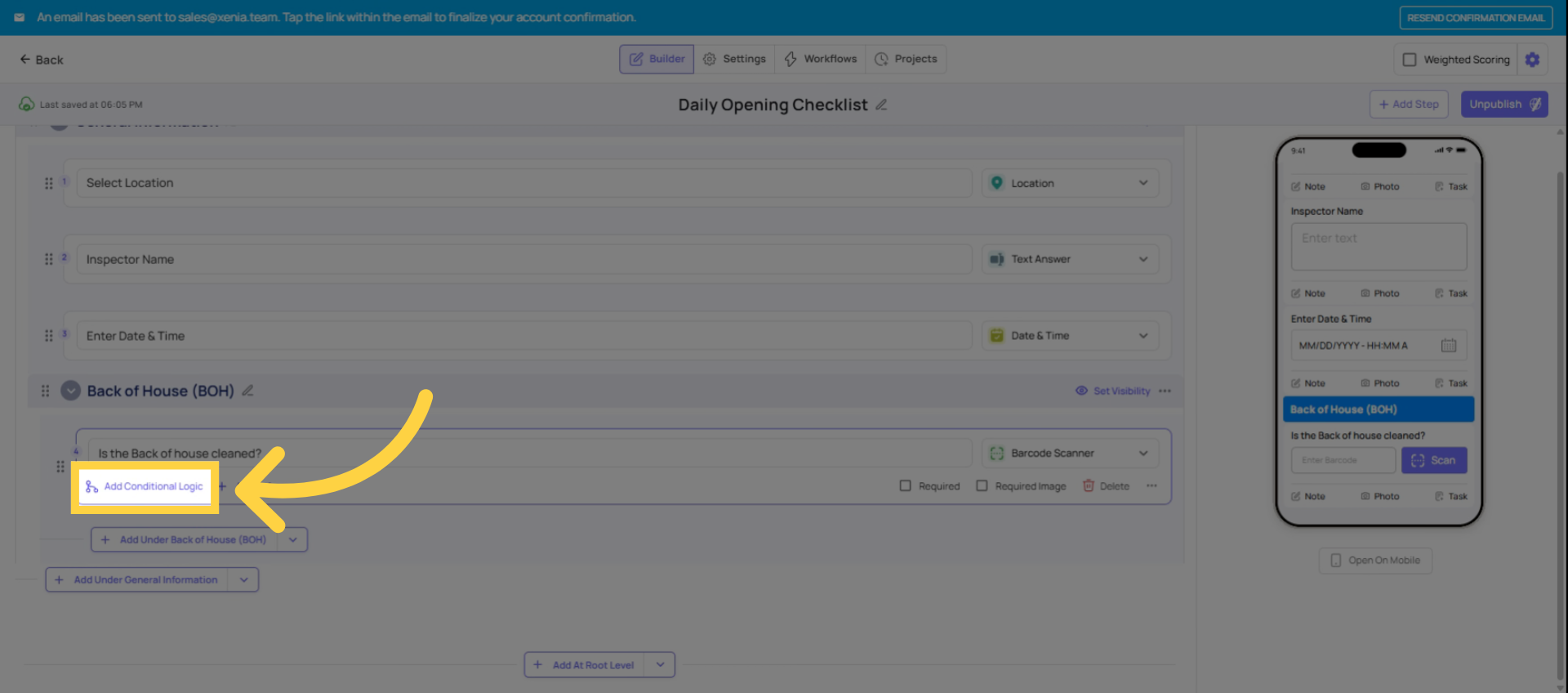
- Look for the Add Conditional Logic button (or Add Automation) — it typically appears as a purple button within the step
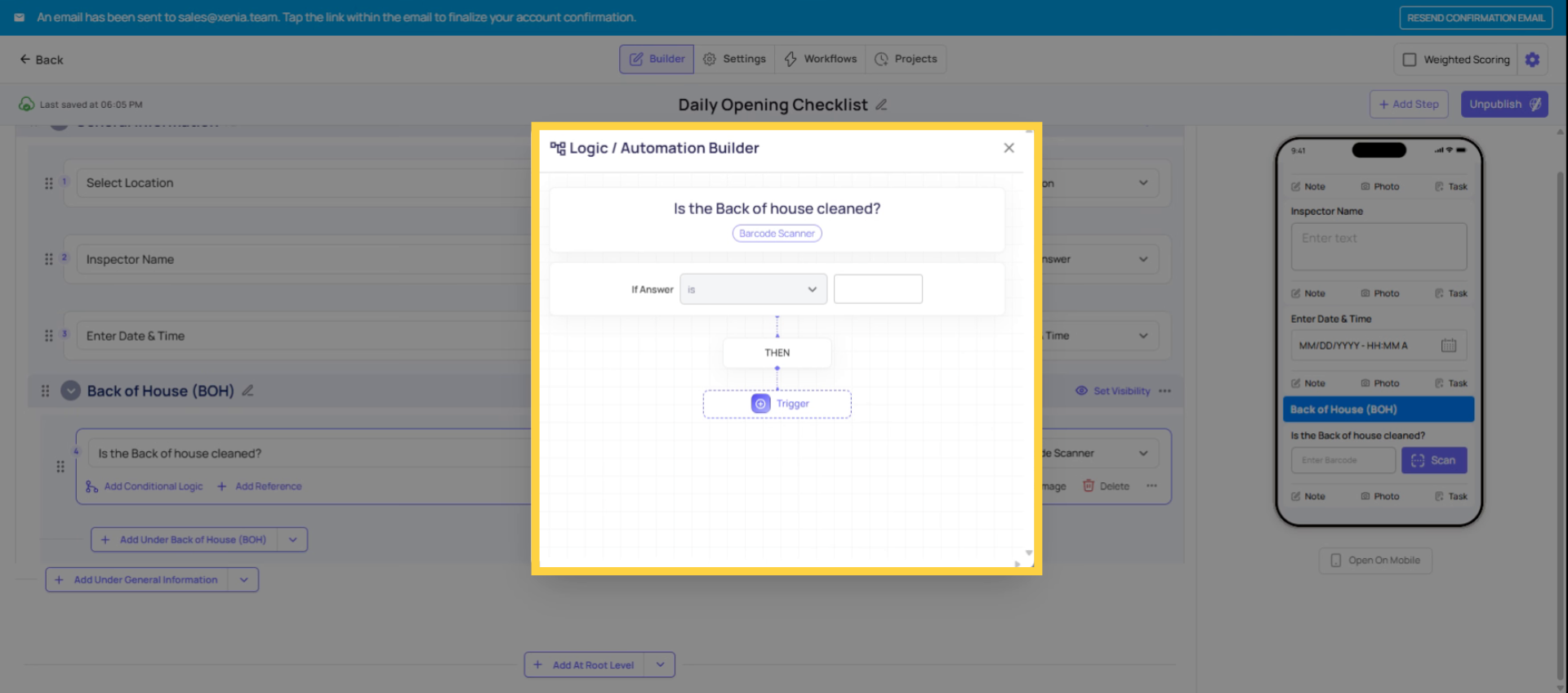
- Click it → a panel opens showing: the condition (when does this trigger?) and the action (what happens?)
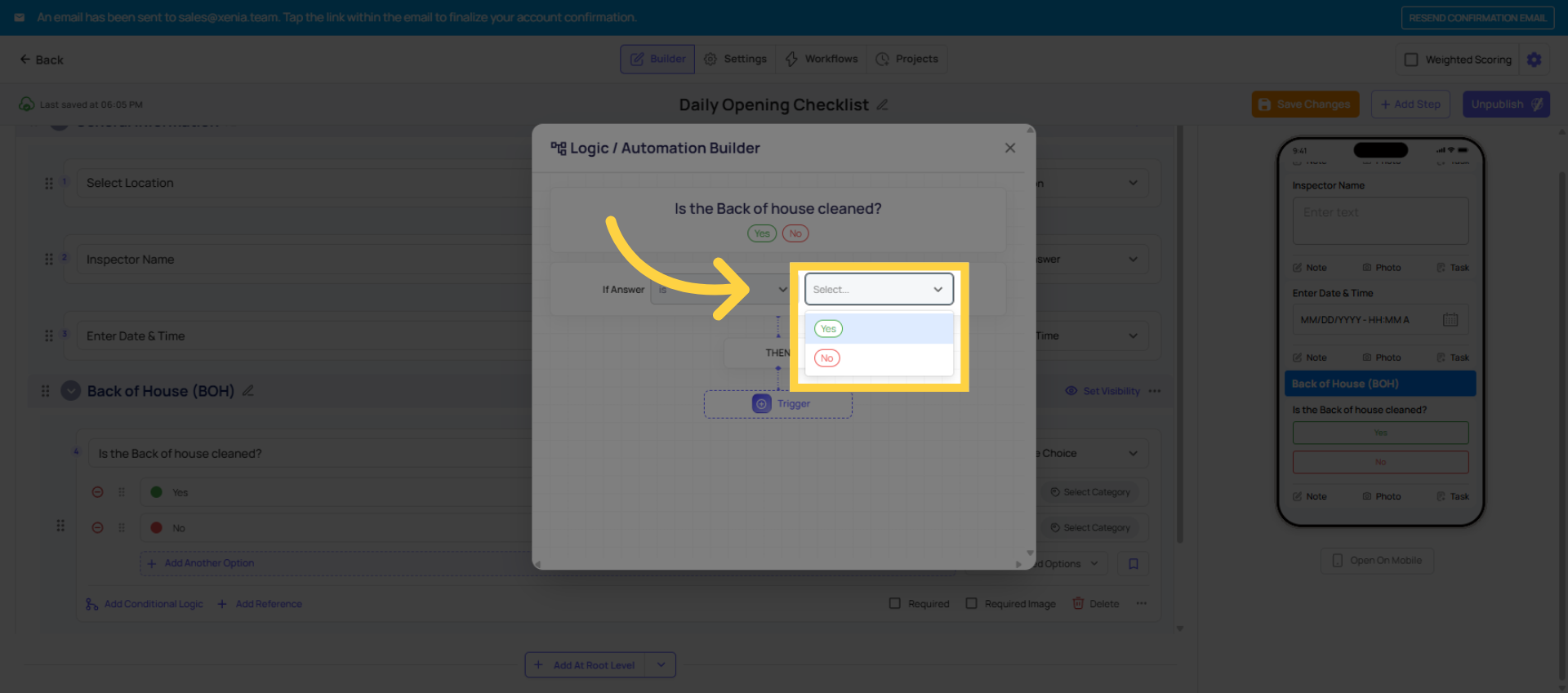
- Set the condition: select which answer triggers the automation (e.g., "If answer is No")
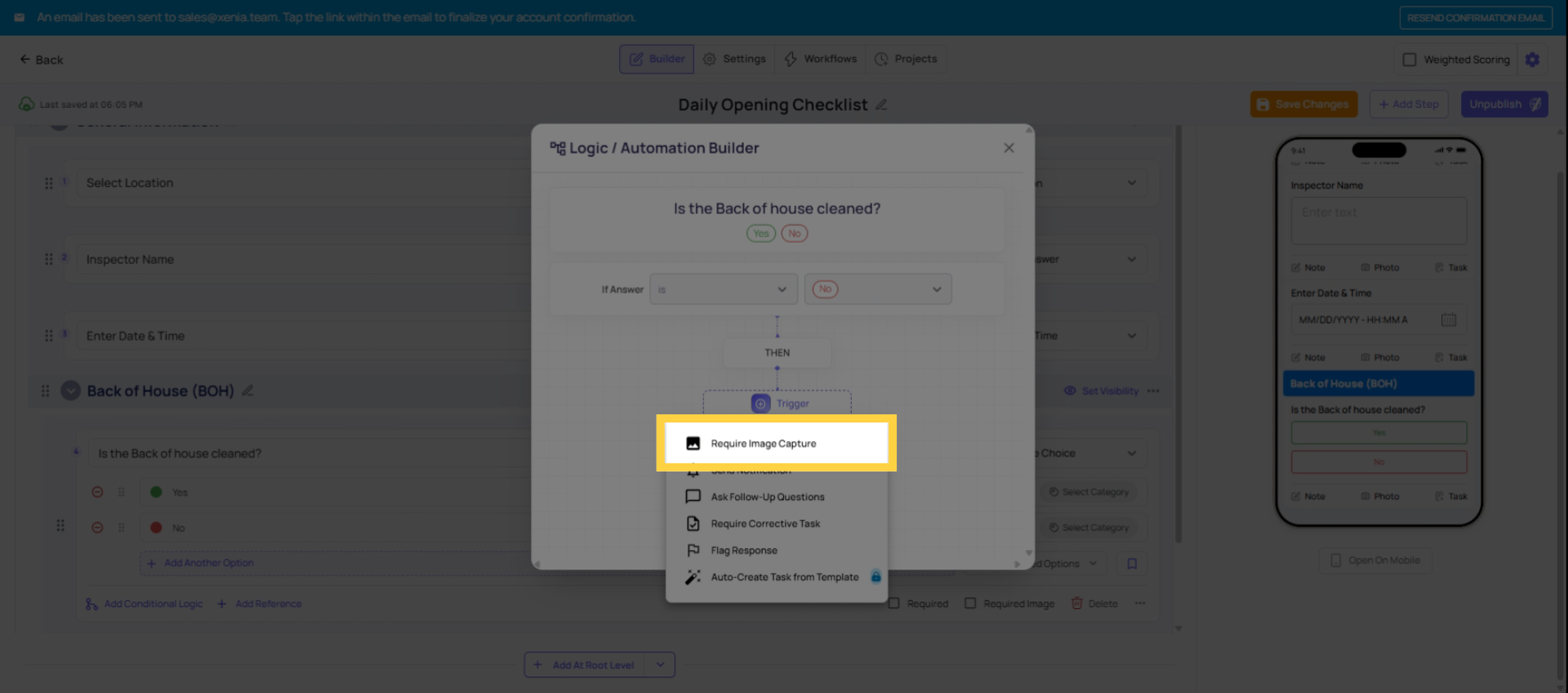
- Set the action: choose what happens (see trigger options below)
- Save the automation
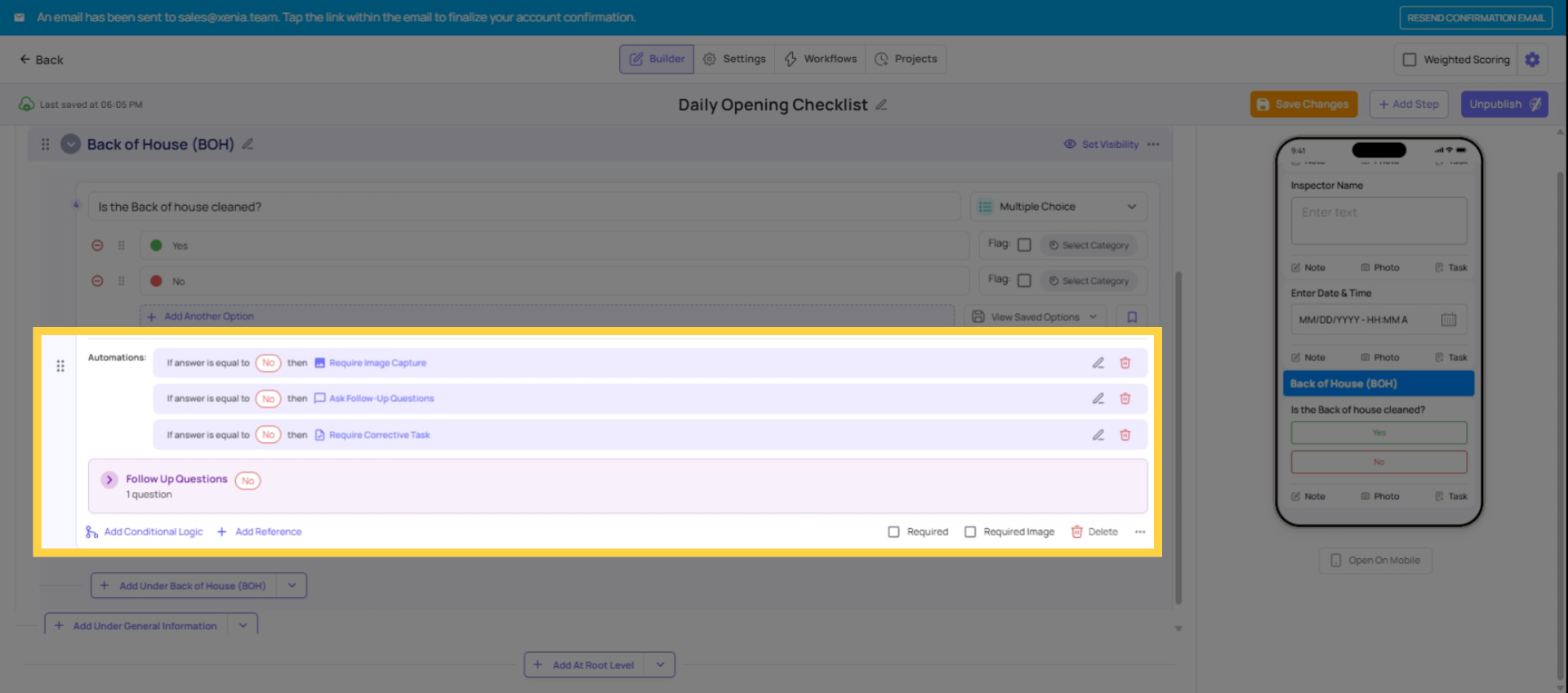
You can add multiple automations to a single step — e.g., when the answer is No: require a photo AND ask a follow-up question AND flag the response.
Require Image Capture
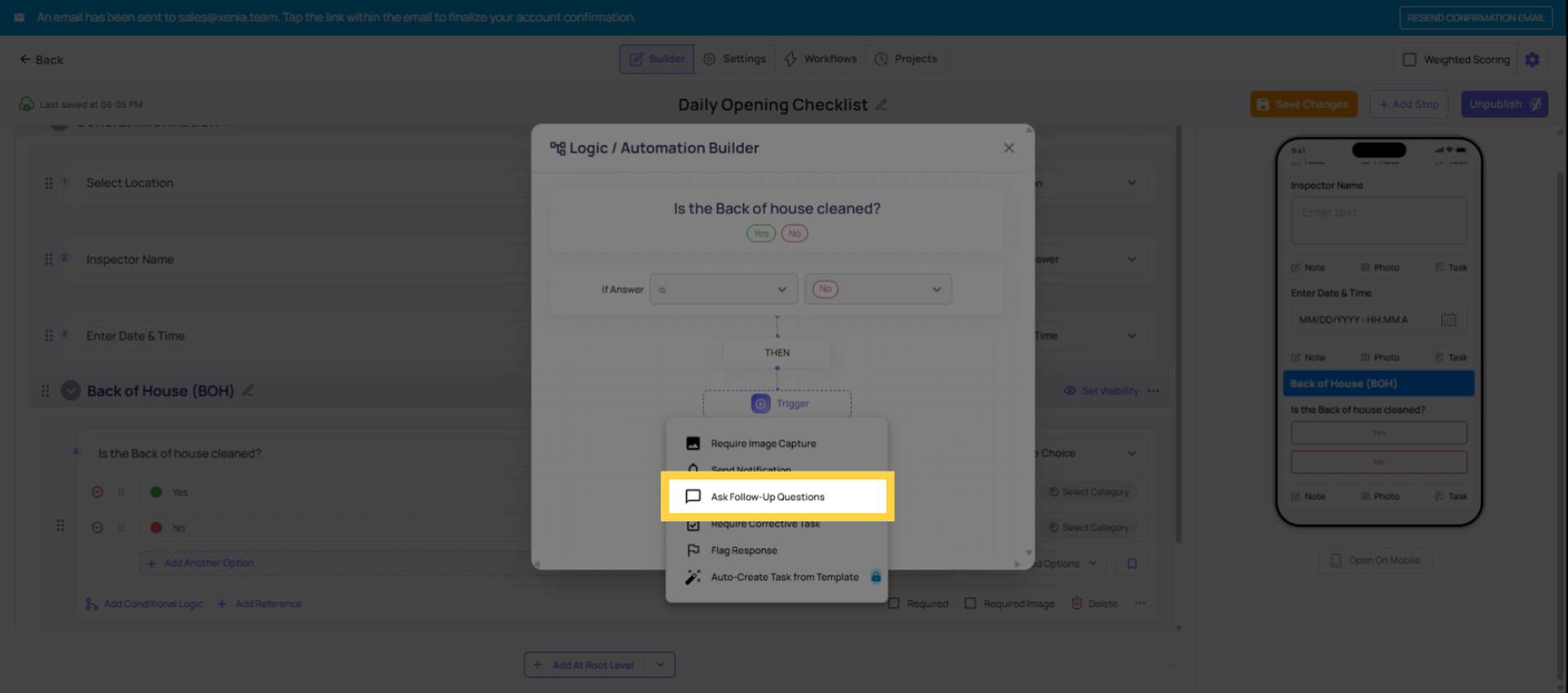
Ask Follow-Up Question
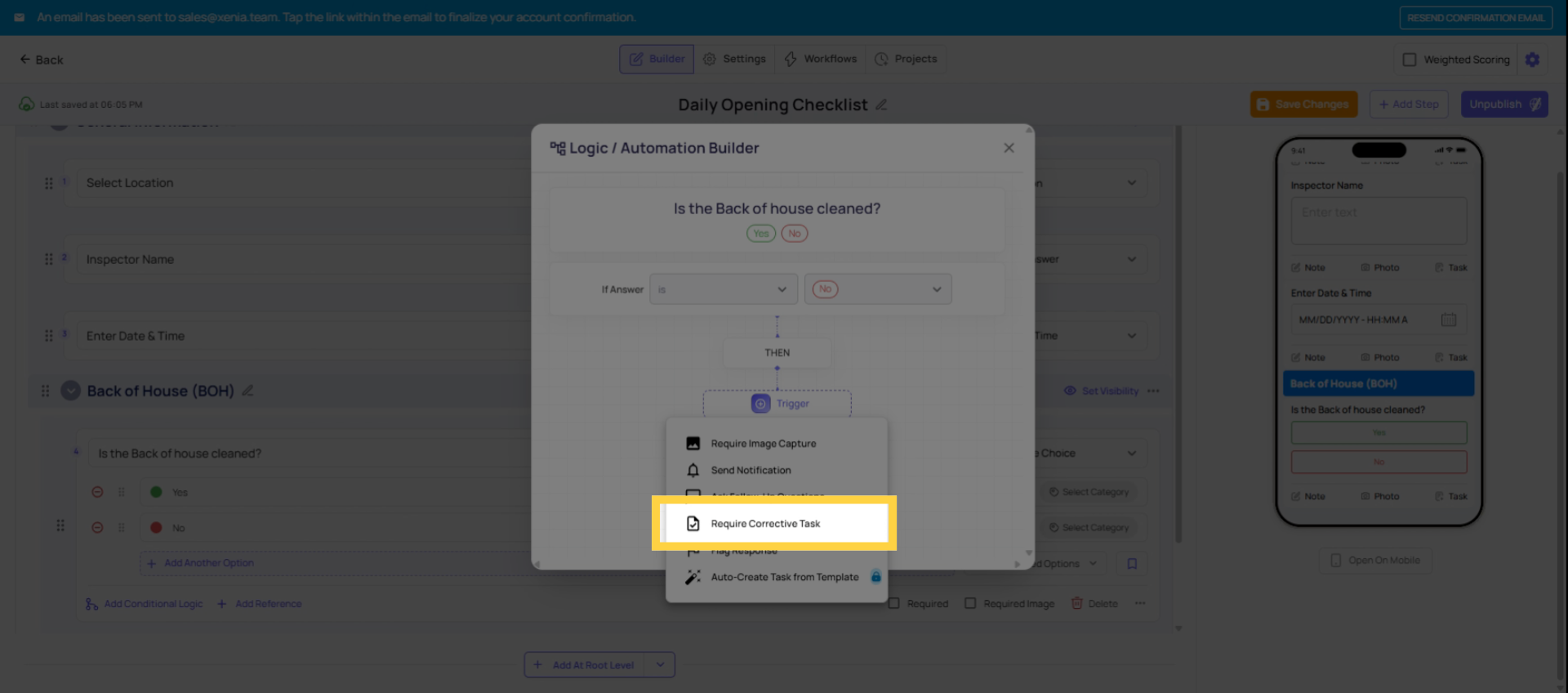
Require Corrective Task
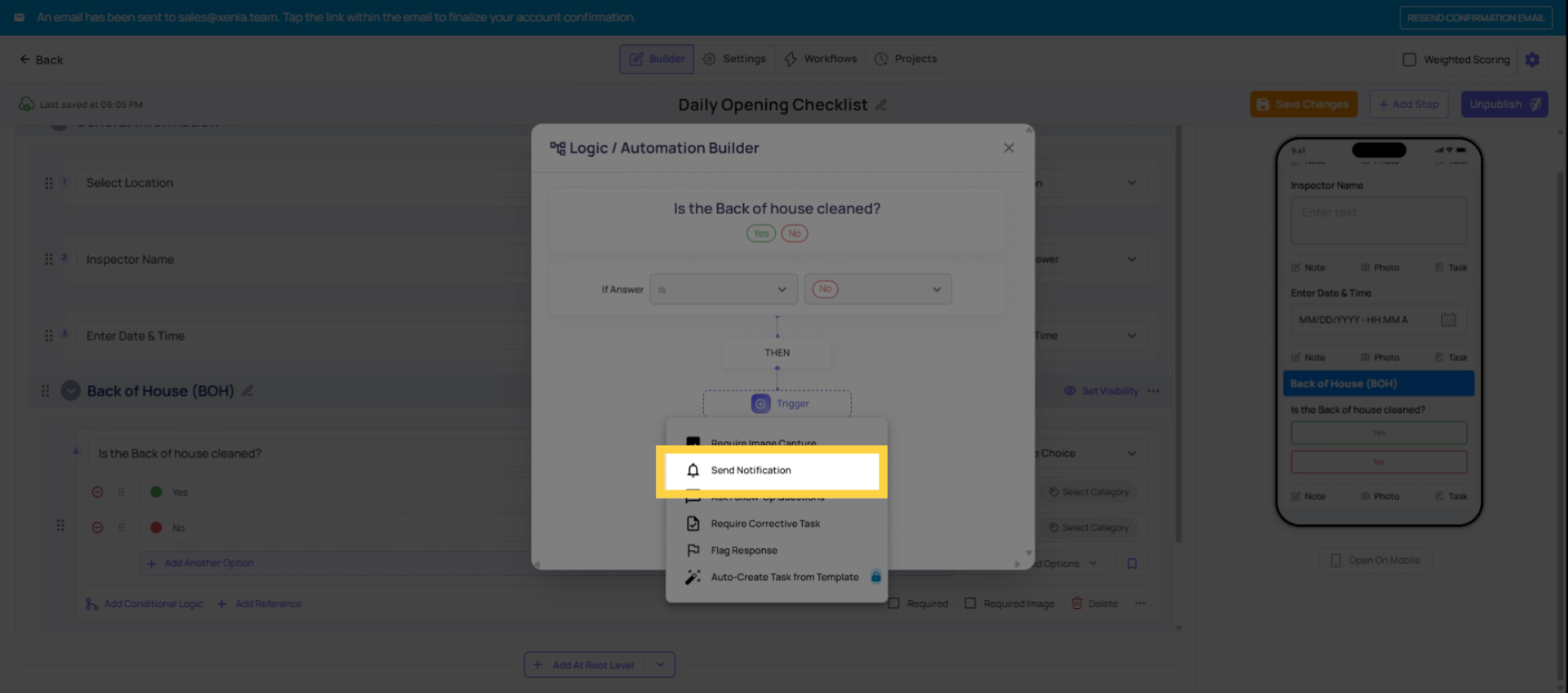
Send Notification
Combining Multiple Actions
One trigger can fire multiple actions simultaneously. Example:
Temperature step: "Chicken soup temperature" → If temperature is less than 165°F: → Require Image Capture (photo of the thermometer reading) → Ask Follow-Up Question: "What corrective action was taken?" (Text Field, required) → Flag Response (category: Food Safety Issue) → Send Notification to Food Safety Manager
All four fire at the same time when the out-of-range temperature is entered. The employee takes a photo, answers the follow-up, and the manager is notified — all before they move to the next step.
When to Use Each Action — The Practical Breakdown
| Scenario | Best Action |
| "Prove you cleaned it" | Require Image Capture |
| "Tell us more about what went wrong" | Ask Follow-Up Question |
| "Alert a manager immediately" | Send Notification |
| "Someone specific needs to fix this — same shift" | Require Corrective Task |
| "Another team always handles this type of issue" | Auto-Create Task from Template |
| "Track how often this fails in reporting" | Flag Response |
Need Help?
Reach out to our support team at support@xenia.team
Comments
0 comments
Please sign in to leave a comment.