
1. What Is a Step Type?
Every step in a template has a type that determines what kind of response the employee provides when completing the checklist. Choosing the right step type for each question makes your checklist clearer, more accurate, and more useful in reporting. A temperature reading captured as a Number step tells you a number — but a Temperature step tells you a temperature and lets you set range-based automations on it. The type matters.
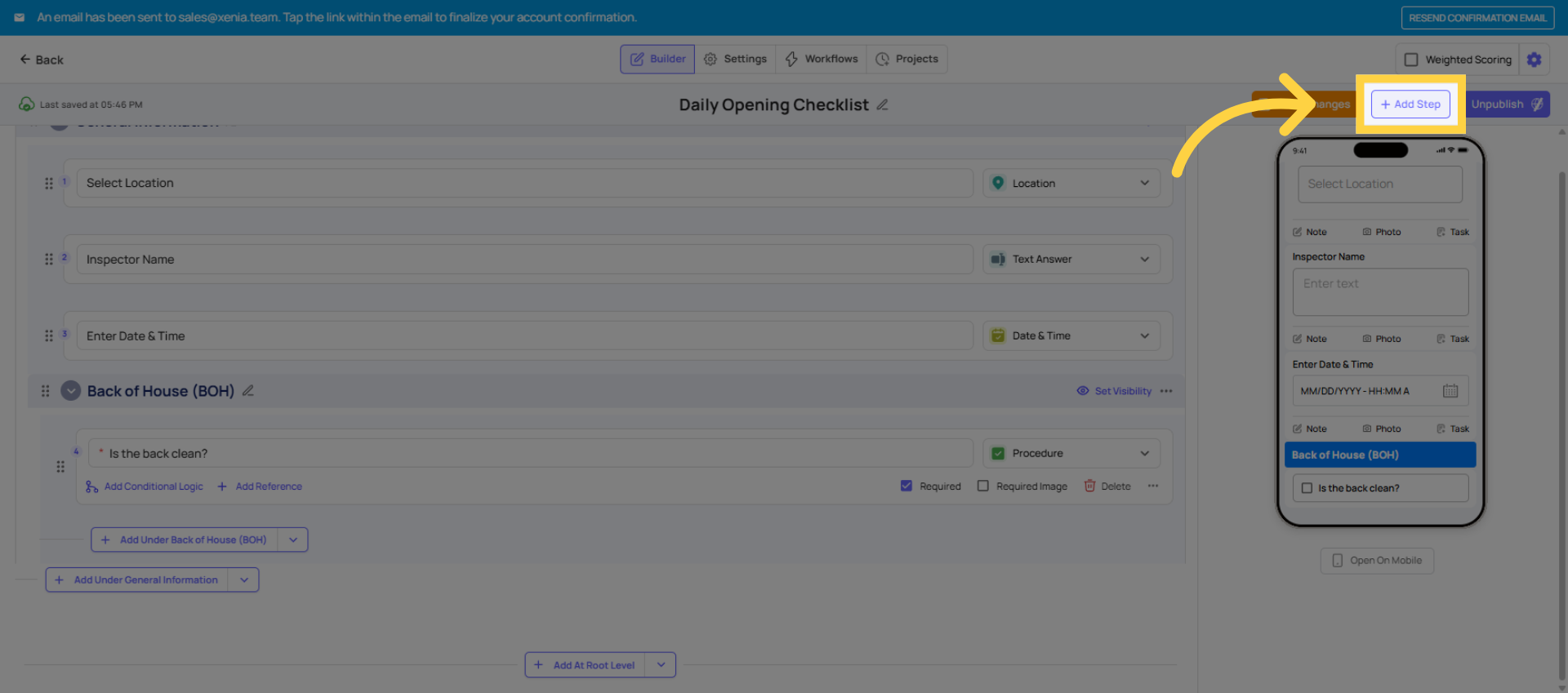
Available Step Types
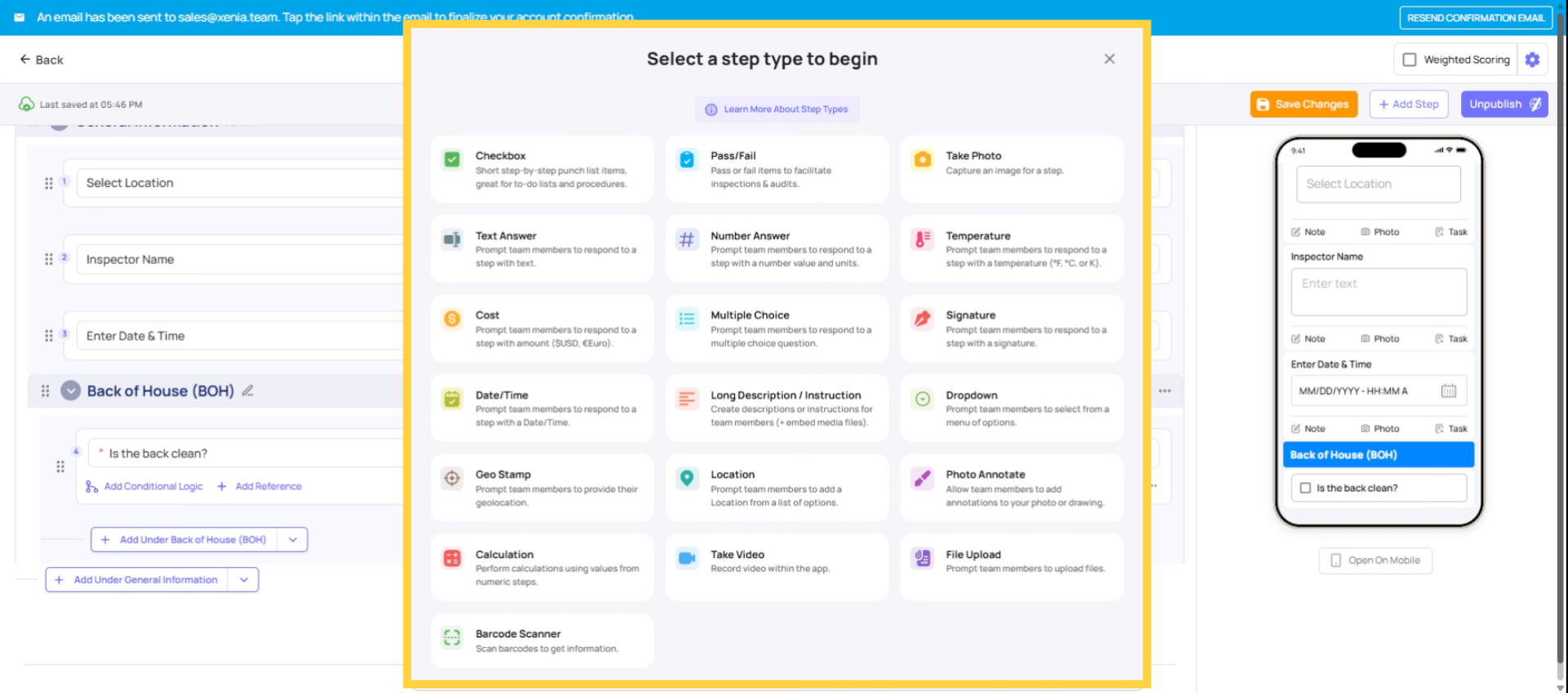
Procedure Step
Best for: Confirmation-based steps that require the user to acknowledge completion
The Procedure step type in Xenia is a checkbox-style step used when a task needs to be completed and confirmed by the user. It allows users to mark the step as done once the procedure has been followed.
Common Use Cases:
- Opening & closing checklists
- Cleaning tasks
- Daily routines
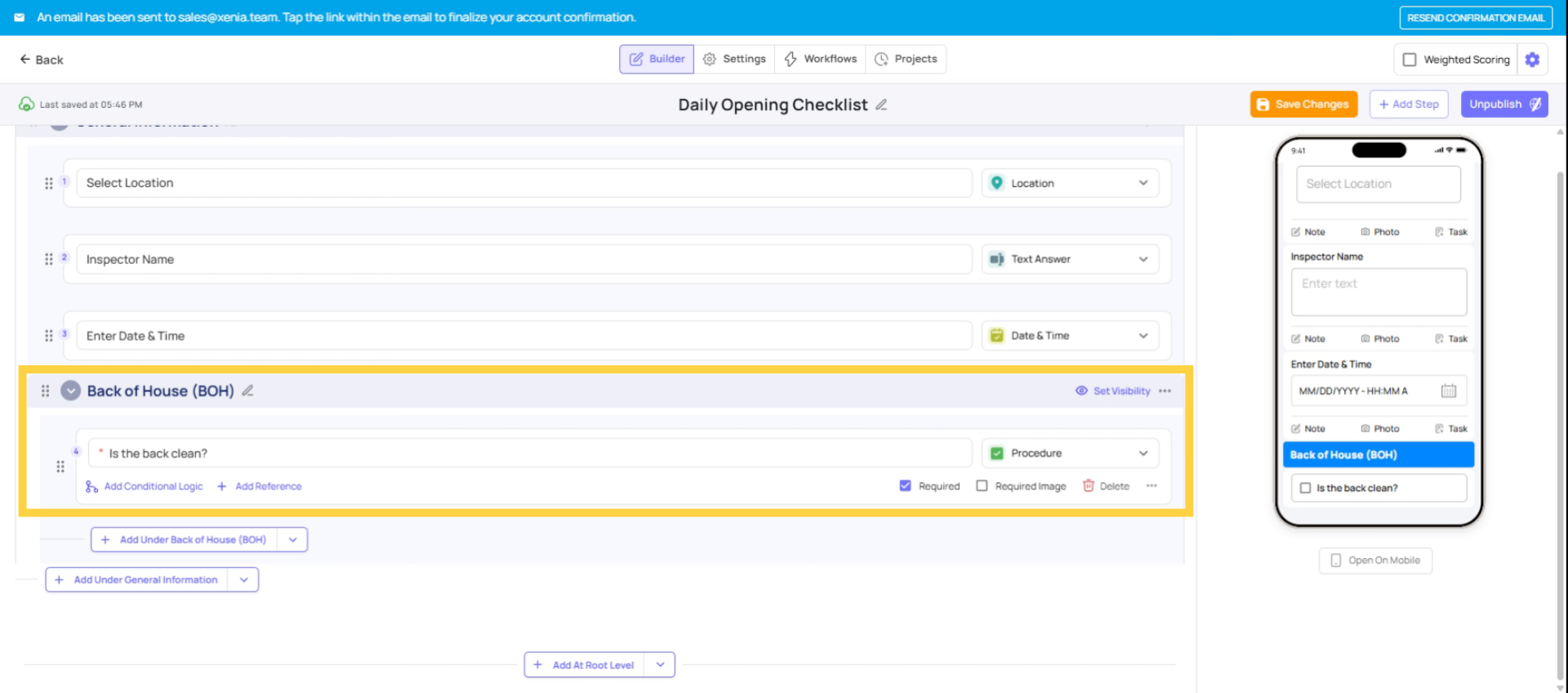
Pass-Fail Step
Best for: Inspections, audits, compliance checks
The Pass/Fail step allows users to indicate whether a condition meets standards. If a step is marked as Fail, users can be prompted to add notes, photos, or corrective actions.
Common Use Cases:
- Health & safety inspections
- Quality assurance checks
- Equipment audits
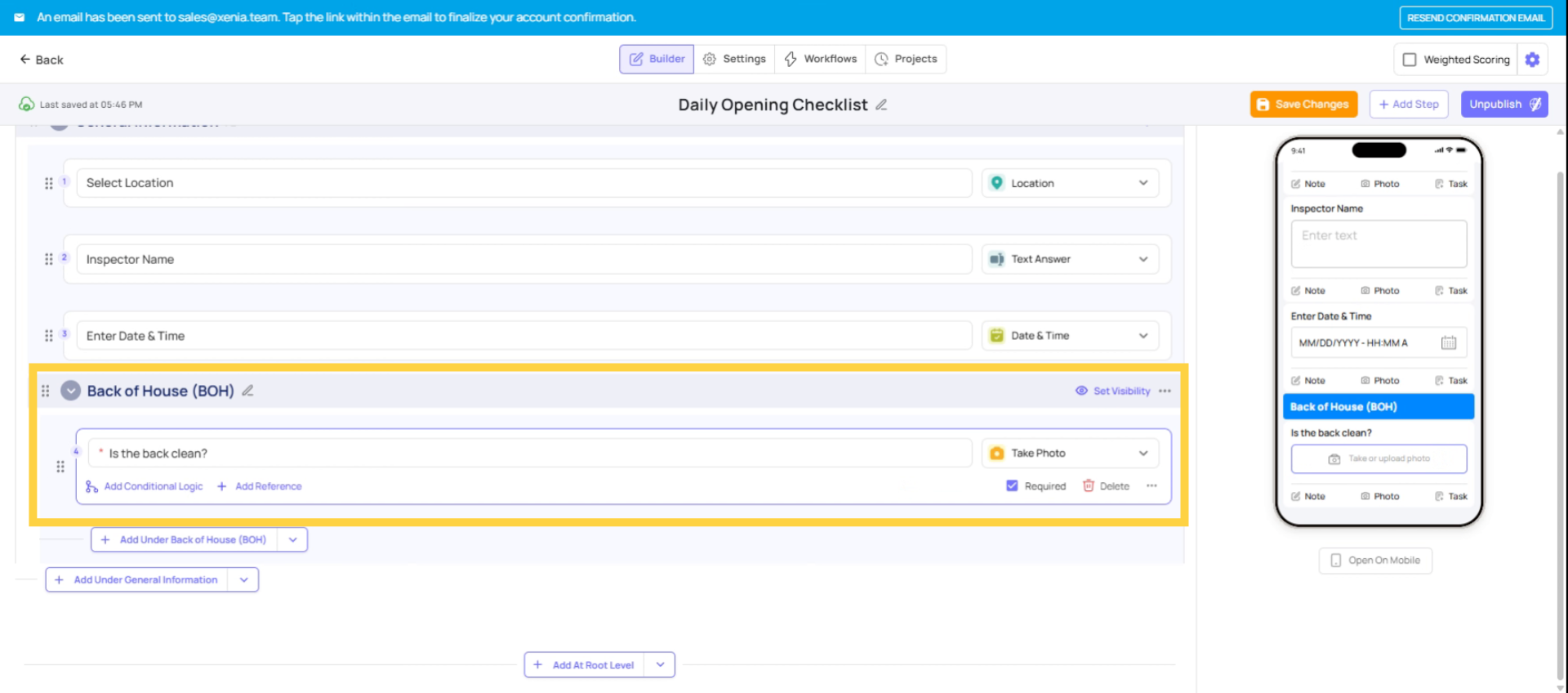
Take-Photo Step
Best for: Visual proof, documentation
This step allows users to capture a photo directly from their device camera.
Common Use Cases:
- Equipment condition
- Merchandising compliance
- Incident documentation
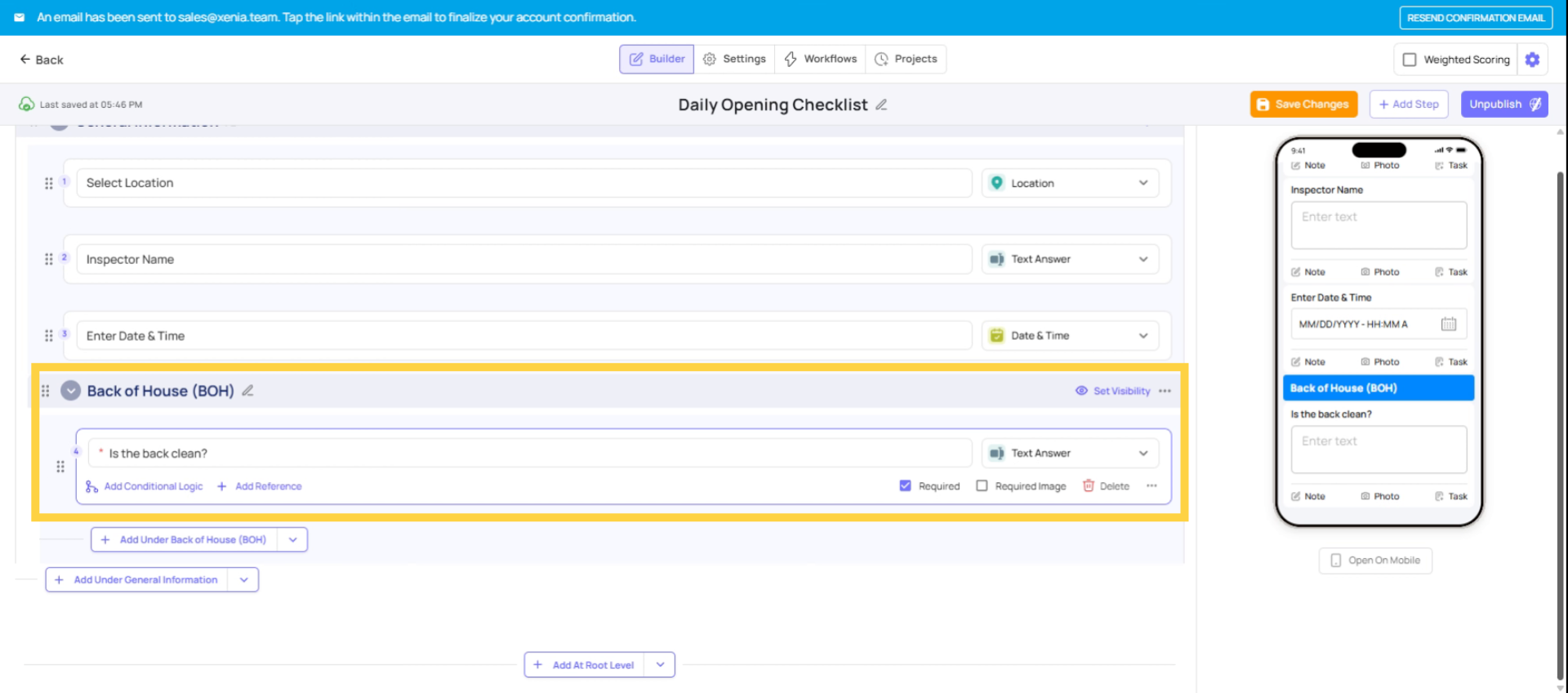
Text Answer Step
Best for: Open-ended responses
The Text Answer step allows users to enter free-form text.
Common Use Cases:
- Comments
- Issue descriptions
- Notes and observations
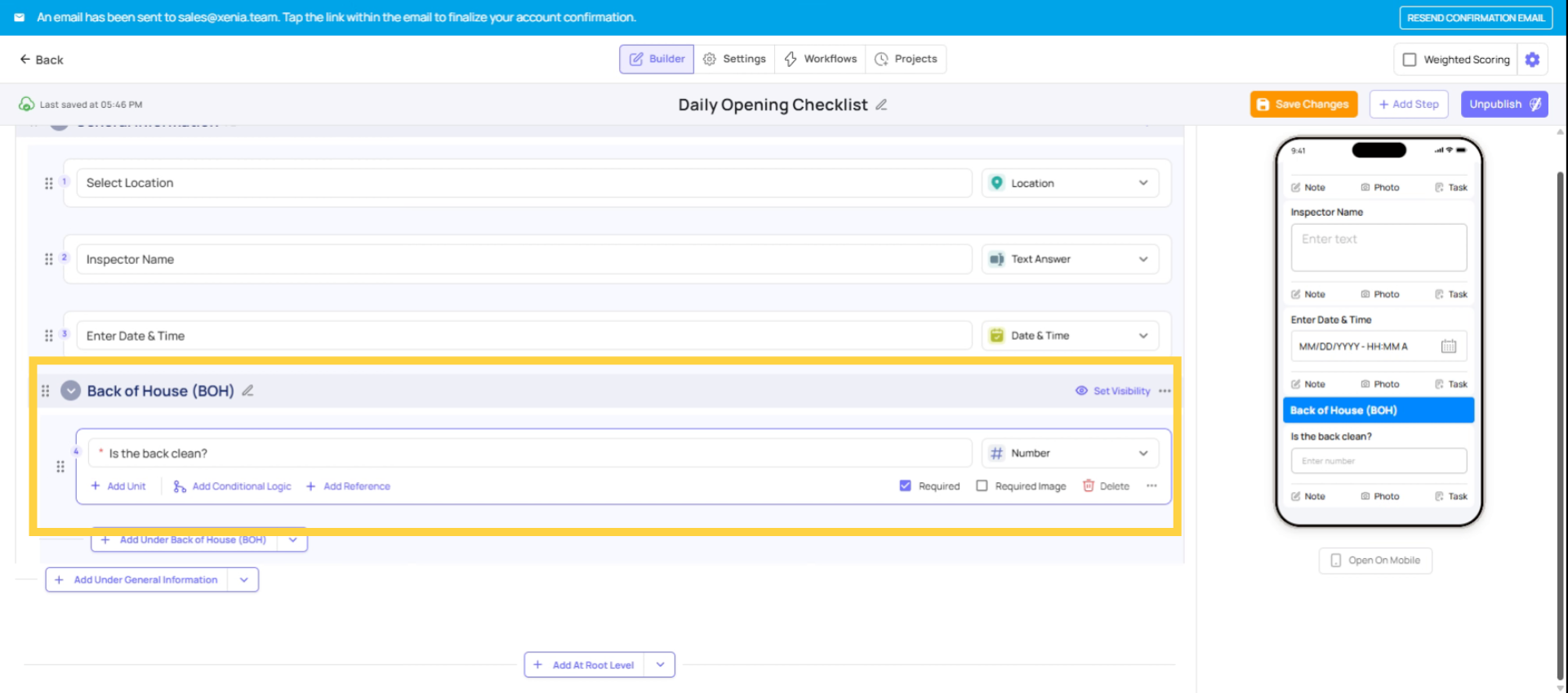
Number Step
Best for: Quantitative inputs
This step collects numeric values and can include units.
Common Use Cases:
- Counts
- Measurements
- Inventory quantities
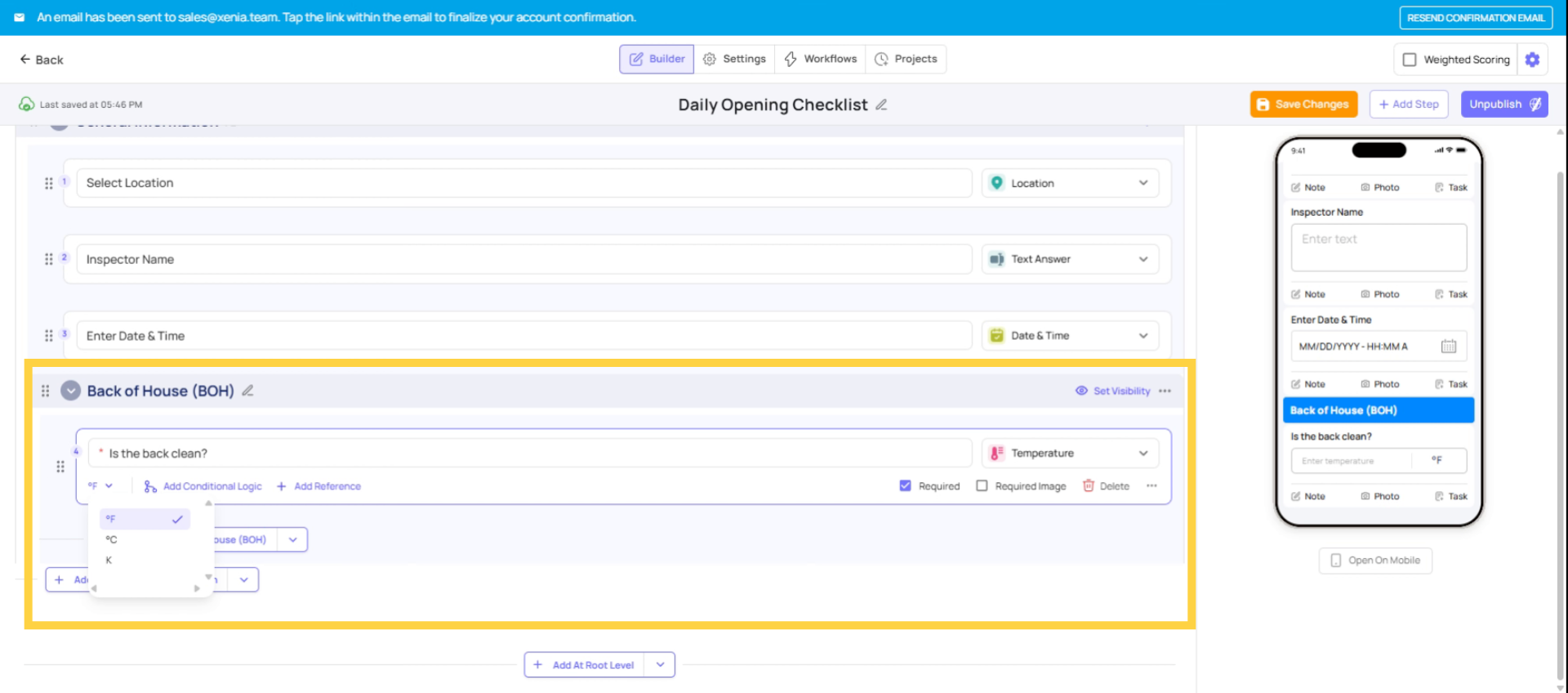
Temperature Step
Best for: Temperature-sensitive processes
Allows users to record temperature values in:
- °F
- °C
- Kelvin
Common Use Cases:
- Food safety
- Cold storage monitoring
- Equipment checks
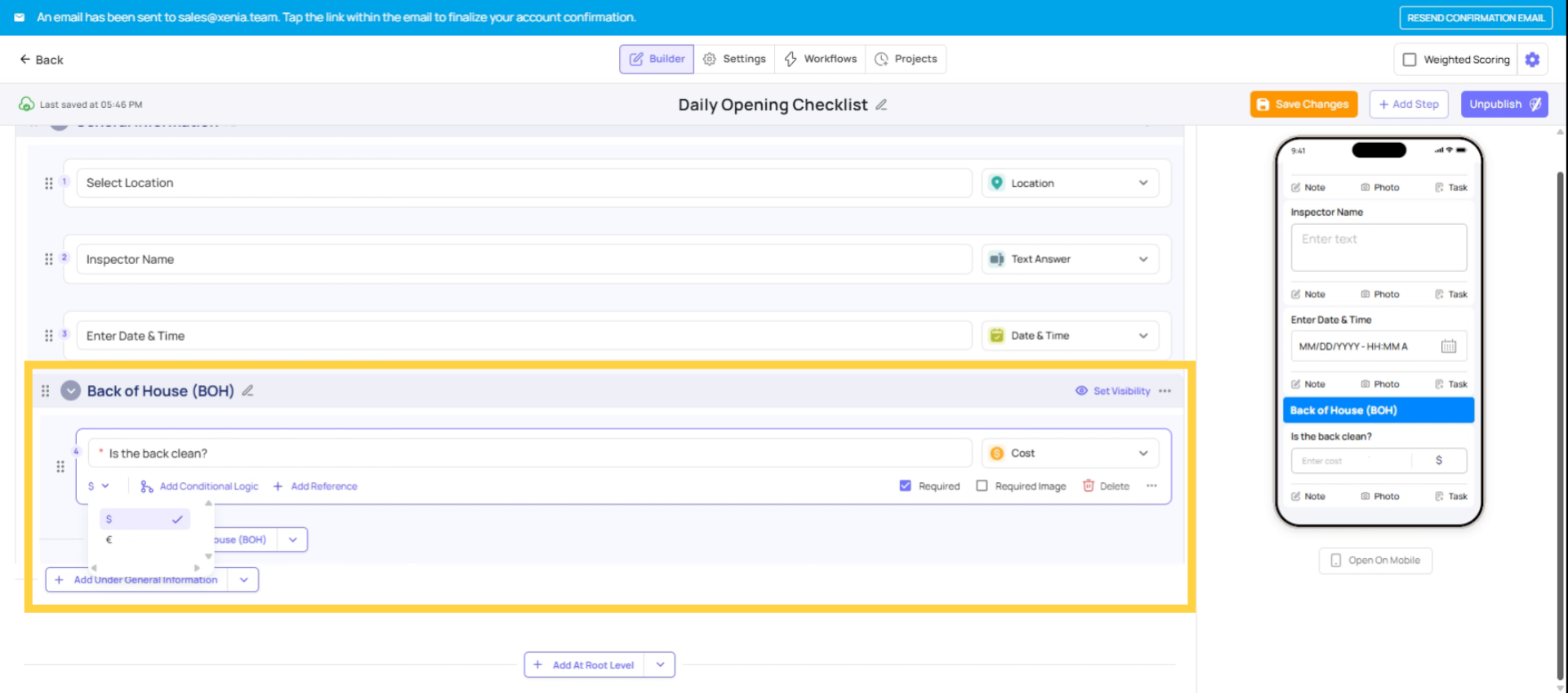
Cost Step
Best for: Expense tracking
Users enter a monetary value with a currency symbol.
Common Use Cases:
- Maintenance costs
- Supply purchases
- Damage reporting
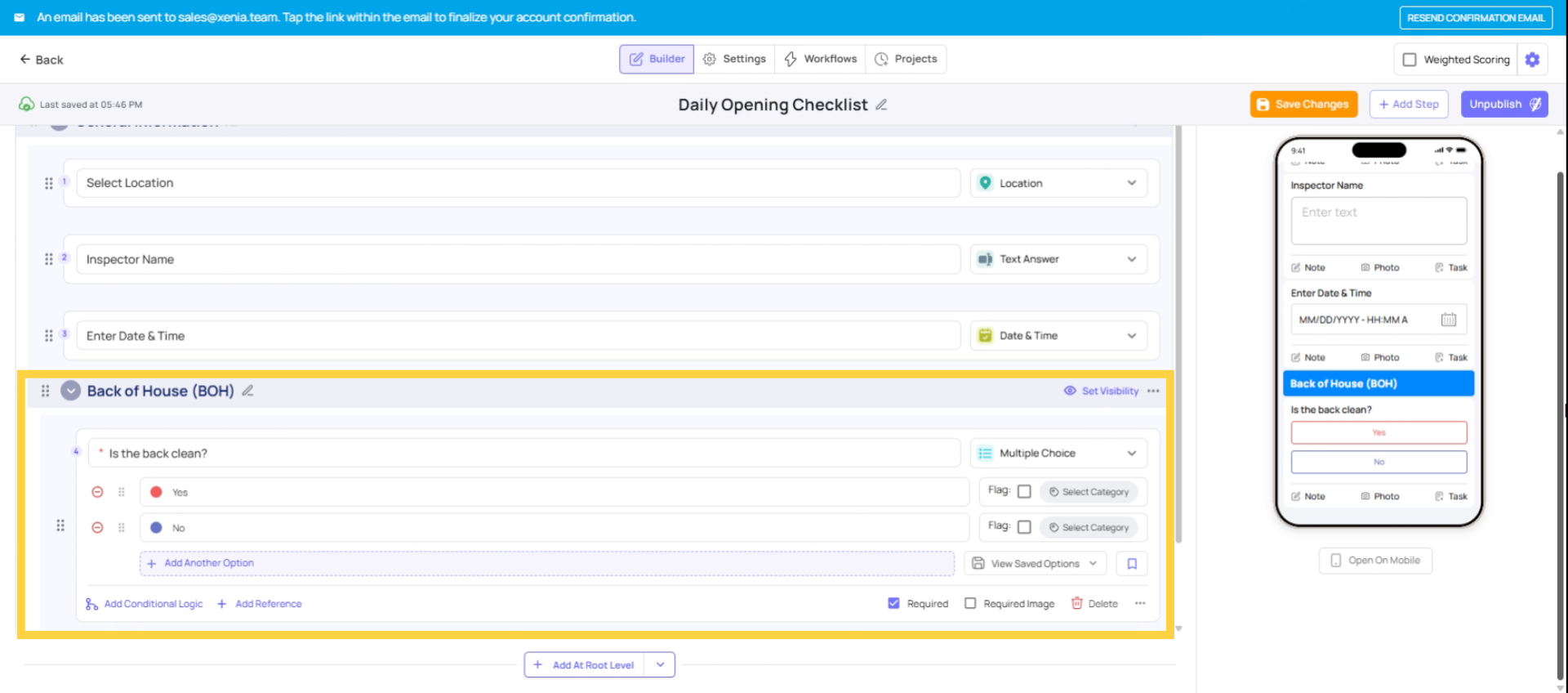
Multiple Choice step
Best for: Standardised answers
Allows users to select one option from predefined choices. Specific options can be marked as Flagged Answers for reporting.
Common Use Cases:
- Surveys
- Compliance checks
- Status selection
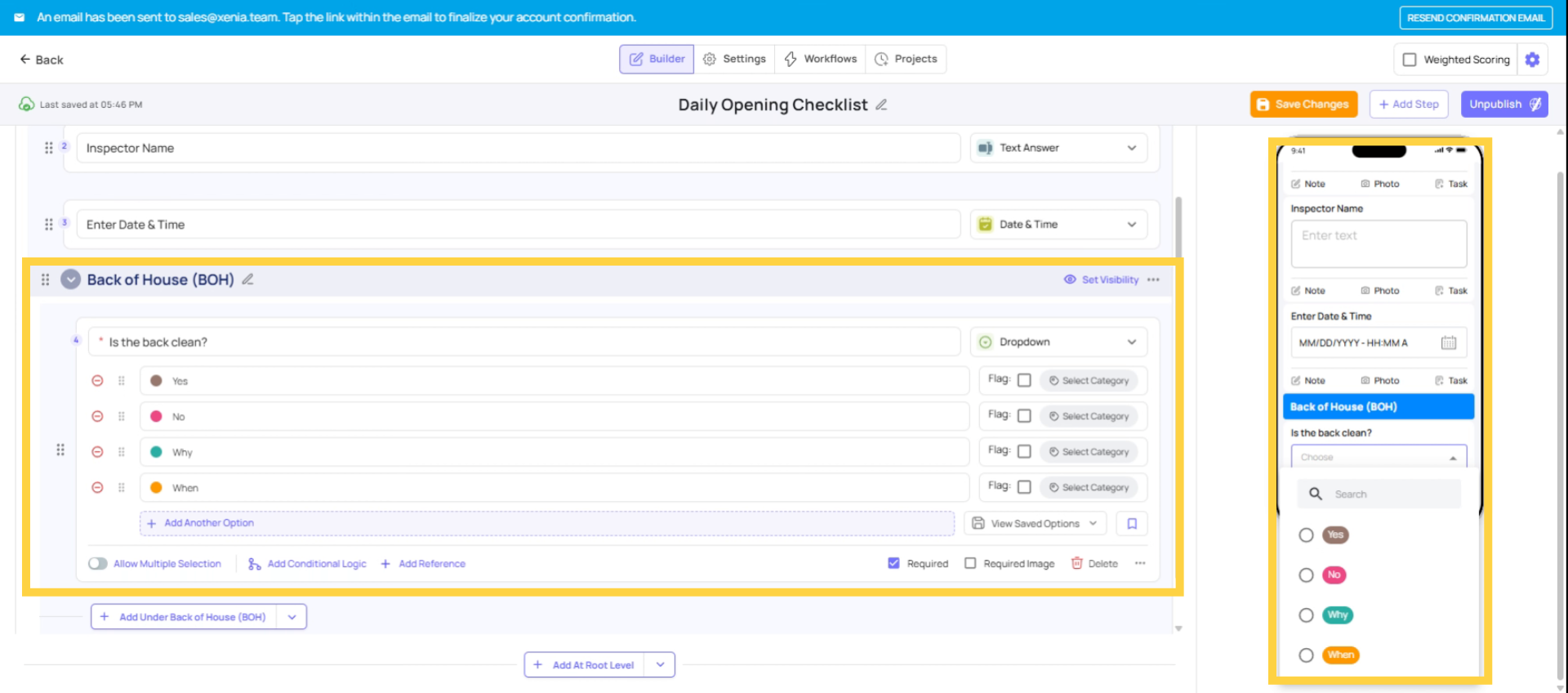
Dropdown Step
Best for: Long lists of predefined options
Similar to Multiple Choice but optimised for larger option sets.
Common Use Cases:
- Vendor selection
- Category selection
- Location types
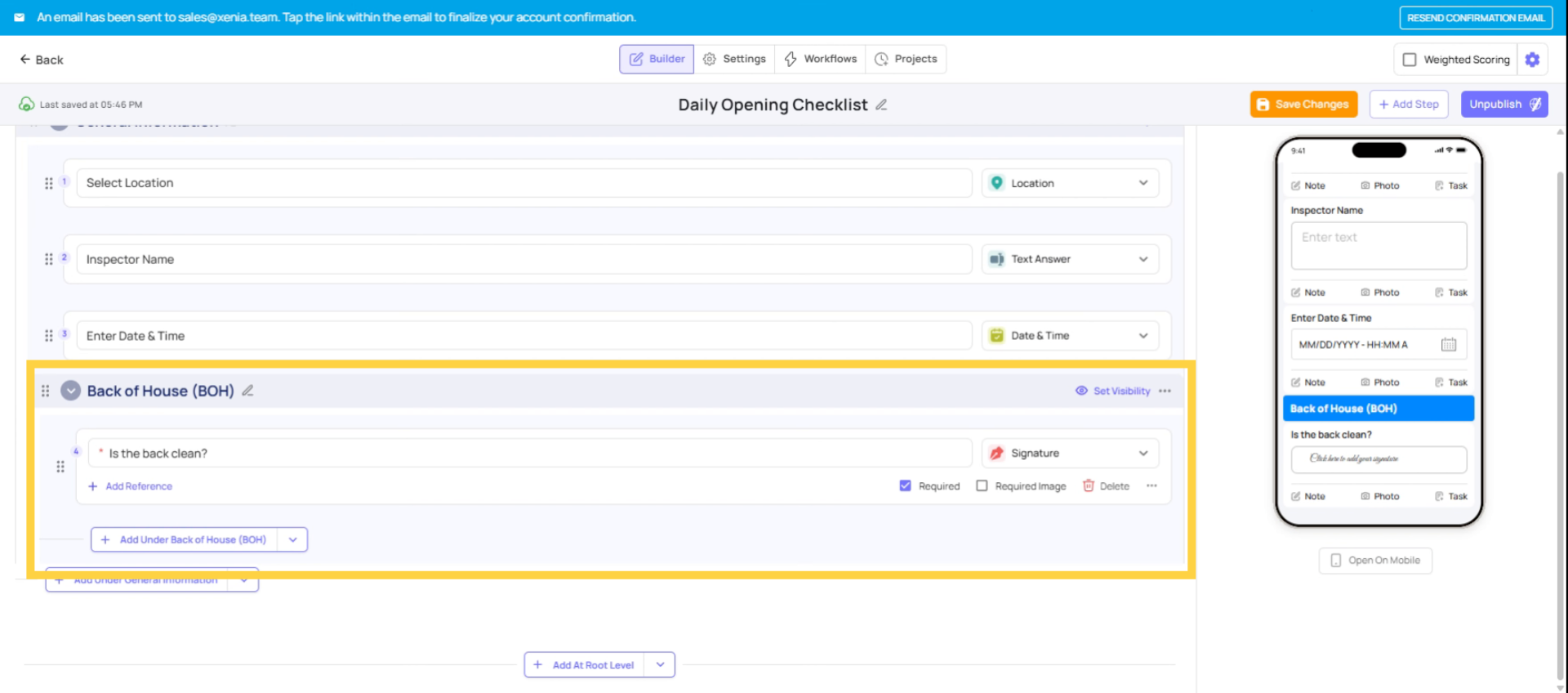
Signature Step
Best for: Verification & approval
Requires users to provide a digital signature.
Common Use Cases:
- Manager sign-offs
- Compliance acknowledgement
- Incident approvals
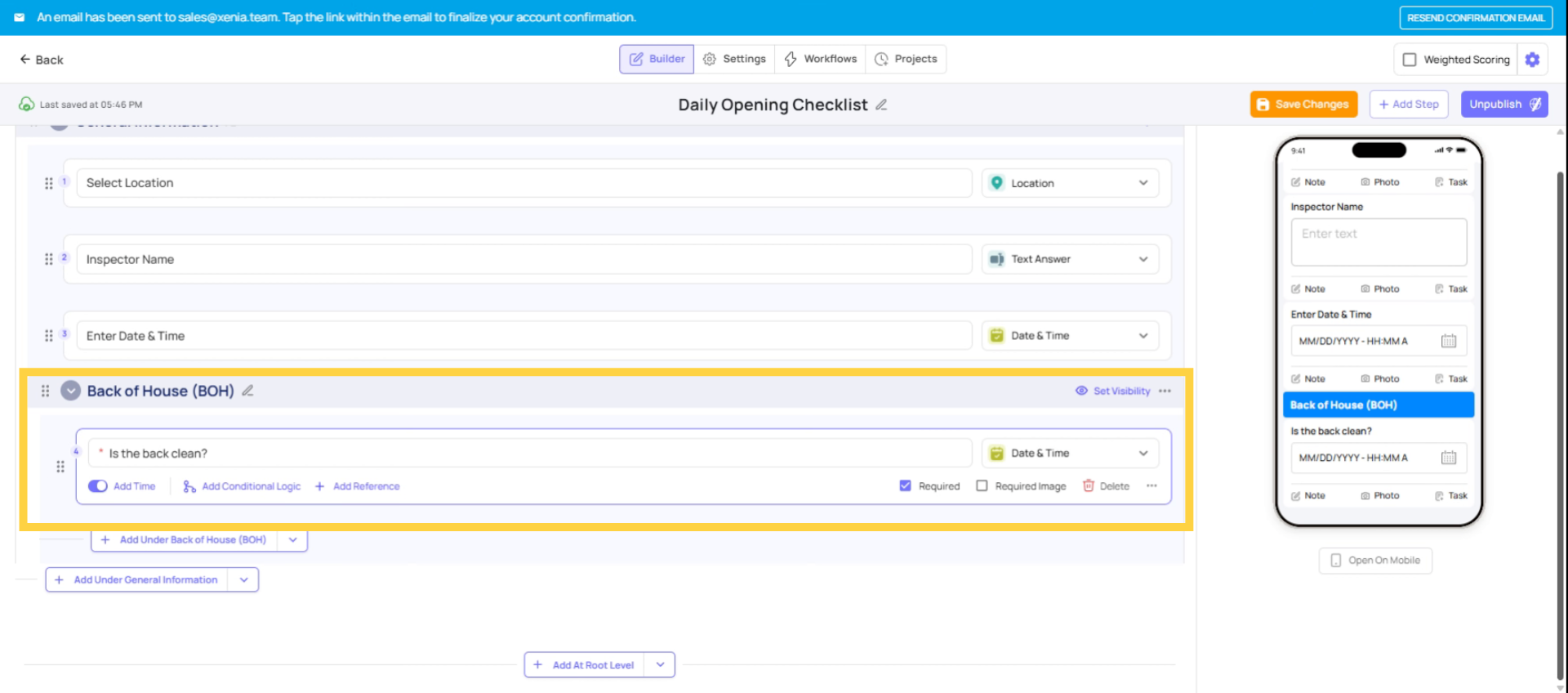
Date and Time Stamp
Best for: Timestamped entries
Allows users to select a specific date and/or time.
Common Use Cases:
- Incident occurrence
- Maintenance scheduling
- Delivery confirmations
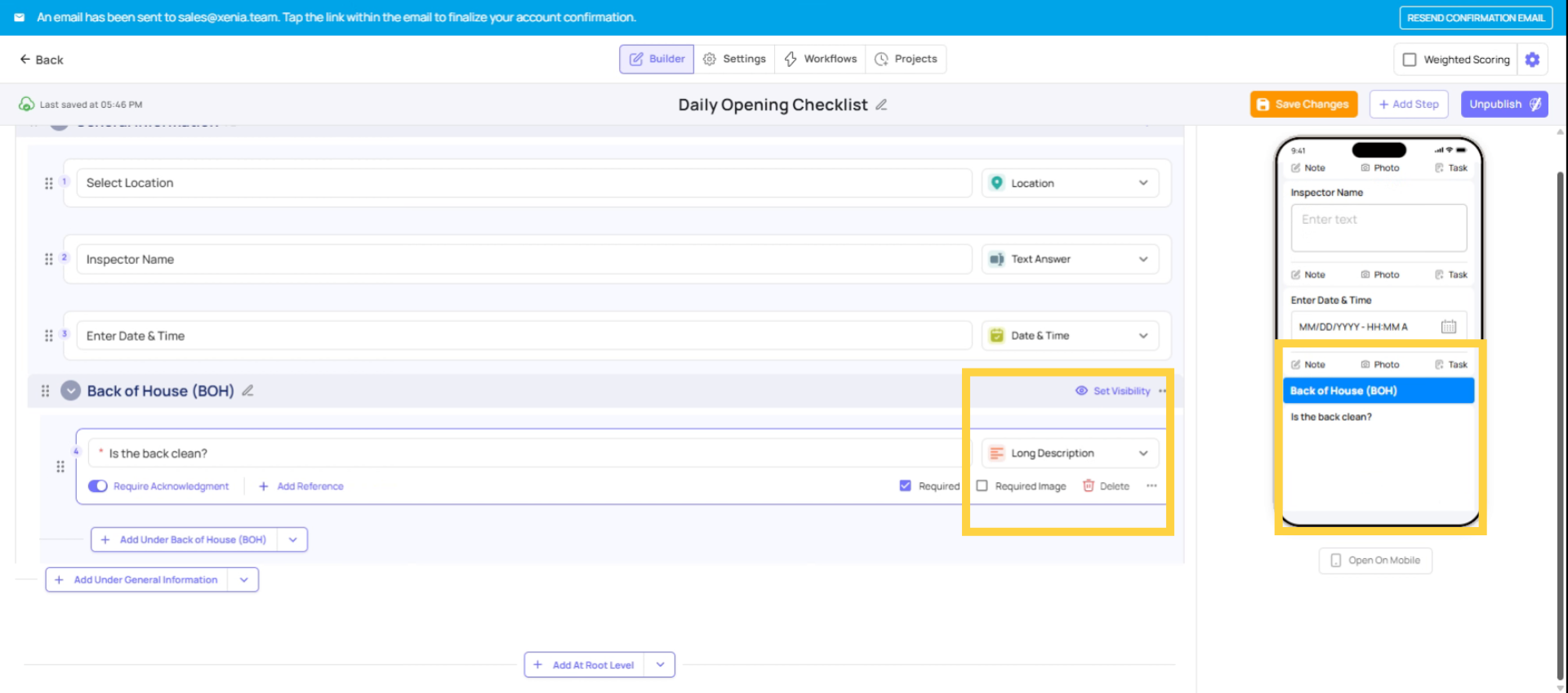
Long Description Step
Best for: Detailed instructions or explanations
Supports longer formatted text blocks.
Common Use Cases:
- Detailed SOP explanations
- Policy text
- Training content
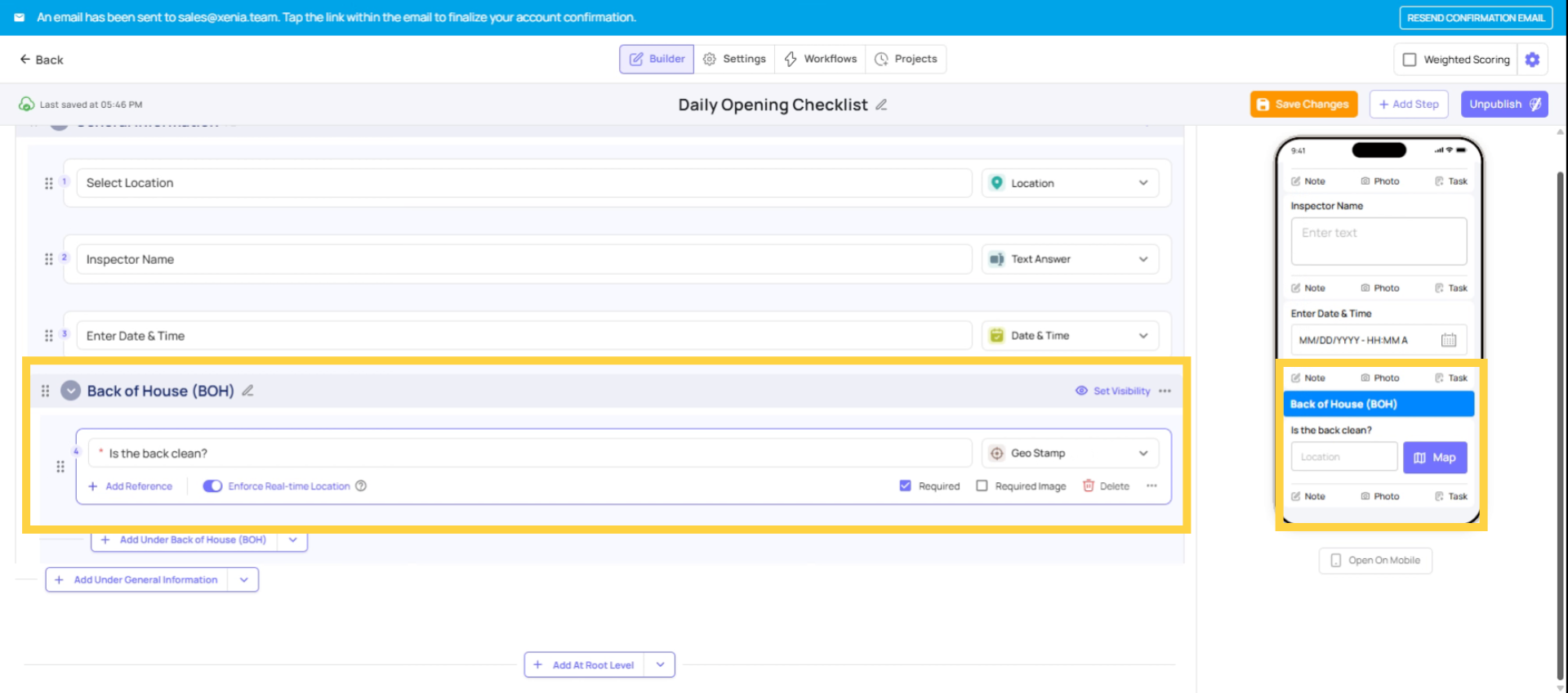
GeoStamp Step
Best for: Location verification
Automatically captures the user’s GPS location at the time of submission.
Common Use Cases:
- Field audits
- Route verification
- Proof of presence
Location Step
Best for: Manual location selection
Allows users to select or confirm a location.
Common Use Cases:
- Site identification
- Store selection
- Area tracking
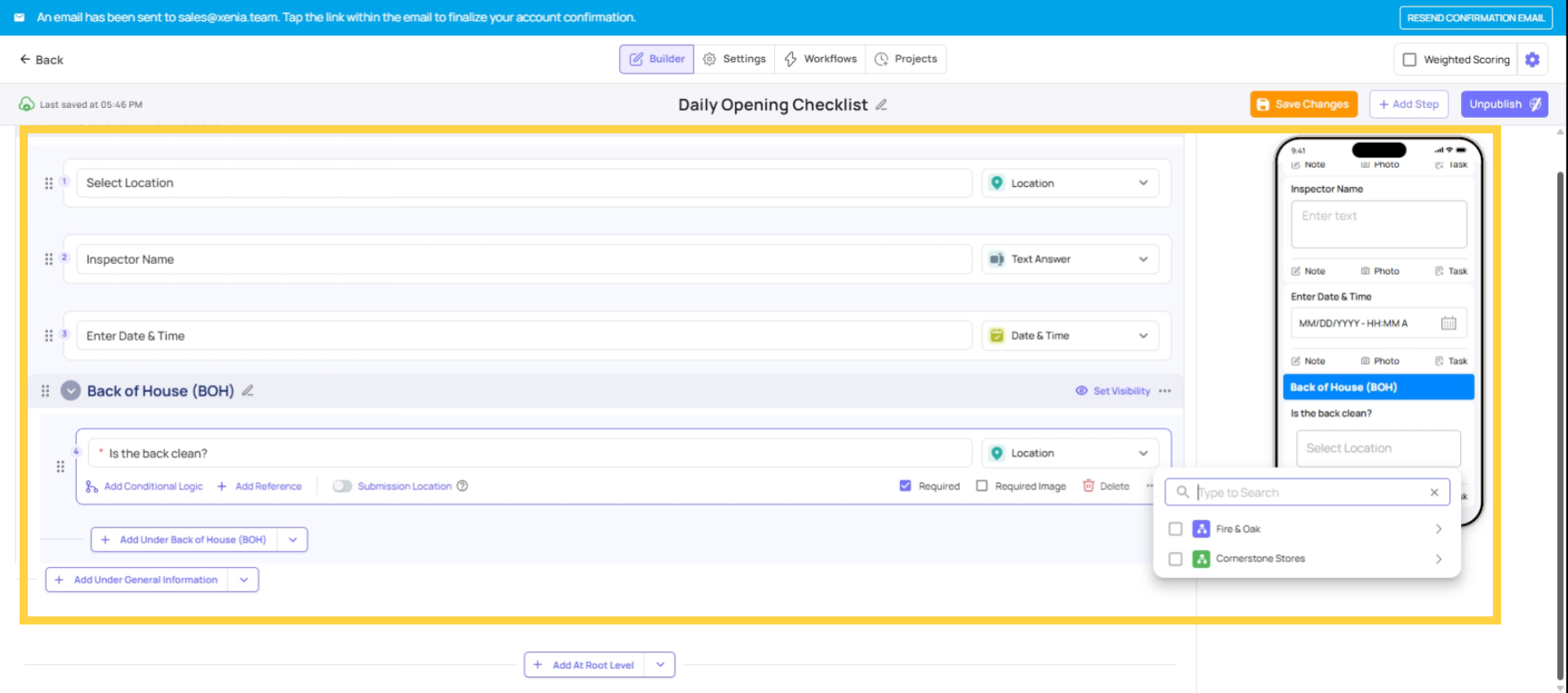
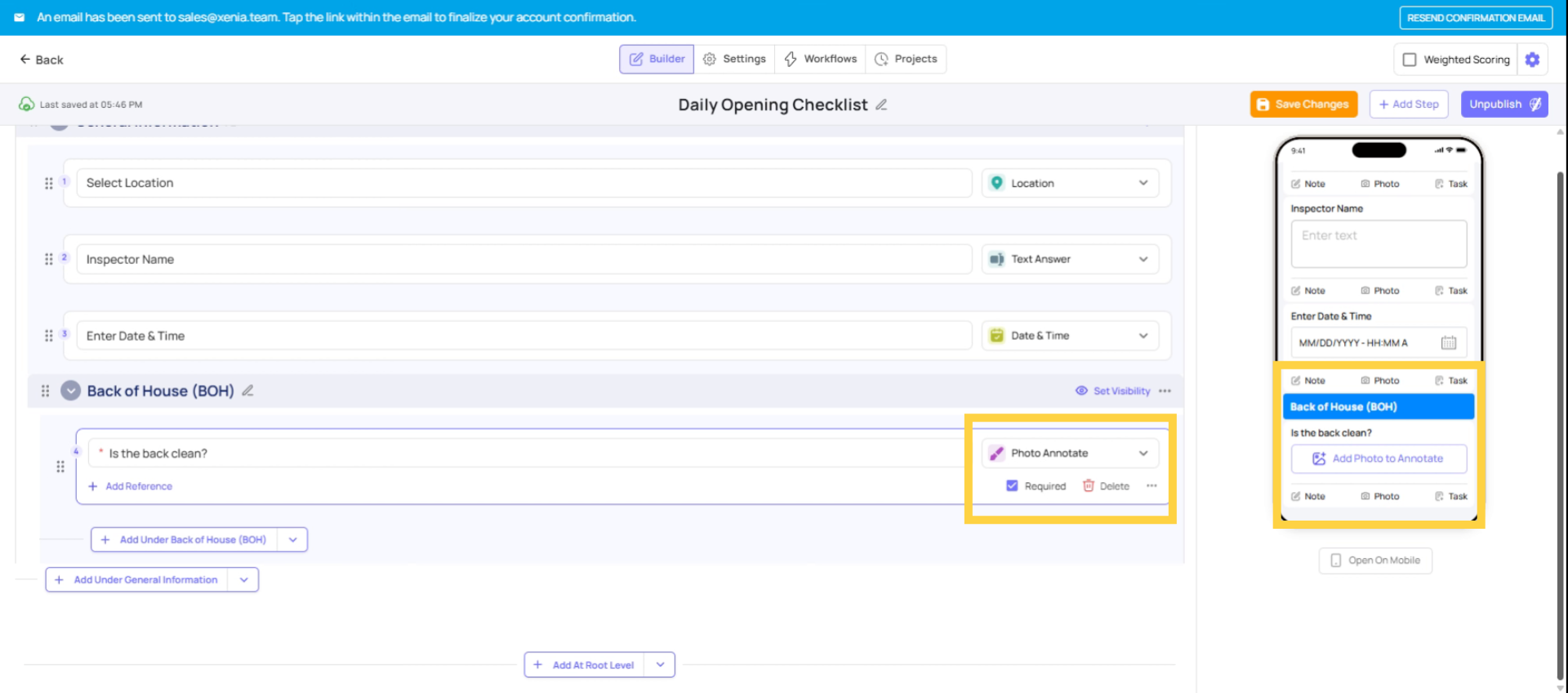
Photo Annotate Step
Best for: Visual issue highlighting
Users can capture a photo and draw or mark directly on it.
Common Use Cases:
- Damage reporting
- Maintenance issues
- Safety hazards
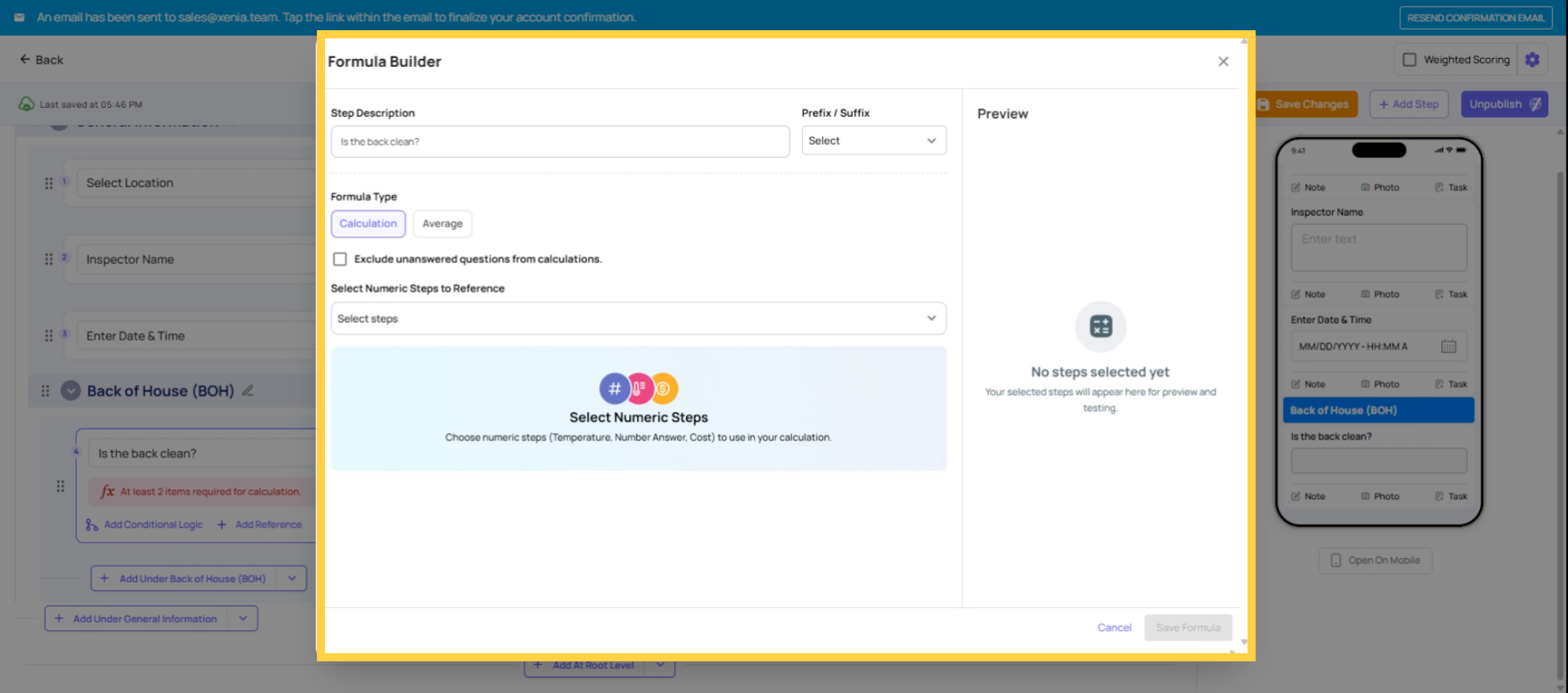
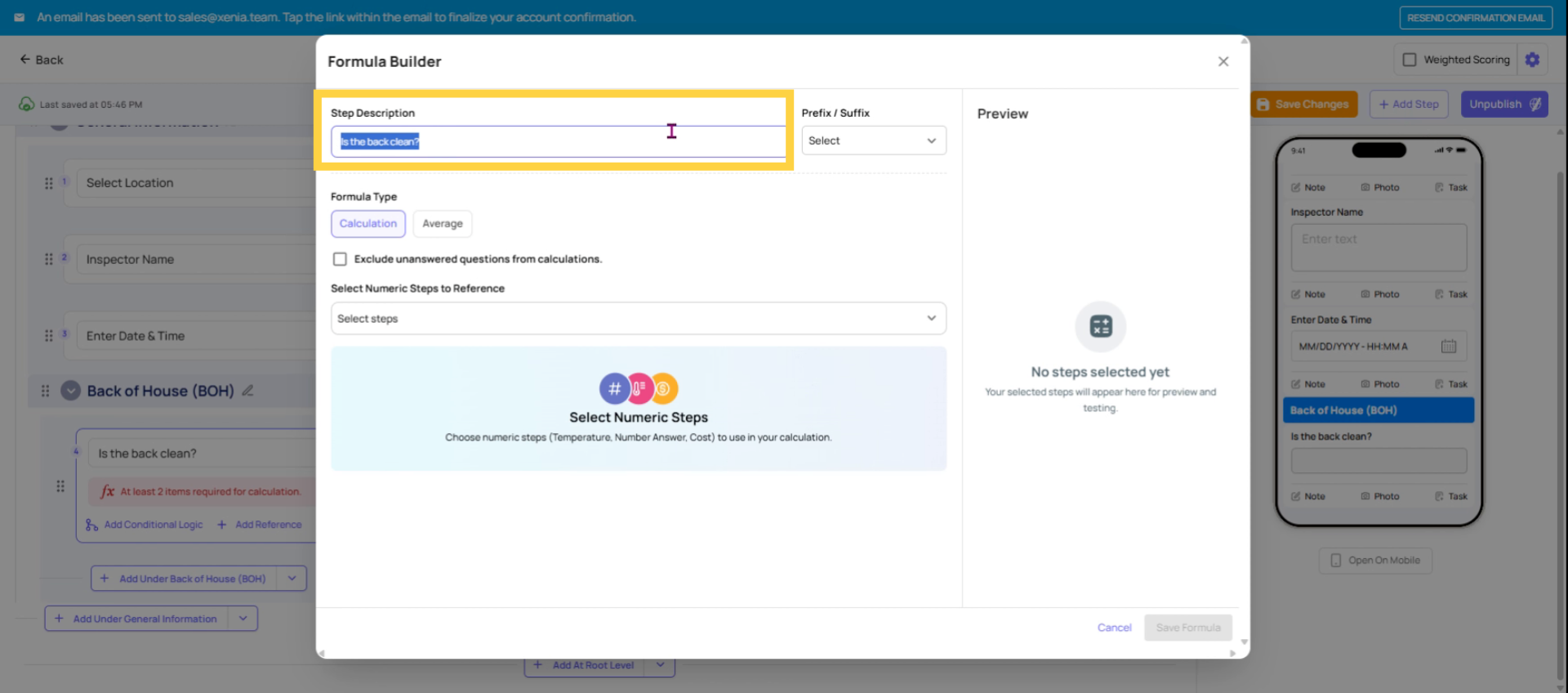
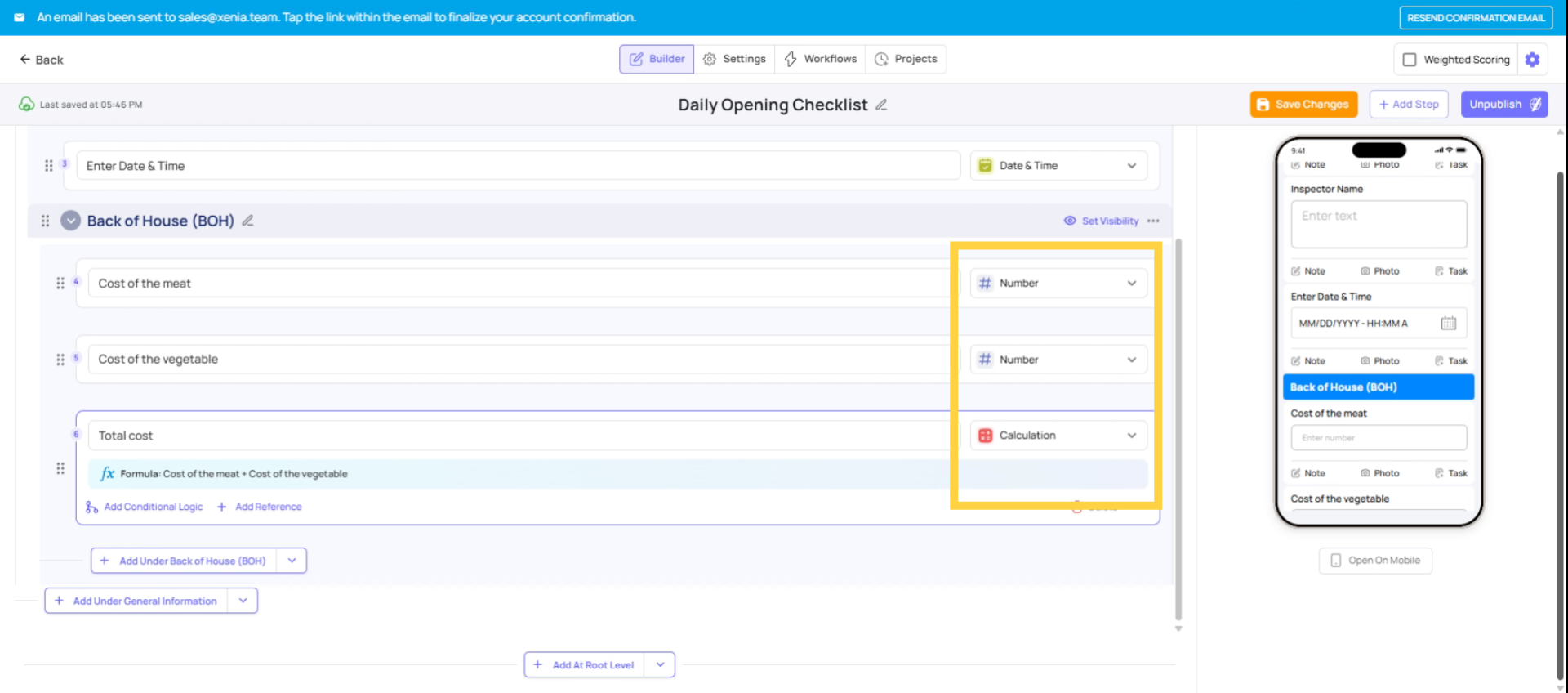
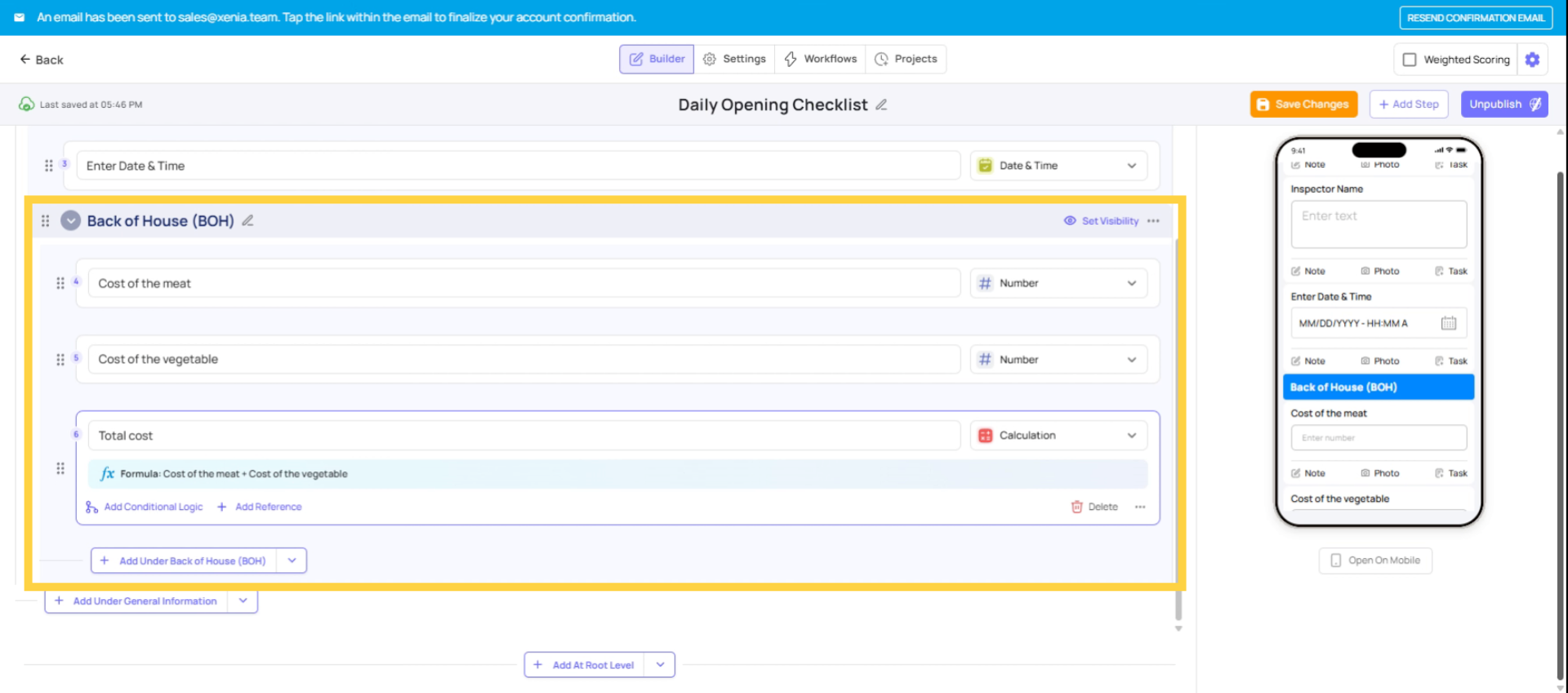
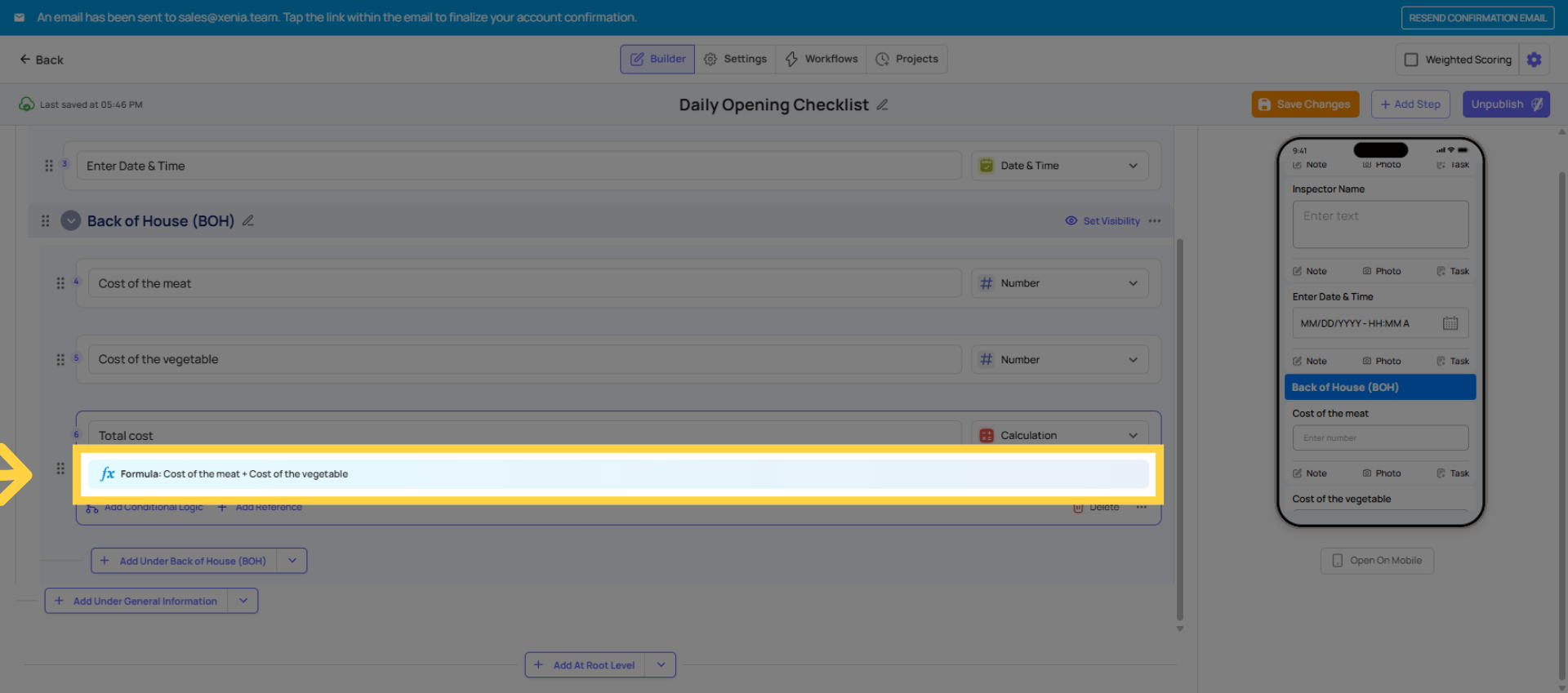
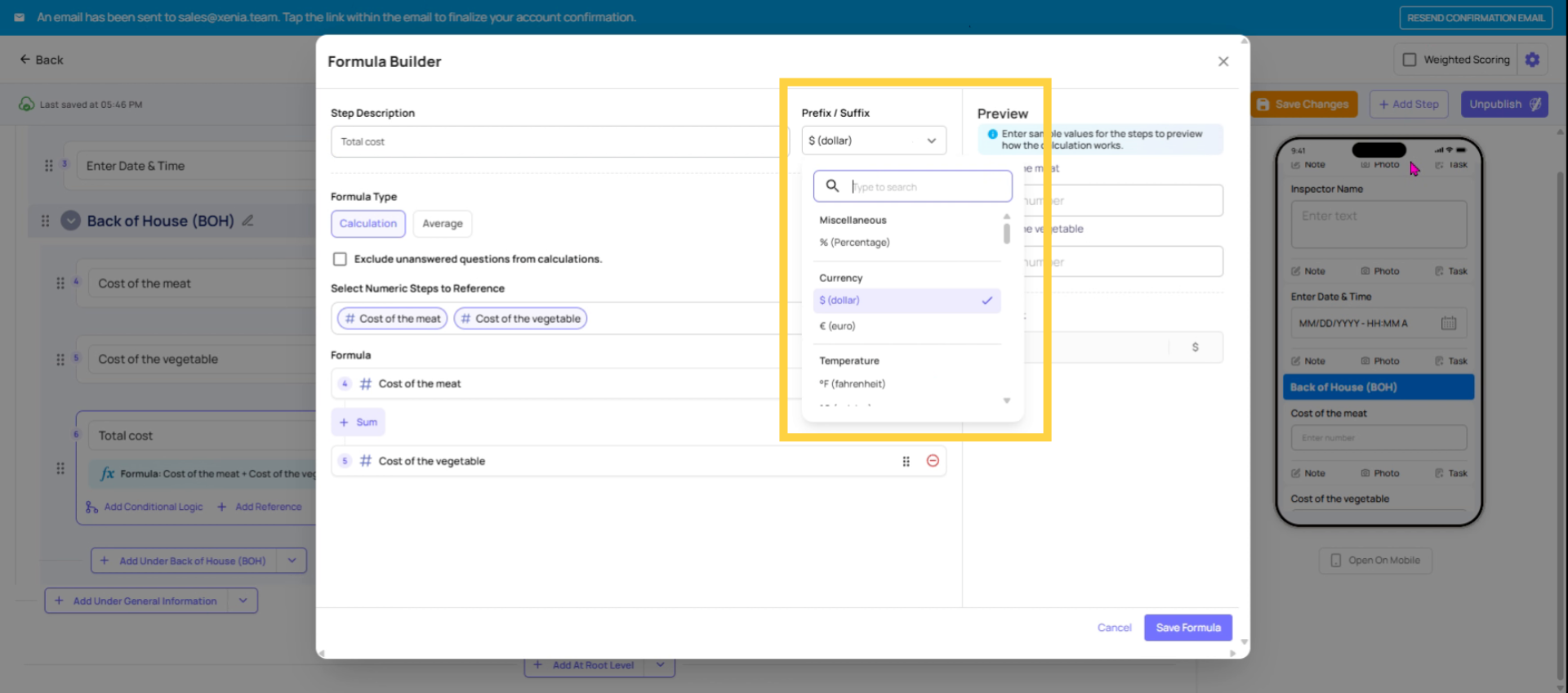
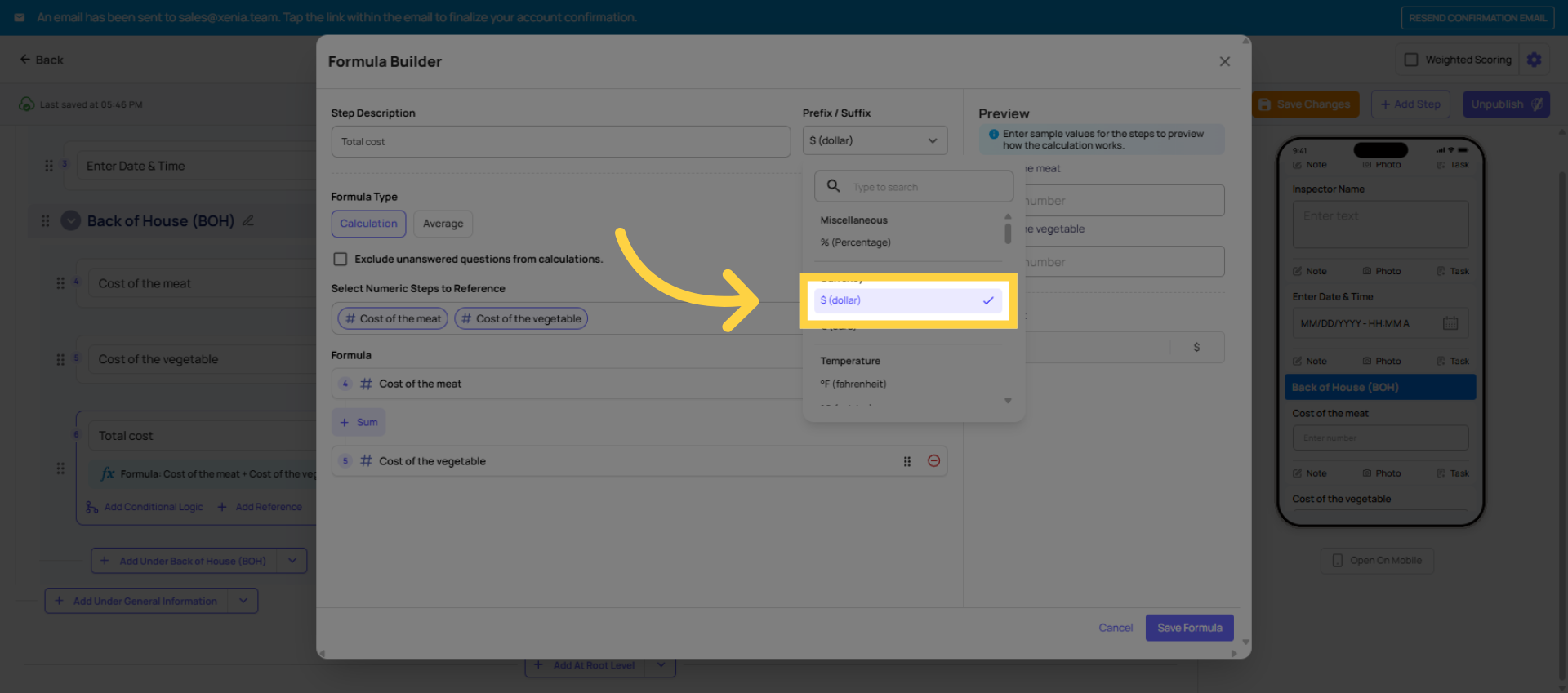
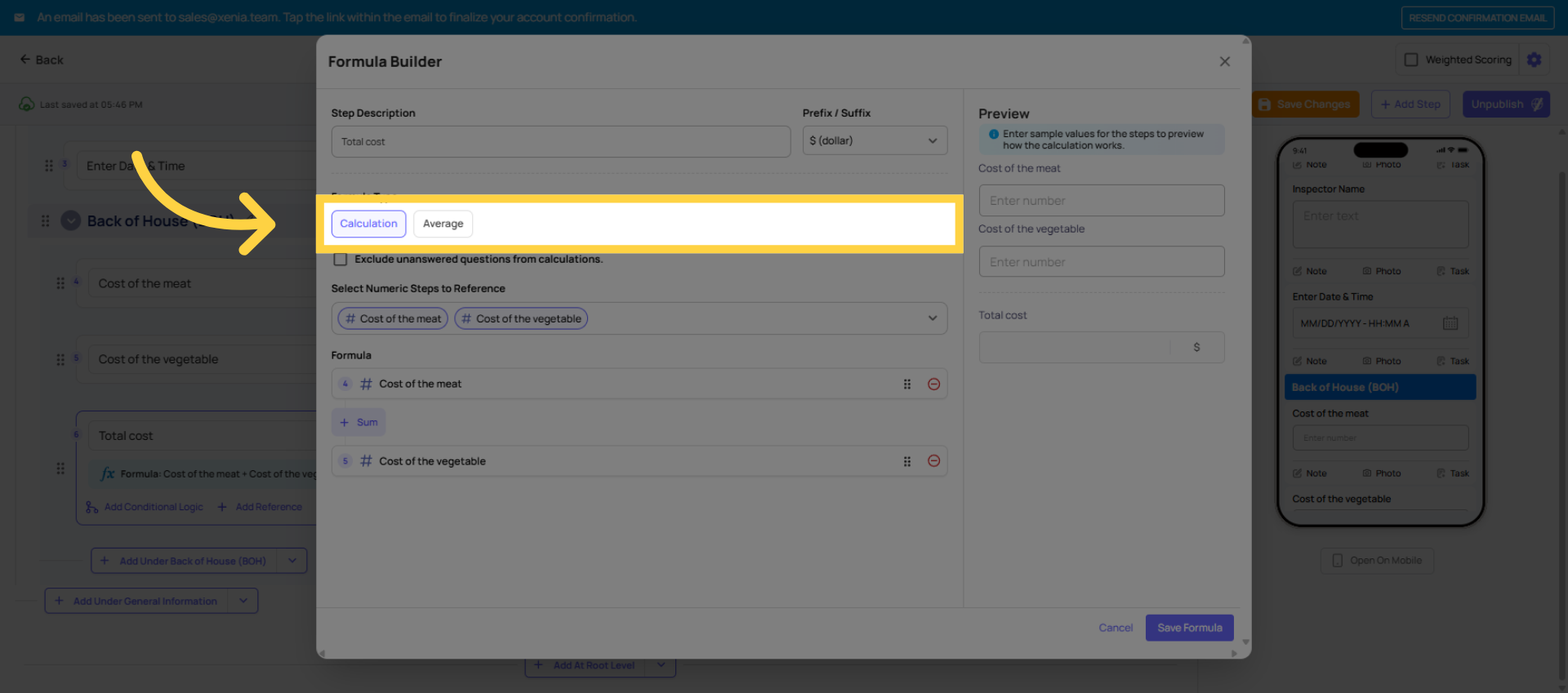
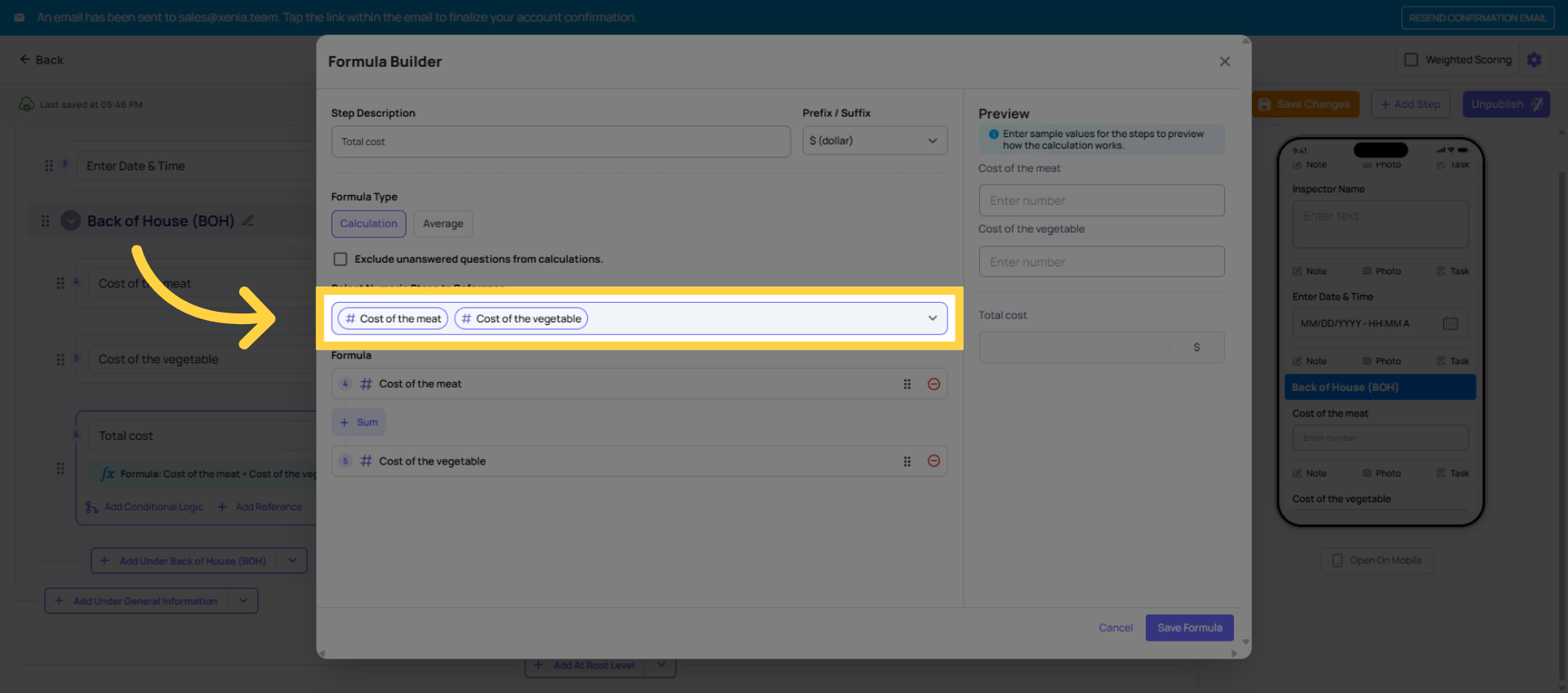
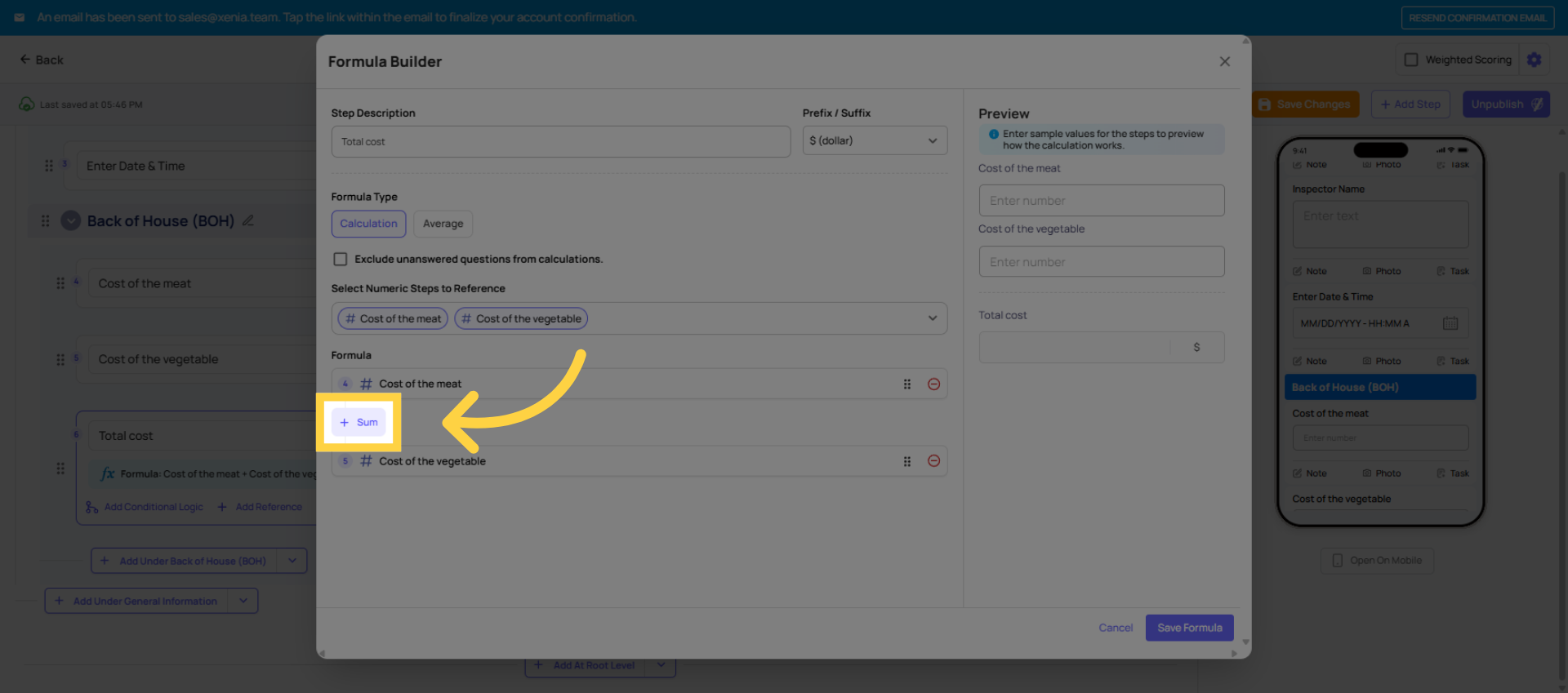
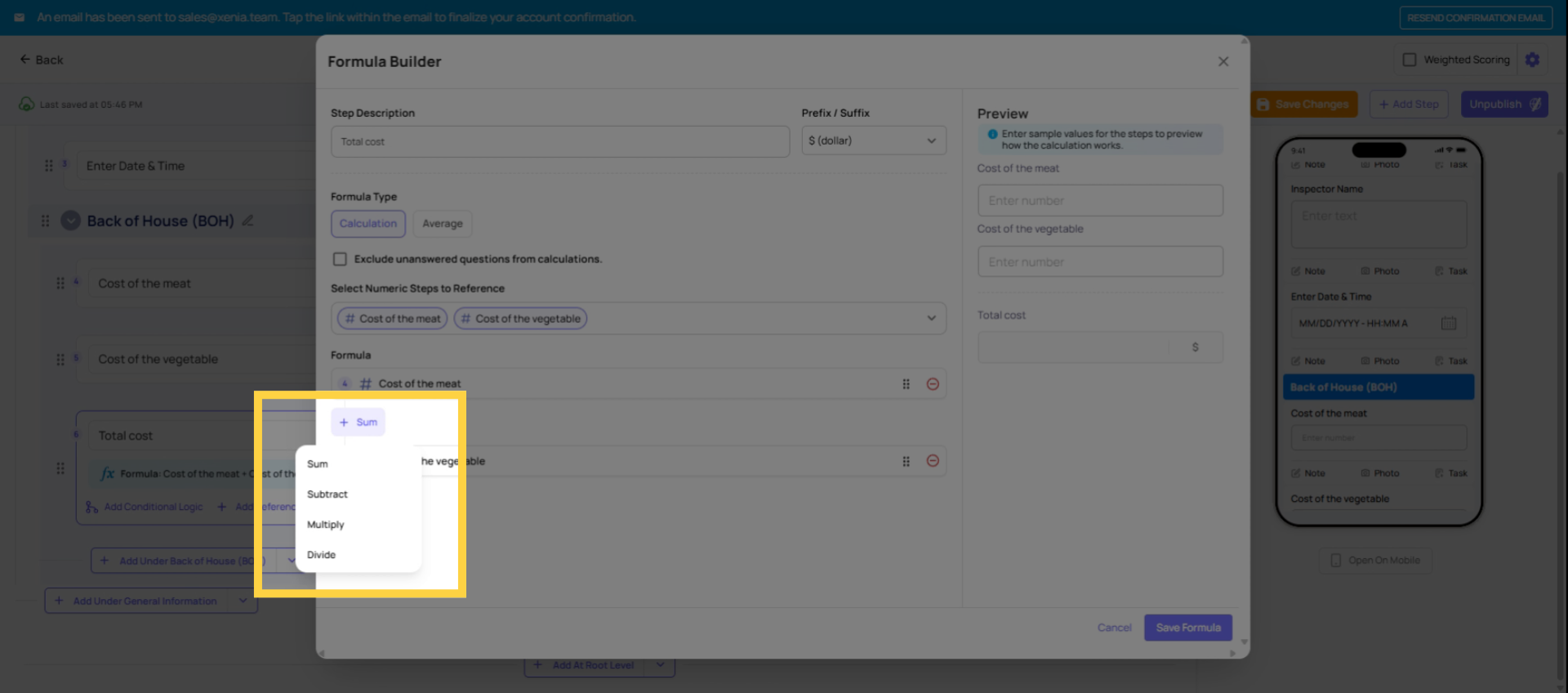
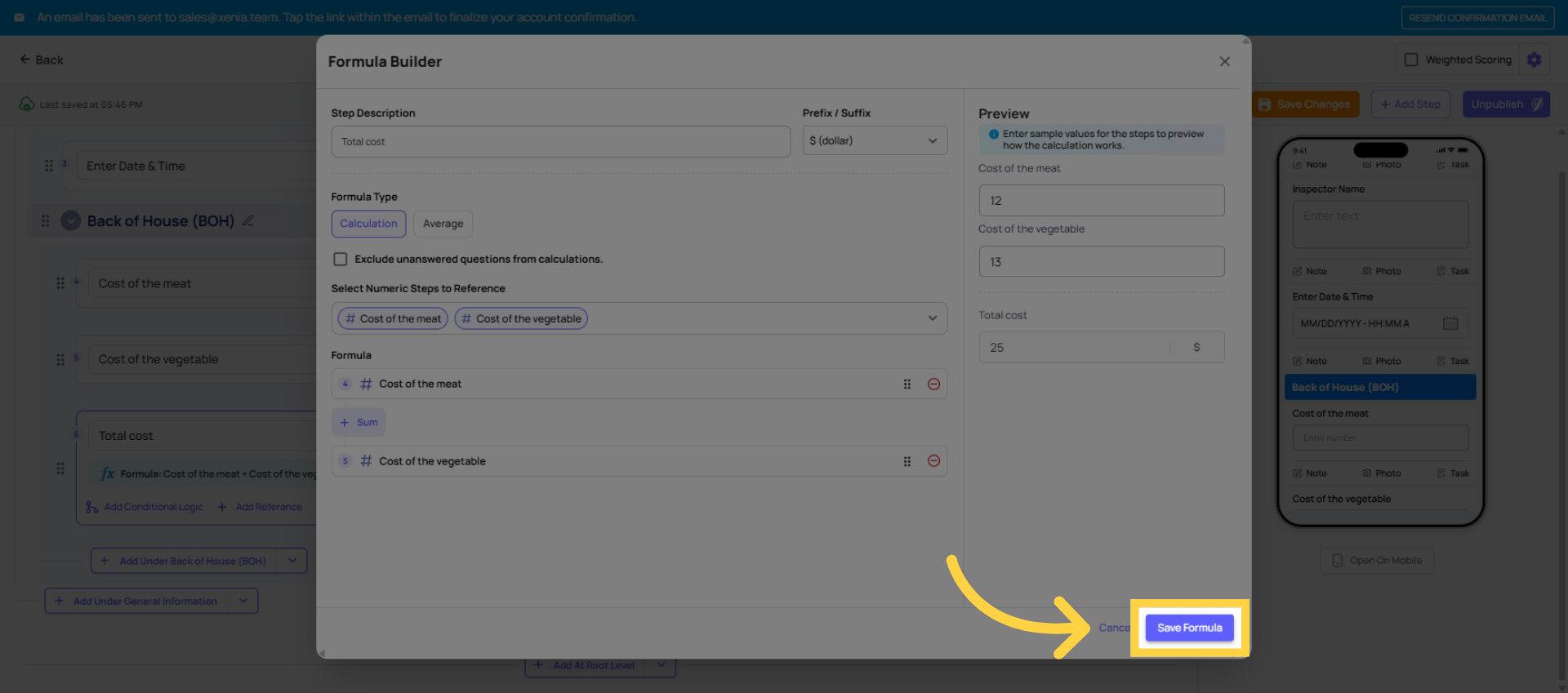
Calculation Step
Best for: Automated totals & formulas
Performs calculations based on inputs from other steps.
Common Use Cases:
- Score calculations
- Cost totals
- Compliance percentages
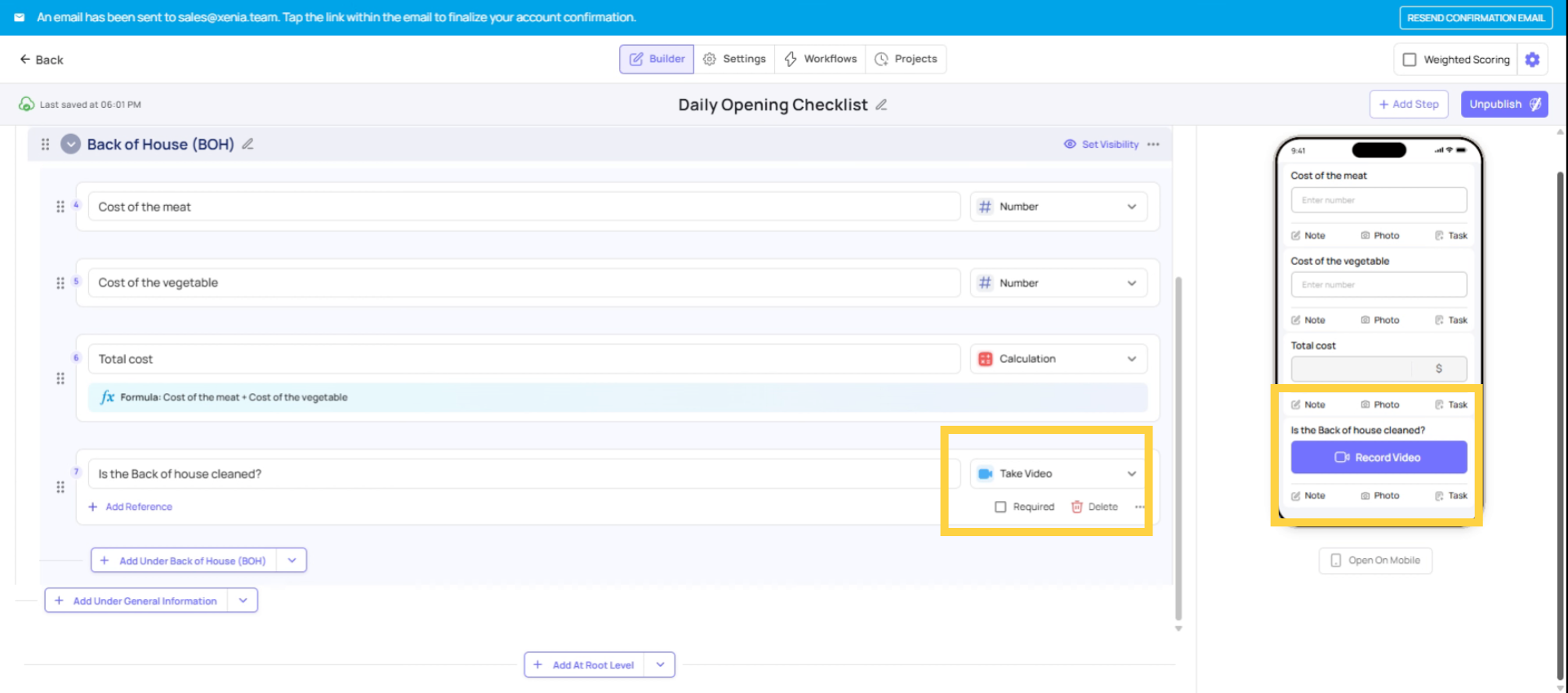
Take Video Step
Best for: Motion-based documentation
Allows users to record and upload short videos.
Common Use Cases:
- Equipment operation proof
- Incident recording
- Training validation
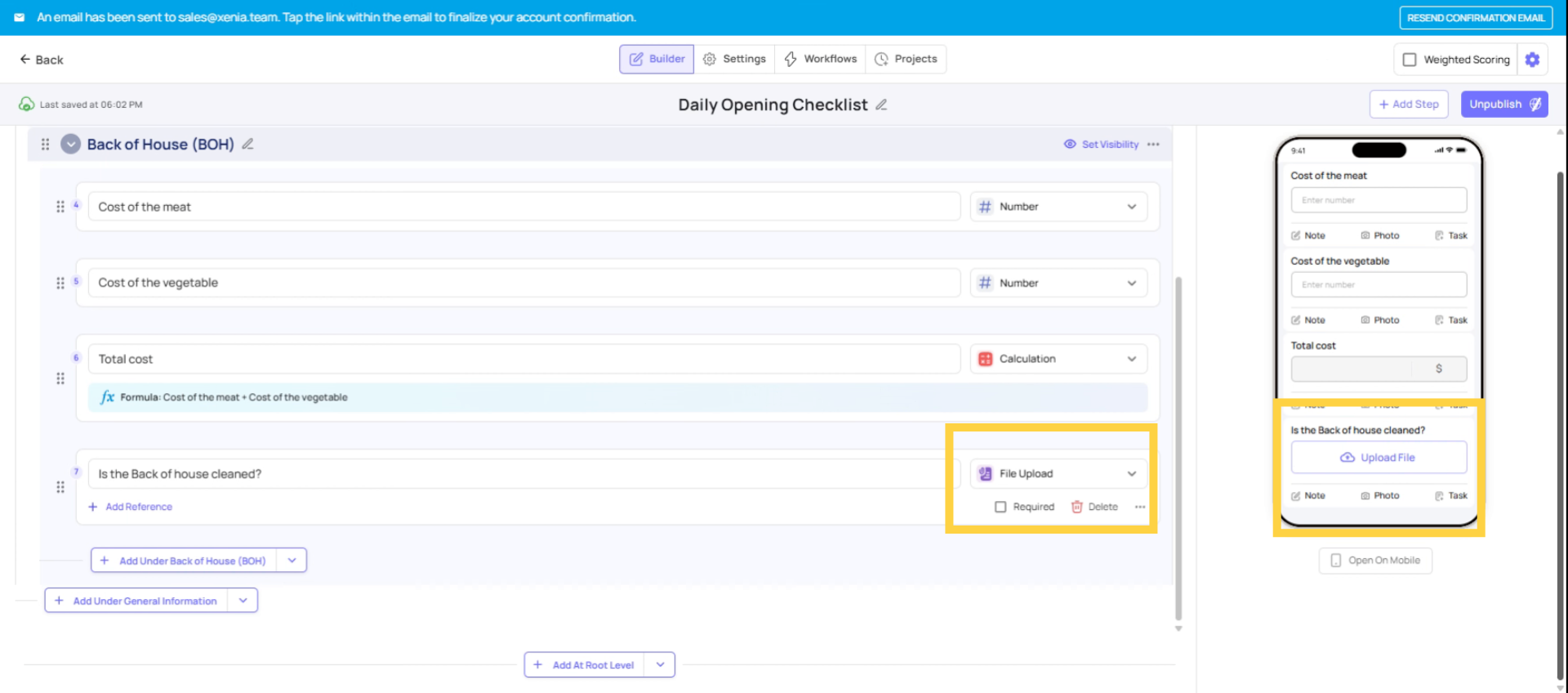
File Upload Step
Best for: External documents
Allows users to upload files such as PDFs, images, or documents.
Common Use Cases:
- Invoices
- Reports
- Certifications
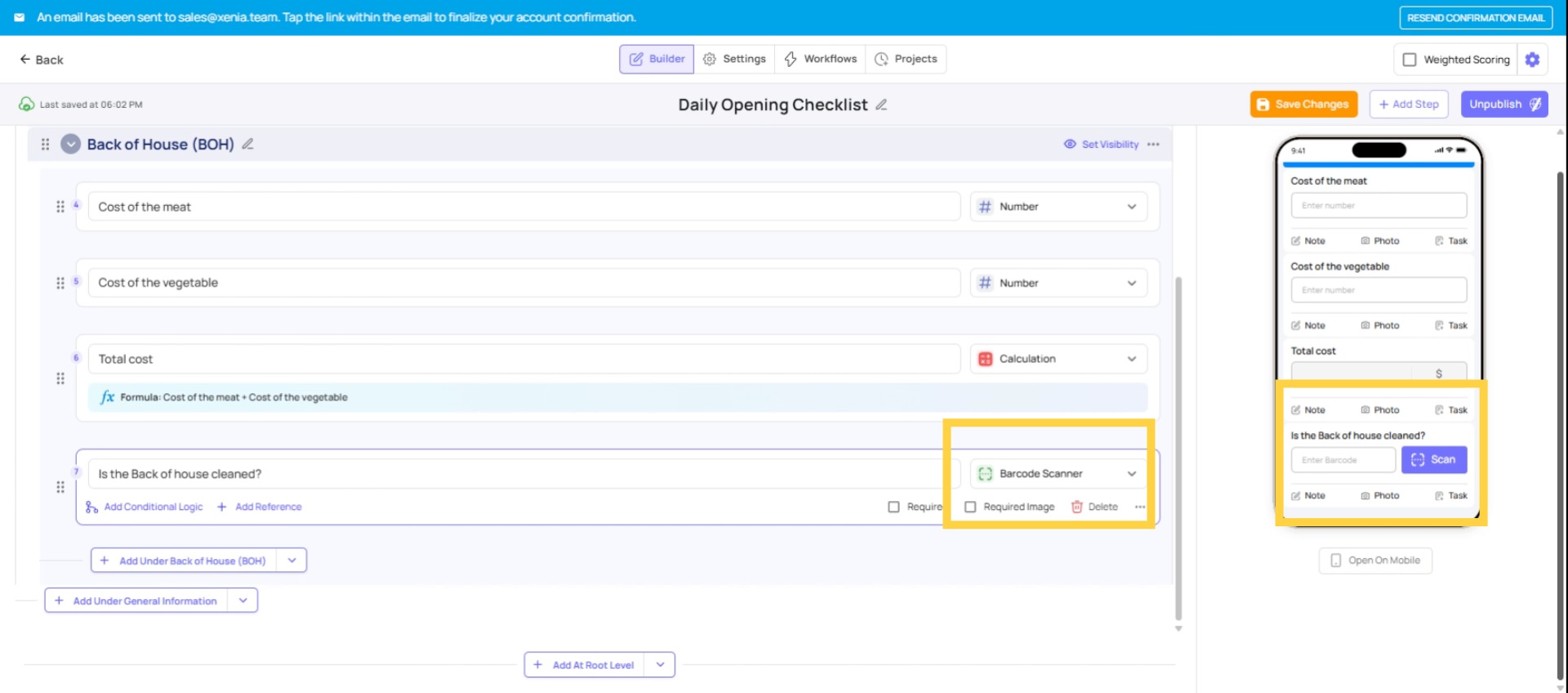
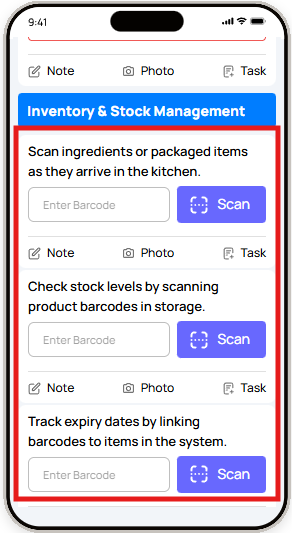
Barcode Scanner Step
Best for: Asset & inventory tracking
Uses the device camera to scan barcodes.
Common Use Cases:
- Inventory audits
- Asset verification
- Product tracking
Quick Reference Table
| Step Type | Employee Does | Best Used For |
| Procedure | Taps a checkbox | Simple to-do confirmation |
| Multiple Choice | Selects one option | Yes/No, Pass/Fail, fixed-option questions |
| Dropdown | Selects from list (one or many) | Long option lists, multi-select needed |
| Text Field | Types a response | Notes, descriptions, free-form answers |
| Number Answer | Enters a numeric value | Counts, measurements, quantities |
| Temperature | Enters a temperature | Food safety, cooler checks, HVAC |
| Cost | Enters a dollar amount | Expense logging, maintenance costs |
| Take Photo | Takes a live camera photo | Visual proof of work done |
| Photo Annotation | Takes + marks up a photo | Damage documentation, defect location |
| Signature | Signs on screen | Acknowledgment, sign-off, HR forms |
| Date/Time | Picks a date or time | Recording when something happened |
| Location (Select) | Chooses a location | Tagging submission to a specific store |
| Geostamp | Nothing — auto-captures GPS | Confirming on-site presence |
| Calculation | Nothing — auto-computed | Scores, totals, derived values |
Need Help?
Reach out to our support team at Support@xenia.team
Comments
0 comments
Please sign in to leave a comment.