
Understand Template Definition
1. The Simple Definition
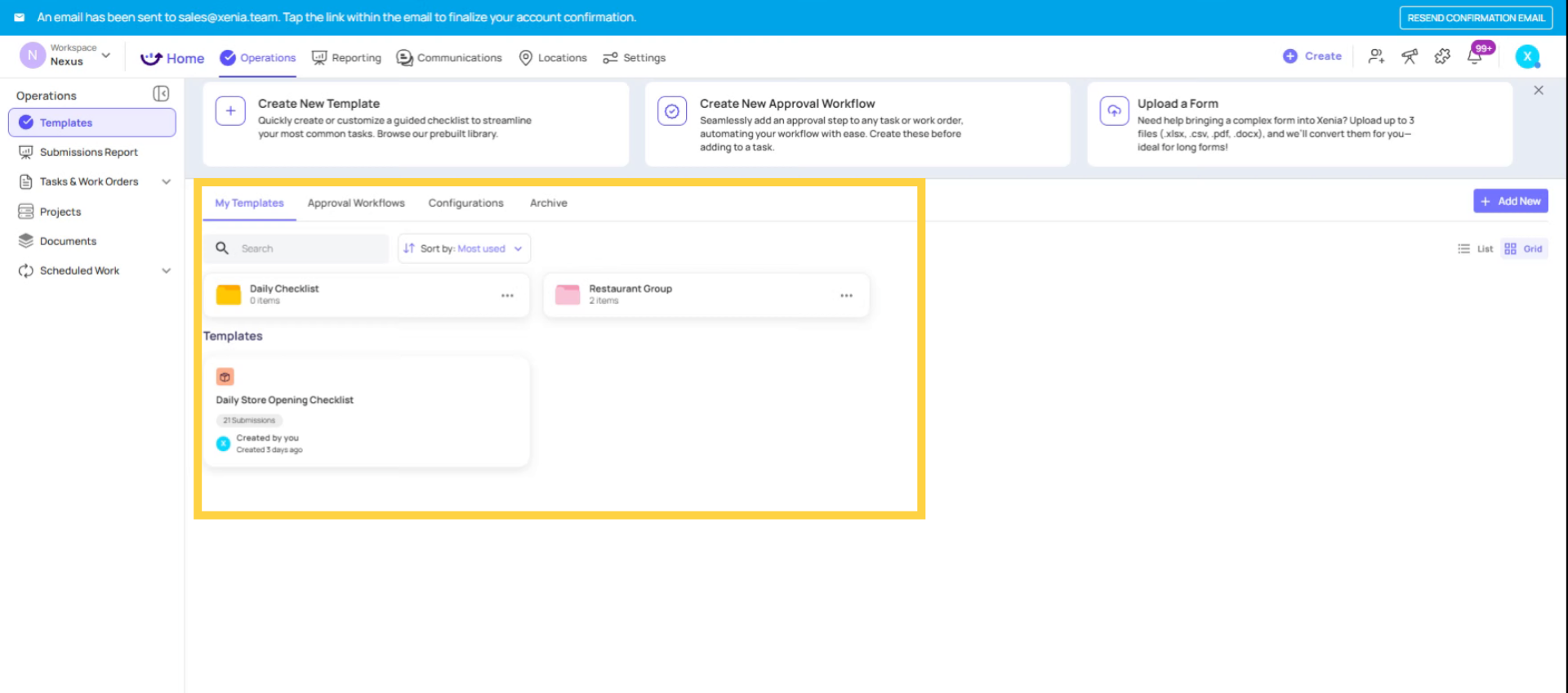
A Template in Xenia is the structured form or checklist that your team uses to record information, complete inspections, log data, or document processes. It's the blueprint — the questions, steps, and instructions — that gets reused every time someone submits it.
You can think of a template as the digital equivalent of a paper form. But unlike a paper form, templates in Xenia can include conditional logic, require photos, capture GPS locations, track timestamps on every response, generate corrective actions automatically, and feed into real-time dashboards and reports.
Explore Template Use Cases
2. What Templates Can Be
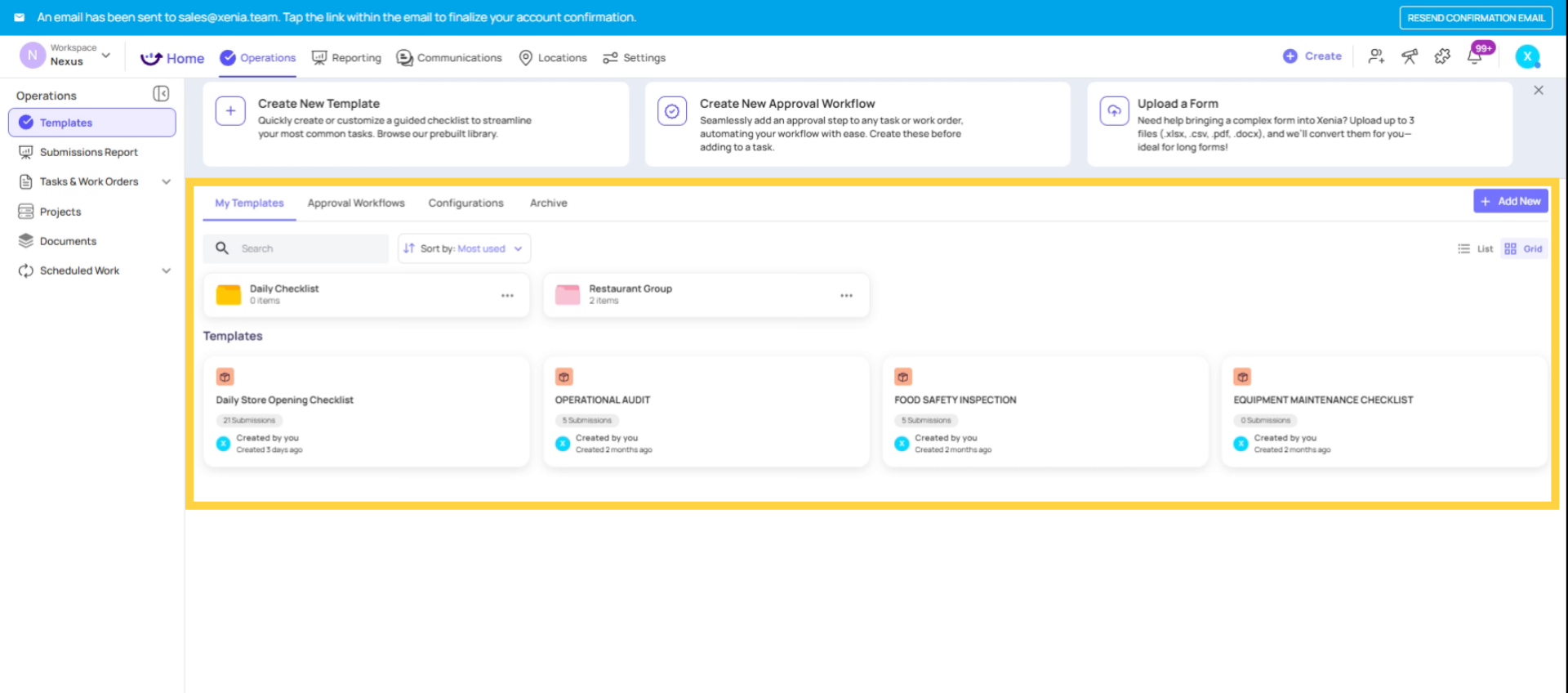
The template builder is flexible enough to support many different use cases. In Xenia, a template can be:
A daily checklist — "Opening Manager Checklist," "Closing Checklist," "Shift Handoff Report" An inspection form — "Store Brand Standards Audit," "Food Safety Inspection," "Equipment Inspection" A log — "Temperature Log," "Cash Register Log," "Maintenance Activity Log" An SOP (Standard Operating Procedure) — Step-by-step process documentation that employees follow and confirm as they complete each step A survey — "Employee Feedback Form," "Customer Satisfaction Survey" A meeting agenda — "Weekly Team Meeting," "Monthly Review" An incident report — "Safety Incident Report," "Vendor Issue Form," "Customer Complaint Form" An HR form — "Performance Notice," "Disciplinary Counseling Form," "Employee Onboarding Checklist" An audit — Scored evaluations with weighted questions, section-level scoring, and pass/fail thresholds
All of these are templates in Xenia. The same builder creates all of them — what changes is the step types you use and the settings you configure.
Identify Template Sections and Steps
3. How a Template Is Structured
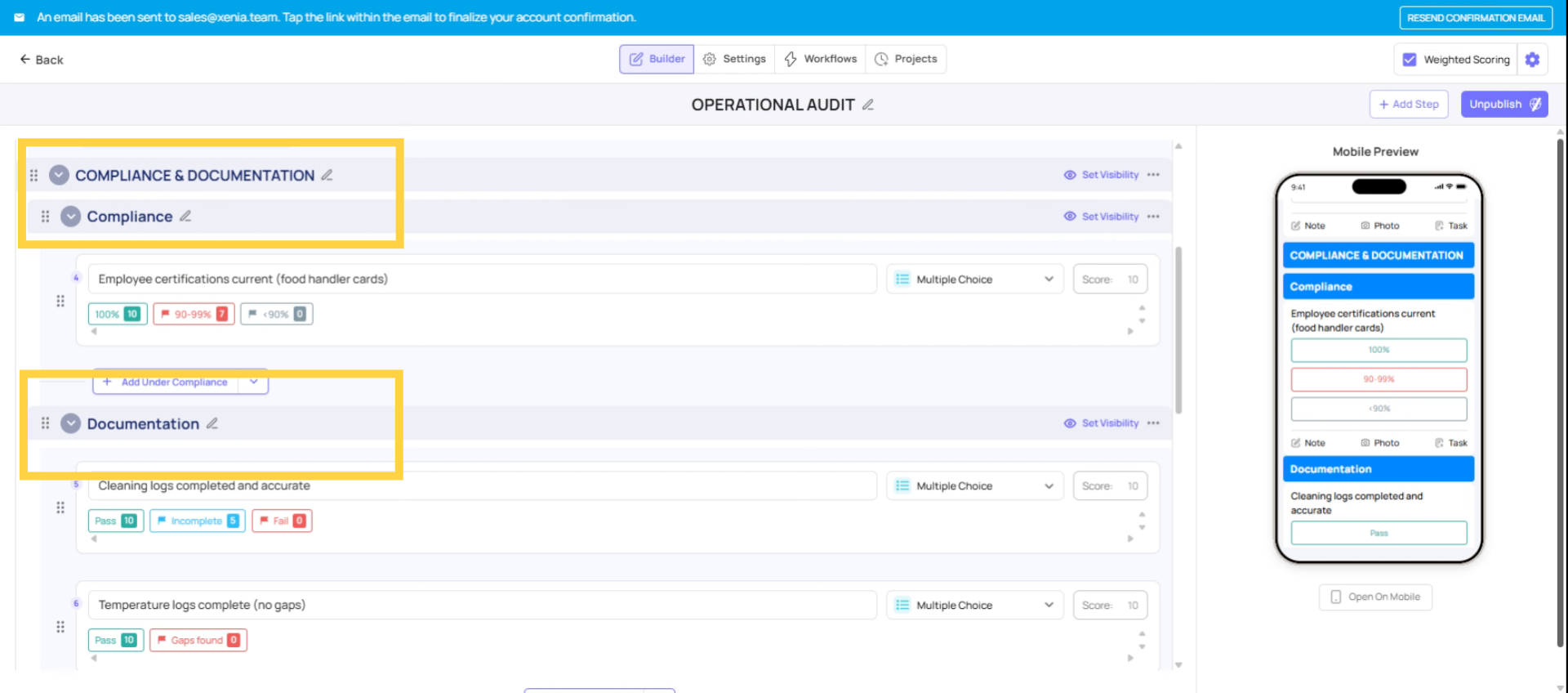
A template is made up of three levels:
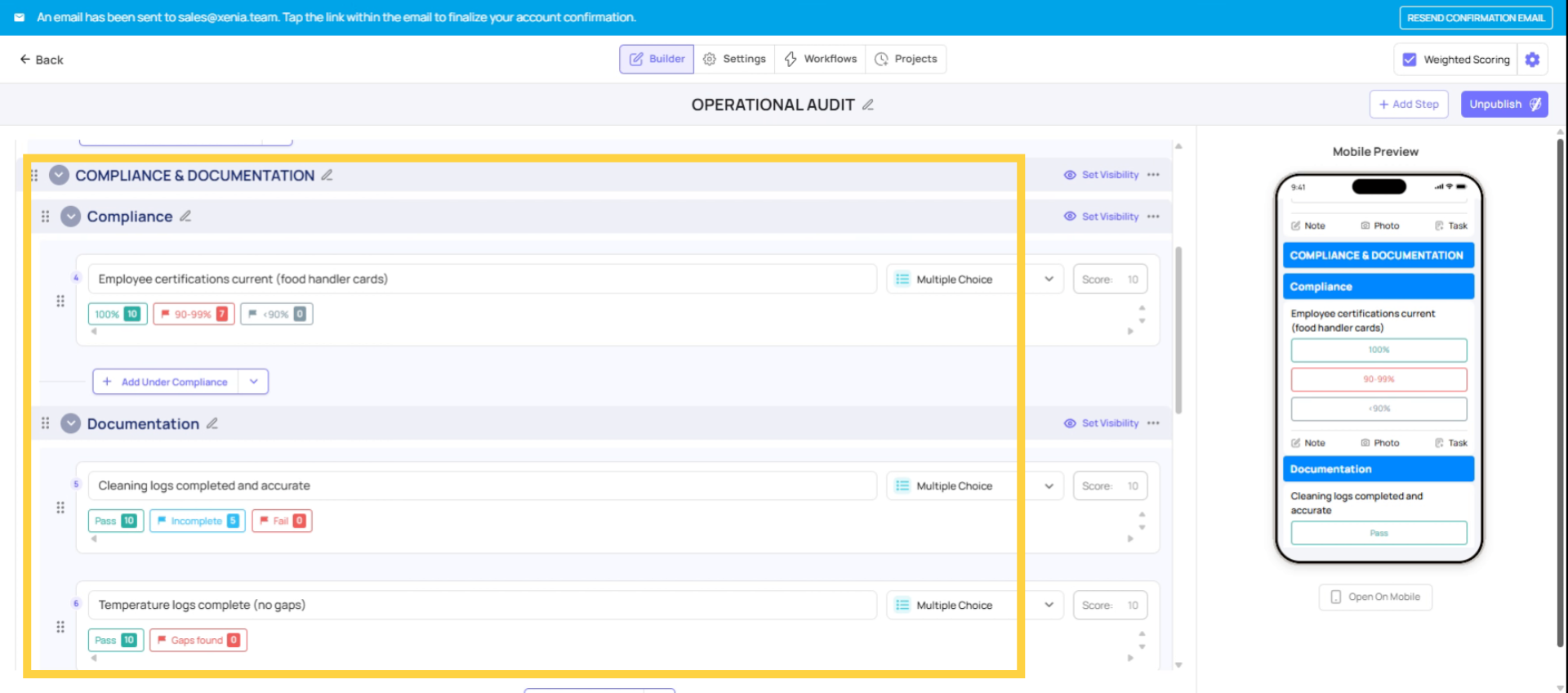
Sections — Optional groupings of steps. Use sections to organize a long checklist into logical parts (e.g., "Front of House," "Back of House," "Safety Checks"). Sections can be collapsed, reordered, and set to show or hide based on location attributes.
Steps — The individual items within a section. Each step is one question, prompt, or task the employee responds to. Steps have a type (see below) and can be made required.
Understand Steps And Automations
Review Total Step Types
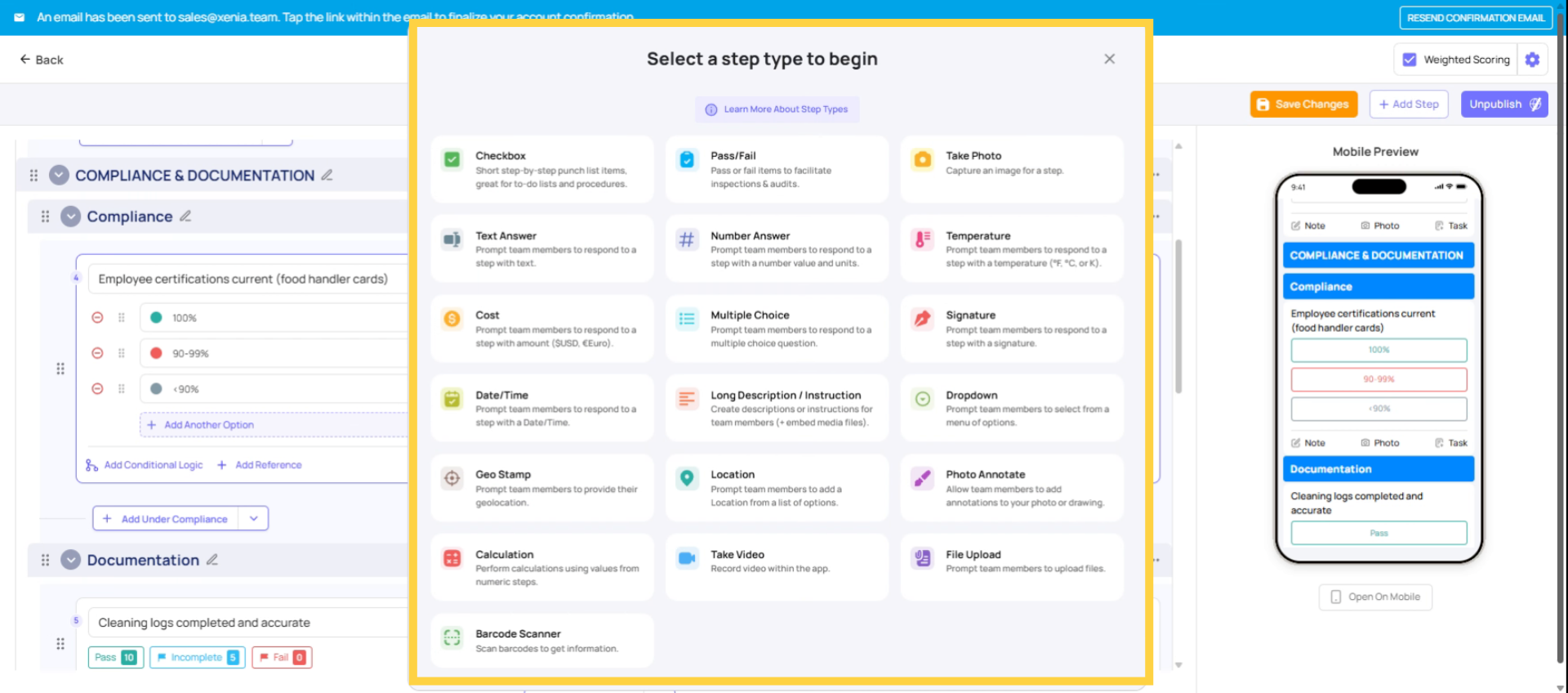
The 14 Step Types
Every step in a template has a type that determines what kind of response the employee provides:
| Step Type | What It Collects | Best Used For |
| Procedure | Checkbox confirmation only — no text response | Simple to-do items ("Turn on lights") |
| Multiple Choice | One selection from custom options | Yes/No checks, Pass/Fail, quality ratings |
| Dropdown | One or multi-select from a longer list | Larger option sets, shift selection |
| Text Field | Written response with units option | Notes, descriptions, readings |
| Number Answer | Numeric value with unit of measurement | Counts, meter readings |
| Temperature | Temperature value in °F, °C, or K | Food safety logs, equipment monitoring |
| Cost | Dollar amount in USD or Euro | Financial logging |
| Take Photo | Real-time camera capture | Visual verification — cannot use camera roll |
| Photo Annotation | Photo with markup/annotation tools | Damage documentation, markup of specific areas |
| Signature | Digital signature | Manager sign-off, employee acknowledgment |
| Date/Time | Date and/or time selection | Event timestamps, scheduled events |
| Location (Select) | Dropdown of workspace locations | Tags submission to a specific store for reporting |
| Geostamp | GPS coordinates confirming physical location | Proof that employee is on-site when submitting |
| Calculation | Auto-calculated value based on other responses | Automated scoring, totals |
Utilize Template Library
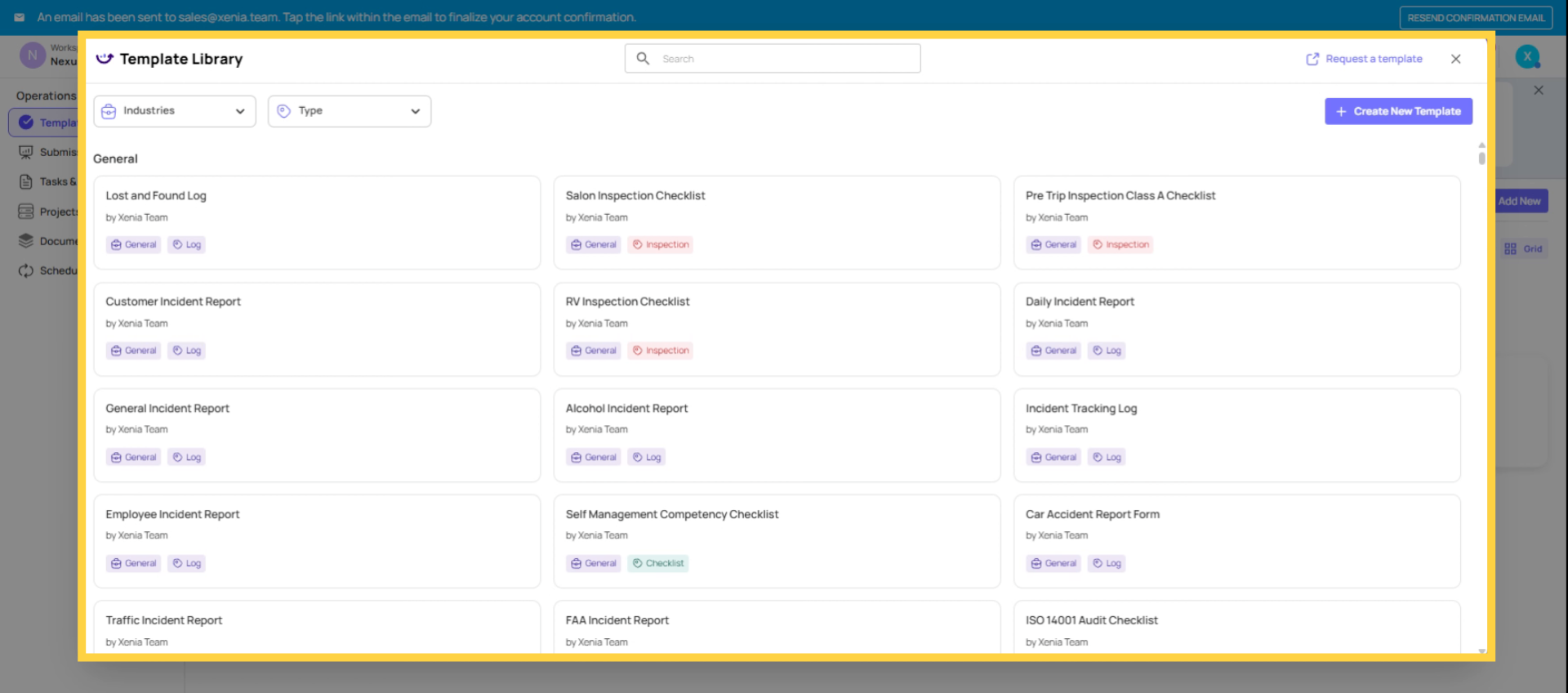
Xenia also includes a pre-built Template Library with hundreds of ready-to-use templates covering common use cases: food safety, store opening/closing, equipment inspections, HR forms, meeting agendas, maintenance logs, and more.
Browse the library, save any template to your workspace, and customize it from there. It's significantly faster than building from scratch for common checklist types.
Need Help?
Reach out to our support team at Support@xenia.team
Comments
0 comments
Please sign in to leave a comment.