
1. Ask-Follow up Questions Vs Corrective Task
The Context: Conditional Automations in Templates
When you build a checklist in Xenia and add conditional logic to a step, you can trigger several types of automated responses when a specific answer is given. Two of the most commonly used — and most commonly confused — are:
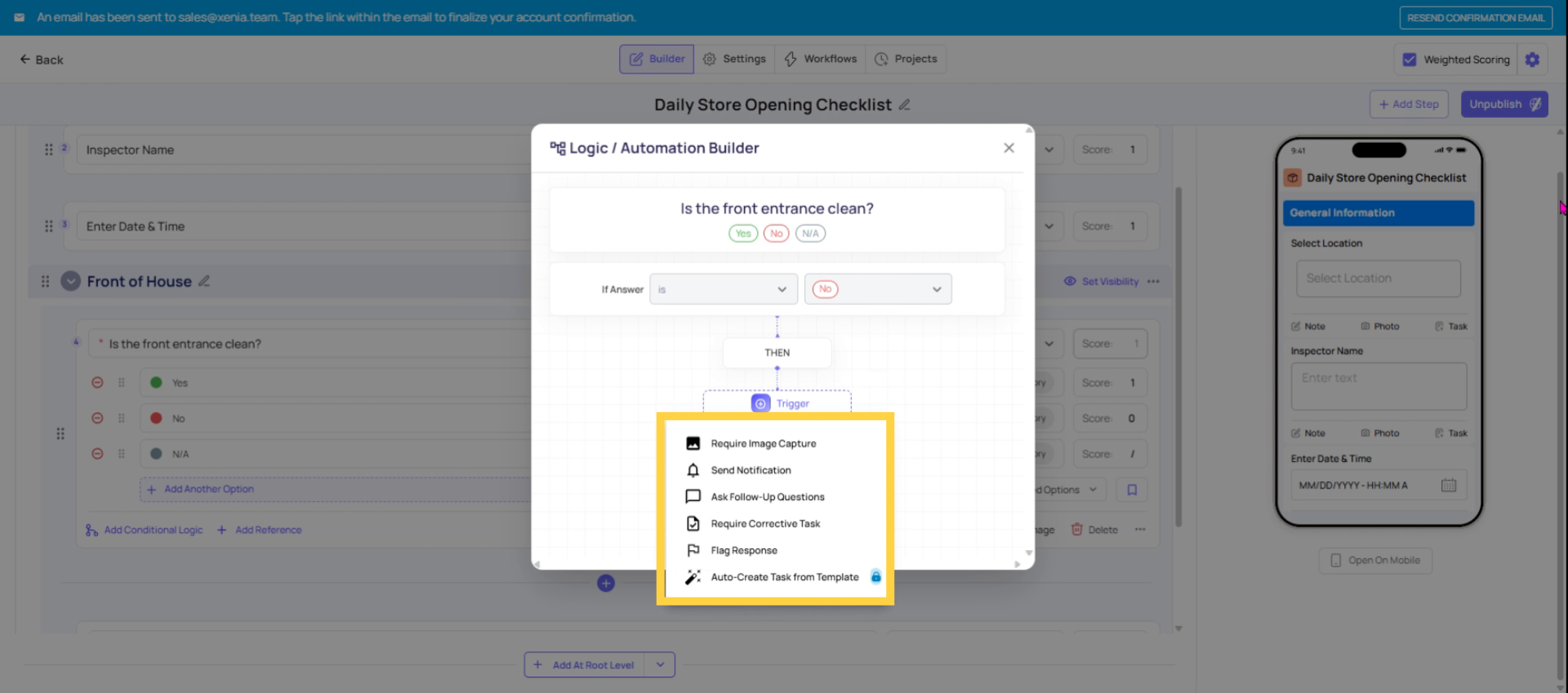
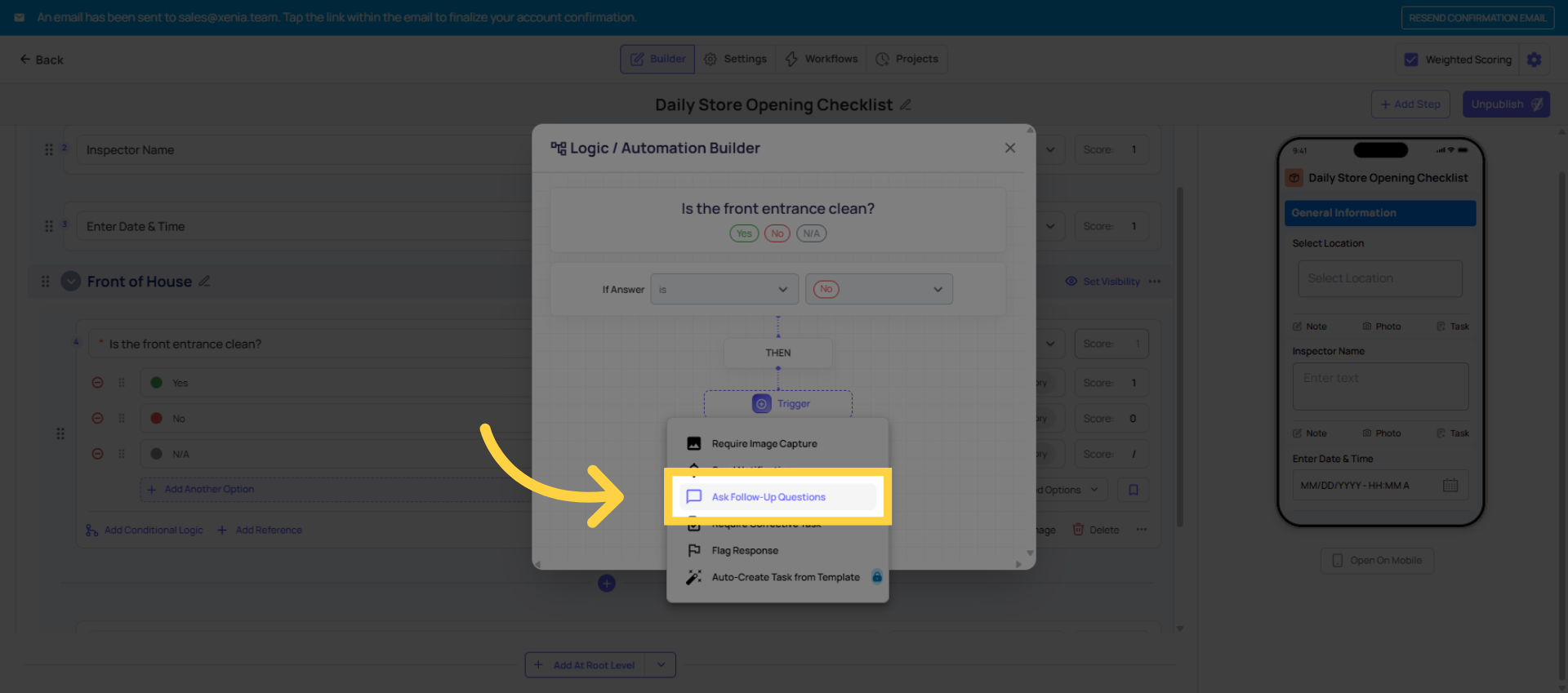
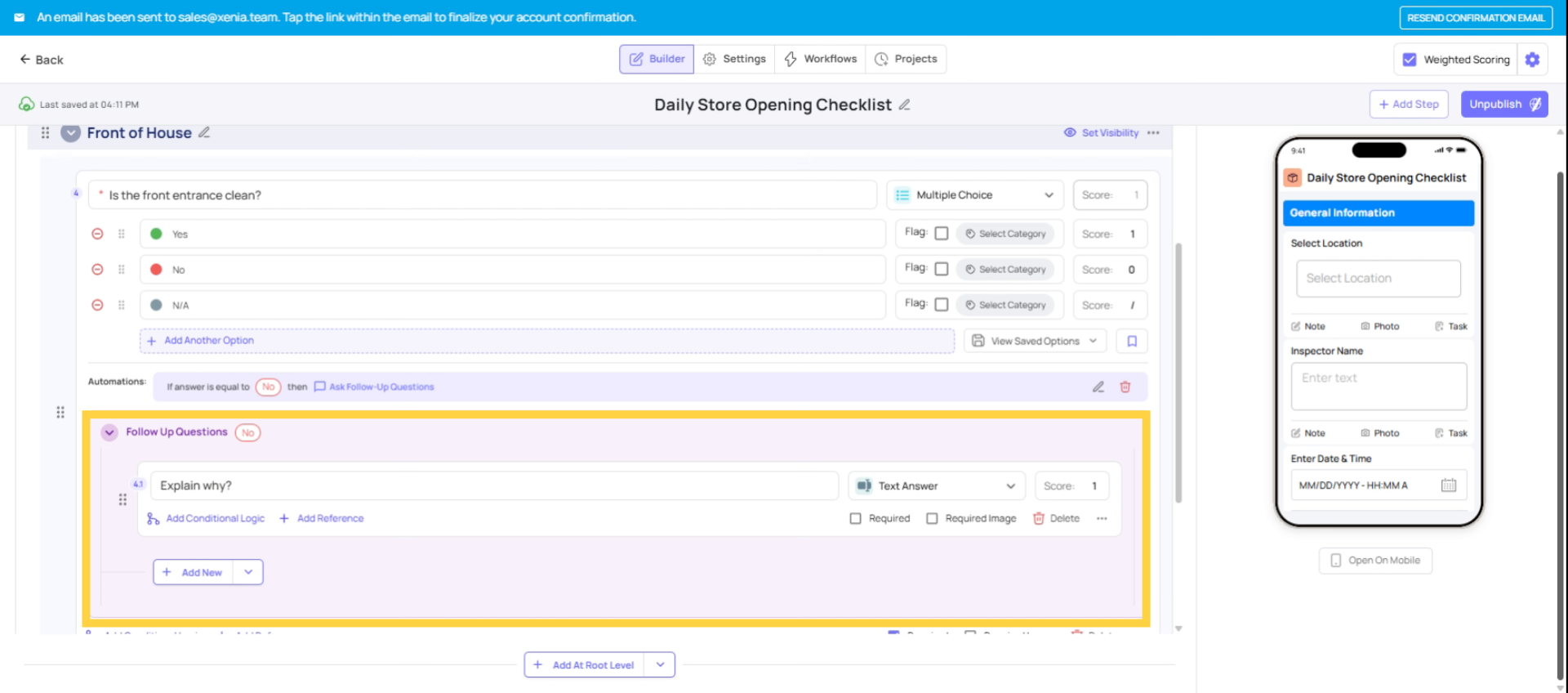
- Ask a Follow-Up Question: Prompts the person completing the checklist with an additional question right then and there, inside the same submission
- Require Corrective Task: Generates a formal task that gets assigned to someone (often a different person) to fix the issue that was identified
Understanding when to use each one comes down to a single key question: Is the person filling out the checklist the same person who needs to fix the problem, or does someone else need to handle it?
2. Decide Follow-Up Or Corrective Task
1. Follow-Up Question — For Immediate In-Checklist Documentation
What it does: When triggered, a new question appears in the checklist that the current user must answer before they can continue or submit.
When to use it:
- The person completing the checklist can also provide the information or resolve the issue themselves
- You want to capture more detail about the situation in the moment
- The response is about documentation, not work assignment
- The issue is resolved in real time (e.g., "We're out of soap — I've ordered more")
2. Require Corrective Task — For Assigning Work to Someone Else
What it does: When triggered, Xenia automatically generates a task and assigns it to a specified role or user. The task is linked to the original submission and appears in the task board for the assignee to address.
When to use it:
- The issue identified in the checklist needs to be handled by a different person
- The fix requires follow-through that needs to be tracked and verified as completed
- You want a formal accountability trail — "this issue was flagged on this date, assigned to this person, and resolved on this date"
- The work involved goes beyond documentation and requires action by someone with a specific skill or role
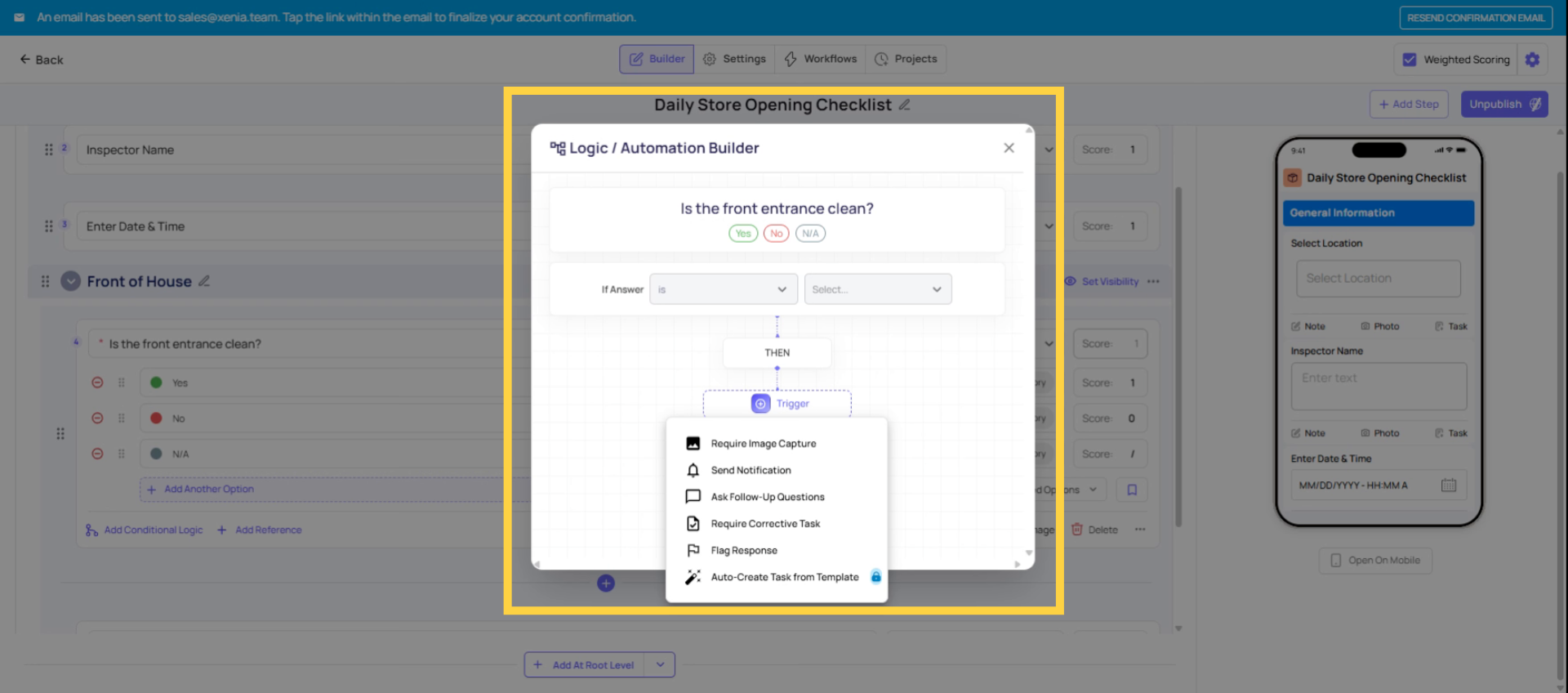
3. Click Add Automation Logic
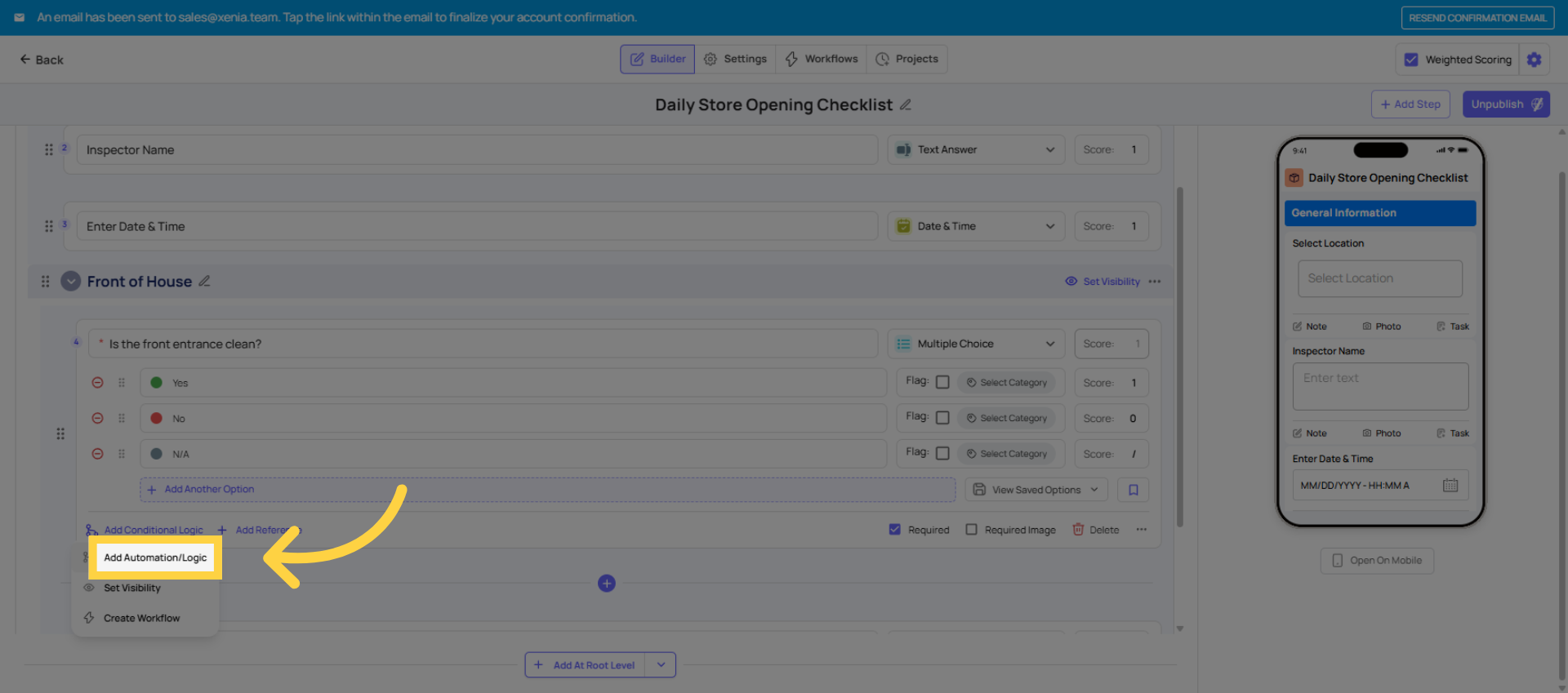
4. Click Select Option
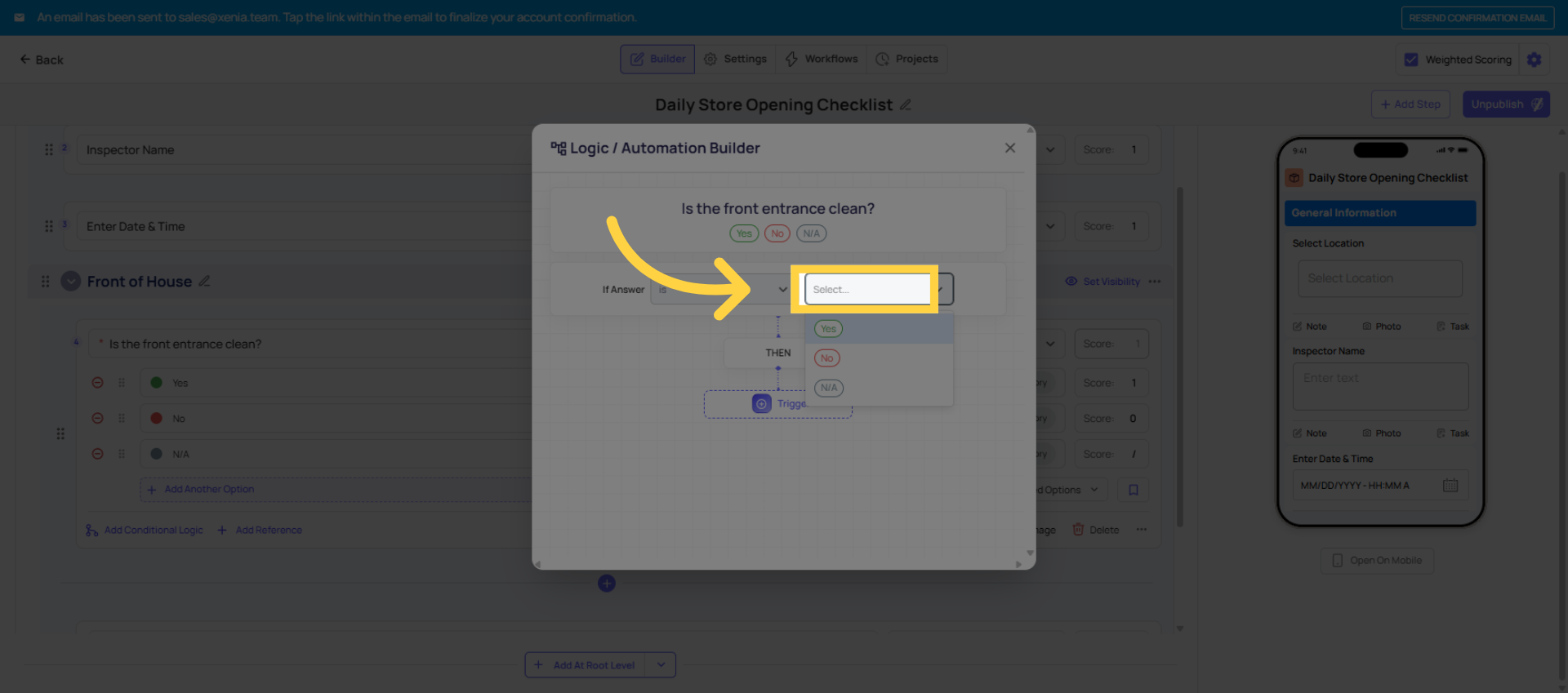
5. Click No Option
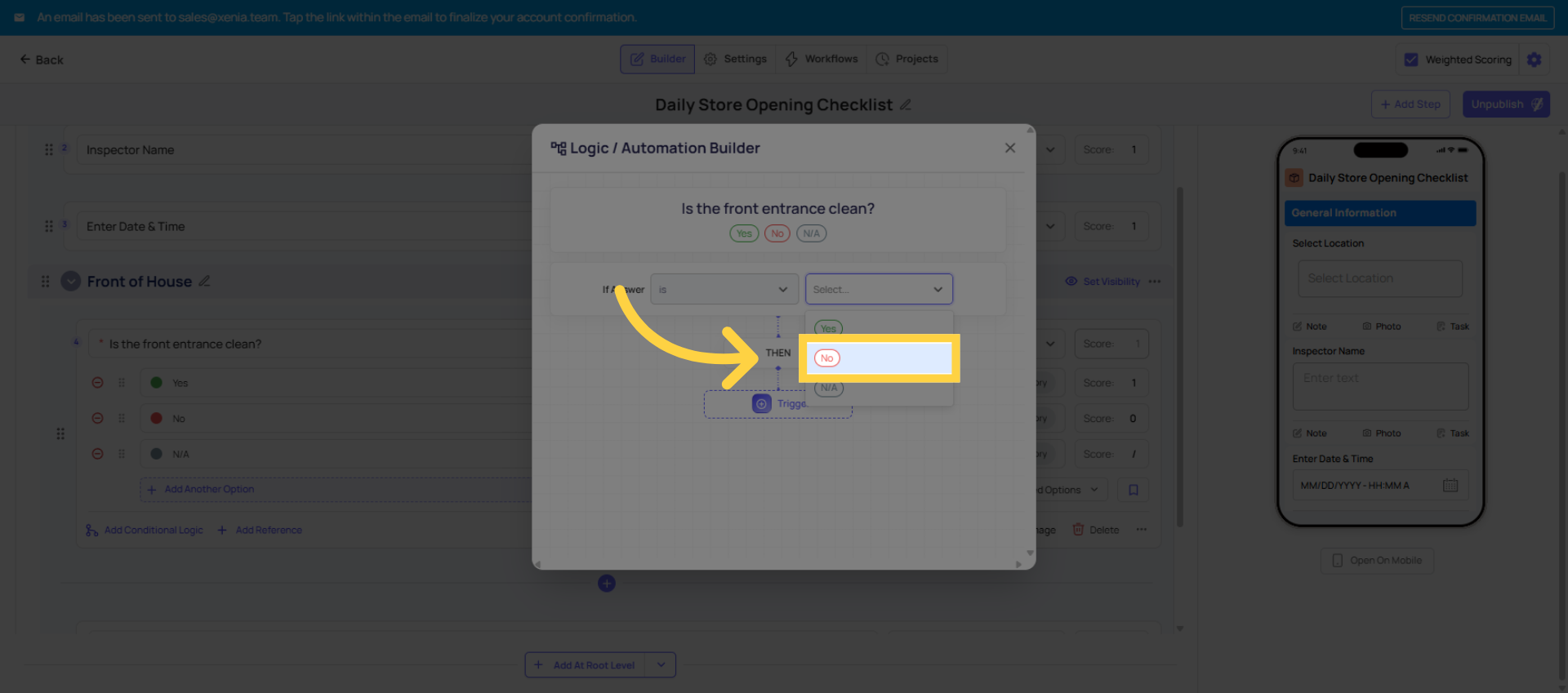
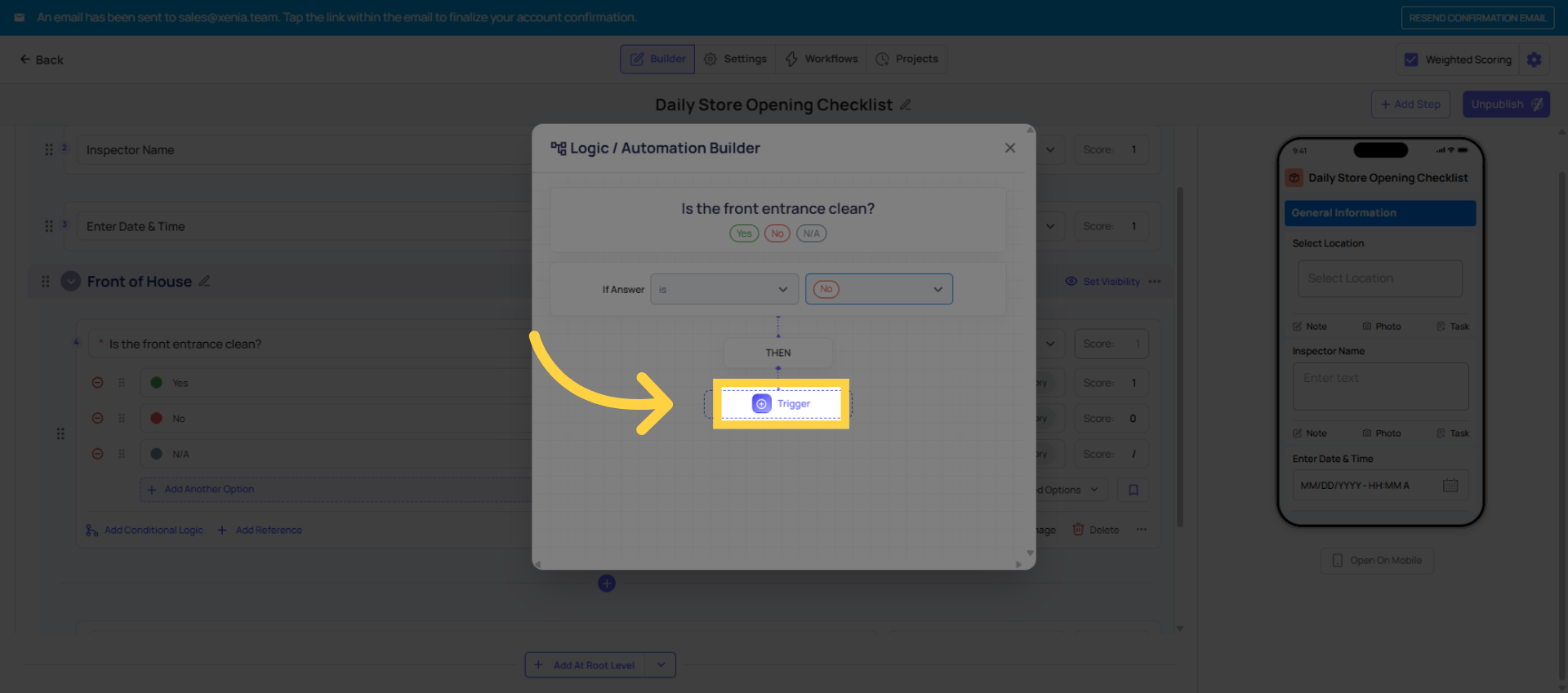
6. Click Trigger Button
7. Follow-Up Or Corrective Options
8. Click Ask Follow-Up Questions
9. Select Follow-Up Question Type
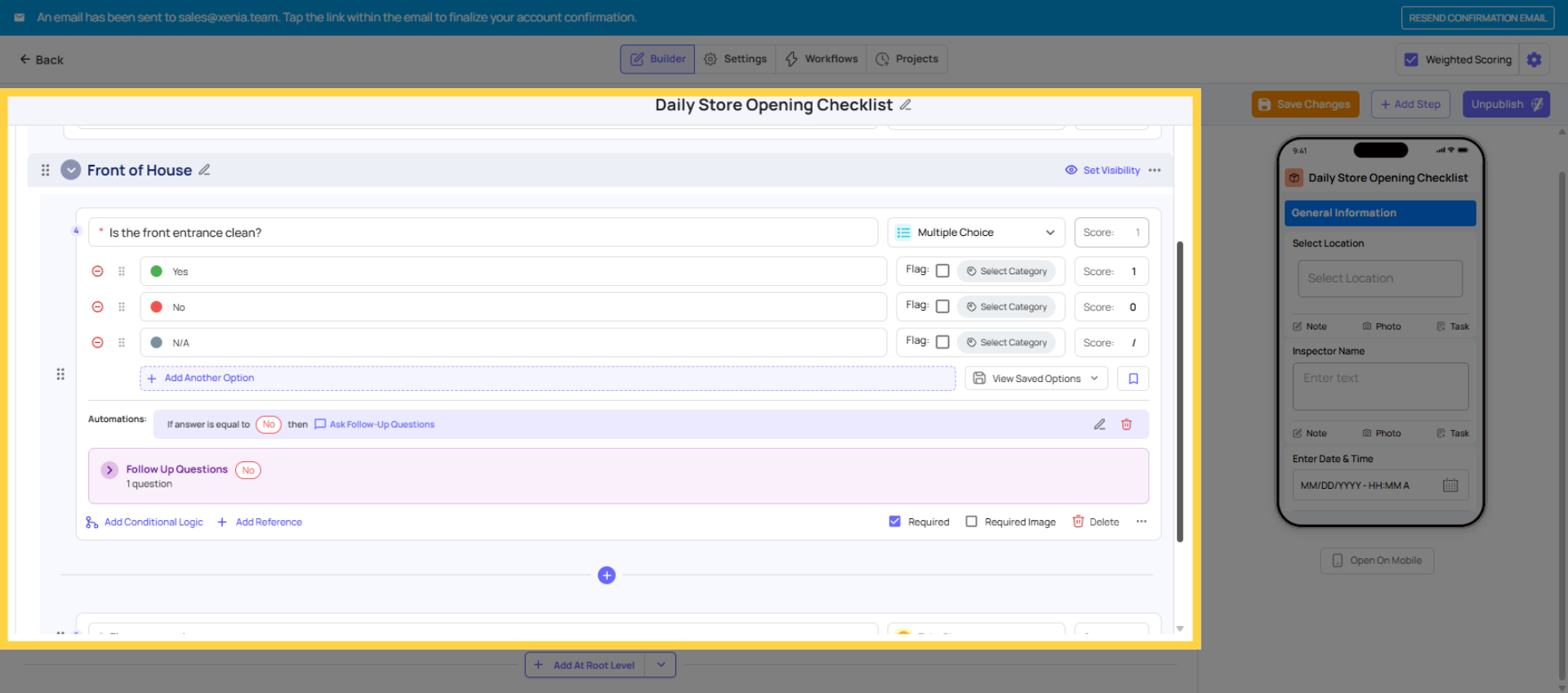
10. Follow-Up Question Example
11. Create Corrective Task
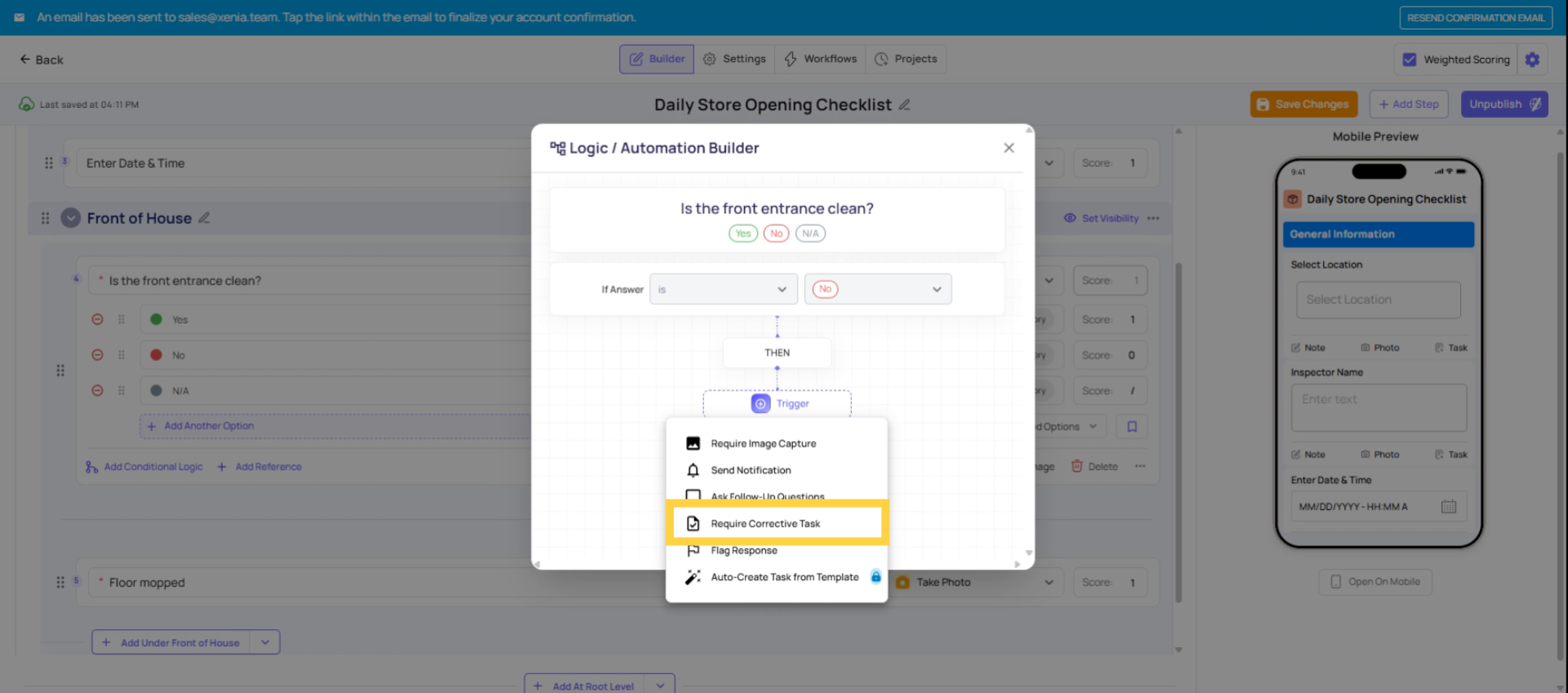
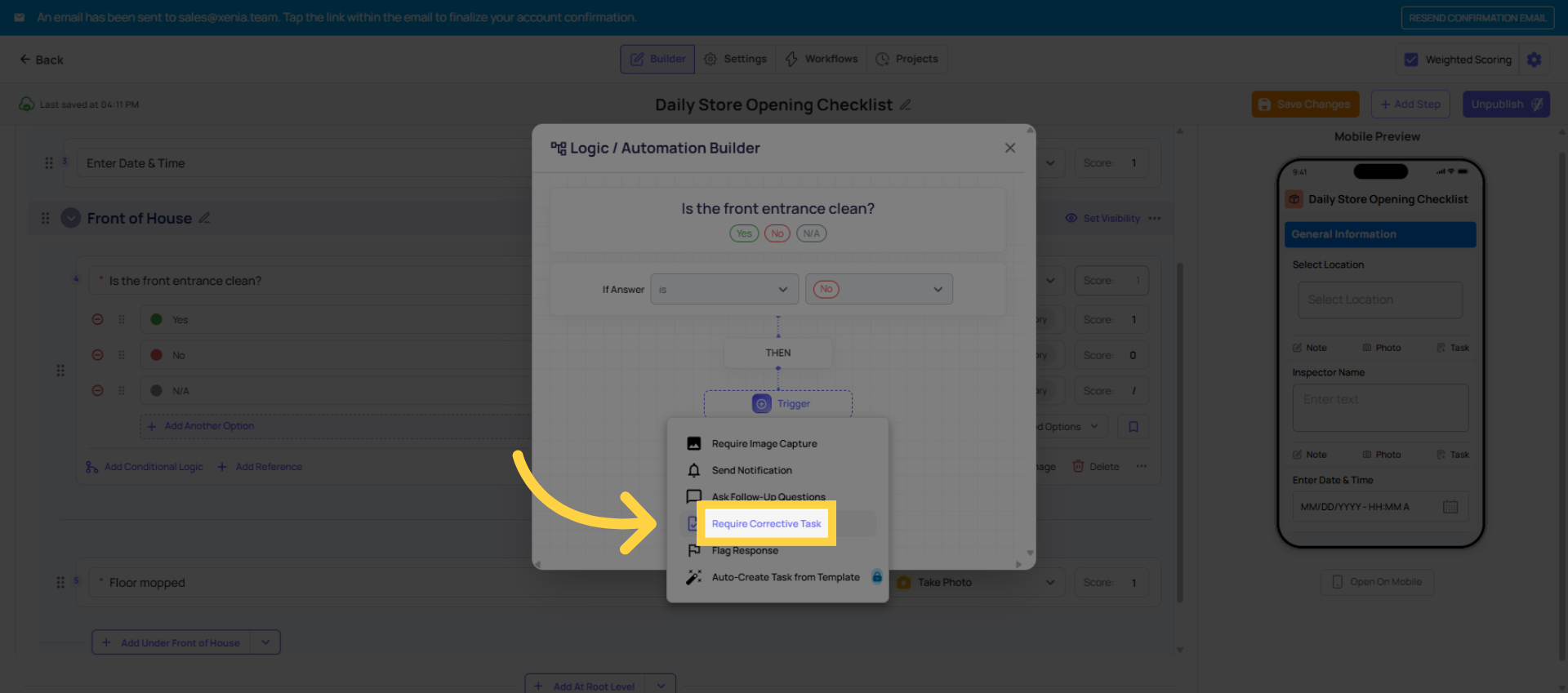
12. Click Require Corrective Task
13. Use Corrective Task Appropriately
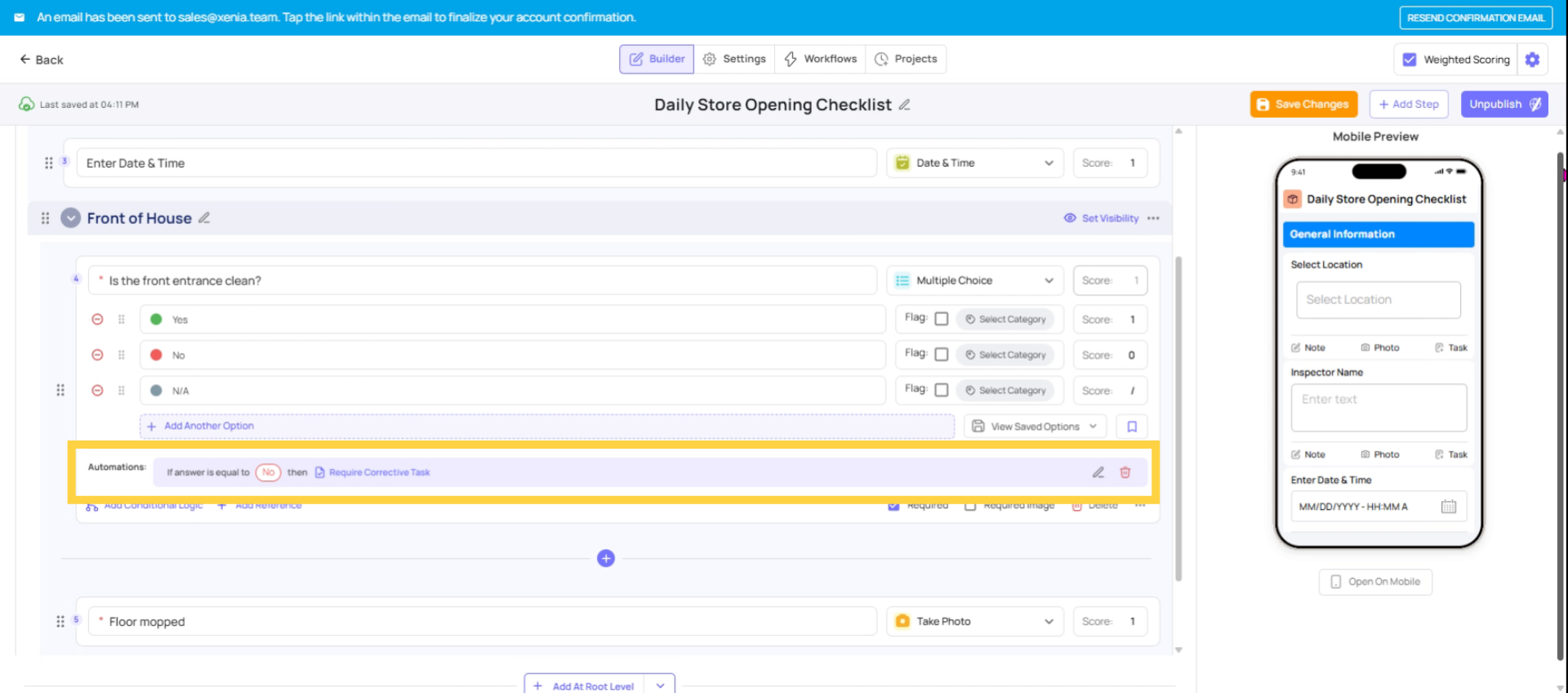
14. Submit Checklist With Corrective Task
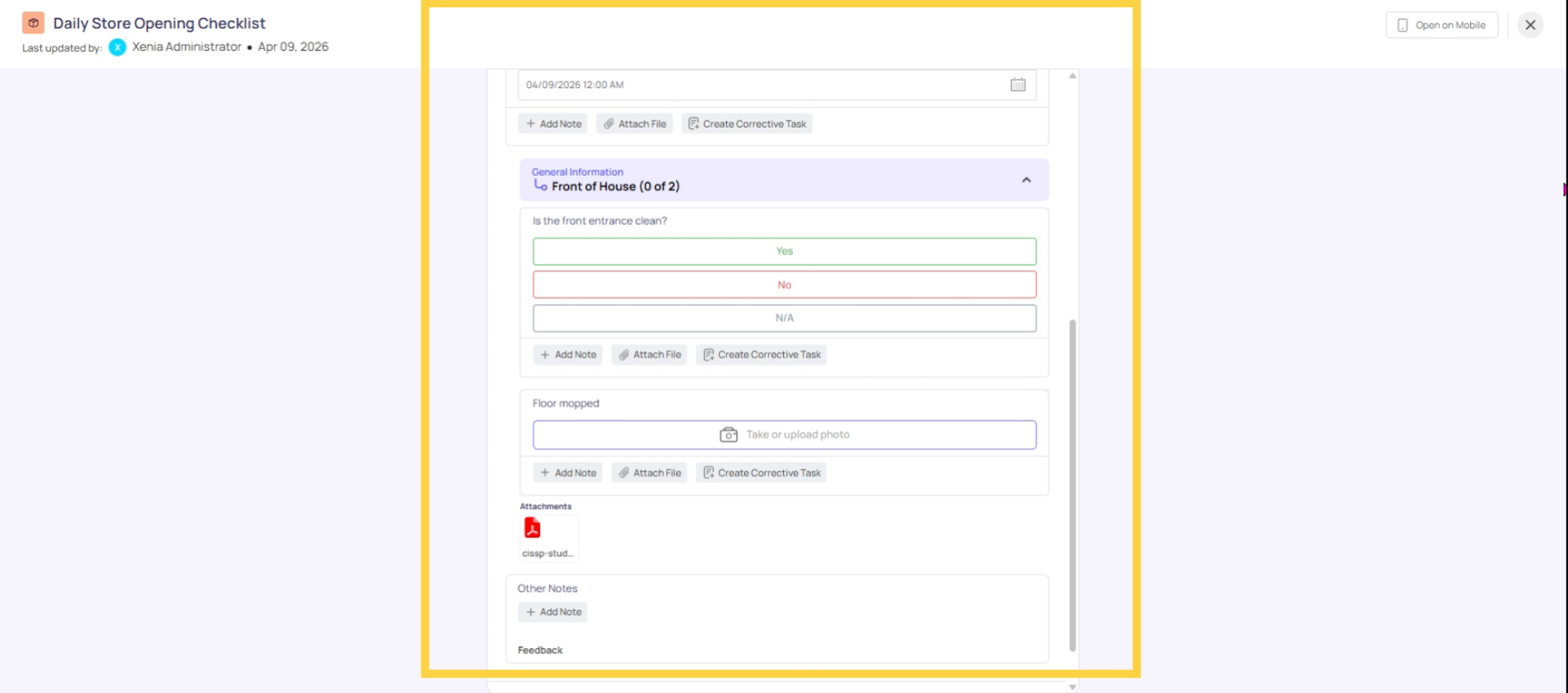
15. Assign Corrective Task Details
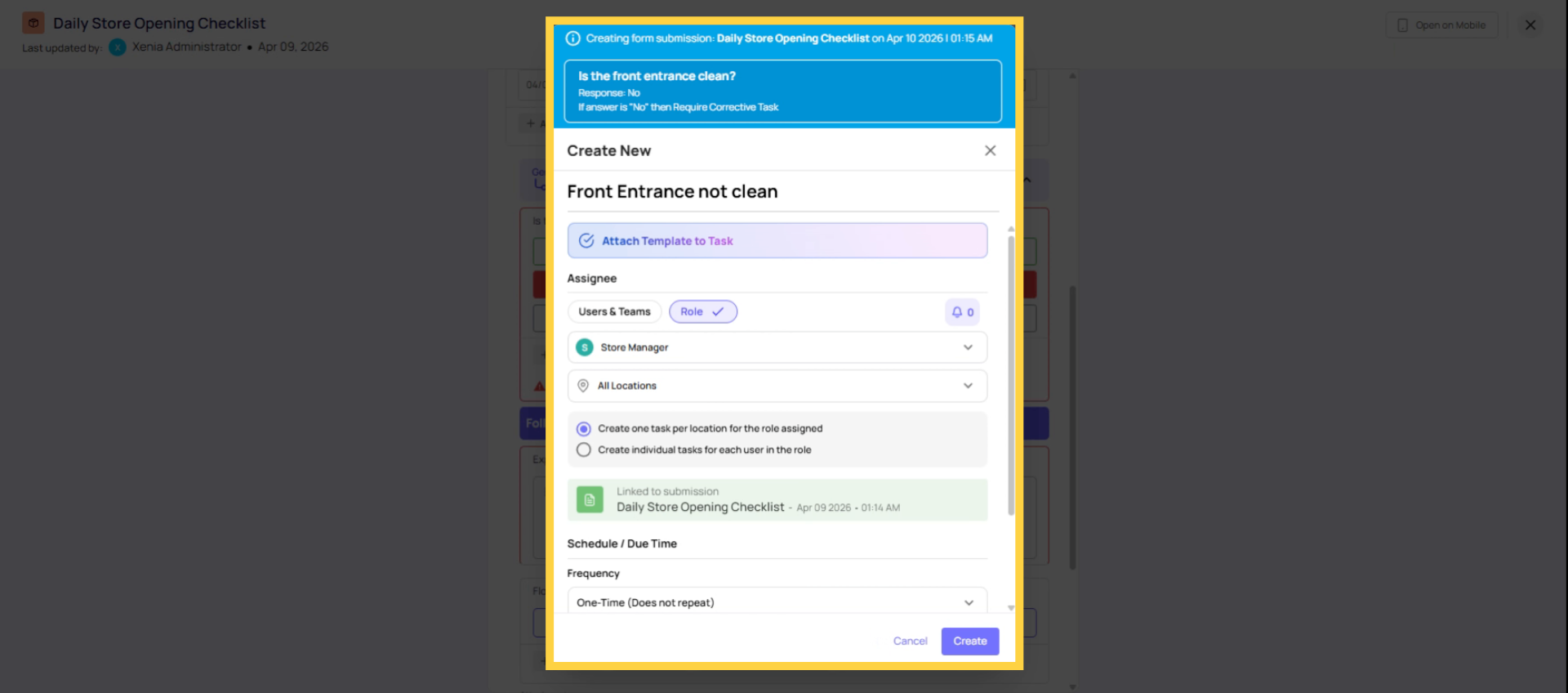
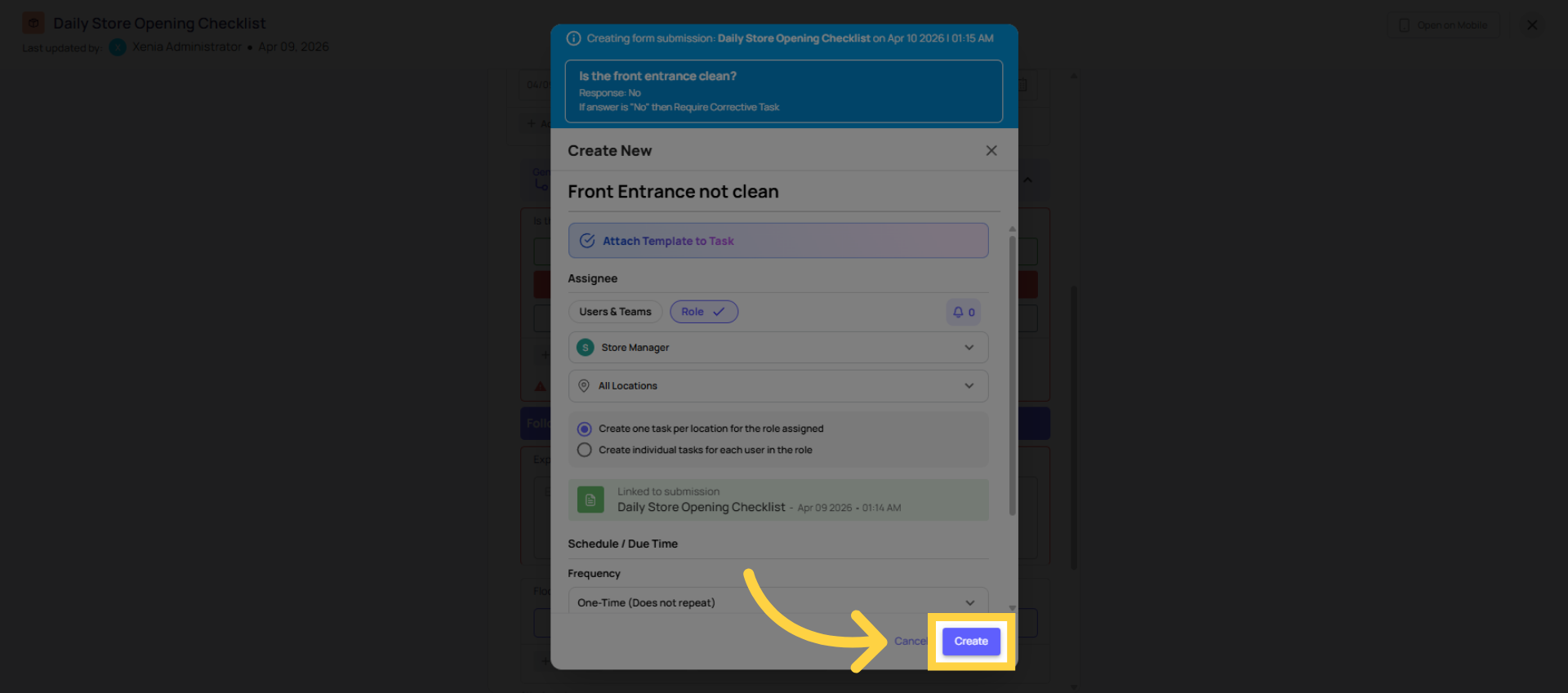
16. Click Create Task
17. Post-Task Follow-Up Questions
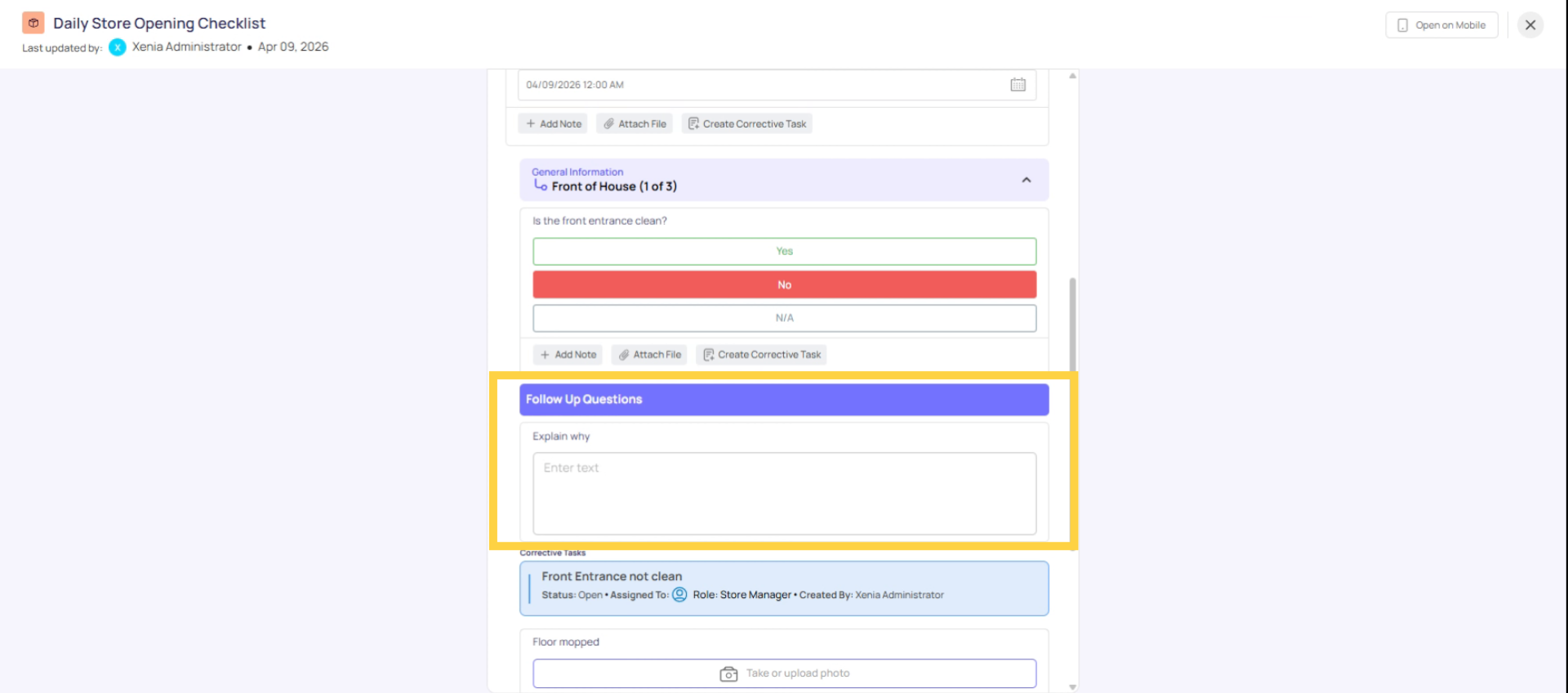
You Can Use Both Together
These options aren't mutually exclusive. A single conditional trigger can have multiple automations:
Example: Temperature reading is below 135°F → Require image capture (photo evidence in the submission) → Ask Follow-Up Question: "What corrective action did you take?" (captures real-time documentation) → Require Corrective Task: Auto-assigned to Food Safety Lead (creates a trackable work item for verification)
This layered approach gives you both immediate documentation and a formal assignment for follow-through.
This article explained how to effectively manage conditional logic automations in Xenia, including when to use follow-up questions for immediate documentation and corrective tasks for assigning issues to others. For more information, see related articles on checklist automation and task management.
Need Help?
Reach out to our team at Support@xenia.team
Comments
0 comments
Please sign in to leave a comment.