
Understand HR Manager Role
In any organization, some forms should never be visible to frontline staff. A performance notice, disciplinary counselling form, or sensitive quality audit isn't just private — it's legally and operationally important that only the right people can see it exists, let alone submit or view it.
Xenia gives you full control over this at the template level. A frontline cashier logging into Xenia can have the daily opening checklist on their screen and be completely unaware that a performance notice form even exists in the workspace. It's invisible to them — not hidden behind a lock — simply not there from their perspective.
This article walks through exactly how to configure that.
Create HR Manager Role Permissions
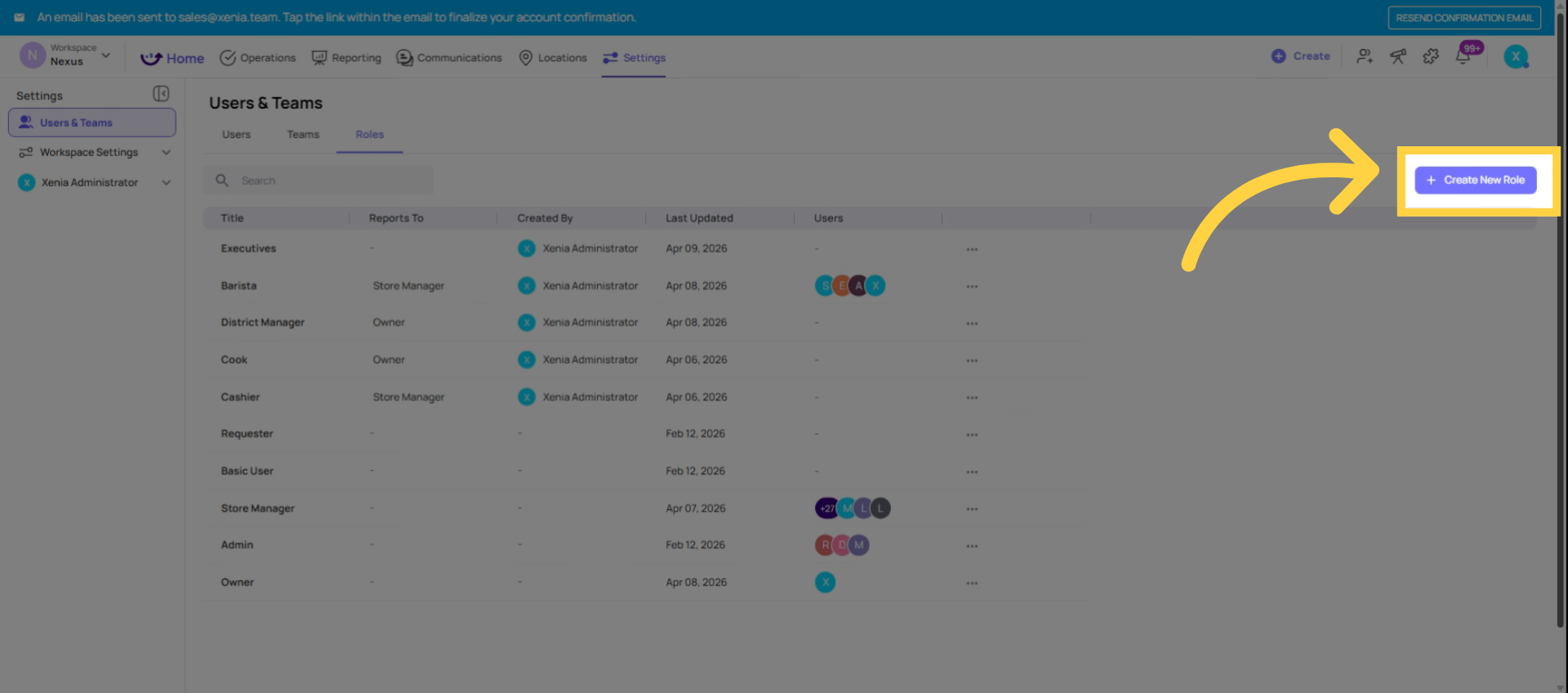
Setup HR Manager Role
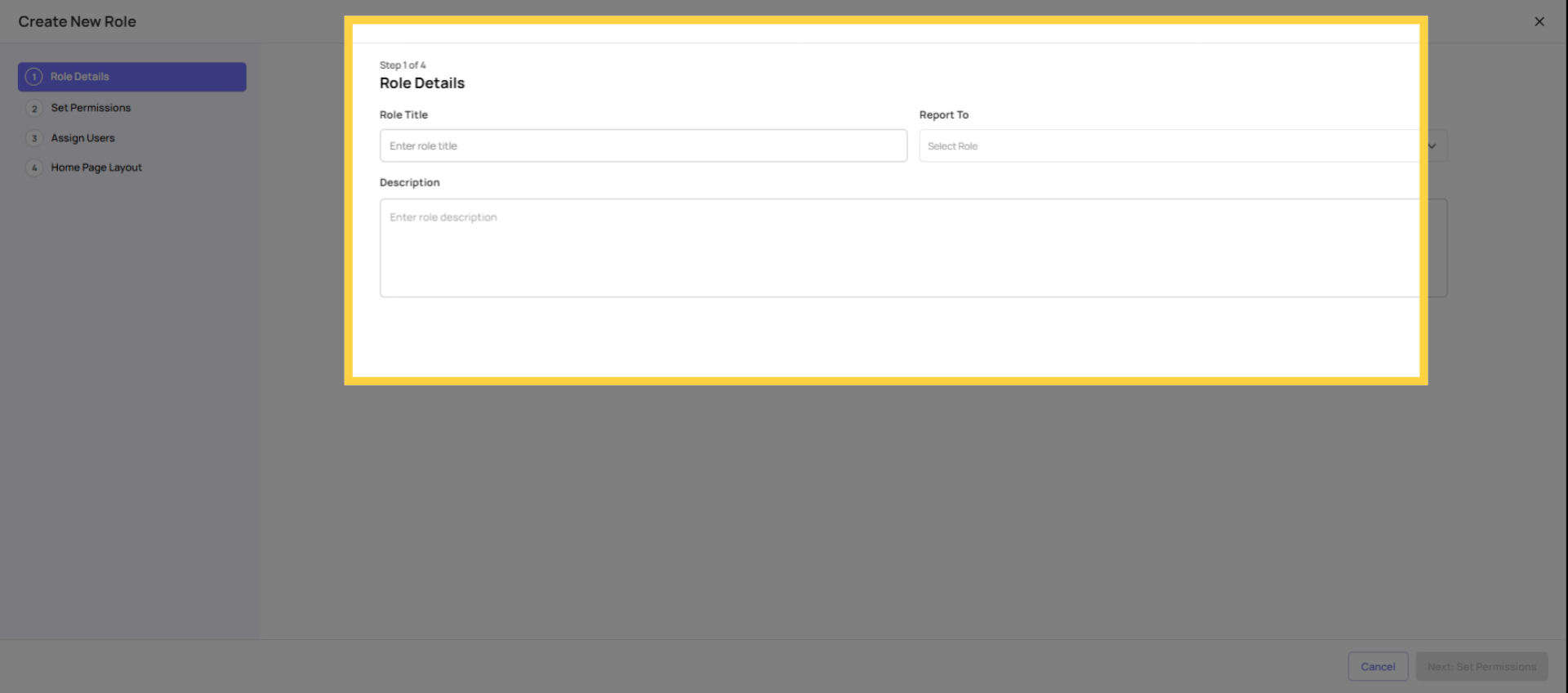 When creating the HR manager role, the key permissions are access operation templates. You should turn them on so they can use the forms. Manage template should be turned off so they can't accidentally edit or archive anything.
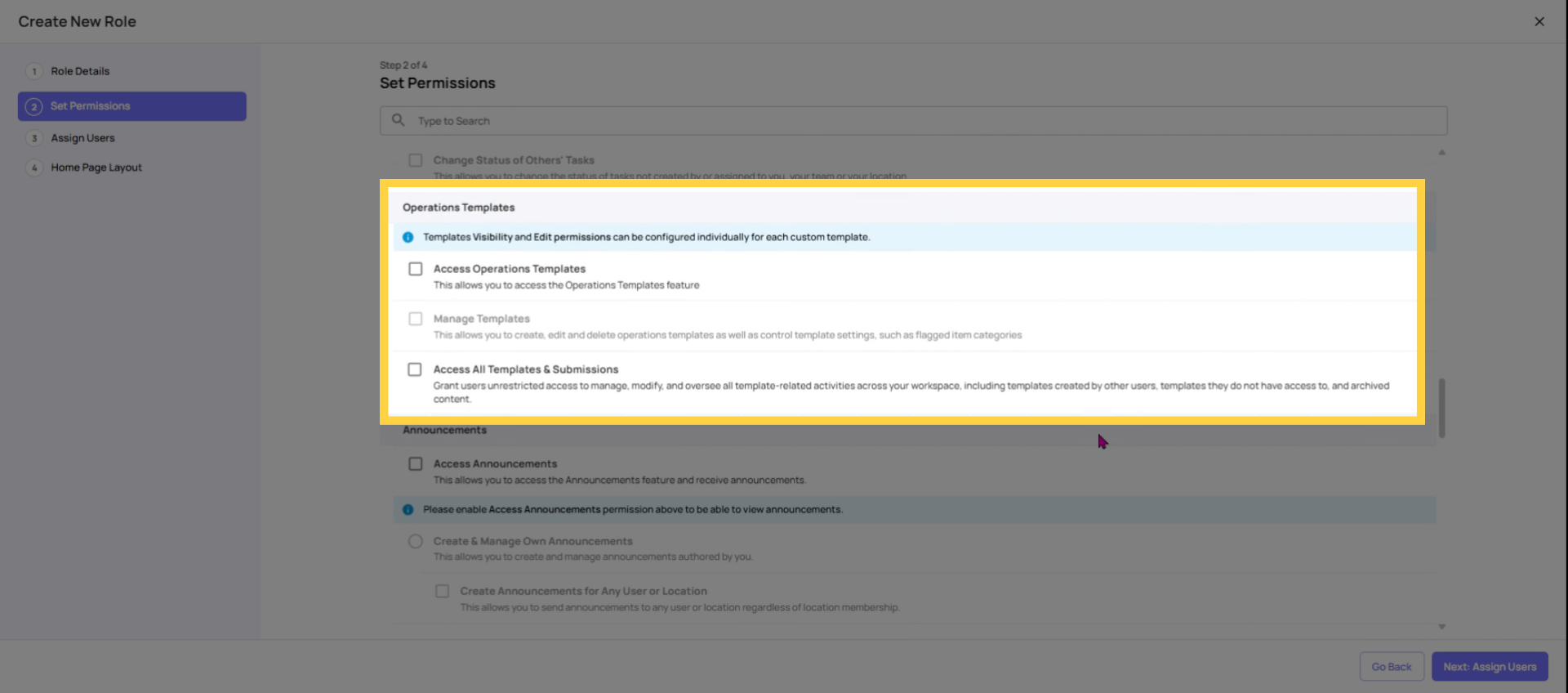
Disable Admin Controls for HR
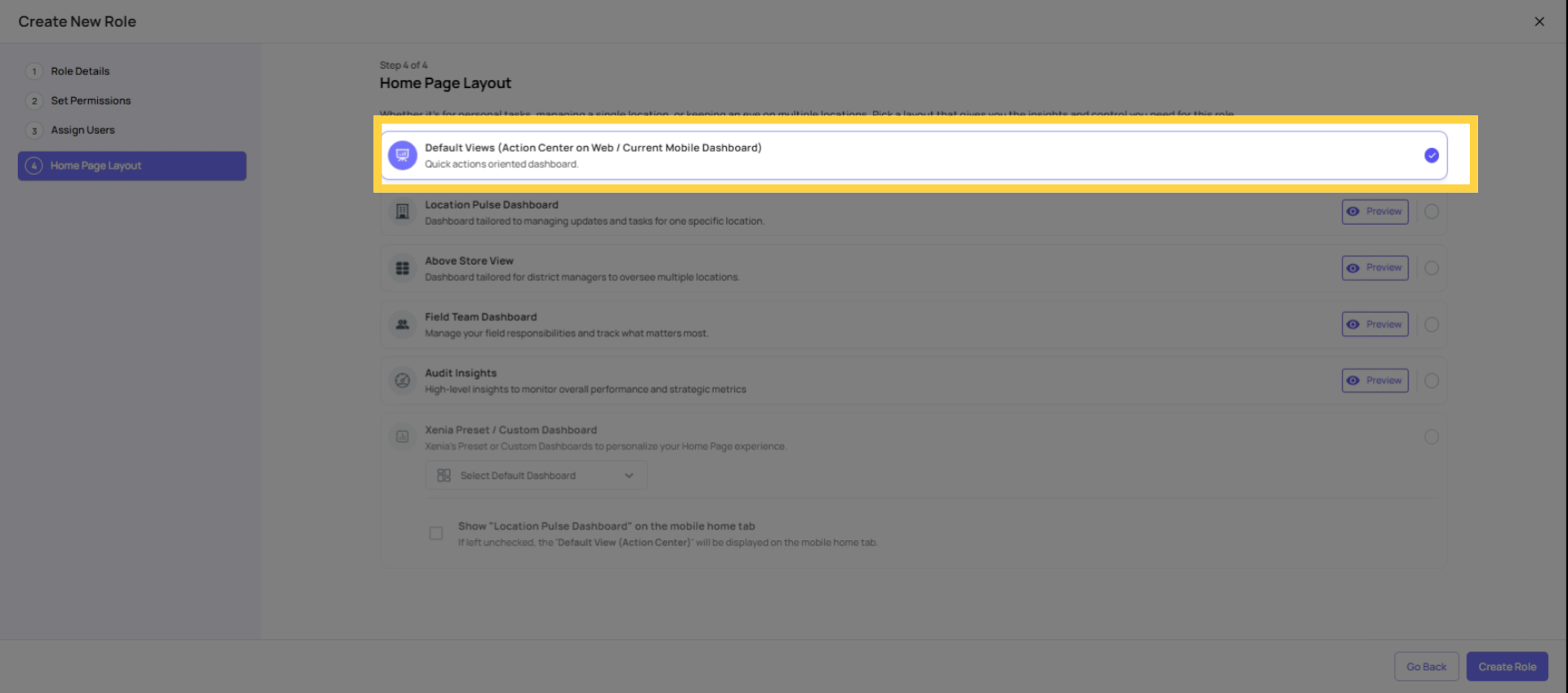
Setup Homepage Layout
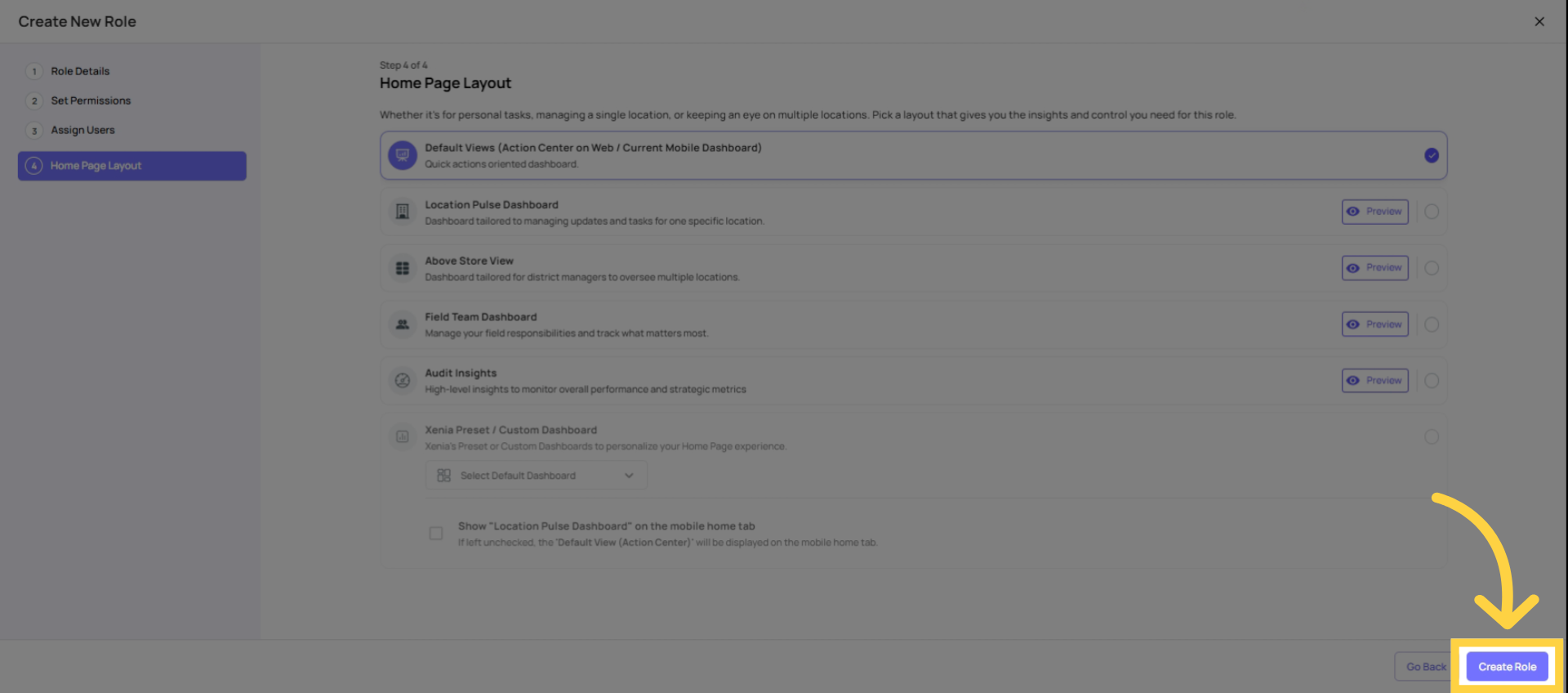
Create Role
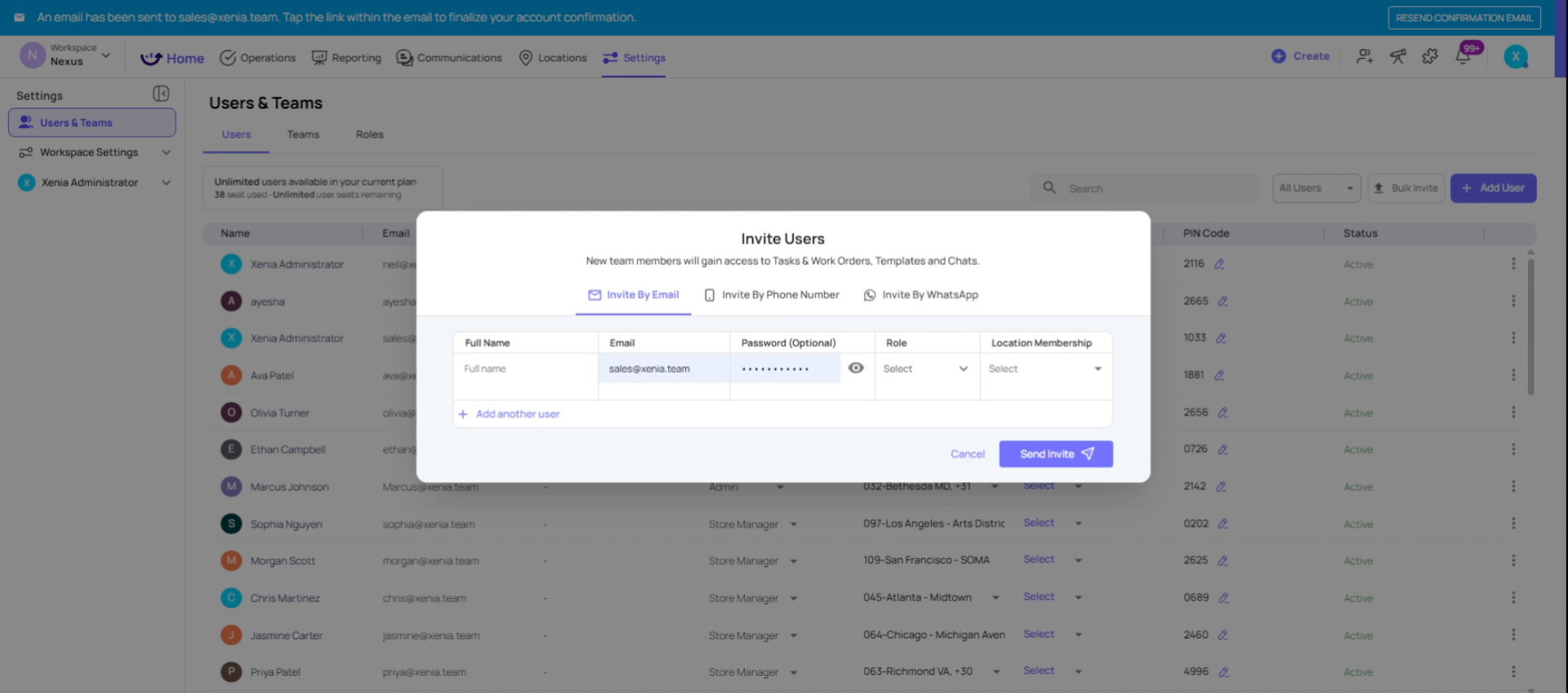
Set Location Membership Scope
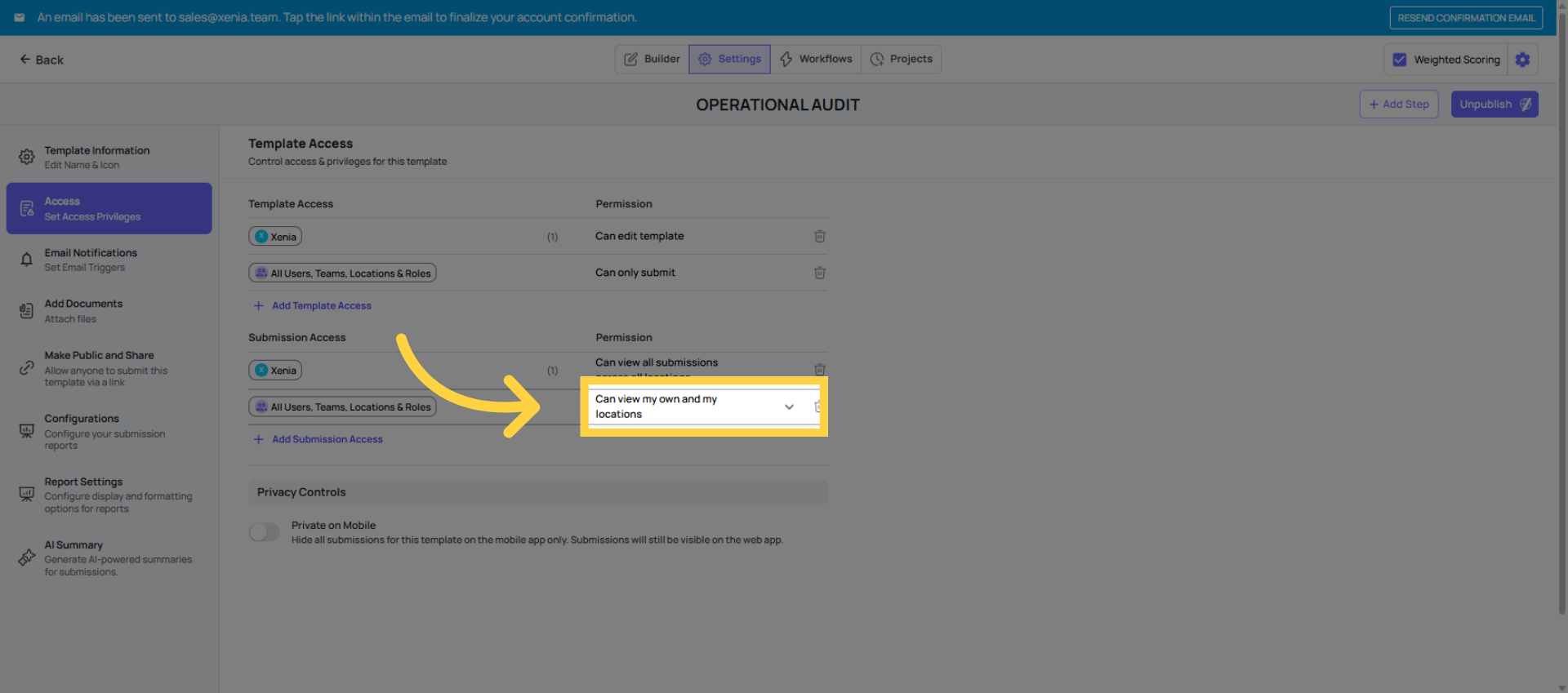
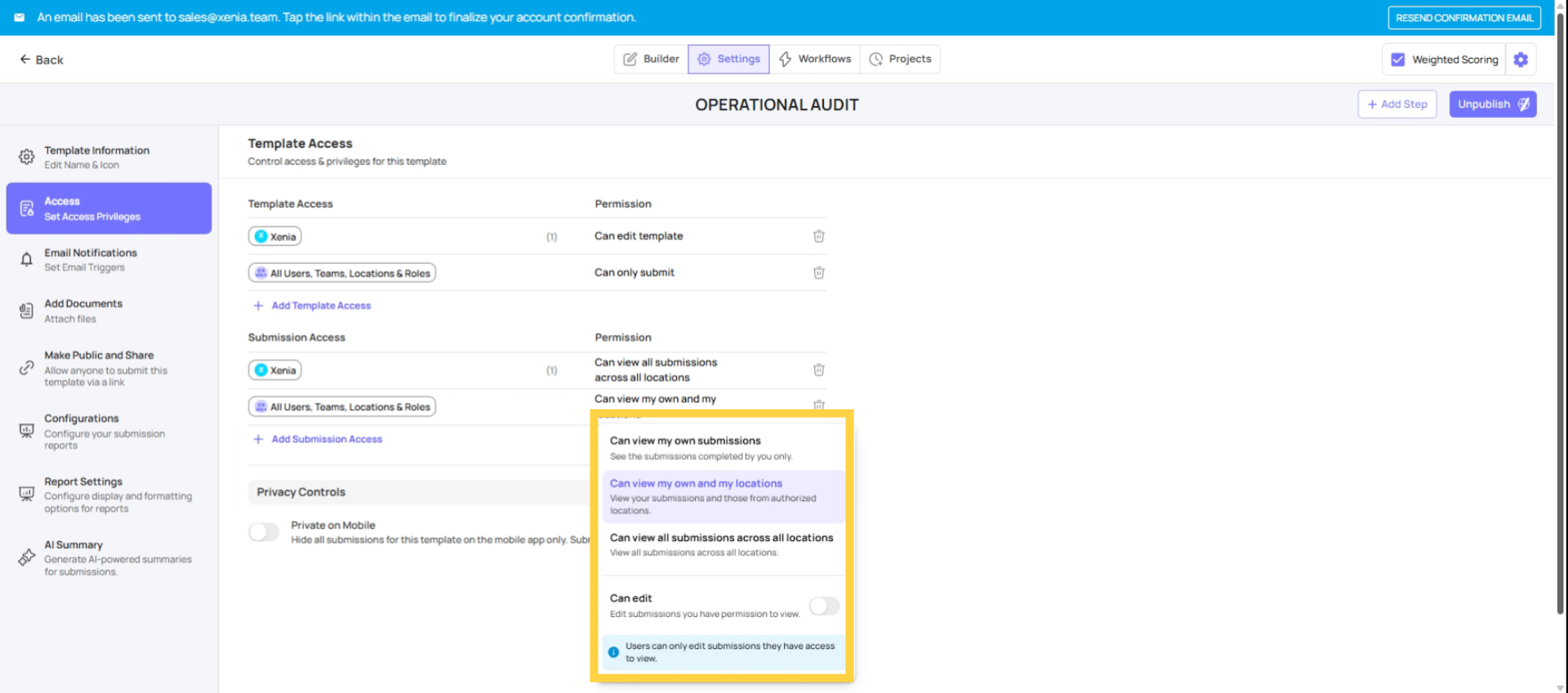
Set Submission Viewing Scope
Locking down a sensitive template requires configuring three things independently:
Layer 1 — Can Submit (Template Access): Who can see and complete this template at all.
Layer 2 — Can Edit (Template Access): Who can modify the template structure.
Layer 3 — Submission Access: Who can view past completed submissions.
Getting all three right is what creates true restriction. Configuring only one or two leaves gaps.
Configuration Summary Table
| Setting | Frontline (Cashier, Cook) | Store Manager | HR Manager | Admin |
| Can Submit | ❌ Not listed | ✅ Listed | ✅ Listed | ✅ Listed |
| Can Edit | ❌ Not listed | ❌ Not listed | ❌ Not listed | ✅ Listed |
| Submission Access | — | Tier 1 or 2 | Tier 3 | Tier 3 |
| Private on Mobile | — | Applies | Optional | Can override |
| Template visible? | ❌ Invisible | ✅ Visible | ✅ Visible | ✅ Visible |
6. Common Sensitive Templates to Lock Down
Most orgs should restrict access to:
- Performance Notice / Disciplinary Counseling forms
- Employee incident reports (non-safety related)
- Manager walkthrough audits (restrict from frontline)
- Pay or compensation-related forms
- Internal quality audit scoring (restrict submission to auditors only)
- HR onboarding forms with personal employee information
General operational checklists (daily opening, temperature logs, cleaning checklists) typically don't need restriction — they're designed for broad frontline use.
Need Help?
Reach out to our support team at Support@xenia.team
Comments
0 comments
Please sign in to leave a comment.