
Template Access Controls
Navigate to Template
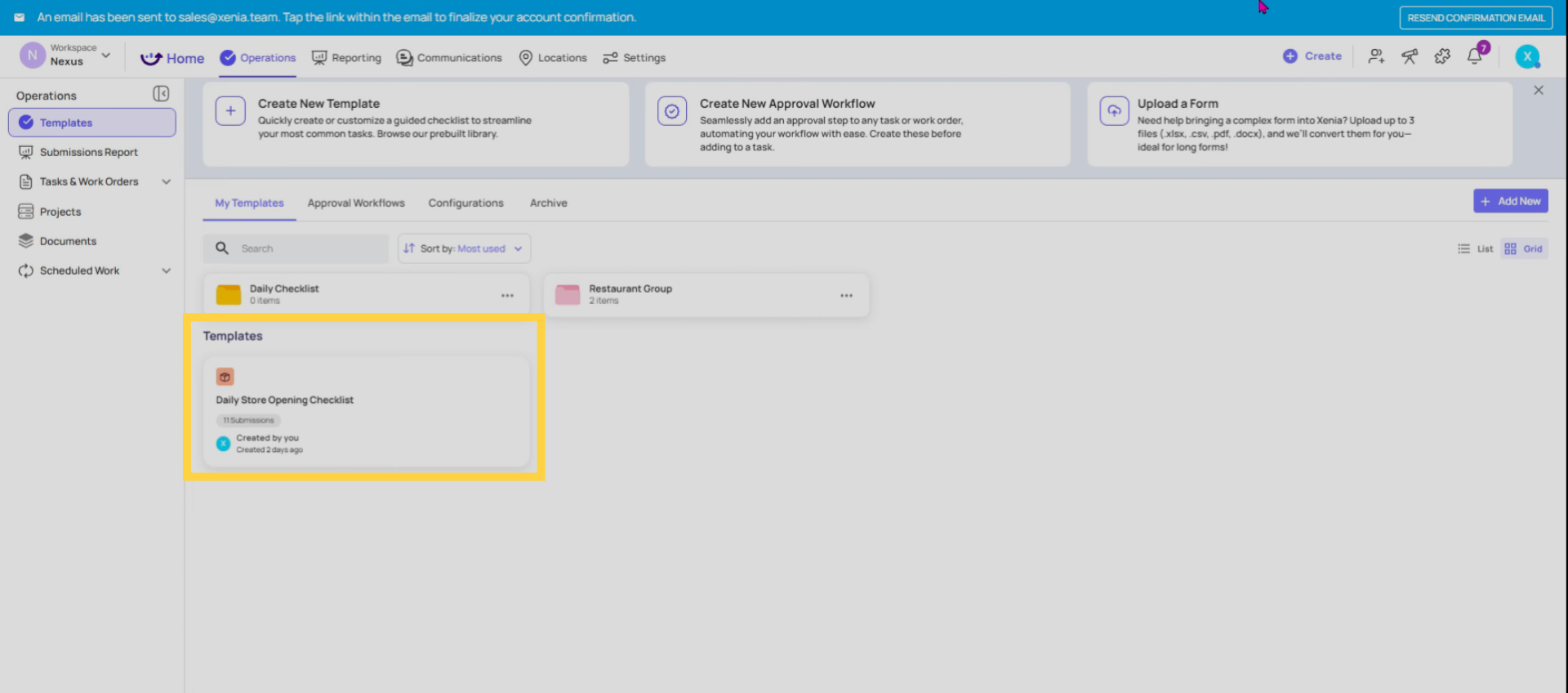
Submission Access Purpose
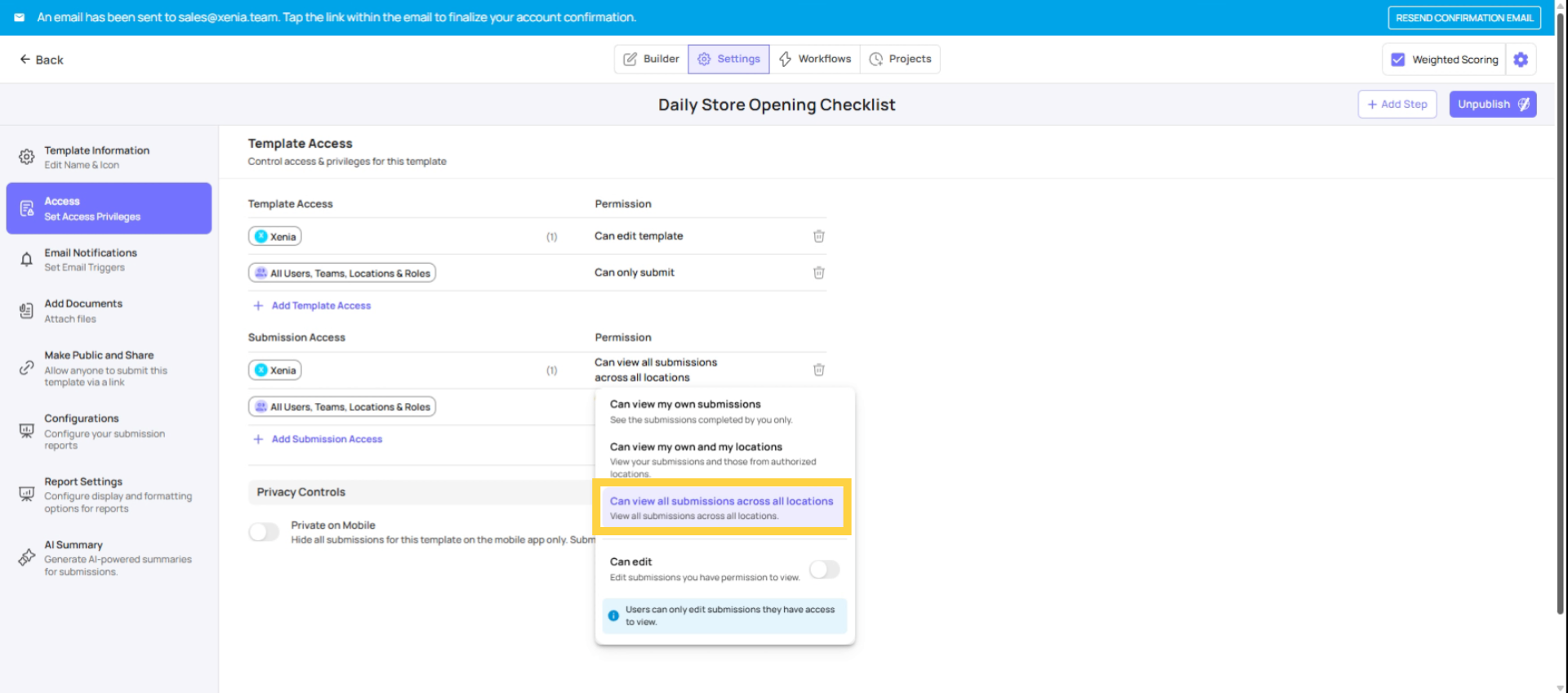
Submission Access is a completely separate setting from Template Access. While Template Access controls who can complete a checklist, Submission Access controls who can view the completed data afterward — the submission reports, responses, and photos.
This distinction matters because:
- A cashier might be able to submit a temperature log, but you don't want them browsing all temperature logs from the last 30 days
- An HR manager needs to see all performance notice submissions, but only within their region
- A district manager should see everything submitted from their stores, but not from other districts
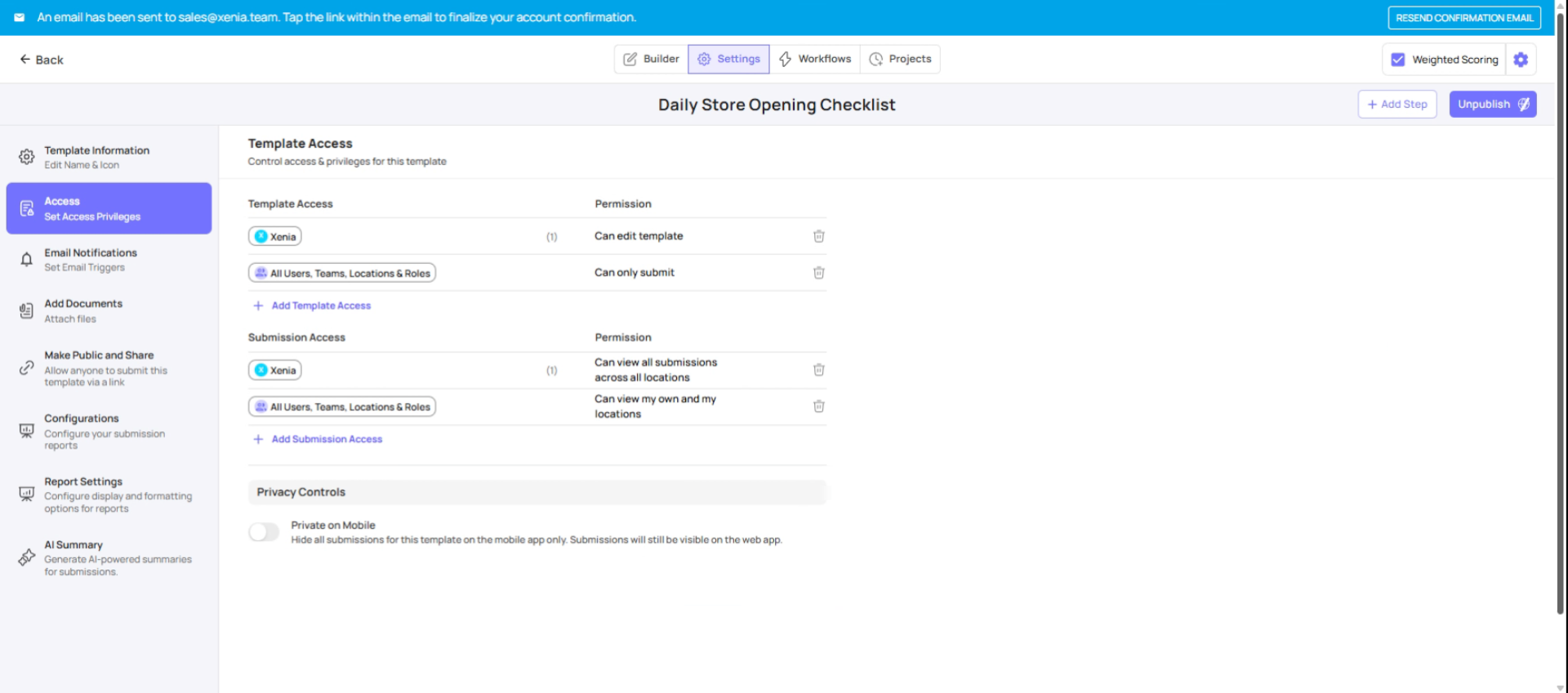
Submission Access is where you configure all of this. It's found in the same place: Operations → Templates → [Template Name] → Settings → Access → Submission Access section
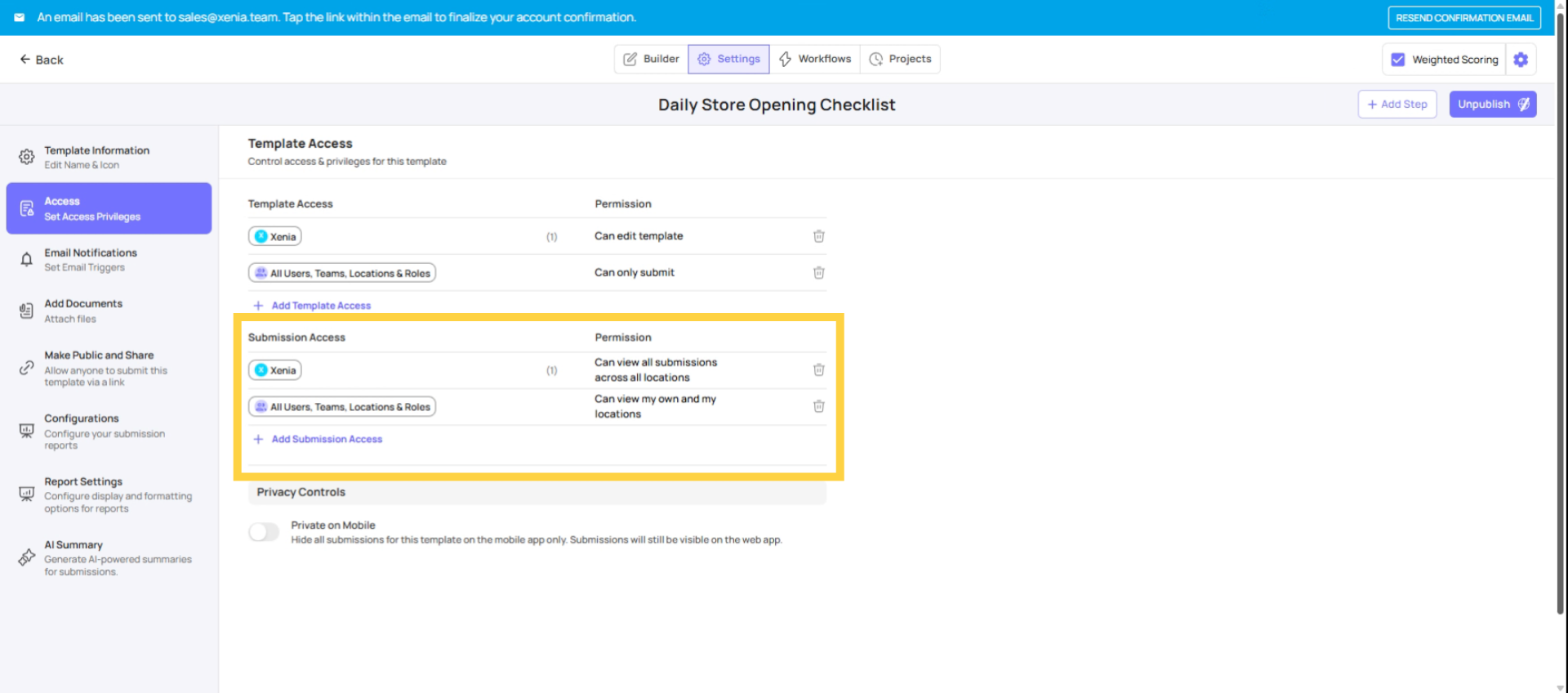
Tier 1 — View Own Submissions Only
Tier 1 — View Own Submissions Only
- The user can only see submissions they personally completed
- They cannot see submissions made by other users, even at the same location
- Equivalent to: "I can only view my own history"
- Best for: Frontline employees, basic store-level users who don't need visibility into others' work
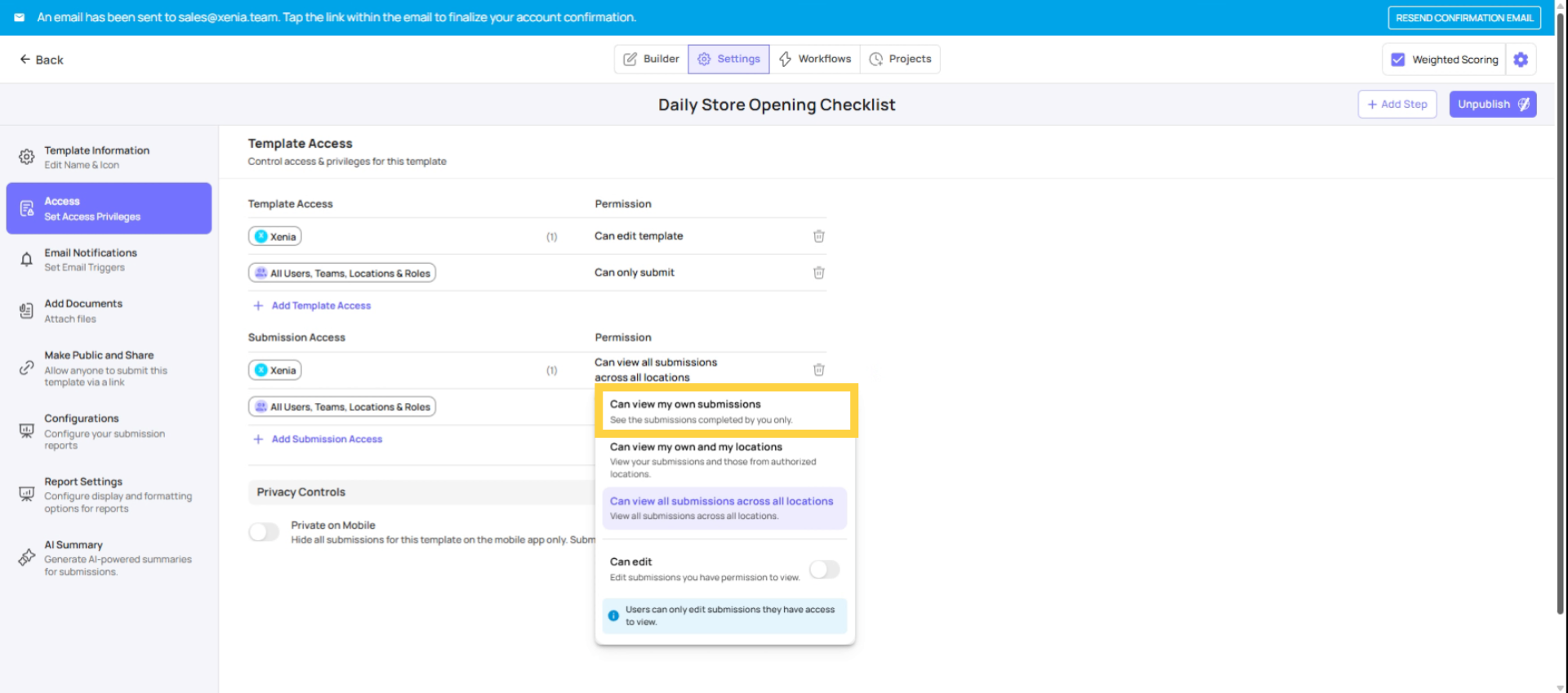
Tier 2 — View Own + Submissions at Their Locations
Tier 2 — View Own + Submissions at Their Locations
- The user sees their own submissions plus all other submissions where the submission location matches one of their member locations
- Equivalent to: "I can see everything that happened at my store(s)"
- Best for: Store managers who need to review what their whole team submitted, district managers who need to see all stores in their district
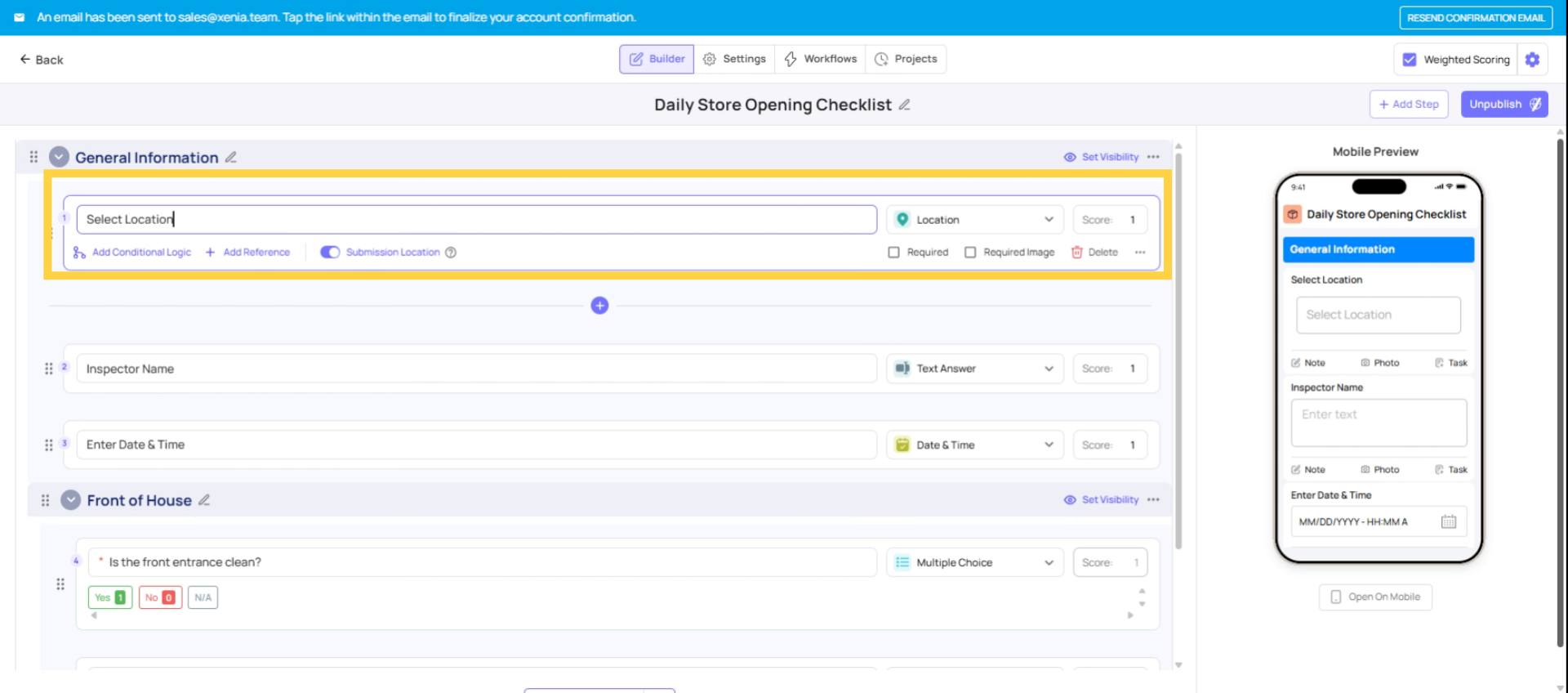
Important: This tier requires the template to include a "Select Location" step. Without it, Xenia can't determine which store a submission belongs to, and location-based filtering won't work correctly.
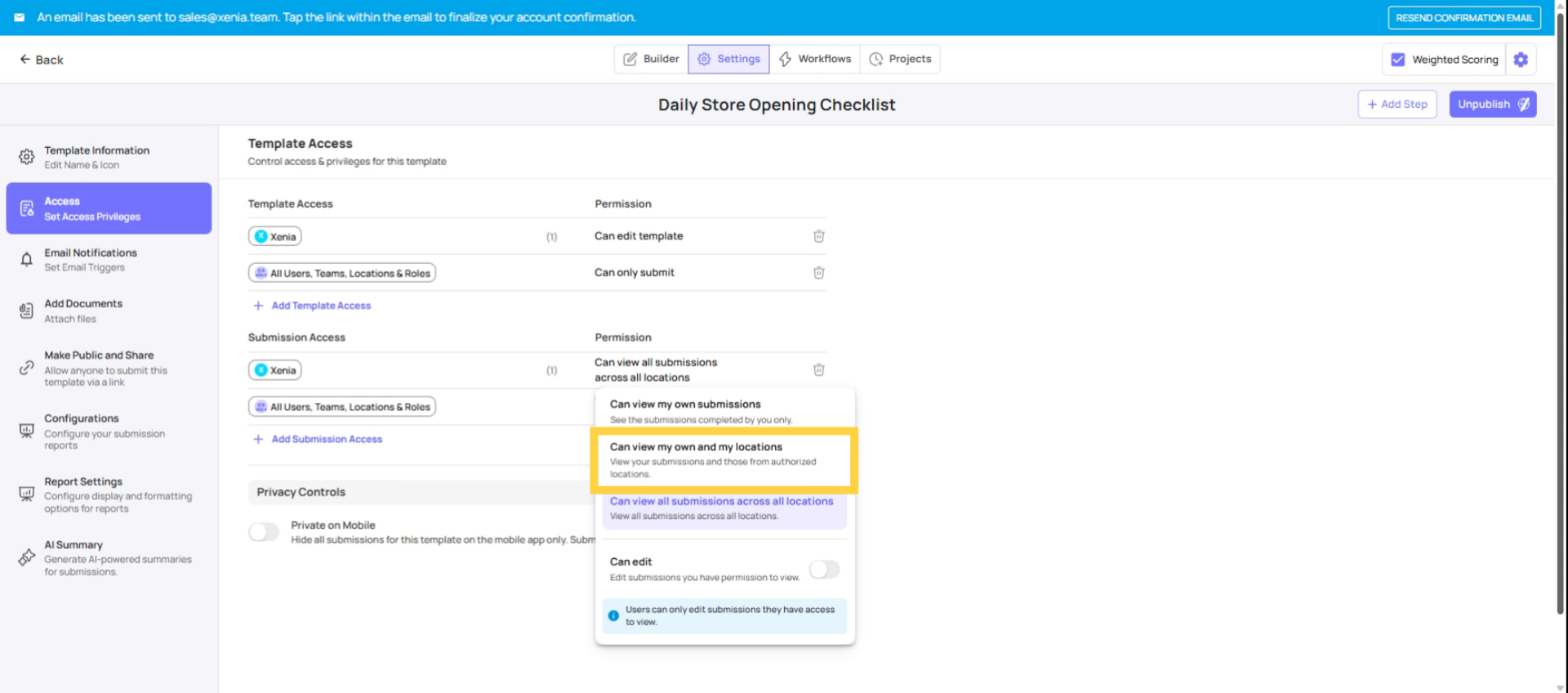
Tier 3 — View All Submissions
Tier 3 — View All Submissions
- The user sees every submission for this template across the entire workspace, regardless of location
- Equivalent to: "I can see everything, everywhere"
- Best for: HR managers reviewing performance notices across all locations, QA/Compliance roles reviewing audit data org-wide, Admin/Owner level roles
Template-Level Location Step
For Tier 2 (View own + at their locations) to work correctly, the template must include a "Select Location" step (a step type that lets the user indicate which location they're submitting from).
When a submission is made, Xenia tags it to the selected location. When a store manager views submissions, Xenia checks which of those tagged locations match the manager's location membership. Without the location step, submissions aren't tagged to any location, and the location-based filtering can't work.
If you're configuring Tier 2 for store managers or district managers, always verify the template has a Location step — and that it's positioned near the top of the checklist.
Configure Role-Based Submission Access
Common Submission Access Configurations
| Template | Frontline Role | Store Manager | District Manager | HR / Admin |
| Daily Opening Checklist | View own only | View at their locations | View at their locations | View all |
| Temperature Log | View own only | View at their locations | View at their locations | View all |
| Performance Notice | — (cannot submit) | View own only | View at their locations | View all |
| Food Safety Audit | — (cannot submit) | — (cannot submit) | View at their locations | View all |
| Incident Report | View own only | View at their locations | View at their locations | View a |
Need Help?
Reach out to our support team at support@xenia.team
Comments
0 comments
Please sign in to leave a comment.