
Understand Advanced Location Logic
Advanced Location Logic (also called Advanced Location-Based Assignment) is a workspace-level toggle that activates the full location membership system in Xenia.
Who should enable it: Any organization with multiple locations where you want to ensure users only see and interact with data relevant to their locations. For single-location workspaces, it's rarely needed. For multi-location operators — restaurants, retail chains, convenience stores, facilities management — it's essential.
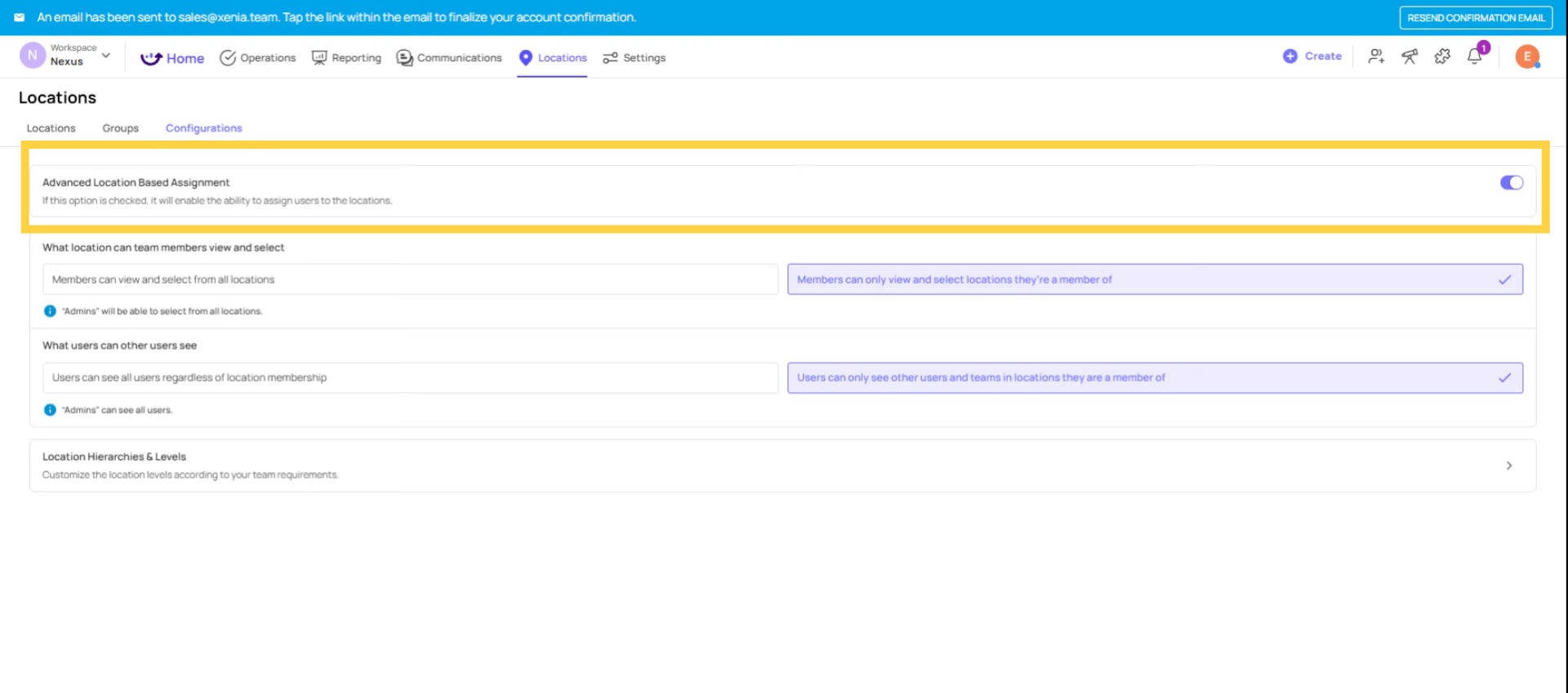
Effects When Logic Is Disabled/Enabled
When it's OFF: Location membership has limited effect. Users can generally see and assign tasks across the workspace regardless of which locations they're formally assigned to. Task filtering by location is minimal.
When it's ON: Location membership becomes the active scoping mechanism. Users can only see data for locations they're a member of (subject to their role permissions). The platform enforces location-based filtering across tasks, assignments, and user visibility.
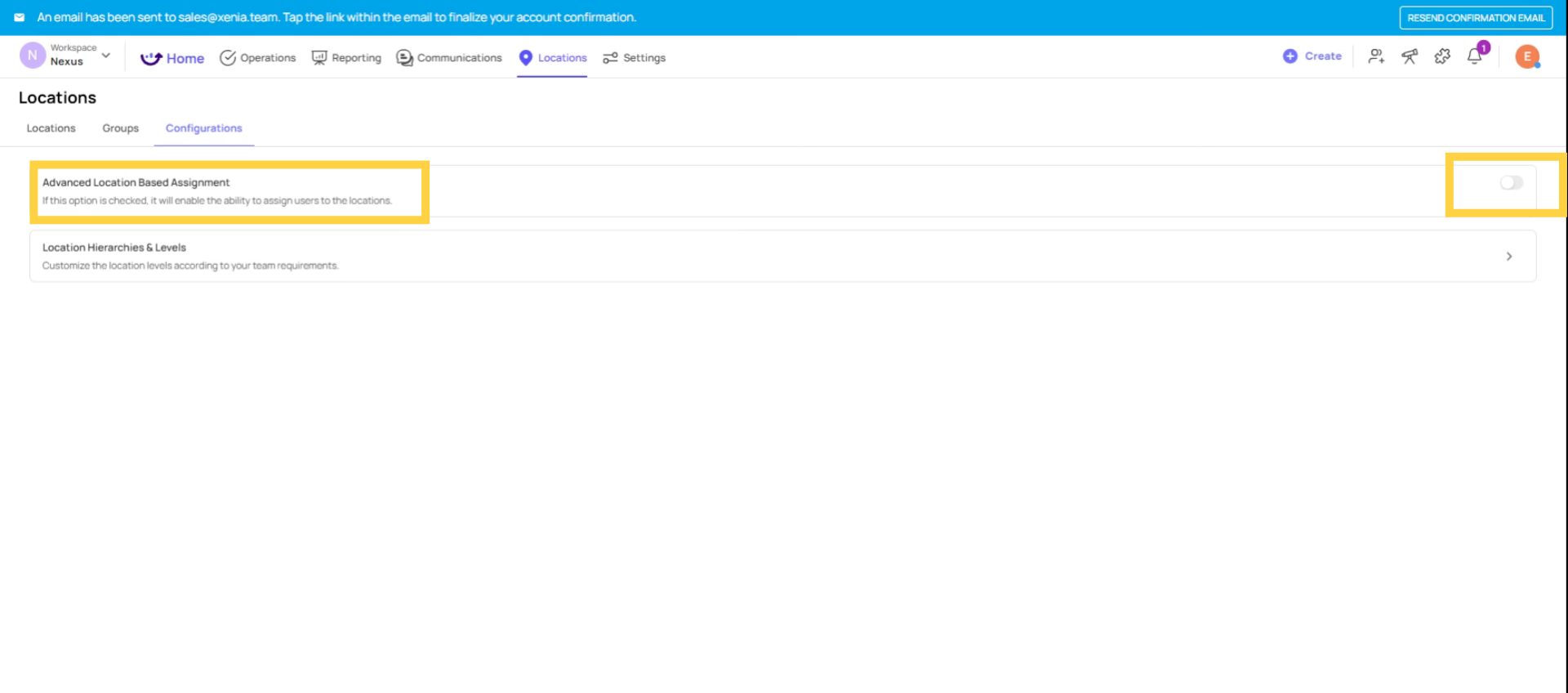
Enable Advanced Location Assignment
Advanced Location Logic is a workspace-level setting:
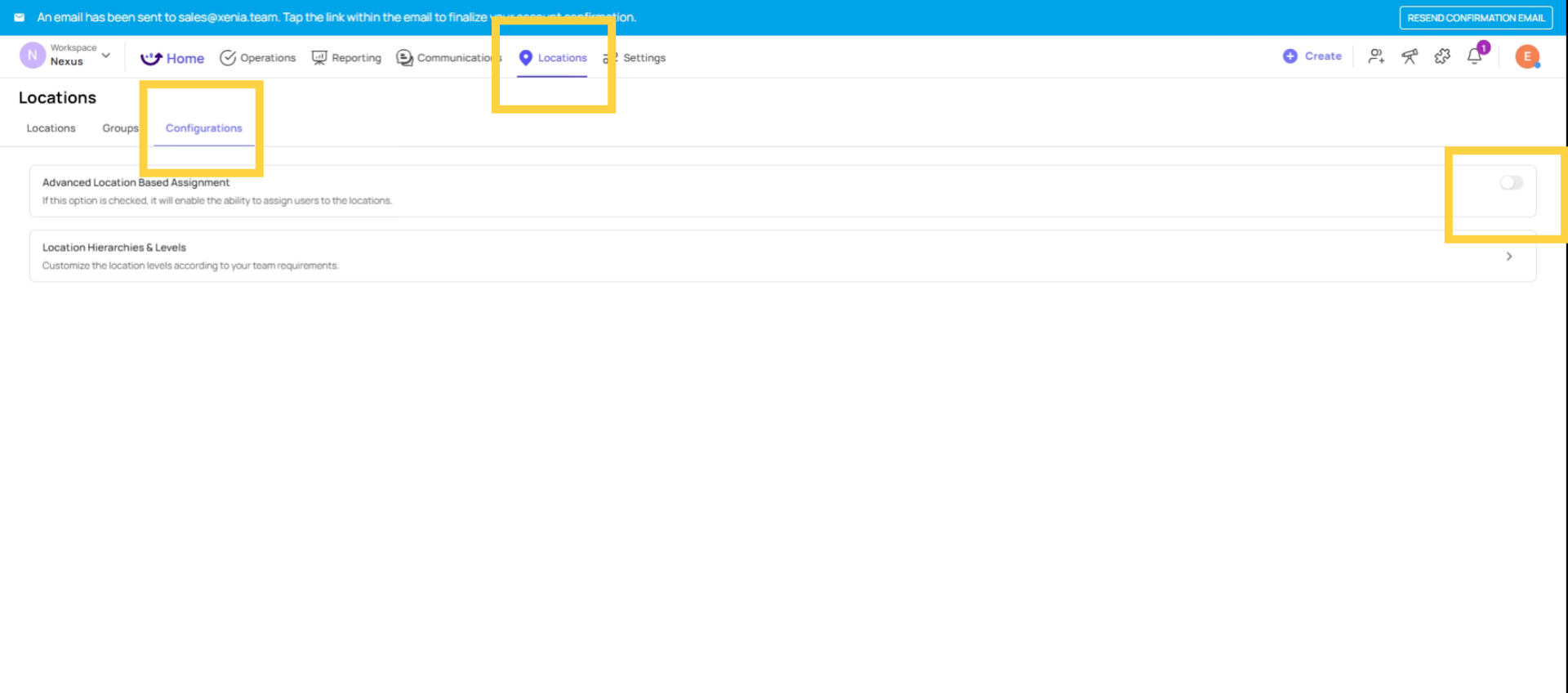
- Go to Locations→ Configurations
- Find Advanced Location Logic or Advanced Location-Based Assignment
- Toggle it ON
- Save
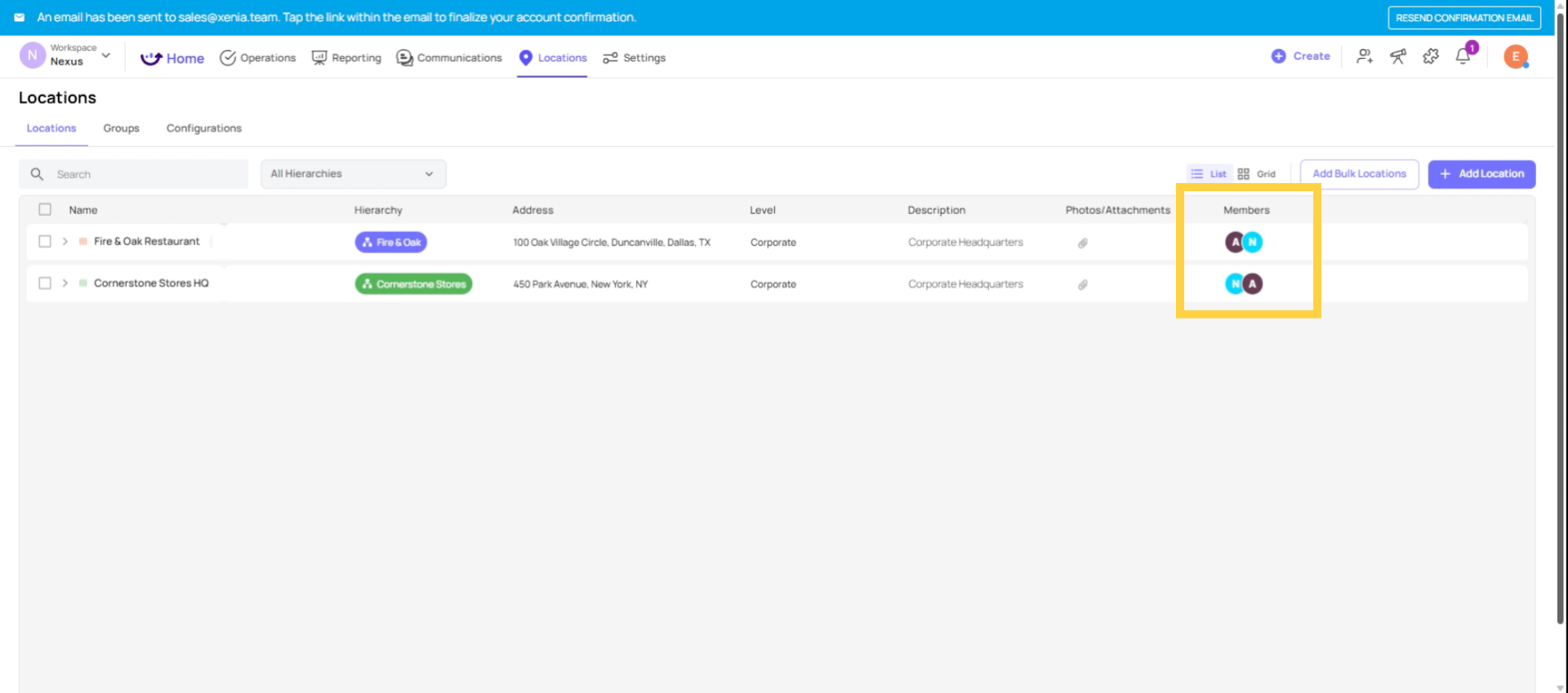
Once enabled, the Locations tab will also show a Members column on each location — this is where you can view or assign which users are members of each specific location.
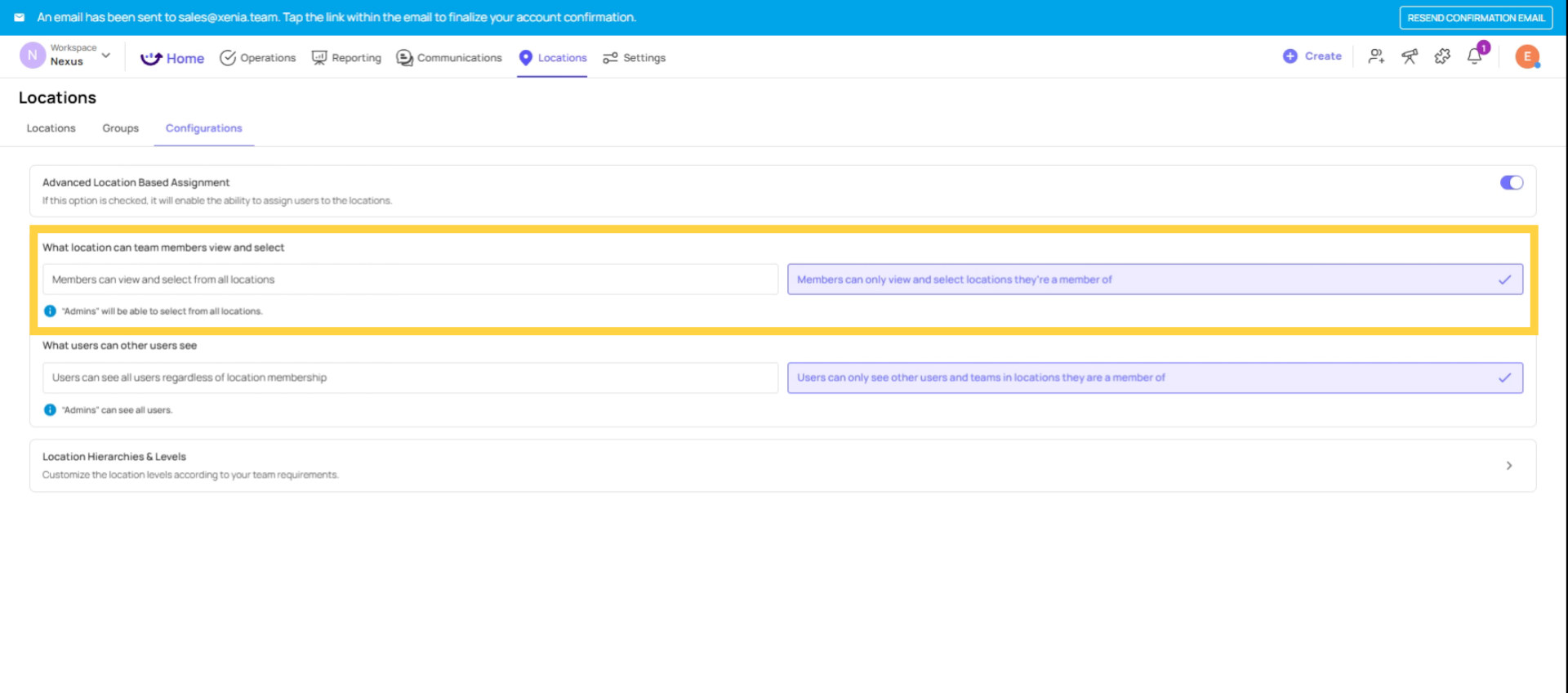
The Two Sub-Settings: Users Access and Locations Access
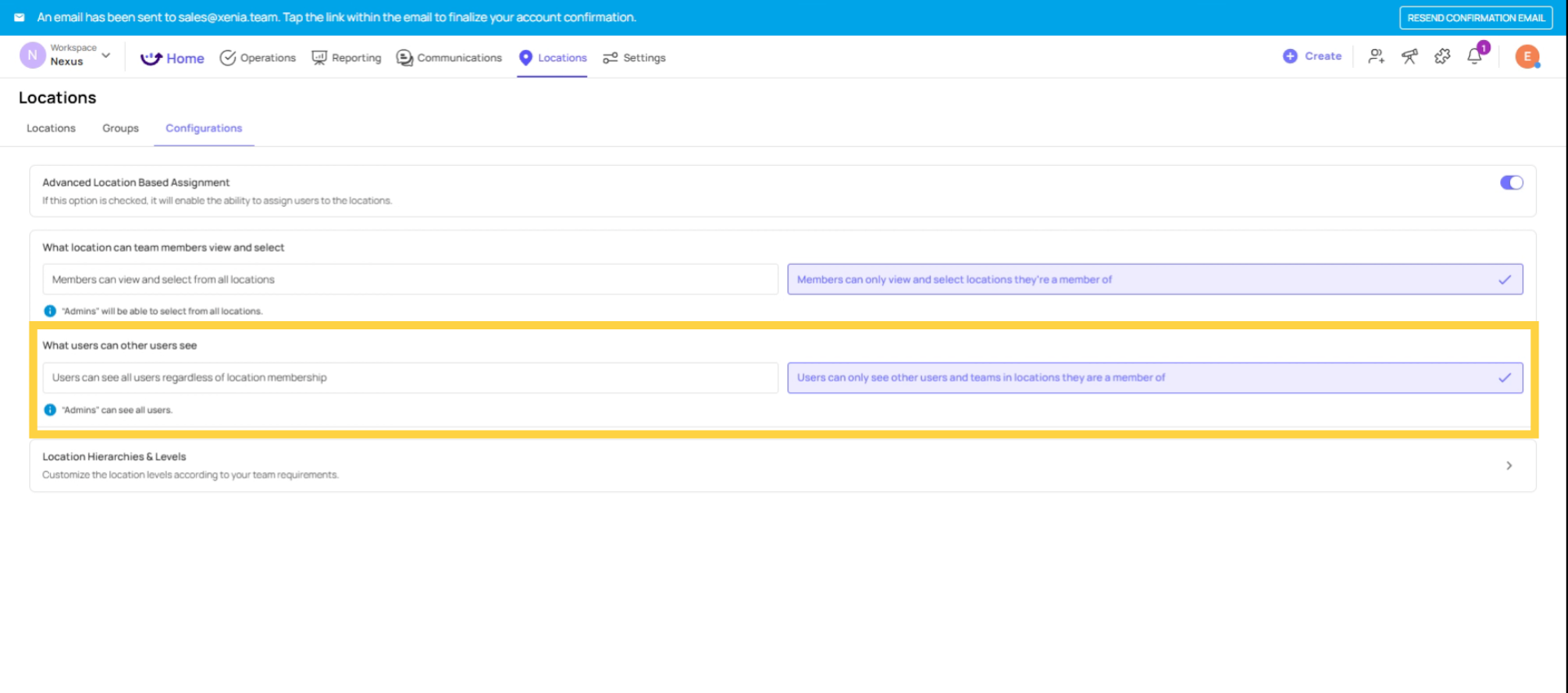
After enabling Advanced Location Logic, there are two additional sub-settings that control what users can see when assigning tasks:
Sub-setting 1 — Users Access: Controls which users appear in the assignee dropdown when someone creates a task.
- Option A — View and select only users from your location: When creating a task, you can only assign it to users who share location membership with you
- Option B — View and select all users regardless of location: You can assign tasks to any user in the workspace
Sub-setting 2 — Locations Access: Controls which locations appear in the location/assignee picker and other location selectors.
- Option A — View and assign only locations you're a member of: When creating a task or selecting a location, only your member locations appear
- Option B — View and assign all locations: All locations in the workspace appear as options regardless of your membership
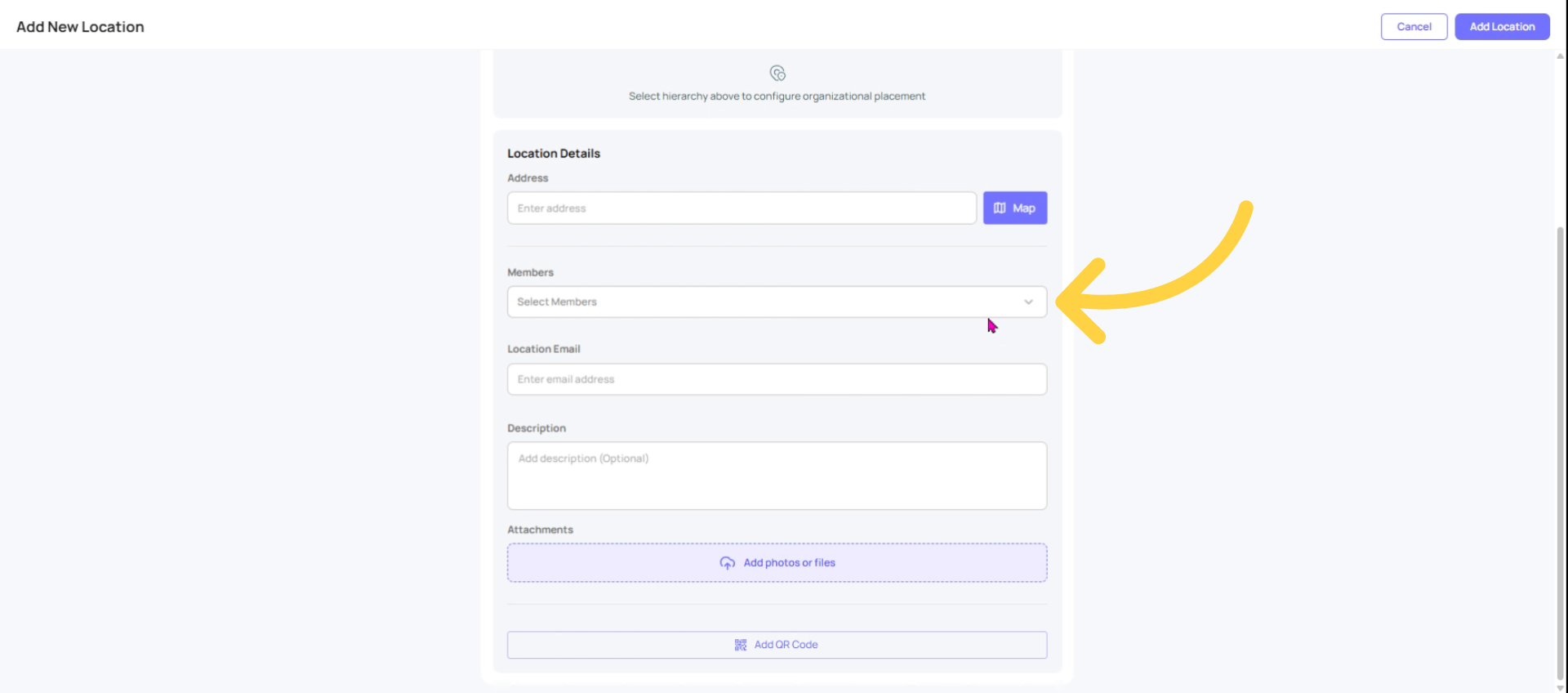
Add Members to location
View Members in Hierarchy
Advanced Location Logic and role permissions work together. Here's the interaction:
| Role Permission | Advanced Location Logic | Result |
| "View All Tasks" ON | Advanced Logic ON or OFF | User sees all tasks in workspace — location membership doesn't restrict |
| "View tasks at my locations" ON | Advanced Logic ON | User sees only tasks at their member locations |
| "View tasks at my locations" ON | Advanced Logic OFF | Location membership has limited effect — user may see more than expected |
| "Assign to Any User or Location" ON | Advanced Logic ON | Sub-settings become irrelevant — user sees all users and locations |
| "Assign to Any User or Location" OFF | Advanced Logic ON | Sub-settings activate and control what appears in assignee pickers |
The bottom line: for location-scoped visibility to work as intended, both the role permission (set to "View tasks at locations") and Advanced Location Logic must be configured correctly together.
This article explains how to enable and configure Advanced Location Logic in Xenia to control location-based task visibility and assignments. By following these steps, multi-location operators can ensure users only see data relevant to their assigned locations. For more information, see related articles on role permissions and location management.
Need Help?
Reach out to us at Support@xenia.team
Comments
0 comments
Please sign in to leave a comment.