
Understand Location Membership
What Is Location Membership?
Location membership is the mechanism in Xenia that controls which locations a user can see data from. When you assign a user to a location (or multiple locations), you're granting them membership to those locations — meaning they can see tasks, reports, checklists, and other data scoped to those locations.
A user without location membership will log in and see nothing. A user with membership to 5 locations will see data for those 5 locations only. A user with membership to 200 locations will see data across all 200.
Location membership is the geographic scope gate in Xenia. The role controls what a user is allowed to do. Location membership controls where they can do it.
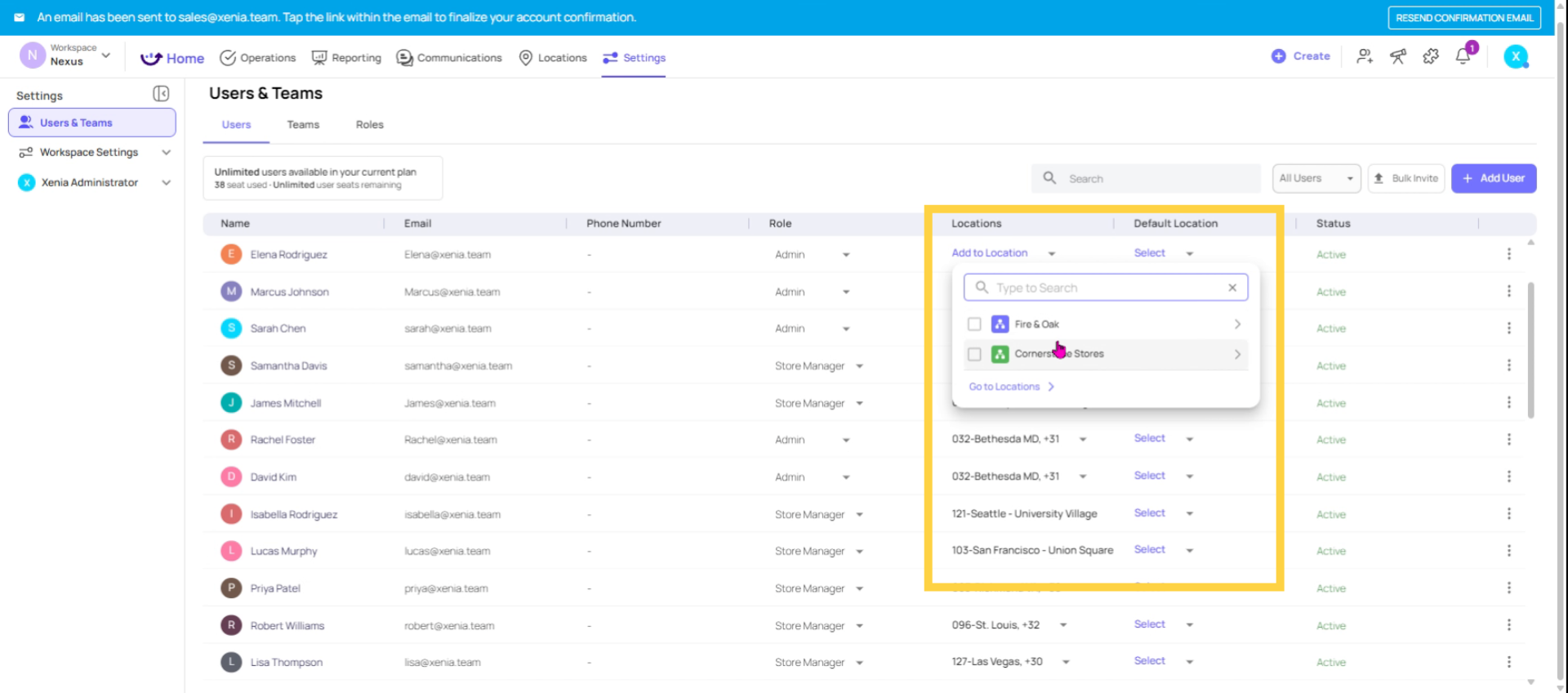
Assign users to location
Where Location Membership Is Set
Location membership is configured in two places:
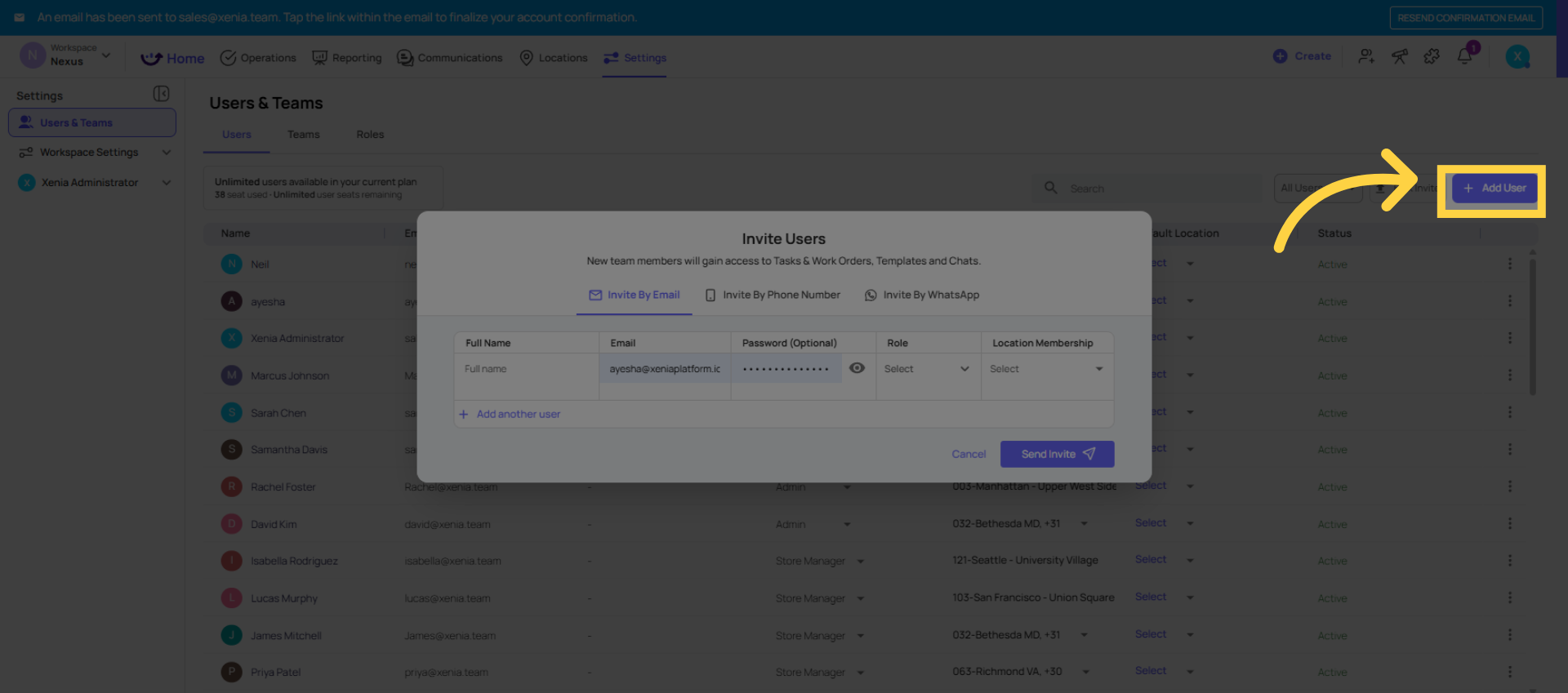
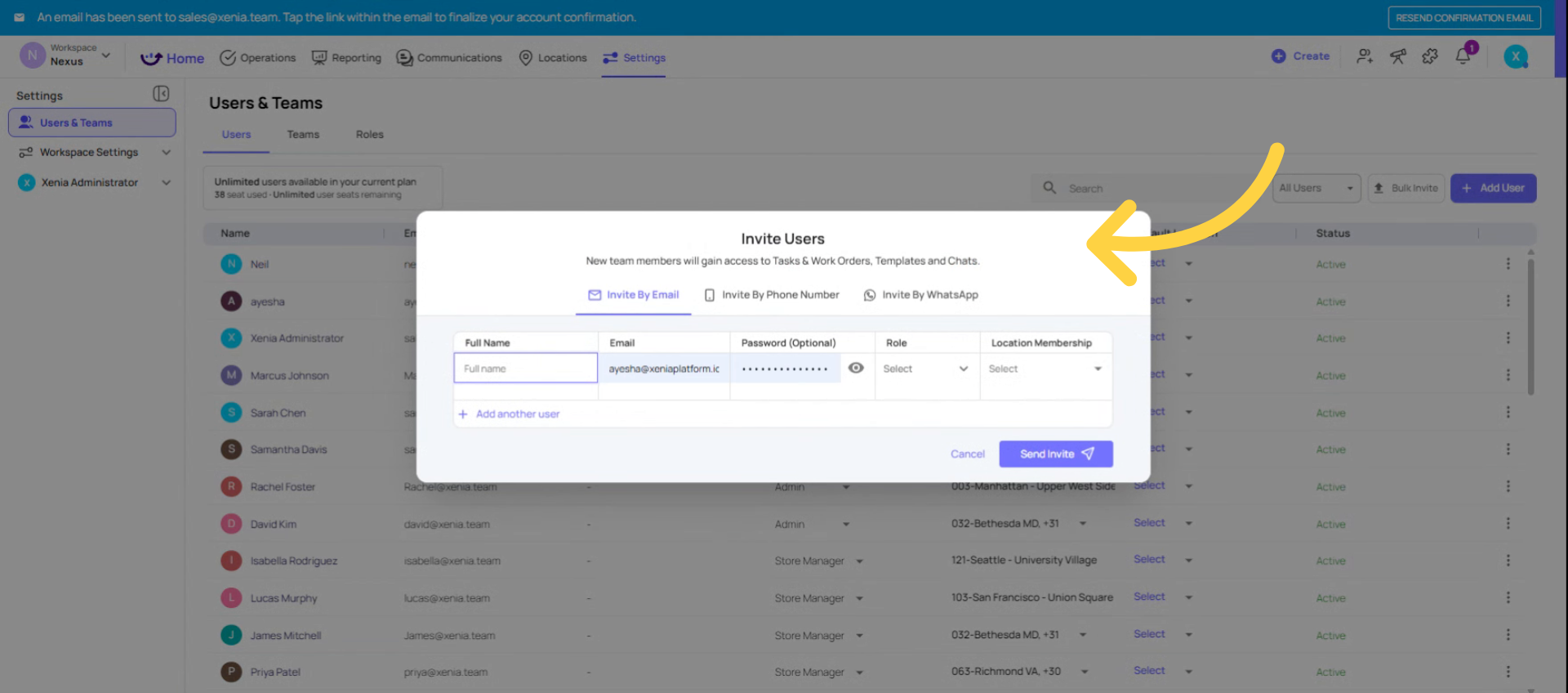
When inviting/creating a user:
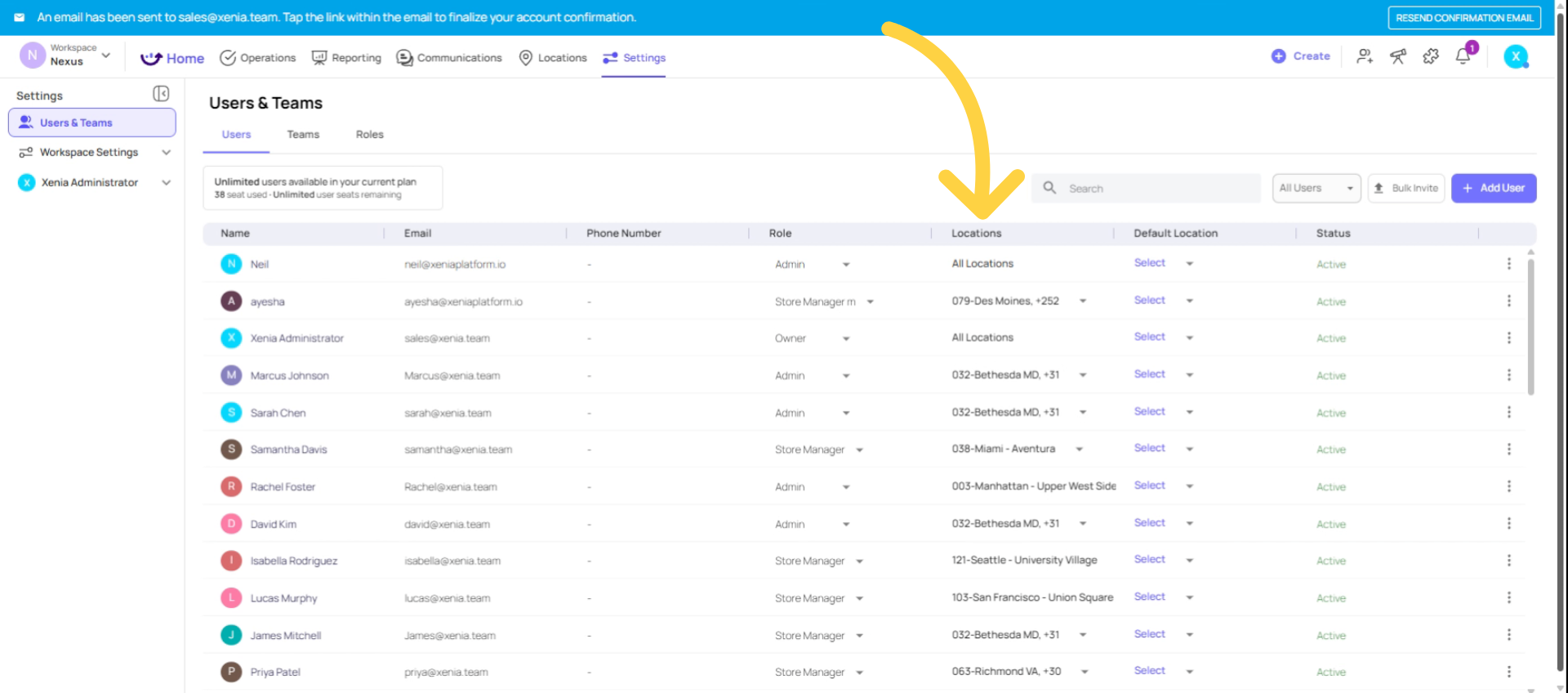
- Settings → Users → Add User → Location Membership field
- Select one or more locations at the time of invitation
When updating an existing user:
- Settings → Users → find the user → three dots → Update → Location Membership section
- Add or remove locations at any time — changes take effect immediately
Access For Single Location Users
Location Membership Impact On Data
Location membership is not just about tasks — it's a cross-platform scoping mechanism that impacts nearly every module:
Tasks & Work Orders: Users with "View tasks at their locations" permission will only see tasks tagged to locations they're a member of. No location membership = no tasks visible, even if their role has the right permission.
Checklist / Template Submissions: When submitting a form ad hoc, users can only select from locations they're a member of in the Location step. This is how submissions get attributed to the right store.
Reporting & Dashboards: All dashboard data — completion rates, flagged items, submission history — is filtered to the user's member locations. A store manager with 1 location sees their store's data. A regional director with 45 locations sees aggregated data across all 45.
Project & Task Deployment: When you create a role-based project, Xenia looks at which users have that role AND are members of the selected locations — those are the users who receive the task. No location membership = no task generated for that user.
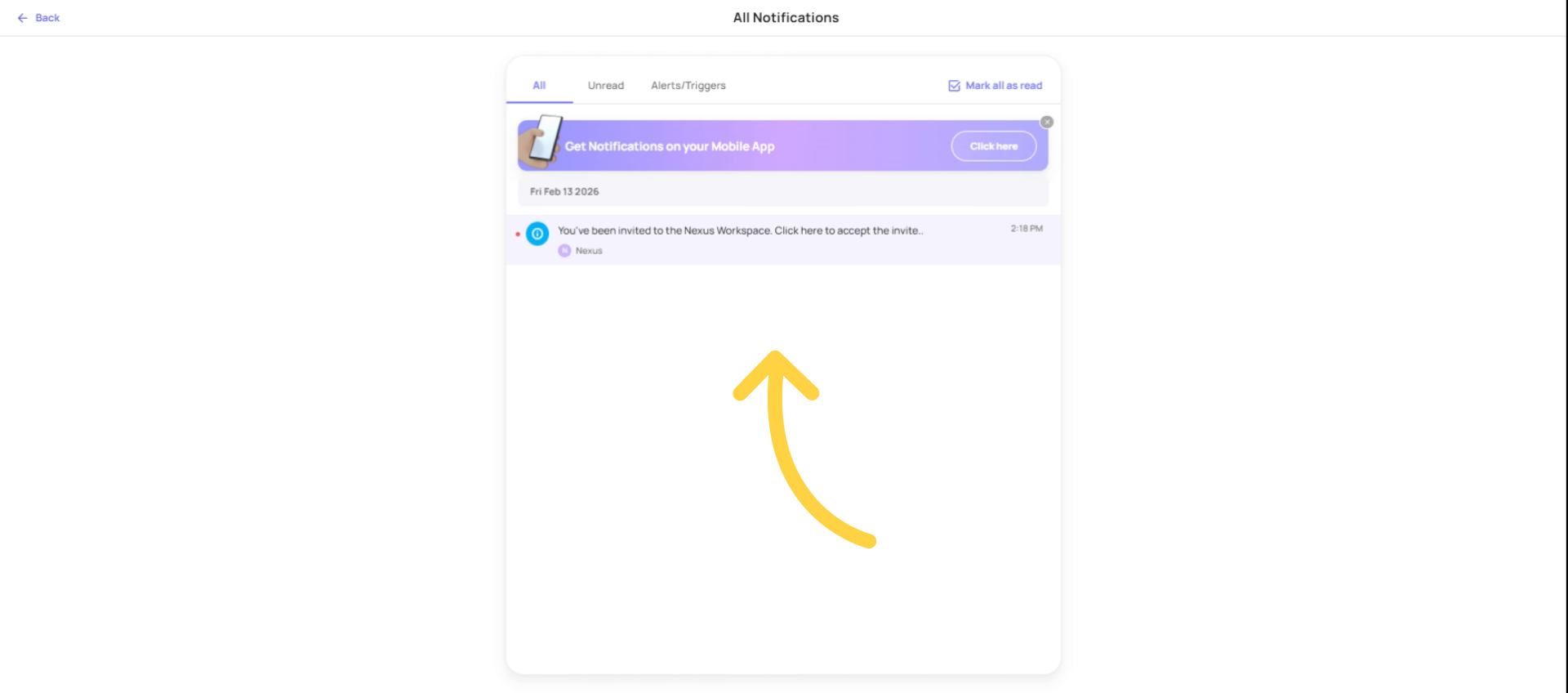
Notifications: Conditional notifications (e.g., "notify District Manager when task is missed") are routed to the role member who has membership in that specific location. If a task is missed at Store 5, only the District Manager who has Store 5 in their membership receives the notification — not all District Managers.
User Visibility in Assignment: When a user is creating a task and searching for who to assign it to, location membership also affects which users appear in the assignee dropdown (depending on the "Assign to any user or location" permission setting).
Notifications Based On Location
Appropriate Location Membership Levels
How Much Membership Should Each Role Have?
| Role Type | Typical Location Membership |
| Frontline Crew / Cashier | 1 location (their store only) |
| Store Manager | 1 location (their store only) |
| Area / District Manager | All stores in their district |
| Regional Director / VP | All stores in their region |
| Admin / Owner | All locations (or no restriction) |
The management principle is simple: assign exactly the locations a user is responsible for. No more, no less. Over-membership means users see data that isn't theirs. Under-membership means they see nothing relevant.
Add user
Set Location Membership On Invite
Update location Membership
Location membership changes take effect immediately. You can:
- Add locations: The user immediately gains access to data from the new location
- Remove locations: The user immediately loses access to data from that location
- No data is deleted — historical submissions and completed tasks are preserved; the user just can no longer see them
This makes it easy to handle scenarios like: "Our district manager is temporarily covering another district" — just add those locations temporarily, then remove them when they're done.
Need Help?
Reach out to us at support@xenia.team
Comments
0 comments
Please sign in to leave a comment.