
Understand Role Functions
Structure
1. What Is a Role?
A role in Xenia is more than just a label. When you assign someone to a role, you're simultaneously doing three things:
Function 1 — Permissions: Controlling what that user can see and do across the entire platform (which tabs are visible, what they can create, edit, delete, and view)
Function 2 — Assignment: Making them a target for work deployment — when you create a project and say "assign to Store Manager role," every user in that role at the selected locations gets the task
Function 3 — Hierarchy: Defining where they sit in the org's reporting structure via the "Reports To" field, which powers conditional notifications (e.g., when a task assigned to a Cashier goes overdue, Xenia automatically notifies whoever the Cashier reports to — the Store Manager)
All three functions are configured in the same place — the role settings — and apply to every user assigned to that role.
Differentiate Preset and Custom Roles
The Two Types of Roles
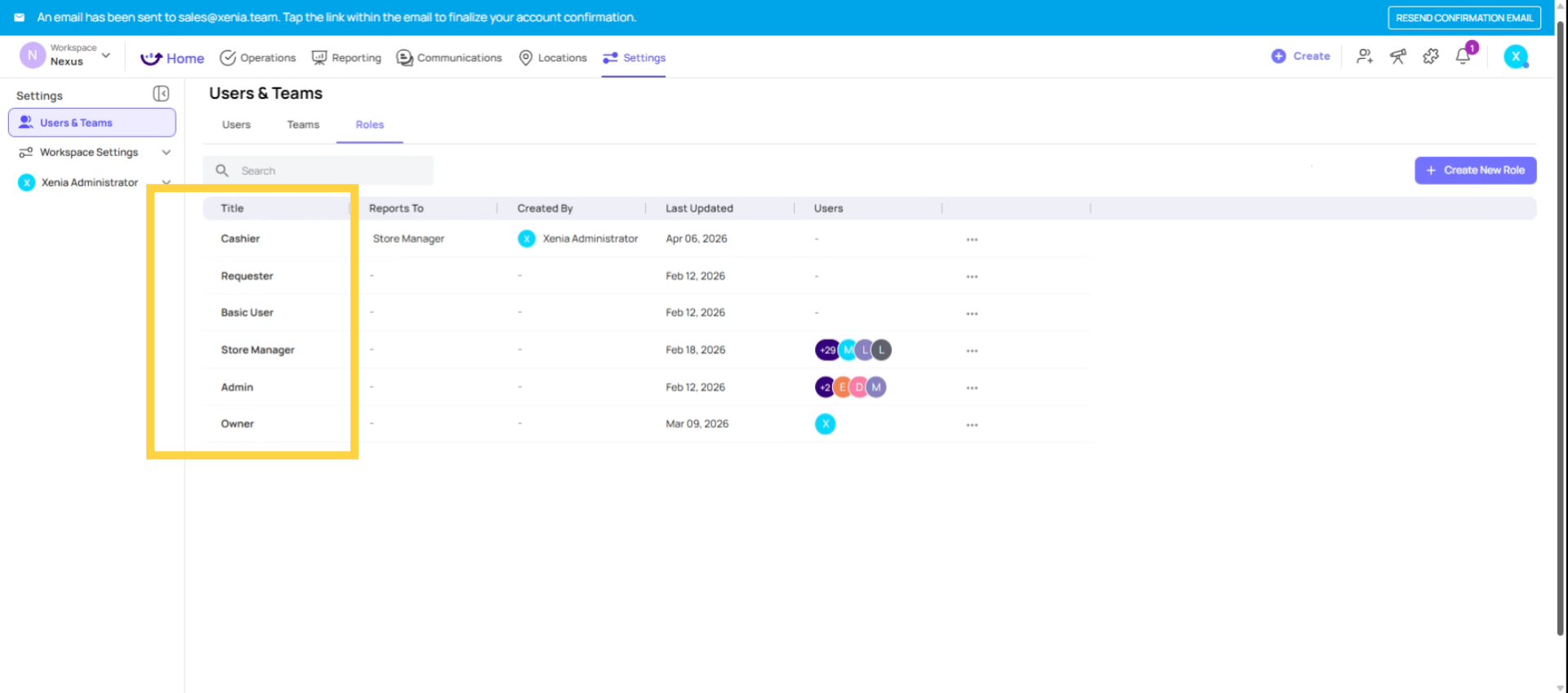
Preset Roles (built-in, cannot be edited or deleted):
- Owner — full access to everything in the workspace including billing, workspace settings, and all operational features. Typically 1–2 people maximum. This is the master administrator account.
- Admin — near-identical to Owner in terms of operational access. Full visibility across all locations, all templates, all features. Can bypass most template-level restrictions.
These two roles exist as safety nets. Even if you misconfigure a custom role so severely that users get locked out of something, an Admin or Owner can always get in and fix it. Keep at least one active Admin or Owner account at all times.
Custom Roles (fully configurable — everything else):
Every other role in your workspace is a custom role that you create and configure. Common examples: Store Manager, District Manager, Regional Director, Cashier, Cook, Barista, Maintenance Technician, HR Manager, Requester. You name them to match your org's actual job titles, configure their permissions to match their responsibilities, and assign users accordingly.
There's no limit to how many custom roles you can create. That said, keeping the number manageable is smart — the more roles you have, the more complexity you're maintaining. Start with what you actually need.
Why Custom Roles Matter Beyond Permissions
Most admins think of roles purely as a permission system — "this role can see this, that role can't do that." But roles do two other things that are just as important:
- Assignability in projects: When you build a project and assign it role-based, Xenia uses the role to determine who gets the task at each location. This is how you deploy "the daily opening checklist to every Store Manager across all 50 locations" with a single project creation. The role is the mechanism. If you named your role something generic like "Full User" instead of "Store Manager," your projects become harder to manage and read because you're assigning to "Full User" instead of a descriptive position name.
- Conditional notification routing: The "Reports To" field in a role definition tells Xenia where to route escalation notifications. If a task assigned to a Cleaner goes overdue, Xenia can automatically notify that Cleaner's Store Manager — but only if Store Manager is set as the role the Cleaner reports to. If "Reports To" is blank, the escalation chain breaks.
These two functions are why it's worth taking custom role naming seriously, even if the permissions between two roles are almost identical.
Customize Role Details
A role's settings are configured across three steps when you create or edit it:
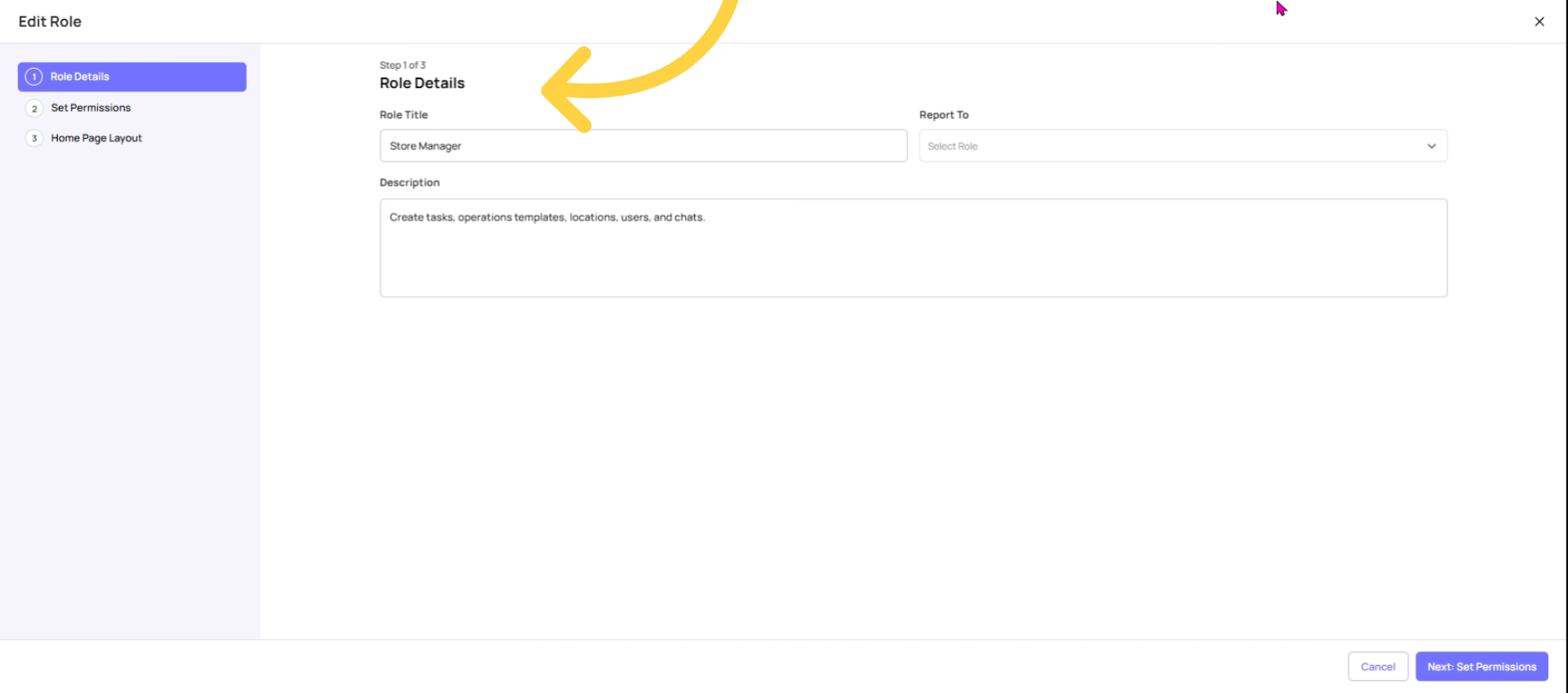
Step 1 — Role Details:
- Name and description
- "Reports To" — the role directly above this one in the org chart (for notification escalation)
Configure Role Permissions
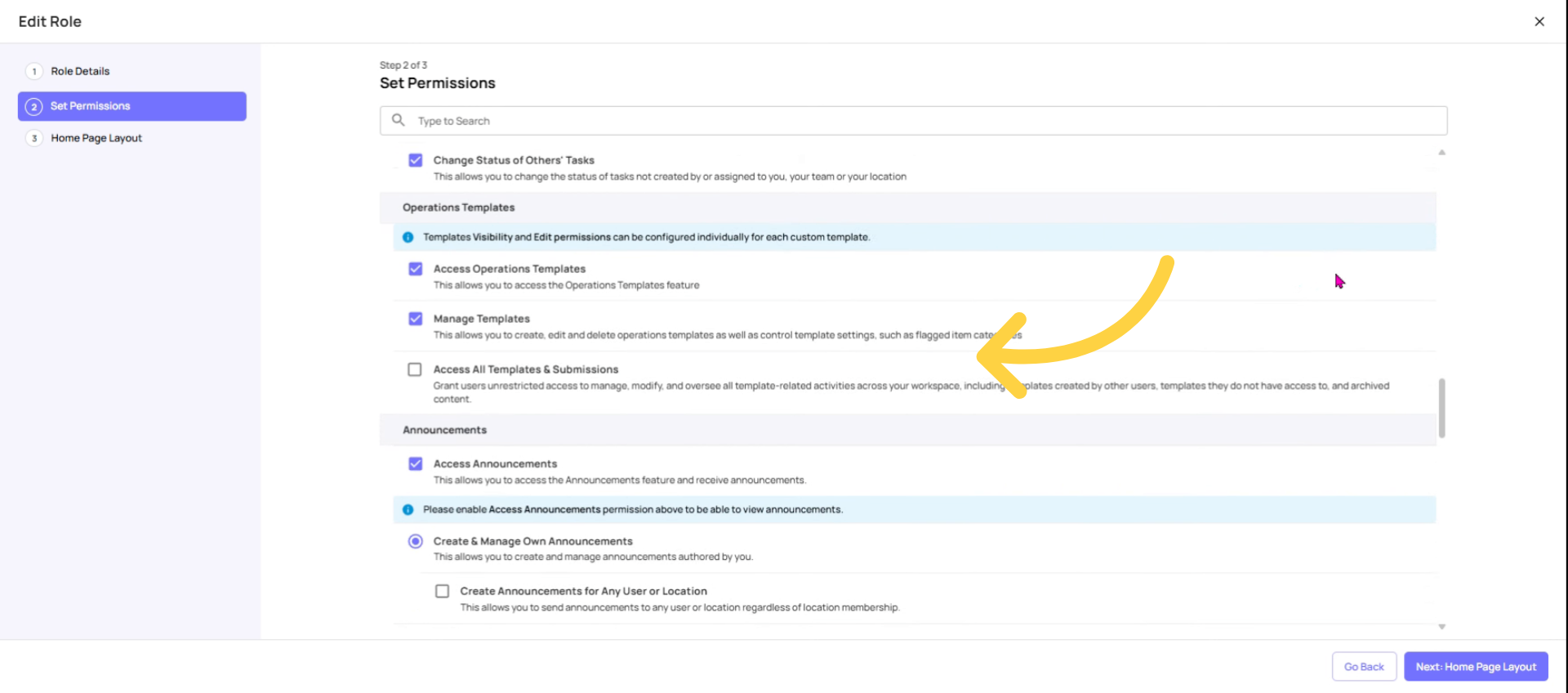
Step 2 — Permissions: A role's permissions are organized by feature module:
Workspace permissions: Configure workspace settings, manage billing, kiosk mode controls
User & Team permissions: Add/remove users, manage roles, manage teams
Set Task Visibility Option
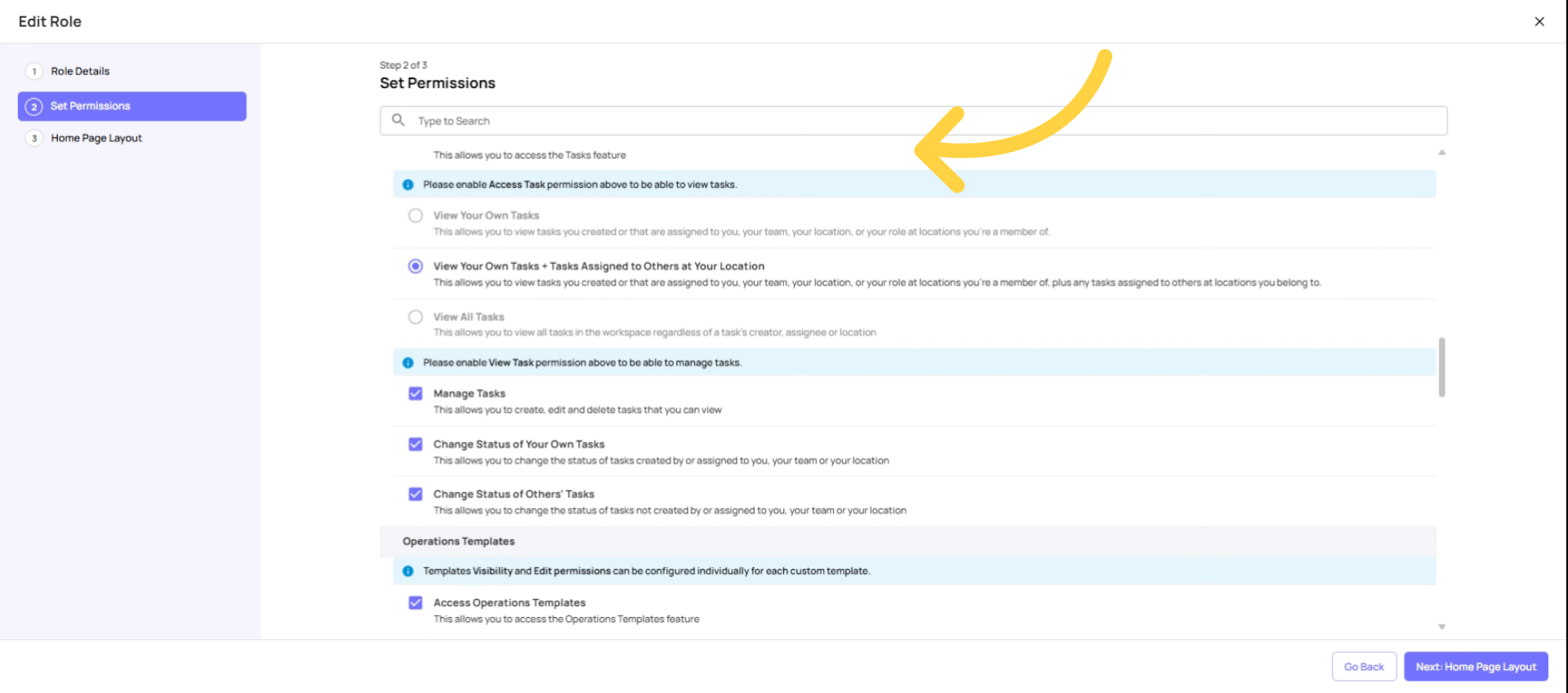
Task permissions:
- Access Tasks (master on/off for the Tasks tab)
- View own tasks / View tasks at locations / View all tasks
- Manage tasks (create, edit, delete)
- Assign to any user or location
- Change status of tasks
Operation Templates Permissions
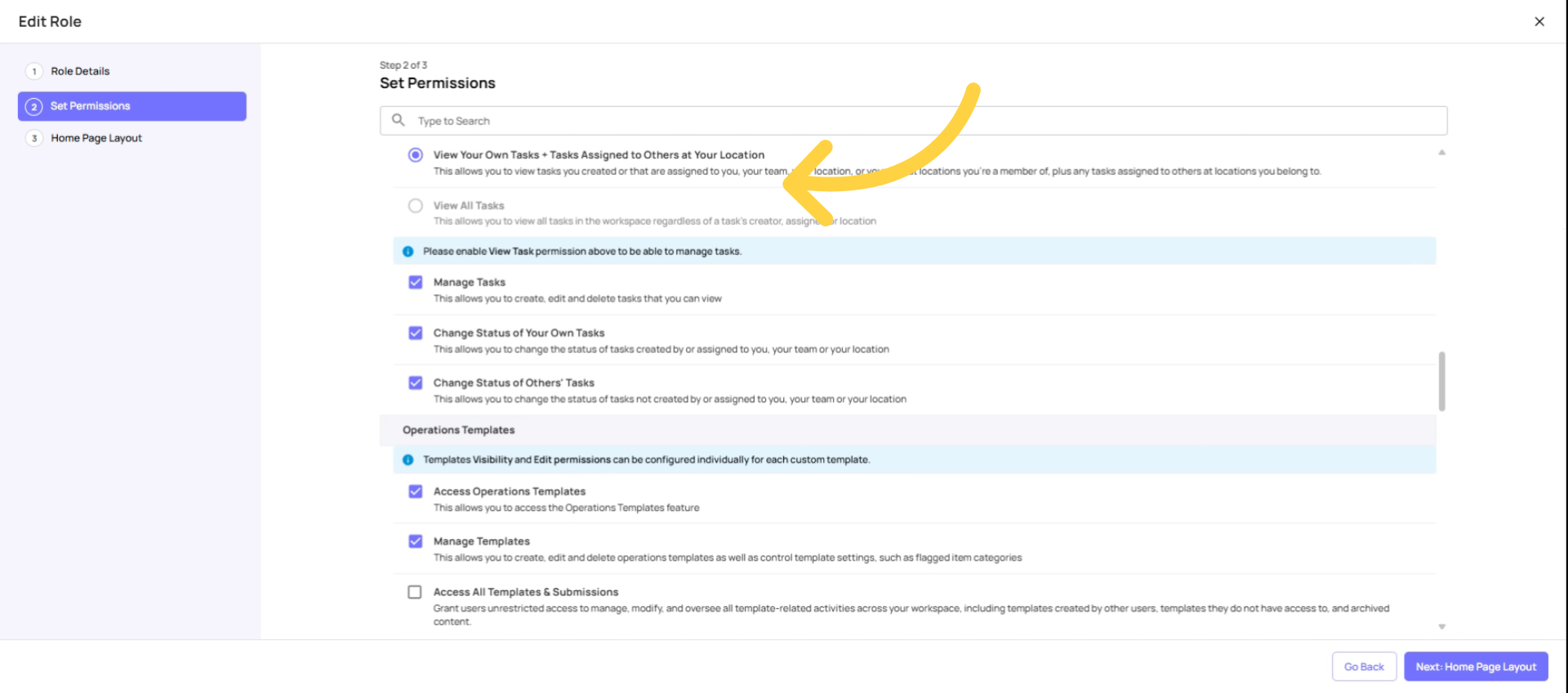
Operations Templates permissions:
- Access Operations Templates (master on/off for Templates tab)
- Manage Templates (can edit, archive, delete templates)
Homepage Layout
Summarize Role functionality
How Many Roles Should You Have?
There's no magic number, but a practical guideline:
- Start with the minimum. One role per distinct job type at each operational level is usually sufficient. You don't need a separate role for every job title — if two positions have identical permissions and the same home screen, they can share a role.
- Create separate roles when: two positions need different permissions, different home screen layouts, different notification escalation paths, or you want them to appear as distinct assignment targets in projects
- Naming convention tip: Use real job titles, not system labels. "Store Manager" is better than "Full User." "District Manager" is better than "Manager Level 2." When you're assigning projects and reading reports, descriptive names save time and reduce confusion.
Need Help?
For assistance please reach out to us at support@xenia.team
Comments
0 comments
Please sign in to leave a comment.