
Understand Permission Issue
Why Two Permission Layers Exist
Xenia has two distinct permission systems that work in tandem:
- Gate 1 — Role Permissions: Workspace-wide settings that control whether a user has access to features and modules at all. Think of this as the front door to each area of the platform.
- Gate 2 — Template Permissions: Per-checklist settings that control who can submit a specific template, who can view its past submissions, and who can edit it. Think of this as the individual room door once you're inside the building.
Both gates must be open for a user to fully access a template. Role permissions open the building. Template permissions open the specific room. A user can have the building key (role permission to access Operations Templates) but still be locked out of specific rooms (individual templates they haven't been granted access to).
The separation exists by design. It allows you to have some checklists that are open to all staff — like a daily opening checklist — and others that are restricted to specific roles — like a performance notice or an HR disciplinary form. One template can be wide-open while another is locked down, even if they're in the same folder.
Overview of Role Permission
Gate 1: Role Permissions — The Module Level
Role permissions are set in Settings → Roles → Edit → Permissions. The key permissions for templates are:
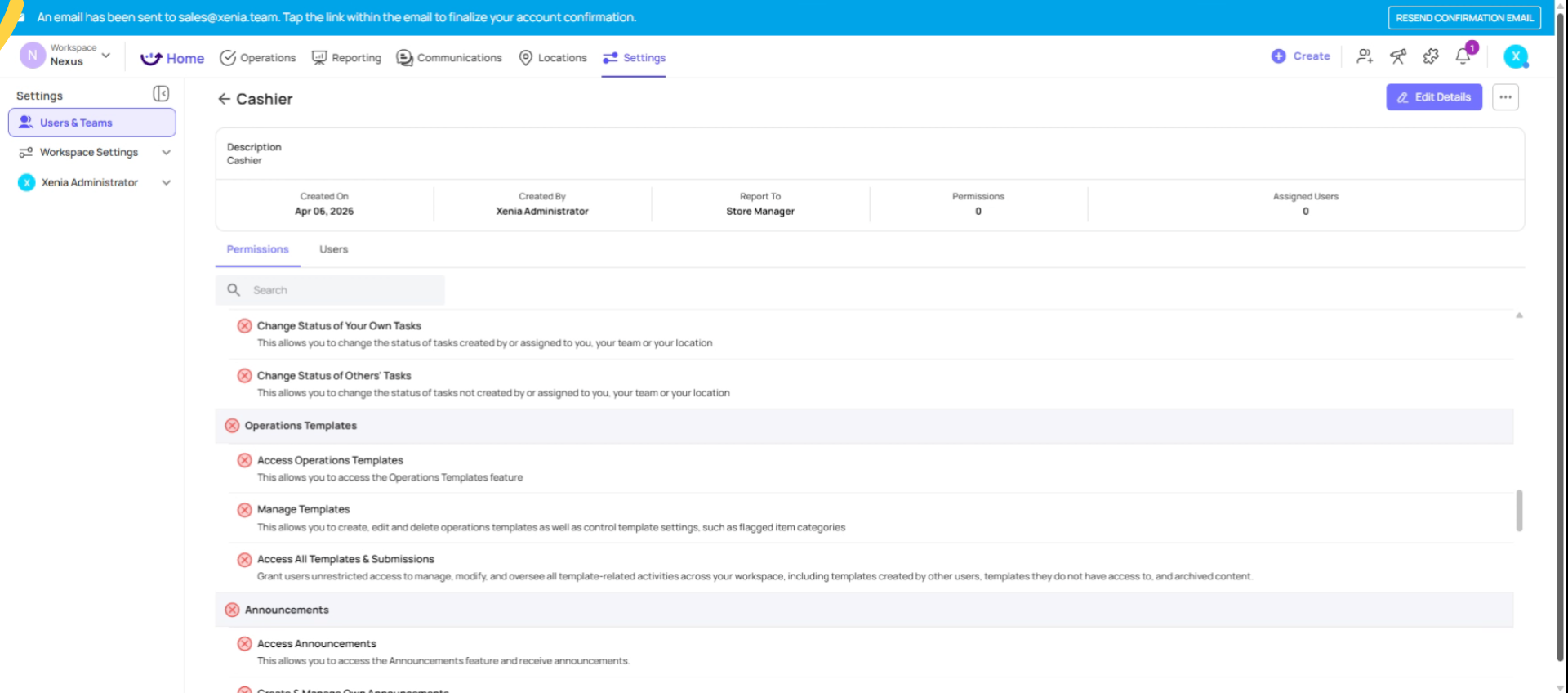
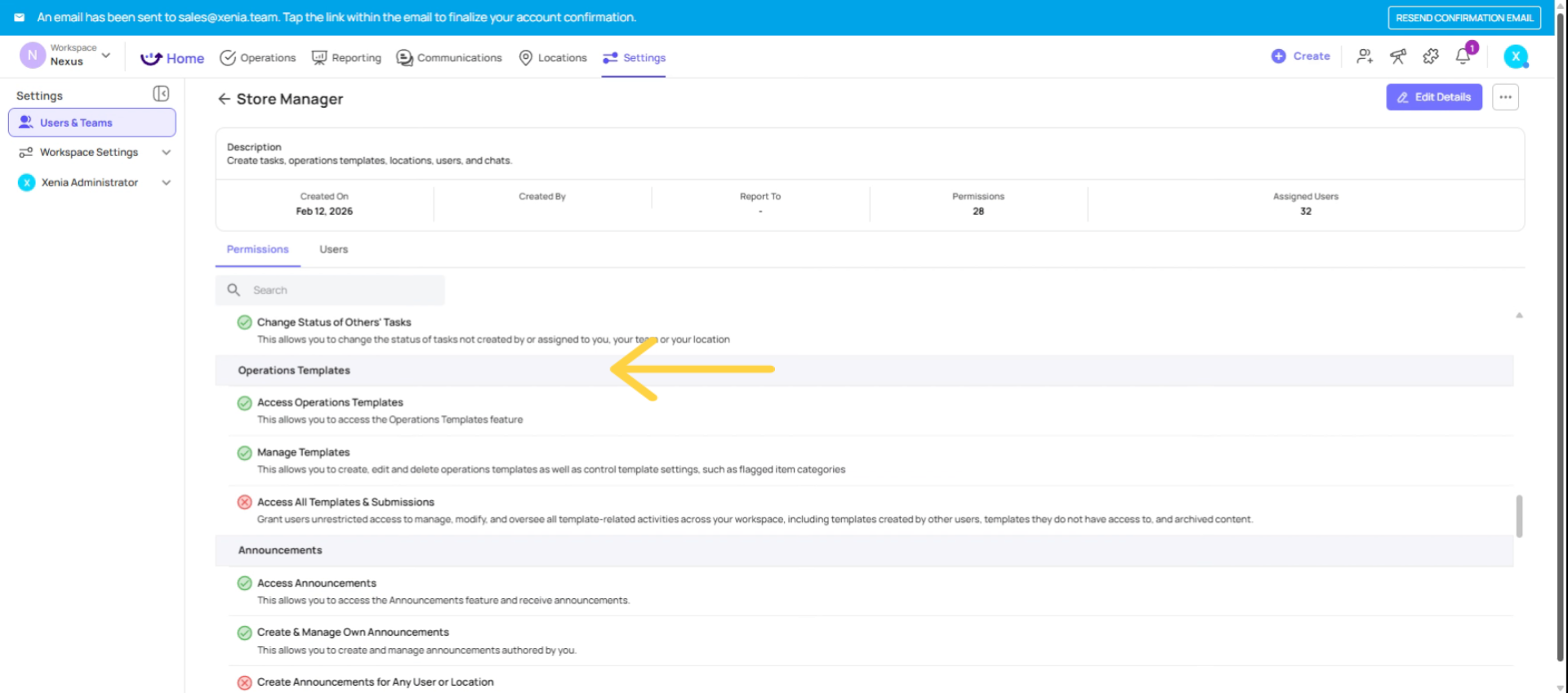
"Access Operations Templates"
- This is the master on/off switch for the entire Templates module
- If this is OFF for a role, that user's Templates tab is hidden entirely — on web, mobile, and tablet
- Every role that needs to complete checklists must have this turned ON
- Most store-level and frontline roles should have this ON; it's usually the first permission to check when someone can't see any checklists
"Manage Templates"
- Controls whether the user can create, edit, delete, or archive templates in the template builder
- If this is OFF, the user can still complete and submit templates — they just can't modify the underlying checklist structure
- This should be OFF for almost all frontline and store-level roles. You don't want your cashiers or store employees accidentally editing your checklists.
- Even if a user is listed as a Template Admin on a specific template, if "Manage Templates" is off at the role level, they lose editing capability
Important nuance: Role permissions are a blanket override. If "Manage Templates" is turned off at the role level, it overrides any template-level admin privileges that user might have. The role permission is always checked first.
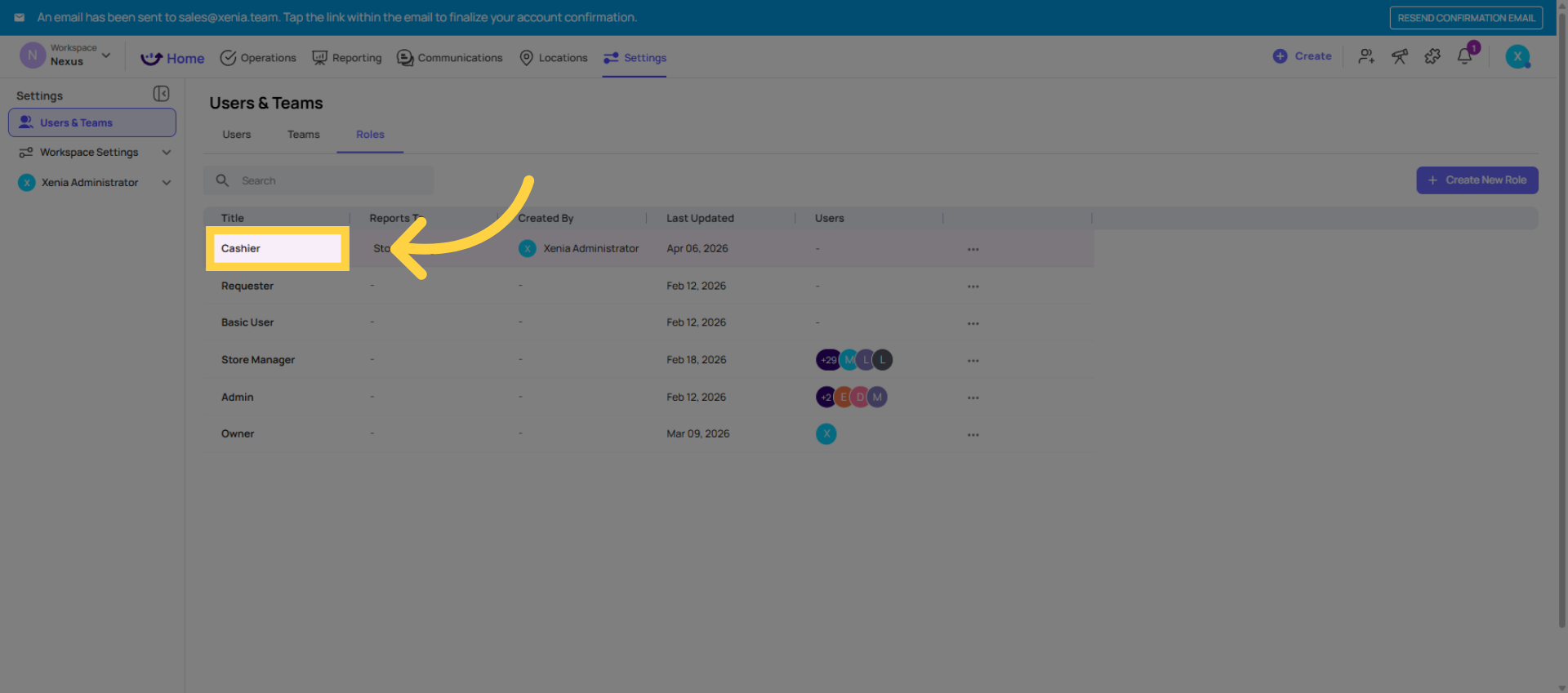
Select Cashier Role
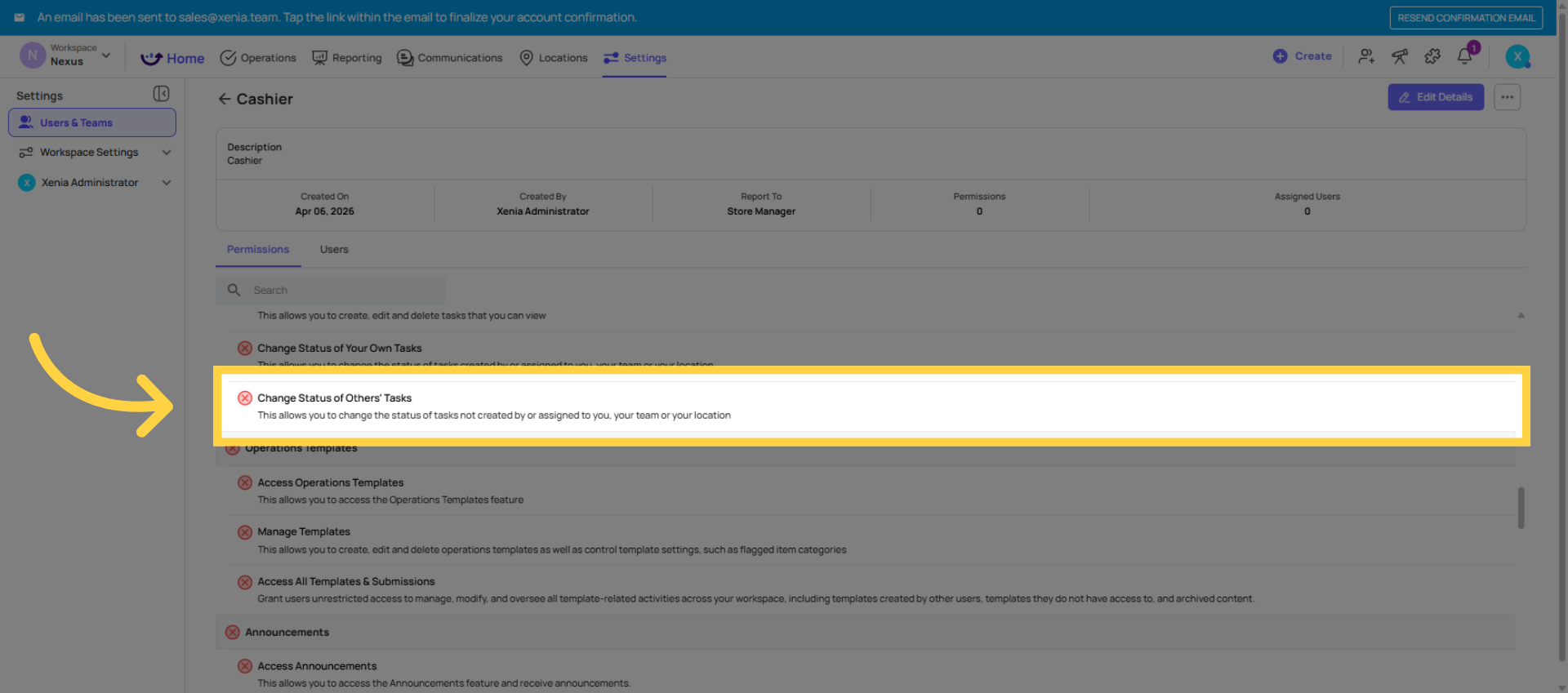
Enable Task Status Change Permission
Check Access Operation Templates Permission
Manage Template Editing Permissions
Gate 2: Template Permissions — The Individual Checklist Level
Each template has its own independent access settings, found in Operations → Templates → [Template Name] → Settings → Access.
There are three distinct sections inside template access:
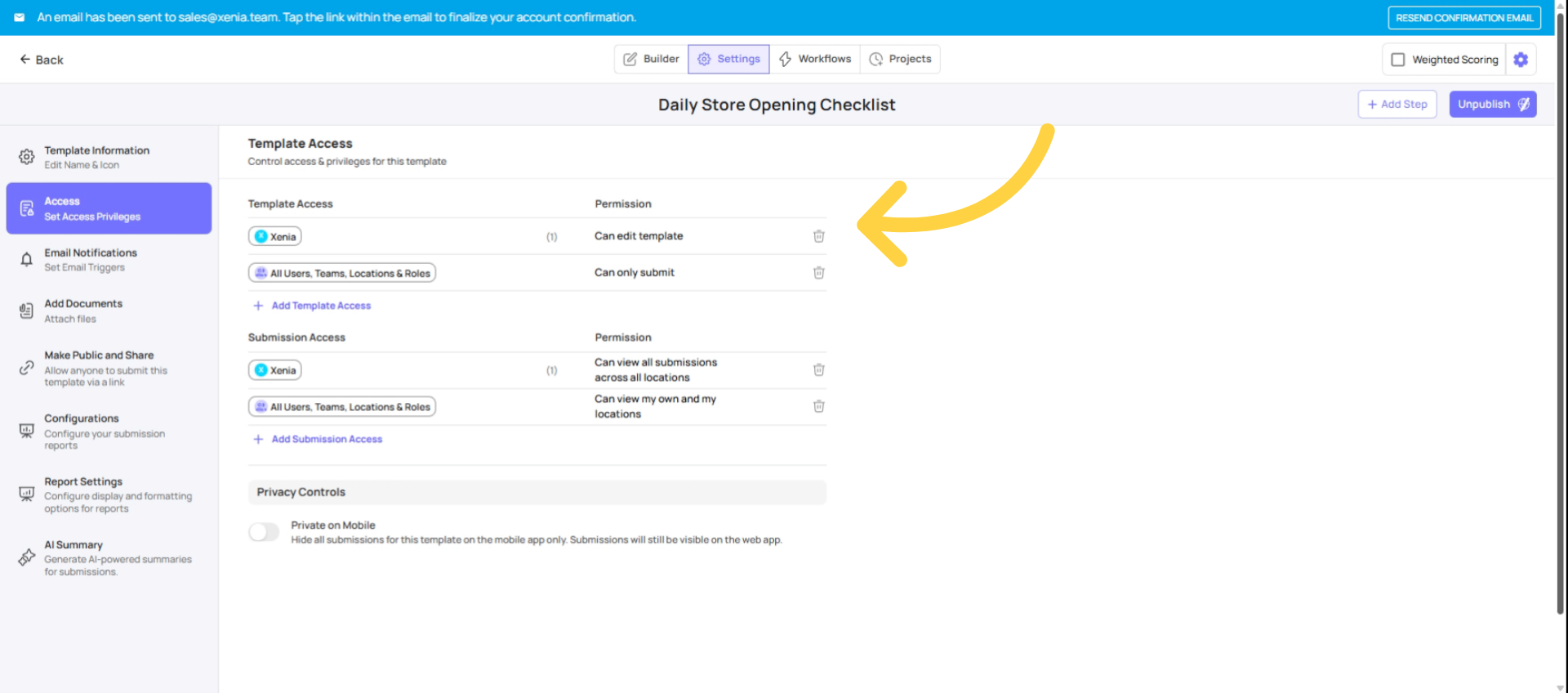
Template Access — Who Can Submit & Who Can Edit
Section A: Template Access — Who Can Submit & Who Can Edit
This section has two parts:
"Can Edit" — Lists which roles or users can open the template builder and make structural changes (add/edit/delete questions, change settings, etc.)
- Usually restricted to Admin/Owner and one or two designated roles
- Anyone listed here is called a "Template Admin" for that checklist
"Can Submit" — Lists which roles or users can see this template on their device and complete a submission
- By default this may be set to "all users"
- For sensitive templates (HR forms, performance notices, disciplinary logs), you should restrict this to specific roles
- If a user's role is not listed here, they won't see the template at all — it won't appear in their template list or be assignable to them via projects
The critical rule: Whoever can edit OR whoever can submit can see the template. But only those in the "Can Submit" list can actually complete it.
Understand Submission Access Levels
Section B: Submission Access — Who Can View Past Submissions
This is a separate gate that controls visibility into completed submissions — the reports and data after someone has filled out the checklist.
There are three levels:
| Option | What It Shows |
| View own submissions only | User can only see submissions they personally completed |
| View own + others at their location | User sees all submissions from locations they're a member of (e.g., store manager sees all submissions from their store) |
| View all submissions | User sees all submissions across the workspace for this template (typically for HR, admin, or quality assurance roles) |
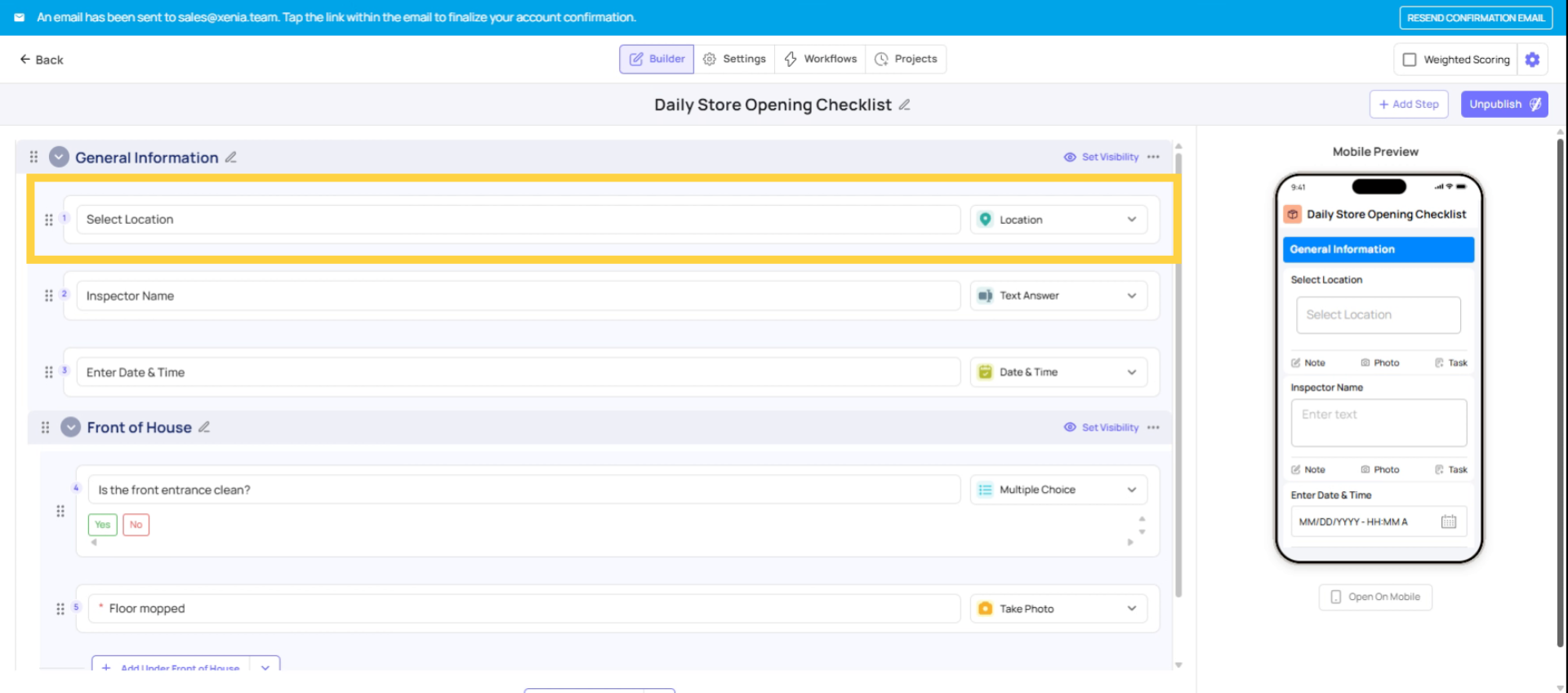
Important: This setting requires the template to include a "Select Location" step for location-based filtering to work correctly. Without that step, Xenia can't determine which store a submission came from, and location-scoped visibility won't function as expected.
Another nuance: Even if a user is listed as a template submitter, their submission visibility is still controlled by the submission access setting. Being a submitter doesn't automatically give you visibility into other people's submissions — that requires the right submission access level.
Ensure Location-Based Visibility
Identify Common Admin Issues
Differentiate Role and Template Permissions
Common Mistakes Summary
| Problem | Root Cause | Fix |
| User can't see any templates | "Access Operations Templates" OFF in role | Settings → Roles → Edit → turn ON |
| User can't see one specific template | Role not in template's "Can Submit" list | Template → Settings → Access → add role to Can Submit |
| User can see template but can't see team's submissions | Submission Access set to "View own only" | Template → Settings → Access → change submission access level |
| User can't edit template despite being Template Admin | "Manage Templates" OFF at role level | Settings → Roles → Edit → turn ON Manage Templates |
| Wrong people can see a sensitive template (HR, performance forms) | "Can Submit" too broad / set to "all users" | Template → Settings → Access → restrict Can Submit to specific roles |
| User can't see submissions from other locations | Submission Access correct but template has no Location step | Add a "Select Location" step to the template |
Need Help?
For assistance please reach out to us at support@xenia.team
Comments
0 comments
Please sign in to leave a comment.