
The Core Principle: Access = Role × Location
The Core Principle: Access = Role × Location
In Xenia, what a user can see and do is determined by the intersection of two things:
- Their Role — controls what they're allowed to see and do (tasks, templates, reports, modules)
- Their Location Membership — controls where they can see it (which stores, districts, or sites)
Both must be correct for a user to have the right experience. Getting one right and the other wrong results in a user who either sees too much, too little, or nothing at all.
Think of it as a locked door with two keys. The Role is Key 1 — it determines which doors you're allowed to open. Location Membership is Key 2 — it determines which specific rooms behind those doors you can actually enter. You need both keys.
Understand Role keys
What the Role Controls
The Role defines the permission envelope — what types of data and features the user can access at all:
- Can they see tasks? Only their own, or everyone's at their location, or all tasks in the workspace?
- Can they access checklists and templates?
- Can they view reports and dashboards?
- Can they manage (create/edit/delete) tasks?
- Can they edit templates?
- What does their home screen look like?
A user whose role has no task visibility permission won't see any tasks — regardless of how many locations they're a member of.
Navigate to Roles Section
Review Task Visibility Setting
The Three Task Visibility Options — The Most Commonly Misconfigured Setting
Inside every role's permissions, the task visibility setting has three options. This is where most "why can't my user see X" problems originate:
| Option | What It Shows | Best For |
| View your own tasks | Only tasks directly assigned to this user | Basic frontline employees who should only see their own assignments |
| View your own tasks + tasks assigned to others at your location | All tasks tagged to the locations this user is a member of | Store managers who need to see everything happening at their store |
| View all tasks | All tasks across the entire workspace | Admins and owners only |
The most common mistake: Setting a store manager or regional manager to "View your own tasks" when they actually need "View tasks at their locations." They log in, see nothing, and call support.
The second most common mistake: Setting a frontline employee to "View all tasks" and overwhelming them with hundreds of tasks from across the org.
Open Users Section
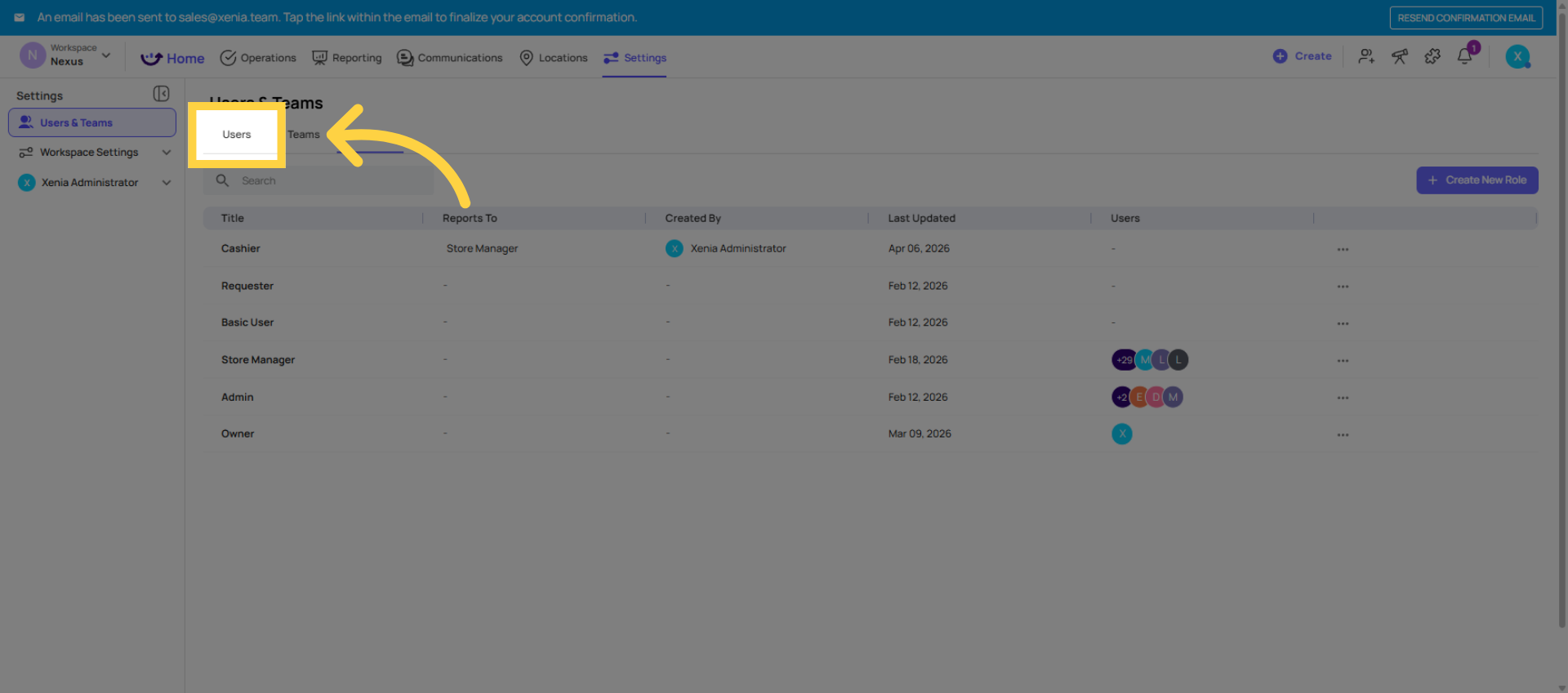
Understand Location Membership Importance
What Location Membership Controls
Location Membership defines the geographic scope — which locations' data the user can see within the permissions their role allows:
- A user with "View tasks at my locations" permission will only see tasks tagged to locations they're a member of
- A user added to Store 5 and Store 12 will only see data from Store 5 and Store 12 — not Store 8, even if they're in the same district
- Reports, submission data, dashboards — all scoped to the user's location membership
- Ad hoc template submissions — users can only select their assigned locations when submitting
Location membership is what separates a store employee from a regional director, even if they have the same role permissions.
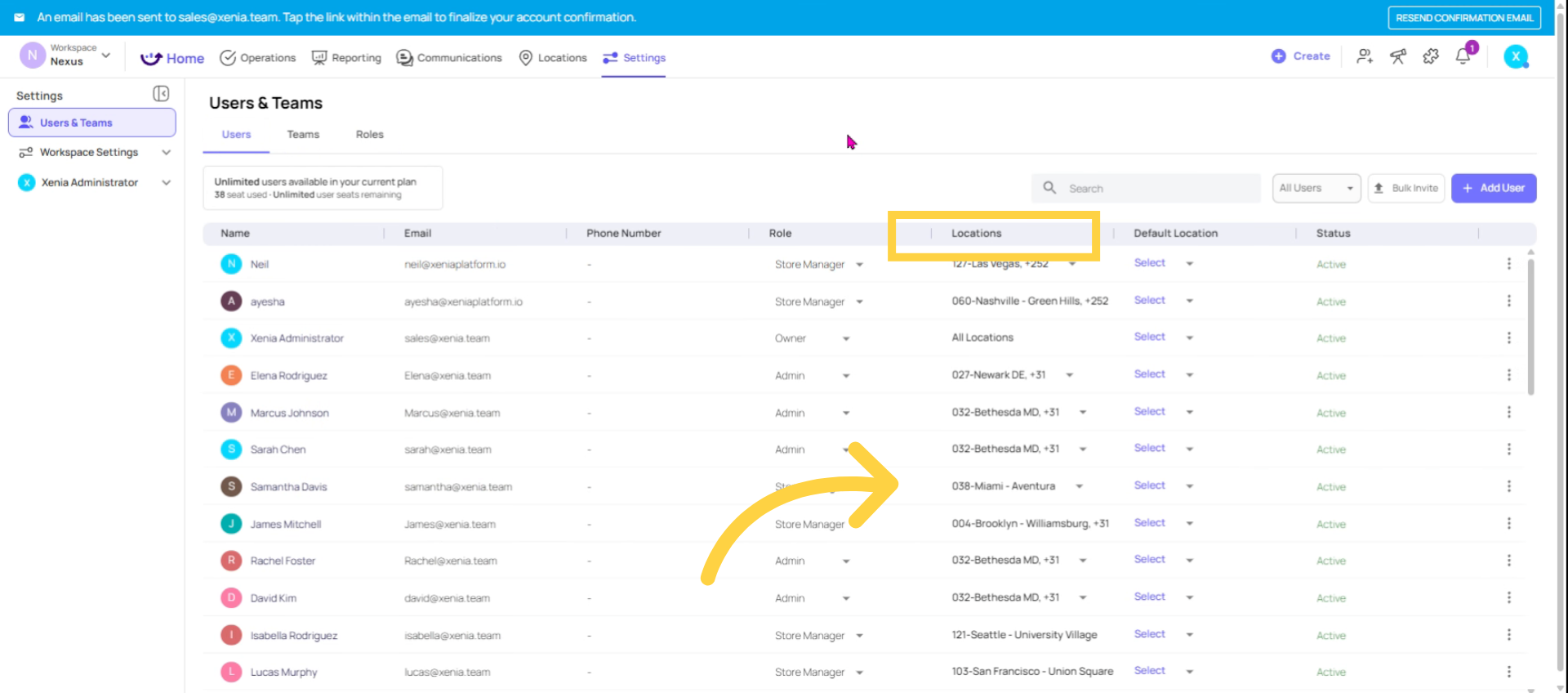
Assign Location Membership
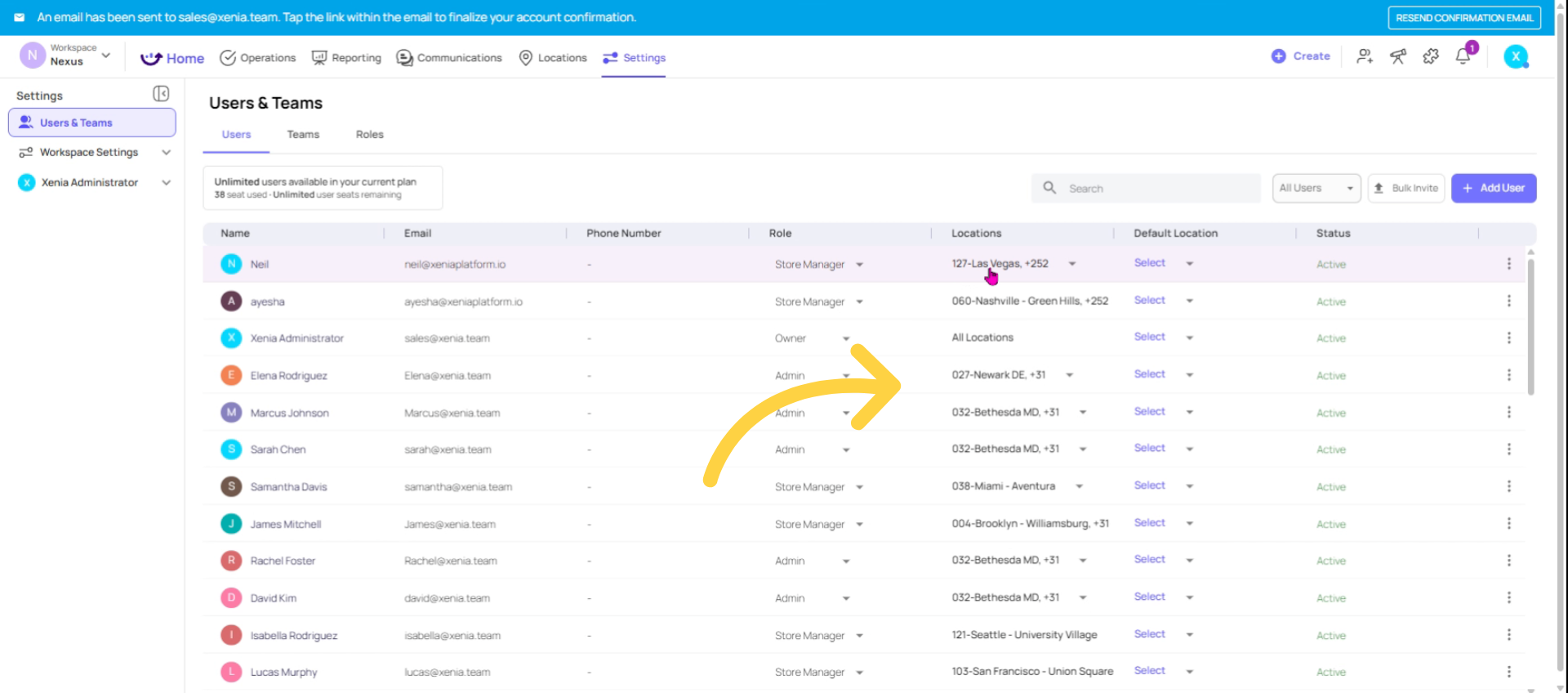
How They Work Together — Real Scenarios
Scenario A: Store Employee — Works Correctly
- Role: Store Crew (permissions: View own tasks, Access checklists)
- Location Membership: Store 5 only
- Result: Opens app, sees only the tasks assigned to them at Store 5. Clean, simple, correct.
Scenario B: Store Manager — Common Problem
- Role: Store Manager (permissions: View own tasks — WRONG)
- Location Membership: Store 5
- Result: Manager logs in and sees only tasks assigned directly to them. They can't see what the cashier or cook have been assigned. They call support saying "I can't see my team's tasks."
- Fix: Change to "View own tasks + tasks assigned to others at your location"
Scenario C: District Manager — Common Problem
- Role: District Manager (correct permissions)
- Location Membership: MISSING — no locations assigned
- Result: District manager logs in and sees nothing. Empty dashboards, no tasks, no reports.
- Fix: Add all their district's locations to their membership
Scenario D: Regional Director — Works Correctly
- Role: Regional Director (permissions: View tasks at my locations, access reports)
- Location Membership: All 45 stores in their region
- Result: Sees all tasks and reports for their 45 stores. Filters by location in reports. Correct.
Scenario E: Wrong Location Assigned
- Role: Store Manager (correct permissions)
- Location Membership: Store 6 (but they work at Store 5)
- Result: Manager logs in and sees tasks for Store 6, not their store. They report that their tasks look wrong.
- Fix: Update location membership to Store 5
Special Case: "Assign to Any User or Location" Permission
There is one role permission that overrides location membership for assignment purposes: "Assign to Any User or Location."
- When this is ON: The user can assign tasks to anyone in the workspace and to any location — regardless of their own location membership. This is typically for Admins.
- When this is OFF: The user can only assign tasks to users and locations within their own location membership scope.
This setting is almost always on for Admin and Owner roles and off for everyone else.
This is by design — the same principle applies throughout the app. Location membership is Xenia's privacy and data scoping mechanism. It ensures a cashier at Store 5 can't accidentally view store performance data from Store 22.
Diagnosing "Why Can't My User See X?" — Quick Reference
Use this flowchart when a user reports they can't see something:
Step 1 — Check their role's task visibility permission → Settings → Roles → find their role → check the task visibility setting → Is it set to "View own tasks" when they should see more? Fix it.
Step 2 — Check their location membership → Settings → Users → find the user → check their locations → Do they have the right locations assigned? Add any missing ones.
Step 3 — Check what the task/checklist is tagged to → For tasks: is the task tagged to a location the user is a member of? → For role-based tasks: is the role's location assignment matching the user's location?
Step 4 — Check template access settings → Operations → Templates → find the template → Settings → Access → Is the user's role listed as a submitter? If not, they won't see the template at all. (This is covered in detail in the next Key Concepts article)
Step 5 — Admin override → If you need to quickly test what a user sees, use the Admin impersonation or test by logging in as that user's account
Need Help?
For assistance please reach out to us at support@xenia.team
Comments
0 comments
Please sign in to leave a comment.