
1. Overview Homepage Layout Options
Why Homepage Layout Matters
- The homepage is the first thing every user sees when they open Xenia on web, mobile, or tablet
- The wrong layout creates friction and lowers task completion
- The right layout means zero confusion — users open the app and immediately know what to do
- Layout is set per role, not per individual user — configured in Step 3 of role creation/editing
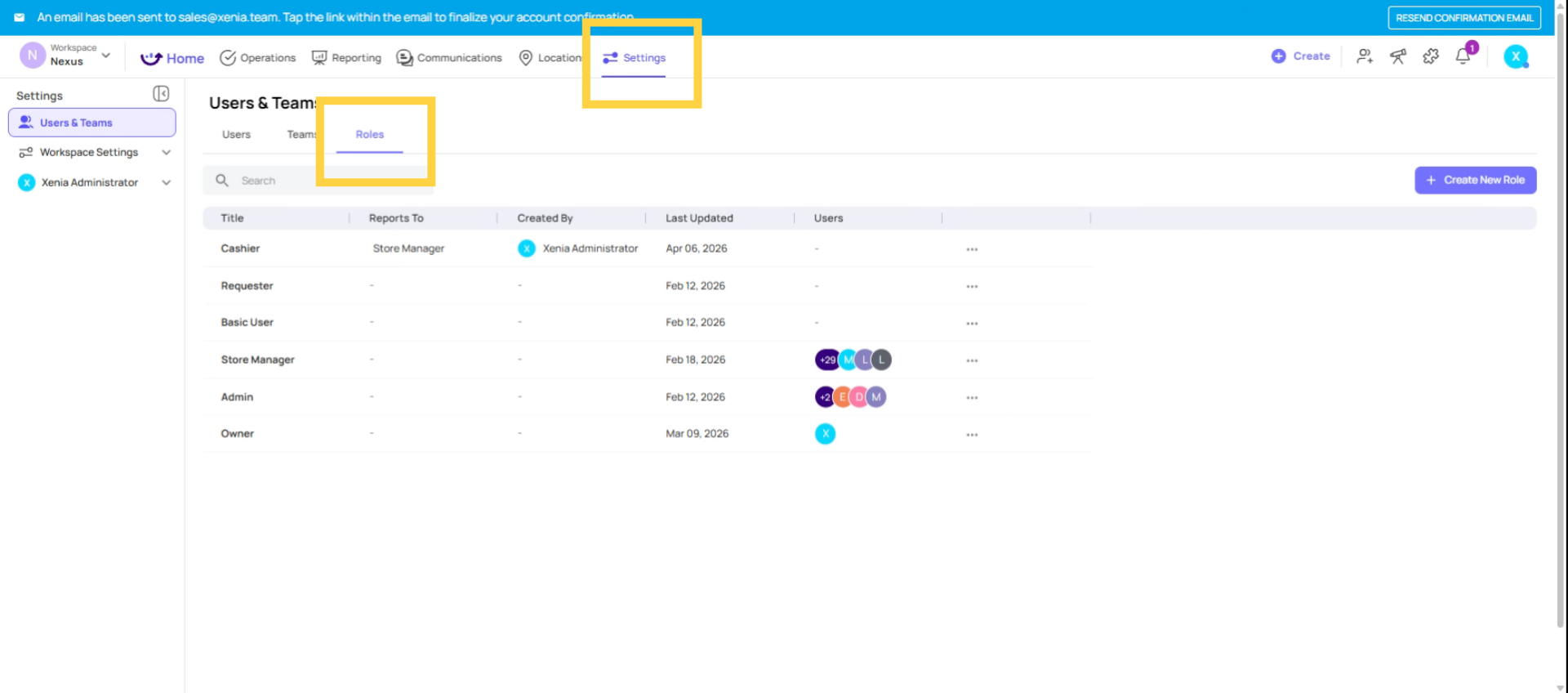
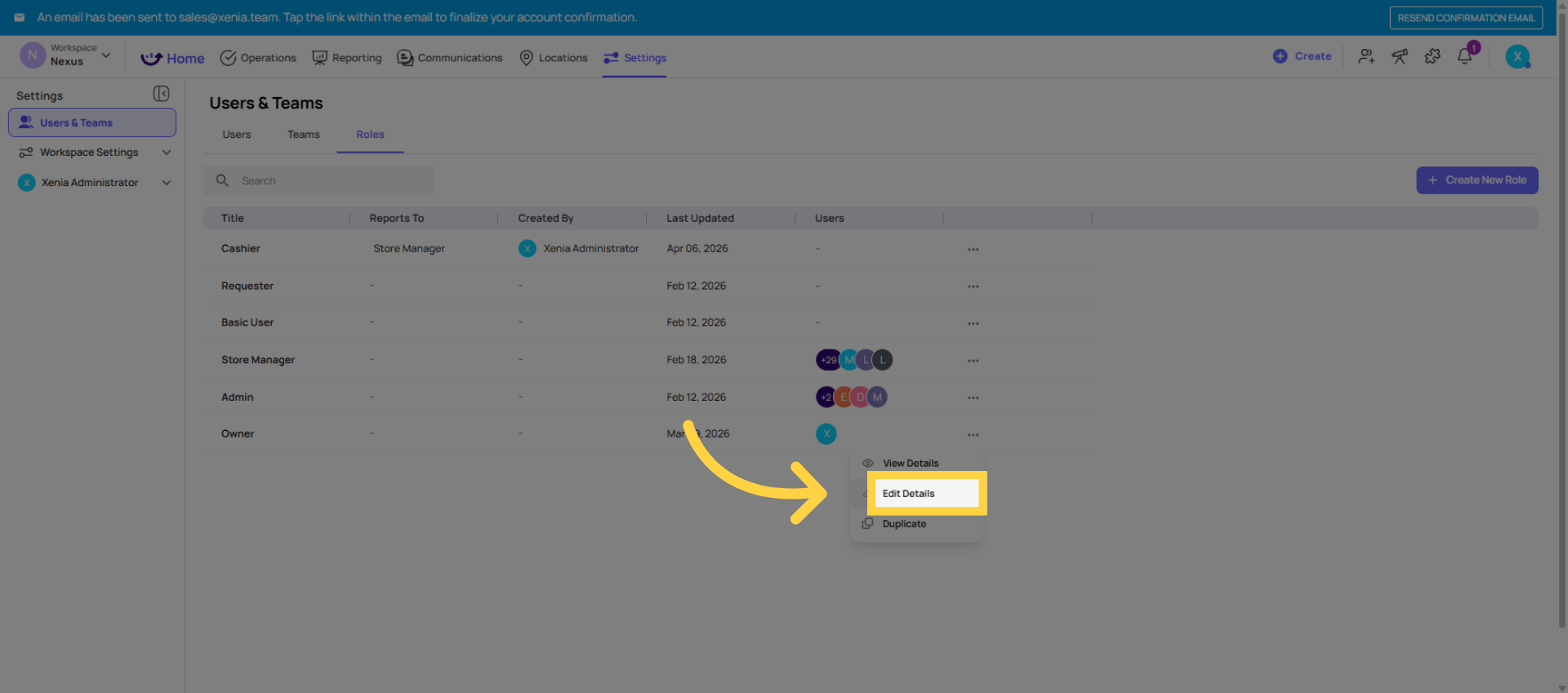
Path: Settings → Roles → Edit → Next → Next → Homepage Layout
2. Navigate To Role Edit Settings
3. Understand Role-Based Homepage Layout
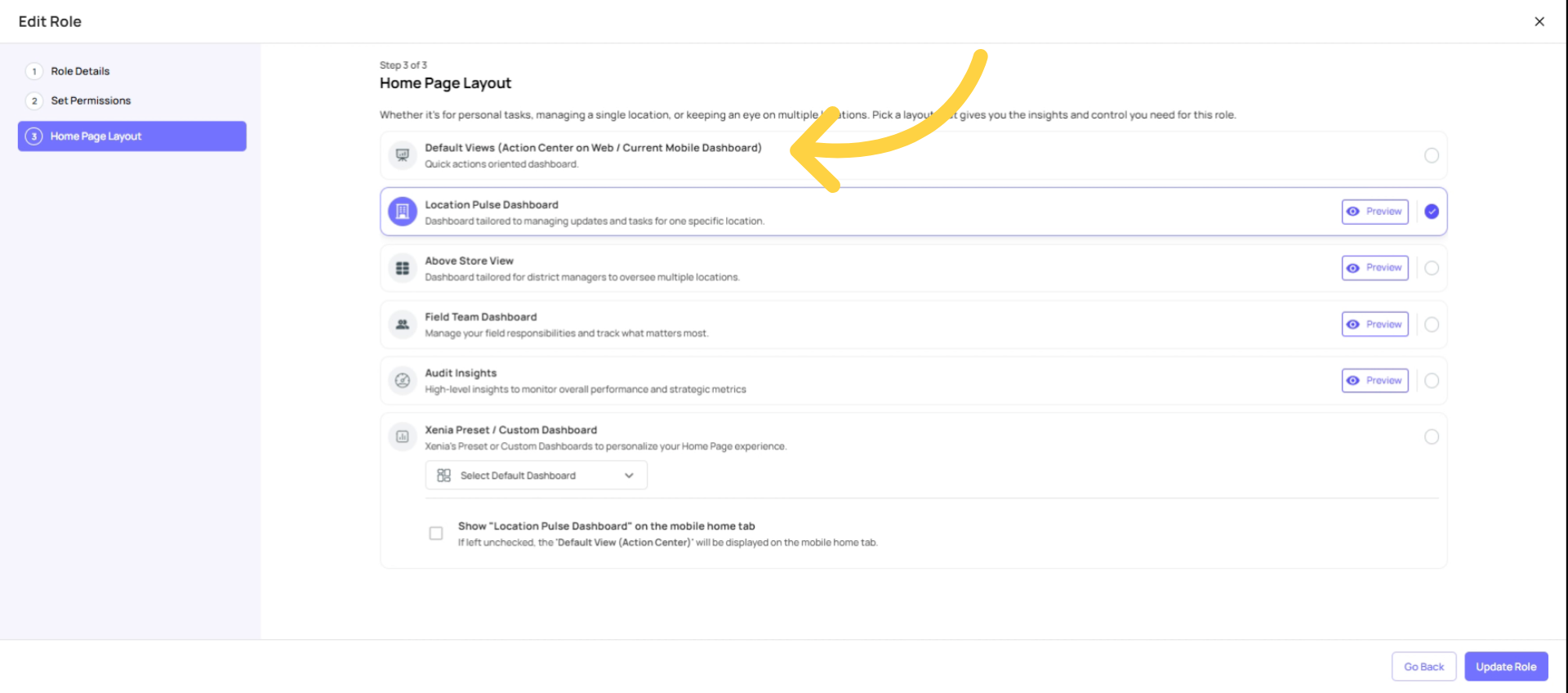
4. Default Views Layout
Layout 1: Default View (For: Admins, Owners, Power Users, anyone who needs full platform access)
- The standard Xenia experience — full sidebar navigation, all modules accessible
- No special customization; shows the full breadth of the platform
- Best for admins managing the workspace, configuring settings, or users who move across multiple modules throughout the day
- Not ideal for frontline staff — too many options can be confusing
5. Location Pulse Dashboard Importance
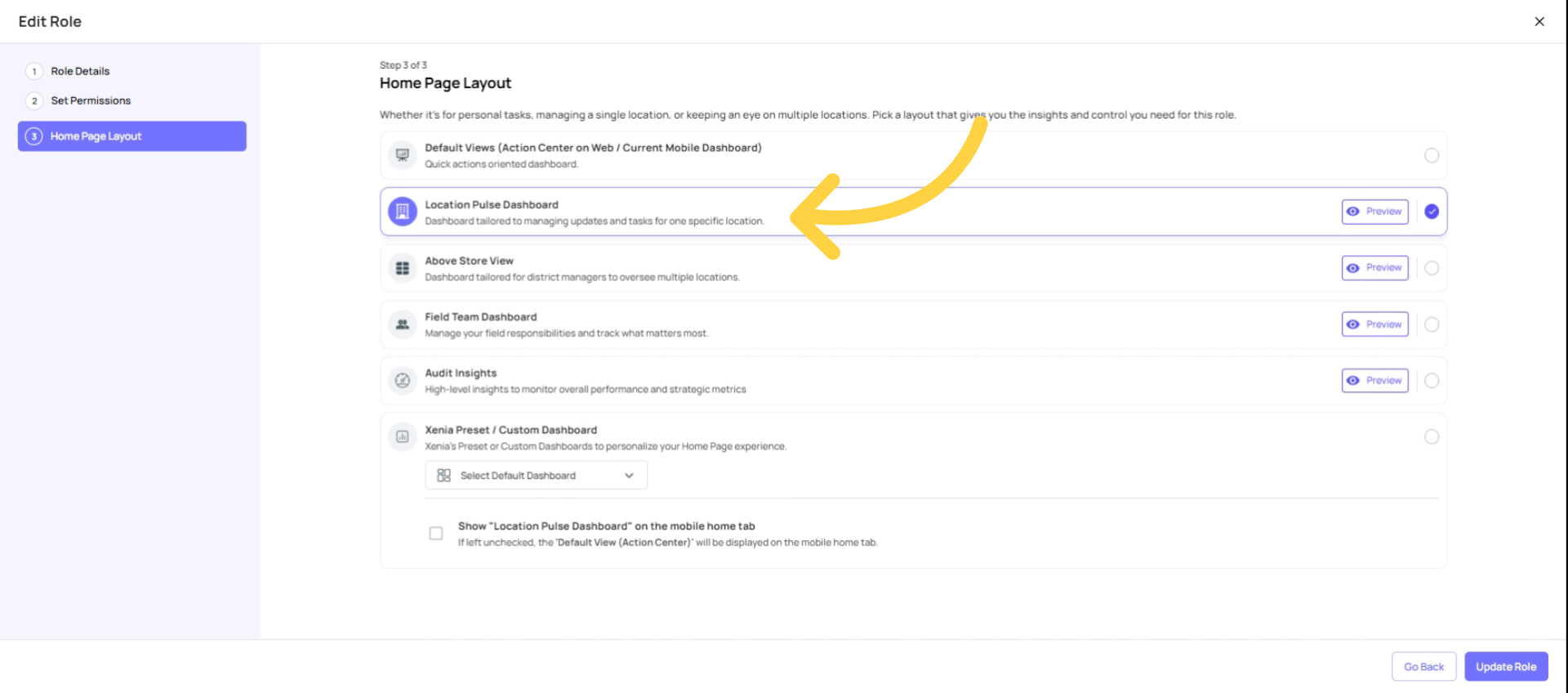
Layout 2: Location Pulse Dashboard (For: Store Managers, Frontline Crew, Cashiers, Cooks, Shared Store Tablets)
- A single-day, single-location focused view
- Shows all tasks due today: what's completed, what's pending, what's overdue or flagged
- Completion tracking and photos taken visible at a glance
- On mobile only: includes a Compliance Tab — allows quick export of submission data (e.g., useful if a health inspector arrives and needs to see recent temp logs)
- Drives the highest task completion rates of any layout — because employees see exactly what they need to do with zero navigation
- This is the #1 recommended layout for any store-level or frontline role
Best for: Any role working at a single location whose primary job is completing tasks and checklists
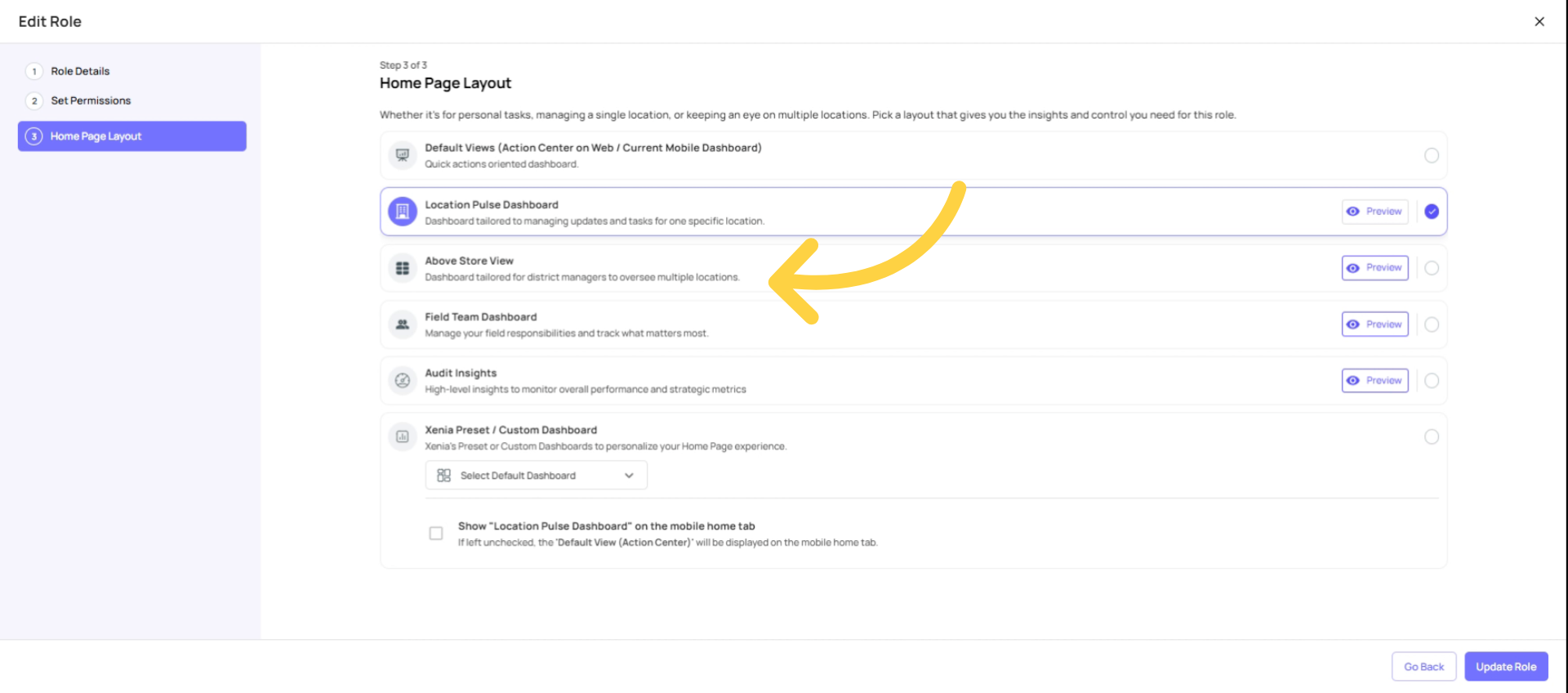
6. Above Store View Purpose
Layout 3: Above Store View (For: Regional Managers, District Managers, Area Managers — anyone overseeing multiple locations)
- A multi-location overview that shows operational health across all assigned locations, not just one
- Lets RMs and DMs see completion status, overdue tasks, and performance across their entire portfolio of locations at once
- Respects location membership — each manager only sees data for their locations
- Allows drilling down from a region/district level into specific sites
- Replaces the need for managers to manually check each store one by one
Best for: Any role that manages 2+ locations and needs a bird's-eye view of what's happening across their territory — without getting lost in individual store details
7. Field Team Dashboard Overview
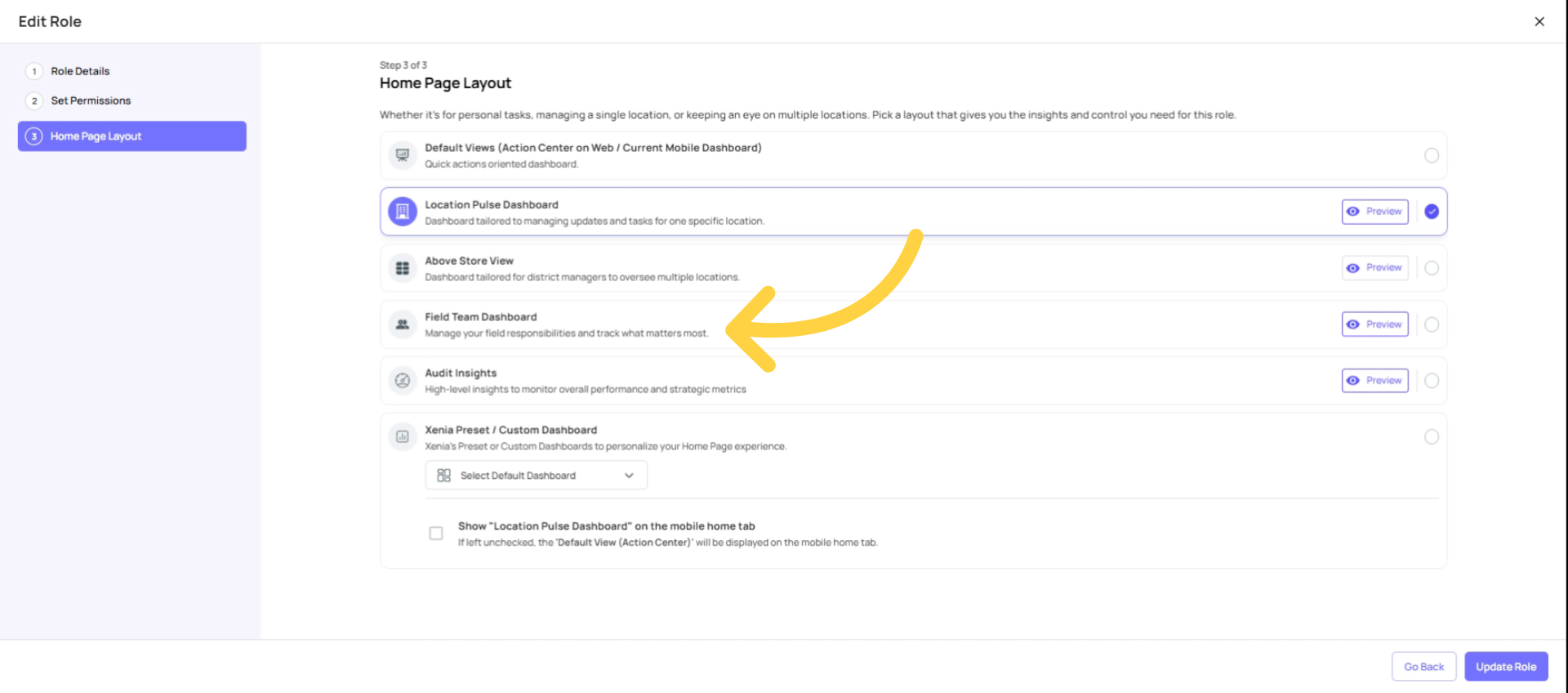
Layout 4: Field Team Dashboard (For: Field Auditors, Field Inspectors, Area Coaches, anyone who moves between locations)
- Designed for users who are on the move visiting locations and conducting reviews
- Surfaces relevant tasks, submissions, and flagged items for the locations the field team member is currently visiting or assigned to
- Streamlined for action — see what needs attention at each site, complete audits, log findings
- Works well on mobile and tablet for users who aren't desk-based
Best for: Field roles that visit multiple locations in a day — auditors, inspectors, area coaches, support staff who travel to stores
7. Audit Insights Dashboard
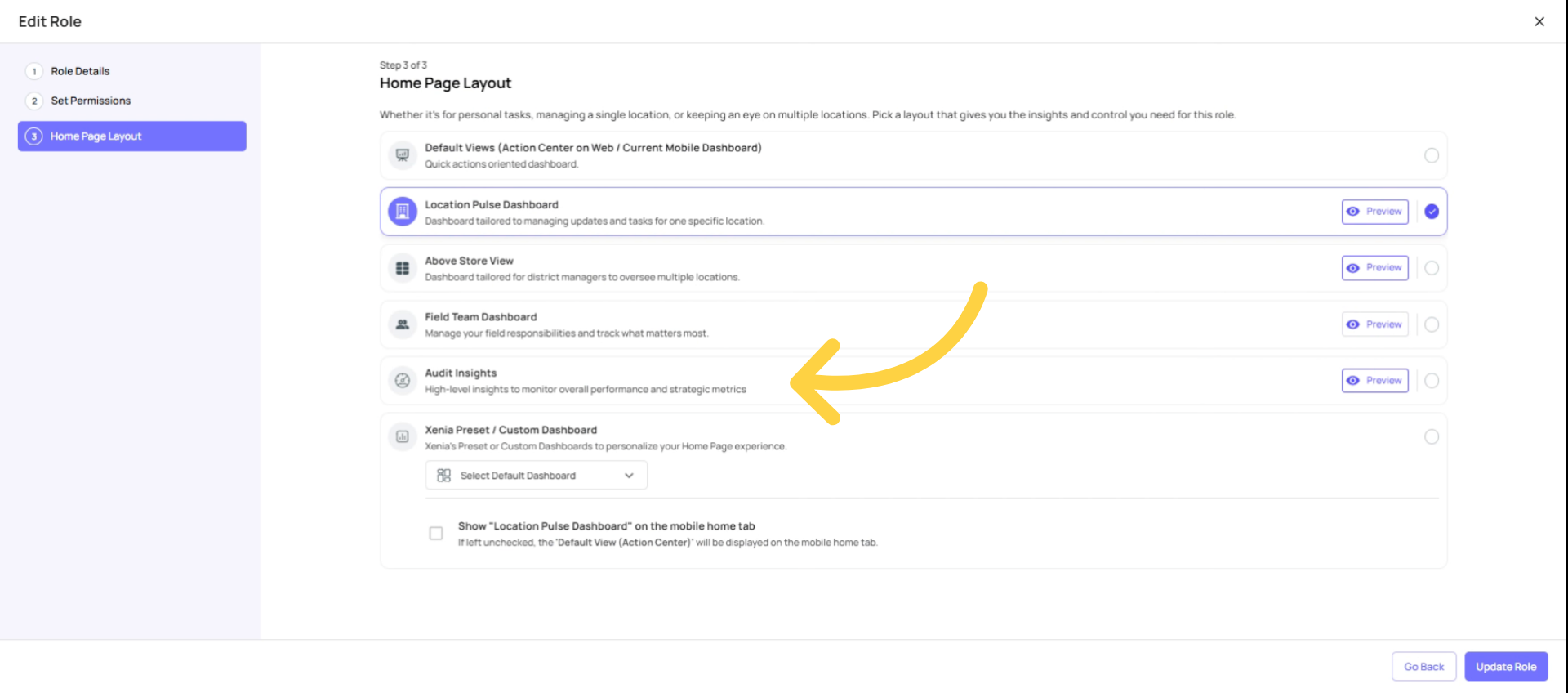
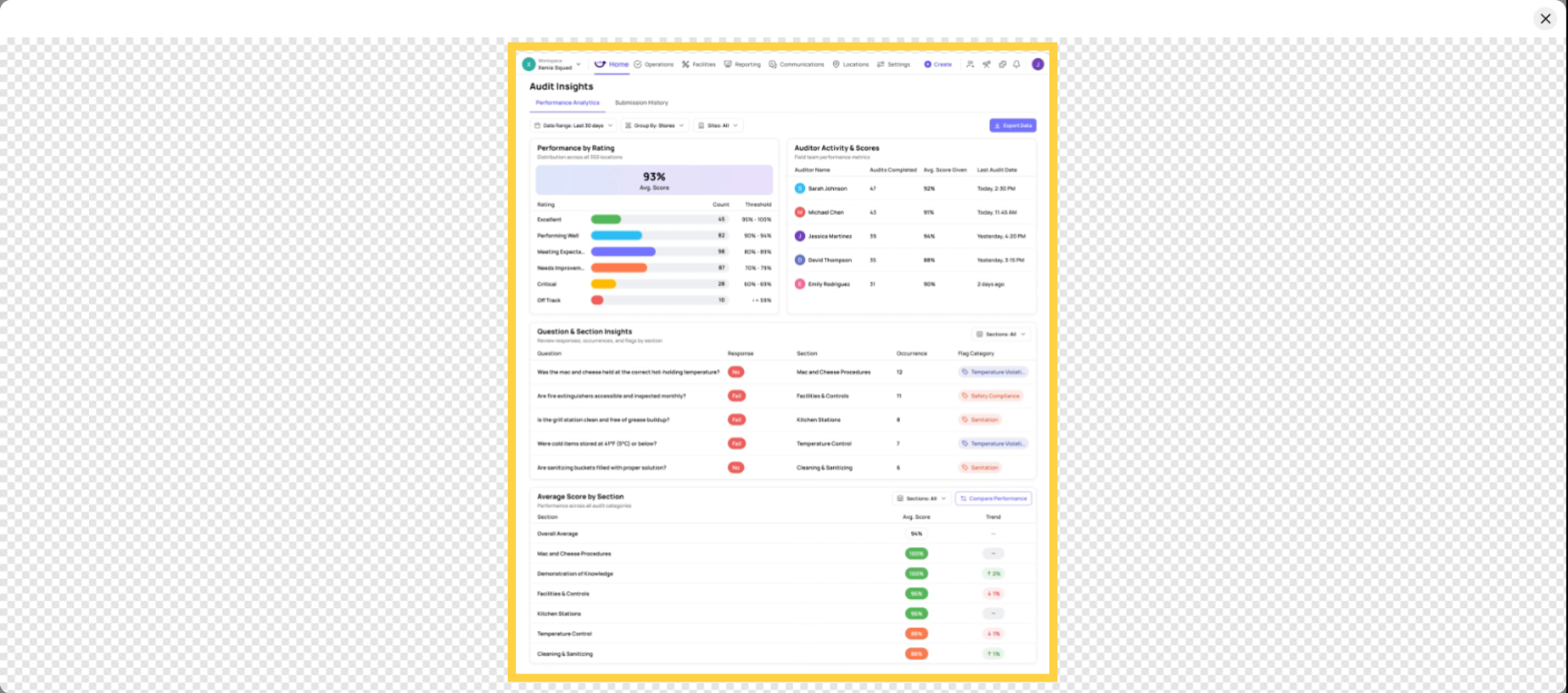
Layout 5: Audit Insights Dashboard (For: Quality Assurance Managers, Compliance Officers, Ops Directors, anyone running scored audits)
- A Xenia preset dashboard purpose-built around audit and inspection data
- Shows aggregate audit scores across locations — with color-coded thresholds (e.g., green = passing, yellow = warning, red = failing)
- Section-based scoring: breaks down audit performance by section within a checklist (e.g., Food Safety section vs. Cleanliness section), not just total scores
- Surfaces the most common flagged items and failure patterns across all locations
- Allows comparison by location, district, region, or franchise group
- Ideal for organizations running formal audit programs (quality walkthroughs, brand standard audits, food safety inspections)
Best for: Any role whose primary responsibility is monitoring audit compliance and quality performance across multiple locations
8. Custom Dashboard Features
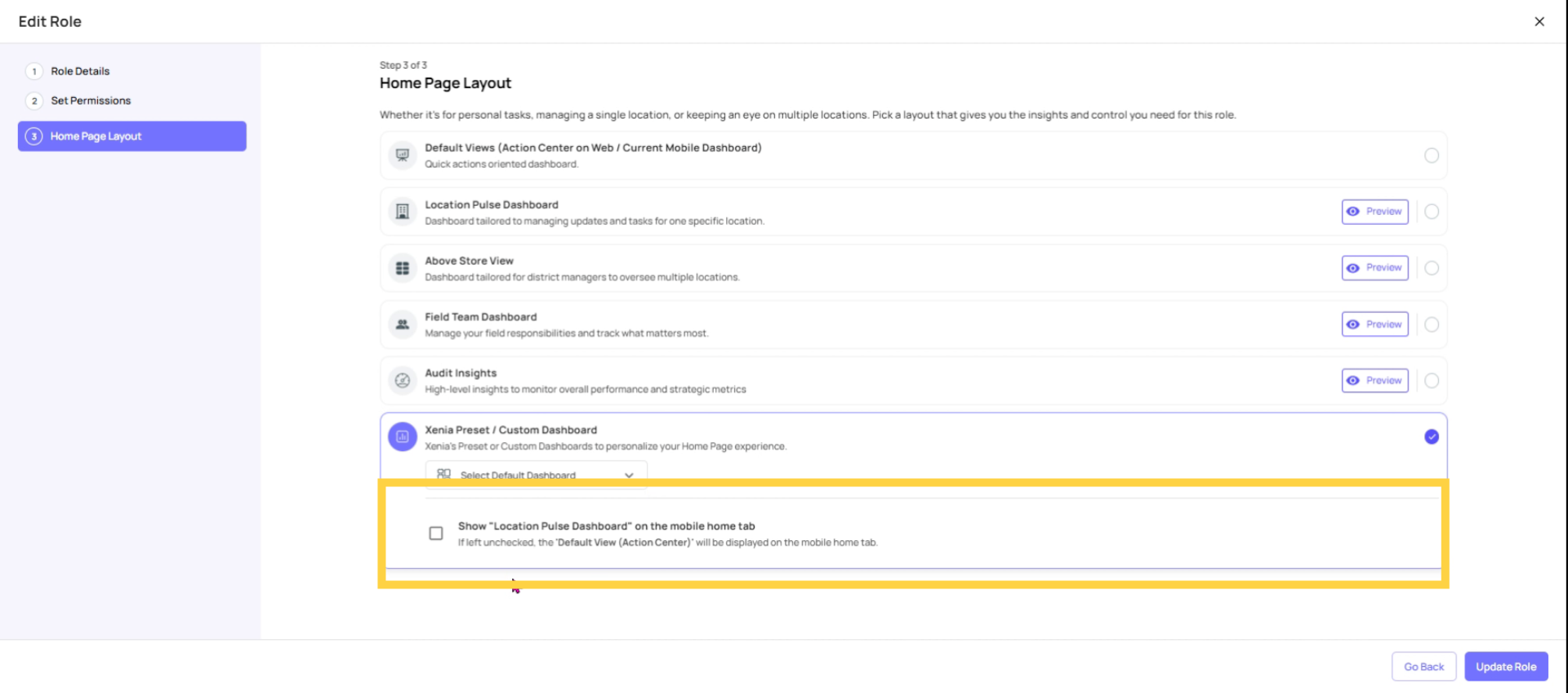
Layout 6: Xenia Preset Custom Dashboards (For: Regional Directors, VPs of Operations, C-Suite, any leadership role needing analytics on their home screen)
- Fully customizable dashboards built using Xenia's widget-based dashboard builder
- Can include any combination of: completion rate charts, flagged item summaries, issue counts by category, benchmark comparisons across locations, work order status tracking, trend lines over time
- Once built, assigned to a role as its homepage — that role's users see the dashboard the moment they open Xenia
- Each role can have a different custom dashboard scoped to their specific data needs and location access
- Common examples: Area Manager Dashboard (flagged items + completion by store), Regional VP Dashboard (weekly trends + district benchmarks), GM Dashboard (today's tasks + open corrective actions)
- Custom dashboards can also be emailed automatically to stakeholders on a schedule
Note: Custom dashboards must be built first in the Reporting module before they can be assigned as a homepage layout. See the Custom Dashboards section for a full setup guide.
Best for: Leadership and analytics roles that need real-time operational intelligence — not task execution — when they open Xenia
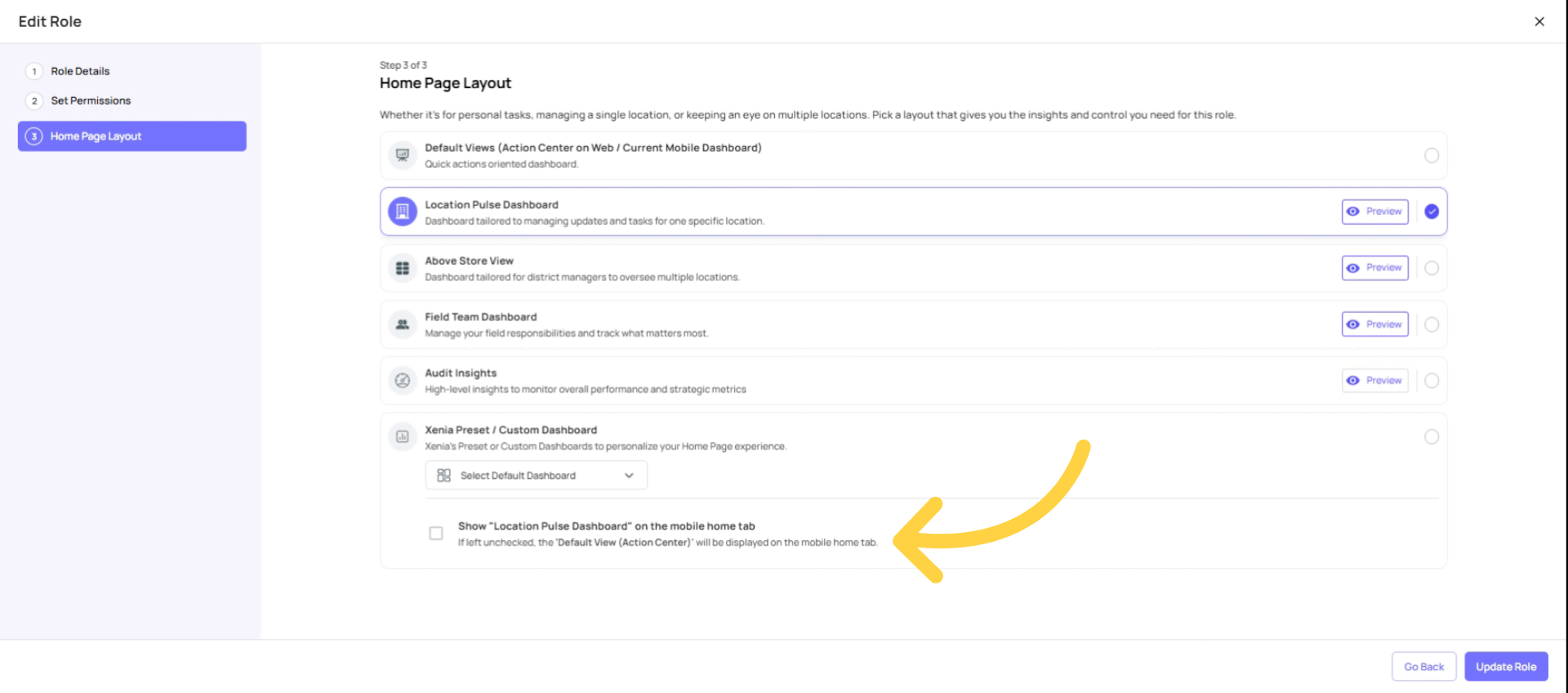
9. Combine Dashboard Options
Quick Reference: Which Layout for Which Role?
| Role | Recommended Layout | Why |
| Cashier / Crew / Cook | Location Pulse | Daily tasks, single location, no clutter |
| Store Manager | Location Pulse | Store tasks + others at their location |
| Shift Manager | Location Pulse | Single location task view |
| Area / District Manager | Above Store View | Multi-location operational overview |
| Regional Manager | Above Store View or Preset Custom | Portfolio visibility + analytics |
| Field Auditor / Inspector | Field Team Dashboard | Moving between locations, action-oriented |
| QA / Compliance Officer | Audit Insights | Audit scoring, flagged items, thresholds |
| Regional Director / VP | Preset Custom Dashboard | Executive analytics, trends, benchmarks |
| Admin / Owner | Default View | Full platform access needed |
Need Help?
For assistance please reach out to us at support@xenia.team
Comments
0 comments
Please sign in to leave a comment.