
This article explains how to search for tasks and work orders in Xenia and use filtering tools to find relevant information. You will learn how to leverage these features to maintain visibility across your operations effectively.
Introduction to Tasks and Work Orders
In this article, we will be walking through how to search for tasks and work orders in Xenia and how to leverage the platform's filtering capabilities to surface the information most relevant to you. These tools are essential for maintaining visibility across your operations, whether you're managing a single location or overseeing multiple sites. To begin,
Navigate to Operations Tab
Navigate to the Operations tab, and under the Operations tab on the left-hand side, you will see Tasks and Work Orders.
Access Tasks and Work Orders
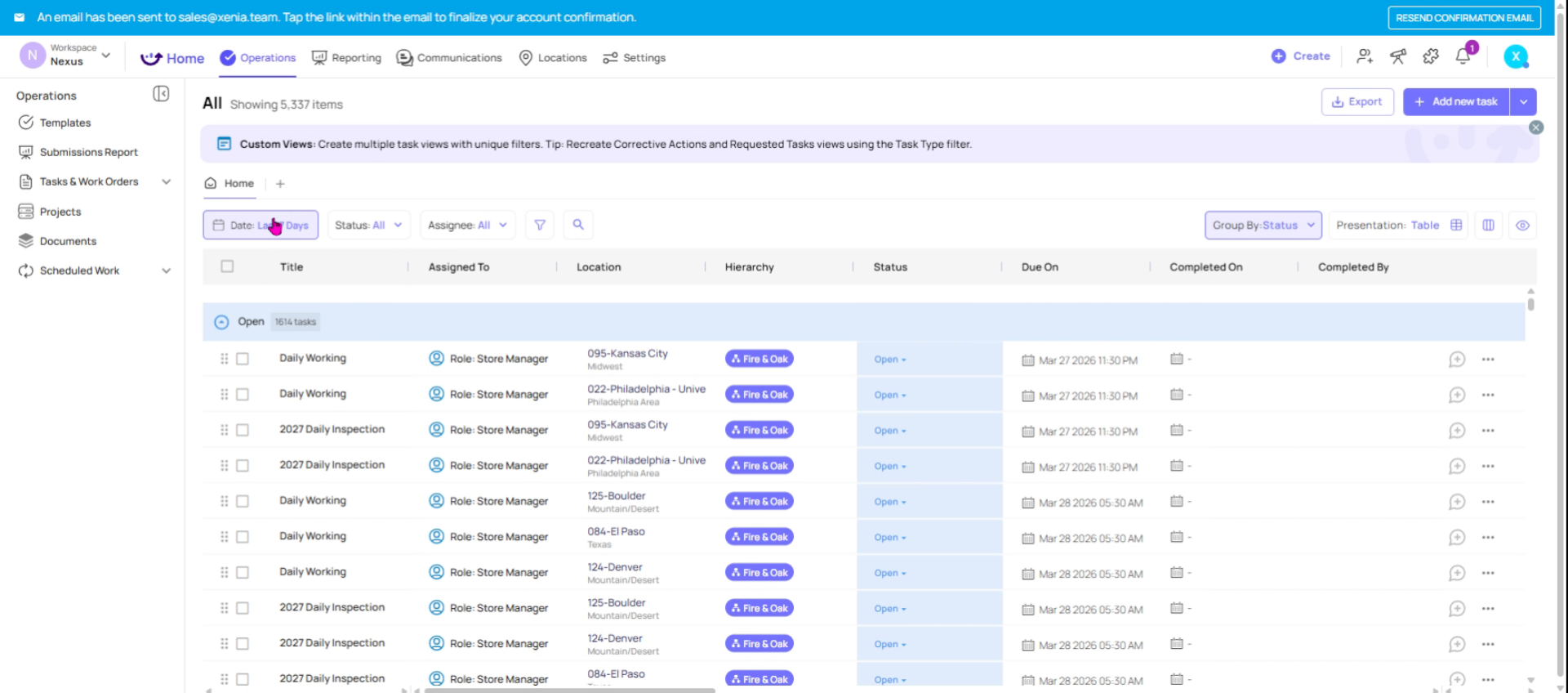
Once you click on tasks and work orders, this is going to be your central dashboard for all tasks and work orders across your workspace.
Access Work Tab on Mobile App
If you're accessing Xenia via the mobile application, this section is available under the work tab located in the bottom navigation bar.
Locate Dashboard Filters
At the top of the dashboard, you’ll find all your filters. These allow you to perform searches across all tasks and work orders in your workspace, making it easier to quickly locate what you need.
Use Date and Status Filters
You can also filter by date to view work orders or tasks from yesterday, this week, or the last two weeks. Additionally, you can customize filters by status—like open, in progress, on hold, or completed—and even by assignee to see who is responsible for each task.
Filter by User and Roles
You can further filter your tasks or work orders by users, teams, locations, or roles. On top of that, you have the option to group your results by status, assignee, asset, location, or priority to get a more organized view.
Add Advanced Filters
On top of the basic filters, you can also use advanced filters. Here, you can add multiple criteria to narrow down your search. For example, you can filter by: Status, Template, Assignee, Location, Due Date, and priority. This allows you to create highly customized views of your tasks and work orders.
View Filtered Work Orders
Once your advanced filters are applied, your dashboard will display all relevant work orders and tasks that match the criteria.
This article has guided you through using Xenia's search and filtering features to efficiently manage tasks and work orders. For more information, explore related articles on task management and workspace organization within the knowledge base.
Need Help?
For assistance please reach out to us at support@xenia.team
Comments
0 comments
Please sign in to leave a comment.