
What Is an Ad Hoc Submission?
An ad hoc submission is a checklist or form you start on your own — not from a scheduled project task on your home screen. You go to the Templates tab, find the form you need, and open it directly.
Common examples:
- Inspection or audit form — a manager or field rep conducting an unscheduled visit or spot check
- HR employee form — an employee or manager submitting a performance notice, incident report, or onboarding form
- Incident report — documenting an issue that happened outside of a scheduled check
- Any form that needs to be submitted on demand, not on a recurring schedule
Watch the Full Walkthrough
Step 1 — Go to the Templates Tab
From anywhere in the Xenia app, tap the Templates tab in the bottom navigation bar — it looks like a checklist icon.
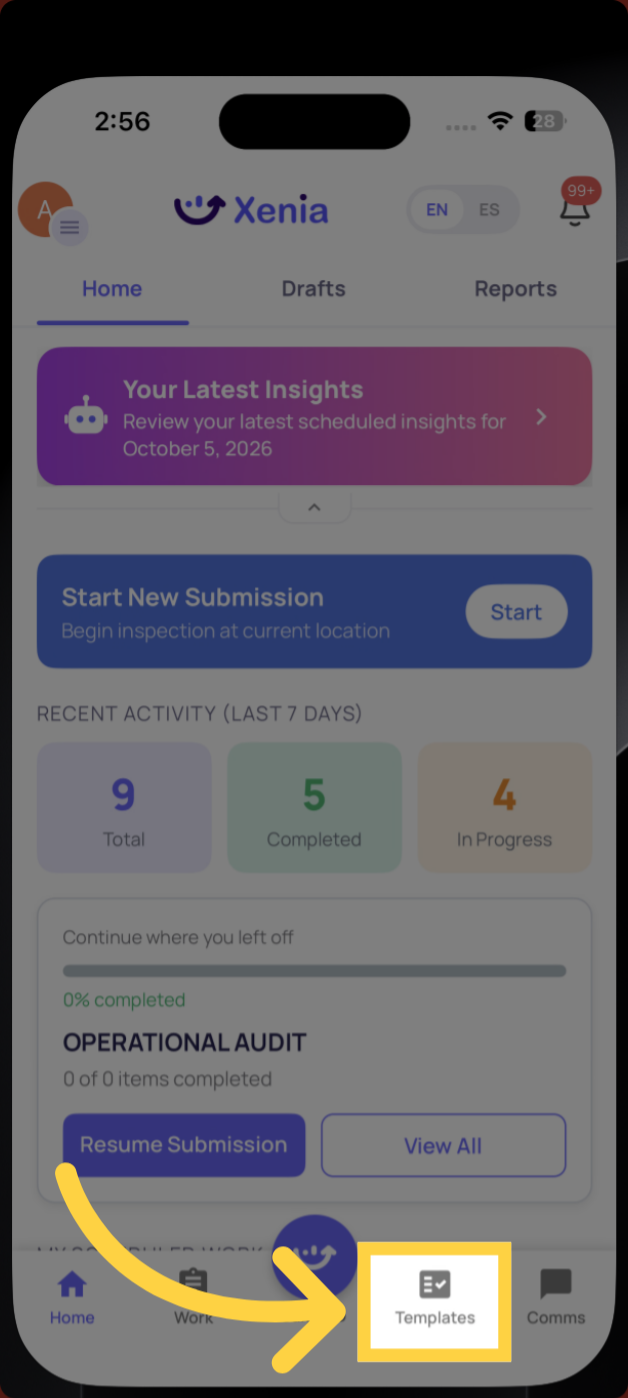
You'll see a list of all templates your role has access to. Templates are organized into folders if your admin has set them up that way.
Step 2 — Find the Template You Need
Browse or search for the form you want to submit. Tap the search bar at the top and type the name of the template — or scroll through the folder list to find it.
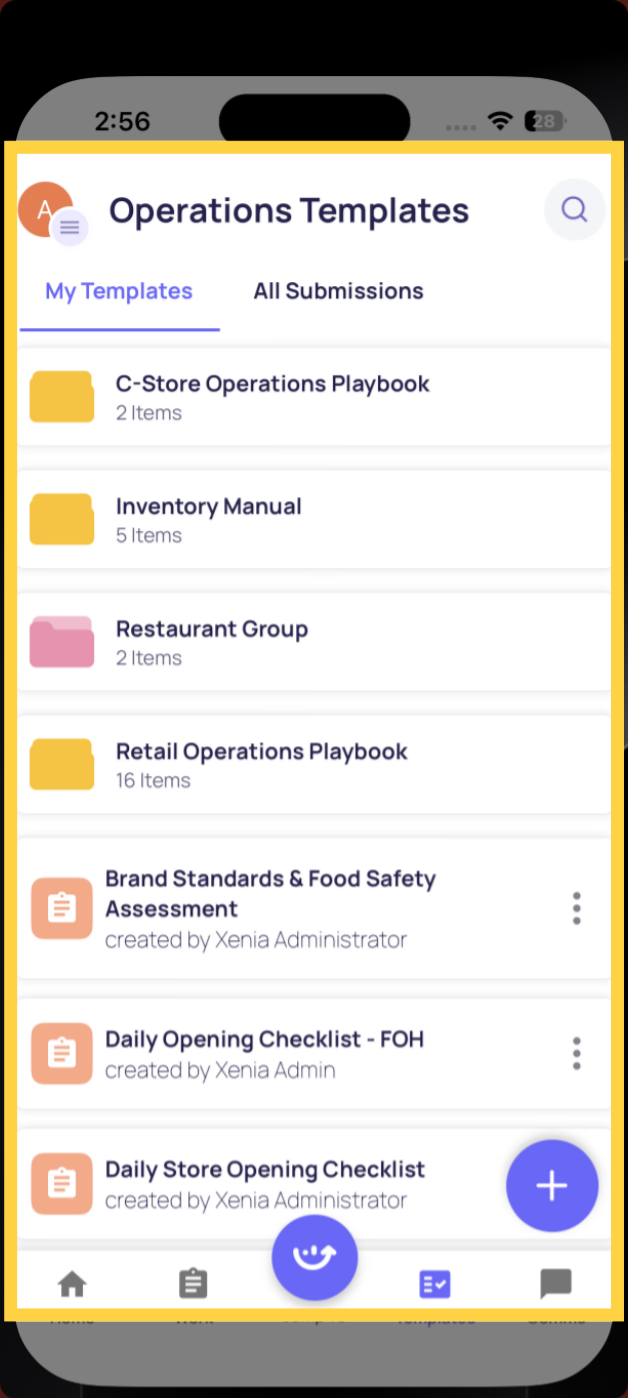
Tap the template name to open it.
Step 3 — The Form Opens Ready to Complete
The template opens and you can start filling it in immediately. A few things to note:
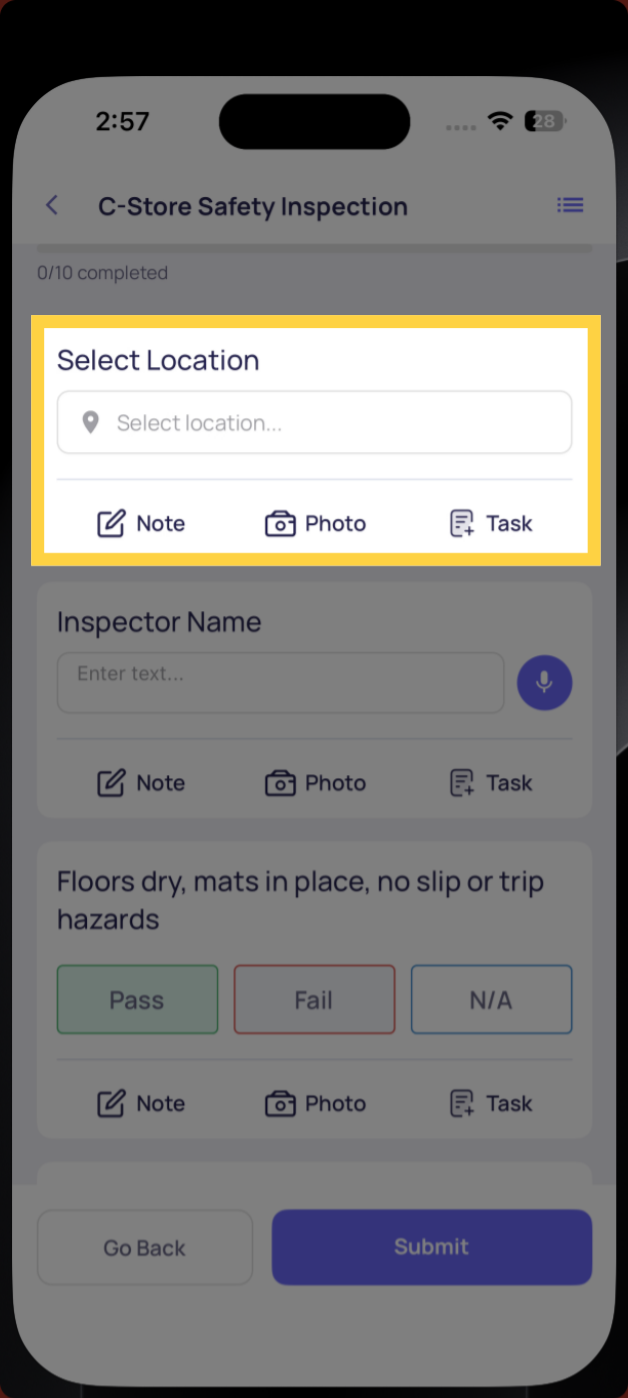
- If the template has a Select Location step, tap it and choose your location from the list. This is important — it tells Xenia which store this submission belongs to and powers notifications, reporting, and any corrective tasks that may be triggered.
- The progress bar at the top tracks your completion as you go.
- Work through the steps from top to bottom.
Step 4 — Complete Each Step
Different step types work differently:
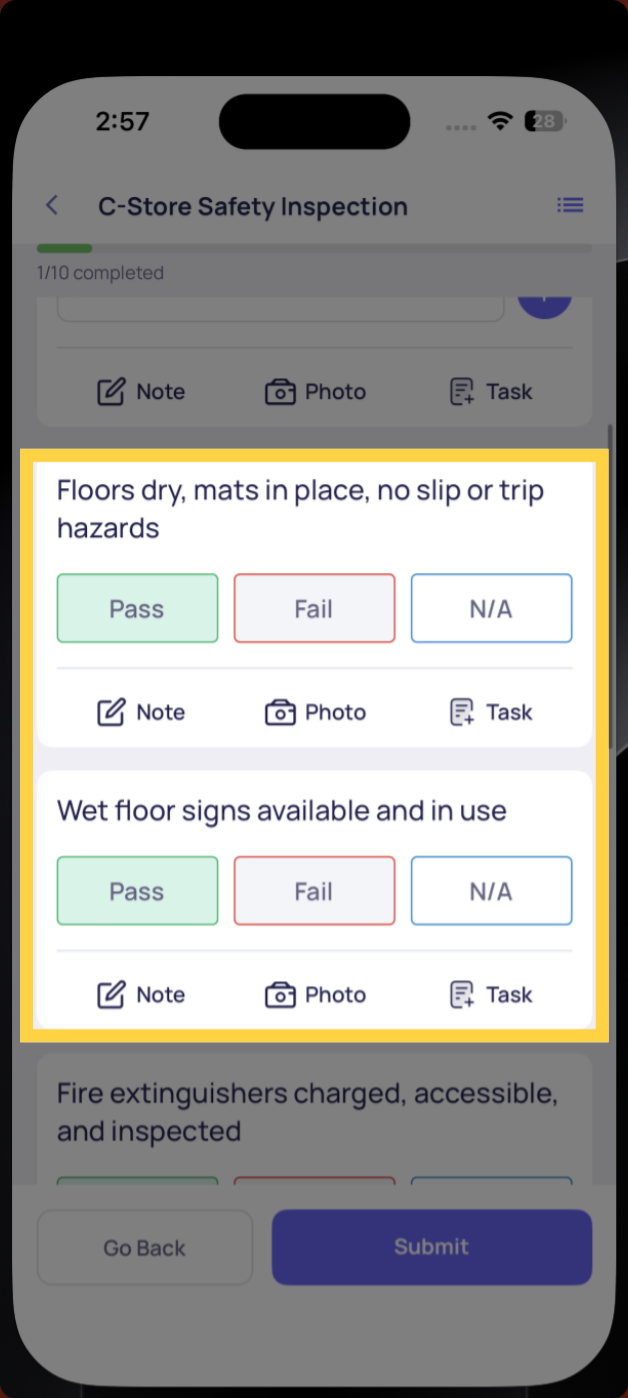
Pass / Fail or Yes / No
Tap your answer. If you select Fail or No, a follow-up question may appear — answer it before you can move on.
Multiple Choice
Tap the correct option.
Text or Number
Tap the field and type your response.
Photo
Tap the camera icon to take a live photo. Required photo steps cannot be skipped — the form will not let you submit without them.
Signature (if applicable)
Draw your signature in the signature field.
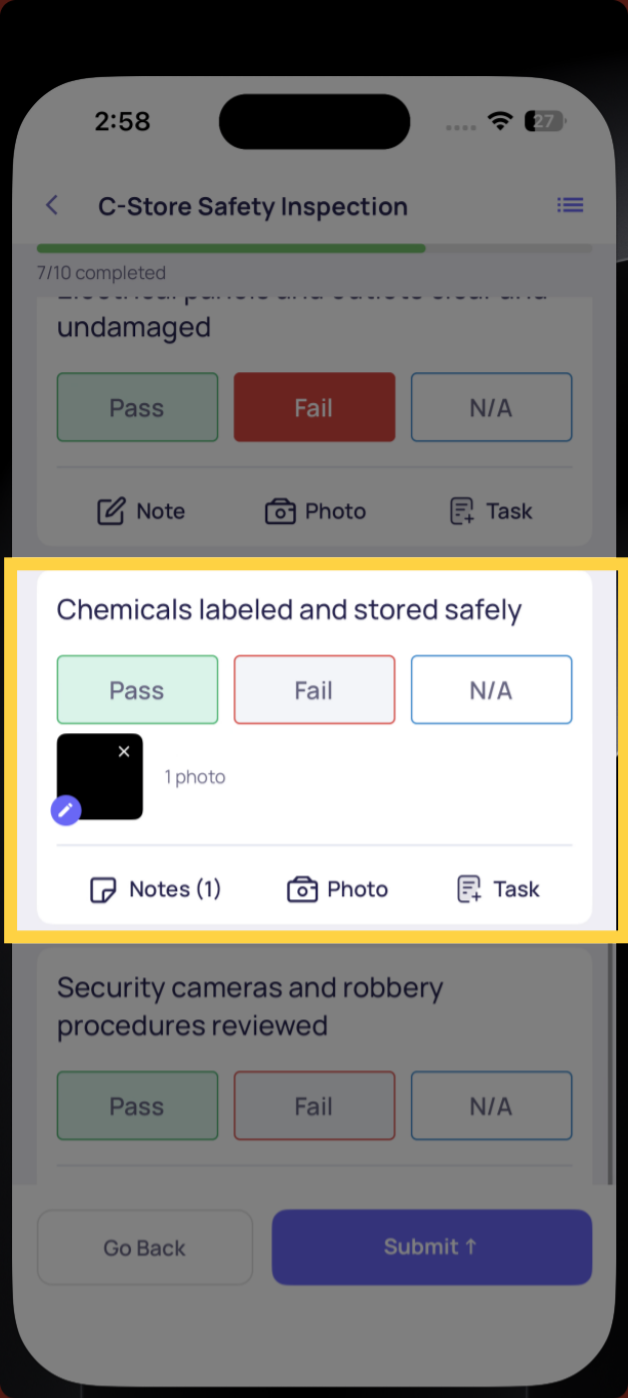
The progress bar advances as you complete each step.
Step 5 — Review and Submit
Once all required steps are completed, the Submit button at the bottom becomes active.
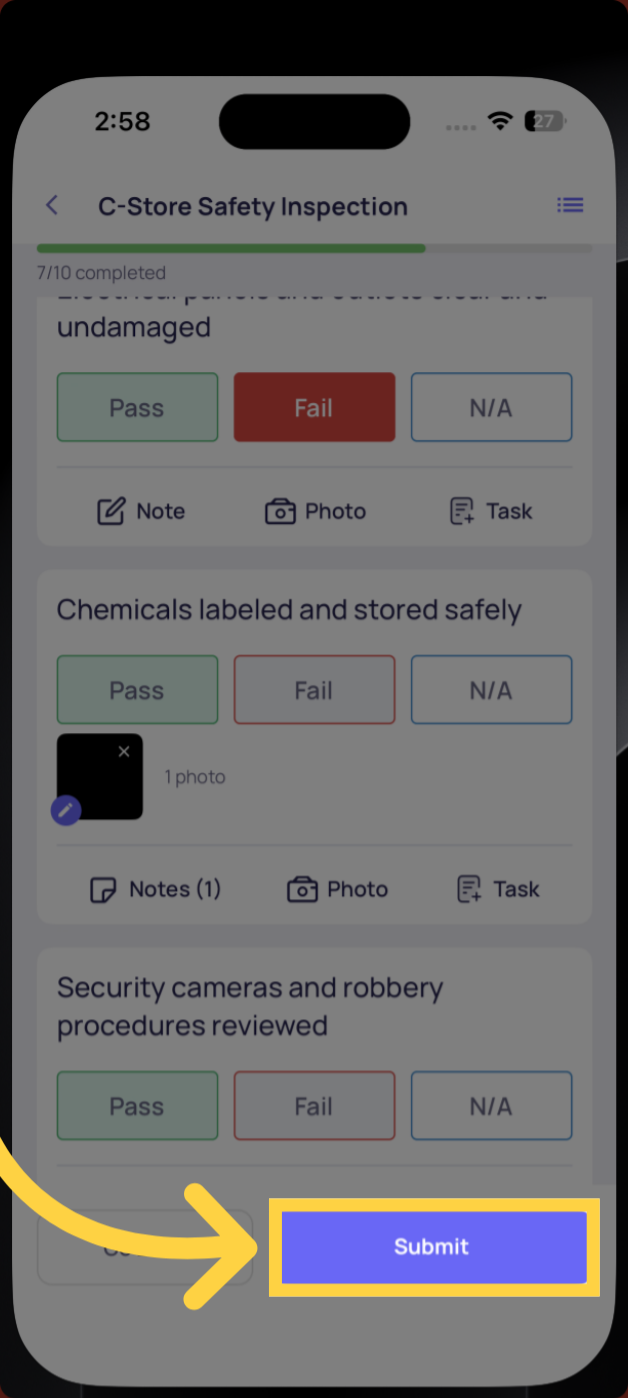
Tap Submit. A confirmation screen confirms your submission has been recorded.
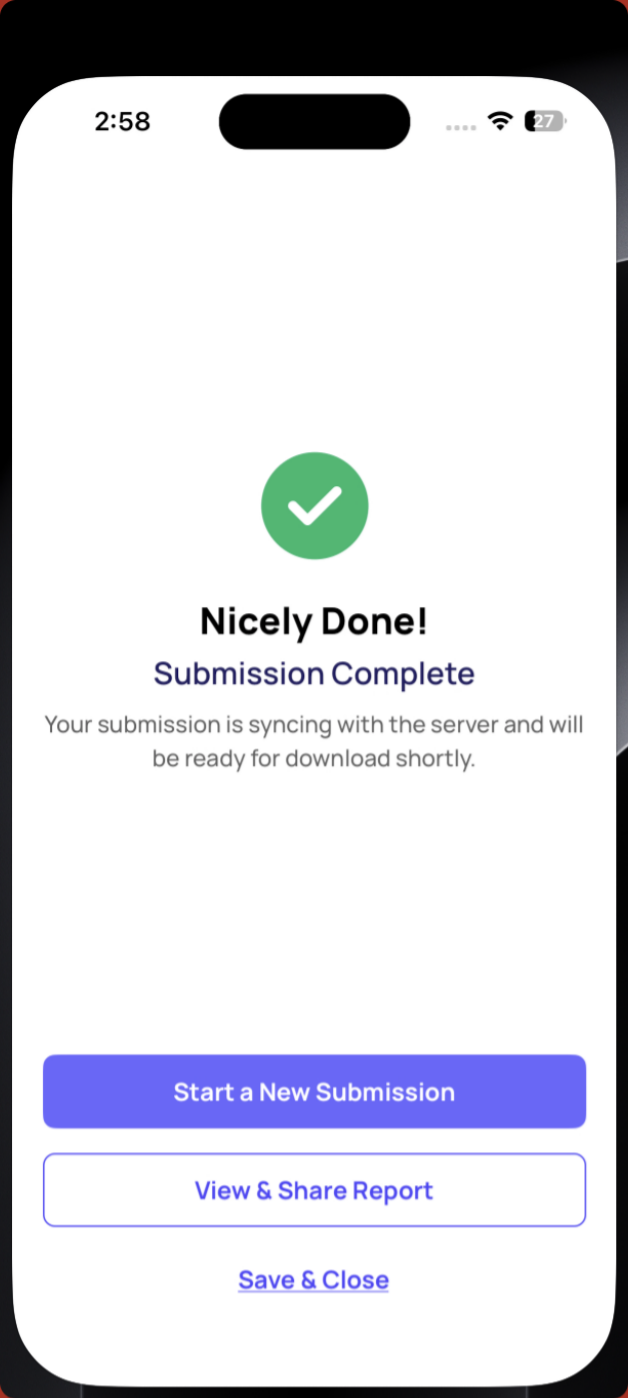
Step 6 — What Happens After You Submit
- The submission is immediately visible to anyone with access to view submissions for this template
- If the template has post-submission email notifications configured, the relevant managers or roles receive an email report
- If any step triggered a corrective task or workflow, those fire automatically at the moment of submission
- If the template has an approval workflow, the form enters the approval queue and the designated approver is notified
Frequently Asked Questions
Q: What's the difference between an ad hoc submission and a project task?
A project task is generated automatically by a schedule — it appears on your home screen at the right time. An ad hoc submission is one you start yourself from the Templates tab whenever you need it, with no schedule attached.
Q: Why can't I find the template I'm looking for?
You can only see templates your role has been granted access to. If a template isn't showing up, contact your admin to confirm you have Template Access for that form.
Q: Do I have to select a location every time?
Only if the template has a Select Location step. If it does, always fill it in — it's what connects the submission to the right store in reporting and notifications.
Q: I started filling out the form but had to stop. Will my progress be saved?
Yes — if you exit mid-completion, your progress auto-saves. Find it under My Draft Submissions in the side menu (tap your profile icon → My Draft Submissions).
Q: Can I submit a form on behalf of someone else?
No — submissions are attributed to the logged-in user. Each person should submit forms from their own account.
Need Help?
Reach out to our Support Team at Support@xenia.team
Comments
0 comments
Please sign in to leave a comment.