
Overview
When you open the Xenia app, everything assigned to your store today is waiting for you on the Location Pulse home screen — no searching, no navigating menus. This article walks you through finding your task, completing every step of the checklist, and submitting it so it's marked as complete.
Before You Begin
Two things must be configured for tasks to appear on your home screen:
If both are set up, follow along below.
Watch the Full Walkthrough
Step 1 — Open the Xenia App and Find Your Task
When you log in, the Location Pulse home screen loads automatically. You'll see a list of tasks assigned to your location for today — each one showing the checklist name, the due time, and its current status.
Find your Daily Store Opening Checklist in the list. It will show as Open or Due Today.
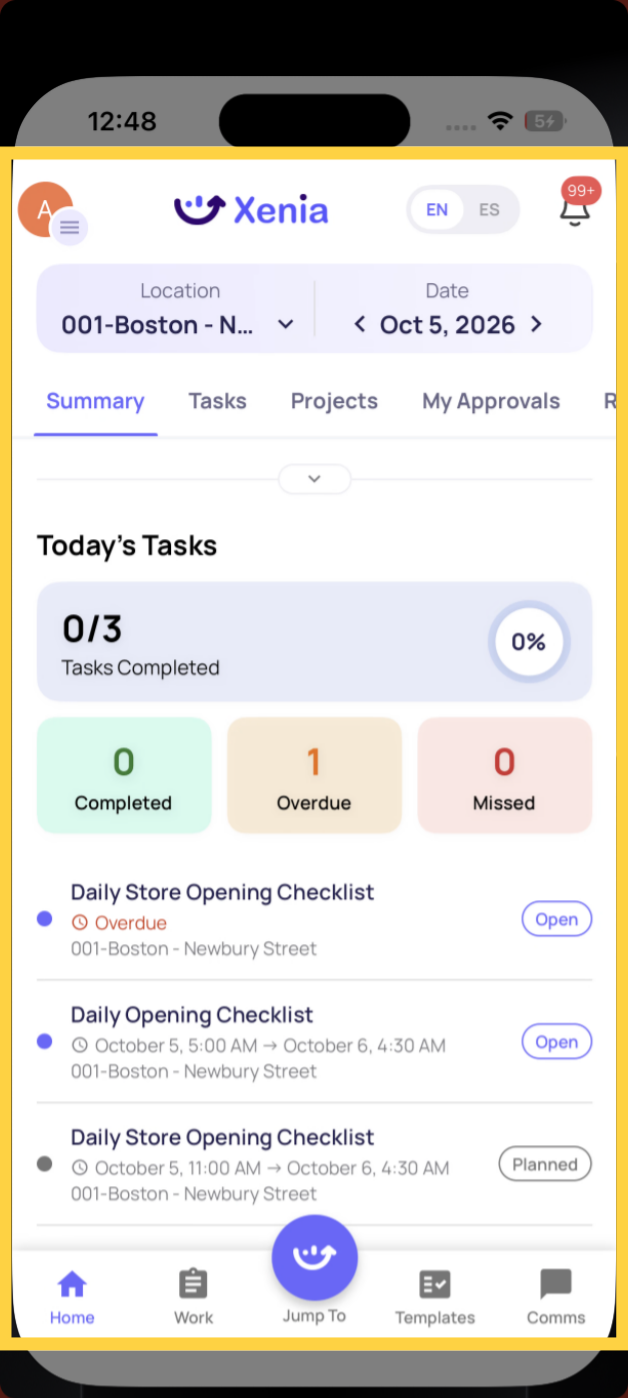
Tap the task to open it.
Step 2 — The Checklist Opens Ready to Go
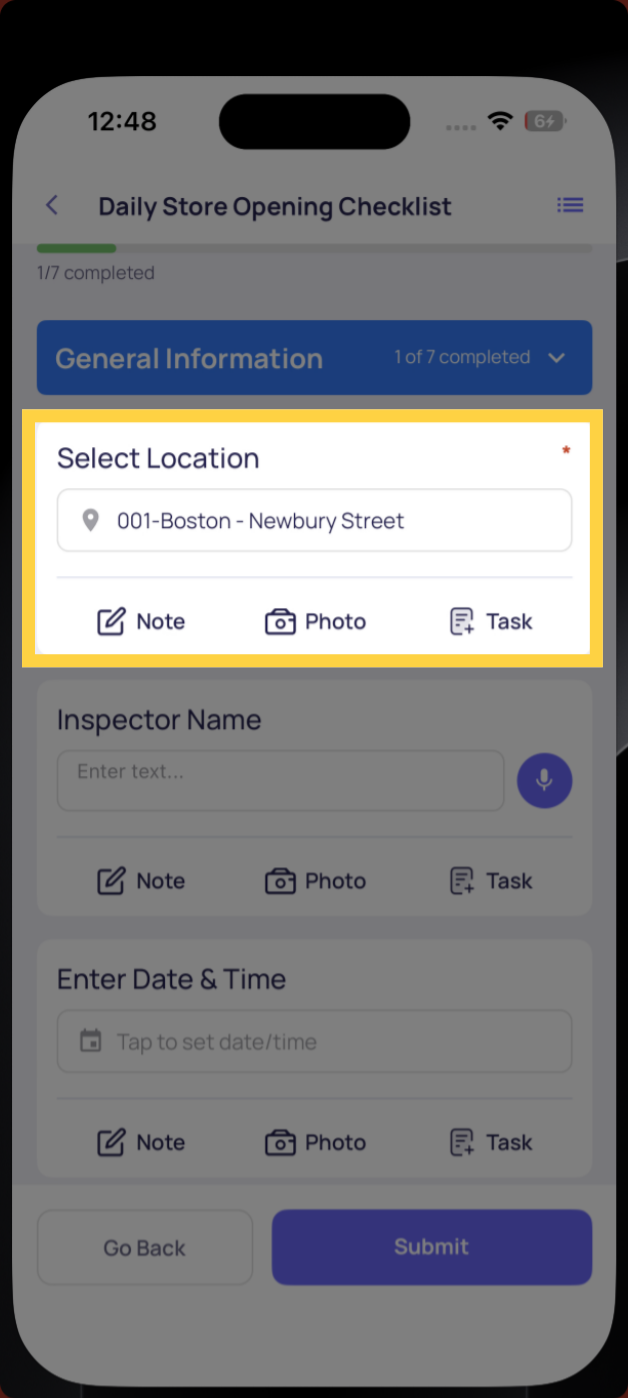
The checklist loads immediately. A few things to note:
- The location is already pre-filled at the top — because this task was generated from a project, Xenia knows exactly which store it belongs to. You don't have to select anything.
- The progress bar at the top shows 0% — it advances as you complete each step.
- Steps are organized into sections — work through them in order from top to bottom.
Step 3 — Complete Each Step
Work through every step in the checklist. Different step types require different responses:
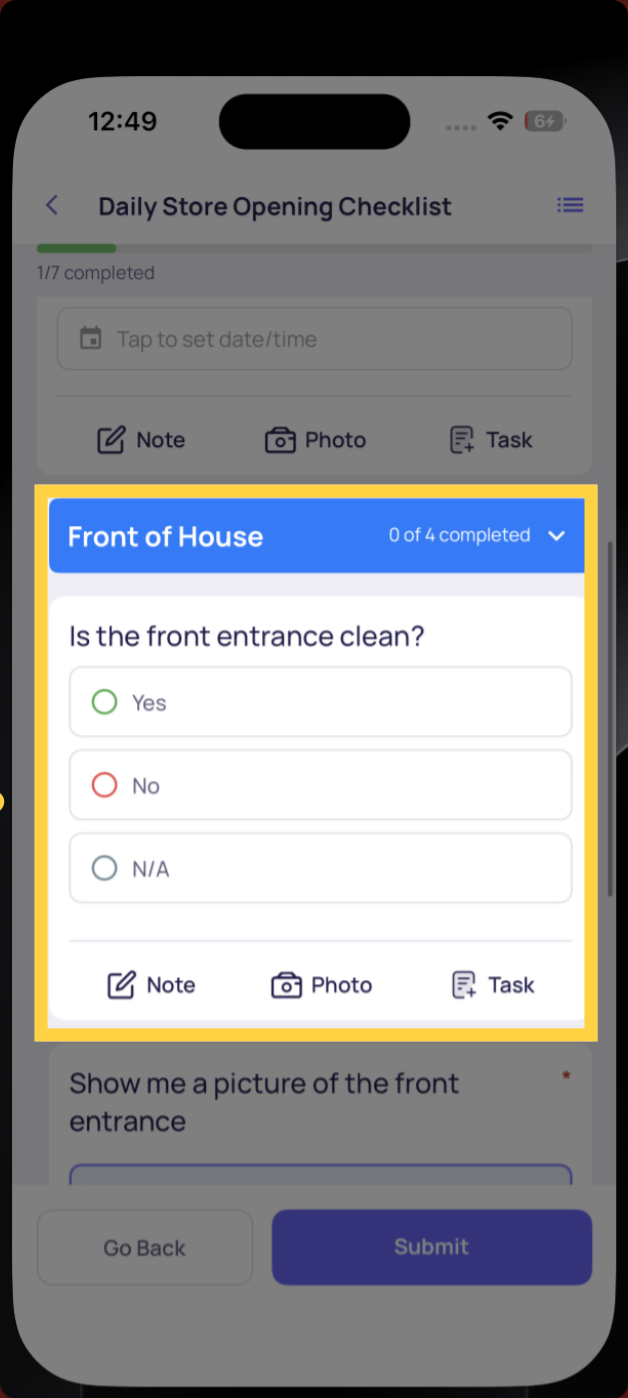
Pass / Fail or Yes / No
Tap the answer that applies. If you select No or Fail, a follow-up may appear — answer it before moving on.
Multiple Choice
Tap the correct option from the list.
Number or Text Entry
Tap the field and type your response.
Photo
Tap the camera icon to take a live photo. Some photo steps are mandatory — you cannot submit without attaching one.
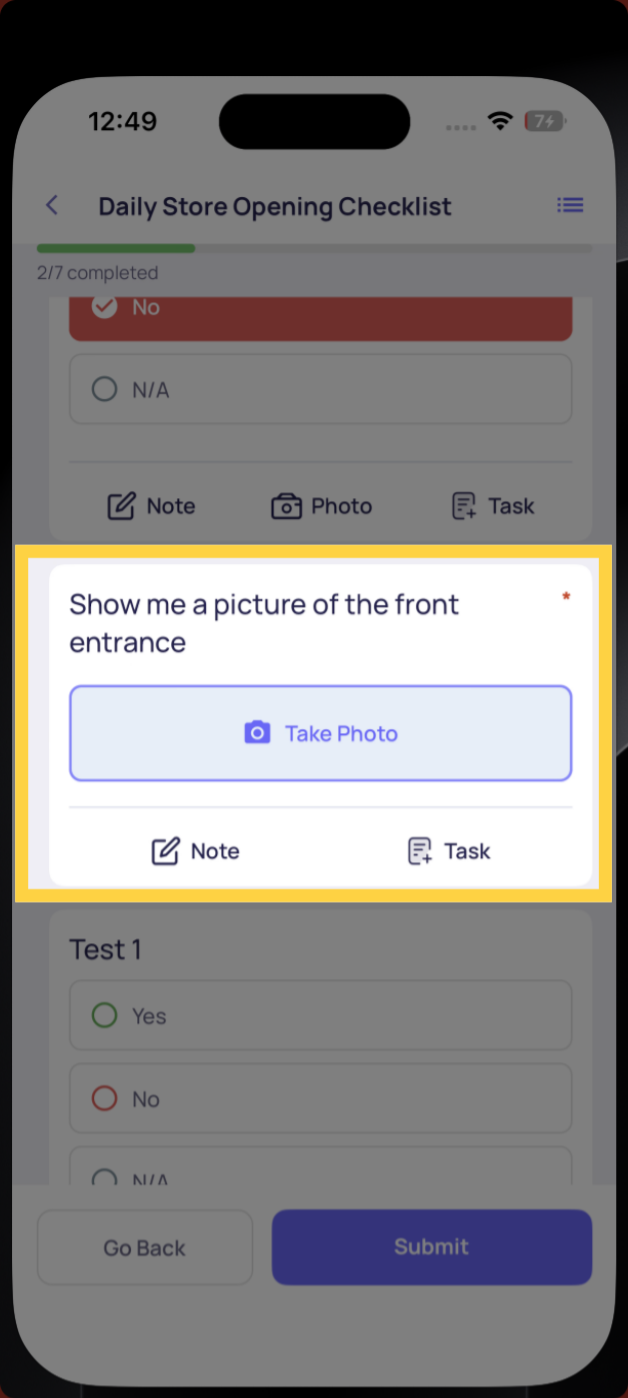
As you complete each step, the progress bar advances and the step shows as answered.
Step 4 — Review and Submit
Once all steps are completed, the progress bar reaches 100% and the Submit button activates at the bottom of the screen.
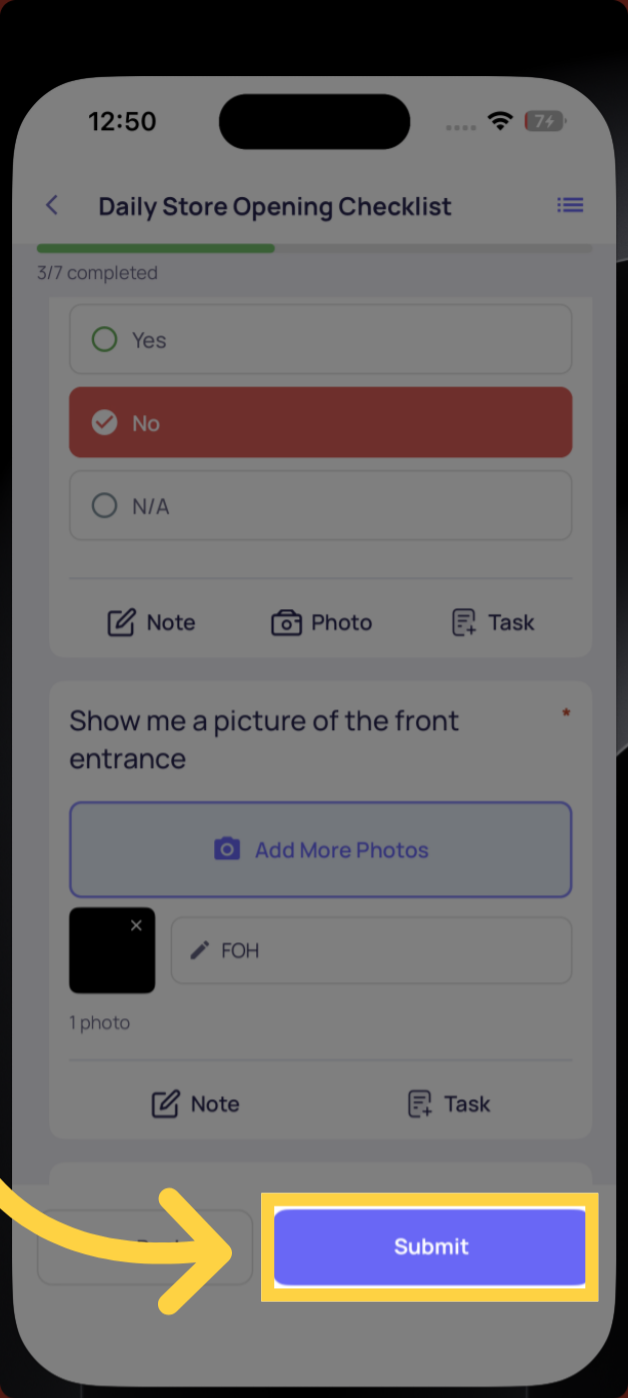
Tap Submit. A confirmation screen appears confirming your submission has been recorded.
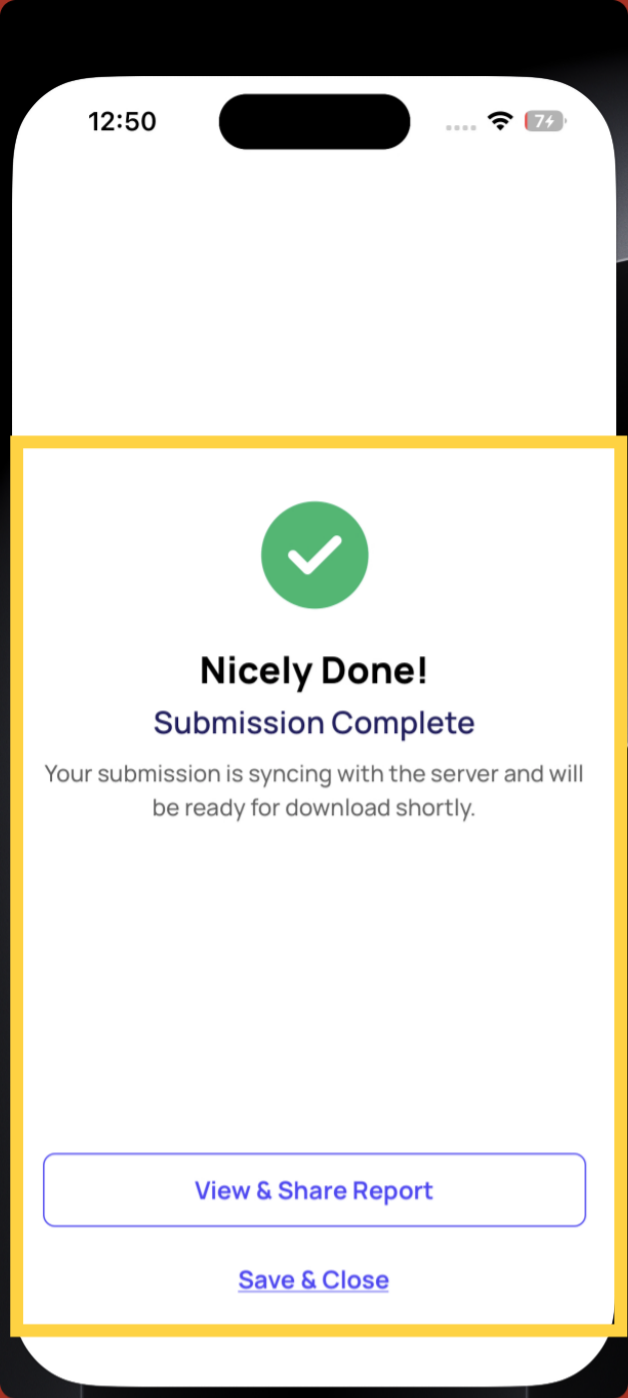
Step 5 — Task Marked as Completed
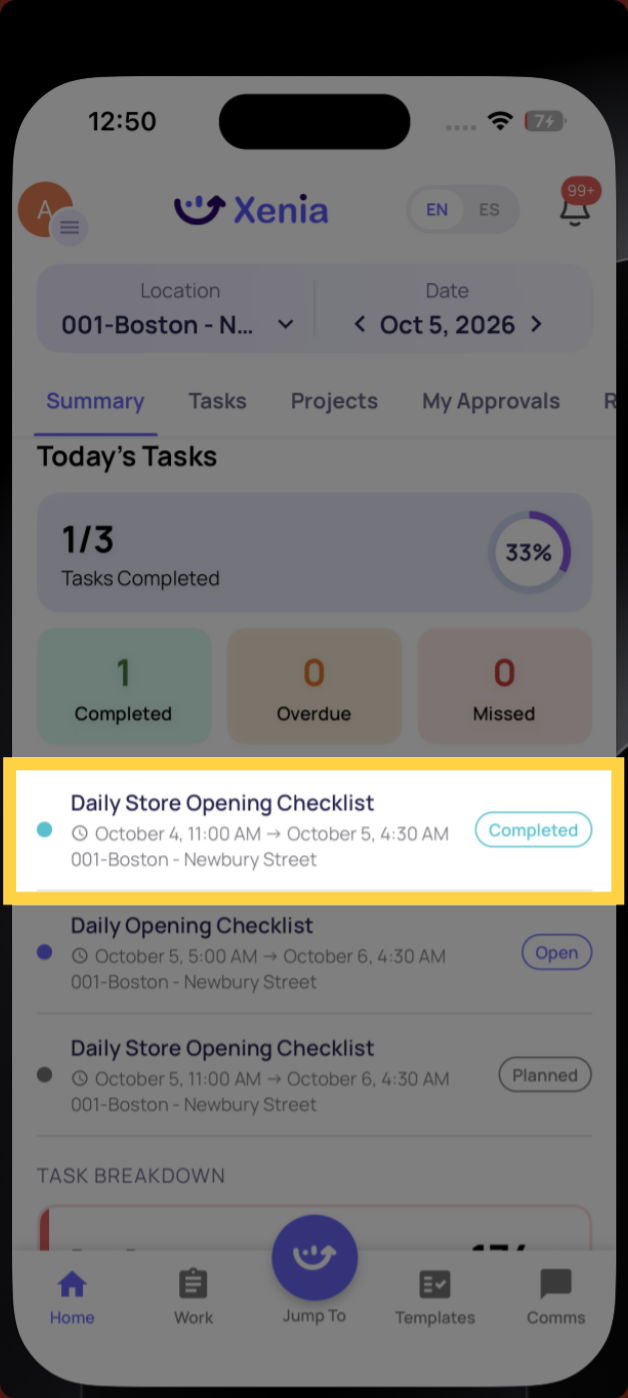
Navigate back to the Location Pulse home screen. The Daily Store Opening Checklist now shows as Completed — with a green status indicator.
Your manager or district manager can see this in real time. The moment you submit, the completion is visible across the platform.
Frequently Asked Questions
Q: My task isn't showing on the home screen. What do I do?
Check that your role has the Location Pulse home screen configured (see prerequisite A above) and that Sites are enabled in your workspace (prerequisite B). If both are set up, contact your manager — the project may not be deployed to your location yet.
Q: The location step isn't pre-filled. Why?
The location pre-fills automatically when the task is generated from a project. If it's blank, your template may be missing the Select Location step with the Submission Location toggle enabled. Contact your admin.
Q: A step is blocking me from submitting. What do I do?
Required steps must be completed before you can submit. If a step is flagged as mandatory — like a required photo — complete it before tapping Submit.
Q: Can I save my progress and come back later?
Yes — if you exit the checklist mid-completion, your progress is auto-saved. Find it again under My Draft Submissions in the side menu.
Q: I submitted but my task still shows as Open. What happened?
Pull to refresh on the home screen. If it still shows as Open after refreshing, send a Diagnostics Report to your Xenia team (side menu → Diagnostic Tools → Send diagnostic report).
Need Help?
Reach out to our Support Team at Support@xenia.team
Comments
0 comments
Please sign in to leave a comment.