New on Xenia Mobile App: Above-Store View for Leadership, Regional, and District Managers
Last updated: October 19, 2026
1. Purpose
This Xenia guide provides Leadership, Regional Managers (RMs), and District Managers (DMs) with a step-by-step guide to using the Above-Store View on the Xenia mobile app. This feature gives Leadership, RMs, DMs a real-time, bird's-eye view of all their stores — making it easy to check completion rates, spot overdue tasks, and drill into individual store detail without needing to contact each manager directly.
2. Who This Is For
| Role | How They Use DM View |
|---|---|
| District Managers (DMs) | Monitor all stores in their district, review project completions, check for overdue or flagged items |
| Regional Managers (RMs) | Oversight across multiple districts; drill down to individual store or district level |
| Leadership (CEO / COO / VP / Director of Operations) | High-level view of entire company operations; drill into any location as needed |
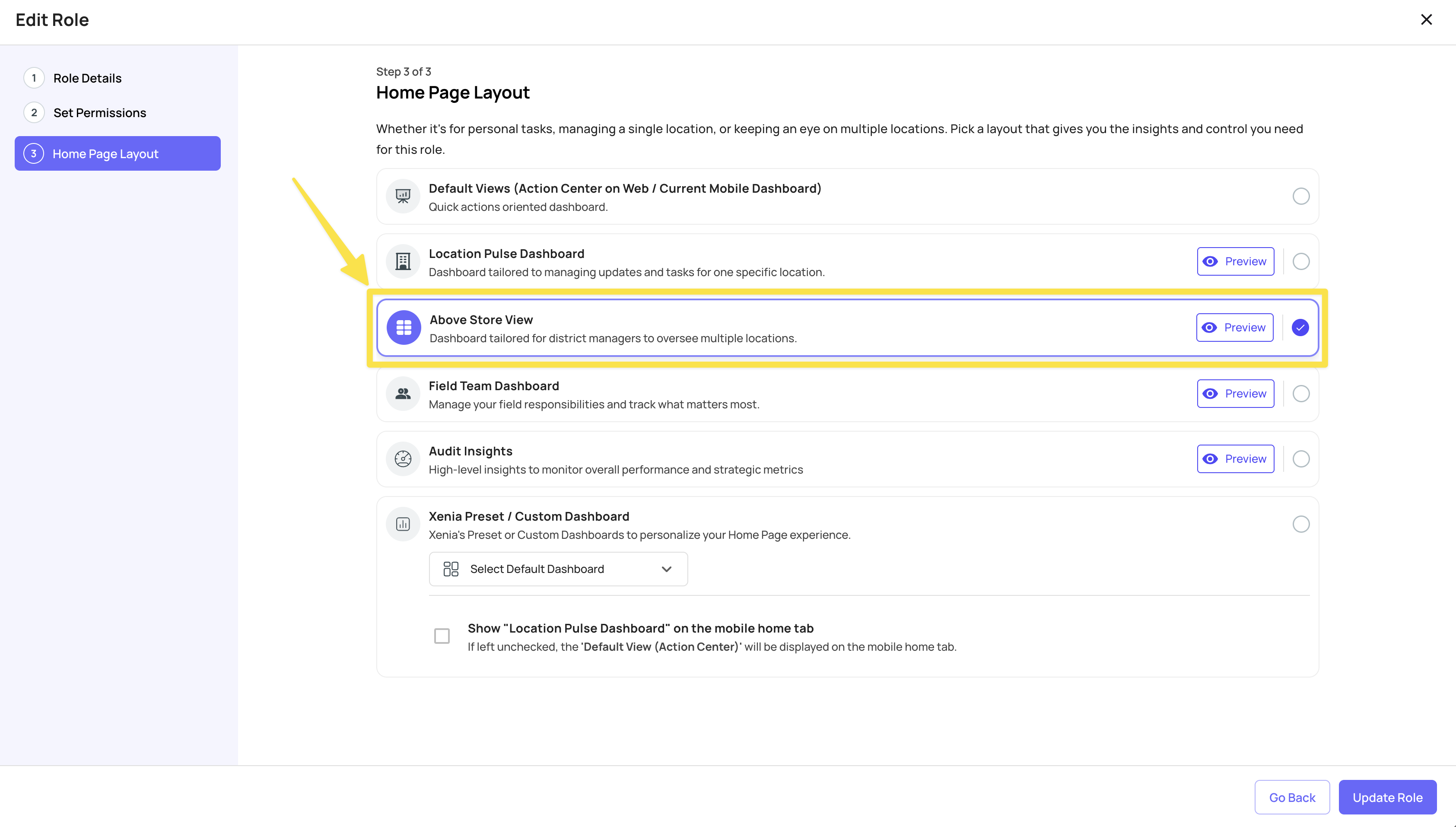
2.a. How to Enable the "Above Store View" for your Leadership Team and Above Store Managers
- Navigate to Roles (under Settings -> Users & Teams)
- Select a Role
- Click on Edit Role Details
- Navigate to Home Page Layout (Screen #3)
- Select Above Store View
This will set the Above Store Homescreen for the Role selected on their Mobile/Tablet App.
3. The Five Tabs — At a Glance
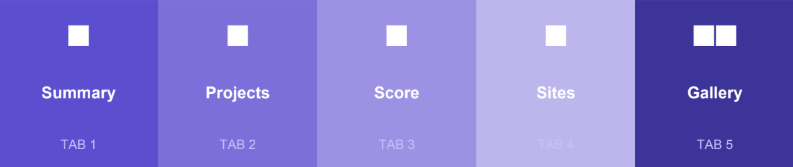
The Above-Store View is organised into five tabs. You can see these tabs at the top of the screen: Summary, Projects, Score, Sites, and Gallery. Each tab gives you a different lens on your district's operations:
| Tab | Name | What You'll See |
| 1 | Summary | District-level overview: completion rates, overdue alerts, store-by-store status |
| 2 | Projects | All running projects across your stores — daily, weekly, monthly — filterable by date |
| 3 | Score | Performance scores and compliance metrics across locations |
| 4 | Sites | A filterable list of all your store locations for quick navigation |
| 5 | Gallery | All photos submitted through checklists — filterable by location, template, and question |
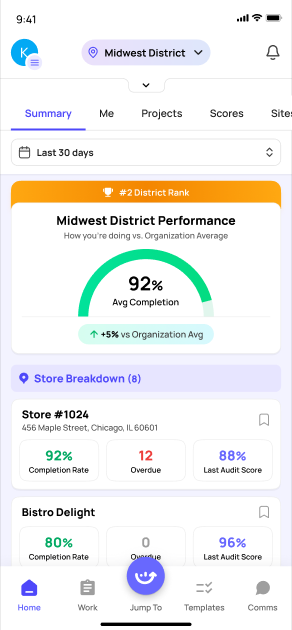
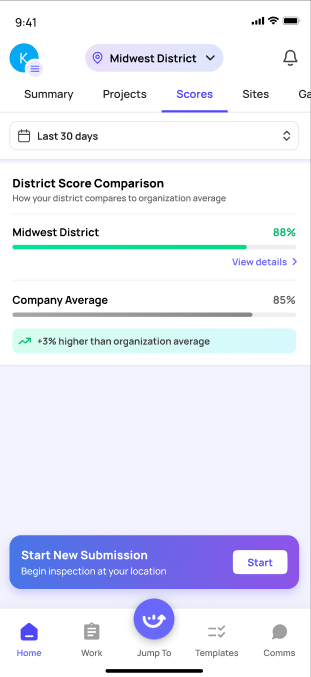
Here's what each tab looks like:
 Summary |
 Projects |
 Scores |
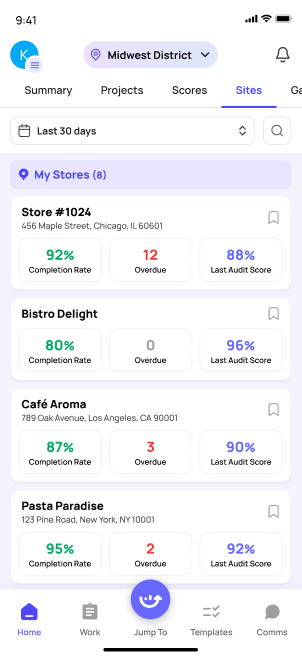 Sites |
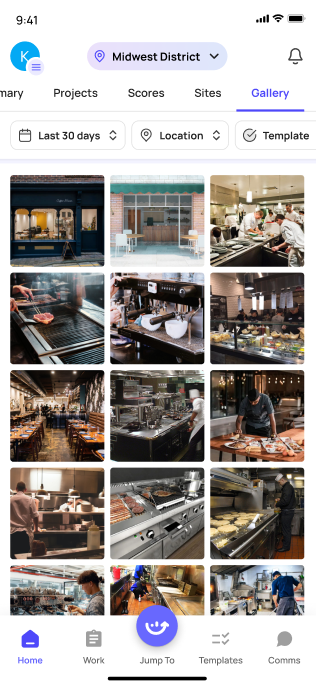 Gallery |
4. Accessing the Above-Store / DM View
|
Open the Xenia Mobile App Tap the Xenia icon on your phone and log in with your credentials. |
|
Navigate to the DM Home Screen Once logged in you will land on the Above-Store View automatically. • At the top you will see the region/district selector (e.g., Midwest District) — tap it to switch districts • The five tabs — Summary, Projects, Score, Sites, Gallery — will be visible across the top |
|
■ Note Your view is pre-set to your assigned region or district. If your stores are missing, contact your admin to verify your location membership access settings. |
5. Tab 1 — Summary (District Overview)
The Summary tab is your daily command center. It gives you a high-level snapshot of task and project completion across all your stores.
|
View Your Region/District Summary On the Summary tab you will see overall completion rates, overdue task counts, and a store-by-store breakdown so you can instantly spot which location needs attention. 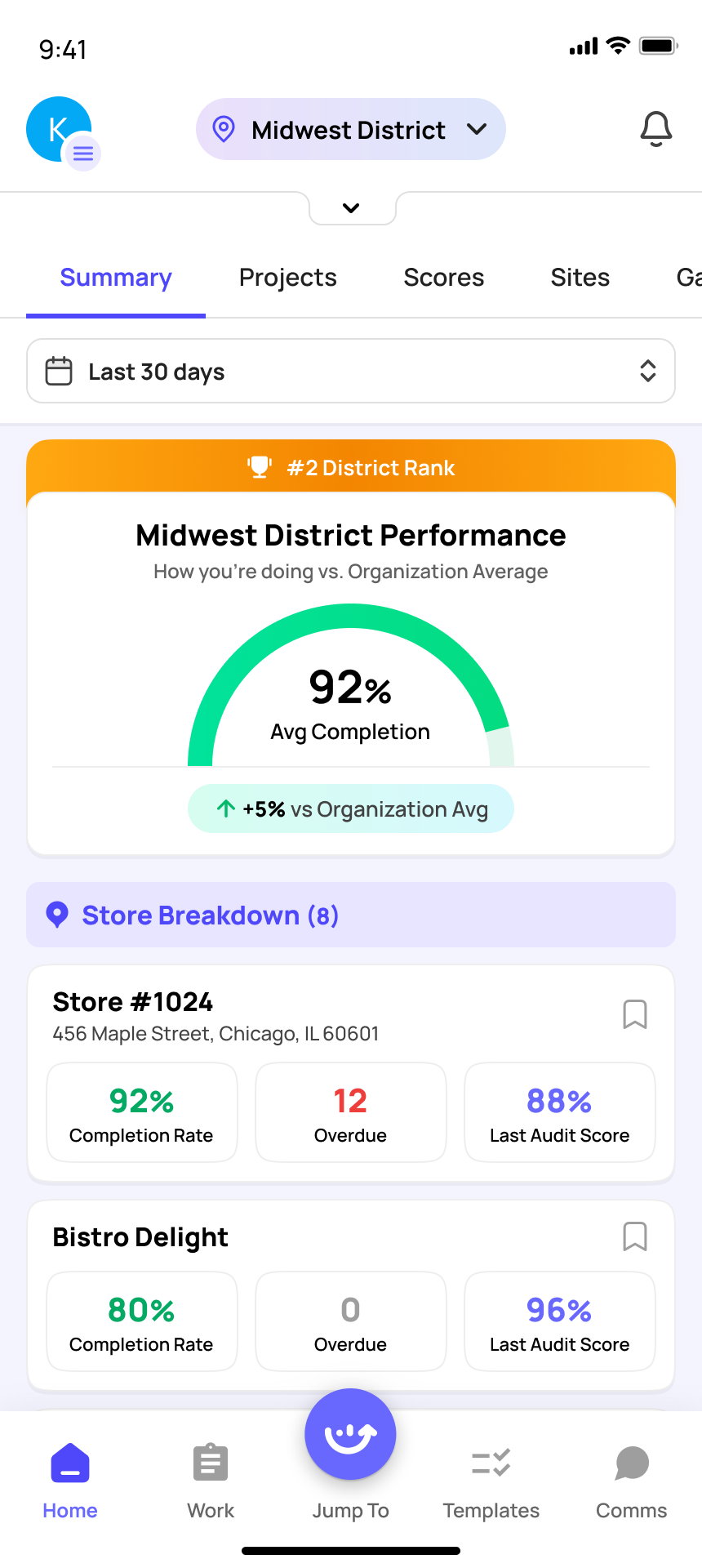 |
|
Select a Store or Switch between Regions/Districts Select or switch between any district or store to drill down into district & site-level detail — tasks, projects, and submission history for that specific location. If you have access to more than 1 Region or District, you can switch between multiple hierarchy layers and view the results for that specific region or district. Select a Store to "drill down" or switch between Districts or Regions:: 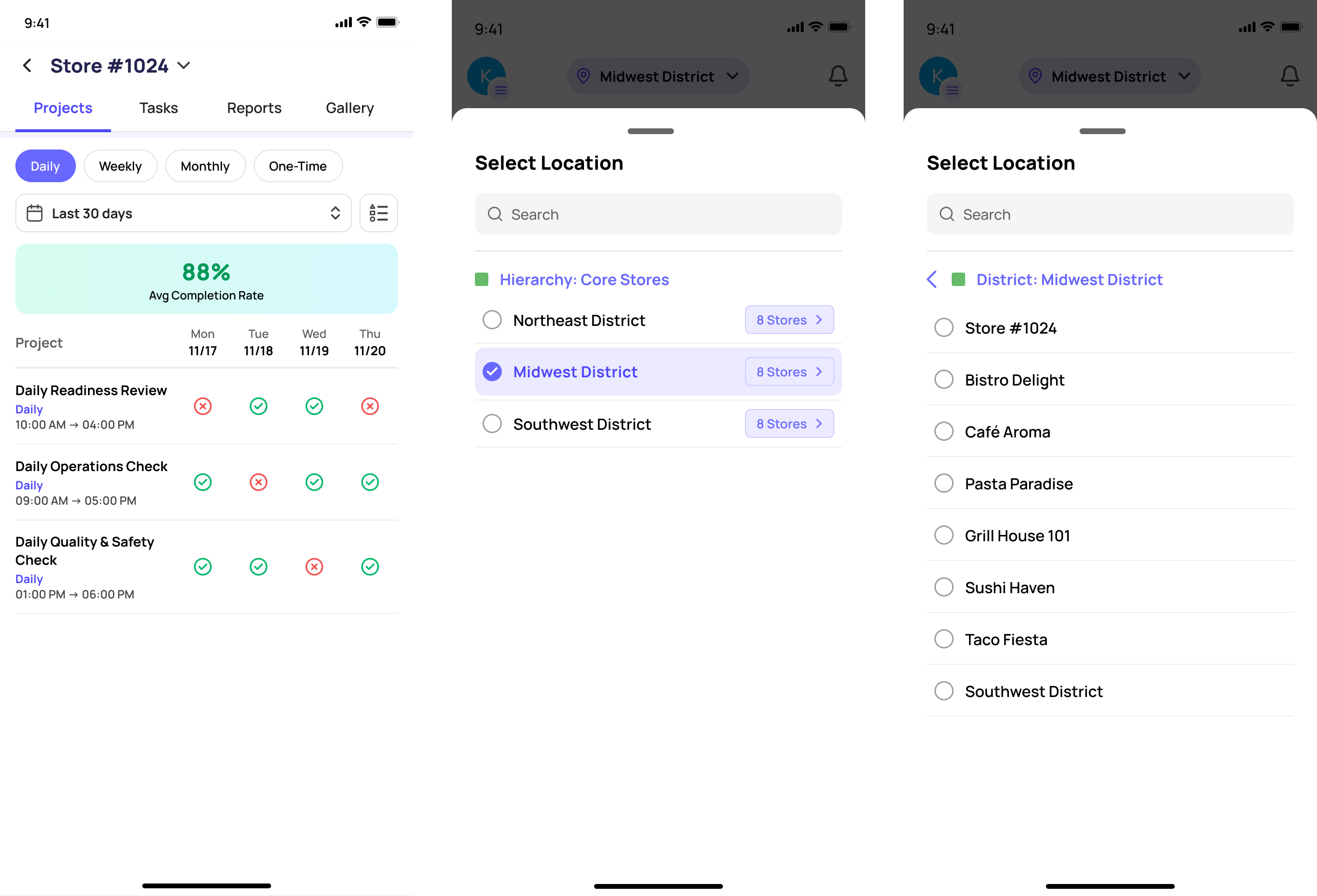 |
|
■ Pro Tip Check the Summary tab every morning before 10 AM to confirm all stores have started their daily opening checklists. Any store showing 0% completion by mid-morning should be followed up with immediately. |
6. Tab 2 — Projects (By Date Overview)
The Projects tab shows all running projects across your stores (within a specific Region or District) organised by date. Use it to see which projects were completed, missed, or still in progress.
|
Open the Projects Tab Tap Projects from the tab bar at the top of the DM View screen. You will see a date-based overview showing all stores and their project statuses. |
|
Filter by Project Type or Date Use the filter options to narrow down by frequency: • Daily — morning walks, temperature checks, opening/closing checklists • Weekly — flow rates, skimmer checks, weekly audits • Monthly — cash audits, monthly compliance checklists 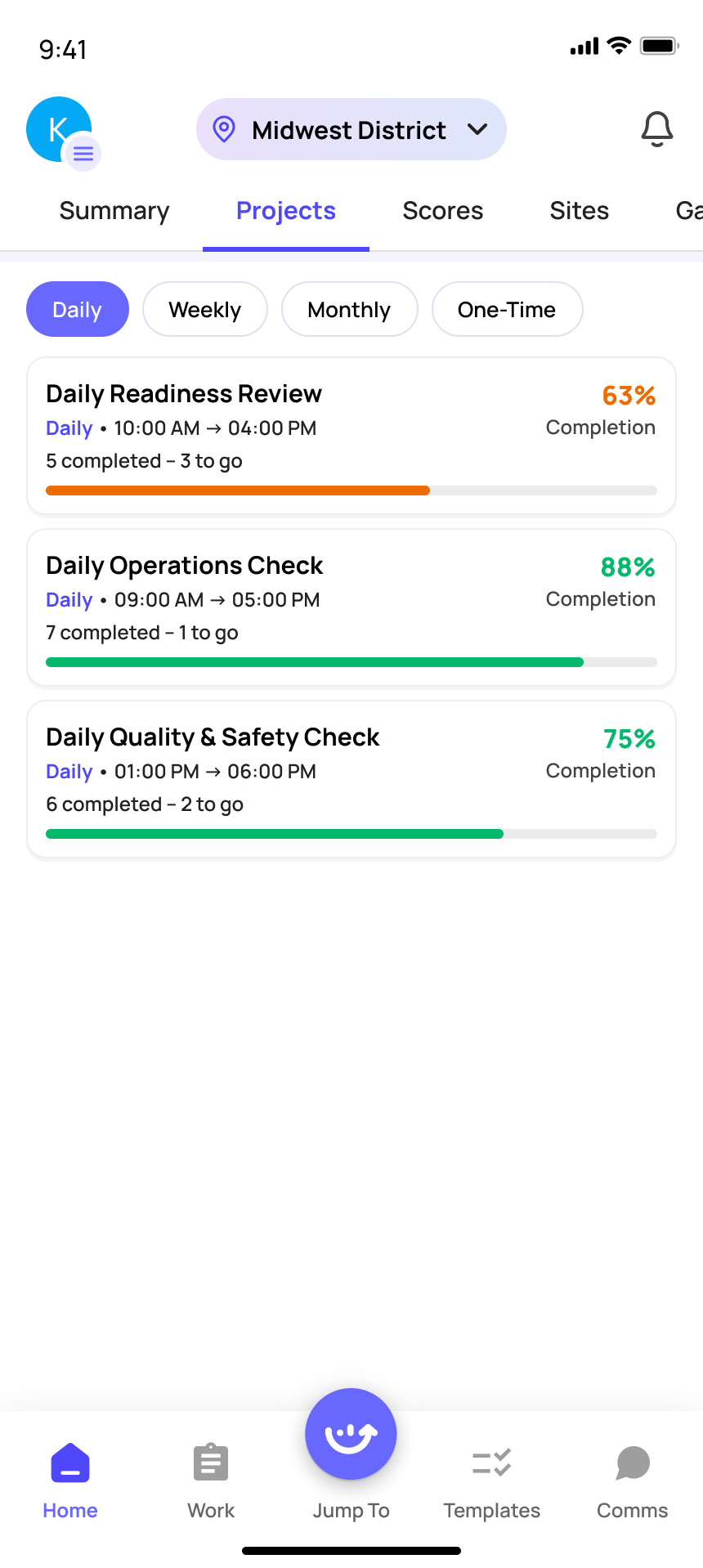 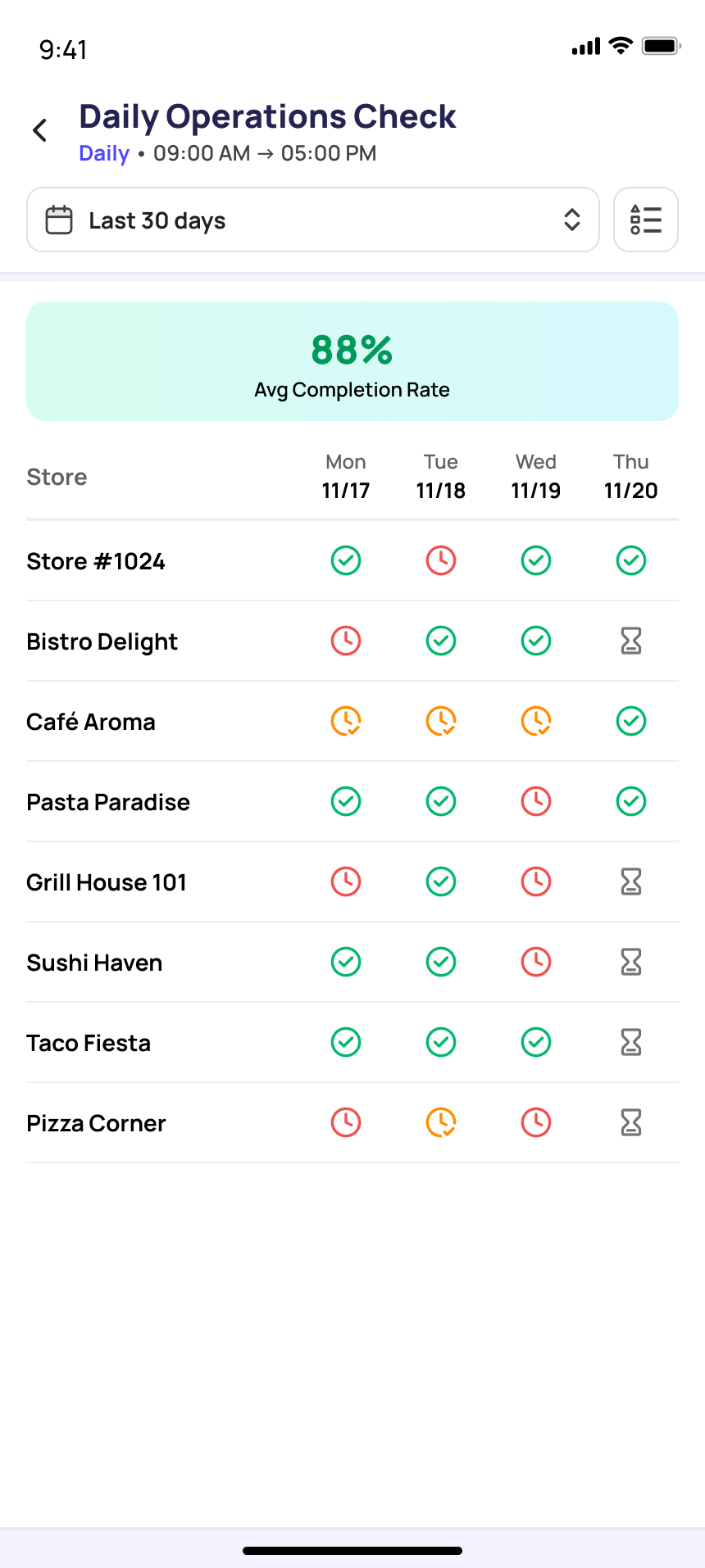 |
|
■ Note Monthly projects many not appear if your date filter is set to 'Last 30 days'. Set your due date filter to 'Any' if you are not seeing expected projects. |
7. Tab 3 — Score (Performance Metrics)
The Score tab displays performance and compliance scores across your district. Use it to benchmark stores against each other and identify locations that need coaching.
|
Review Location Scores Scores are calculated based on checklist completion and response quality across your stores. • Higher scores indicate consistent, on-time task completion • Lower scores flag stores that need attention or follow-up 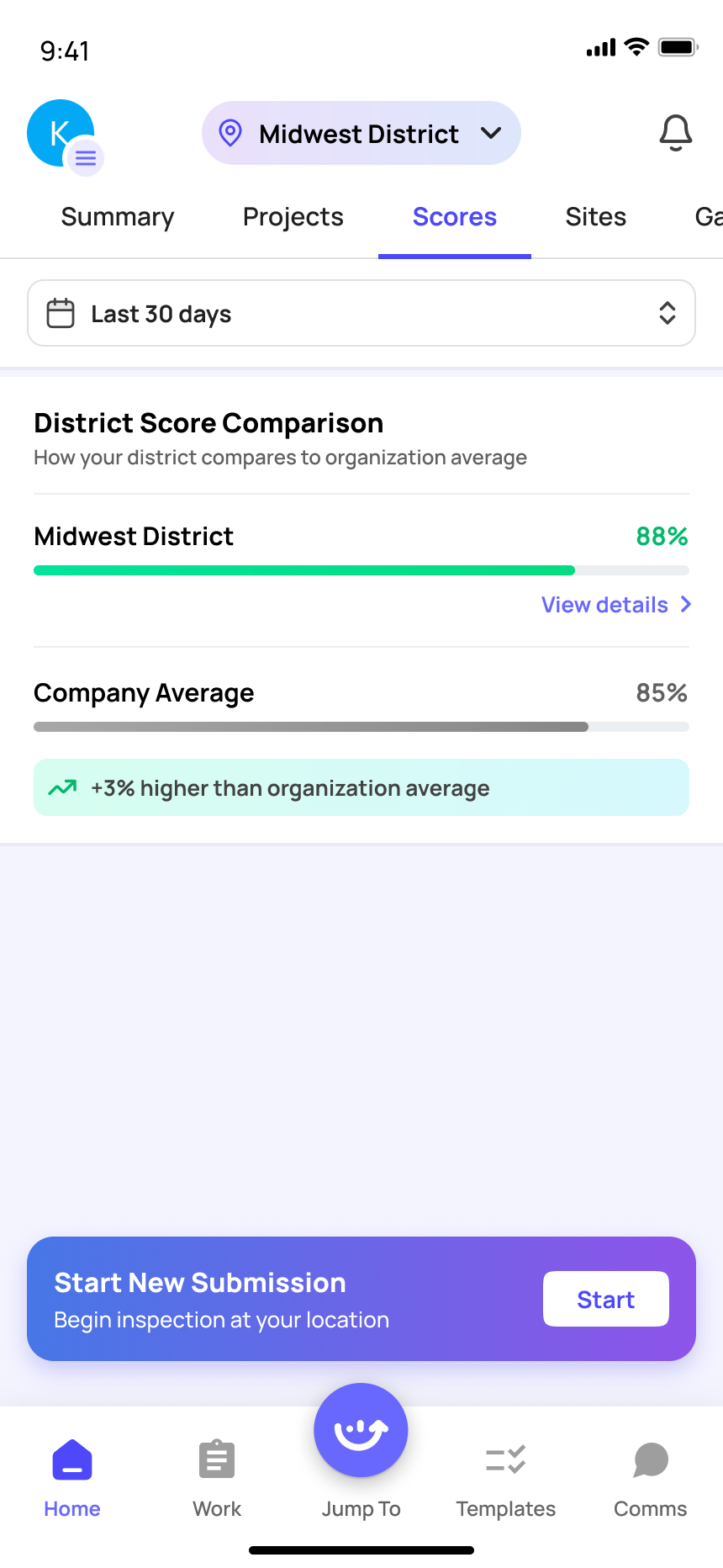 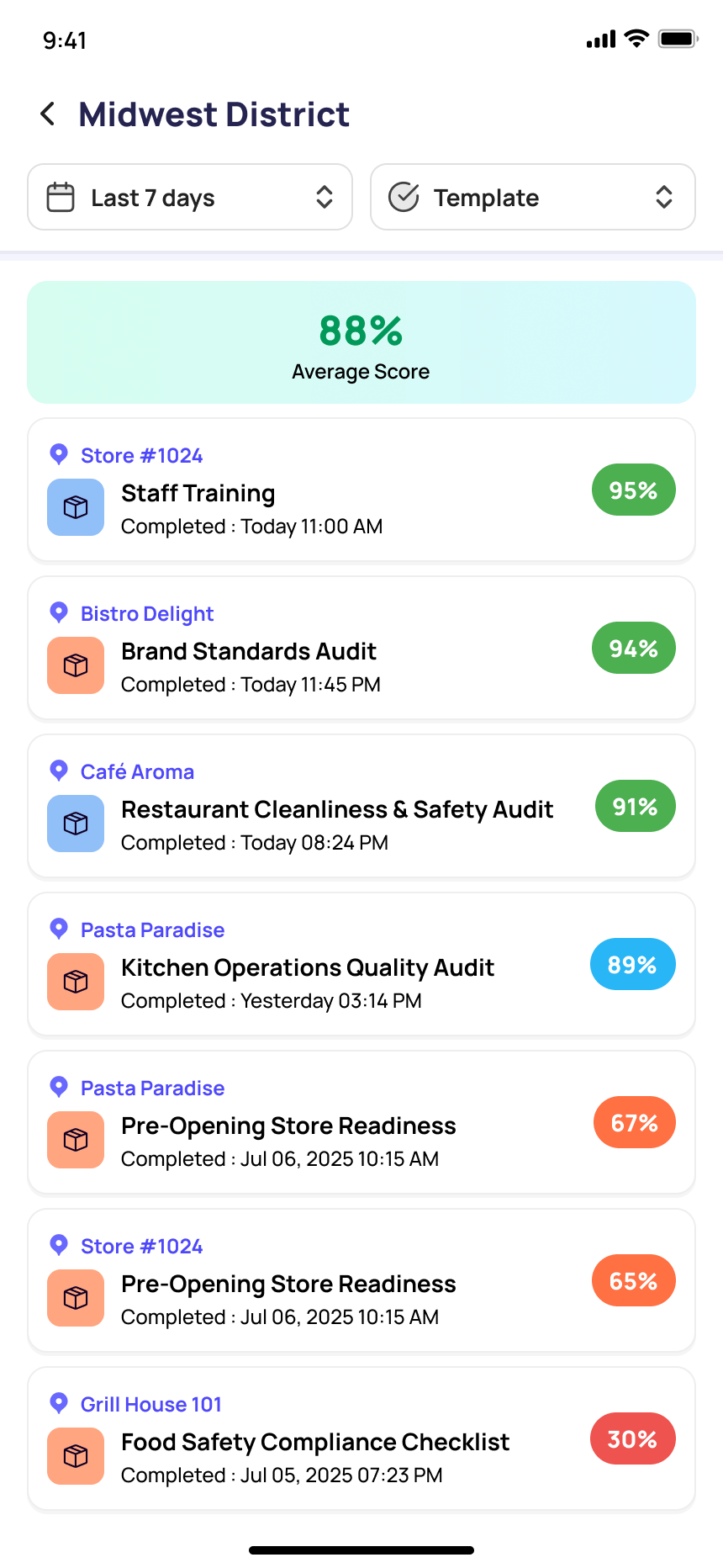 |
8. Tab 4 — Sites & Store Drill-Down
The Sites tab gives you a clean list of all stores in your district. Tap any store to drill into its full task, project, and submission detail.
|
Open the Sites Tab Tap Sites from the tab bar. You will see all store locations in your district. |
|
Tap Into a Store for Drill-Down Detail Tap any store name (e.g., Store #1024) to enter that store's individual view. Inside you will find four sub-tabs: Projects, Tasks, Reports, and Gallery. 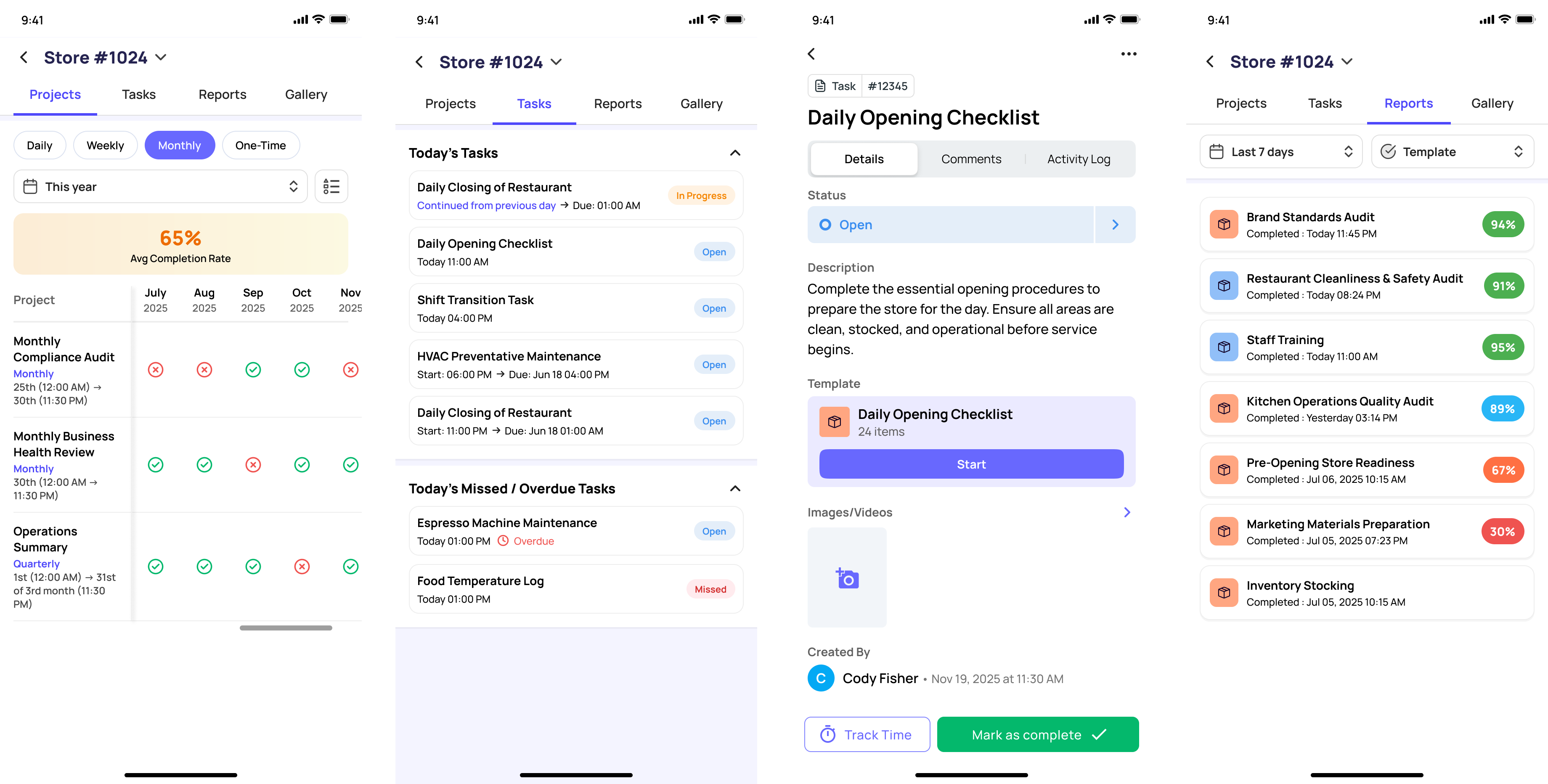 |
|
Filter Tasks by Due Date Inside any store's Tasks tab, tap the Due Date button to filter by: • Today — all tasks due today • Any — see all tasks including monthly ones (use this if tasks appear missing) • Overdue — only tasks that have been missed • Tomorrow / Next 7 Days / Next 30 Days — plan ahead |
|
Filter Tasks by Assignee Tap the Assignee button to filter tasks by a specific person, team, or role: • Search by name or browse by People, Teams, or Roles • Useful when visiting a store and wanting to see only tasks assigned to a specific manager |
|
Use Advanced Filters Tap the Filter icon (funnel icon, top right) to access more detailed filter options: • Status — Open, In Progress, On Hold, Complete, Missed • Project — filter by a specific project name • Frequency — Daily, Weekly, Monthly • Priority — Critical, High, Normal, Low • Category — filter by task category |
|
■ Note The filter badge on the funnel icon shows how many filters are currently active (e.g., '3' means 3 filters applied). Tap the funnel icon and clear individual filters or reset all to start fresh. |
9. Tab 5 — Gallery (Photo Review)
The Gallery tab shows all photos submitted through checklist steps across your district. This is a powerful tool for visual oversight — review store conditions, equipment photos, and compliance images without visiting in person.
|
Open the Gallery Tab Tap Gallery from the tab bar. You will see a photo grid of all images submitted across your district in the last 30 days by default. |
|
Filter Gallery Photos Tap the Filter icon (top right) to narrow down photos by: • Location — see photos from specific stores only • Template — filter by the checklist the photo was submitted through • Question — filter by the specific checklist question that required the photo 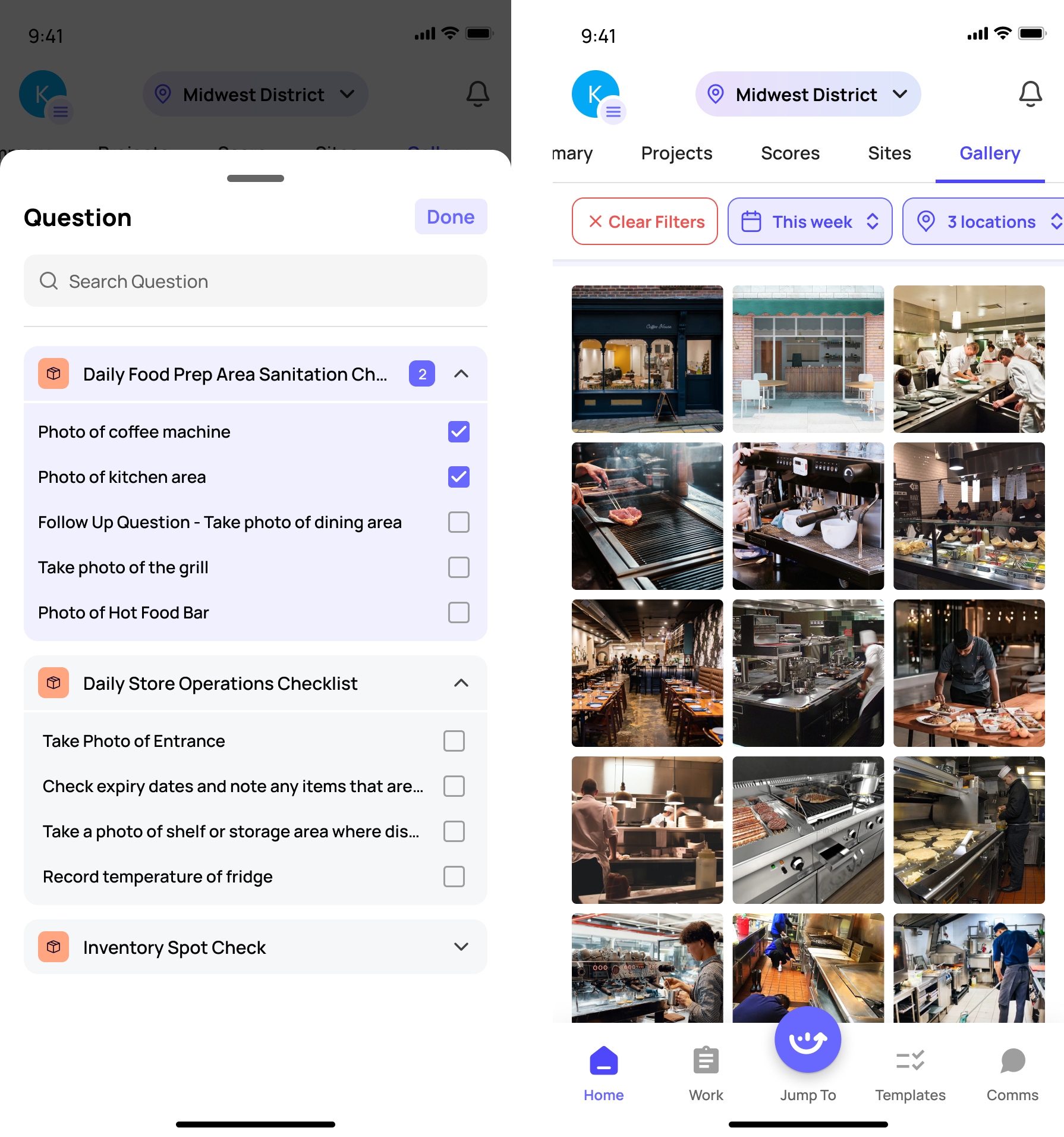 |
|
Apply & Save Filters Once you have selected your filters, tap Apply & Save to apply them. • Your saved filters will persist the next time you open the Gallery tab • Tap Clear Filters to reset back to the default view |
|
■ Pro Tip Use the Gallery filter with a specific Question (e.g., 'Pump exterior photo') to quickly review all pump condition photos across your district without opening individual submissions. This is especially useful for flagged equipment or cleanliness checks. |
10. Recommended Daily DM Workflow
Follow this simple daily routine to stay on top of your district:
|
■■ Morning (Before 10 AM) • Open Xenia and check the Summary tab — confirm all stores have started daily tasks • Review any stores showing 0% or overdue — follow up immediately • Check Notifications for overnight flags or missed tasks |
|
■ Midday (Around 1 PM) • Go to Sites tab → tap any store showing incomplete tasks • Use the Due Date filter set to 'Today' to see morning checklist status • Check Gallery tab for any flagged equipment or cleanliness photos |
|
■ End of Day • Review Projects tab to confirm all daily projects show completed across stores • Check for any open Corrective Actions that are still unresolved • Message any store managers with outstanding tasks via Chat |
11. Troubleshooting
| Issue | What To Do |
| Projects not showing up | Set your due date filter to 'Any'. Monthly projects won't show on a 30-day filter. |
| Store photos not in Gallery | Ensure photos were submitted through a Take Photo step type. If photos are missing, contact support@xenia.team for assistance. |
| Not receiving notifications | Go to Profile → Notification Settings and enable Email and Push for relevant alert types. |
| Can't see all my stores | You may not be assigned to the correct region or district. Contact your admin to update location access. |
| Filters not clearing correctly | Tap the filter icon, select 'Clear Filters', then tap 'Apply & Save' to fully reset. |
| App loading slowly | Ensure you are on stable Wi-Fi or strong mobile data. |
12. Support & Resources
• Email: support@xenia.team
• Help Center: help.xenia.team