How to Setup Email-based Report Scheduling in Xenia
Last updated: October 19, 2026
Email-based report scheduling ensures stakeholders receive timely updates without manually generating reports. Use this guide to automate reporting from dashboards and checklists.
Step 1: Navigate to Reporting
- Log in to Xenia.
- Go to Reporting.
- Select the report/dashboard you want to schedule.
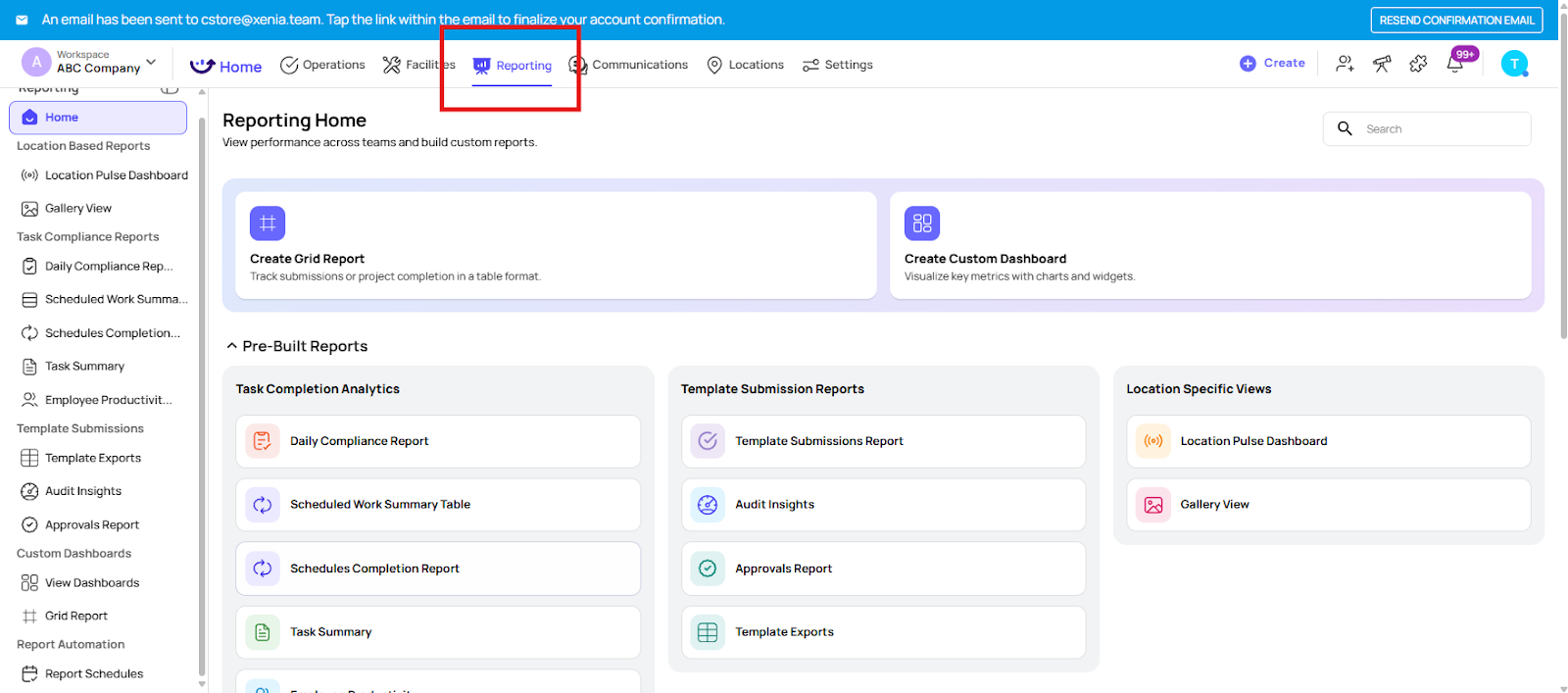
Step 2: Configure Report Parameters
- Set filters (location, team, date range).
- Choose metrics to include (checklist completions, photo submissions, KPIs).
Tip: Confirm the data selection matches what recipients need.
Step 3: Report Automation
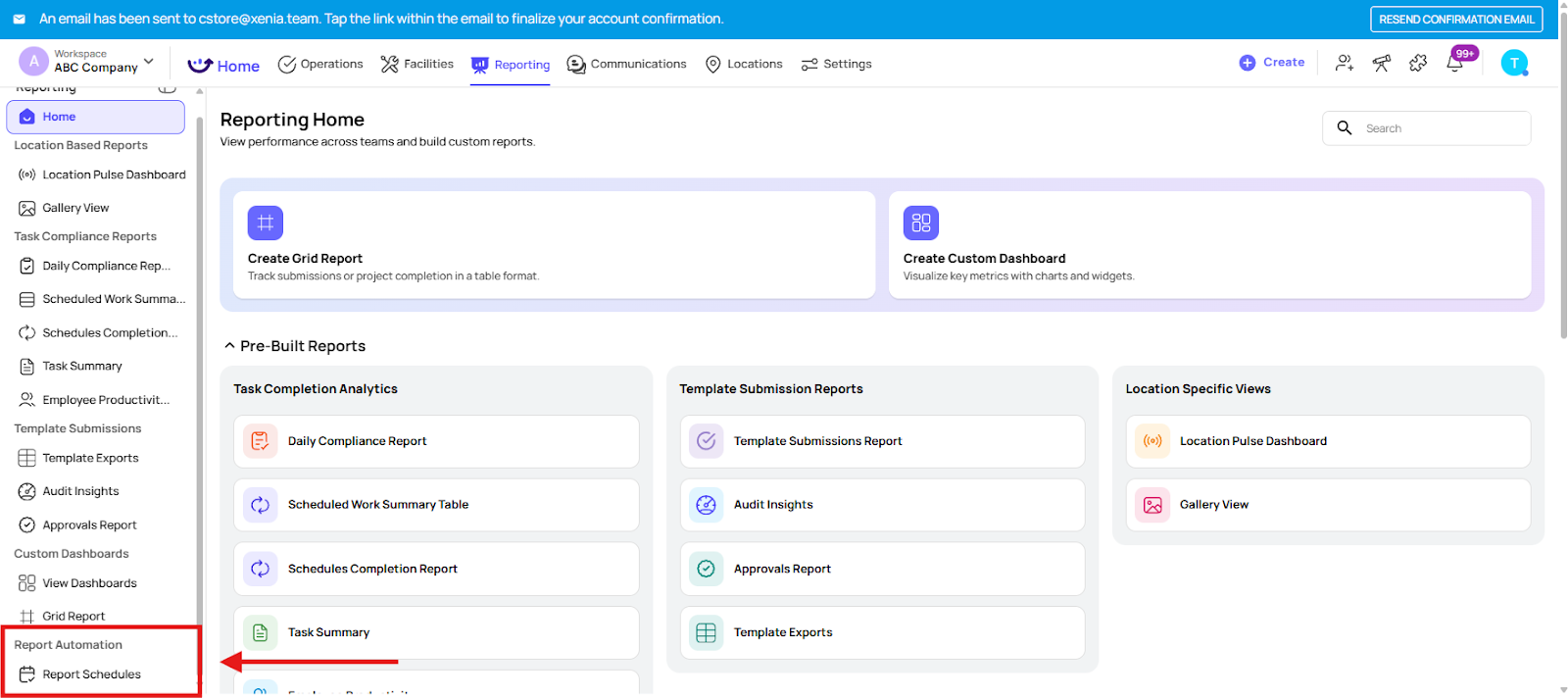
- Navigate to Report Schedules under Report Automation
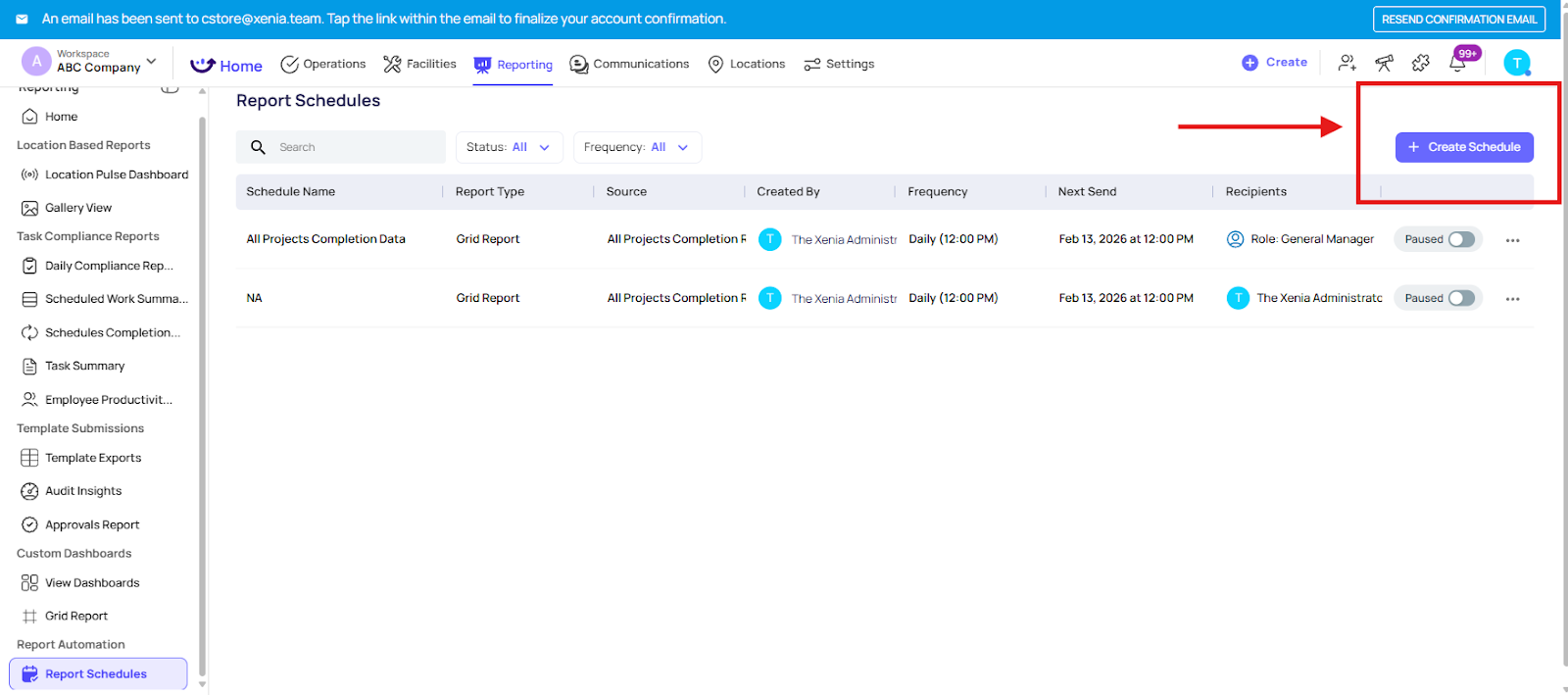
- Click Create Schedule
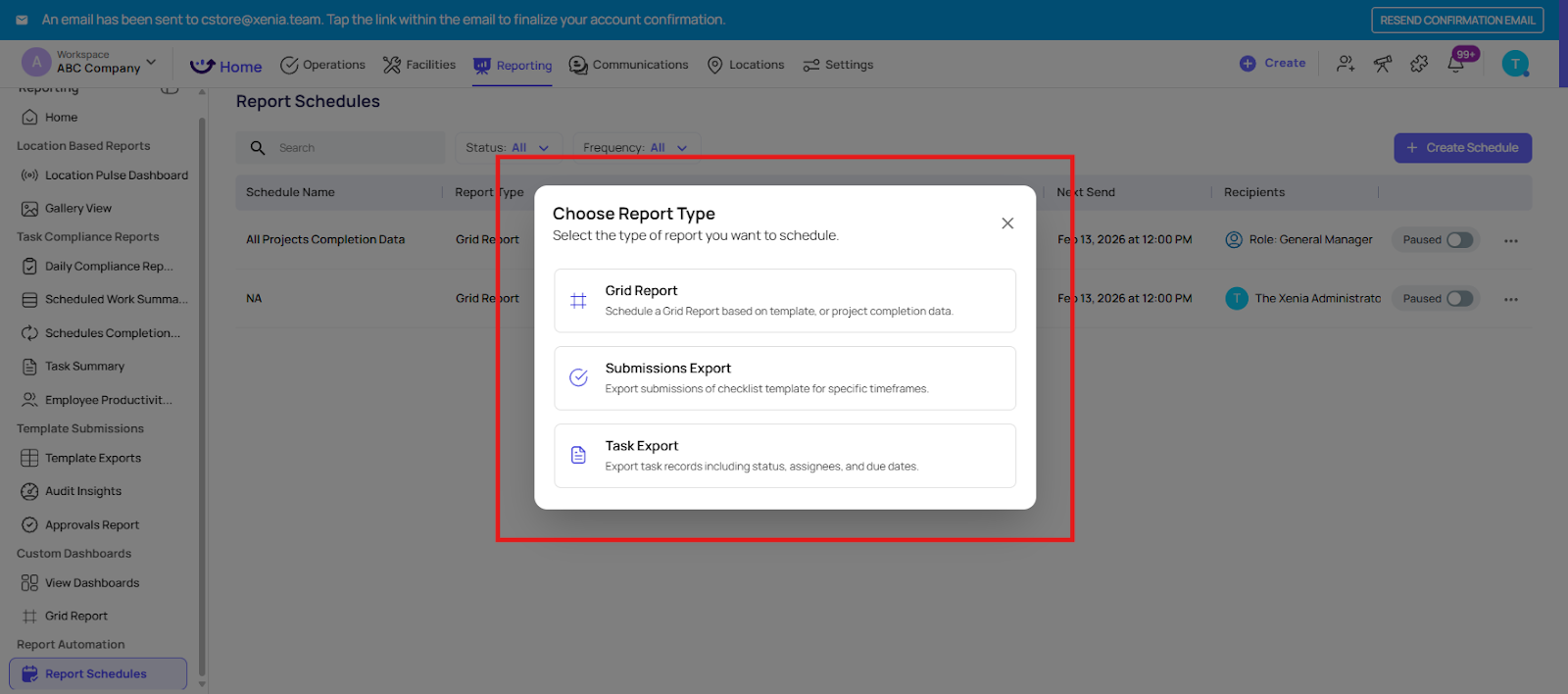
- Choose Report Type (Grid Report, Submissions Export, Task Export)
- Provide a Schedule Name
- Select Export Format
- Select Frequency and Delivery Time
- Set Data Range Filters and Data Visibility
- Enter Recipient
- Click Save.
Step 4: Test and Confirm
- Verify the first scheduled email is correct.
- Ensure formatting, data, and recipients are accurate.
Tip: Include team leads and managers in recurring reports for consistent oversight.
Step 5: Manage Scheduled Reports
- Edit or remove scheduled reports from the Scheduled Reports tab.
- Update recipients if there are staffing changes.
Watch the Complete Video Guide Below for Configuration:
Troubleshooting
- Email not received? Check the spam folder and confirm the recipient email.
- Metrics incorrect? Verify dashboard or report filters.
Need Help?
Feel free to reach out to us at support@xenia.team