Creating & Working with Cards
Last updated: October 19, 2026
What a Card Is
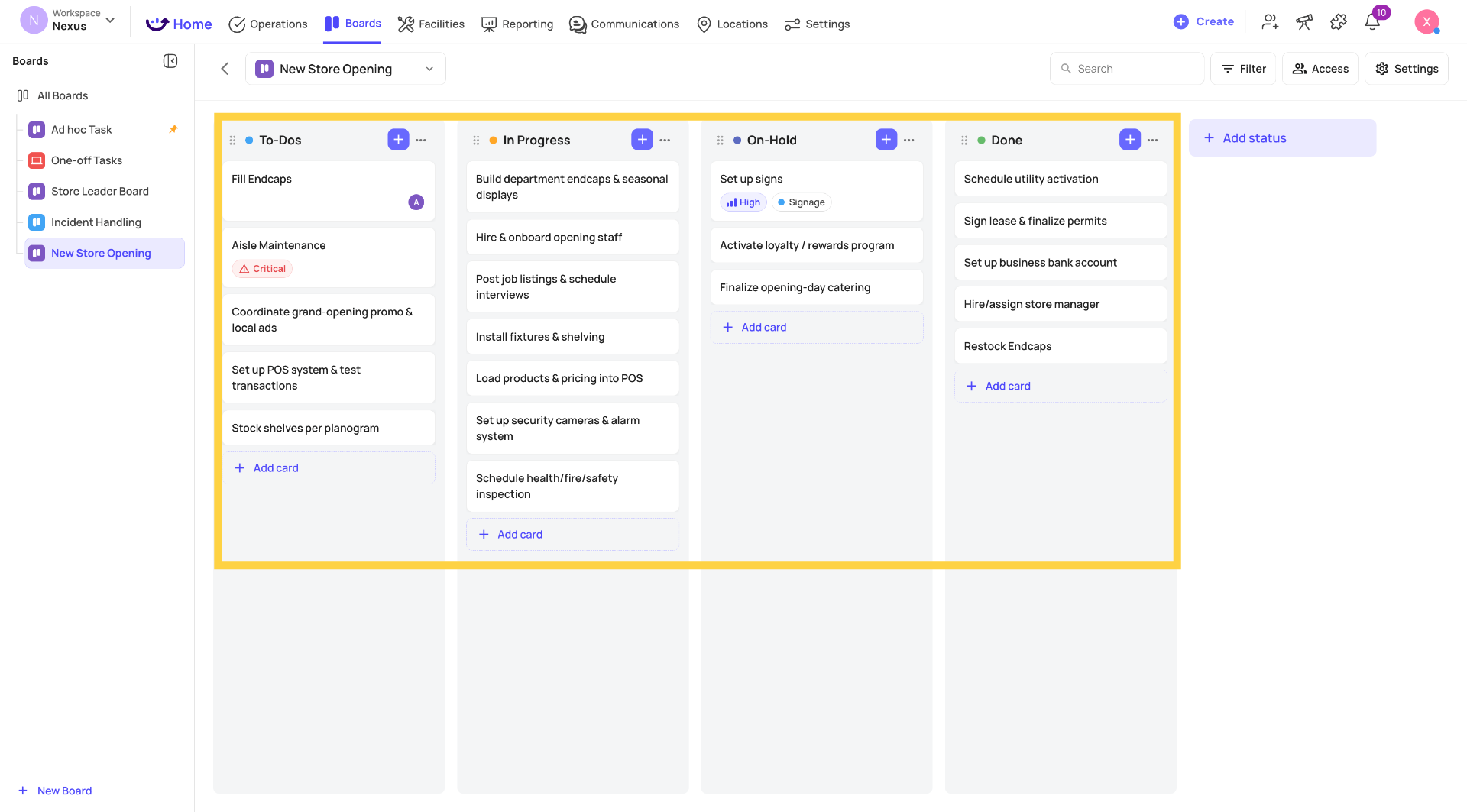
A card is the unit of work on a board. It lives within a status (column) and represents a single task, issue, or item to track. Cards can be as simple as a title — or as detailed as you need with descriptions, assignees, priority, labels, attachments, subtasks, and comments.
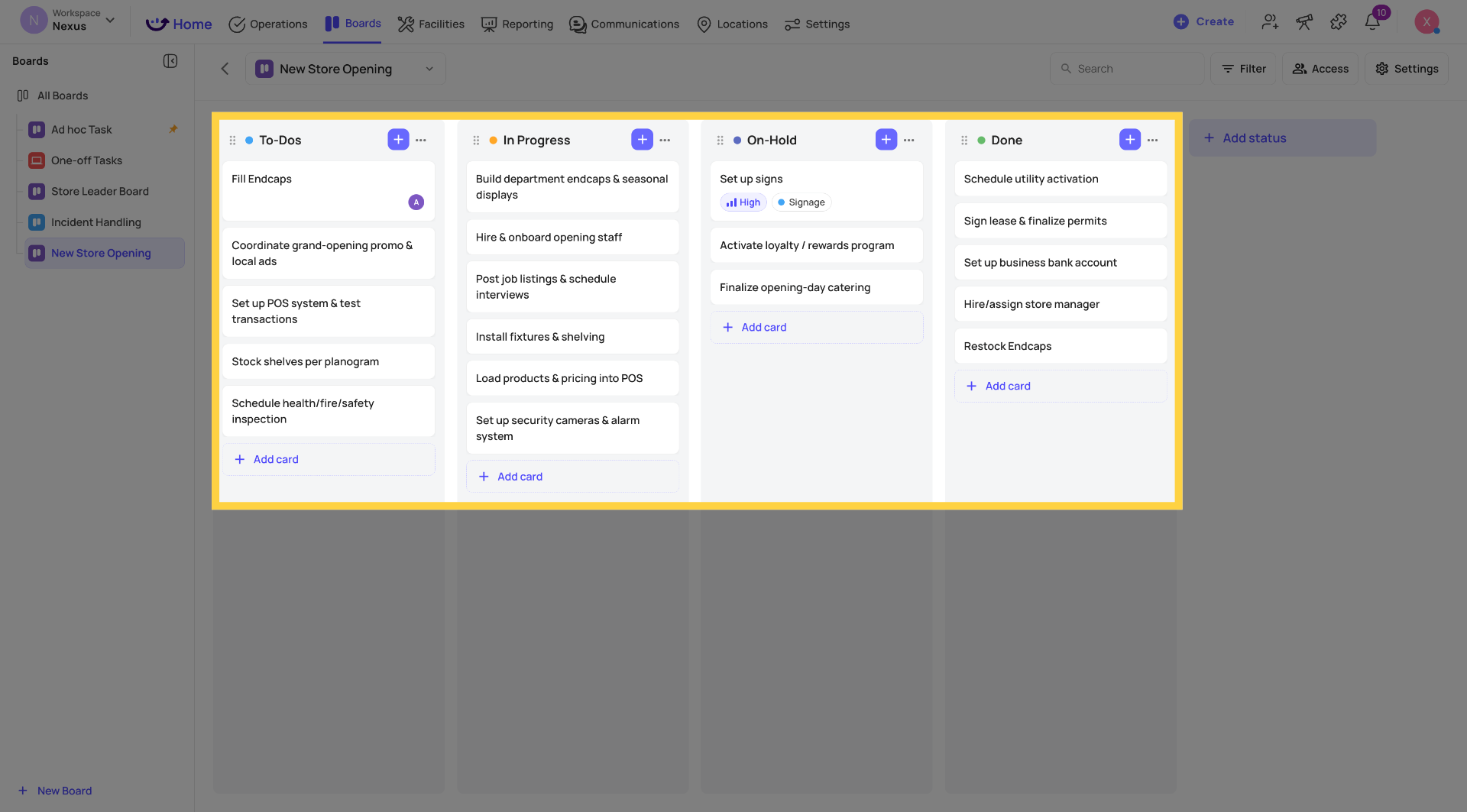
Fast Card Creation (The Primary Flow)
The fastest way to create a card is directly from the board canvas.
On web:
- Find the status where you want to add the card
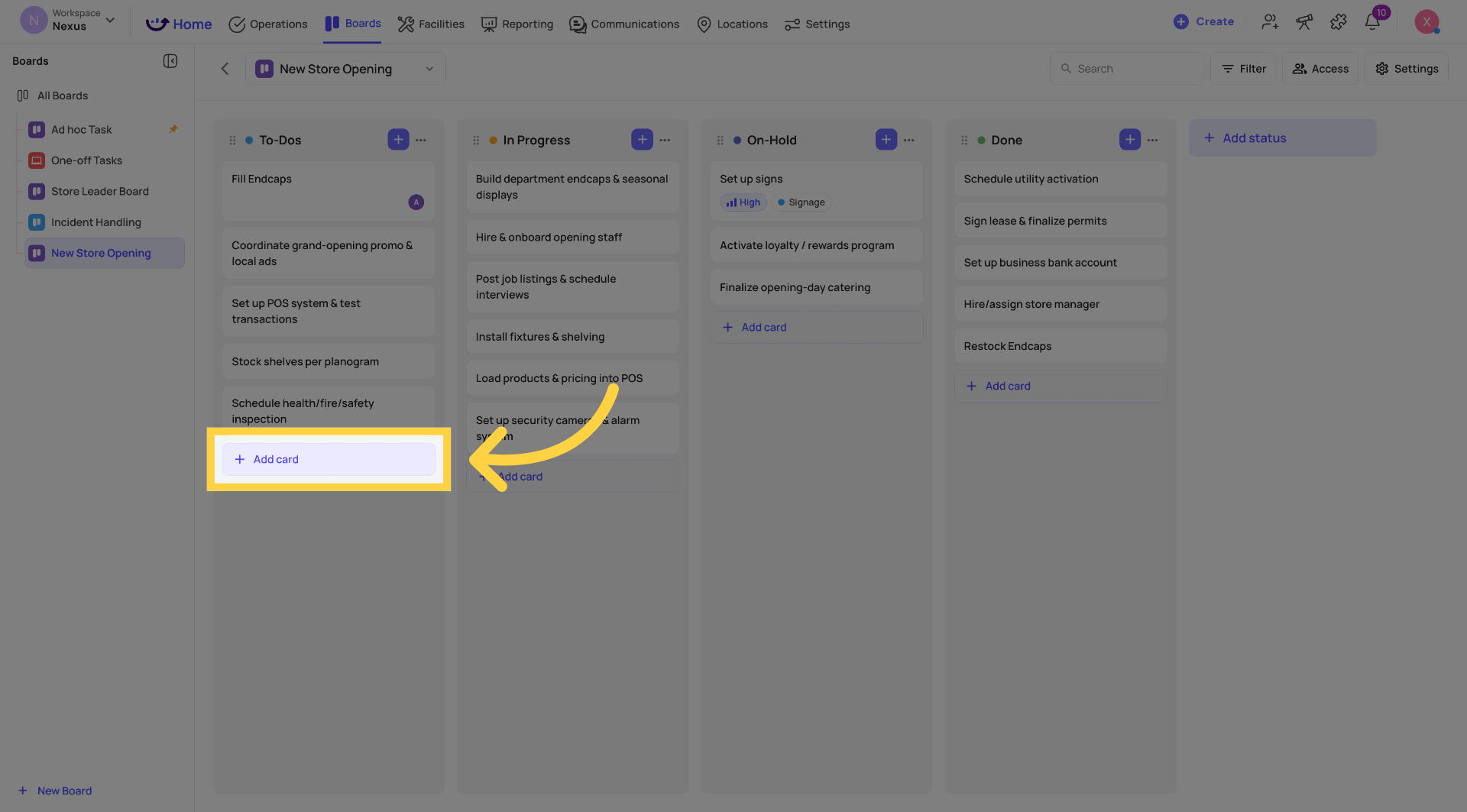
- Click + Add card at the top or bottom of the status column
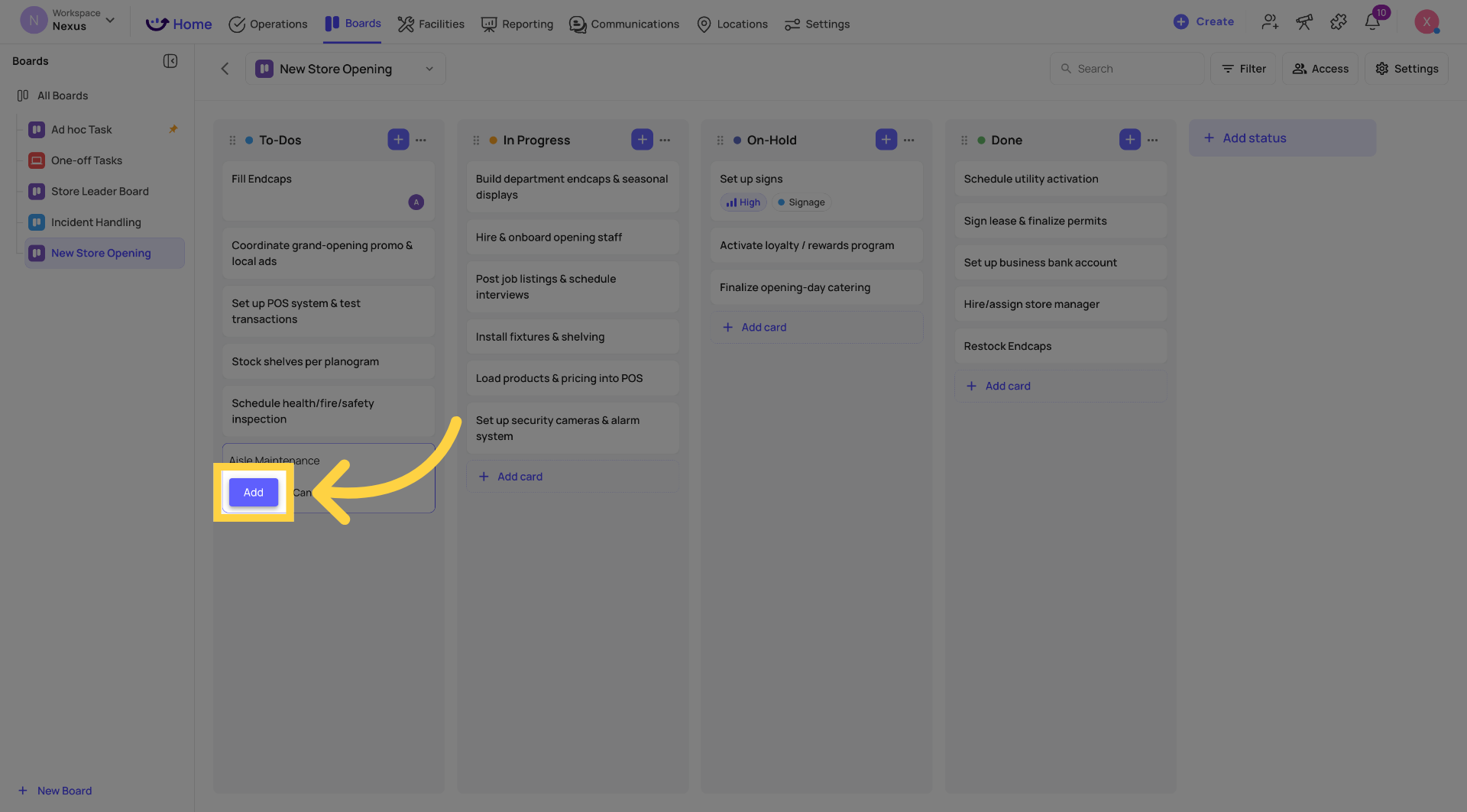
- Type a title — this is the only required field
- Press Enter or click to confirm
The card is created immediately. Fill in additional details by opening the card.
On mobile:
- Open the board from the Boards section (accessible via Jump To on mobile)
- Tap + Add card in the status where you want it
- Type a title and tap to confirm
The mobile kanban view, list view, and quick card creation are all available in V1.
Expanded Card Creation
For cards that need more detail upfront, use the expanded creation form:
- On web: after typing a title, expand the card to add description, assignee, priority, and labels before confirming
- On mobile: tap the expand icon in the quick creation form to open the full card creation form
All other fields (attachments, subtasks, comments) are added from inside the card detail after creation.
Card Fields
| Field | Notes |
| Title | Required — the only field needed to create a card |
| Description | Free text — context about the card |
| Assignee | Assign to an individual person or a role; multiple assignees supported |
| Priority | Configured per board (see board settings); appears on the card face |
| Labels | Board-scoped tags; multiple per card; appear on the card face |
| Origin | Read-only — shows the creating location/user automatically |
| Attachments | Photos, files, and documents |
| Subtasks | Individual checklist items within the card |
| Comments | Discussion, notes, and updates on the card |
| Due date | Not available in V1 — coming in a future update |
Opening a Card — The Card Detail View
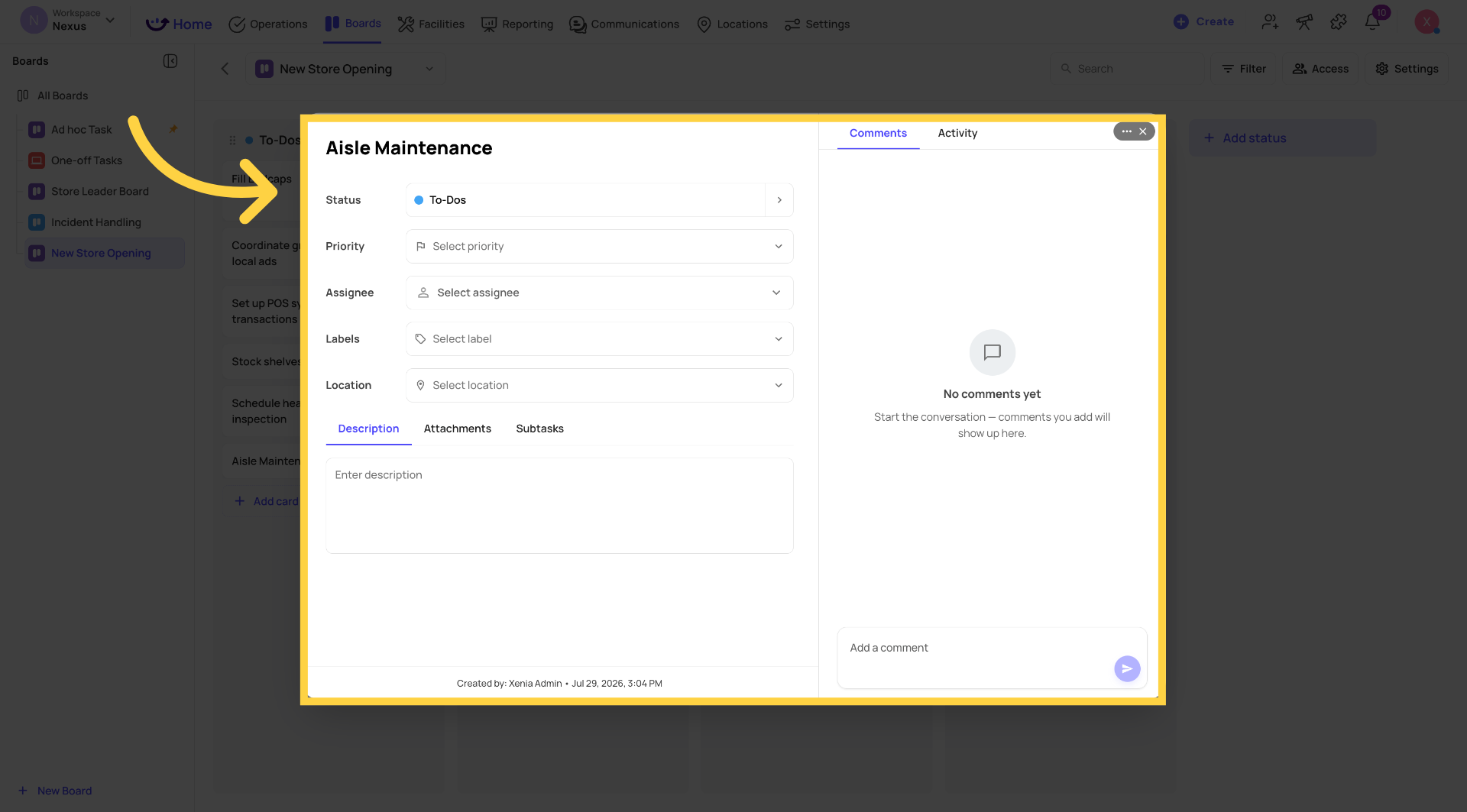
Click or tap any card to open its full detail view. On web, the card detail opens as a full lightbox. On mobile, it opens as a full-screen view.
The card detail has six tabs:
- Details — title, assignee, priority, labels, origin
- Description — free-text description field
- Attachments — all files and photos attached to the card
- Subtasks — individual checklist items within the card
- Comments — the default active tab; all discussion on the card
- Activity — full history of every change made to the card
Moving Cards Between Statuses
Method 1 — Drag and drop (web):
On the board canvas, drag any card from one status column to another. The card moves immediately.
Method 2 — Status selector in card detail:
Open the card. In the card detail header — above the tab navigation — you'll see a Status selector. Click it and select the new status. The card moves without closing the card detail. No separate "move card" flow is needed.
On mobile:
- In kanban view: drag cards between columns
- In list view: open the card and use the Status selector
Subtasks
Subtasks are checklist items within a card — individual action items that need to happen as part of completing the card's work.
Open the card → Subtasks tab → add individual subtask items. Subtasks can be checked off individually as they're completed.
Attachments
Open the card → Attachments tab → upload files, photos, or documents. Attachments are visible in the card detail and in the Activity log.
On mobile during a store walk: tap the camera icon when adding an attachment to take a live photo and attach it directly to the card.
Comments
The Comments tab is the default active tab when you open a card. Leave updates, tag people, or document what was done. Comments appear in chronological order and are preserved in the Activity log.
The Filter Panel
The Filter panel (right-side panel on the board canvas) lets you narrow what's visible:
- Keyword — search card titles
- Assignee — show only cards assigned to specific people or roles
- Priority — filter by priority level
- Label — filter by one or more labels
- Show archived cards — toggle to see auto-archived cards and recover them
Only one panel (Filter or Customize) can be open at a time.
Auto-Archived Cards
Cards inactive for longer than the board's configured inactivity window (default: 7 days) are automatically archived. They're not deleted — they're hidden. To recover an archived card: open the Filter panel → toggle Show archived cards → find the card → restore it to an active status.
If the card's original status was deleted while it was archived, you'll be prompted to select a new status when restoring.
Template-to-Board Automation
Cards can be created automatically from checklist workflow triggers. In the Template Workflow Builder, a "Create card in board" action is available alongside "Create corrective task" and "Create work order."
Configuration:
- Select the target board
- Select the target status
- Select the target label (populates based on the selected board's labels)
Trigger options:
- Answer-based (existing) — fires when a specific checklist response is given
- On template submission (new) — fires when the entire template is submitted
Assignee and due date are not pre-populated by automation in V1.