Sharing a Board — Access Flow and Permissions
Last updated: October 19, 2026
This article explains how to manage board access and assign roles within the Xenia Nexus application. You will learn how to add users, teams, locations, and configure permissions effectively.
When Sharing Happens
After you save a new board, the Access/Share flow is immediately presented as the next step — you're prompted to share before anything else. You can also access the sharing flow at any time from the Customize panel.
A board in Draft state is not visible to anyone except its creator. Publishing happens when you confirm the Access flow.
The 3-Step Access Flow
The Access flow is labeled "Access" throughout the UI (not "Share" or "Distribution").
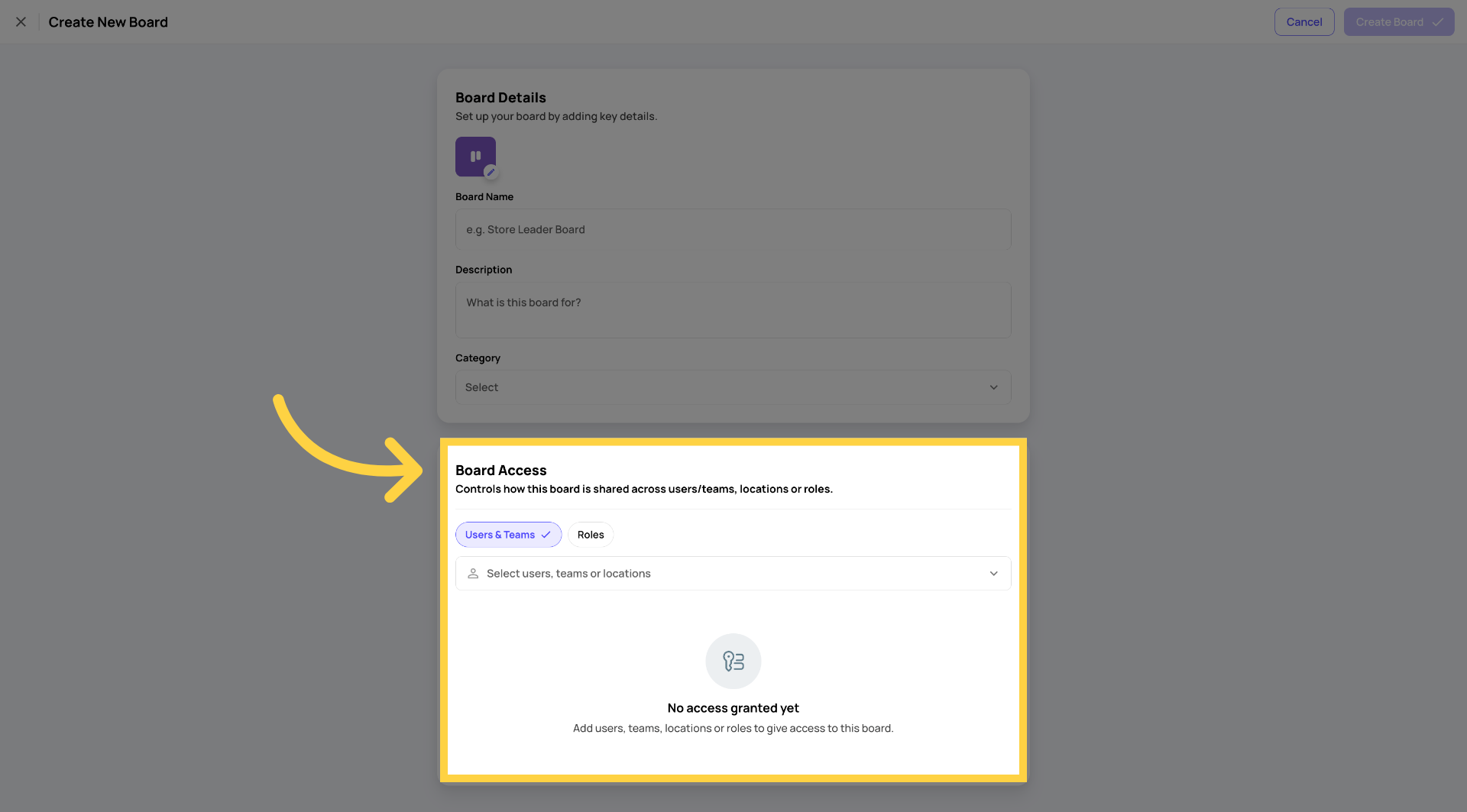
Step 1 — Select Who Gets Access
Choose from four scoping options — you can use any combination:
Locations — all users at the selected location(s) with board access permissions get access
Teams — all members of the selected team(s)
Roles — all users with the selected role(s) at the selected location(s)
Individual users — specific named people
Participants who are already on the board appear pre-selected and locked in the picker — you can't accidentally remove them from this step.
Step 2 — Settings
Configure notification settings for the new participants. The notify toggle is off by default. If turned on, a role/user picker appears so you can select who receives the notification.
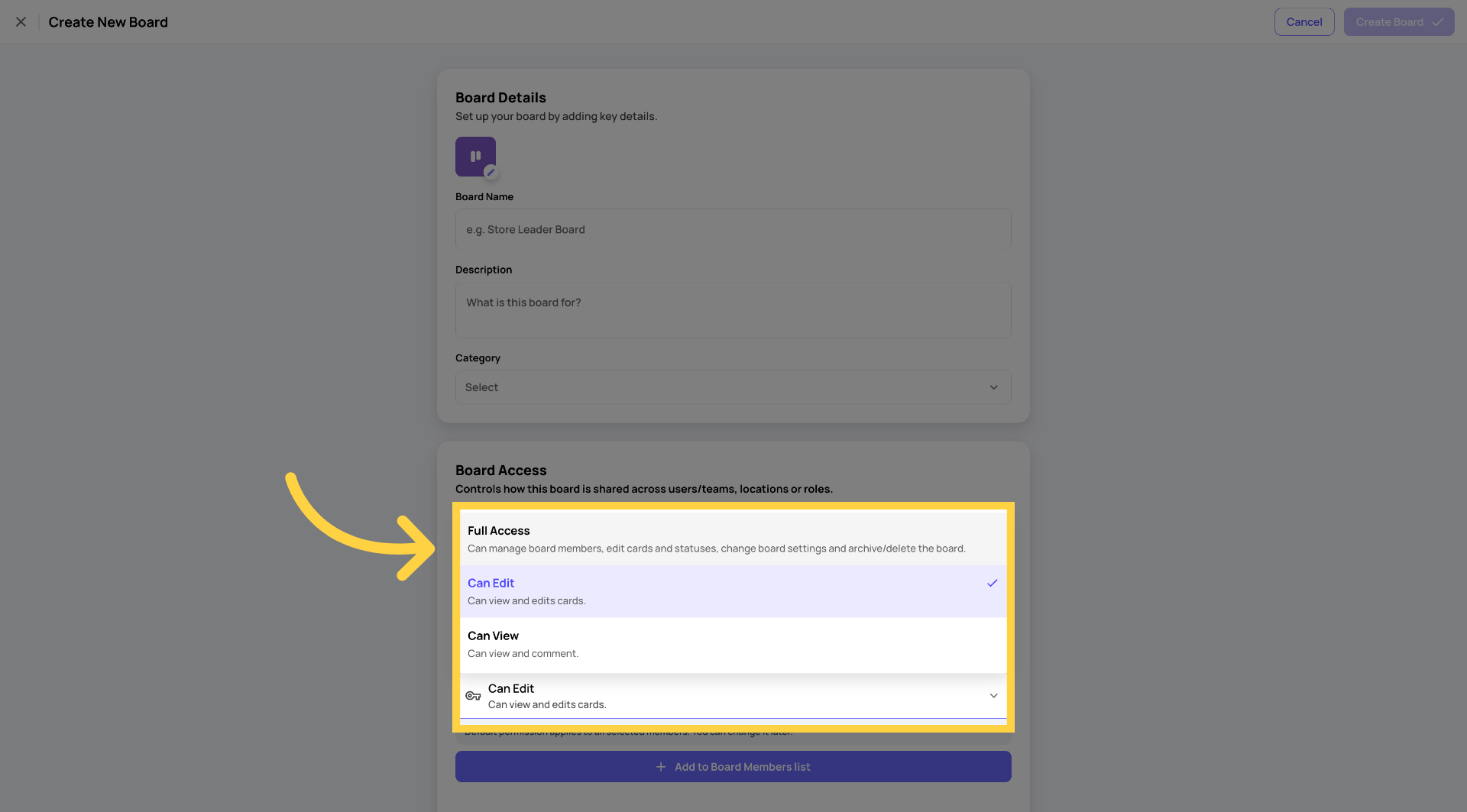
Step 3 — Review & Confirm
Review the full list of who will have access. Confirm.
On confirm:
The board status changes from Draft to Published
The board becomes immediately visible for all granted participants
A "Shared" visual tag appears on the board card in list view and in the board canvas topbar

The "Shared" Tag
All boards are shared boards — multiple locations and/or users collaborate on one live board. The "Shared" tag is visible on:
The board card in the Boards list view
The board canvas topbar
Shared boards display a read-only Origin field on each card showing which location/user created that card.
What Shared Means in Practice
On a shared board, all participants see the same live board at the same time. When someone moves a card, everyone sees it move. When someone adds a card, it appears for everyone.
The Origin field on each card is read-only — it shows which location or user created the card, helping multi-location teams understand where work is coming from.
Permissions — Who Can Do What
Boards uses Xenia's existing role permission system with the following board-specific capabilities:
Capability | Admin / Owner | Full User | Basic User |
Create & publish boards | ✅ | ❌ | ❌ |
Manage board access (share with locations/teams/roles/users) | ✅ | ❌ | ❌ |
Create cards on any board they have access to | ✅ | ✅ | ❌ |
Assign cards to others | ✅ | ✅ | ❌ |
Delete cards | ✅ | ✅ | ❌ |
Manage labels | ✅ | ✅ | ❌ |
Update cards assigned to me | ✅ | ✅ | ✅ |
View all boards across locations & teams | V2 | V2 | ❌ |
Key takeaways:
Only Admins and Owners can create boards and manage who has access
Full Users can fully participate — creating cards, assigning, managing labels, deleting cards
Basic Users can only update cards that are assigned to them
No role can see all boards across all locations in V1 — access is always board-by-board
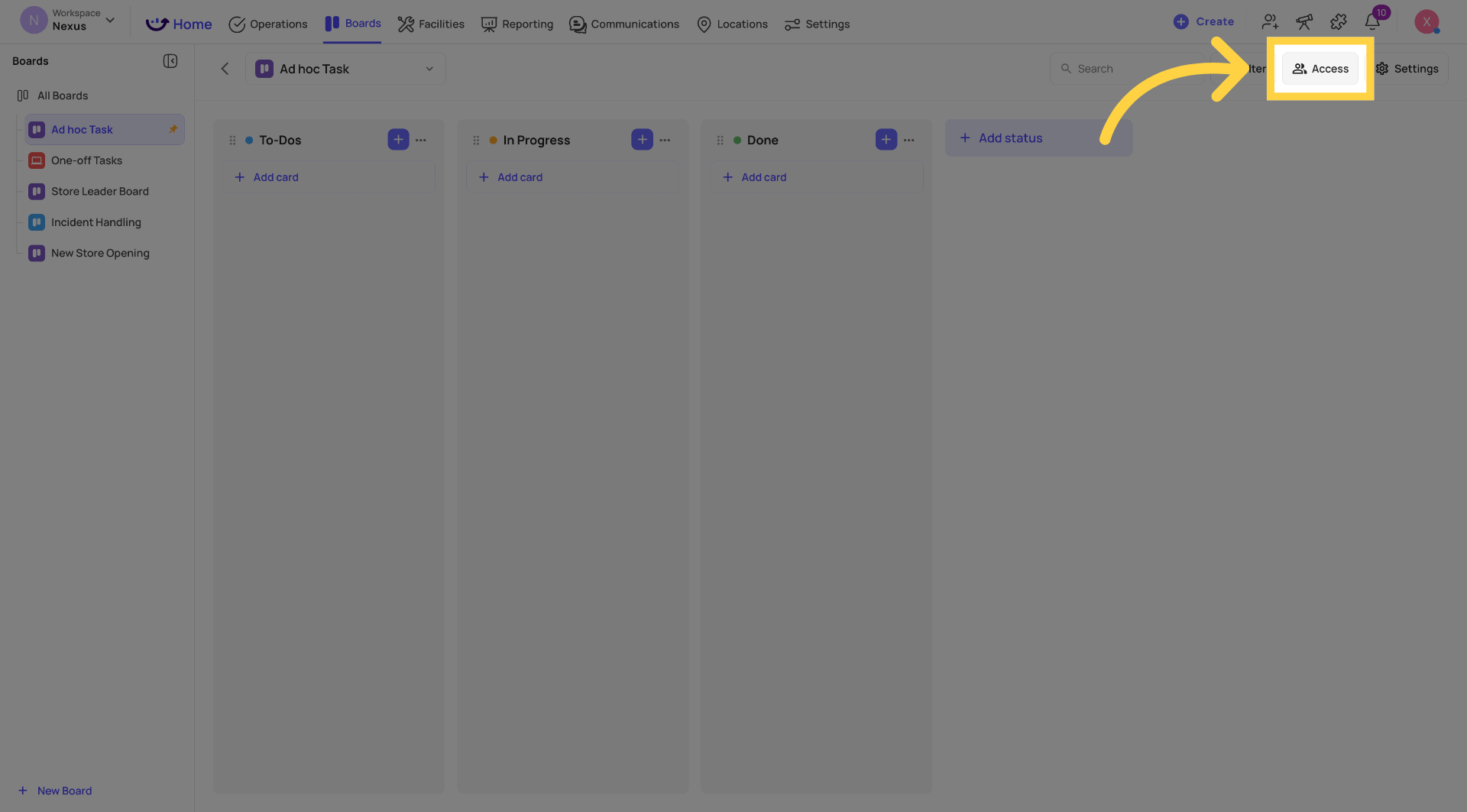
Accessing the Board Access Settings After Creation
To update board access at any time:
Open the board
Open the Customize panel (right-side panel)
Find the Access section
Use the same 3-step flow to add or adjust participants
Role-Level Permission for Boards
In addition to board-level access, there are two role-level permission toggles in Settings → Users & Teams → Roles:
Can access boards — whether this role can see and use boards at all
Can create boards — whether this role can create new boards (in V1, Admin/Owner only)
These role-level toggles control access at the workspace level. Board-level access then provides finer control within that.

This article detailed how to manage board access and assign roles within Xenia. You learned to add users, teams, locations, and configure permissions to control board collaboration effectively. For more information, see related articles on user management and board settings.
Need Help?
Reach out to our Support Team at Support@xenia.team