08 Role-Based Homepage Layout Options
Last updated: October 19, 2026
This article explains the six homepage layout options available in Xenia. You'll learn how to choose and assign the right layout for each role to improve team adoption and efficiency.
Homepage Layout Options
Why Homepage Layout Matters
The homepage is the first thing every user sees when they open Xenia on web, mobile, or tablet
The wrong layout creates friction and lowers task completion
The right layout means zero confusion — users open the app and immediately know what to do
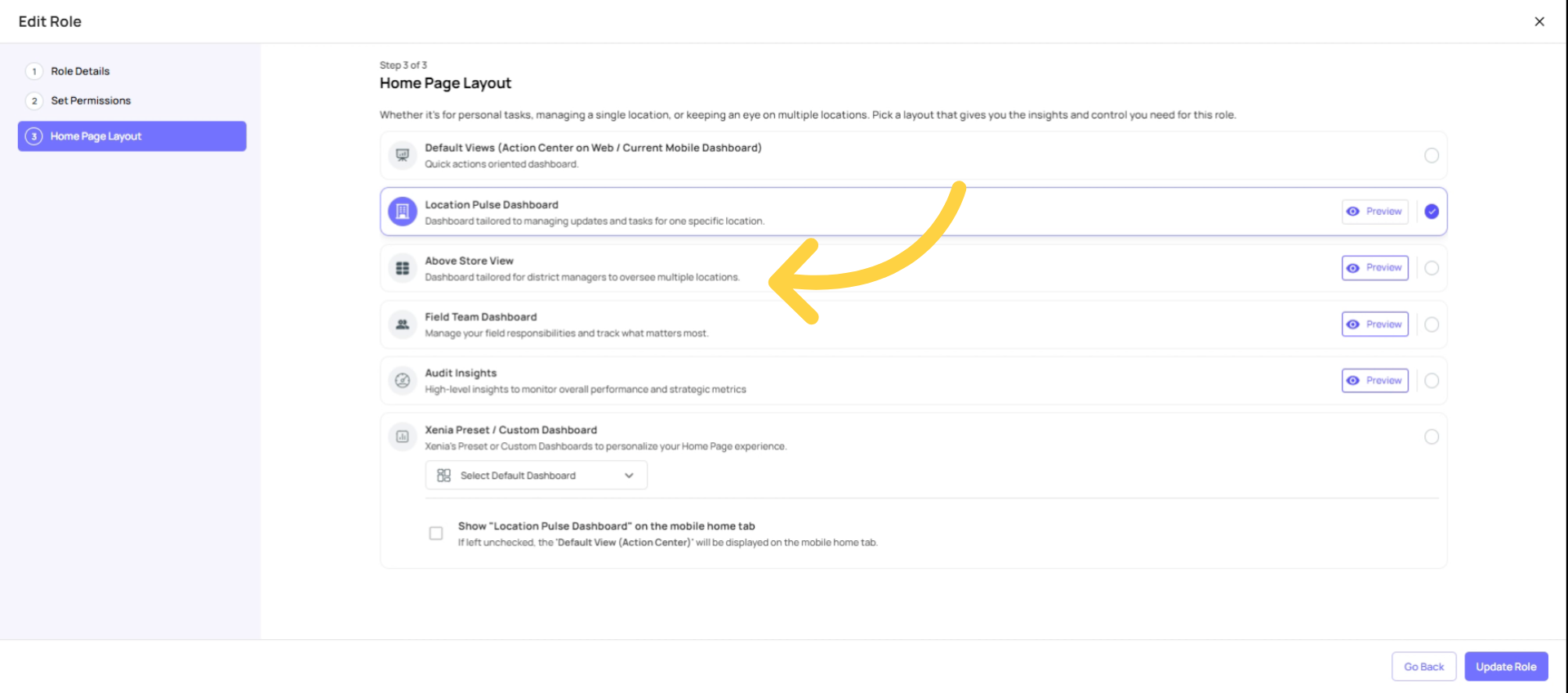
Layout is set per role, not per individual user — configured in Step 3 of role creation/editing
Path: Settings → Roles → Edit → Next → Next → Homepage Layout
Navigate to Role
Go to Settings, Roles. Click on the three dots.
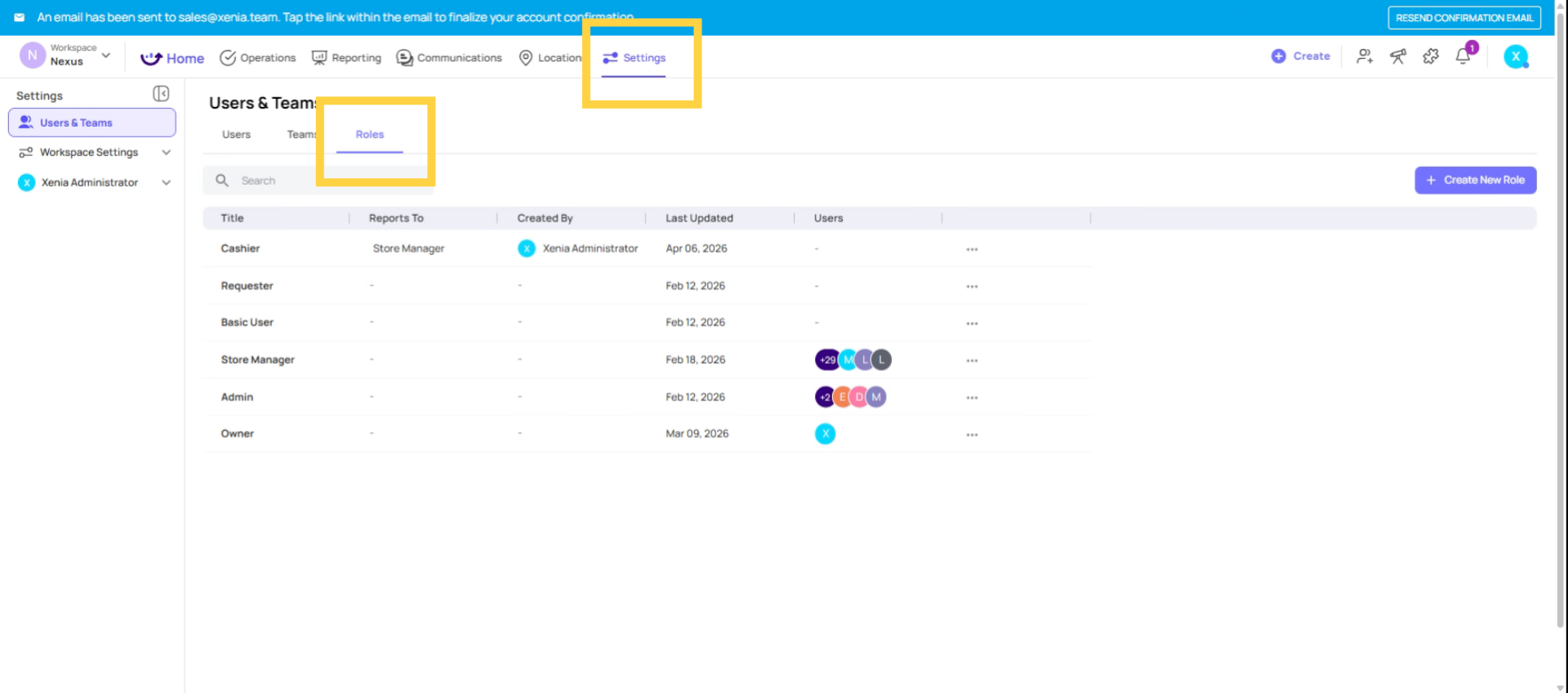
Click Edit Details.

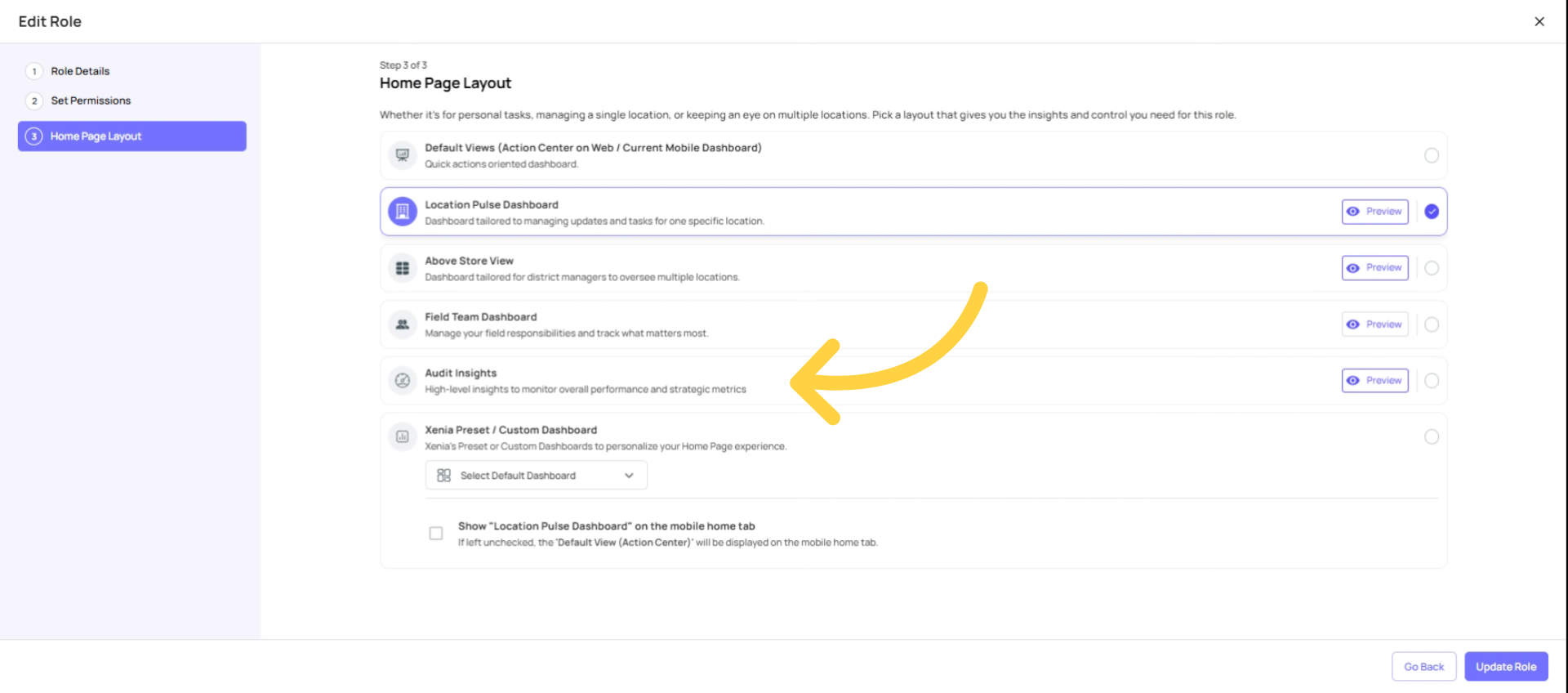
Understand Role-Based Homepage Layout
Access various layout options by navigating to the Home Page Layout section.

Default Views Layout
Layout 1: Default View (For: Admins, Owners, Power Users, anyone who needs full platform access)
The standard Xenia experience — full sidebar navigation, all modules accessible
No special customization; shows the full breadth of the platform
Best for admins managing the workspace, configuring settings, or users who move across multiple modules throughout the day
Not ideal for frontline staff — too many options can be confusing

Location Pulse Dashboard Overview
Layout 2: Location Pulse Dashboard (For: Store Managers, Frontline Crew, Cashiers, Cooks, Shared Store Tablets)
A single-day, single-location focused view
Shows all tasks due today: what's completed, what's pending, what's overdue or flagged
Completion tracking and photos taken visible at a glance
On mobile only: includes a Compliance Tab — allows quick export of submission data (e.g., useful if a health inspector arrives and needs to see recent temp logs)
Drives the highest task completion rates of any layout — because employees see exactly what they need to do with zero navigation
This is the #1 recommended layout for any store-level or frontline role
Best for: Any role working at a single location whose primary job is completing tasks and checklists

Mobile / Tablet App Location-Level View: See Video Guides Here For More Information -> View Tasks/Checklist Assignments that are Due Today in Xenia
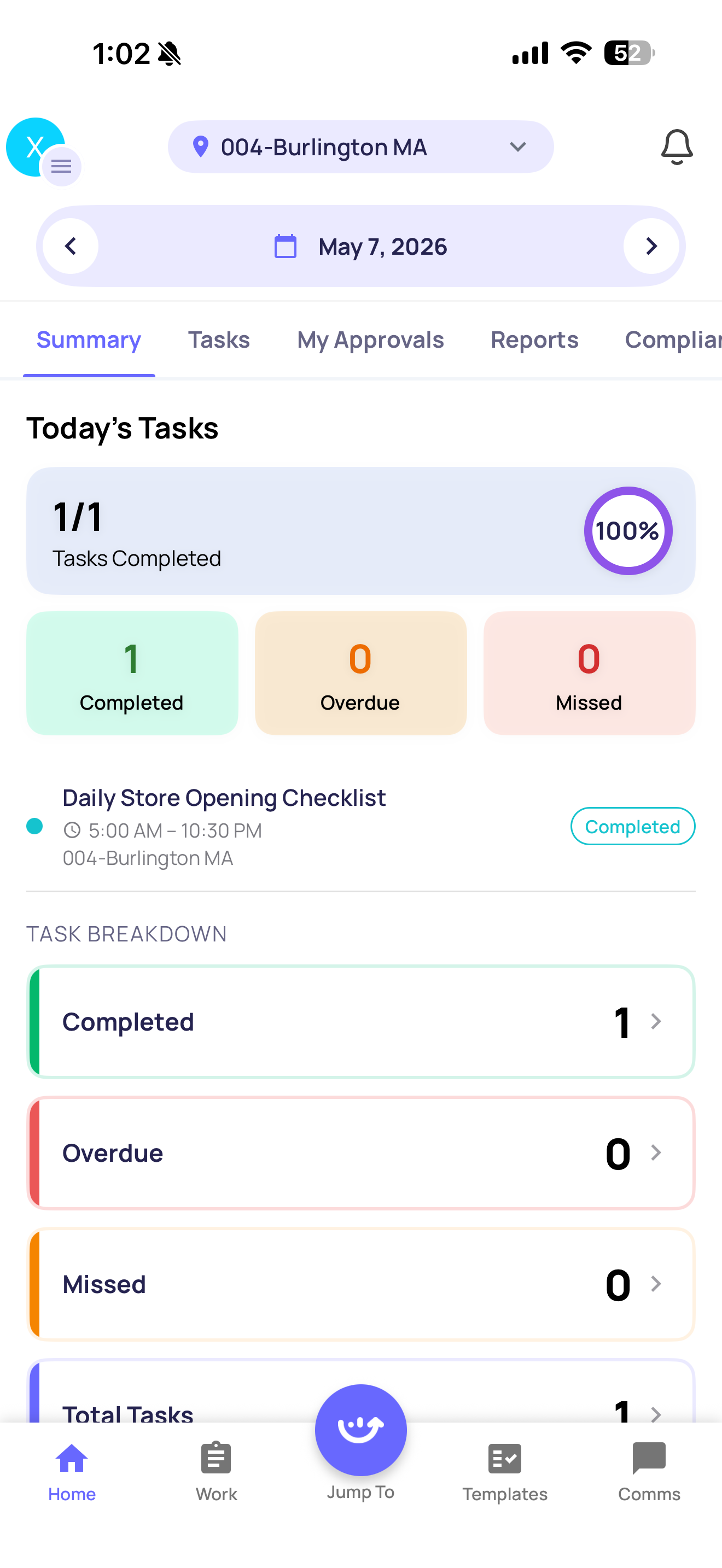
Web / Desktop App View:

Above Store View Overview
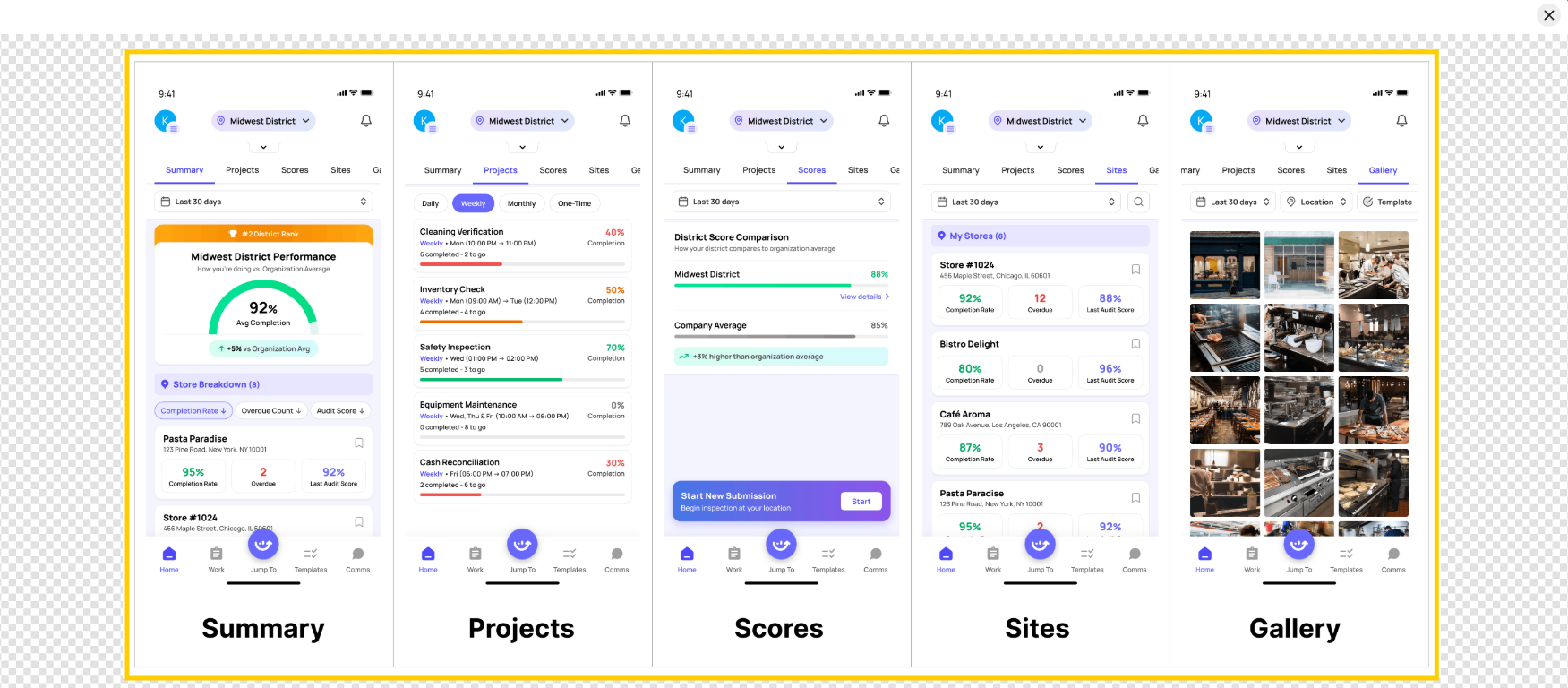
Layout 3: Above Store View (For: Regional Managers, District Managers, Area Managers — anyone overseeing multiple locations)
A multi-location overview that shows operational health across all assigned locations, not just one
Lets RMs and DMs see completion status, overdue tasks, and performance across their entire portfolio of locations at once
Respects location membership — each manager only sees data for their locations
Allows drilling down from a region/district level into specific sites
Replaces the need for managers to manually check each store one by one
Best for: Any role that manages 2+ locations and needs a bird's-eye view of what's happening across their territory — without getting lost in individual store details
Field Team Dashboard Overview
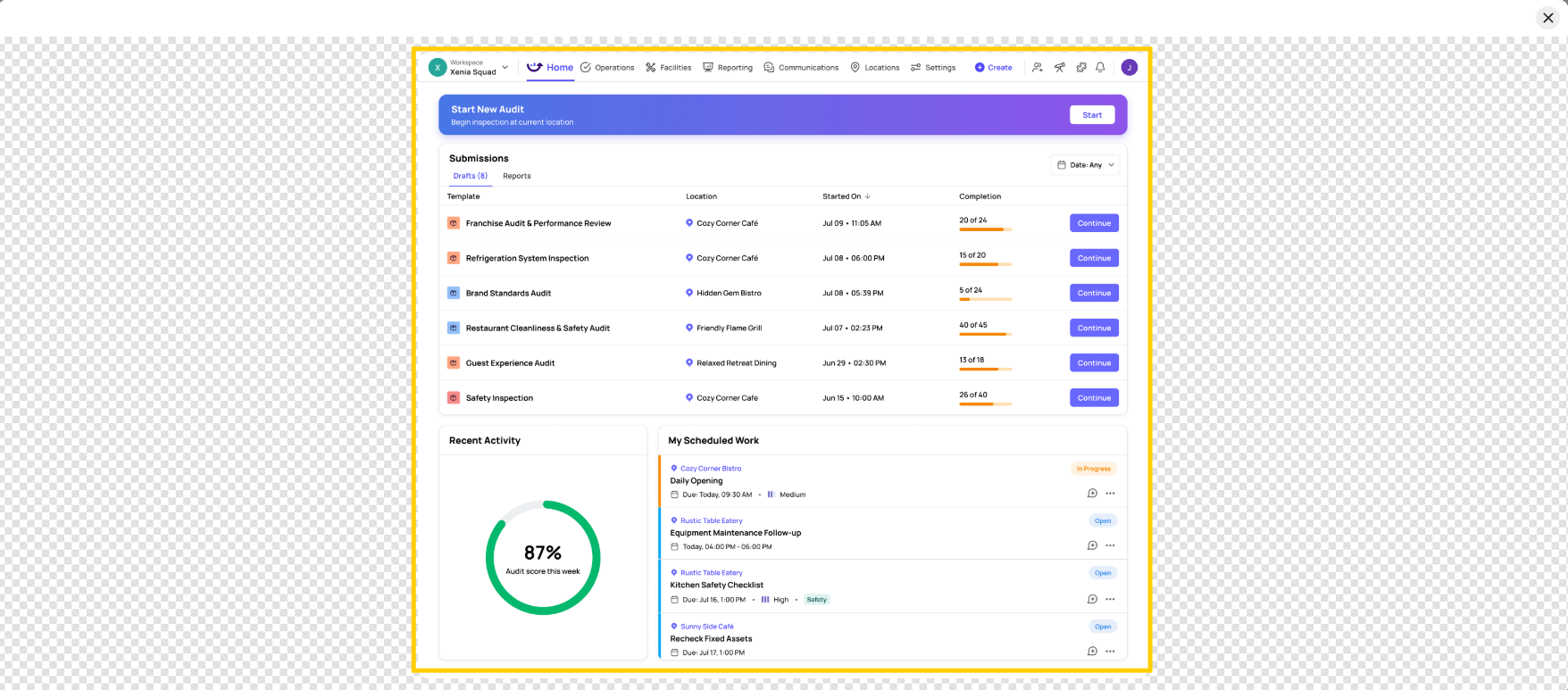
Layout 4: Field Team Dashboard (For: Field Auditors, Field Inspectors, Area Coaches, anyone who moves between locations)
Designed for users who are on the move visiting locations and conducting reviews
Surfaces relevant tasks, submissions, and flagged items for the locations the field team member is currently visiting or assigned to
Streamlined for action — see what needs attention at each site, complete audits, log findings
Works well on mobile and tablet for users who aren't desk-based
Best for: Field roles that visit multiple locations in a day — auditors, inspectors, area coaches, support staff who travel to stores

Audit Insight Dashboard
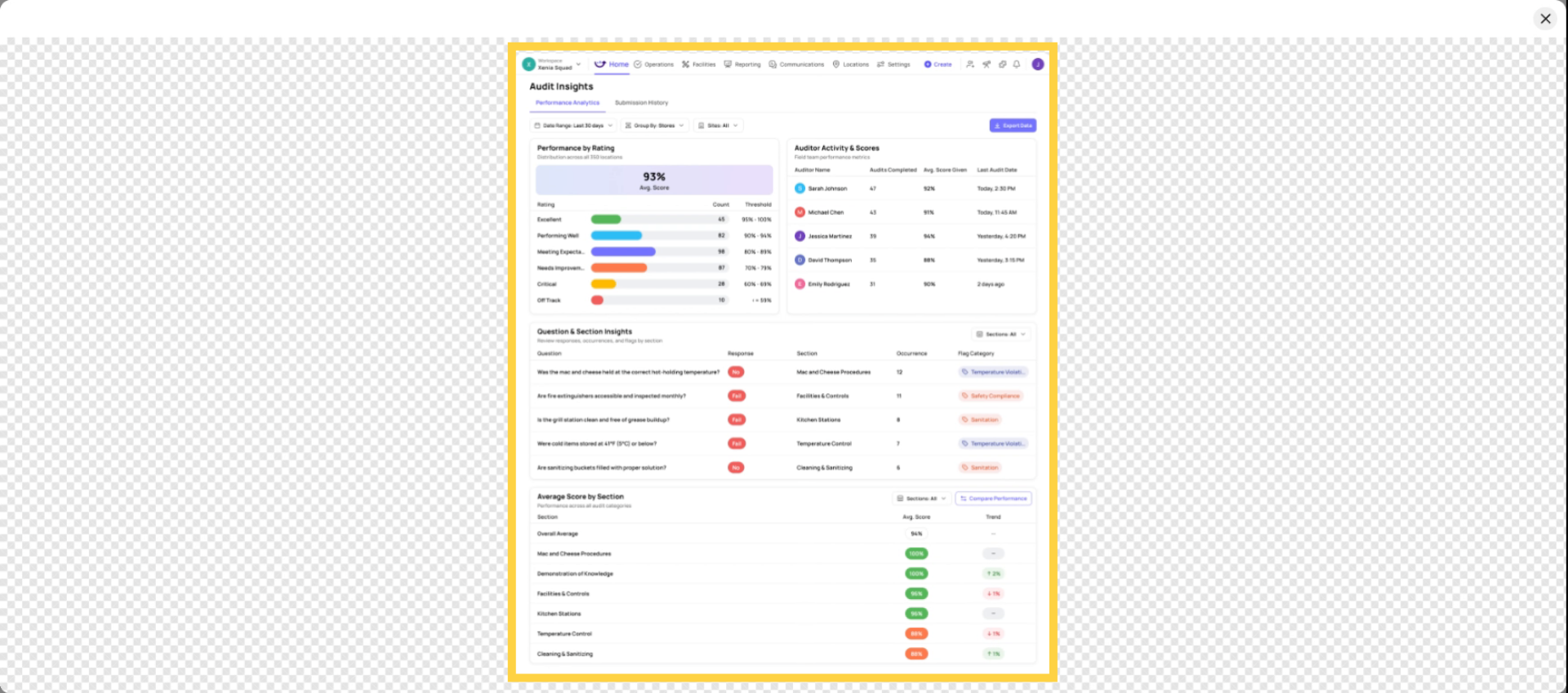
Layout 5: Audit Insights Dashboard (For: Quality Assurance Managers, Compliance Officers, Ops Directors, anyone running scored audits)
A Xenia preset dashboard purpose-built around audit and inspection data
Shows aggregate audit scores across locations — with color-coded thresholds (e.g., green = passing, yellow = warning, red = failing)
Section-based scoring: breaks down audit performance by section within a checklist (e.g., Food Safety section vs. Cleanliness section), not just total scores
Surfaces the most common flagged items and failure patterns across all locations
Allows comparison by location, district, region, or franchise group
Ideal for organizations running formal audit programs (quality walkthroughs, brand standard audits, food safety inspections)
Best for: Any role whose primary responsibility is monitoring audit compliance and quality performance across multiple locations
Custom Dashboard Features
Layout 6: Xenia Preset Custom Dashboards (For: Regional Directors, VPs of Operations, C-Suite, any leadership role needing analytics on their home screen)
Fully customizable dashboards built using Xenia's widget-based dashboard builder
Can include any combination of: completion rate charts, flagged item summaries, issue counts by category, benchmark comparisons across locations, work order status tracking, trend lines over time
Once built, assigned to a role as its homepage — that role's users see the dashboard the moment they open Xenia
Each role can have a different custom dashboard scoped to their specific data needs and location access
Common examples: Area Manager Dashboard (flagged items + completion by store), Regional VP Dashboard (weekly trends + district benchmarks), GM Dashboard (today's tasks + open corrective actions)
Custom dashboards can also be emailed automatically to stakeholders on a schedule
Note: Custom dashboards must be built first in the Reporting module before they can be assigned as a homepage layout. See the Custom Dashboards section for a full setup guide.
Best for: Leadership and analytics roles that need real-time operational intelligence — not task execution — when they open Xenia

Combine Dashboard Options (Custom Dashboard and Location Pulse)
And you can also show location pulse dashboard along with Xenia preset custom dashboard. And if it's left unchecked, the default view action will be displayed on the mobile home tab.

Quick Reference: Which Layout for Which Role?
Role | Recommended Layout | Why |
Cashier / Crew / Cook | Location Pulse | Daily tasks, single location, no clutter |
Store Manager | Location Pulse | Store tasks + others at their location |
Shift Manager | Location Pulse | Single location task view |
Area / District Manager | Above Store View | Multi-location operational overview |
Regional Manager | Above Store View or Preset Custom | Portfolio visibility + analytics |
Field Auditor / Inspector | Field Team Dashboard | Moving between locations, action-oriented |
QA / Compliance Officer | Audit Insights | Audit scoring, flagged items, thresholds |
Regional Director / VP | Preset Custom Dashboard | Executive analytics, trends, benchmarks |
Admin / Owner | Default View | Full platform access needed |
This article explained the six homepage layout options in Xenia, detailing their features, intended users, and how to assign them to roles for optimized team adoption. For more information, explore related articles on role management and dashboard customization in the knowledge base.
Need Help?
For assistance please reach out to us at support@xenia.team