06 Creating a Simple Checklist or Form
Last updated: October 19, 2026
Before You Build — What to Have Ready
Before opening the template builder, take 5 minutes to plan:
- What is this checklist for?
- Who will complete it?
- How will it be deployed — as a scheduled project every day, or ad hoc on demand?
- What questions need to be answered to confirm the work was done?
You don't need a perfect plan, but having a rough sense of the steps in mind makes building much faster. You can always add, remove, or reorder later.
Navigate To Template Creation
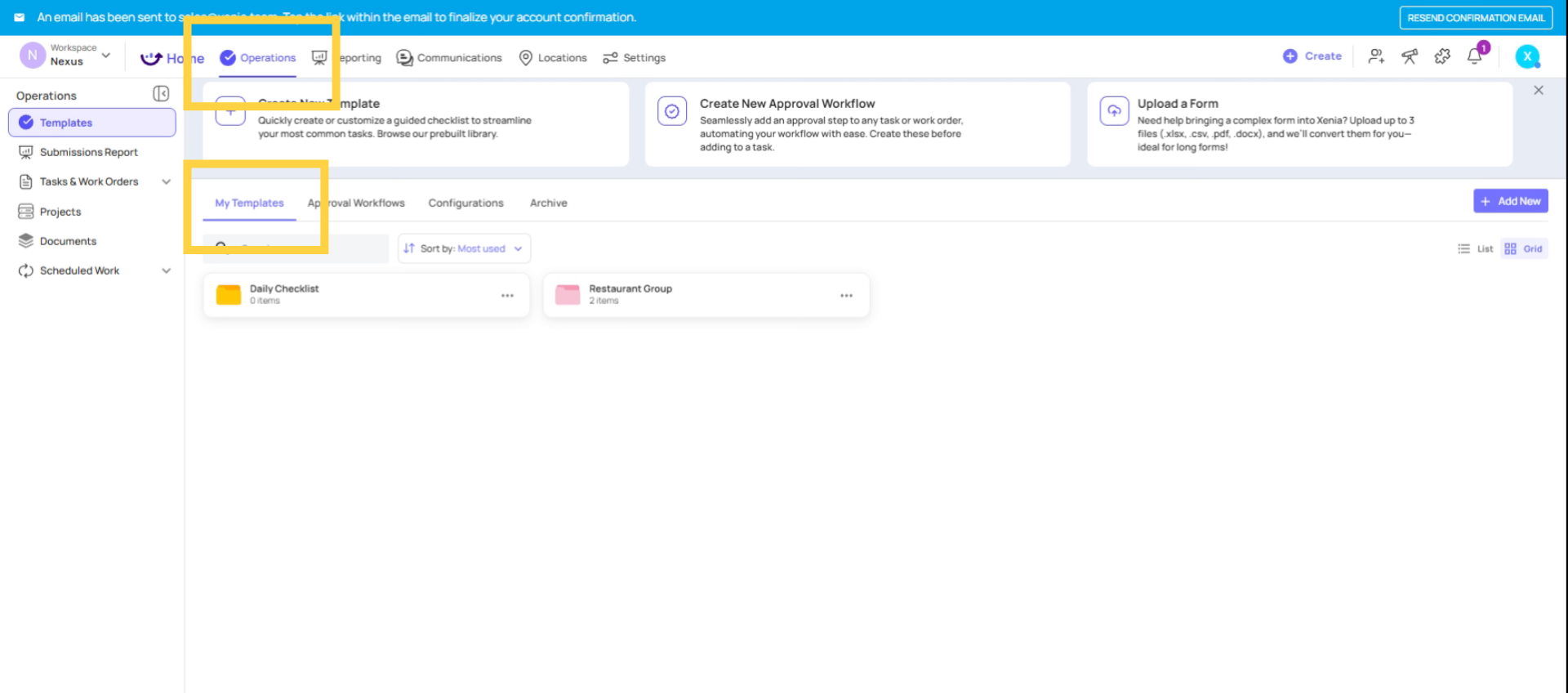
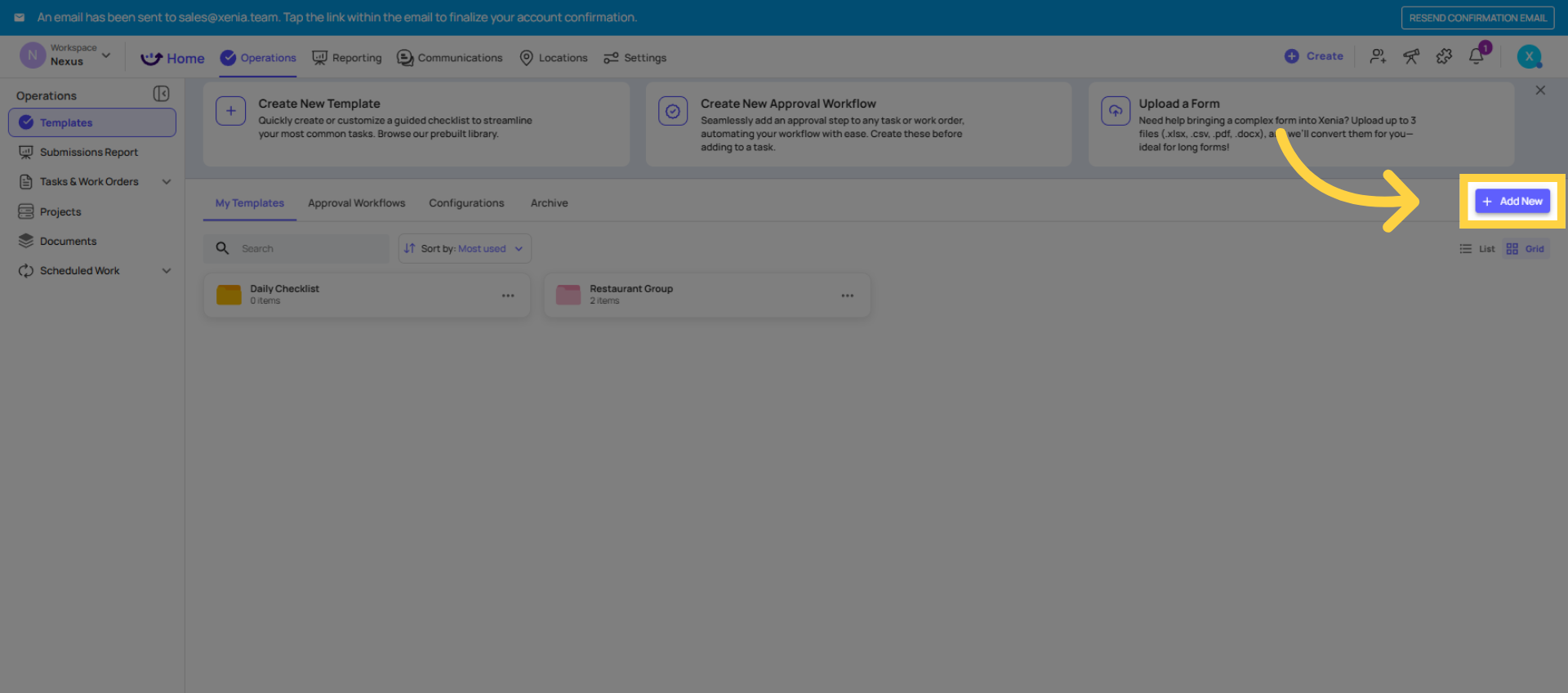

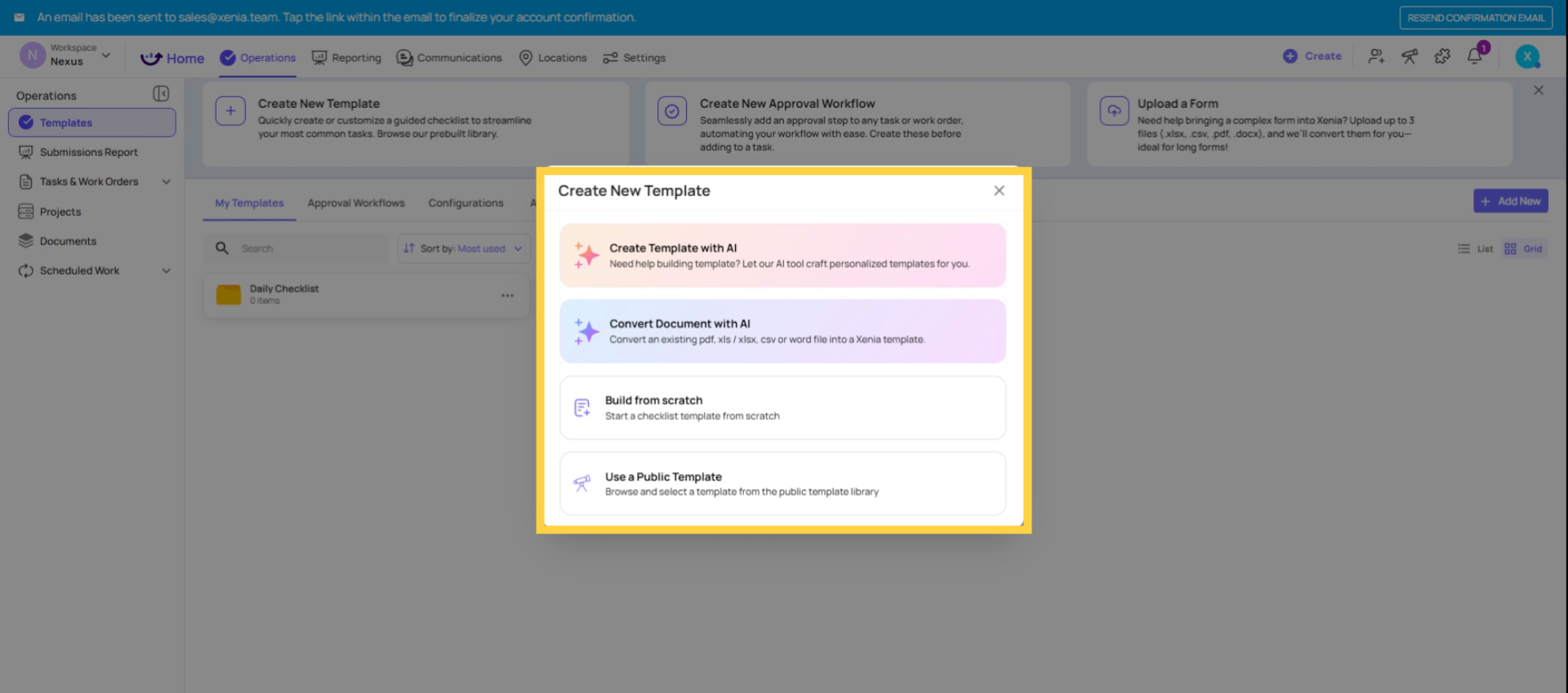
Review Template Creation Options
Ways to Start a Template
Option A — Build from Scratch Full control; start with a blank canvas
Option B — Use the AI Template Builder Type a prompt (e.g., "Daily restaurant opening checklist") and Xenia generates a full template for you to customize — fastest way to get started
Option C — Use the Template Library Xenia has hundreds of ready-to-use templates (checklists, SOPs, inspections, logs, surveys) — find one close to what you need, save it to your workspace, and customize from there
Option D — Convert a Document with AI Best when: you already have an existing checklist in PDF, Excel, or Word format and want to convert it into a Xenia template without rebuilding it step by step.
Path 1 — Build from Scratch
Best when: you know exactly what your checklist needs and want full control from step one.
- Go to Operations → Templates
- Click + Add New or Create Template
- Select Build from Scratch (or just name and create)
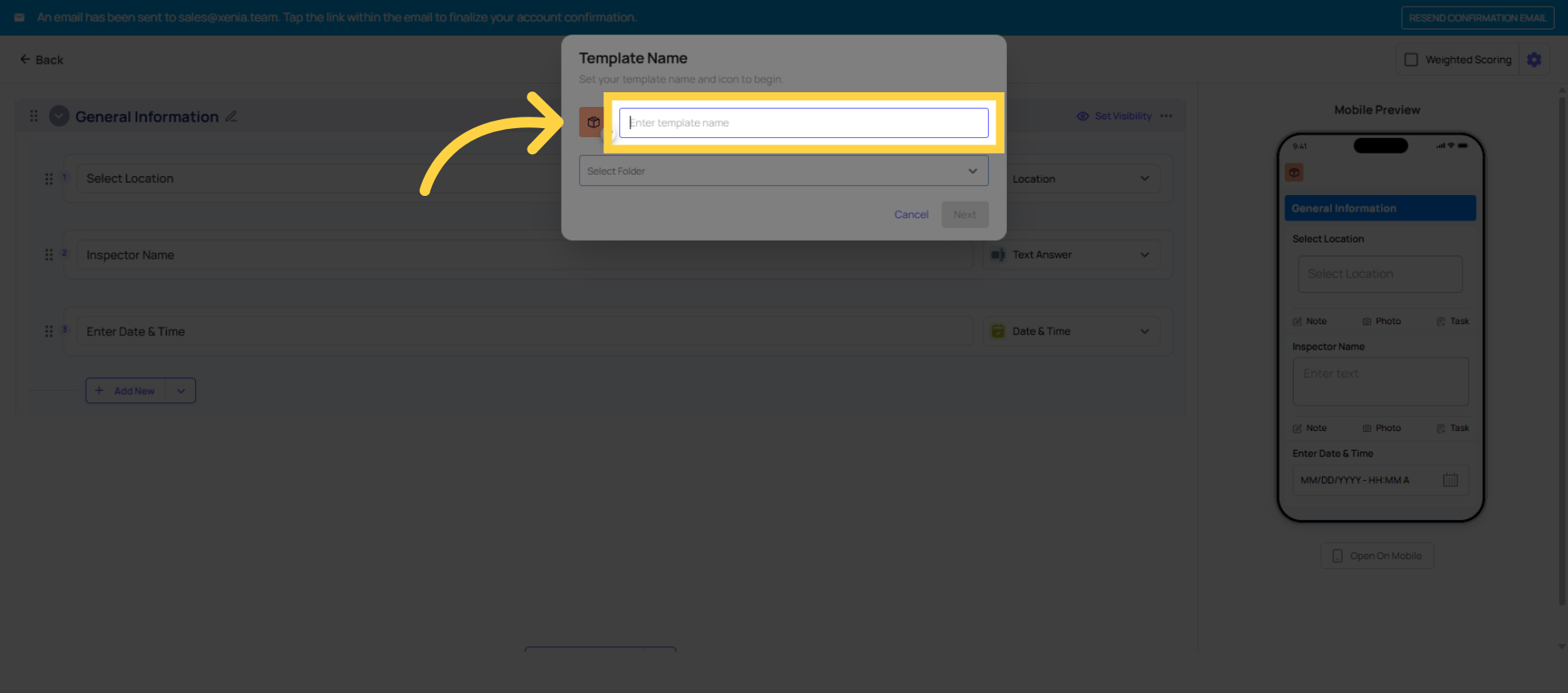
- Give the template a clear, specific name — "Daily Opening Checklist" is better than "Opening." "Walk-in Cooler Temperature Log" is better than "Temp Log."
- Choose a folder (or create one)
- Click Create — you're now in the template builder

Path 2 — Convert a Document with AI
Best when: you already have an existing checklist in PDF, Excel, or Word format and want to convert it into a Xenia template without rebuilding it step by step.
- Go to Operations → Templates
- Click + Add New → select Convert Document with AI (sometimes labeled Upload a Form or Convert with AI)
- Upload your existing document — PDF and Excel are the most common formats used. Word documents are also supported.
- Xenia's AI reads the document and converts it into a template with steps, sections, and step types mapped from the content of your file
- Review the generated template — check that steps were correctly interpreted, step types make sense (a yes/no answer should be Multiple Choice, a temperature should be a Temperature step, etc.)
- Edit any steps that need adjustment
- Add the Select Location step at the top if it isn't already there — this is required for projects, notifications, and reporting to work correctly
- When satisfied, click Done
- Proceed to Settings (Step 4) and Publish (Step 5)
Important notes on Convert Document with AI:
- AI conversion is not perfect — it's a strong starting point, not a finished template. Always review every step before publishing.
- Complex Excel files with merged cells, formulas, or non-standard formatting may not convert as cleanly as a simple PDF or Word document. If your file is complex and the conversion doesn't look right, contact the Xenia support team — send the file to templates@xenia.team and the team can convert it manually for you.
- If you encounter an error during conversion, the fastest path is to send the file directly to the Xenia support team rather than troubleshooting the upload.
Path 3 — Build with AI (Prompt-Based)
Best when: you're starting from scratch but want a head start — type a description of what you need and AI generates a draft template for you.
- Go to Operations → Templates
- Click + Add New → select Build with AI or Create with AI
- Choose the template type (Checklist, Inspection, Form, etc.) and your industry (Restaurant, Retail, Healthcare, etc.)
- Type a prompt describing what you want. The more specific, the better. "Create a daily restaurant opening checklist covering front of house, kitchen, and safety procedures" gives better results than "opening checklist."
- Click Generate — Xenia builds a draft template based on your prompt, pulling from its internal template database
- Review the generated steps, sections, and structure. You can edit the prompt and regenerate, or click into individual steps to modify them.
- When satisfied, click Done
- Add the Select Location step at the top — it's often not included automatically in AI-generated templates and is required for everything downstream to work
- Proceed to Settings and Publish
The Template Builder: Three Tabs
When you open a template for editing, there are three tabs:
- Build — where you add/edit all your steps and sections
- Settings — where you configure access controls, submission mode, email notifications, and scoring
- Publish — where you publish the template to make it live for your team

General Information Section
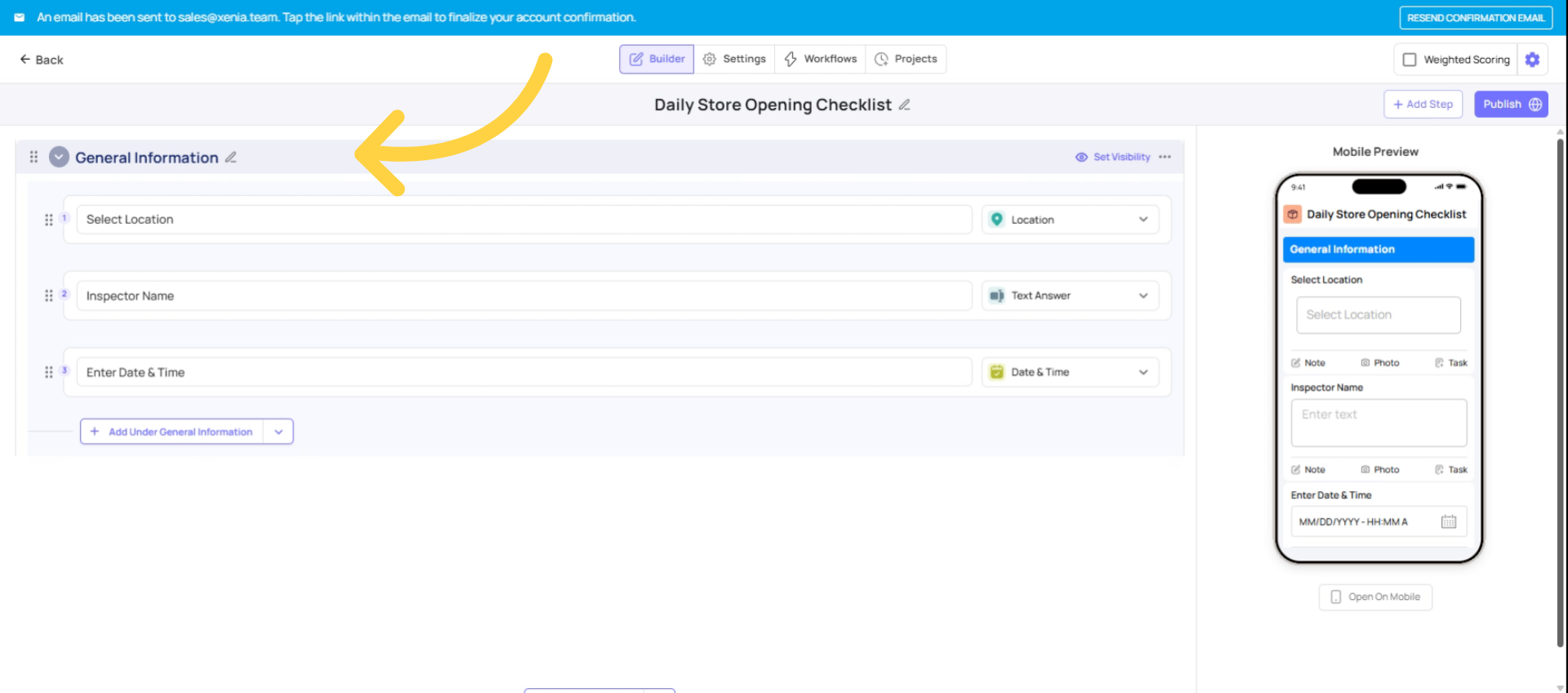
Add and Configure Steps (Build from Scratch)
Add Your First Section
- Sections group related steps together — great for long checklists
- Click Add Section and name it (e.g., "Front of House", "Kitchen", "Safety Checks")
- You can add multiple sections and reorder them by dragging
- Steps added inside a section belong to that section

Save Changes

Configure Settings
Click the Settings tab. Key settings before publishing:
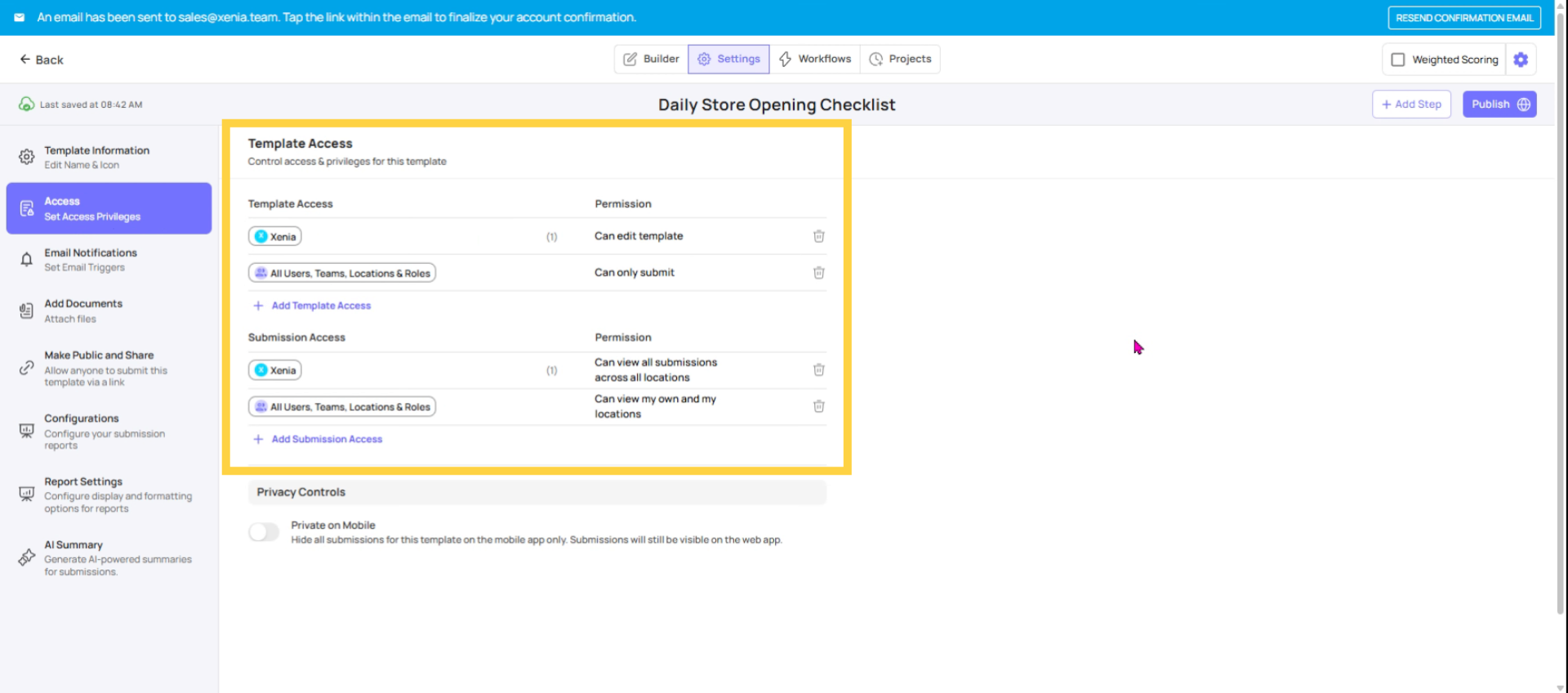
Template Access:
- Can Submit — which roles can see and complete this template
- Can Edit — which roles can open the builder and edit it (typically Admin only)
Submission Access:
- Set the visibility tier per role (Tier 1/2/3)
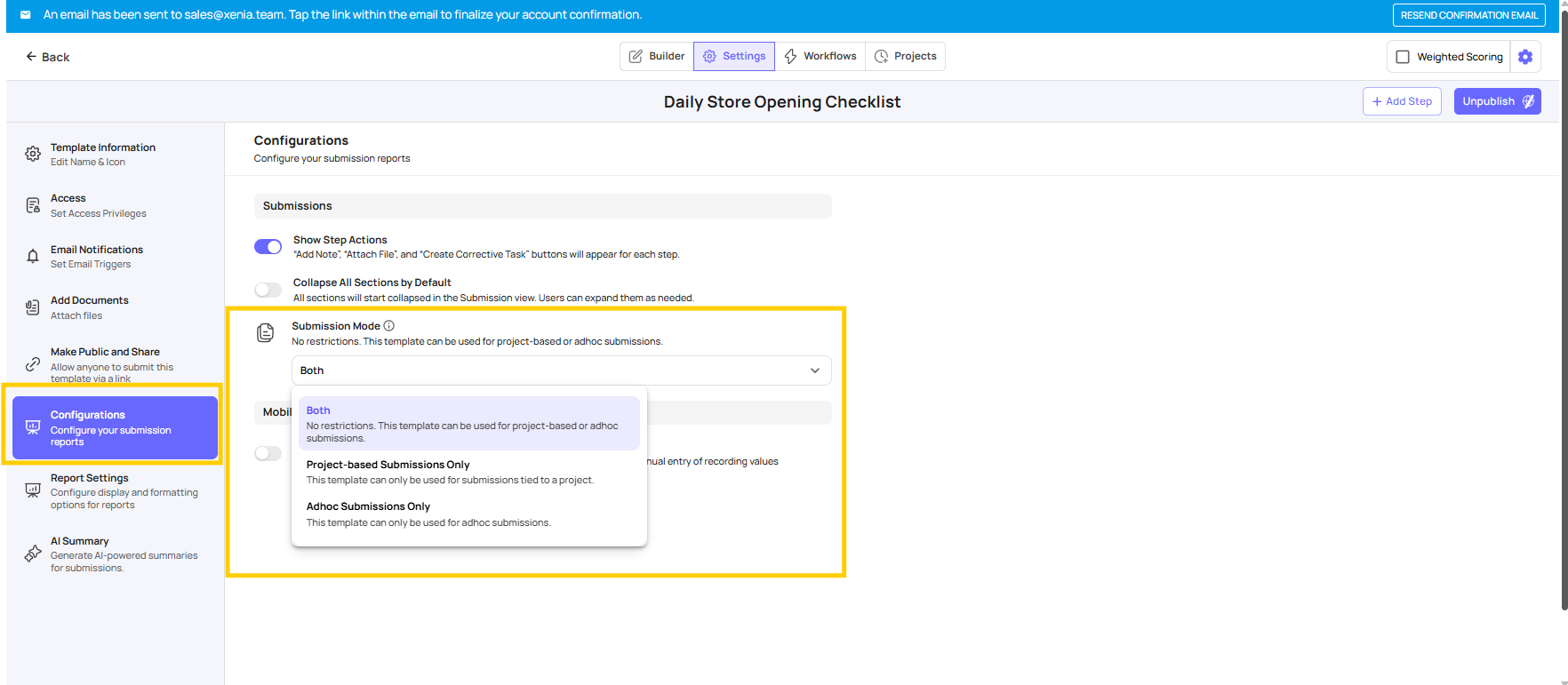
Submission Mode:
- Project-based — only completable as a scheduled assignment
- Ad Hoc — submittable anytime without a project
- Both — either
Overview of Step Types
| Step Type | Use When… |
| Procedure | Simple to-do item — no response needed, just mark done |
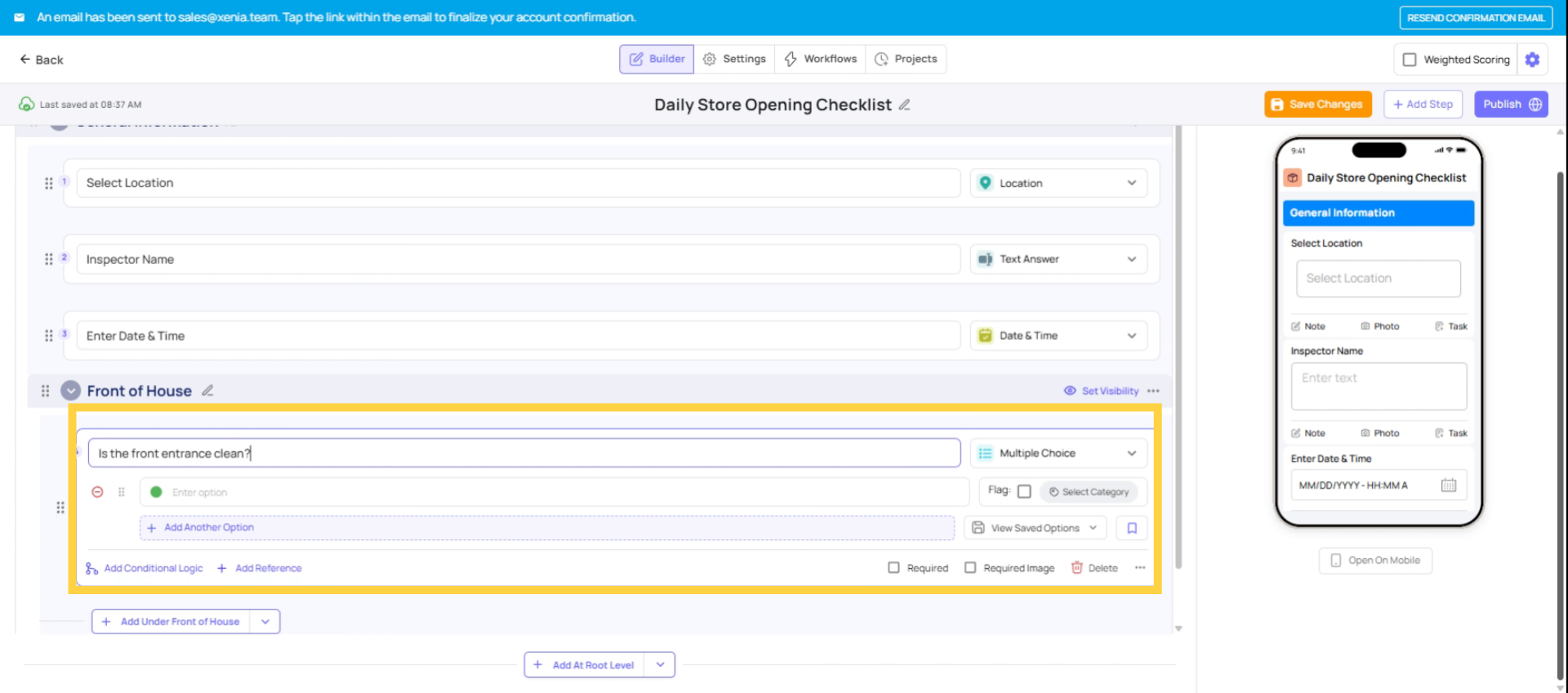
| Yes / No (Multiple Choice) | Binary check — "Is the floor clean?" Yes/No displayed as bright green/red |
| Multiple Choice | Multiple options — customize choices (e.g., Good / Fair / Poor) |
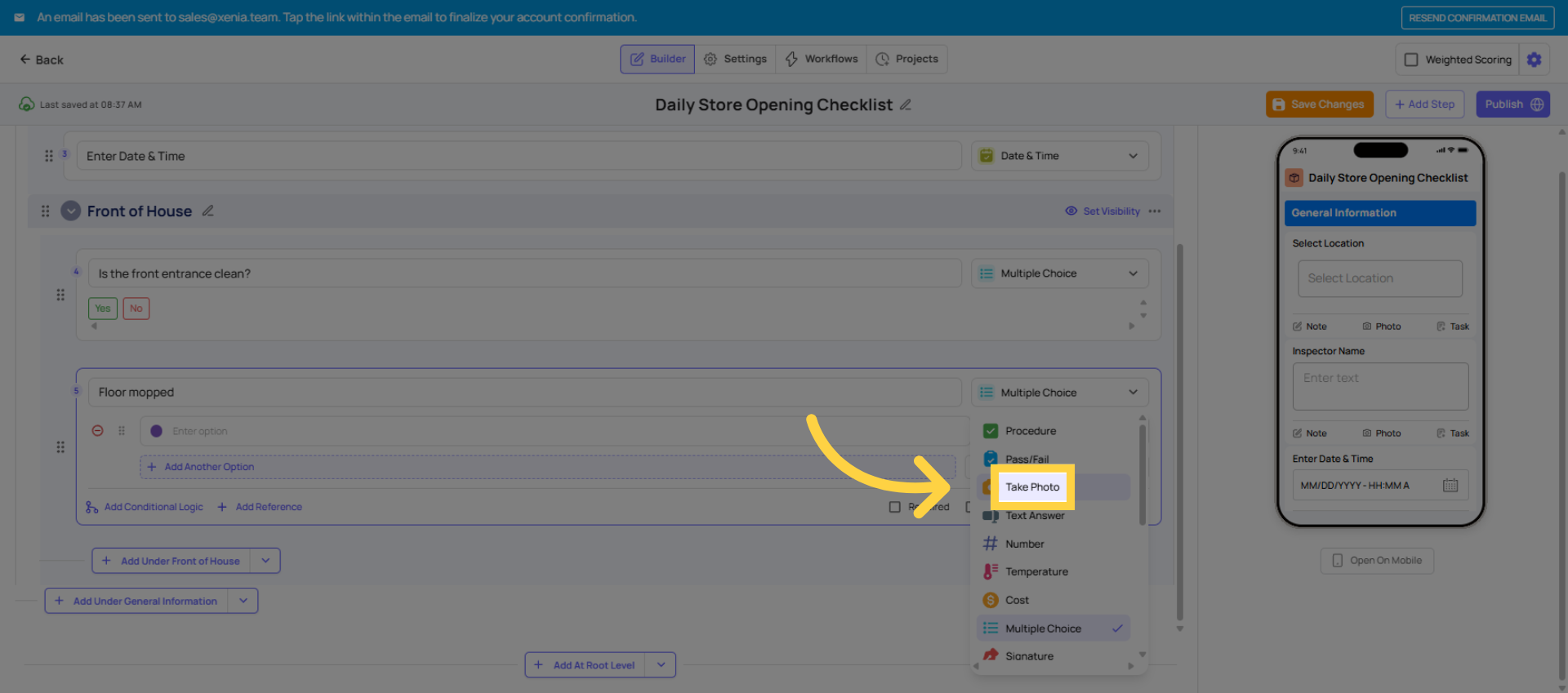
| Take Photo | Force a photo to be taken on the spot — cannot use old camera roll photos |
| Text Field | Written response — notes, readings, free text |
| Number Answer | Numeric input — useful for counts, readings |
| Temperature | Temperature logging in °F, °C, or K |
| Signature | Digital sign-off — great for manager verification |
| Date / Time | Timestamp capture |
| Geostamp | Confirms the user is physically at the location when submitting |
For a simple daily checklist, Yes/No multiple choice steps are the most common starting point — they're fast for employees to complete and clear to read (bright green yes, bright red no).

Yes/No Step Visual Preview
Take photo Step
Required Steps
Make Steps Required
- Toggle Required on any step to force employees to respond before they can submit
- If a required step is skipped, Xenia will block submission and alert the employee
- Use required sparingly — only on truly critical items, otherwise it slows people down

Add Conditional Logic
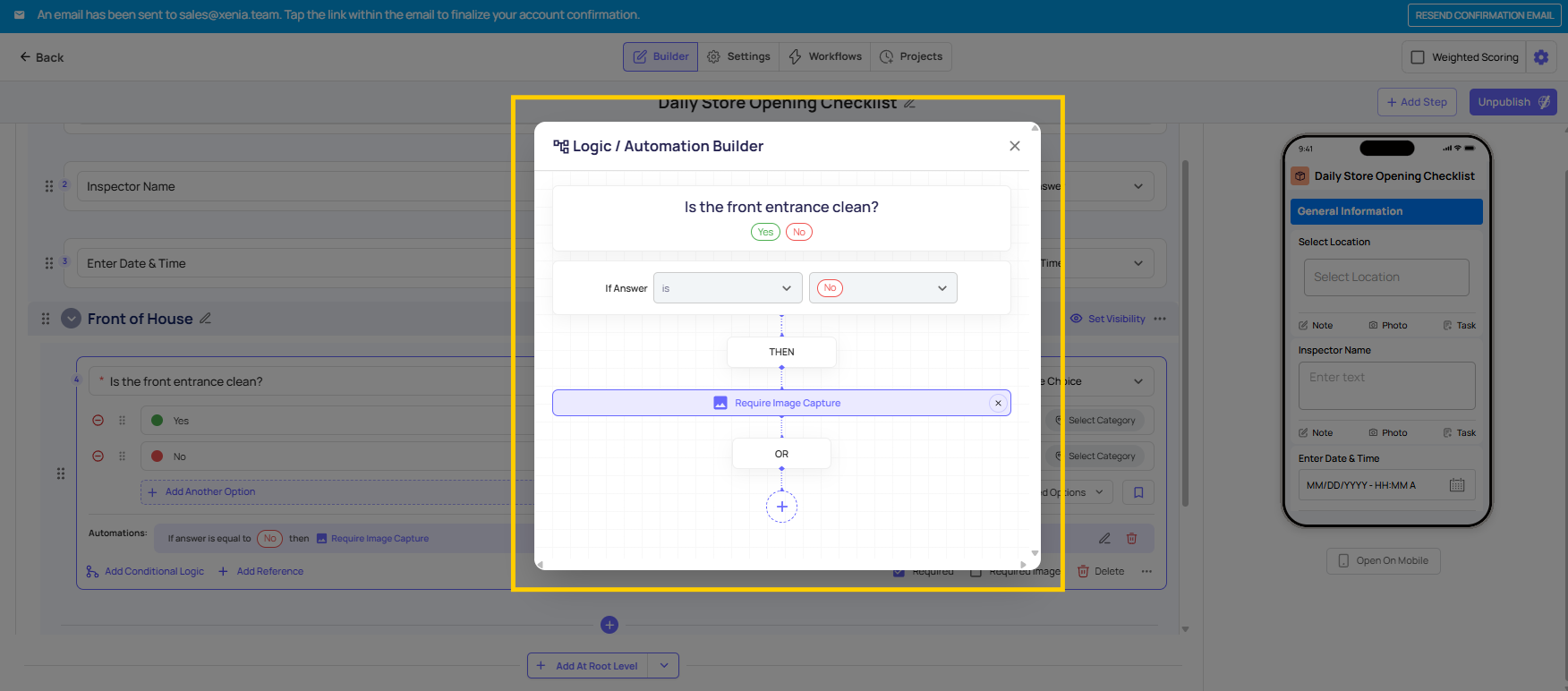
You can require a photo based on a specific answer using conditional logic:
- Click on any Yes/No or Multiple Choice step
- Click Add Automation (or Conditional Logic)
- Set condition: e.g., "If answer is No → Require image capture"
- Now if an employee answers No, a camera popup appears and they must take a real-time photo — they cannot use old images from their camera roll
This is one of Xenia's most used features for accountability (e.g., "Is the bathroom clean? No → Take a photo of the issue").


Settings

Submission Mode Options
-
Submission Mode:
- Project-based — template can only be completed when assigned via a project (use for scheduled recurring tasks)
- Ad hoc — available for employees to complete anytime (use for incident reports, vendor issues, one-off forms)
- Both — can be used either way
Set Template Access

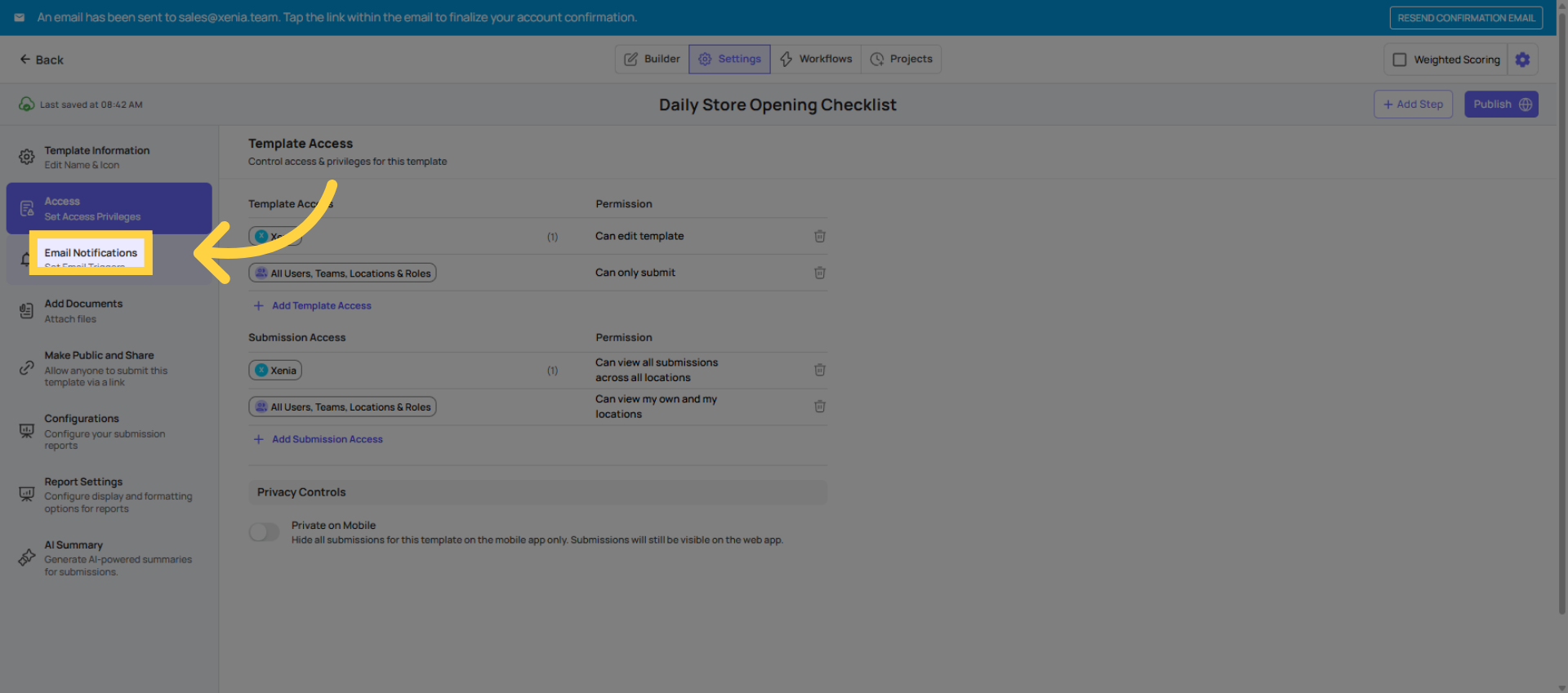
Email Notifications


Publish

Organizing your Templates
- Use folders inside the Templates section to keep checklists organized by type (Daily Ops, Safety, HR, Audits, etc.)
- You can duplicate any template using the three-dot menu — useful for creating location-specific variations
Common First-Checklist Mistakes
| Mistake | Fix |
|---|---|
| No Select Location step | Add it at the top — it's required for projects, notifications, and reporting |
| Forgetting to publish | Publish tab → Publish |
| Assuming AI conversion is complete | Always review and edit every converted step before publishing |
| Building 40+ steps with no sections | Break long checklists into sections |
| Not checking the mobile preview | Use the preview pane before publishing |
Need Help?
For assistance please reach out to us at support@xenia.team