How to Change Your Notification Preferences (push, email, SMS, none)
Last updated: October 19, 2026
Where to Find Notification Settings
Open the Xenia app
Tap your profile icon or initials in the top left corner
Tap Notification Settings
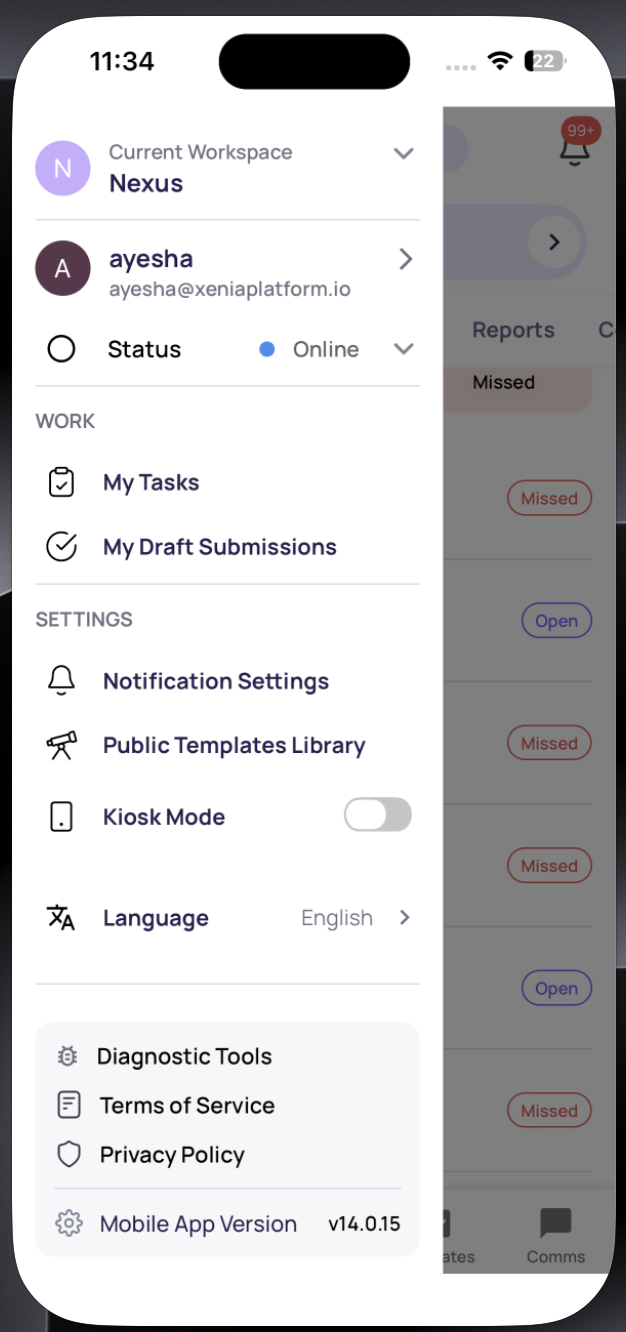
Two Things You Can Configure
The Notification Settings screen has two sections: Pause Notifications and Notification Channels.

Pausing Notifications Temporarily
Tap Pause Notifications to silence all notifications for a set period without changing your channel settings.
Choose from:
Pause for 30 minutes
Pause for 1 hour
Pause for 2 hours
Pause for 24 hours
Pause for 1 week

Notifications resume automatically when the pause period ends. Your channel settings are not affected.
Changing Your Notification Channels
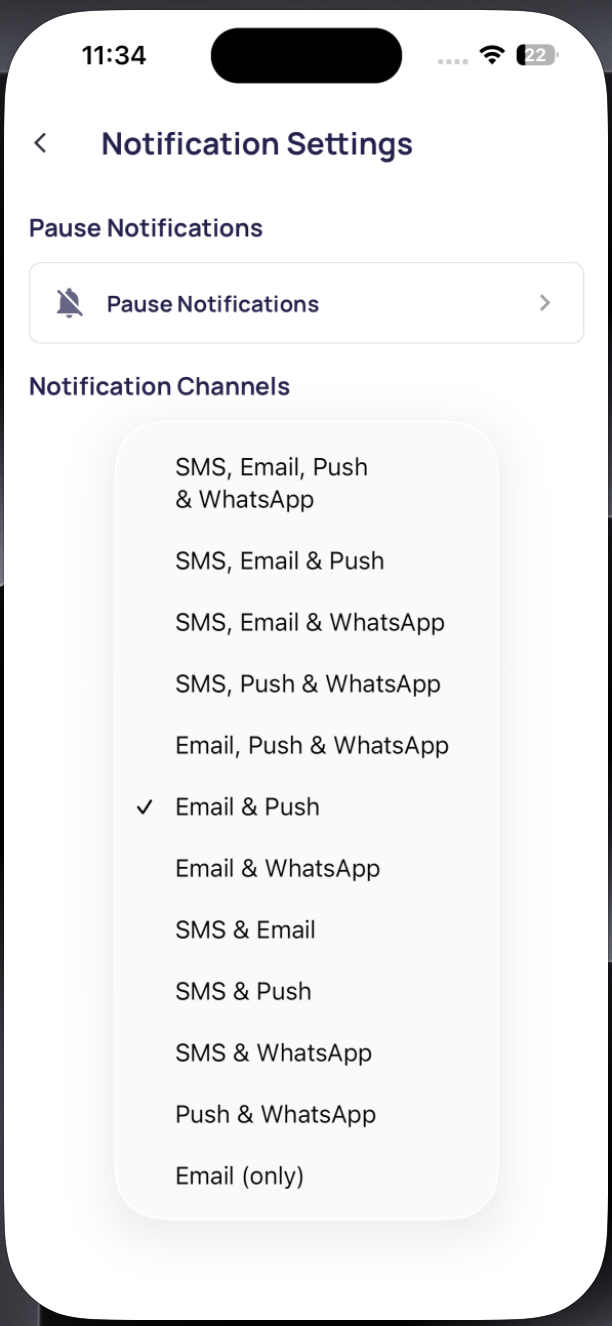
Tap Notification Channels to select which delivery methods you receive notifications through. The current selection is shown underneath (e.g. "Email & Push").
Choose any combination:
Option | What It Includes |
|---|---|
SMS, Email, Push & WhatsApp | All four channels |
SMS, Email & Push | No WhatsApp |
SMS, Email & WhatsApp | No push |
SMS, Push & WhatsApp | No email |
Email, Push & WhatsApp | No SMS |
Email & Push ✓ | Default for most users |
Email & WhatsApp |
|
SMS & Email |
|
SMS & Push |
|
SMS & WhatsApp |
|
Push & WhatsApp |
|
Email (only) |
|
Tap your preferred combination and it saves immediately.
If You're Still Not Receiving Notifications
Changing your channel here is only step one. Your device also needs to allow Xenia to send push notifications:
iPhone/iPad: Device Settings → Xenia → Notifications → Allow Notifications ON
Android: Device Settings → Apps → Xenia → Notifications → ON
Both must be enabled for push notifications to arrive. If push is selected in Xenia but not allowed on the device, no push notifications will come through.
Need Help?
Reach out to our Support Team at Support@xenia.team